Repository navigation
Wipe
Back up a DEV or TEST Jamf Pro server, then delete the objects you choose, in an order that respects their dependencies.
🛑 For DEV and TEST servers only. Deletions are permanent. Magic Toolbox can't tell a test server from a production one. Double-check the server name before you confirm. The only way back is Restore, using the backup Wipe makes.
Use Wipe to reset a sandbox, clear out a lab tenant between training sessions, or remove leftovers after testing Clone.
Nothing is selected by default. Types are deleted in this order:
- Advanced Computer Searches
- Advanced Mobile Device Searches
- Policies
- macOS Config Profiles
- iOS Config Profiles
- Restricted Software
- Computer Groups (smart and static)
- Mobile Device Groups (smart and static)
- Scripts
- Computer EAs
- Mobile Device EAs
- Mac App Store Apps
- Mobile Device Apps
- Packages (the package records in Jamf Pro; files on your distribution point aren't touched)
- Categories (No category assigned and Unknown are always skipped)
- Computer Prestages
- Mobile Device Prestages
- Buildings
- Departments
- API Integrations
- API Roles
- App Installers
- Jamf Pro Accounts (admin login accounts)
- Jamf Users (the users in inventory, used for assignment and LDAP)
⚠️ Wiping API Integrations, API Roles or Jamf Pro Accounts can remove the credentials Magic Toolbox itself is signed in with. Wipe marks these This session and, by default, skips them. See Your own credentials.
🛡️ Administrator lockout protection. Wipe won't delete every enabled full-access administrator account. If your Jamf Pro Accounts selection would do that, or if every account is selected, a red warning appears and you can't continue until you untick at least one enabled administrator. Enabled administrators are marked Admin in the item list. An account counts as one when it has Full Access, the Administrator privilege set and is Enabled.
An account whose details couldn't be read is marked Unknown and can't be deleted, because Wipe can't tell whether it's an administrator.
Jamf Pro Accounts are listed in the backup by name only, not their full record, so Restore can't re-create them. Jamf Users are backed up in full.
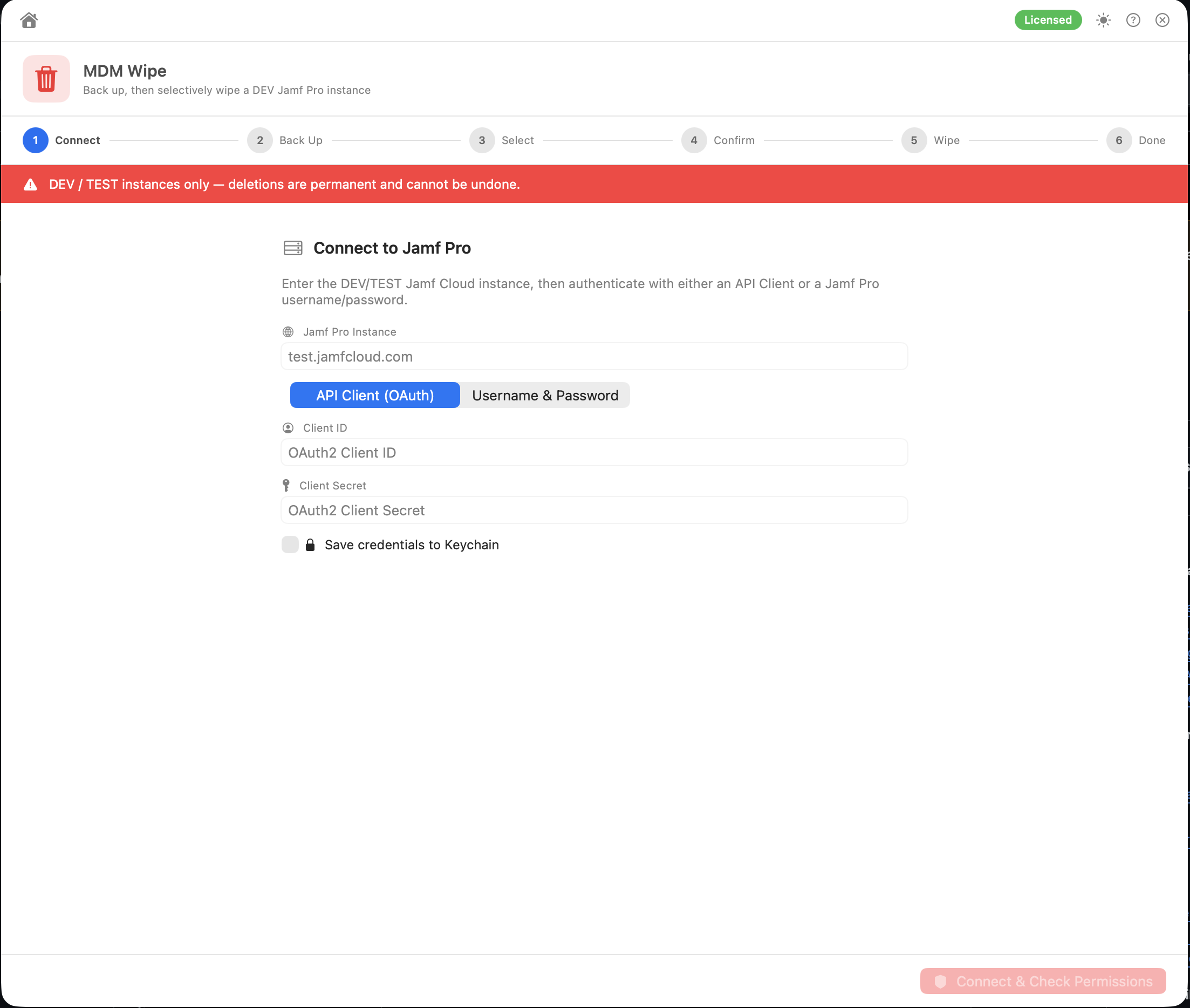
Enter the server details. Three options are on this screen:
- Skip backup: turns off the backup. Not recommended. Without a backup nothing can be recovered.
- Backup passphrase and Confirm passphrase: the backup file is encrypted with this passphrase (shown when Skip backup is off). It must be at least 12 characters, and a strength hint is shown as you type. You need it again to open the backup in Restore. It can't be recovered if you lose it.
- Retry passes (1–10, default 5): how many extra attempts Wipe makes at deletions that failed, usually because something else still depended on the object.
Click Connect & Check Permissions. Wipe checks Read and Delete for every type, then click Continue → (or Proceed Anyway → if some checks failed).
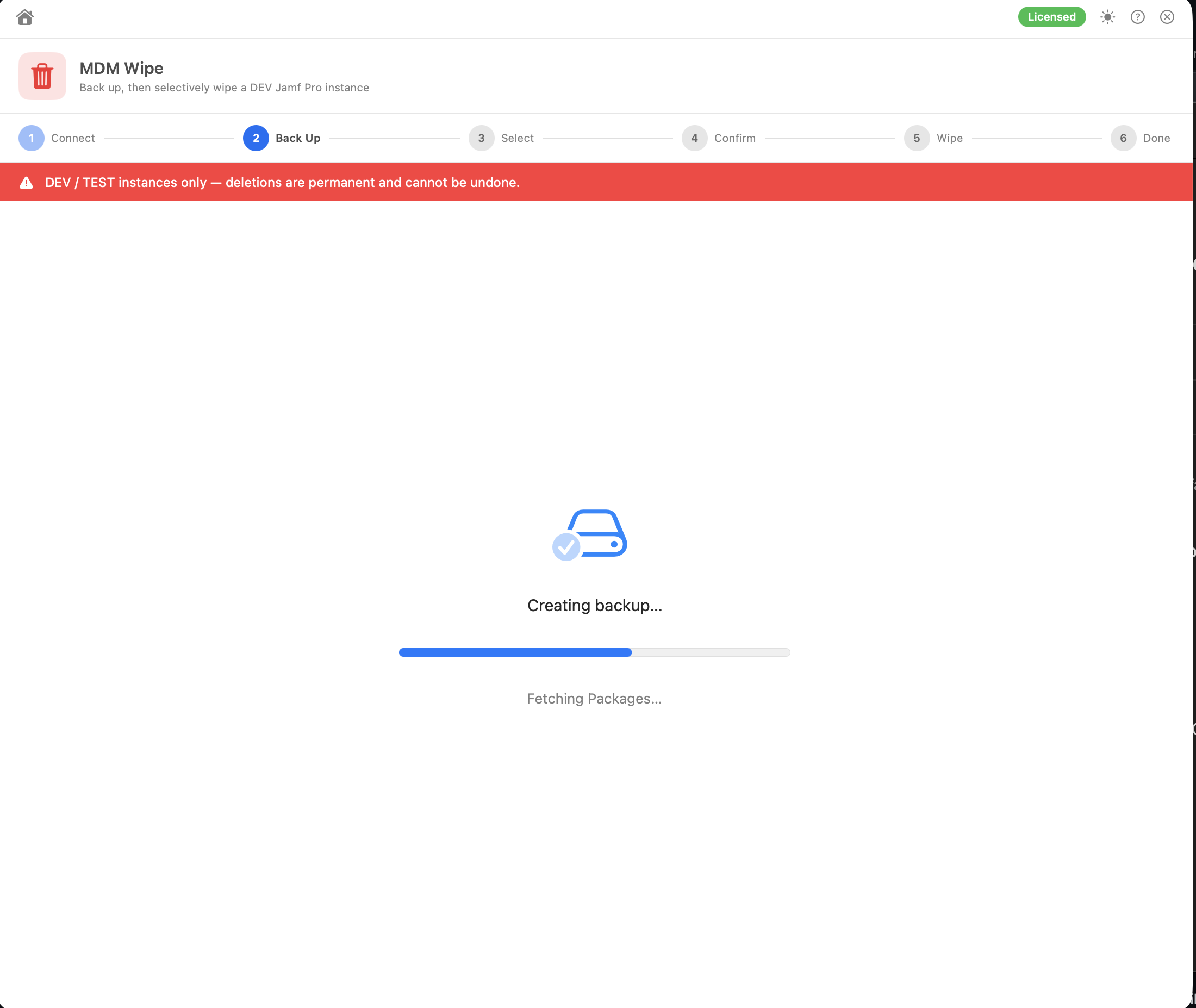
Choose where to save the backup. The suggested name is JamfWipe_Backup_<yyyyMMdd_HHmmss>.json, for example JamfWipe_Backup_20260922_141500.json. If you cancel this dialog, you go back to the start. With Skip backup ticked there's no dialog and nothing is saved, but Wipe still scans the server.
Wipe then:
- lists every object on the server
- works out which objects depend on which (groups, policies, categories, scripts, packages, EAs and App Installers)
- saves the full configuration of every object to the backup file, not just the ones you'll delete
- reads the backup back and decrypts it, to check it was written correctly
- Tick a type to include all of it, or click Choose… (or the type's name) to pick individual items. In the item list, Use All selects every item of that type.
- Select All / Select None work across all types.
- Types that failed to load show Couldn't load and ? instead of a count. Items that couldn't be read are flagged, because their dependencies weren't checked.
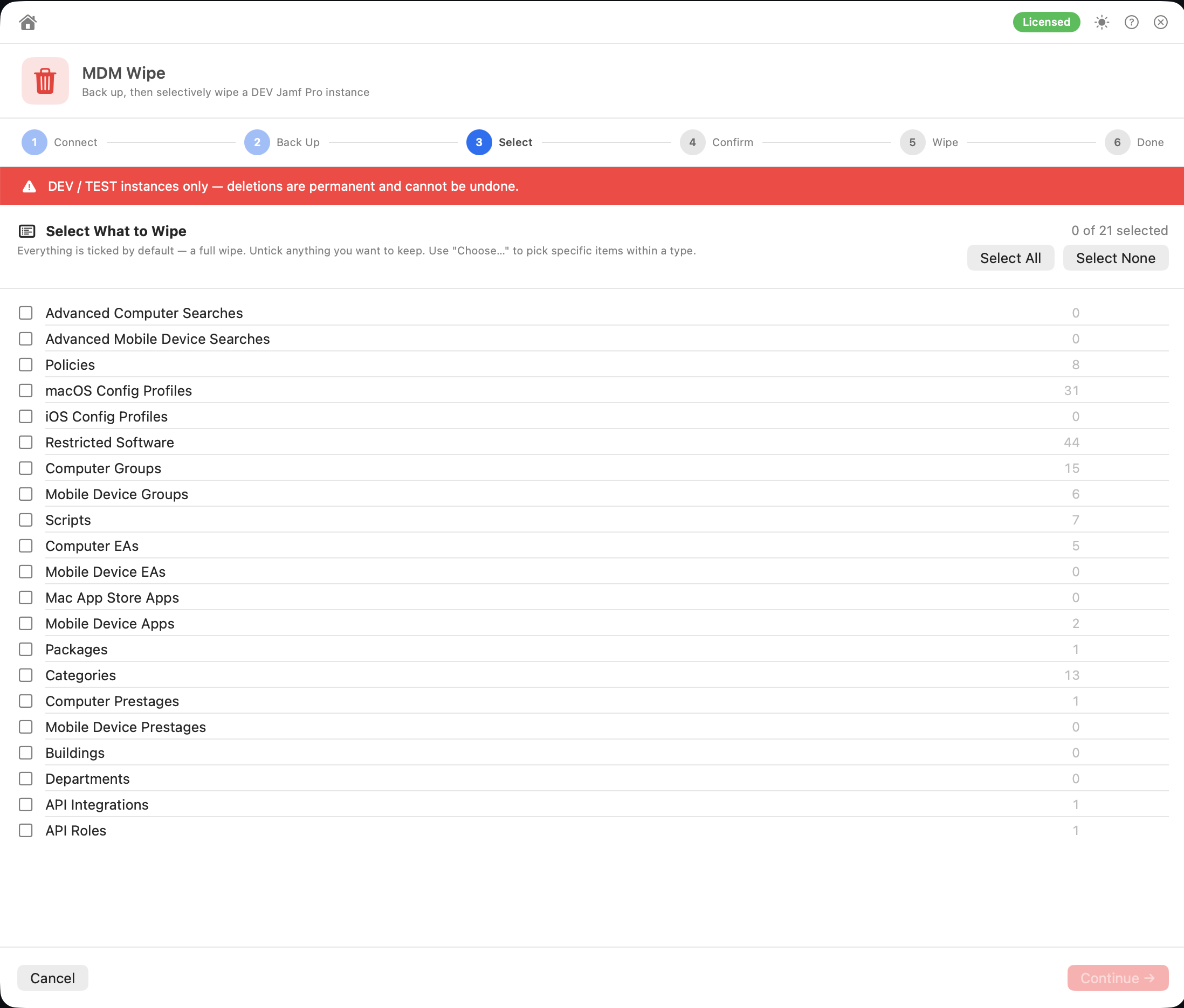
Dependency notes appear as you select. Some are things Jamf Pro won't let you delete while they're in use, for example an EA used as a smart group criterion, or a group used in another group's member of criterion. Others are just related, for example a policy that runs a script you're deleting. Click Continue → when you're ready.

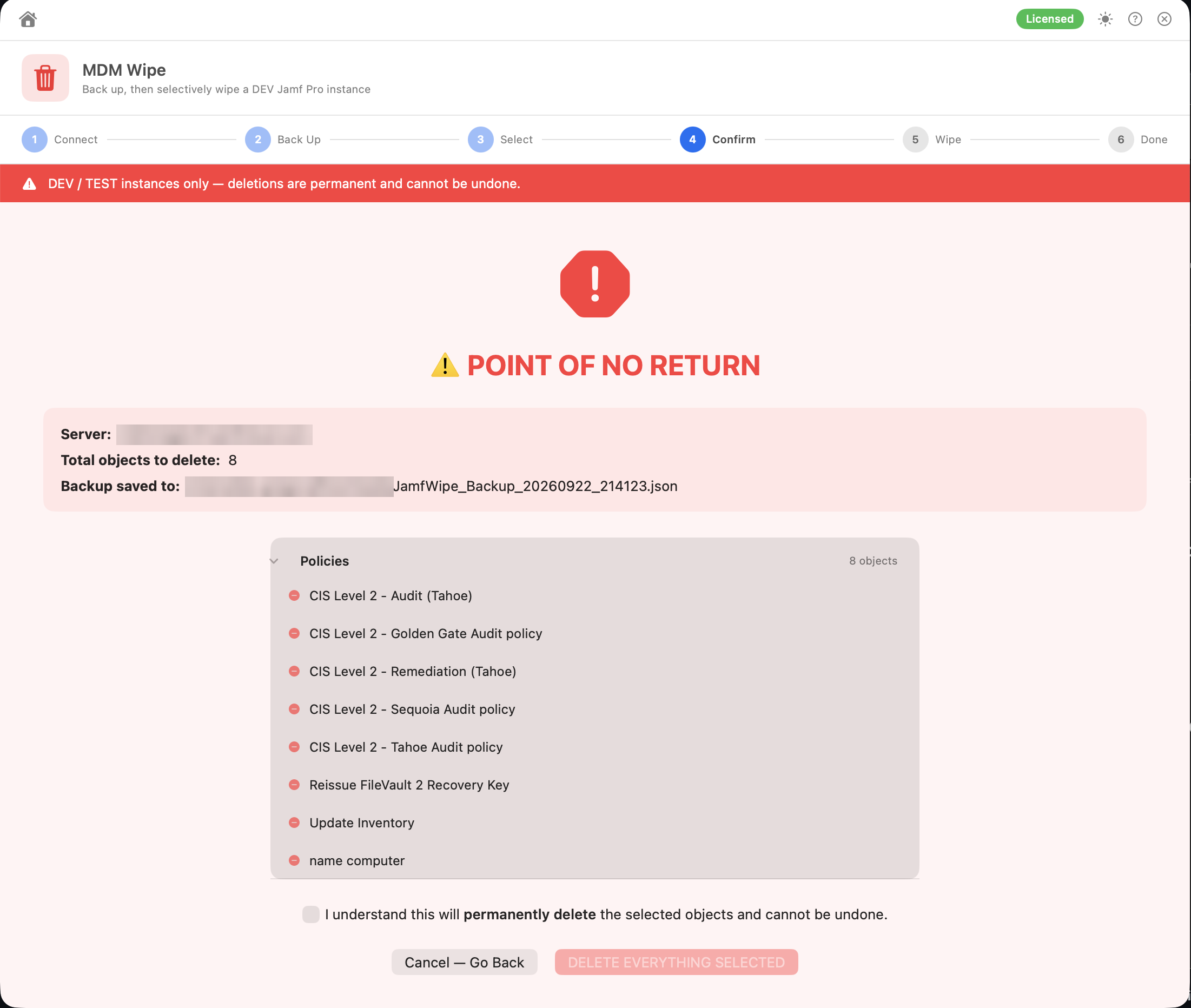
The confirmation screen shows:
- the server, the total number of objects to delete, and where the backup was saved
- the server, the total number of objects to delete (including any added below), and where the backup was saved and verified
- every item to be deleted, by type
- auto-added items: things Jamf Pro refuses to delete your selection without, such as smart groups that use a selected EA as a criterion, or that refer to a selected group through member of. Each one says why it was added. To keep one, go back and deselect the item that requires it
- Related Items (not selected): objects that refer to something you're deleting, for example a policy that runs a script, deploys a package or is scoped to a group you're removing, or an App Installer that uses a group or category you're removing. None of these are ticked, and they aren't deleted unless you tick them. Some may make the related deletion fail if they're left in place
- items that can't be restored: anything whose type Restore can't re-create (App Installers, Jamf Pro Accounts) or whose details couldn't be backed up. Click Exclude these from the wipe, or tick "I understand these will be deleted permanently with no way to restore them"
- your own credentials, if any are selected (see below)
To delete, tick "I understand this will permanently delete N objects and cannot be undone.", then type the server's host name to confirm, and click DELETE N OBJECTS. Cancel — Go Back returns to the selection.
Tick Dry run on the confirmation screen to see exactly what a real run would do, in order, without deleting anything. Click RUN DRY RUN. The results show each item as Would delete, with a banner saying nothing was deleted. Back to Confirm takes you back so you can run it for real.
If your selection includes the API integration, API role or Jamf Pro account this session is signed in with, they're listed under Your own session's credentials are selected. By default they're skipped. Tick "Delete them anyway, as the very last step" to delete them after everything else; the session loses access once they're gone. If Wipe can't tell which API client the session uses, it warns you to check.
Objects are deleted one at a time, in the order listed in What can be wiped. Deletions that fail are retried in later passes, up to the Retry passes limit. Retrying stops early if a pass deletes nothing new. Every deletion is written to a journal file as it happens.
App Installers are deleted last. A computer group or category that an App Installer still uses fails on the first pass, then is retried once the App Installer has gone.
No category assigned and Unknown are never deleted. They're listed as Skipped – Protected.
Abort Wipe asks you to confirm, lets the current deletion finish, then stops and shows partial results.
The summary shows counts for Deleted (or Would delete after a dry run), Skipped and Failed, and a table (Category, Object, Outcome) you can filter. Failed rows show the error from Jamf Pro. The journal's location is shown, with Show in Finder.
Export HTML saves WipeResults_<server>.html. It has the totals, a section per type with each object's outcome (filter by Deleted, Skipped or Failed), and a warning if the wipe was aborted. It uses the organisation name and logo from Preferences. Done takes you back to the start.
- Saved where you chose in step 2. Magic Toolbox doesn't keep another copy.
- Encrypted with the passphrase you entered in step 1 (AES-GCM). The file can't be read in a text editor, and Restore rejects it if the passphrase is wrong or the file has been changed.
- Readable only by your user account on the Mac (permissions
0600), and checked by reading it back before anything is deleted. - Once decrypted, it's JSON. It holds
createdAt(the time of the backup, in UTC),serverURLand a list ofitems. Each item has itscategory,id,name,endpoint,useProAPIand apayload. - The
payloadis the object's full record from Jamf Pro: Classic API XML for most types, and Jamf Pro API JSON for prestages, buildings, departments, API integrations and API roles. - Contains the full configuration of every supported object on the server when the backup was taken, including script contents, extension attribute scripts and configuration profile payloads. It doesn't include the credentials you connected with.
- The key is derived from the passphrase with PBKDF2-HMAC-SHA256 (600,000 iterations), which slows down anyone trying to guess it. Use a long passphrase, and still keep the file somewhere safe.
- Can be used by Restore on the same server or a different one.
- App Installers are listed in the backup but can't be restored. Any object whose details couldn't be read during the backup is also saved without a payload, and can't be restored.
- Always keep the backup until you're sure you don't need anything from it.
- Selecting a computer group no longer deletes the policies scoped to it. They're listed under Related Items for you to tick if you want them gone too.
- Use Dry run first on an unfamiliar server.
- If some items still fail after all retry passes, the error in the results usually names what's blocking them. Delete or unscope that, then run Wipe again.
Permissions: see Jamf API Permissions → Wipe.