Repository navigation
Notifications
Build a notification settings profile (com.apple.notificationsettings) for an app.
Choose exactly how an app's notifications behave (banners, badges, sounds, Lock Screen) and lock it in with MDM, without looking up bundle IDs or payload keys.
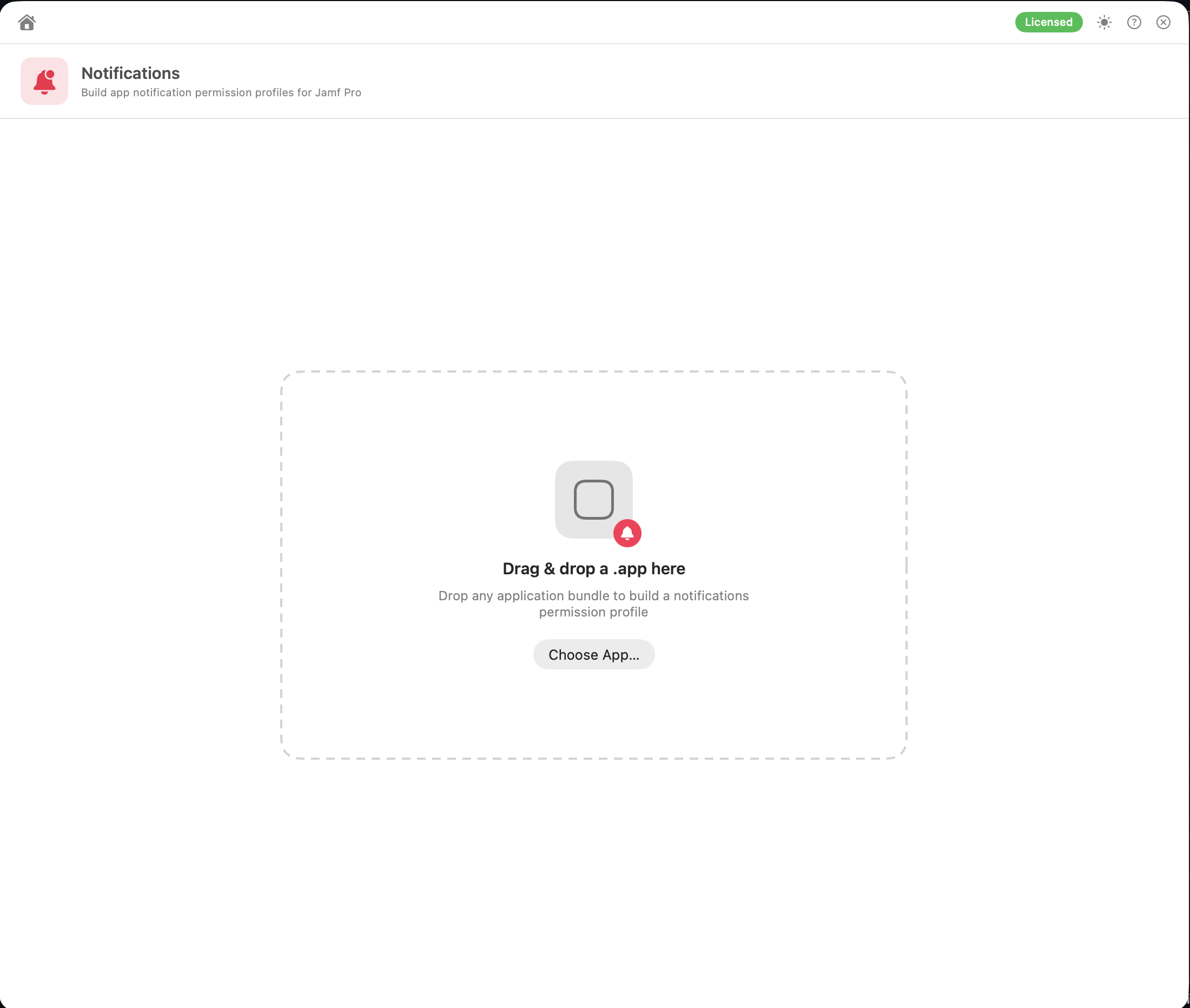
- Drag a
.appor.pkgonto the window, or click Choose App…From a
.pkg, the app name and bundle ID are read from the app'sInfo.plistinside the package payload. Nothing is installed or written to disk. - Check the app name and bundle ID.
- Set the Notification Settings:
| Setting | Options |
|---|---|
| Notifications Enabled | On / Off. When off, the app's notifications are turned off, the other settings are hidden and left out of the profile |
| Alert Type | None · Temporary Banner · Persistent Banner |
| Badges Enabled | On / Off |
| Sounds Enabled | On / Off |
| Show in Notification Center | On / Off |
| Show in Lock Screen | On / Off |
| Show in CarPlay | On / Off |
| Critical Alert Enabled | On / Off |
The starting values come from Preferences → Notifications Defaults and are applied again each time you drop in an app. If you haven't set any defaults, everything starts on except Show in CarPlay and Critical Alert Enabled, and Alert Type is Temporary Banner.
- Save Profile… or Upload to Jamf…. Analyze Another App starts over.
In the upload window, once the credentials are filled in, click Scan Instance under Scope & Category. Magic Toolbox reads the server's categories and computer groups, then you choose:
- Category: any category on the server
- Scope: All Computers, or Computer Group and pick a group
Upload Profile stays unavailable until the scan has run. If you change the server or credentials, scan again. Rescan refreshes the lists.
One com.apple.notificationsettings payload with a single NotificationSettings entry: BundleIdentifier, NotificationsEnabled, and, when notifications are on, AlertType (0 None, 1 Temporary Banner, 2 Persistent Banner), BadgesEnabled, SoundsEnabled, ShowInNotificationCenter, ShowInLockScreen, ShowInCarPlay and CriticalAlertEnabled.
| Output | Name |
|---|---|
| File |
<App> Notifications.mobileconfig, or <prefix> <App> Notifications.mobileconfig
|
| Jamf Pro profile | Notifications, or Notifications with a prefix |
The profile is uploaded unsigned, at Computer level, with the category and scope you chose. If a profile with that name exists, you're asked before it's overwritten. See Uploading Profiles.
The profile's identifiers are based on its name, so saving or uploading it again under the same name updates the profile on devices instead of adding a second one. Analyze Another App is unavailable while an upload is running.
- Each profile covers one app. Build one per app. Profile Conflicts won't flag separate notification profiles for different apps.
- To set notifications for a whole team of apps, set up Notifications Defaults first, then drop in each app in turn.