Repository navigation
Icons
Collect every Self Service icon used by your Jamf Pro policies, and turn any app's icon into a PNG ready for Self Service.
Icons has two parts:
- Scan: read-only. Collects icons from your server.
- Extract from .app: makes a new icon, and can optionally upload it to Jamf Pro.
-
Connect to Jamf Pro. Under Additional Sources (both on by default), you can also collect:
- Self Service branding icons: the icon and banner image from each macOS and iOS Self Service branding configuration
- Enrollment Customization branding icons: the icon and banner image from each enrollment customisation
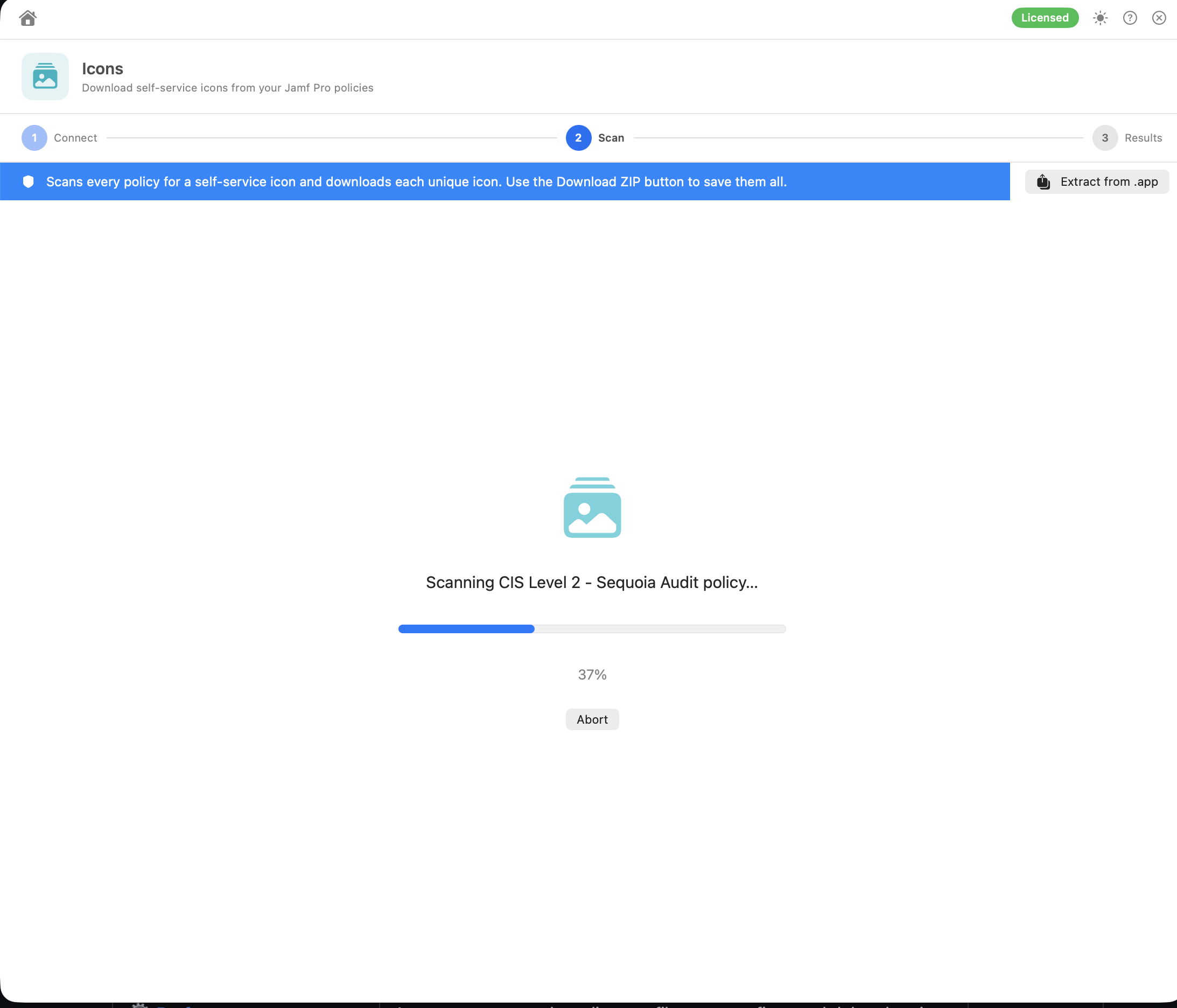
- Click Connect & Check Permissions, then Continue →. Magic Toolbox reads every policy and downloads each unique icon. Abort stops the scan and returns to the Connect screen.
 3. Results: counts of Policy Icons and Branding icons (and Failed downloads, if any), Search… by file name, and a table of icons with:
- a thumbnail
- Source / Used By: the file name, plus the policies that use it (or the branding it came from)
- Hash: the hash part of the icon's URL (Copy full hash)
- URL (Copy URL)
- Download: save that one icon, under its file name, to a location you choose
-
Download ZIP saves every icon as
jamf-icons.zipand shows it in Finder. Duplicate file names get-1,-2and so on, even when they differ only in capitalisation. Files are stored uncompressed. Icons that failed to download aren't included.
If a branding source couldn't be read, the results say so rather than skipping it silently. Icons are only downloaded over HTTPS, and a download that isn't actually an image (an error page, for example) is counted as failed.
Scan Again starts over.
Branding icons are named after their source, for example <Branding name> macOS Icon.png, <Branding name> iOS Banner.png, <Name> Enrollment Icon.png and <Name> Enrollment Banner.png. In the results, Self Service branding icons show Self Service Branding (macOS) or Self Service Branding (iOS) as their source.
Use it to: spot policies that share (or should share) the same icon, find low-quality icons worth replacing, or keep a copy of all icons before a migration.
Only icons attached to policies (plus the branding sources above) are found. Icons in the library that no policy uses aren't listed.
During the scan, icons are downloaded to a temporary folder on your Mac. It's deleted when you click Scan Again, leave the tool or quit the app.
Click Extract from .app at any time to open the Extract App Icon window.
- Drop an
.app, or click Choose App…. Magic Toolbox uses the app's own icon file (or the icon Finder shows, if it can't find one). - Choose the Output size: 512 × 512 or 1024 × 1024 (default).
- Then choose one of:
-
Save as PNG: saves
install.png, or any name you choose, and shows it in Finder -
Upload → Upload to Jamf Icon Library: uploads it as
<app name>.png, then shows the new Icon ID and URL (Copy URL) - Upload → Attach to a Policy…: enter a Policy ID (the number in the policy's URL in Jamf Pro) and click Look Up Policy…. Magic Toolbox shows the policy's name and asks you to confirm. Click Upload & Attach to upload the icon and set it as that policy's Self Service icon, replacing the existing one. You'll see "Policy N icon updated"
-
Save as PNG: saves
Try Another starts over and Done closes the window.
Upload uses the server and credentials entered on the Icons Connect screen, and is greyed out until they're filled in. Fill those in first, even if you haven't run a scan. Check the policy name before you click Upload & Attach. If the upload works but the policy update fails, the icon stays in the library. If Jamf Pro doesn't return an icon ID, the policy isn't changed.
Permissions: Read Policies for the scan (the only one the permission screen checks). The branding sources also need read access to Self Service branding and Enrollment Customizations; if they can't be read, they're skipped without an error. For uploads, icon upload access, plus Read and Update Policies to attach to a policy.