Repository navigation
The Control Panel
The Control Panel was redesigned on 15 September 2026, and the redesign is in 6.3.4 (27 September 2026, schema 6104). The page keeps 6.3.3 as its base: a paragraph that says since 6.3.4 describes the redesigned shell, the first-run tour, the new pages or the settings store, which a reader still running 6.3.3 will not see. What did not change in the redesign is the part you have learned or scripted: the navigation map, every page title, every tab header, every setting caption and every automation id are exactly what they were. Brought up on 5 October 2026 to 6.3.6 (6 October 2026, schema 6108), for what 6.3.6 changes on this page. 6.3.7, the latest release (17 October 2026, schema 6108), is not yet reflected here. 6.3.5's own changes - the sidebar's order and two group names, the Webmail page and the 137 settings given editors - are not yet written in.
Also in 6.3.4 (brought up to date on 26 September 2026): ten more pages - Suppression list, Journaling and dual delivery, Audit trail, Discovery, Administrator roles, Remote domains, Allow and block list, Greylisting bypass list, Domain white and black list and Setting profiles - for 65 in all; a help pane on every page (§5.3); settings that apply when they are saved, with a mark under each field saying when (§5.0); a Levels tab on the domain and account dialogs for the settings a domain or an account may hold its own value of; the first-hour checklist and the sample domain on the Welcome and External setup pages (§5.2); new tabs on the domain and account dialogs (Control Panel Reference); a Message store tab on the Performance page and the read-only Discovery page (§5.3a); and a Windows service account card for the service's new low-privilege account (§5.0a).
This page began as a chapter of the 6.2.10 manual and has been corrected against the 6.2.28 source. The Control Panel's pages are grouped differently now, so the paths below use today's groups; the TLS ports 465, 993 and 995 exist only after you create them on the TCP/IP ports page (a fresh install seeds 25, 587, 110 and 143); and everything added since 6.2.10 is in Changes-Since-6210. Where a value here disagrees with the Settings Reference, which is generated from the code, the reference is right.
The hMailServer Control Panel (hMailCP.exe) is how you administer the server. It
is a .NET 10 desktop application that talks to the server over the COM API — which means
it can administer a server on another machine just as easily as the local one.
Launch it from the Start menu ("hMailServer Control Panel"). It runs as you, not as an
administrator: on 6.3.3 the only time it asks for elevation is when you accept its offer to
restart the hMailServer service after saving an hMailServer.INI setting. (Since 6.3.4 most
saves apply at once, and the few that wait are applied by Apply now, a reinitialise over COM
that needs no elevation - §5.0; the Windows service account card's buttons ask for it - §5.0a.) (Enrolling the Control
Panel's own two-factor secret also needs administrator rights, because that secret lives
under HKLM — but there it asks you to restart the application elevated rather than
prompting.)
The screenshots on this page were captured from 6.3.7, in the default light theme, over the sample domain
example.test(§5.2).
The Control Panel holds no configuration of its own. Everything it shows comes from one of four places, and knowing which one explains almost every difference in behaviour between administering the server you are sitting at and administering one across the network.
flowchart LR
    subgraph desk["Where you are sitting"]
        CP["hMailCP.exe<br/>WPF, .NET 10, x64"]
        HKCU["HKCU Software hMailServer ControlPanel<br/>window size, theme, language, palette history"]
    end
    subgraph box["The mail server"]
        SVC["hMailServer.exe<br/>Windows service"]
        COM["COM API<br/>ProgID hMailServer.Application"]
        INI["hMailServer.INI"]
        KEYS["hMailServerApiKeys.ini"]
        LOGS["Log folder"]
        DB[("Database")]
        STORE[("Data folder, .eml files")]
    end
    CP -->|"in-process COM locally, DCOM over RPC remotely"| COM
    COM --- SVC
    SVC --- DB
    SVC --- STORE
    SVC -->|"read once, at service start"| INI
    SVC -->|"re-read on every request"| KEYS
    SVC --> LOGS
    CP -.->|"direct file access, only when this IS the server"| INI
    CP -.-> KEYS
    CP -.-> LOGS
    CP --- HKCU
The solid arrows always work. The dotted ones only work when the Control Panel is running on the server itself — see section 5.5.
Since 6.3.4 the
hMailServer.INIarrows change meaning. From schema 6042 the server reads the 241[Settings]keys from the database and keeps the file as a copy. The Control Panel reads those settings over COM, falling back to the file only when there is no session, and writes them over COM only — even on the server itself — so a value saved on a page is stored where the server reads it, and a hand edit of a stored key in the file is reported as HM5804 at the next start and not used, its line put back where the service may write the file (underNT SERVICE\hMailServer, to which the file is read-only, the edit stays in the file — The Service Account). A Control Panel with no connection says it cannot change a setting rather than writing a file whose edit the server would not use.[Database],[Directories]and[LDAP]are still read from the file only. Section 5.5 describes 6.3.3 and was not re-checked page by page against this change.And a save applies. Under every field kept in the settings store a small line says when the value takes effect - Applies on save (211 of the keys), After reinitialize (28: a listener's port or bind address, a TLS context, a work queue's size) or After a restart (2) - read from the server in one call when the page opens. The old "applies after a service restart" footers are gone. A pending bar at the foot of the window says how many saved settings still wait for a reinitialise, with Apply now, which stops and starts every service in place (and ends a drain, which it asks about first); a page's save writes only the fields whose value changed. Against a 6.3.3 server the Control Panel says what it said then - every such field marked After a restart - and never claims a save took effect. A setting the server's environment names is shown disabled, marked as set by the environment, because the server would undo a change at its next start (Profiles and Environment).
Since 6.3.4. A new installation on Windows runs the service as the virtual account
NT SERVICE\hMailServer rather than LocalSystem; an upgrade keeps the account it had. The
account is given the program folder's Data, Logs, Temp and Database folders, and read access to
the program folder - never hMailServer.INI, which is read-only to it on purpose. For the Control
Panel that changes four things, each refused with a sentence rather than failing quietly:
| What | Under the virtual account |
|---|---|
| Settings saved on any page | Unchanged: they are kept in the database, as since 6.3.4 they always are - except PasswordPepper, the one setting kept in the file only, which is refused with a sentence |
| The Administrator password card, and enrolling or removing the administrator's second factor | Refused: the file they write is read-only to the service. The sentence says what to run instead - hMailServer.exe /SetAdministratorPassword from an elevated prompt for the password, and a move to LocalSystem and back for an enrolment |
| The data, log and temporary directories | Refused: an administrator changes the file and approves the new folder for the service |
| Creating or switching the database (DBSetup) | Refused before anything is made; the installer does its database step under LocalSystem |
Server limits & expert settings carries a Windows service account card: what the service
actually runs as, and three buttons, each run after the Windows elevation prompt with what it
said shown afterwards - Grant access (hMailServer.exe --confirm /GrantServiceAccess, which
also approves a folder set outside the program folder, such as a backup or archive folder, after
a question that names it), Move to NT SERVICE\hMailServer and Move to LocalSystem.
The Setup checklist (once External setup) carries the same item, and the first-hour checklist judges the account as a
recommendation, never an error. What only LocalSystem can do - the live update's apply, the
auto-ban's firewall rules - is refused under the virtual account with a sentence. The full account is
ServiceAccount.md.
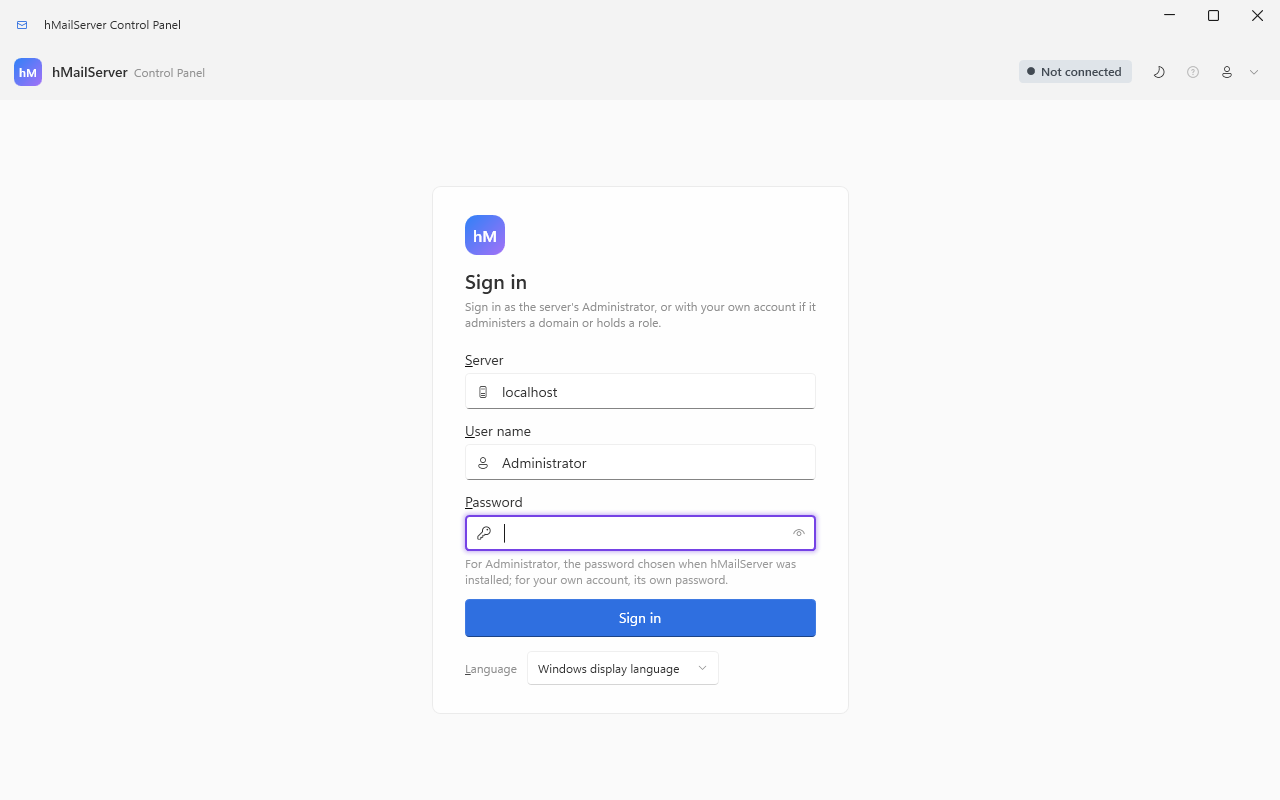
| Field | What to enter | What you see when it is wrong |
|---|---|---|
| Server |
localhost for the machine you are sitting at, or the remote server's name/IP. An empty box means localhost
|
A name that does not resolve: "'x' could not be found. Check the spelling, or enter the server's IP address instead." A name that resolves but does not answer on TCP 135: "'x' did not answer on port 135, which Windows needs in order to reach the hMailServer COM API remotely…" — that check has a four-second budget, so a mistyped host is a pause, not a hang |
| User name |
Administrator (the server administration credential). A mailbox address also authenticates, but only a server administrator can read the settings |
"Authentication failed. Check the user name and password." Signed in as an ordinary mailbox, pages load and then report "you must connect with the hMailServer server-administrator account to view or change these settings." |
| Password | The administration password you set during installation. Change it later at Sign-in & access → Administrative access → Password | Same message as above — the server never says which of the two was wrong |
| Language (new in 6.2.28) | One of eighteen entries — English plus the seventeen translations — or leave it on "Windows display language" | Changing it prompts Yes/No and then restarts the Control Panel; declining puts the list back |
Since 6.3.4: the sign-in card is drawn on the design system's card, and once you are signed in the language and theme buttons are in the command bar at the top of the window rather than at the foot of the sidebar (section 5.3). In 6.3.7 the card is headed Sign in, its button is Sign in, and it carries no two-factor link: both second factors are set up after sign-in, on Sign-in & access → Administrative access → Two-factor.
Two more failures are worth recognising on sight:
- "hMailServer COM API is not registered on the target machine." — you reached the machine, but hMailServer is not installed there, or its COM class is not registered.
-
"Unable to reach the server (RPC unavailable)." — DCOM refused the activation
(HRESULT
0x800706BA). Firewall, DCOM permissions, or the service is not running.
The sign-in itself runs in this order:
sequenceDiagram
    autonumber
    participant U as Administrator
    participant CP as Control Panel
    participant EPM as Port 135 on the target
    participant S as hMailServer service
    U->>CP: Server, user name, password, Sign in
    CP->>EPM: TCP connect, 4 second budget, off the UI thread
    Note over CP,EPM: Skipped entirely when the host names this machine
    EPM-->>CP: accepted
    CP->>S: activate hMailServer.Application
    CP->>S: Authenticate user and password
    alt an account comes back
        S-->>CP: Account
        CP->>S: read Version and ServerState
        CP->>U: the Dashboard
    else no account, and a second factor is enrolled
        S-->>CP: nothing
        CP->>U: prompt for the 6 digit code, once
        U->>CP: code
        CP->>S: AuthenticateWithCode
    else no account
        S-->>CP: nothing
        CP->>U: Authentication failed. Check the user name and password.
    end
The code prompt appears once, never in a loop: a wrong password and a missing code look identical from outside, so re-prompting would hide a wrong password behind a "try the code again".
There are two different second factors and they are not the same thing:
| Secret lives in | Applies to | Set up at | |
|---|---|---|---|
| Server-enforced (recommended) |
hMailServer.ini, [Security] AdministratorTotpSecret, DPAPI-protected |
Every client of the administrator credential — this Control Panel, COM scripts, and the REST API (X-hMailServer-OTP header) |
Sign-in & access → Administrative access → Two-factor, Set up the server-enforced second factor… |
| This Control Panel only |
HKLM\SOFTWARE\hMailServer, value AdminTotpSecret
|
This installation of the Control Panel, on this machine. Nothing else is protected | The Set up Control-Panel-only two-factor authentication… button on the same tab (the sign-in card no longer carries a link) |
The second one is the weaker option, kept because it is the same secret the retired hMailServer Administrator used, so an existing enrolment carries over. Both are RFC 6238 TOTP: HMAC-SHA1, 30-second period, six digits, one step of tolerance either side.
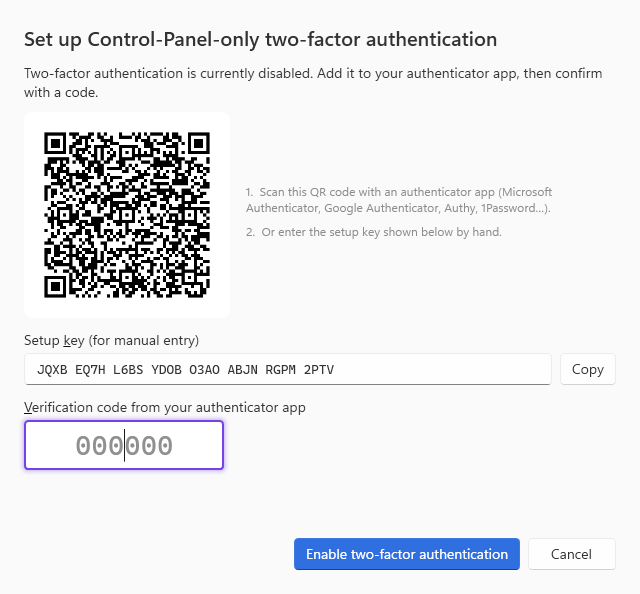
The Control Panel-only enrolment. Writing the secret needs local administrator rights, because it goes under HKLM; without them the dialog says so and changes nothing.
Connecting without typing anything. hMailCP.exe /connect <host> <user> <password>
signs in as the window loads. It is meant for a shortcut on a jump box, not for a script:
the password is on the command line, where anything that can list processes can read it.
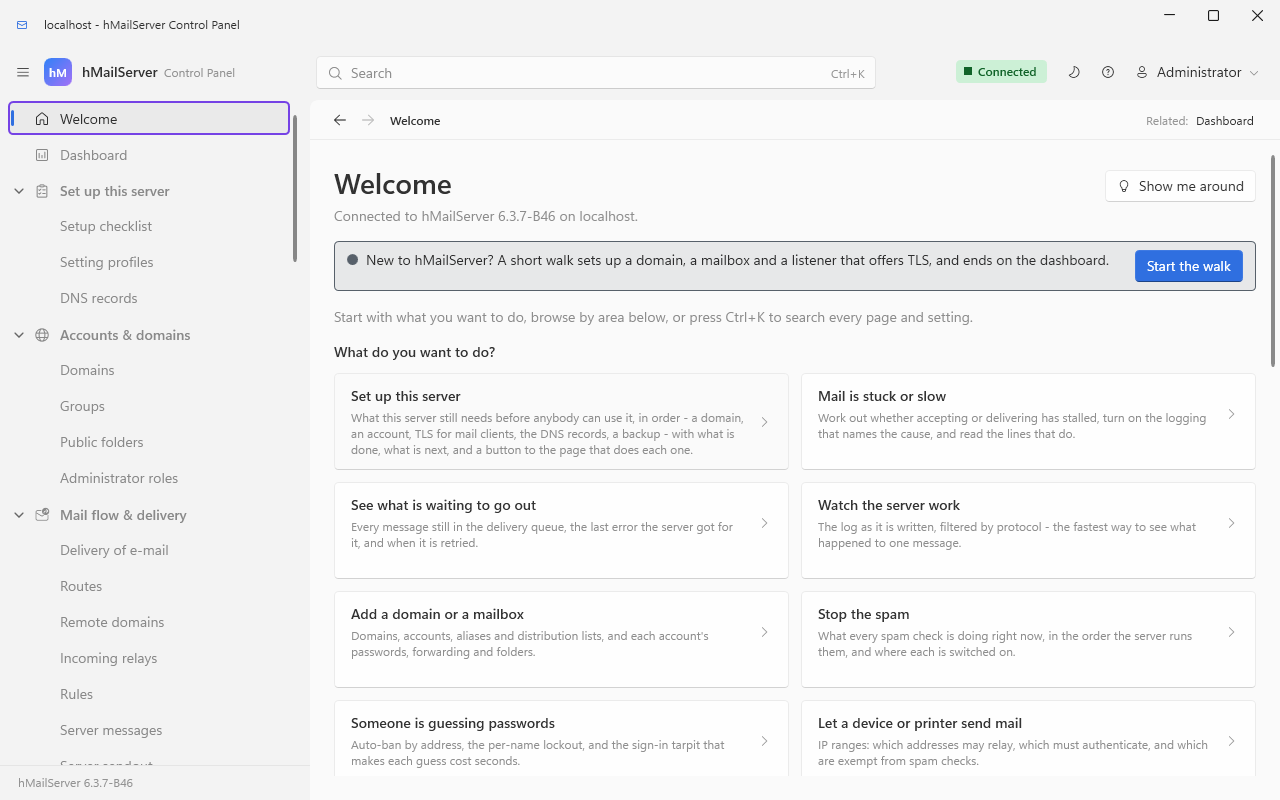
The Welcome page opens with What do you want to do? — thirteen starting points written as outcomes, each one click from the page that does it:
| "What do you want to do?" | Goes to | Because |
|---|---|---|
| Set up this server | Setup checklist | What the server still needs before anybody can use it, in order, with what is done and what is next |
| Mail is stuck or slow | Diagnosing stalled mail | Which half has stalled, the logging that names the cause, and the lines that do |
| See what is waiting to go out | Delivery queue | Every message still queued, its last error, and when it is retried |
| Watch the server work | Live logs | The log as it is written, filtered by protocol |
| Add a domain or a mailbox | Domains | Domains, accounts, aliases, distribution lists |
| Stop the spam | Spam filtering overview | What every spam check is doing, in the order the server runs them |
| Someone is guessing passwords | Auto-ban | Auto-ban by address, per-name lockout, the logon tarpit |
| Let a device or printer send mail | IP ranges | Who may relay, who must authenticate, who skips spam checks |
| Renew or install a certificate | TLS certificates | The certificates the listeners present, and ACME renewal |
| Send everything through my provider | Delivery of e-mail | The smart host, its port and credentials, the retry schedule |
| Check the server is healthy | Diagnostics | The built-in checks, and the last message-store consistency scan |
| Back up the configuration and the mail | Backup, restore & migration | What a backup holds, the schedule, verification, restore |
| Protect the administrator password | Administrative access | The administrator password, and a server-enforced second factor |
Below them come the sample domain's card and then Or browse by area — one tile for each group of the tree the signed-in credential sees, in the sidebar's order, each opening the group's first page.
Since 6.3.4, the Welcome page also offers a sample
domain: one button makes a throwaway example.test - three mailboxes, a list of the
three, a rule and eight delivered messages - so that every page has something in it while
you learn, then shows what is in it and turns into a Remove button
(Your First Domain and Mailbox). The first-hour checklist the server judges for
itself - a setting profile, a domain, an account, TLS on the submission port, passwords only
over TLS, SPF, DKIM, DMARC, a backup destination, a second factor for the administrator, the
stored-secrets key and the account the server runs as: thirteen items since 6.3.6 (No password on port 25 the new one; twelve before) - heads the
Setup checklist page and the Dashboard's Action needed card, and the profiles
themselves are on Set up this server → Setting profiles (Profiles and Environment).
The Welcome page is not where you land. Connecting opens the Dashboard; Welcome is a click away in the sidebar, and is worth the click on a server you have not touched before.
Since 6.3.4 — 6.3.3 has no tour.
A walk through the pages a new server needs, drawn over the real Control Panel: a ring around one control, and a card beside it with one sentence and Back, Next (or Finish on the last stop) and Skip the tour. Seven stops, in this order:
| Stop | Page | Points at | Moves on by itself when |
|---|---|---|---|
| 1 | Domains | the add-domain control | a domain exists |
| 2 | Domains | the domain list | — |
| 3 | Domains | the accounts of a domain | an account exists |
| 4 | TCP/IP ports | the listener list — if it cannot be shown, the tour ends here and says so | — |
| 5 | TCP/IP ports | the add-listener control | a listener offers TLS |
| 6 | TLS certificates | the certificate list | a certificate exists |
| 7 | Dashboard | the server's own verdict on what has been built | — |
The ways in: a button in the Welcome page's header, with a notice above the thirteen task rows until the walk has been finished once; a row of its own at the top of the Ctrl+K palette; and a help button in the header of any page the tour visits, which starts the walk at that page's first stop.
What it will and will not do, because a tour that got these wrong would be worse than none:
- It never acts. A stop points and explains; it does not press the button or fill the field. The one thing it does besides pointing is open the page its control is on.
- It is never modal. Everything under the ring stays usable while the tour runs — which is what lets a stop wait for you to do the thing it describes. A stop whose condition was already true when you arrived waits for Next rather than vanishing before you have read it.
- It never takes the keyboard. Nothing is focused when a stop opens; F6 reaches the card from anywhere; Escape ends the tour only while the keyboard is already in the card, and the focus goes back where it was when the tour ends. The card's four captions carry no Alt key, deliberately: a card that floats over any page could not claim a key without sooner or later taking one that page already owns. (They are outside the caption count in §5.3, which scans the pages and not the scaffold the card belongs to.)
- It is readable without sight or colour. The card is a polite live region and each stop's sentence is raised as a UI Automation notification; the ring is a solid accent line with a dashed line in the text colour inside it, so it survives greyscale and High Contrast.
- A missing control is skipped, except stop 4, which ends the tour naming the stop.
Where you got to is kept per Windows user under HKCU\Software\hMailServer\ControlPanel,
value TourProgress, beside the window bounds: finished tours with the version each was
finished at, then any resume point. A tour that later gains a stop is offered again; a
damaged value is ignored rather than reported. The Control Deck has the same walk behind its
Show me around button (◎), and the webmail a four-stop one — the reading pane, compose,
labels and search — under Show me around in the account menu, where progress is kept with
the account so a walk begun on one device finishes on another.
The left sidebar is the navigation tree: 55 pages in eight groups in 6.3.3 — 65 in 6.3.4, the ten new ones marked below — capped at two levels deep, grouped by what you are trying to do rather than by where the server keeps things.
Welcome                         ← what do you want to do?
Dashboard                       ← live counters and charts
Monitoring & troubleshooting    ← is mail flowing, and if not, where has it stopped?
  Server status, Delivery queue, Diagnosing stalled mail, Message trace,
  Suppression list*, Journaling and dual delivery*, Audit trail*,
  Discovery*, Live logs, Diagnostics, MX query, External setup, DNS records,
  Logging, API & monitoring, REST API keys
Accounts & domains              ← Domains, Public folders, Groups, Administrator roles*
Mail flow & delivery            ← Delivery of e-mail, Routes, Remote domains*,
  Incoming relays, Rules, Server messages, Server sendout
Spam & virus filtering          ← Spam filtering overview, Quarantine,
  Anti-spam settings, SURBL servers, DNS blacklists, White list,
  Blocked senders, Allow and block list*, Greylisting white list,
  Greylisting bypass list*, Domain white and black list*,
  Virus scanning overview, Anti-virus settings, Blocked attachments
Connections & protocols         ← Protocols, TCP/IP ports,
  Web services & autoconfiguration, DNS resolver
TLS & certificates              ← SSL certificates, Certificates (ACME),
  Transport encryption overview, SSL/TLS, Transport security
Access & abuse protection       ← Authentication, Directory authentication (LDAP),
  Directory synchronisation, Administrative access, Auto-ban, IP ranges
Maintenance                     ← Setting profiles*, Backup & restore, Performance,
  Advanced, Event scripts, Server limits & expert settings
About

* new in 6.3.4
Every page is listed with its purpose in Control Panel Reference, section 5, and with its screenshot where one exists in Control Panel Pages.
The window around the tree — since 6.3.4. The Control Panel was moved onto one design system in four waves on 15 September 2026, and the shell is the visible half of it. A reader running 6.3.3 has the older chrome: the tree with its footer of connection badge, language and theme buttons, and pages that each drew their own heading and their own card.
The redesigned window is a Fluent window with the Mica backdrop in three rows — the title bar, a command bar, then the sidebar beside the content:
| Part of the shell | What it holds |
|---|---|
| Command bar (48 pixels tall) | Left to right: the sidebar toggle, whose tool tip says what a click will do; the brand; the search, drawn as a field but opening the Ctrl+K palette, which is where the typing happens; the server status pill — Not connected while the sign-in page shows, Connected, Reconnecting… while the session heals, Connection lost when it cannot, with "Connected to host as user" as its accessible name; the theme toggle; and the administrator's menu, which carries who is signed in where, the server version, the language, the theme and About |
| Sidebar | The same tree, from the same navigation map: the same pages (65 in 6.3.4), the same eight groups, the same titles and the same automation ids. Pages are indented under their group's label rather than under its glyph, so the two text columns line up |
| Rail | Below 1,000 pixels of window width the sidebar collapses to one glyph per top-level group, the group of the page on screen marked, a click expanding the sidebar on that group. Above that width the toggle collapses and expands it by choice, and the choice is remembered under HKCU\Software\hMailServer\ControlPanel beside the window bounds |
| Breadcrumb bar | Unchanged: the trail, whose group segment reveals that group in the tree, and up to three Related: signposts on the right |
Nothing that was in the sidebar's footer is lost — the connection badge became the pill, and the language and theme buttons moved into the command bar.
Every page is now drawn from the same ten components (a page header, cards, a toolbar, a
settings section, a field row, an inline notice, a status pill, empty and loading states
and a dialog frame) against one set of tokens: six spacing steps, three corner radii, one
type ramp and a palette in which no status is carried by colour alone — every level has
a colour, a shape and a word, and the word comes first in the accessible name. The tokens
and the components are written down at hmailserver/docs/ControlPanelDesign.md in the
repository, and a test holds that document to the code, so a token or a component that is
not in the document does not build. Every dialog is sized to its content within the
dialog tokens (360 minimum, 520 default, 900 maximum, nine tenths of the screen height at
most) instead of to a pixel width and height typed into its constructor, which is what used
to clip a translated caption or leave a tab half empty.
Three pages are deliberately read-only — Spam filtering overview, Virus scanning overview and Transport encryption overview. They exist because no editor can answer the question an administrator actually arrives with ("what will all of this do to a message?", "is anything here carrying a password in the clear?"), and because a second place to change the same value is worse than no second place. Every row on them links to the page that owns the setting.
Search (Ctrl+K). Press Ctrl+K, or use the Search button above the tree — both work only once you are connected. The palette answers three different questions in one ranked list:
| Type this | And it matches | Example |
|---|---|---|
| A page name | 55 page titles in 6.3.3 (65 in 6.3.4), their on-screen headings, and every alias — including the names pages used to have | "Advanced hardening" finds Server limits & expert settings |
| What you are trying to do | 97 outcome phrases, matched word-wise with synonym folding | "stop spam", "block an IP", "someone is trying to guess passwords", "let the office printer send e-mail" |
| A setting name or an INI key | 393 settings, by label or by key, in 6.3.3 — 448 in 6.3.4 | "log level", LogDeleteDays, MetricsServerPort
|
| An old navigation path from a forum post or your own notes | The paths the classic Administrator and the 6.2.18 Control Panel used | "Settings > Security > Auto-ban & SSL/TLS" opens Auto-ban |
Results are grouped Recently visited, Most used, Tasks, Pages, Settings, and every row names where the thing lives ("in Spam filtering > Anti-spam settings"), so the palette teaches the tree instead of replacing it. Keys: ↑ ↓ move, Page Up/Page Down jump, Home/End go to the ends, Enter opens, Esc closes. Nothing matched? The hint suggests an outcome phrase, a page name, or an INI key rather than showing an empty box.
Help beside the page (? or F1). Since 6.3.4. Every page
has a help button, and F1 does the same: a pane opens beside the page with what the
operator documentation says about it, scrolled to the right heading, and an All
documentation list of every document. The text is the repository's hmailserver/docs,
embedded in the Control Panel itself, so a server with no route to the Internet is not one
with no documentation. The Control Deck and the webmail have the same pane, served by the
server. Open on the wiki goes to HelpWikiBaseUrl followed by the document's name; this
wiki's pages are not named after the documents, so for most documents that link finds no
page yet - the pane's own text is the complete one.
Where am I? A breadcrumb sits above every page. The group segment is a button that reveals that group in the tree, so a jump made from the palette can be retraced. On the right, up to three Related links carry the subjects that genuinely span several pages — transport security is one question to you and five pages to us.
Keyboard. Every static caption in the application carries an Alt-key access key —
381 captions when last counted, on 15 September 2026 (the pages added since bring more, not recounted here), of which 352 have a key and 29 are exempt (the tour card of §5.2a is outside this count and has no keys, on purpose): Cancel, OK and Close answer to
Escape and Enter, the "…" browse buttons sit beside the box they fill, and a caption
repeated once per row, card or record is reached with the arrow keys. Keys are unique per
page and per dialog tab, with a dialog's Save global to every tab, and build/check-mnemonics.py
enforces that in English and in each of the seventeen translations — every one of which
chooses its own keys.
Themes. The window follows your Windows light/dark setting until you press the sun/moon button at the bottom of the sidebar; after that your choice is remembered. High Contrast is followed as well, including when it is switched on with Left Alt + Left Shift
- Print Screen while the window is open. The window's size, position and maximised state are remembered between sessions.
Languages. New in 6.2.28, the Control Panel ships English plus seventeen
translations — Czech, Danish, German, Spanish, Finnish, French, Italian, Japanese,
Norwegian bokmål, Dutch, Polish, Brazilian Portuguese, Russian, Swedish, Turkish,
Ukrainian and Simplified Chinese. All 4,196 texts are translated in every one of them in
6.3.4 (3,390 in 6.3.3; the rest came with 6.3.4 — among it the redesign, the tours,
the syslog card, the ten new pages, the help pane, the applies marks, the domain and account dialogs' new tabs, the Message store tab and the service account card),
and build/check-localisation.py holds every catalogue complete.
Pick a language from the sign-in card or the globe button at the bottom of the sidebar;
the Control Panel restarts in it. The choice is per Windows user. The default,
"Windows display language", follows your Windows display language and falls back to
English for anything else.
Since 6.3.4. Compliance → eDiscovery lists the eDiscovery cases - each
case's searches, holds and exports, and every line the audit trail holds for it - and changes
nothing: a case is opened, searched, held and exported on the Control Deck
(Compliance and eDiscovery). Discovery has no COM interface, so the page reads the REST
listener with the name and password it signed in with: it needs RestApiPort set, a certificate
it can check for an address beyond loopback, and an administrator without a second factor, whose
one-time code the REST API would ask for with every request - and where any of those is missing
it says so where the table would be. It needs view_discovery, and a case's audit lines need
view_audit as well.
Maintenance → Performance has a Message store tab: Store new mail compressed, with large
parts held once (MessageStoreCompression, off by default), Smallest part held once in KB
(MessageStoreDedupMinKB, 256; 0 holds nothing once), and what the store holds and saves as the
server last measured it, at most a quarter of an hour old. The switch applies to the next message
stored; the messages already there are rewritten only by hmailserver --compress-store, with the
service stopped (Message Storage). Encryption at rest and object storage have no Control Panel
page: they are the Control Deck's and REST's.
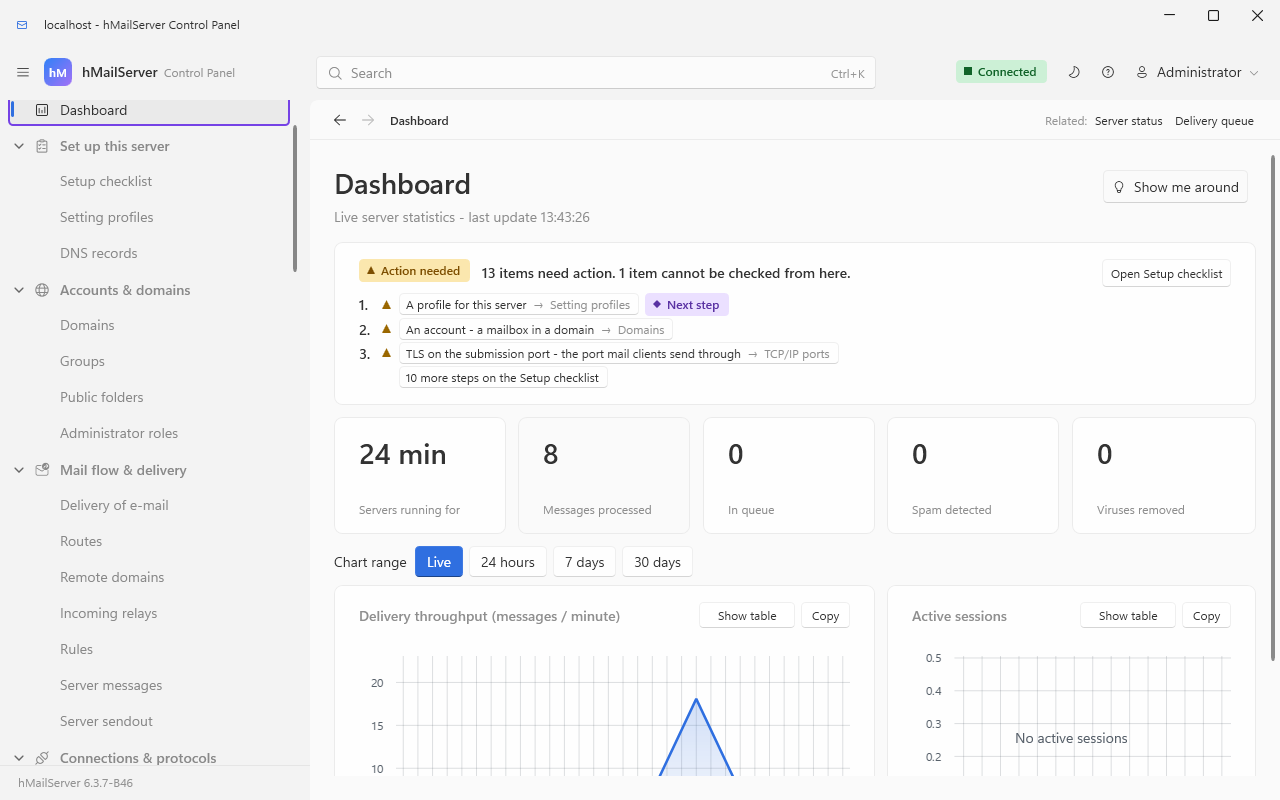
Live view of the server, refreshed every two seconds.
| Card | Reads | Notes |
|---|---|---|
| Servers running for | Status.StartTime |
Of the engine, not of Windows |
| Messages processed | Status.ProcessedMessages |
Since the engine started; a restart resets it |
| In queue | rows of Status.UndeliveredMessages
|
Shows a Backlog badge above 100 |
| Spam detected | Status.RemovedSpamMessages |
|
| Viruses removed | Status.RemovedViruses |
|
| Throughput chart | messages per minute, from the change in the processed counter | |
| Sessions chart | SMTP, POP3 and IMAP session counts |
The range selector above the charts:
| Range | Where the data comes from | Resolution |
|---|---|---|
| Live | the two-second poll, 90 samples held in memory | three minutes of history, lost when you leave the page |
| 24 hours | Utilities.GetMetricHistory |
one-minute buckets |
| 7 days | the same | ten-minute buckets |
| 30 days | the same | one-hour buckets |
The last three need the server to be recording history, which by default it is:
MetricsHistoryDays is 7, one row per metric per minute kept in the database. Raise
it on Monitoring & troubleshooting → Monitoring & alerts, on its Metrics tab, for a longer window, or set it
to 0 to switch the sampler off — and then the three history ranges say so in a note
rather than drawing an empty chart. Either way the change takes a service restart. Every
chart also has a table view and a High Contrast palette, so nothing on this page is
carried by colour alone.
The card at the top, marked Action needed, runs the same checks as the Setup checklist page — DNS records, key files, trusted lists, the service account — and links each outstanding item to the page that owns it. This is the page to leave open on a second monitor; the state of the Windows service itself is on Server status.
Type the server's name into the Server box and the Control Panel connects over DCOM. That covers everything the COM API can reach, which is most of the product. It does not cover anything that means reading a file on the server, because the Control Panel has no file channel to a remote machine — only the COM one.
| Works fully over DCOM | Degrades on a remote session | What you see |
|---|---|---|
| Domains, accounts, aliases, distribution lists, groups, public folders | Live logs | "Log folder not found on this machine (live logs need a local server)."; since 6.3.6 "Could not read the file: {0}" when the Control Panel is not run as administrator, the log folder being the administrators' and the service's alone (/ProtectFolders) - run it as administrator |
| Rules, routes, incoming relays, server messages, server sendout | REST API keys | The key store is a file beside hMailServer.INI; the page needs it |
| IP ranges, TCP/IP ports, TLS certificates, all COM settings pages | The "Listening" badge on TCP/IP ports | Every port reads "Unknown" — the TCP table it probes is this machine's |
| Delivery queue, message trace, quarantine, server status, diagnostics | Certificate and private-key inspection | "cannot be checked from here" rather than a confident answer about the wrong disk |
| MX query, DNS records, the Setup checklist (the DNS half) | Event scripts | The script is loaded from and saved to local disk |
| Backup and restore settings | Every page whose settings live in hMailServer.INI |
"hMailServer.INI was not found on this machine. These settings can only be edited on the server itself." |
That last row is the big one. It covers Transport security, Automatic certificates (ACME),
Monitoring & alerts, Server limits & expert settings, Authentication, DNS resolver, Web services,
Directory authentication (LDAP) and the LDAP half of Directory synchronisation. It also
covers the individual INI-backed rows that sit on otherwise-COM pages — the timeout boxes
on Protocols, JsonLogging on Logging, the tarpit on Anti-spam and so on. Those rows do
not grey out: they show the value the server would use if the key were absent, and
saving the page counts them without writing them.
If you administer remotely, do the INI-backed work on the server. A Remote Desktop session to the mail server, or the REST API, is the way; everything else is genuinely remote-capable.
| Symptom | What it means | What to do |
|---|---|---|
| A toast reading "Reconnected to {host} after the service restarted." | The COM link died and the Control Panel rebuilt it by itself. It re-authenticates with the password you typed, kept DPAPI-protected in memory | Nothing. The page you were on has already been reloaded |
| "the connection to the hMailServer service was lost — it was most likely restarted. The Control Panel will reconnect by itself; press Reload to try again." | A call landed in the gap | Press the page's Reload/Refresh |
| The Control Panel will not heal after you stop the service | Deliberate. Activating the COM class would start a service you stopped on purpose, so it only heals a link that broke while the service was up | Start the service, then use any page |
| "the server cannot reach its database…" | The service is up, the database is not | Check the database and the hMailServer error log |
| "Could not load this page: …" (title Server unavailable) | One page failed to load; the rest of the application is fine | Read the message — it names the real cause |
| An unexpected-error dialog offering to restart the application | An unhandled UI fault | The detail is appended to %LOCALAPPDATA%\hMailServer\ControlPanel\control-panel-errors.log
|
| Signing in freezes the window | The host accepted TCP 135 and then stalled inside DCOM. The pre-flight check cannot catch that shape | Check DCOM permissions and the firewall on the server |
Two behaviours are worth knowing before you need them. Saving a page whose settings live
in hMailServer.INI offers to restart the service for you — it does the stop and
start itself when the Control Panel is already elevated, and otherwise hands the work to
one UAC prompt; it then reconnects, retrying for ten seconds, because the COM server lives
inside the service process. And COM sign-in is deliberately outside the auto-ban and
the per-name lockout: guessing at an administrator's name over IMAP must never be able to
lock that administrator out of the tool they would use to respond.