Repository navigation
Your First Domain and Mailbox
This page began as a chapter of the 6.2.10 manual and has been corrected against the 6.2.28 source tree. The Control Panel's pages are grouped differently now, so the paths below use today's groups; the TLS ports 465, 993 and 995 exist only after you create them on the TCP/IP ports page (a fresh install seeds 25, 587, 110 and 143); and everything added since 6.2.10 is in Changes-Since-6210. Where a value here disagrees with the Settings Reference, which is generated from the code, the reference is right. The notes marked since 6.3.4 describe 6.3.4 (27 September 2026, schema 6104); the page was brought up to it on 26 September 2026. 6.3.5 (29 September 2026, schema 6105), 6.3.6 (6 October 2026, schema 6108) and 6.3.7, the latest release (17 October 2026, schema 6108), are not yet reflected here.
This is the chapter where you get working email.
Just learning? Make a sample domain first. Since 6.3.4. One button - on the Control Panel's Welcome page, and on the Control Deck's Checklist view - or one command (
hmctl sample-domain create,hmailserver --sample-domain createon Linux,POST /api/v1/setup/sample-domain) makes a throwawayexample.test: three mailboxes with one documented password, a distribution list of the three, one rule and eight delivered messages, so every page of the Control Panel, the Deck and the webmail has something in it. The same button or... removetakes all of it away and says what it removed, and a domain calledexample.testthat it did not make is never touched. Remove it before the server takes real mail - its password is in the documentation. Then come back here for your own domain.
Go to Accounts & domains → Domains and click Add domain.
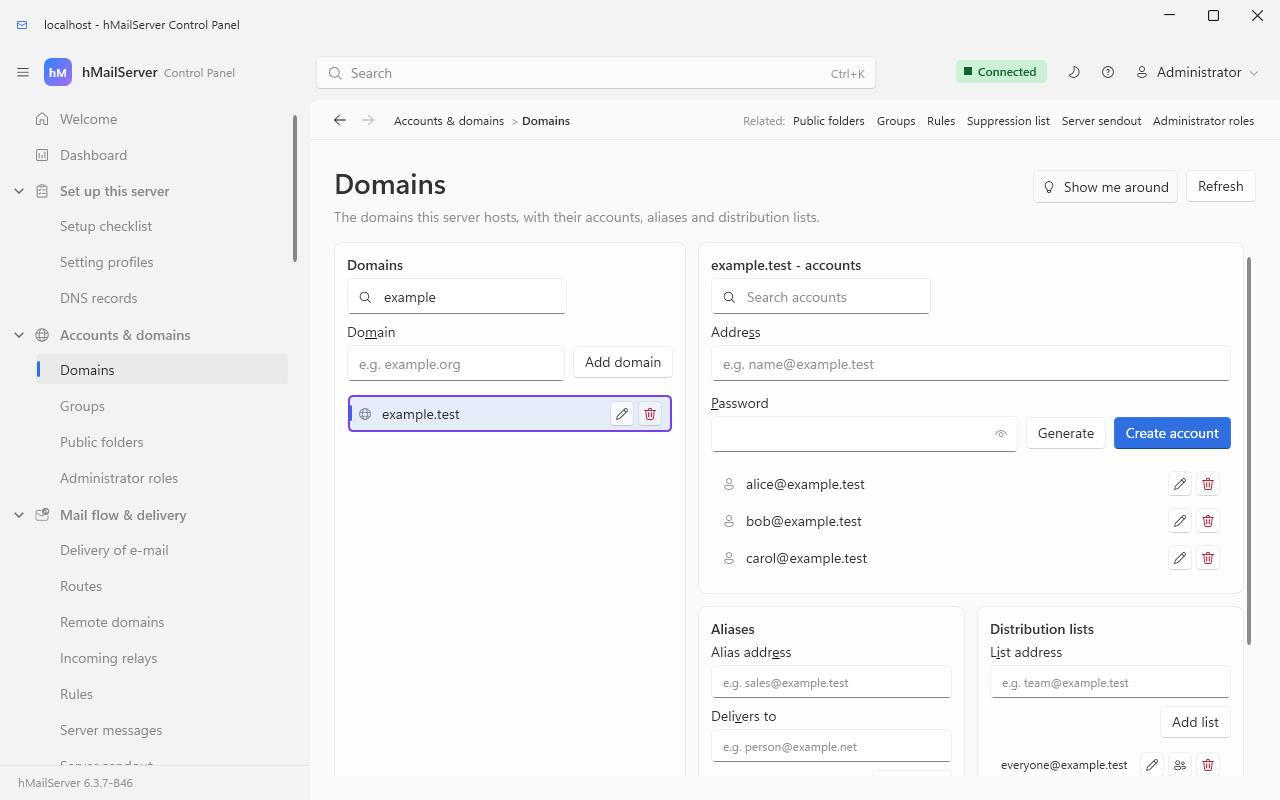
Type the domain name into the Domain box above the domain list and press Add domain. Then press the pencil button on its row (its tool tip reads "Edit domain …"), or double-click the row, to open the domain editor.

Seventeen tabs, on a strip that scrolls: General, Names, Limits, Signature, Relay, Out of office, Tagging and disclaimer, Impersonation protection, DKIM, Allow and block list, Quarantine digest, Reports received, Restricted delivery, Country blocking, OpenPGP, Webhooks and Levels. The General tab carries the domain name itself, so renaming a domain is done here. The seven added in 6.3.4 - Tagging and disclaimer, Impersonation protection, Allow and block list, Quarantine digest, Reports received, Restricted delivery and Levels - are off, or empty, on every domain until set.
| Tab | Field | Default | What it does | What happens when it is wrong |
|---|---|---|---|---|
| General | Domain enabled | ticked | Whether this domain accepts mail at all | Unticked: every RCPT TO for the domain is answered 550 Domain has been disabled.
|
| Domain name | — | The part after the @
|
Changing it renames the domain and moves every account, alias and list with it. Setting it to the host name (mail.example.com) is the classic first-day mistake |
|
| Postmaster address | empty | This is the catch-all. Mail to any address in the domain that resolves to nothing is redirected here | Set: no address in the domain can ever be refused, so every typo and every dictionary-attack recipient is accepted and stored. Empty: unknown recipients get 550 Unknown user, which is usually what you want |
|
| Active Directory domain | empty | For AD-synchronised domains | Only meaningful with Security Hardening's directory features | |
| Names | Alias domain name | — | Domain aliases: yourcompany.net delivering to the accounts of yourcompany.com
|
See Aliases Lists and Public Folders |
| Limits | Maximum domain size (MB) | 0 |
0 = unlimited; otherwise a cap on the whole domain |
Reached: delivery to the domain's mailboxes fails |
| Maximum message size (KB) | 0 |
Per-message cap for this domain |
0 falls back to the server-wide maxmessagesize, seeded at 20480 KB |
|
| Maximum size for accounts created in this domain (MB) | 0 |
The quota new accounts get | Only applies at creation; existing accounts keep theirs | |
| Quota policy (since 6.3.4) | the server's | Three points around each mailbox's limit: the share at which the owner is warned (once, in the domain's own subject and words), a grace past the limit for mail other people send, and the share at which the account stops sending (552 5.2.2 with the reason) before it stops receiving |
Server-wide values beside them; GET /api/v1/reports/quota and the Deck's Near their quota report say who is closest |
|
| Delete messages older than (days) | 0 |
Retention policy for the domain's mailboxes |
0 = no policy. An account's own value overrides it |
|
| Limit number of accounts / aliases / distribution lists | off | Tenant caps | ||
| Enable plus addressing + character | off, +
|
alice+invoices@ delivers to alice@ — see §6.3 |
Off: alice+invoices@ is an unknown recipient and falls through to the catch-all, or is refused |
|
| Enable greylisting for this domain | off | Per-domain greylisting | Needs greylisting enabled server-wide too; see Stopping Spam | |
| Signature | Add signature to outgoing messages, method, plain-text and HTML text | off | Domain-wide signature. Method is use only if the account has none, overwrite the account signature, or append to it | Since 6.3.4: a formatted signature - the domain's, or a person's own set in the webmail within 64 KB - can carry an image such as a logo, which the server sends as an inline part so that Gmail and Outlook display it; the server adds the domain's signature to a webmail send as it does to an SMTP submission |
| Relay | Relay host, port, connection security, credentials | empty | Where mail from this domain leaves through. Empty = the server-wide relayer applies | This is not a route. A route decides where mail addressed to a domain goes, and beats this. See Routes and Relays |
| Out of office | Domain-wide reply, subject, message, separate text for local senders | off | Answers only for accounts with no vacation message of their own | The sender's address is forgeable, so the "local senders" text is a courtesy, never a place for anything confidential |
| Since 6.3.4: a window in days | 0 | The same sender is answered again once the window has passed (0 is once per absence), remembered in the database so a restart repeats nothing | RFC 3834 decides what is never answered - bulk, lists, null senders, Auto-Submitted
|
|
| Tagging and disclaimer (since 6.3.4) | External-sender tag, first-contact note, disclaimer | off | Marks mail from outside the organisation, notes a sender who has never written before, and puts a legal footer on what leaves | Off on every domain until set |
| DKIM | Enable signing, selector, private key file, canonicalisation, algorithm, key rotation | off | DKIM signing for this domain, with a guided key rotation | Enabling before the DNS TXT record is live makes every message fail DKIM at the receiver. The dialog generates the record and checks it for you |
The one that surprises people: Postmaster is the catch-all. In
RecipientParser::CheckDeliveryPossibility, an address that matches no account, alias, distribution list or route falls through topDomain->GetPostmaster()and the resolution restarts with that address. RFC 5321 wants a workingpostmaster@mailbox — but that is an account, not this field. Create the account; leave this box empty unless you really do want every misaddressed message.
Select your domain, type the address and a password into the Address and Password boxes above the account list, and press Create account. Then press the pencil button on the account's row ("Edit account …"), or double-click the row, to open the full editor.

Sixteen tabs, on a strip that scrolls: General, Forwarding, Auto-reply, Spam, Signature, Sieve, External, App passwords, Two-factor, Recovery (whether the person has set a recovery address and codes, and buttons to clear them), Rules, Folders, Windows directory, Directory entry (title, department, phones and photo for the organisation's directory), Identity (the account's kind - a person, a room or a piece of equipment - its external ID, and whether its OpenPGP keys are published) and Levels (this account's own value of a setting that has levels). The General tab carries restricted delivery and shows, read-only, whether the person has turned zero-access encryption on.
Two things about an account are set only on the Control Deck and over REST, and the Control Panel's account dialog does not show them: encryption at rest of its stored messages, which needs the domain's recovery key first (Message Storage); and the webhook route that may take its address's mail (Mail In to a Webhook). Its kind is on the Identity tab, but a room's or a piece of equipment's booking policy is set on the Control Deck (Rooms and Equipment).
| Field | Value to use | Notes |
|---|---|---|
| Address | you@yourcompany.com |
Changing it renames the mailbox, and it must stay in this domain |
| Password | Press Generate strong password | 16 characters from a cryptographic RNG, guaranteed one lower-case letter, one upper-case, one digit and one symbol, with the ambiguous 0/O and 1/l/I left out. It is shown once and copied to the clipboard (Services/PasswordGenerator.cs) |
| Administration level | Normal user | Domain administrator can manage its own domain; Server administrator can manage everything. Give the last one only to yourself |
| Quota (MB) |
0 for unlimited |
See the warning below |
| Delete messages older than (days) | 0 |
0 = use the domain's policy; -1 = keep forever |
| Account enabled | ticked | Unticked: 550 Account is not active. at RCPT TO, and the account cannot log in |
The remaining tabs: Forwarding, Auto-reply (out-of-office, with start and expiry dates - and, since 6.3.4, a days window, a text for colleagues and a colleagues-only switch), Spam (per-account threshold overrides), Signature, Sieve (Rules and Sieve), External (collect mail from a POP3 or IMAP account elsewhere), App passwords, Two-factor, Rules, Folders (the mailbox's IMAP folders, plus Empty mailbox and Unlock mailbox) and Directory (Active Directory linking).
A full mailbox is refused during the SMTP conversation, not bounced. When
RejectFullMailboxAtRcptis on — it is, by default — a mailbox already at or over its quota causesRCPT TOto be answered452 4.2.2 Mailbox is full.That is a temporary refusal, so the sending server holds the message and the eventual failure is reported by the machine that knows who really sent it. The alternative, accepting and bouncing, sends a non-delivery report to an envelope sender that spam has almost always forged — backscatter, and a reputation problem earned on somebody else's behalf. (RecipientParser::IsMailboxFull_.)
Create at least these two:
-
postmaster@yourcompany.com— required by the email standards -
you@yourcompany.com— your actual mailbox
Many accounts at once. Since 6.3.4, accounts can be
imported from a spreadsheet (CSV) and exported to one - over REST, with hmctl and with
the PowerShell module - with a dry run that changes nothing, a refusal that names the row
and the column, and an address that already exists left alone rather than overwritten
(Command Line). An organisation whose people live in Entra ID or Okta can instead
have its identity provider make, rename, suspend and remove them over SCIM, since 6.3.4
(Sign-in and Identity).
What the person can do for themselves. Once the webmail is reachable (the REST listener, The Webmail), the account holder sets their own out-of-office reply, signature, filters, app passwords and - since 6.3.4 - a passkey, a recovery address and ten one-time recovery codes, so that a forgotten password is a link to their other mailbox rather than a ticket for you.
Everything on this page and the next two is one algorithm, and it is worth seeing whole.
This is RecipientParser::CheckDeliveryPossibility — the function that answers every
RCPT TO — drawn from the code rather than from memory.
flowchart TD
    IN(["RCPT TO alice+invoices@company.net"]) --> LOOP["One iteration. After 25 the answer is: Mail server configuration error. Too many recursive forwards."]
    LOOP --> DA["Apply domain aliases. company.net is an alias of company.com, so the address becomes alice+invoices@company.com"]
    DA --> LOCAL{"Is the domain hosted here?"}
    LOCAL -->|no| ROUTE
    LOCAL -->|yes| SRS{"SRS or BATV switched on, and the address looks like SRS0 or prvs?"}
    SRS -->|signature valid| REWRITE["Rewrite to the address the signature encodes, treat it as local, start again"]
    SRS -->|signature invalid| REJ1["550 Unknown user - a forged bounce"]
    REWRITE --> LOOP
    SRS -->|no| PLUS["Plus addressing, when the domain enables it: drop everything from the plus character on, so alice+invoices@ becomes alice@"]
    PLUS --> ACTIVE{"Is the domain enabled?"}
    ACTIVE -->|no| REJ2["550 Domain has been disabled."]
    ACTIVE -->|yes| ACC{"An ACCOUNT with this address?"}
    ACC -->|yes and enabled| QUOTA{"Already at or over quota, with RejectFullMailboxAtRcpt on?"}
    QUOTA -->|yes| REJ3["452 4.2.2 Mailbox is full - temporary, so the sender retries"]
    QUOTA -->|no| OK(["250 OK - deliver locally"])
    ACC -->|yes but disabled| REJ4["550 Account is not active."]
    ACC -->|no| ALIAS{"An ALIAS with this address?"}
    ALIAS -->|yes and enabled| FOLLOW["Replace the address with the alias target, start again"]
    FOLLOW --> LOOP
    ALIAS -->|yes but disabled| REJ5["550 Alias is not active."]
    ALIAS -->|no| LIST{"A DISTRIBUTION LIST with this address?"}
    LIST -->|yes but disabled| REJ6["550 Distribution list is not active."]
    LIST -->|yes| MAY{"May this sender post to it?"}
    MAY -->|yes| OK
    MAY -->|no, moderator set| MOD(["250 OK - but the posting goes to the moderator, not to the members"])
    MAY -->|no moderator| REJ7["550 with the reason: SMTP authentication required, Not authorized owner, Not authorized domain, or Not authorized sender"]
    LIST -->|no| ROUTE{"A ROUTE whose domain matches, wildcards allowed?"}
    ROUTE -->|yes, address covered| OK
    ROUTE -->|yes, address not covered| REJ8["550 Recipient not in route list. Only when the domain is external or has no postmaster"]
    ROUTE -->|no| CATCH{"Does the local domain have a postmaster address?"}
    CATCH -->|yes| REDIR["Replace the address with the postmaster address, start again"]
    REDIR --> LOOP
    CATCH -->|no, domain is local| REJ9["550 Unknown user"]
    CATCH -->|no, domain is external| RELAY(["Possible. Whether it may actually be relayed is decided next - see 6.4"])
Since 6.3.4 one question comes before the whole picture: is the address, or its domain,
routed to a webhook? If it is, RCPT TO is accepted whatever the boxes below would say, and
the route decides whether the message is posted instead of delivered or as well
(Mail In to a Webhook).
Four things follow from that picture, and each of them explains a support question:
| Question | Answer, from the diagram |
|---|---|
| Why does my alias to a distribution list work, but the list's alias not? | Aliases are followed first and re-enter the loop, so an alias can point at a list, an account, or an external address. The chain is bounded at 25 hops |
| Why did mail to a typo'd address get delivered? | The domain has a postmaster address, so the typo fell through to the catch-all rather than being refused |
Why does alice+anything@ not work? |
Plus addressing is off by default and is per domain. Turn it on in the domain's Limits tab. The character is configurable |
| Why does an alias to an external address still count as local? | Only at the first hop. bTreatSecurityAsLocal is set when iteration 1 finds a local domain, precisely so user@local.com → user@external.com is treated as inbound mail rather than as relaying |
Domain aliases are applied to the sender address too, once, before the loop — which is why a distribution list in membership or domain members mode recognises a member posting from the alias domain.
Prove the server works before you involve the internet.
Before the test, understand what makes it succeed, because it is also what stops the rest of
the internet doing the same thing. A fresh database seeds exactly two IP ranges
(CreateTablesMSSQL.sql:760-762), and the one with the higher priority number wins where
they overlap:
| My computer | Internet | |
|---|---|---|
| Range |
127.0.0.1 only |
0.0.0.0 – 255.255.255.255
|
| Priority | 30 (wins on loopback) | 10 |
| Allow SMTP / POP3 / IMAP | ✓ ✓ ✓ | ✓ ✓ ✓ |
| Relay local → local | ✓ | ✓ |
| Relay local → external | ✓ | ✓ |
| Relay external → local | ✓ | ✓ |
| Relay external → external | ✓ | ✓ |
| Require auth: local → local | no | yes |
| Require auth: local → external | no | yes |
| Require auth: external → local | no | no |
| Require auth: external → external | yes | yes |
| Anti-spam / anti-virus applied | ✓ | ✓ |
| Require TLS when authenticating | no | no - yes on a new installation of 6.3.4 |
Read the two bold rows together and the default policy is exactly right: anyone may send
you mail (external → local needs no authentication, or nothing could reach you), nobody
may relay through you without logging in (external → external requires auth everywhere),
and the server itself may send as one of its own domains without a password — which is
what makes the test below work, and what makes local scripts and the OnAcceptMessage
handler able to inject mail.
Since 6.3.4 a new installation - one whose database the installer, or the Linux unit's first start, created - also turns on Require TLS when authenticating for the Internet range, offers STARTTLS on 25, 587, 110 and 143 and makes a self-signed certificate for them; a server upgraded to 6.3.4 keeps what it had, and the setup checklist's Passwords only over TLS item says so. The loopback test below is unaffected: My computer is left as it was.
The decision is made in SMTPConnection::ProtocolRCPT_ in two steps: first is this
direction permitted at all, then does this direction need authentication:
| Envelope sender | Recipient | Bit checked for permission | Bit checked for authentication |
|---|---|---|---|
| a domain this server hosts (or a route with treat sender as local) | local | RELAY_LOCAL_TO_LOCAL |
SMTP_AUTH_LOCAL_TO_LOCAL |
| the same | external | RELAY_LOCAL_TO_REMOTE |
SMTP_AUTH_LOCAL_TO_EXTERNAL |
| anything else | local | RELAY_REMOTE_TO_LOCAL |
SMTP_AUTH_EXTERNAL_TO_LOCAL |
| anything else | external | RELAY_REMOTE_TO_REMOTE |
SMTP_AUTH_EXTERNAL_TO_EXTERNAL |
A refused direction is 550 Delivery is not allowed to this address.; a direction that needs
authentication from an unauthenticated session is 530 SMTP authentication is required.
Edit any of it on Sign-in & access → IP ranges.
From PowerShell on the server:
Send-MailMessage -SmtpServer localhost -Port 25 `
   -From "you@yourcompany.com" -To "you@yourcompany.com" `
   -Subject "First test" -Body "If you can read this, hMailServer is working."
Send-MailMessageis deprecated but perfectly good for a one-off test.
If you would rather see the conversation, do it by hand — this is what a correct exchange looks like on a default installation, and every line of it is worth recognising:
telnet localhost 25
220 MAILSRV ESMTP
EHLO localhost
250-MAILSRV
250-SIZE 20971520
250-8BITMIME
250-PIPELINING
250-CHUNKING
250-BINARYMIME
250-SMTPUTF8
250-ENHANCEDSTATUSCODES
250-DSN
250-STARTTLS
250 AUTH LOGIN SCRAM-SHA-256
MAIL FROM:<you@yourcompany.com>
250 2.1.0 OK
RCPT TO:<you@yourcompany.com>
250 2.1.5 OK
DATA
354 OK, send.
Subject: First test

If you can read this, hMailServer is working.
.
250 2.0.0 Queued (0.016 seconds)
QUIT
221 goodbye
| Line | What it tells you |
|---|---|
220 <name> ESMTP |
The banner. <name> is the machine name unless you set a welcome message on Connections & protocols → Protocols
|
250-SIZE 20971520 |
The server-wide maxmessagesize, seeded at 20480 KB, in bytes |
250-STARTTLS |
Present only when the port's connection security is STARTTLS optional or required. Absent on a plain port |
250 AUTH … |
Absent when the port requires TLS, or the connecting range sets Require SSL/TLS when authenticating — the server refuses to advertise a mechanism it will not accept, so the credential is never put on the wire before the refusal |
250 2.1.5 OK after RCPT
|
Resolution in §6.3 returned "possible" and the relay and authentication checks passed |
250 2.0.0 Queued (0.016 seconds) |
The message is on disk and in the database. The time is how long acceptance took — spam tests, message modifications, the OnAcceptMessage script and the save — and it is the number to watch when senders report timeouts |
250 2.0.0 Queued for delivery |
Not the same reply. That wording means the message was quarantined: accepted so a false positive stays recoverable, but stored in the review queue rather than delivered. See Stopping Spam |
Check Monitoring & troubleshooting → Delivery queue (it should be empty — local delivery is immediate) and Monitoring & troubleshooting → Live logs.
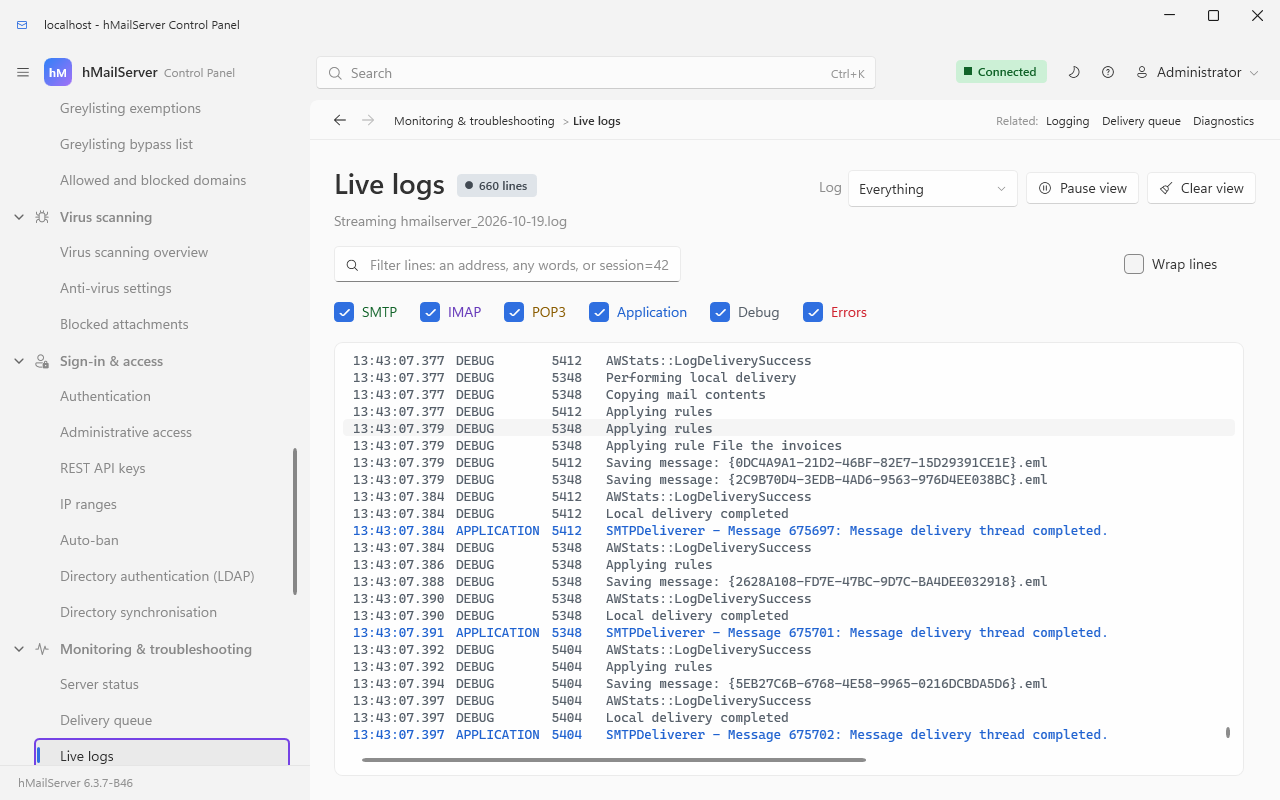
Then look on disk. A delivered message is one file:
C:\Program Files\hMailServer\Data\yourcompany.com\you\a3\{a3f01e6c-....eml}
                             │    │                │  │   └── the message, headers and all
                             │    │                │  └────── two-character fan-out folder
                             │    │                └───────── the mailbox's local part
                             │    └────────────────────────── the domain
                             └─────────────────────────────── DataFolder from hMailServer.INI
Open it and the first header is the server's own trace line — the same one every spam filter
and every Received-chain analysis reads:
Received: from localhost (localhost [127.0.0.1])
	by MAILSRV with ESMTP id 4
	; Mon, 08 Sep 2026 11:04:17 +0100
The letters after ESMTP are the flags this hop records: S for a TLS session, A for an
authenticated one, so an authenticated submission over TLS reads with ESMTPSA. When TLS is
in use a second line carries the version, cipher and key size.
sequenceDiagram
    autonumber
    participant C as Your client
    participant L as SMTP listener
    participant R as RecipientParser
    participant DB as Database
    participant D as SMTPDeliveryManager
    participant M as Local mailbox
    C->>L: Connect to port 25
    L-->>C: 220 MAILSRV ESMTP
    C->>L: EHLO, MAIL FROM
    L->>L: Free-space check. Below MinimumFreeDiskSpaceMB it answers 452 4.3.1 right here
    L-->>C: 250 2.1.0 OK
    C->>L: RCPT TO
    L->>R: CheckDeliveryPossibility, the flowchart in 6.3
    R-->>L: Possible, or a 550 / 452 with a reason
    L->>L: Relay and authentication check against the matching IP range
    L-->>C: 250 2.1.5 OK
    C->>L: DATA, then the message, then a lone dot
    L->>L: Spam tests, message modifications, then the OnAcceptMessage script and the save
    L->>DB: Write the message row and its recipients
    L-->>C: 250 2.0.0 Queued
    Note over L,D: Everything above happens while the client waits. Everything below does not.
    D->>DB: Pick the message up from the queue
    D->>M: LocalDelivery: quota check, rules, Sieve, then write the file into the account folder
    D->>DB: Mark delivered, or record the failure and schedule a retry
Everything above the note happens inside the SMTP conversation, which is why a slow spam test shows up as a sender timeout rather than as a queue problem — see Diagnosing Stalled Mail if that is what you are looking at.
Now connect a mail client (Connecting a Mail Client) and read the message. If it is there, your server works. Everything from here is about the outside world being able to reach it: DNS for Your Domain, then Encryption and Certificates.
A short list, each item with the page that covers it:
-
postmaster@exists as a real account — Aliases Lists and Public Folders - MX, SPF, DKIM and DMARC records published and verified on Set up this server → DNS records — DNS for Your Domain
- A certificate installed and 587/993 created — Encryption and Certificates
- The administrator password changed from the installer's MD5 to a PBKDF2 one — Installing hMailServer §4.6
- Spam filtering reviewed — Stopping Spam
- A backup that you have actually restored once — Backup and Restore