Repository navigation
Knowledge Base
Every team has knowledge that doesn't fit in a requirement or a ticket: how the billing flow works, why we chose this payer API, how to set up a development machine, our review checklist. Studio's knowledge base gives that knowledge a home, close to the records it talks about, in the spirit of Odoo Knowledge.
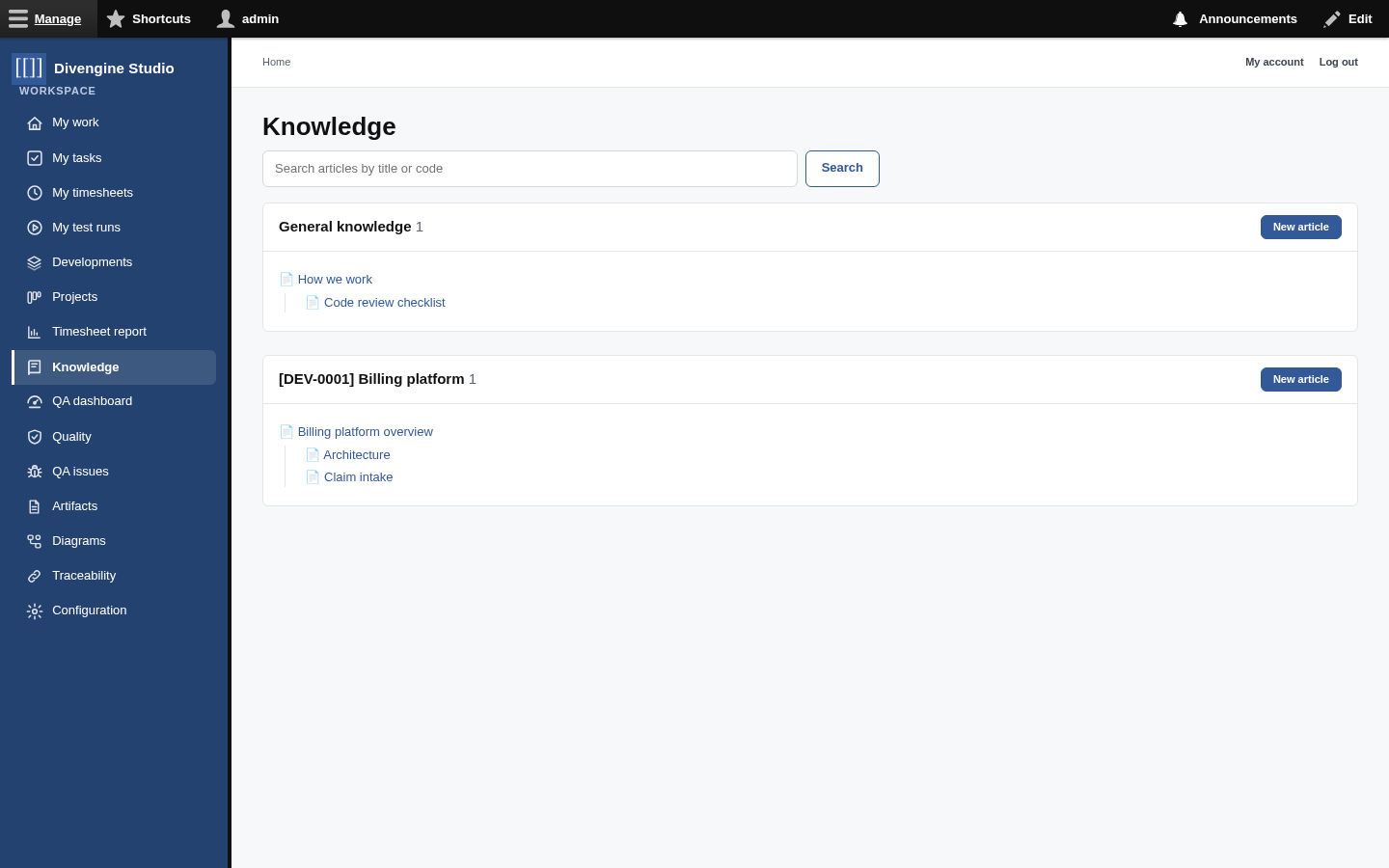
A knowledge article (KB-0001) is a page of rich text with:
| Parent article | Articles nest, so you can build a real table of contents: Overview → Architecture → Payer integration. |
| Development | Documentation of a Development is read only by its members. Leave it empty for knowledge everyone can read. |
| Topics | Tags from the knowledge domains vocabulary, created on the fly. |
| Order | Sub-articles are listed by this number, then by title. |
| Revisions | Every save is kept: see who changed what, compare, revert. |
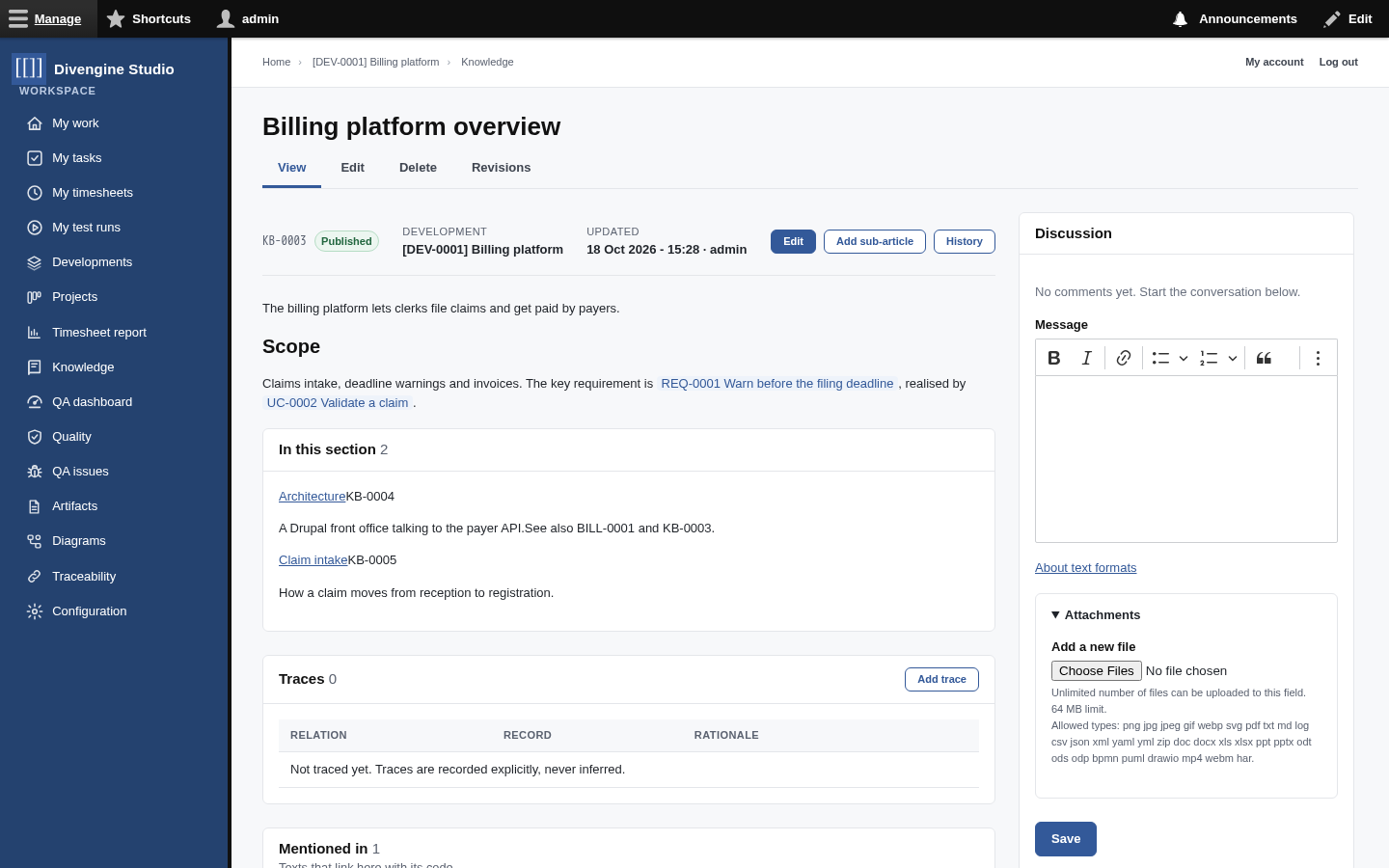
The article page shows its code, Development, topics and last update, then the text, the sub-articles as cards (In this section), links to the previous and next article at the same level, its traces, where it's mentioned, and its discussion.
flowchart TD
    O["KB-0003 · Billing platform overview"] --> A["KB-0004 · Architecture"]
    O --> C["KB-0005 · Claim intake"]
    A --> P["Payer integration"]
    G["KB-0001 · How we work (general)"] --> R["KB-0002 · Code review checklist"]
- Knowledge in the sidebar: a search box, the general knowledge tree and one tree per Development you can see.
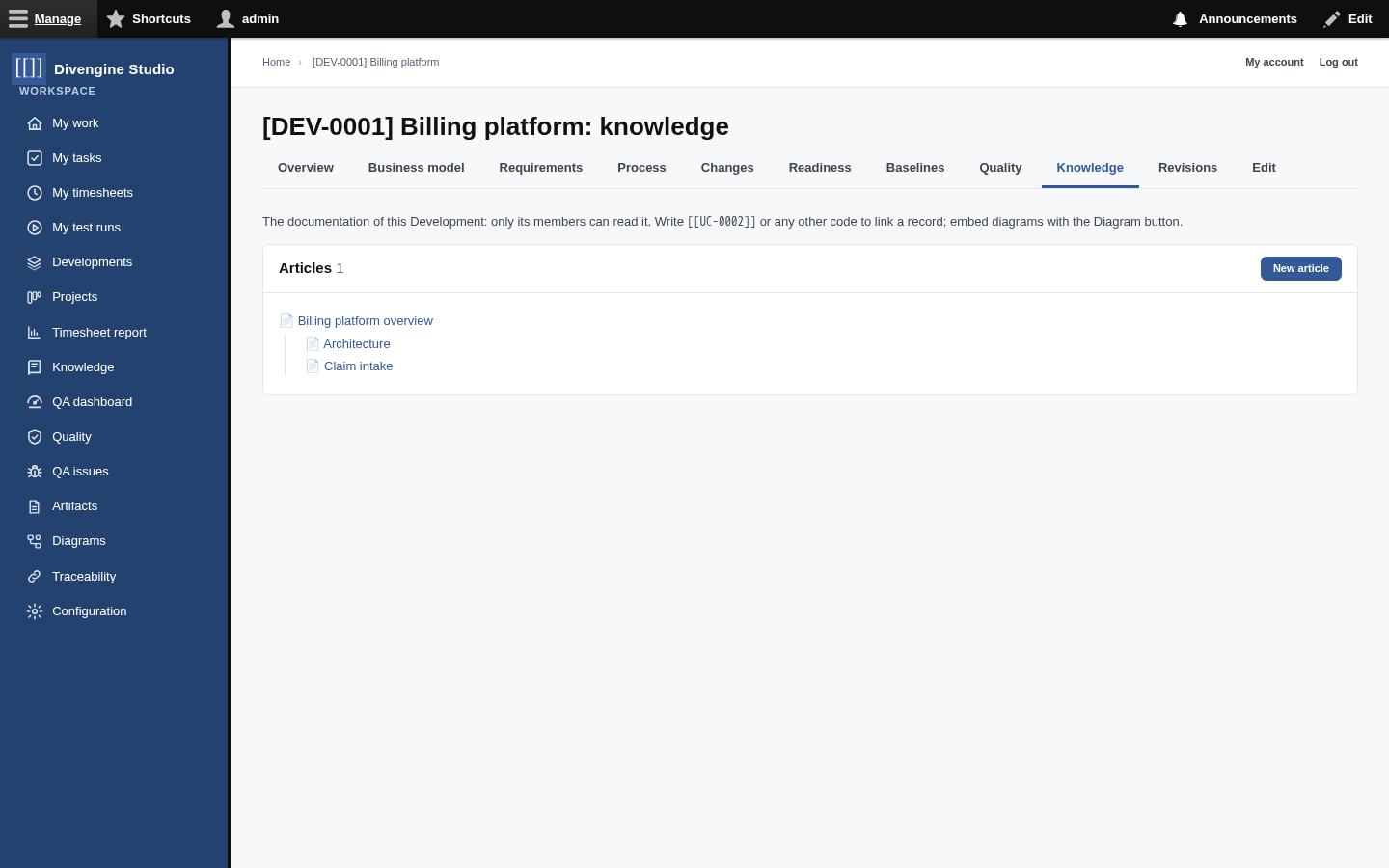
- The Knowledge tab of a Development: just that Development's documentation, with New article.
- Add sub-article on any article creates a child (it inherits the Development of its parent).
Click the Diagram button in the editor and pick one: the live diagram appears in the article and updates when the diagram changes. See Diagrams.

This is the trick we're proudest of, and yes, it matches the logo. 😄 Write a record's code between double brackets and it becomes a link:
| You write | Readers see |
|---|---|
[[REQ-0001]] |
REQ-0001 Warn before the filing deadline |
[[UC-0002]] |
UC-0002 Validate a claim |
[[BILL-0001]] |
BILL-0001 Send deadline warnings (a task) |
[[KB-0003]] |
KB-0003 Billing platform overview (another article) |
[[REQ-0001|the deadline rule]] |
the deadline rule |
- The title is always the current one: rename the requirement and every link follows.
- Someone who can't see the record reads
REQ-0001 (restricted), never its title. - A code that doesn't exist is marked in red, so typos don't hide.
- It works in every formatted text in Studio: articles, artifact descriptions, task descriptions, comments, QA issues…
Codes you can use: artifacts (REQ-, UC-, BR-, BUC-, WP-, DEC-, RSK-…), Developments
(DEV-), change requests (CR-), baselines, test plans, suites, cases and runs (TP-, TS-,
TC-, RUN-), QA issues (QI-), projects (their key, like BILL), tasks (BILL-0001) and
articles (KB-).
Every record with a code shows Mentioned in: the articles, descriptions and comments that link
to it with [[CODE]]. Open a requirement and you immediately see which documentation talks about
it.

flowchart LR
    KB["KB-0003<br/>Billing overview"] -- "#91;#91;REQ-0001#93;#93;" --> REQ["REQ-0001"]
    T["BILL-0001 comment"] -- "#91;#91;REQ-0001#93;#93;" --> REQ
    REQ -. shows .-> M["Mentioned in:<br/>KB-0003, BILL-0001"]
Mentions are not traces. A trace is a deliberate, typed relationship ("this test verifies that requirement"). A mention just says "this text talks about that record". Use both: mentions for prose, traces for engineering relationships.
| Role | Can |
|---|---|
| Everyone with access | Read general knowledge and the documentation of the Developments they belong to. |
| Content editor, Studio Manager | Create and edit articles, see and revert revisions. |
- Start each Development with an overview article and hang everything else below it.
- Link generously with
[[CODE]]: it costs nothing and builds the "Mentioned in" map for free. - Put decisions in Decision artifacts (
DEC-) and explain them in articles that link to them.

Getting started
Knowledge
- Knowledge base
- Artifacts
- Traceability
- Diagrams
- Discussions & attachments
- Code Source
- Code docs
- Database schemas
Work
Process
Quality
- Test management
- Running tests (for testers)
- QA issues
- Dashboard & reports
- Verifying requirements with tests
Administration
Under the hood