Repository navigation
Project Management
Knowing what to build is half the story. The other half is organising the work: who does what, by when, and where each piece stands. Studio's project management takes the best ideas from tools many teams already know:
| From… | We took… |
|---|---|
| Trello | Boards of cards you drag between columns. |
| Odoo Project | Stages per project, several assignees per task, subtasks. |
| Jira | Project keys (BILL-0001) and links between issues (blocks, duplicates…). |
| Azure DevOps | Work item types (Epic, Feature, Story, Task, Bug) and hierarchies. |
…and made it Studio: every link is an explicit trace, so a task can point at the diagram it implements or the requirement it delivers, and you can follow the thread both ways.


PlantUML source (rendered live by the PlantUML for GitHub extension)
@startuml
skinparam backgroundColor transparent
skinparam defaultFontName Verdana
skinparam shadowing false
skinparam class {
  BackgroundColor #ffffff
  BorderColor #335999
  ArrowColor #335999
}
hide methods
hide circle
class "Project" as P {
  key: BILL
  name, status, dates
  manager, members
}
class "Task" as T {
  code: BILL-0001
  type, stage, priority
  assignees, tags
  deadline, estimate
}
class "Stage" as S {
  To Do, In Progress…
  category: not started /
  in progress / done / cancelled
}
class "Task type" as TT {
  Epic, Feature, Story,
  Task, Bug
}
class "Comment" as C
class "Diagram / Artifact" as D
P "0..1" -- "*" P : parent of >
P "1" *-- "*" T
T "0..1" -- "*" T : parent of >
T "*" .. "*" T : relates to · blocks · duplicates\n(traces)
T --> S
T --> TT
P "*" --> "*" S : board columns
T "1" *-- "*" C
D .. T : traces
D .. P : traces
@endumlA project has a key (2 to 10 letters or digits, like BILL), a name, a description, a
manager, members, a status (Active, On Hold, Done, Archived) and dates.
Big efforts can be split into subprojects: set a parent project, or click Add subproject on the parent's page. Subprojects can have subprojects too, as deep as you like (Studio refuses loops, so a project can't end up inside itself).
flowchart TD
    BILL["BILL · Billing platform"] --> CLAIM["CLAIM · Claims portal"]
    BILL --> PAY["PAY · Payments"]
    PAY --> PAYAPI["PAYAPI · Payer API integration"]
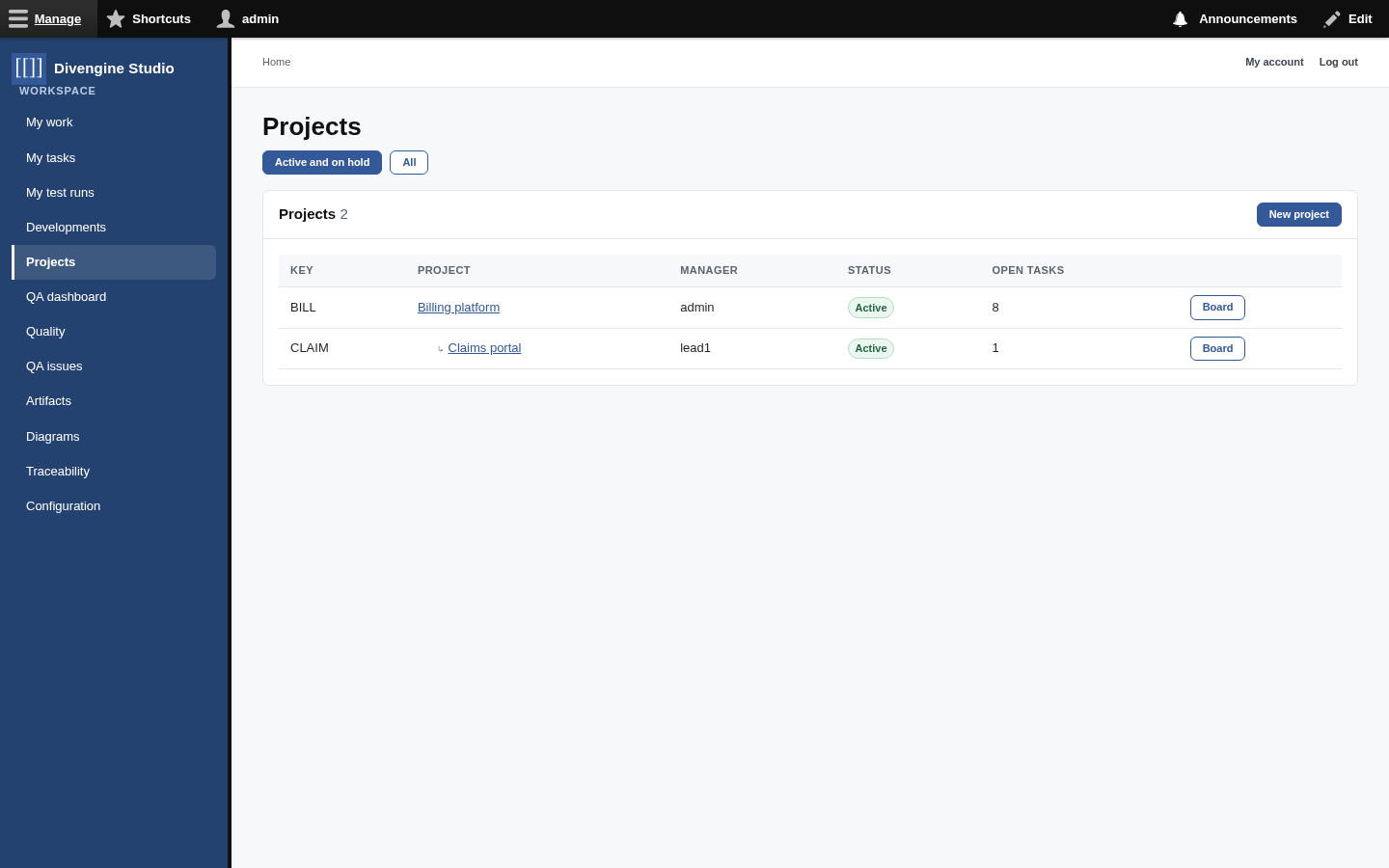
Projects in the sidebar shows them as a tree. Each project page has three tabs: Overview, Board and Tasks.

The overview shows open, in-progress, done and overdue tasks at a glance, the subprojects and the open tasks with their subtask progress.
A task gets its code from the project key: BILL-0001, BILL-0002… Everyone can say "I'm on
BILL-42" and be understood.
| Field | What it's for |
|---|---|
| Type | Epic, Feature, Story, Task or Bug, each with its own colour. |
| Stage | Its column on the board. |
| Priority | Low, Normal, High, Urgent. |
| Assignees | One person or several (pair work happens!). |
| Tags | Free labels, created on the fly: frontend, payer-api, quick-win… |
| Start date, deadline | Overdue tasks turn red everywhere. |
| Allocated time | The hours you expect it to take; compared with the time logged in Timesheets. |
| Parent task | Makes it a subtask. |
| Description | Rich text, with diagrams embedded if you want. |
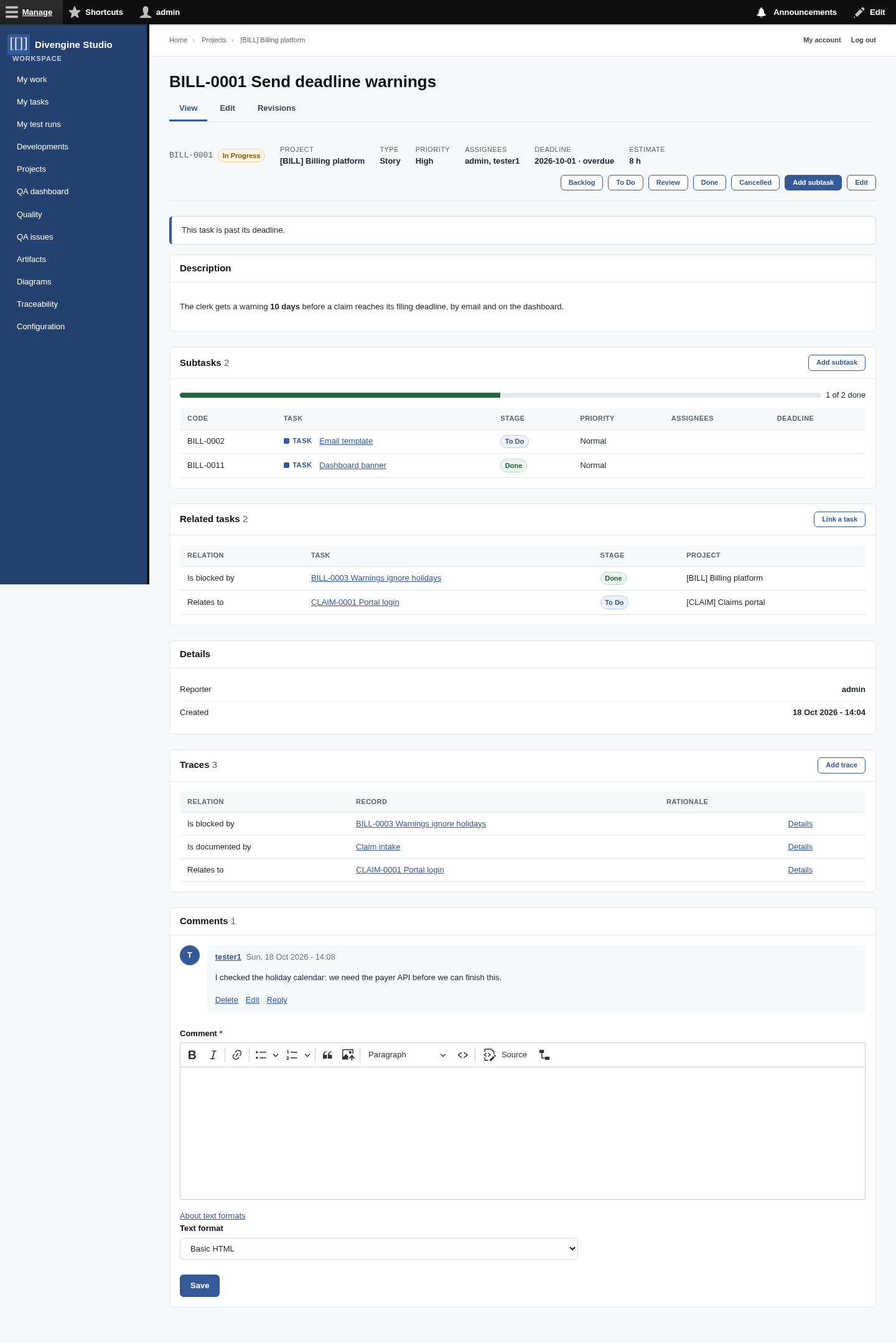
The task page shows, top to bottom: the stage buttons to move it, the description, its subtasks with a progress bar, its related tasks, details, traces and the comments. Every change is a revision, so the history tab tells you who changed what and when ("Moved from To Do to Review").
Click Add subtask to split a task. A subtask always lives in the same project as its parent, and the parent shows "1 of 3 done" so you can see progress without opening everything. Subtasks can have subtasks, but don't overdo it. 😉
One column per stage, one card per task. A card shows the type, code, title, priority (when it's High or Urgent), deadline, subtask progress, the parent task and the assignees' initials.
- Drag a card to another column to change its stage. Drop it higher or lower to reorder.
- + Add a task at the bottom of a column creates a task directly in that stage.
- Columns marked folded (Backlog and Cancelled by default) collapse when empty; click to open.
- If a move isn't allowed, the card jumps back and Studio tells you why.
Each stage has a category, so Studio understands it whatever you call it:
| Category | Default stages | Means |
|---|---|---|
| Not started | Backlog, To Do | Waiting. |
| In progress | In Progress, Review | Someone is on it. |
| Done | Done | Finished. The closing date is recorded. |
| Cancelled | Cancelled | Won't be done. |
A project can use a subset of the stages: a small project might only want To Do → Doing → Done. Pick them in the project's Board stages field.
Tasks rarely live alone. In Related tasks, click Link a task and choose the relation:
| Relation | Reads on the other task as | Example |
|---|---|---|
| Relates to | Relates to | "Portal login" relates to "Send deadline warnings". |
| Blocks | Is blocked by | "Fix holidays bug" blocks "Send deadline warnings". |
| Duplicates | Is duplicated by | Two people reported the same bug. |
| Depends on | Is a dependency of | Generic dependency. |
Related tasks can be in different projects. They're traces, so they also show up in the Traceability page and in the trace panel of each task.
A task for "Implement claim intake" should point at the BPMN diagram that describes the process; a story should point at the use case it delivers. Use Add trace on the task, or on the diagram, and pick a relation such as documents, implements or references.
flowchart LR
    D["📐 Diagram<br/>Claim intake (BPMN)"] -- documents --> T["BILL-0001<br/>Send deadline warnings"]
    T -- implements --> UC["UC-0002<br/>Get deadline warning"]
    B["BILL-0003<br/>Holidays bug"] -- blocks --> T
    C["CLAIM-0001<br/>Portal login"] -- relates to --> T
Every task has a Time section where people log the hours they spend, start a timer, and see allocated versus spent time. See Timesheets.
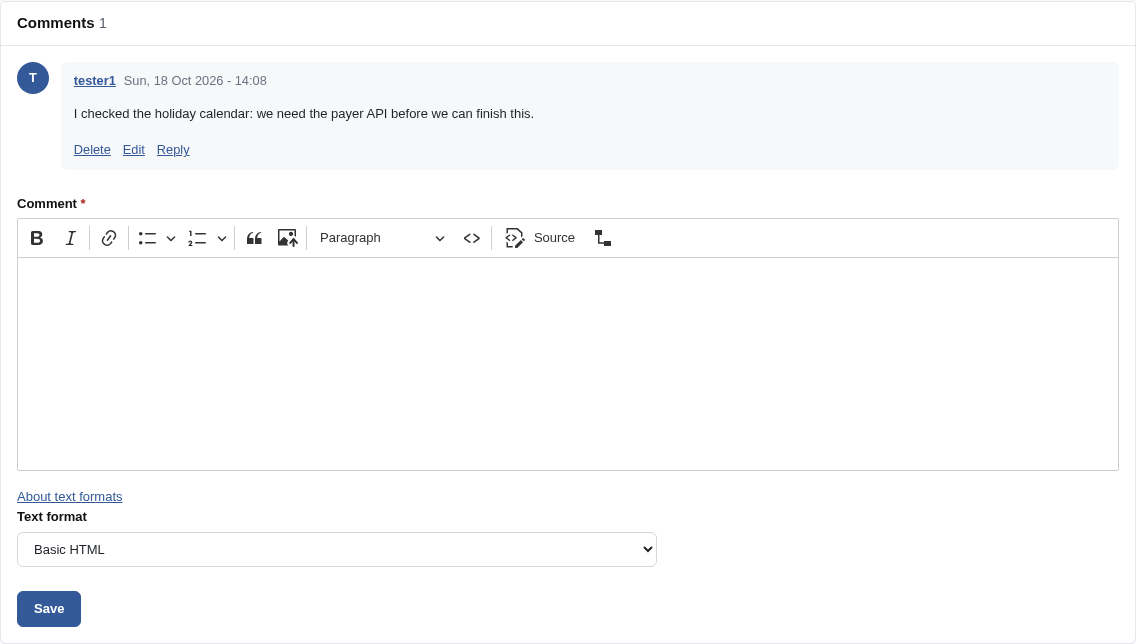
Every task has a discussion thread, powered by Drupal's core Comment module: write with formatting, reply to a specific comment, edit your own.
My tasks in the sidebar lists the open tasks assigned to you (soonest deadline first), how many are overdue, and the open tasks you reported, across every project.

The Tasks tab of a project is the list view: search by code or title, filter by stage (or open / closed), type, and "assigned to me".

flowchart TD
    U[Person] --> M{Owner, manager or member<br/>of the project<br/>or of a parent project?}
    M -- yes --> S[Sees the project, its subprojects<br/>and all their tasks]
    M -- no --> X[Doesn't see it]
- Everyone who sees a project can work on its tasks: create, edit, move, comment.
- The project's manager (or the manager of a parent project) and people with the Project Manager role edit the project itself.
- Creating projects needs the Project Manager role.
- Project administrators see everything.
- Projects → New project. Name it, give it a key, add the members.
- Open the Board and use + Add a task in To Do a few times.
- Open a big task and Add subtask to split it.
- Link a task for things that block each other.
- Drag cards across the board as work moves. That's it, you're running a project. 🚀

Getting started
Knowledge
- Knowledge base
- Artifacts
- Traceability
- Diagrams
- Discussions & attachments
- Code Source
- Code docs
- Database schemas
Work
Process
Quality
- Test management
- Running tests (for testers)
- QA issues
- Dashboard & reports
- Verifying requirements with tests
Administration
Under the hood