Repository navigation
Timesheets
"How long did that take?" is a question every team gets asked, usually by someone holding a budget. Studio's timesheets, inspired by Odoo's, make answering it painless: log time where you work, see it add up on tasks and projects, and pull a report when someone asks.
flowchart LR
    You((You)) -->|log 1:30| E[Timesheet entry<br/>date · task · description · hours]
    E --> T[Task<br/>spent vs allocated]
    T --> P[Task with subtasks<br/>rolls their time up]
    E --> R[Reports<br/>by person · project · task]
    E --> G[Your week<br/>in the grid]
A timesheet entry is simple: who, when, which project (and usually which task), what you did and how many hours.
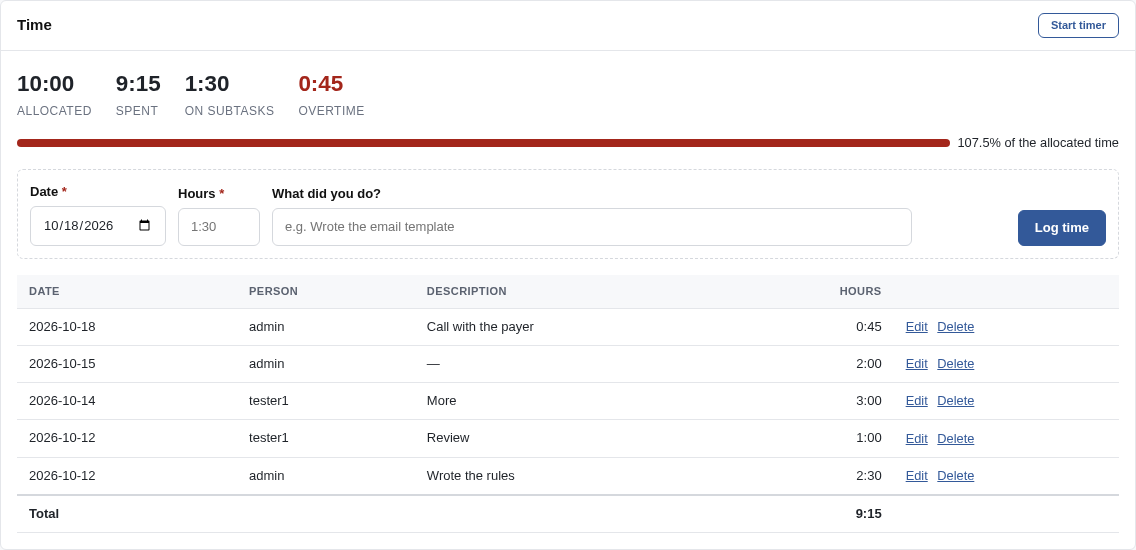
Every task page has a Time section with a one-line form:
- Pick the date (today by default).
- Type the hours. Both
1.5and1:30mean an hour and a half. - Say what you did, in a few words.
- Log time. Done.
The entries appear below, with their total. You can edit or delete your own entries.
Click Start timer when you begin working on a task, and Stop timer when you're done. Studio rounds the time up to the next quarter of an hour (at least 15 minutes) and pre-fills the log form; you only add the description.
You have one timer at a time. Start it on another task and the first one stops, logging its time on the first task automatically. No lost minutes.
Give a task an allocated time (the hours you expect it to take) and its Time section tells you how it's going:
| Figure | Means |
|---|---|
| Allocated | The time planned for the task. |
| Spent | Time logged on the task itself. |
| On subtasks | Time logged on all its subtasks, at any depth. |
| Remaining | Allocated minus spent and subtasks. When it goes below zero it turns into Overtime, in red. |
| Progress bar | Percentage of the allocated time used; red when you're over. |
On a project's overview, the Time section shows the hours logged, the hours allocated to its tasks and, for managers, who logged how much.

My timesheets in the sidebar shows your week as a grid: one row per task, one column per day.

- The rows are the tasks you logged time on this week, plus the open tasks assigned to you, so the usual suspects are already there.
- Need another task? Search it in Add a line.
- Type hours in the cells (
2,1.5,0:45…). Totals per day and per task update as you type. - Save the week turns your changes into entries.
- Move between weeks with Previous week, This week and Next week. Today's column is highlighted.
flowchart TD
    C[You change a cell] --> Q{What's in that cell?}
    Q -- nothing --> N[A new entry is created]
    Q -- one entry --> U[That entry is updated<br/>or deleted if you type 0]
    Q -- several entries --> A[An adjustment entry<br/>for the difference]
That last case is how Odoo does it too: if you logged three separate entries on Tuesday and change the cell from 4:00 to 3:30, Studio keeps your three entries (with their descriptions) and adds a −0:30 adjustment. The history stays honest.
Each project has a Timesheets tab with the time per task (next to its allocated time) and the list of entries.

Timesheet report answers questions like "how much did each person spend on Billing last month?". Pick a period (this month by default), optionally a project and a person, and group by person, project or task.

| You are… | You see… |
|---|---|
| Anyone who logs time | Your own entries, on projects you can see. |
| The manager of a project (or of a parent project) | Everyone's entries on that project and its subprojects. |
| Someone with Manage timesheets (the Project Manager role has it) | Everyone's entries on every project you can see, and the person filter in the report. |
Task totals (spent, remaining…) are visible to everyone who sees the task: knowing how long something took is useful to the whole team; who logged each line is for managers.
- Log daily. Five minutes at the end of the day beats an hour of archaeology on Friday.
- Describe the work, not the task. "Fixed rounding in invoice totals" says more than "Bug".
- Use allocated time on tasks you care about; overtime is a conversation starter, not a crime.
- Prefer the timer when you switch tasks often.

Getting started
Knowledge
- Knowledge base
- Artifacts
- Traceability
- Diagrams
- Discussions & attachments
- Code Source
- Code docs
- Database schemas
Work
Process
Quality
- Test management
- Running tests (for testers)
- QA issues
- Dashboard & reports
- Verifying requirements with tests
Administration
Under the hood