Camera Setup
Cindr3D can save camera profiles per printer for fleet cards, monitor dashboards, full camera workspaces, snapshots, recordings, timelapses, and print review.
Open 3D Printer, choose a printer card, click Settings, then select Camera.
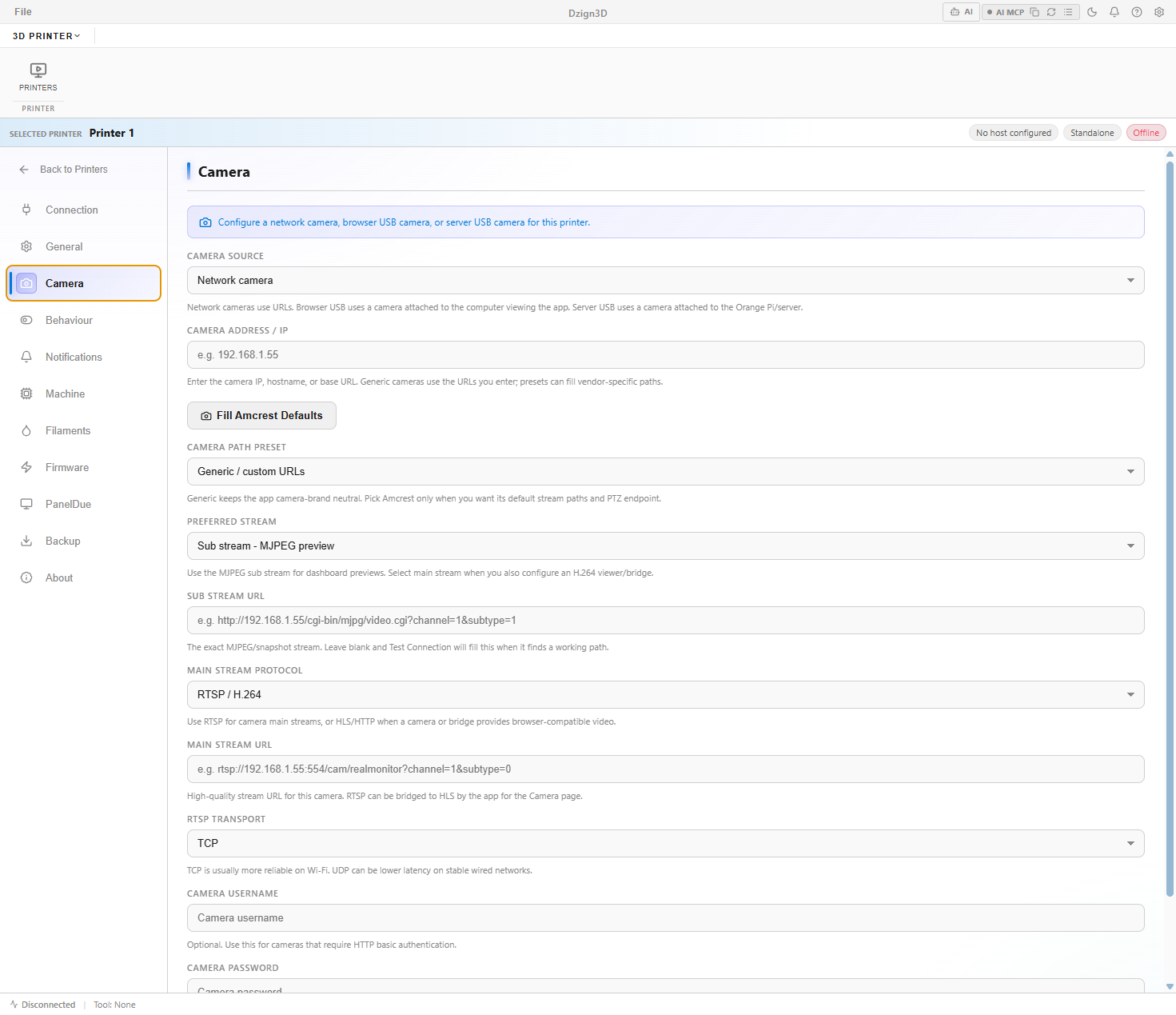
- Network camera: IP camera, Wi-Fi camera, Raspberry Pi camera bridge, OctoPrint webcam endpoint, Mainsail/Fluidd stream, or any browser-reachable HTTP/HLS/RTSP source.
- Browser USB camera: webcam attached to the computer viewing Cindr3D.
- Server USB camera: webcam attached to the server or Orange Pi running the Cindr3D host.
Each printer can store multiple streams such as top, side, nozzle, enclosure, or custom views.
Start simple: enter the camera host, leave Sub Stream URL blank, then run Test Connection. If Cindr3D finds a stream, review the generated URL and save it.
Amcrest/Dahua-compatible cameras can use built-in defaults for common MJPEG, RTSP, and PTZ endpoints.
Use the sub stream for reliable dashboard and fleet previews. Use the main stream for higher quality video. Browsers cannot play raw RTSP directly, so RTSP usually needs an HLS/WebRTC bridge.
Once saved, the same camera profile appears on the printer card, monitor dashboard, and full camera workspace.
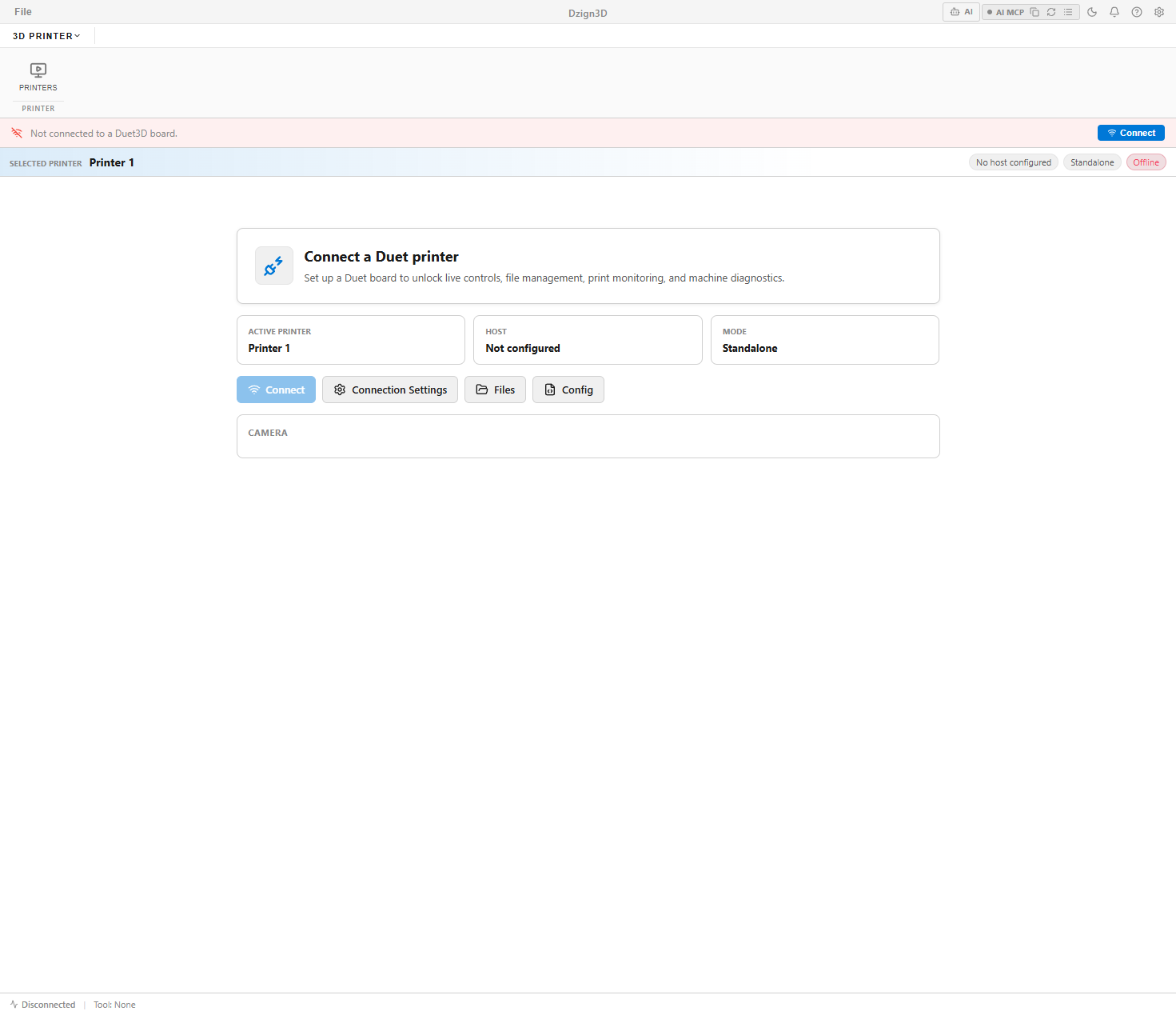
The full workspace adds quality switching, snapshots, recordings, timelapses, overlays, calibration aids, stream tabs, and PTZ controls.
- Amcrest/Dahua IP camera: choose Network camera, enter IP, fill defaults, add credentials if required, test, save.
- OctoPrint webcam: paste the webcam stream URL into Sub Stream URL, test, save.
- Mainsail/Fluidd/camera-streamer: paste a browser-viewable stream or snapshot URL.
- Laptop webcam: choose Browser USB camera, save, open Camera, approve browser permission.
- Orange Pi webcam: choose Server USB camera, pick or enter the server USB device, save, open Camera.
- If Test Connection fails, open the same URL directly in the browser.
- If test works but dashboard preview is blank, save settings and refresh Monitor.
- If HTTPS blocks HTTP camera content, use matching schemes or a server-side bridge.
- If RTSP HD does not start, confirm the server can reach the camera and try RTSP-over-TCP.