Files and Settings Bundles
Cindr3D stores design documents, workspace settings, printer profiles, and app preferences in different scopes. Understanding the difference makes backup and migration easier.
Use Open Design and Save Design in the Design workspace to read and write CAD design files.
Design documents include the feature timeline. Rolling back and saving preserves feature history.
Settings bundles let you save and load workspace-level configuration.
- Save Settings writes the active workspace section to the current bundle.
- Save Settings As branches into a new bundle.
- Load Settings restores a saved bundle.
Bundles are useful when moving between machines or keeping several workshop configurations.
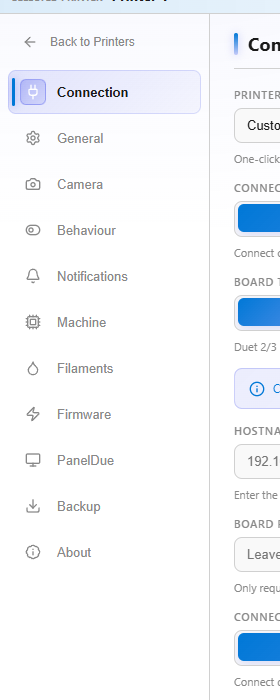
Printer settings also support broader backup/import flows. Use backup when you want a portable archive of app state, printer preferences, camera settings, filament profiles, and related local configuration.
Per-printer state:
- Connection details.
- Camera settings.
- Filament profiles.
- Dashboard layout.
- Printer preferences.
Global state:
- Theme.
- Units.
- Notification defaults.
- Shared app preferences.