Slicing and Print Preview
The Prepare workspace handles plate setup, slicing, calibration, and G-code inspection.
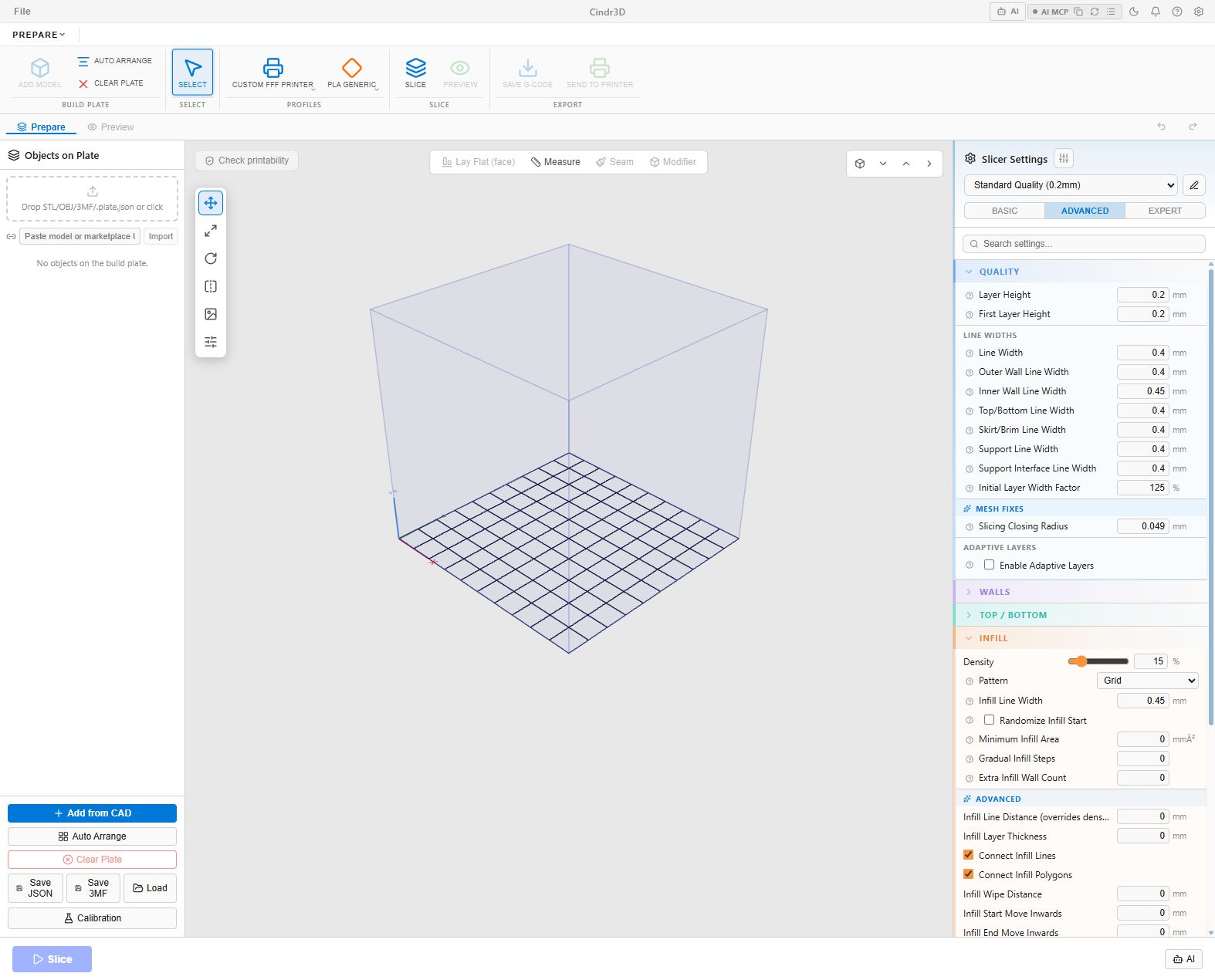
For an object-loaded screenshot walkthrough, see Prepare Object Walkthrough.
For printer profile creation and cropped screenshots of the profile editor, see Prepare Profiles and Printer Creation.
For setting-by-setting tuning guidance, see Slicer Settings Reference.
For G-code breakpoints, simulation playback, and section view screenshots, see G-code Preview Simulation and Breakpoints.
Use the plate view to arrange one or more objects before slicing.
Common tasks:
- Place multiple objects on the build plate
- Apply per-object profile overrides
- Confirm build-volume fit
- Check clearances between objects
- Prepare batches for repeated prints
Cindr3D separates printer, print, and material profiles so the same model can be prepared for different machines and materials.

Profile areas:
- Printer dimensions and firmware behavior
- Material temperatures and cooling behavior
- Print settings such as layer height, walls, infill, speed, and supports
- Per-object overrides for special parts on the same plate
Cindr3D uses WASM-backed geometry and slicing operations for browser-side preparation.
The slicing pipeline is designed to support:
- Boolean-ready geometry handling
- Variable-width wall behavior
- Bridge skin classification
- Bridge-fan override
- Multi-profile flows
- G-code generation with object metadata
The preview view helps inspect generated toolpaths before sending them to a printer.

Useful preview controls:
- Layer slider
- Simulation playback
- Wireframe and tube modes
- Color by type
- Color by speed
- Color by flow
- Color by width
- Color by layer time
- Color by wall quality
- Color by seam
Use the preview to catch obvious print risks: missing walls, unexpected travel, poor seam placement, unsupported bridges, or geometry scaled incorrectly.
The G-code dock provides a raw listing for deeper inspection.
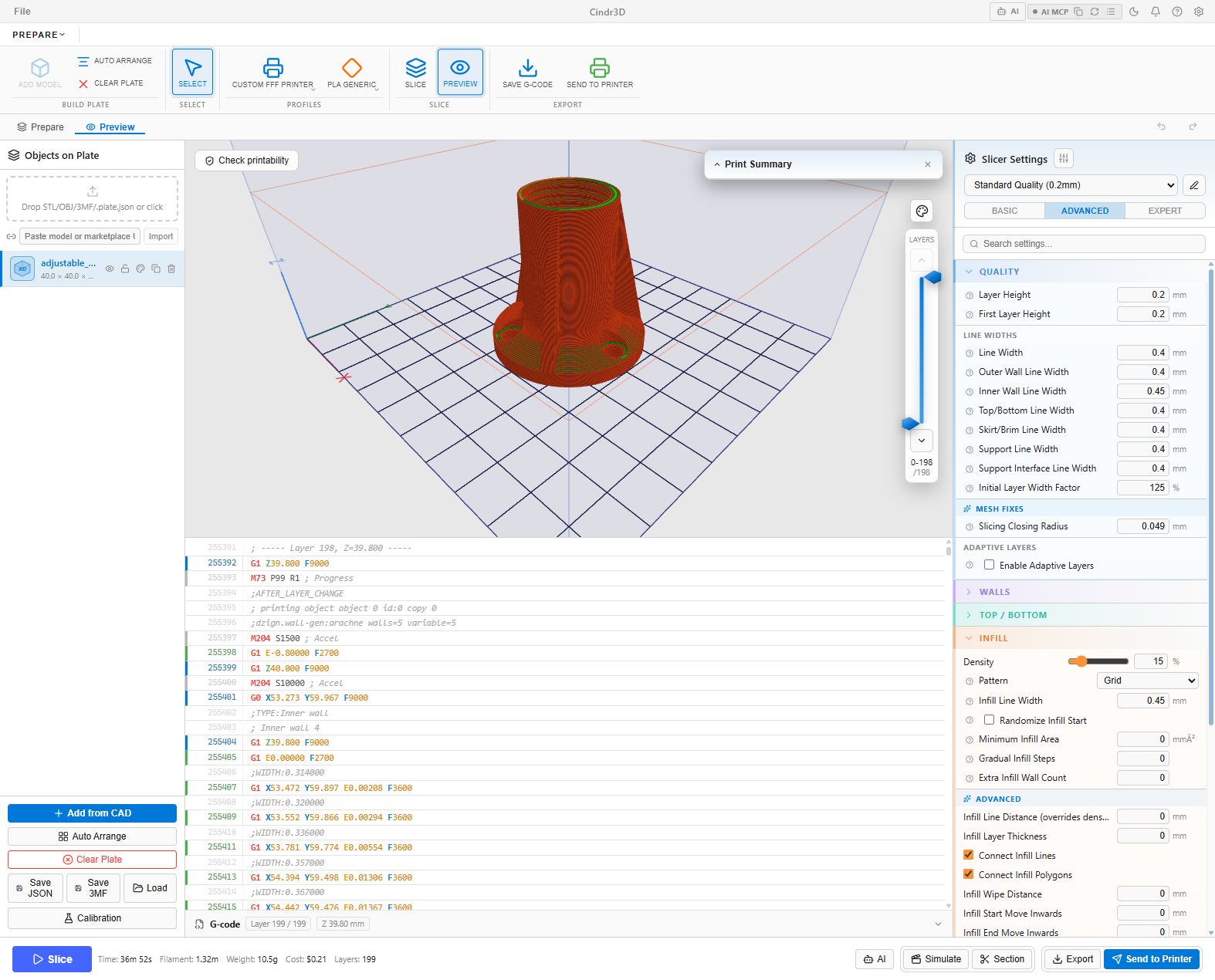
Features include:
- Virtual scrolling for large files
- Click-to-jump between preview and source
- Scrub-to-follow behavior
- Breakpoint-style inspection for step-by-step review
The Preview footer includes simulation playback, speed selection, scrub controls, section view, export, and send-to-printer actions.

This is useful when tuning post-processors, comparing slicer behavior, or debugging firmware-specific commands.
Cindr3D-sliced jobs emit M486 object labels automatically. These labels make mid-print object cancellation possible on supported firmware.
For externally sliced files:
- PrusaSlicer, SuperSlicer, and OrcaSlicer: enable object labels in output settings.
- Cura: use the Label Objects post-processing script.
When labels are present, Cindr3D can expose object cancellation in the printer UI and preview context menu.
Calibration utilities help generate and inspect print-tuning models.
For a workflow-oriented calibration checklist, see Calibration Workflows.
Common calibration areas:
- First layer
- Temperature
- Flow
- Retraction
- Pressure advance
- Input shaper
- Dimensional accuracy
- Max volumetric speed
Run calibration per printer, material, nozzle, and profile combination. A result that is perfect for PLA on one machine may be wrong for PETG or a different hotend.