Repository navigation
Navigation
| To | Mouse | Keyboard |
|---|---|---|
| Open a folder or file | Double-click |
Enter (or l with vim keys) |
| Go to the parent folder | The previous button in the path bar |
Backspace, Alt+↑ (or h) |
| Go back |
<, the mouse's back button |
Alt+← |
| Go forward |
>, the mouse's forward button |
Alt+→ |
| Go to the home folder | Home in the sidebar | Alt+Home |
| Open a folder in a new tab | Middle-click it | |
| Open a folder in a new window | Context menu → Open in → New window |
Settings → Behavior → Open with a single click makes one click open items. A single click then no longer selects; use Ctrl+click or the keyboard to select.
Settings → General → Open folders in a new window makes every folder open in a window of its own.
| Keys | Action |
|---|---|
↓ ↑ (or j k) |
Next or previous item. In the grid, ← and → move along a row. |
Home / End (or g / Shift+G) |
First or last item. |
The letter keys h j k l g G y work only with Settings → Behavior → Vim navigation keys switched on.
With Settings → Behavior → Type to jump switched on (the default), typing letters in the listing selects the first item whose name starts with them. A pause of 0.75 seconds starts a new name.
With Type to filter switched on instead, typing starts a search in the open folder without pressing / first. See Search.
Ctrl+L, or a click on the last button of the path bar, turns the path bar into a text field.
- Type an absolute path and press
Enterto open it. - While typing, a list of matching subfolders appears under the field.
↓and↑select one,Tabcompletes the name (the selected one, or the part all matches share), and a click on a folder in the list completes it. - A path to a file opens its folder with the file selected.
- A server address (
smb://nas/media,sftp://me@host/srv) connects to the server. See Servers. -
Escrestores the path bar.
Each tab has its own back and forward history. Opening a folder clears the forward history of the tab.
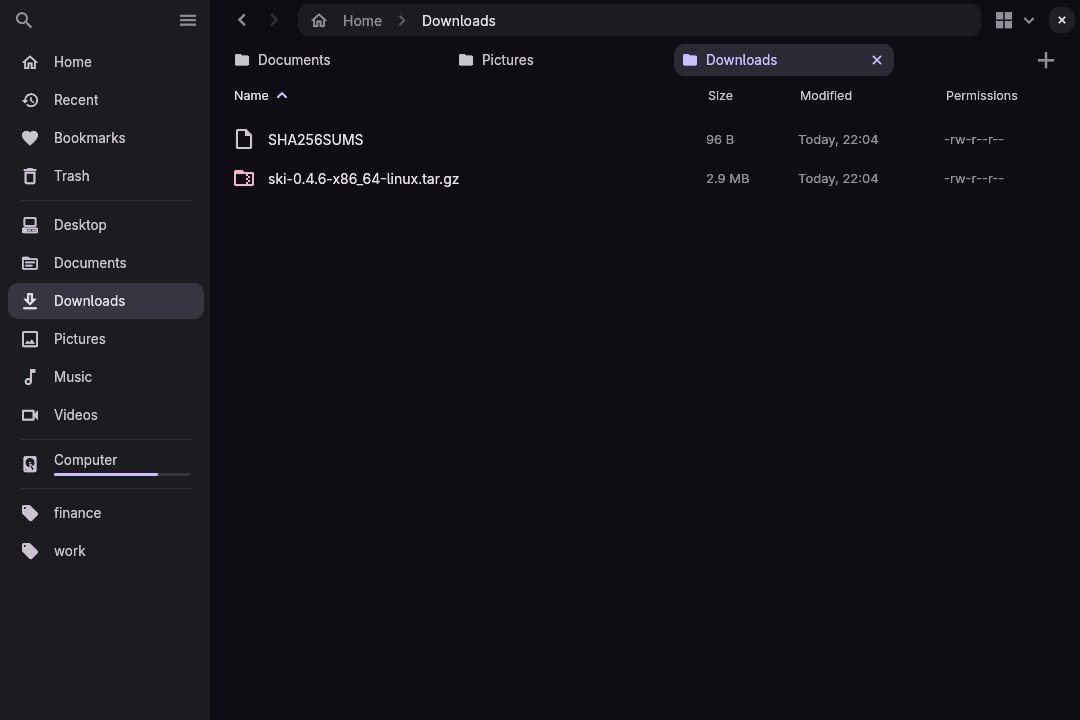
| To | Action |
|---|---|
| Open a new tab on the open folder |
Ctrl+T, or + in the tab bar |
| Open a folder in a new tab | Middle-click the folder, a sidebar place or a drive; or context menu → Open in → New tab |
| Close a tab |
Ctrl+W, the × on the tab, or middle-click the tab. Closing the last tab closes the window. |
| Reopen the last closed tab |
Ctrl+Shift+T. Ski keeps the last 20 closed tabs of a window. |
| Next or previous tab |
Ctrl+Tab / Ctrl+Shift+Tab, or Ctrl+PageDown / Ctrl+PageUp
|
| Move or copy files into a tab's folder | Drag them onto the tab |
Settings → General → Open Ski in → Restore last tabs opens the tabs of the last closed window at the next start. Recent, Bookmarks and search results are not restored, and folders that no longer exist are left out.
Ctrl+N opens a new window on the open folder. Ctrl+Q closes the window. Each window has its own tabs.
Settings → General → Open Ski in decides the folder of a window opened without a folder argument:
| Option | Folder |
|---|---|
| Launch folder (default) | The folder the ski command runs in. From an application menu this is usually Home. |
| Home | The home folder. |
| Last visited | The folder that was open when the last window closed. |
| Restore last tabs | Every tab of the last window. |
| Custom | A folder typed in the field below. If it does not exist, Home. |
Settings → Behavior → Swipe to go back and forward (off by default) makes a sideways two-finger swipe over the listing go back or forward.
A pinch over the listing, or Ctrl+scroll, changes the icon size in the grid and the row height in the list. Ctrl+= and Ctrl+- do the same.
Recent in the sidebar lists the files and folders used last, newest first. It combines Ski's own history (~/.local/share/ski/recent.json, 200 entries) with the desktop's list (~/.local/share/recently-used.xbel), which other applications write to.
Bookmarks in the sidebar lists the files and folders marked with a heart. Context menu → Add to bookmarks marks an item; Remove from bookmarks unmarks it. A pin puts one item in the sidebar itself; a bookmark collects items in one view. See Sidebar.