Repository navigation
Selecting Files
| To | Action |
|---|---|
| Select one item | Click it |
| Add or remove one item |
Ctrl+click |
| Select a range | Click the first item, Shift+click the last |
| Select a rectangle of items | Press on the empty part of the listing and drag |
| Deselect all | Click the empty part of the listing |
With Settings → Behavior → Open with a single click on, a click opens the item. Use Ctrl+click to select.
| Keys | Action |
|---|---|
| Arrow keys | Move the selection |
Shift+arrow keys |
Extend the selection |
Ctrl+A |
Select all |
Ctrl+Shift+A |
Deselect all |
Ctrl+Shift+I |
Invert the selection |
Ctrl+S |
Select matching items |
Esc |
Close a dialog, then clear the search, then deselect |
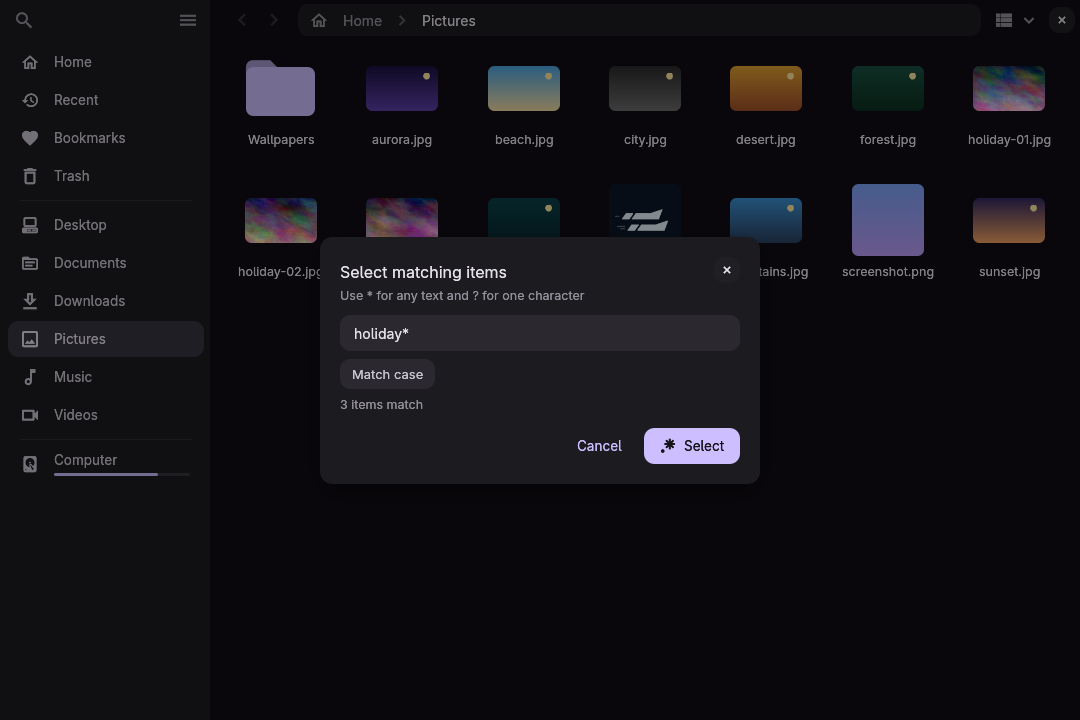
Ctrl+S, or context menu of the empty part → Select → Select matching…, opens a dialog that selects every item whose name matches a pattern.
| Pattern | Matches |
|---|---|
* |
Any text, including none |
? |
One character |
[abc] |
One of the characters a, b, c
|
| any other character | Itself |
, or ;
|
Separates several patterns; a name that matches any of them is selected |
A pattern without *, ? or [ matches names that contain it: report selects q3-report.pdf.
Examples: *.png selects PNG files; *.jpg, *.png selects both; report* selects names that start with "report"; IMG_????.jpg selects IMG_0001.jpg but not IMG_01.jpg.
The match ignores letter case unless Match case is on. The dialog shows how many items match before you confirm.
Most actions apply to every selected item: copy, cut, move to trash, compress, rename (see Renaming many items), properties. Right-clicking an item that is part of the selection opens the menu for the whole selection. Right-clicking an item outside it selects that item alone.
The status line shows the number of selected items and their total size.