Repository navigation
Sidebar
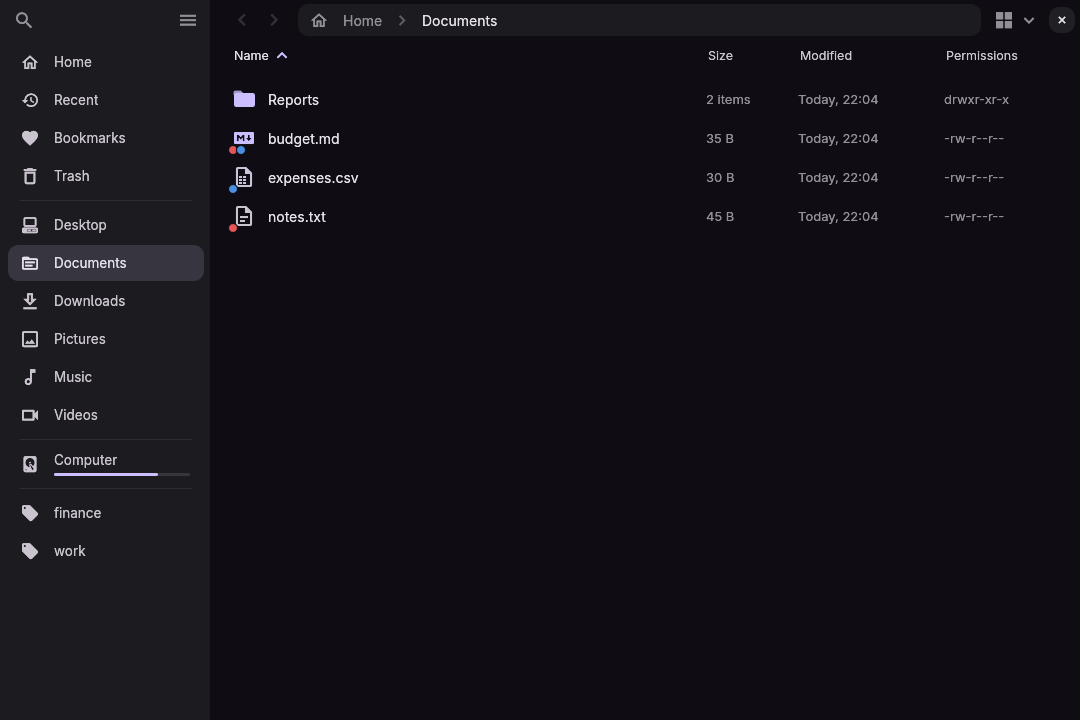
The sidebar lists places on the left of the window, in sections.
| Section | Entries |
|---|---|
| Main | Home, Recent, Bookmarks, Trash |
| Folders | Desktop, Documents, Downloads, Pictures, Music, Videos |
| Pins | Folders and files pinned by the user |
| Devices | Computer (/), drives, then connected servers and phones |
| Tags | One entry per tag, when the Tags plugin is on |
The user folders (Desktop, Documents and the rest) come from ~/.config/user-dirs.dirs. A folder that does not exist is not listed.
Settings → Sidebar → Sidebar shows or hides the whole sidebar.
| Place | Contents |
|---|---|
| Home | The home folder. |
| Recent | Files and folders used last. See Recent. |
| Bookmarks | Items marked with a heart. See Bookmarks. |
| Trash | Deleted items. See Trash and Deleting. |
| Computer | The root folder /, with a bar for the used space of its disk. |
Clicking a place opens it. Middle-clicking a folder place opens it in a new tab. Dropping files on a place moves or copies them there (see Drag and drop).
A pin is a folder or file you add to the sidebar. Pins have a section of their own below the user folders.
| To | Action |
|---|---|
| Pin the selected item |
Ctrl+D, or context menu → Pin to sidebar |
| Pin the open folder |
Ctrl+D with nothing selected |
| Reorder pins | Drag a pin up or down |
| Remove a pin | Context menu of the pin → Unpin from sidebar |
A pinned file opens with its default application. A folder on a server can be pinned; opening the pin connects to the server. Pins are stored in ~/.config/ski/pins.json.
| To | Action |
|---|---|
| Hide a place | Right-click it → Hide from sidebar. The toast that follows has a button to undo it. |
| Show hidden places | Right-click the sidebar → Show hidden places. Hidden places then appear in the list, each with Show in sidebar in its menu. Stop showing hidden places ends this. |
| Choose places in Settings | Settings → Sidebar → Show these places in the sidebar |
The Connect to server… entry is hidden by default. Switch it on in Settings → Sidebar to have it at the bottom of the Devices section.
Drives are listed in the Devices section, each with a bar for its used space. By default every disk and partition is listed. Settings → Sidebar → Show all disks and partitions switched off lists only drives plugged in or mounted under /run/media, /media or /mnt, beside Computer.
A drive that is not mounted is mounted when clicked. Removable drives have an eject button that appears on hover. See Drives and Devices.
Connected servers are listed under the drives, each with a disconnect button. A server with Keep in sidebar stays listed after it disconnects; clicking it connects again. See Servers.
With the Tags plugin on, the sidebar lists every tag Ski has seen. Clicking a tag searches for tag:<name>. The ⋯ button that appears on hover edits the tag's name and color.