Repository navigation
The Window
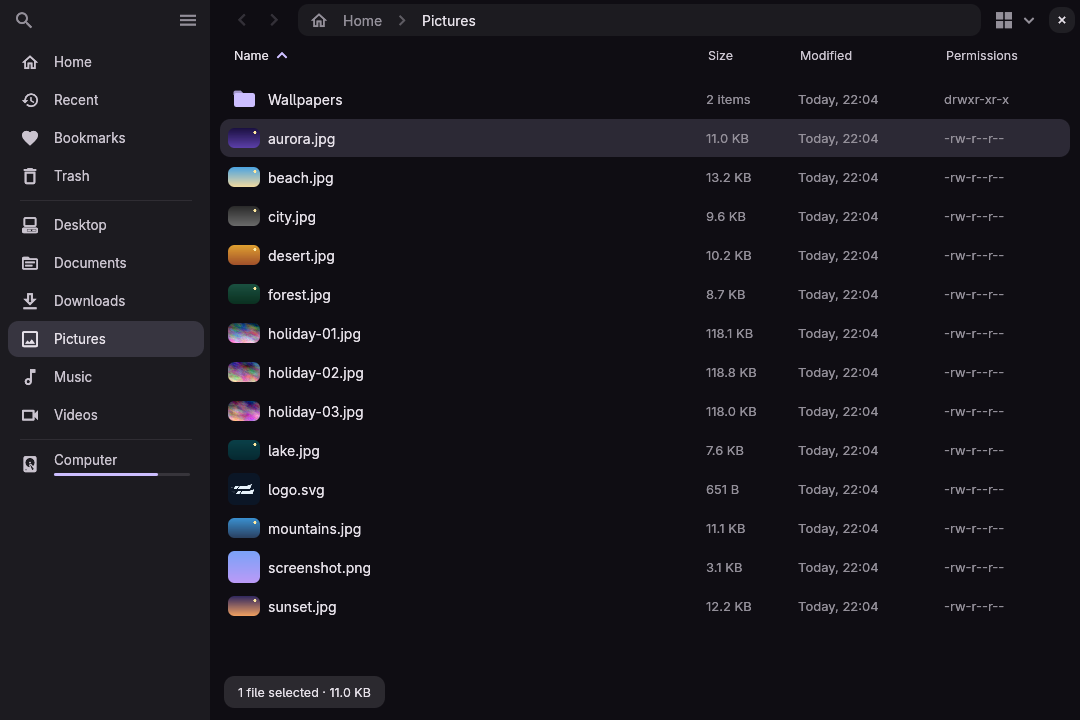
A Ski window has four parts.
| Part | Position | Contents |
|---|---|---|
| Sidebar | Left | The search button, the main menu button, and the list of places: Home, Recent, Bookmarks, Trash, the user folders, pins, drives, servers and tags. See Sidebar. |
| Header | Top | Back and forward buttons, the path bar, the view button, and the close button. |
| Listing | Center | The items of the open folder, of a search, of Recent, of Bookmarks or of the trash. |
| Status line | Bottom left | The number and total size of the selected items. |
| Control | Action |
|---|---|
< and >
|
Back and forward in the history of this tab. |
| Path bar | The folders from Home (or the trash, a server, or /) to the open folder, one button each. Clicking a button opens that folder. Clicking the last button, or the empty part of the bar, turns it into a text field for a path. See Path field. |
| View button | Switches between list and grid. |
| Arrow beside the view button | Opens View options: icon size or row height, hidden files, folder sizes, folders first, sort order, columns, and the file type filter. |
× |
Closes the window. |
When the window becomes narrow, the controls leave in this order: the view button, then the search button, then back and forward. The sidebar is hidden in narrow windows; the search and menu buttons then move into the header.
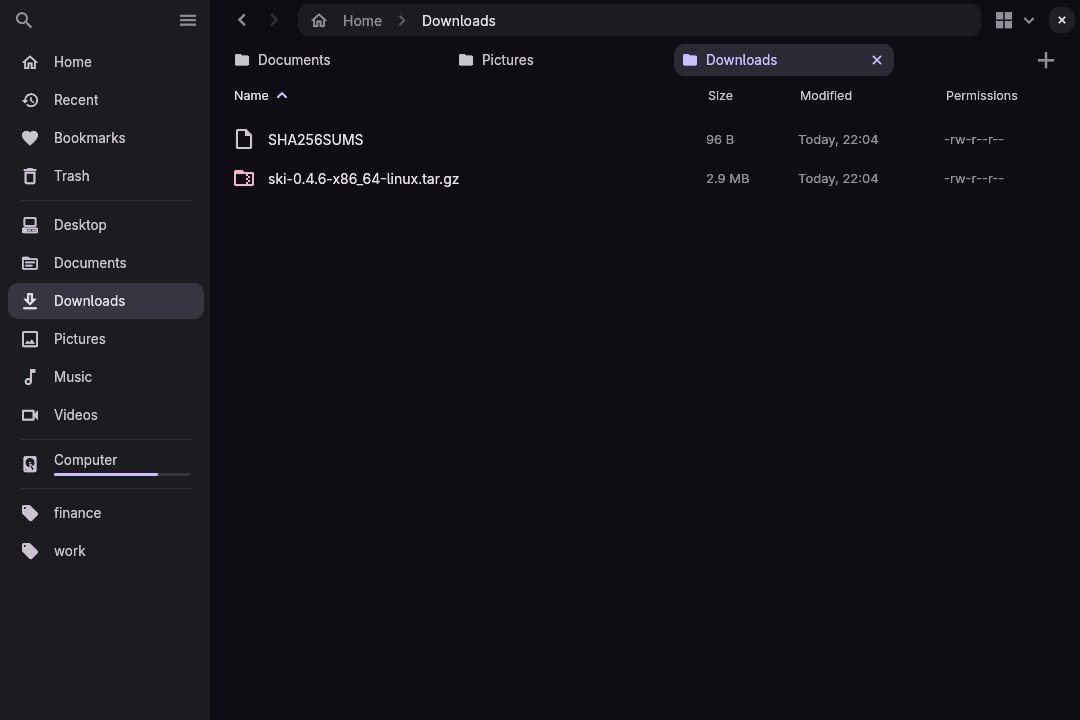
The tab bar appears when a window has more than one tab. Each tab has its own folder, history, selection and search. The + at the end of the bar opens a new tab. See Tabs.
The filter bar appears above the listing during a search or when a file type filter is set. It has a chip for each file type (All, Folders, Documents, Images, Audio, Video, Archives, Code) and, during a search, chips for the search scope and options. See Search.
The status line shows "n files selected · size". A selection of folders shows their sizes when they are known (see Folder sizes).
Plugins can show a status in the bottom right corner. The Git plugin shows the branch and the number of changed files there.
Toasts appear at the bottom of the window for a few seconds after an action, for example "Moved 3 items to trash". Toasts of actions that can be undone have an Undo button. Toasts of a hidden sidebar place have a button to show it again.
The ≡ button in the sidebar opens the main menu:
| Entry | Action |
|---|---|
| New window, New tab | Opens a window or a tab on the open folder. |
| Connect to server… | Opens the server dialog. See Servers. |
| Undo, Redo | Present when there is something to undo or redo. |
| Plugin entries | Folder actions of plugins, for example Find duplicate files. |
| Refresh | Reads the folder again. |
| Settings | Opens the Settings window. |
| Keyboard shortcuts | Lists every shortcut. |
| Open as administrator | Opens the folder in a Ski that runs as root. See Administrator Mode. |
Right-clicking an item, the empty part of the listing, a sidebar place, a drive or a server opens a menu for it. Each entry shows its keyboard shortcut. The Menu key or Shift+F10 opens the menu of the selection, or of the folder when nothing is selected.
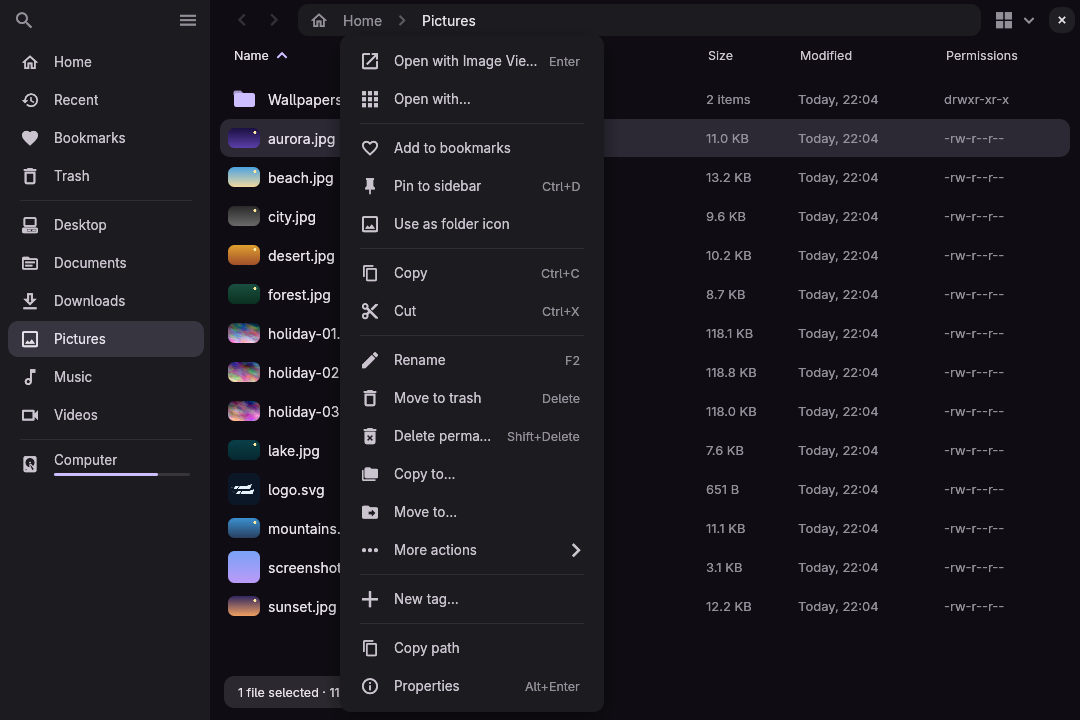
The menu of a file has these groups:
| Group | Entries |
|---|---|
| Open | Open with the default application, Open with…, Show in folder (in search results, Recent and Bookmarks) |
| Mark | Add to bookmarks, Pin to sidebar, Use as folder icon (pictures) |
| Clipboard | Copy, Cut |
| Manage | Rename, Move to trash, Delete permanently, Copy to…, Move to…, More actions (Duplicate, Create link, Compress…, Extract here, Extract to…) |
| Plugins | Entries added by plugins, for example Tags or Git |
| Info | Calculate size (folders), Copy path, Properties |
The menu of a folder adds Open in → New tab, New window, Terminal, and Administrator, and a Custom icon submenu.
The menu of the empty part of the listing has New file, New folder, Paste, Select (all, invert, matching), Add to bookmarks, Pin to sidebar, Custom icon, Open in terminal, Refresh, Copy path and Properties, all for the open folder.
Every menu, dialog and the Settings window can be used without a mouse. A ring marks the focused control.
| Keys | Action |
|---|---|
Tab, Shift+Tab
|
Next or previous control. Focus stays inside the open dialog or menu. |
| Arrow keys | Move to the control in that direction. In a menu, Home and End go to the first and last entry. |
Left, Right on a choice such as Sort by |
Select the previous or next option. |
Enter, Space
|
Activate the focused control. |
Esc |
Close the menu or dialog. |