Repository navigation
Views and Sorting
| View | Shows | Switch to it |
|---|---|---|
| List | One row per item, with columns |
Ctrl+1, or the view button |
| Grid | One tile per item, with an icon or thumbnail and the name |
Ctrl+2, or the view button |
The default view for new windows is set in Settings → Files & View → Default view. Settings → Files & View → Remember view per folder makes each folder keep its own choice.
The Name column is always shown. These columns can be added in View options → Columns or Settings → Files & View → Columns:
| Column | Contents |
|---|---|
| Size | File size; for folders, the number of items or the measured size. See Folder sizes. |
| Modified | Last modification time |
| Created | Creation time, where the file system records it |
| Accessed | Last access time |
| Owner | Owner user |
| Permissions | Permissions in the form -rw-r--r--
|
Size and Modified are shown by default. Drag the edge of a column header to change its width.
Row height has three values: Compact (30 points), Comfortable (38, the default) and Spacious (48). Set it in View options or Settings → Files & View → Row height. Ctrl+= and Ctrl+- also step it.
In search results, Recent and Bookmarks, each row shows the folder that holds the item.
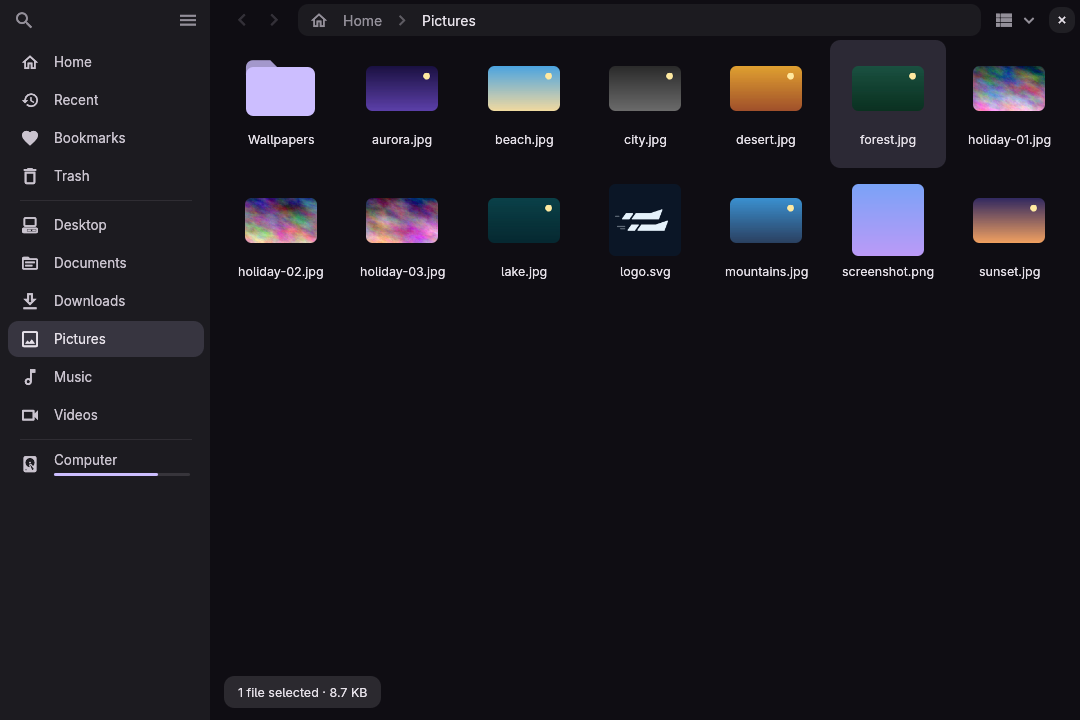
The icon size ranges from 32 to 256 pixels in steps of 16. The default is 72. Set it in View options, in Settings → Files & View → Icon size, with Ctrl+= and Ctrl+-, with Ctrl+scroll, or with a pinch on a touchpad.
Settings → Files & View → Name lines sets how many lines a name may take under its tile: 1, 2 (default) or 3. Longer names are cut with ….
Sort by: Name, Size, Type, Last modified, Created, Accessed, Owner or Permissions. Names compare numbers by value, so file2 comes before file10.
Reverse order turns the order around. A click on a list column header sorts by that column: A to Z and small to large first for names and sizes, newest first for dates. A second click on the same header reverses the order. Folders first (on by default) lists folders before files in every order. Set these in View options or Settings → Files & View. Sorting is the same for every folder.
Hidden files
Files and folders whose names start with . are hidden. Ctrl+H shows or hides them. The setting is the same for every folder.
View options → File type limits the listing to one type: Folders, Documents, Images, Audio, Video, Archives or Code. A dot on the view button marks an active filter. The filter bar above the listing shows the same choices. All removes the filter.
With Settings → Files & View → Thumbnails on (default), these files show a picture of their contents instead of a type icon:
| Kind | Formats | Needs |
|---|---|---|
| Pictures | PNG, APNG, JPEG, GIF, WebP, BMP, ICO, TIFF, TGA, PPM/PGM/PBM/PNM, QOI, HDR, DDS | nothing |
| Pictures | HEIC, HEIF, AVIF, JPEG XL, PSD, EXR, JPEG 2000, PCX | ffmpeg |
| Camera RAW | CR2, CR3, CRW, NEF, NRW, ARW, SR2, SRF, DNG, ORF, RW2, RAF, PEF, SRW, 3FR, ERF, KDC, DCR, MRW, X3F, RAW (the embedded JPEG preview) | nothing |
| Vector | SVG | nothing |
| Video | MP4, MKV, WebM, AVI, MOV, FLV, WMV, M4V, MPEG, OGV, 3GP, M2TS, MTS, TS, VOB and others (a frame, drawn as a film strip) | ffmpeg |
| Music | MP3, FLAC, M4A, OGG, Opus, WMA, AAC, APE, WavPack and others (the embedded cover) | ffmpeg |
| Documents | PDF (first page), EPUB, FB2, MOBI/AZW (cover), Krita and OpenRaster (embedded preview) | nothing |
| Comics | CBZ, CBT (first page) | nothing |
| Comics | CBR, CB7 (first page) | 7z |
The listing shows at once, with type icons, and each thumbnail replaces its icon as soon as it is made. Thumbnails of the files on screen are made first, then those of the next two screens below and the one above, so scrolling usually finds them ready; the rest of the folder follows. They are made on several threads, one fewer than the processor has cores (at least two, at most six), at low priority, so the window stays responsive.
Thumbnails are kept on disk, in ~/.cache/ski/thumbs/ and in the shared ~/.cache/thumbnails/ that other file managers also read, so a folder opened again, or opened in a file dialog, does not render them again. They are made at 128, 256 or 512 pixels, following the icon size.
Thumbnails of files on servers are off by default, because they read each file over the network. Settings → Files & View → Previews on servers turns them on.
With Settings → Files & View → Relative dates on (default), dates show as "Just now", "Today, 14:02", "Yesterday, 22:40", "3 days ago", "Last week", "2 months ago". Off, they show as 2026-11-02 14:02.
Settings → Files & View → File size units:
| Option | Meaning |
|---|---|
| 1024 B = 1 KiB (default) | Binary units. Labels are written KB, MB, GB. |
| 1000 B = 1 KB | Decimal units, as disk makers count. |
Settings → Files & View → File extensions off hides the extension in names. Renaming still shows the full name.
The Size column shows the number of items in a folder. Settings → Files & View → Folder sizes sets when Ski measures the space a folder takes:
| Option | Behavior |
|---|---|
| Off | Never. |
| On demand (default) | When asked: context menu of a folder → Calculate size. |
| Always | Every folder in the listing. |
View options → Folder sizes switches Always on and off for the session.
Rules of measuring:
- Two folders are measured at a time.
- A file with several hard links counts once.
- Symbolic links are not followed.
- Other file systems mounted inside the folder are skipped.
- A folder Ski could not read in full shows its size with
≥.
Measured sizes appear in the Size column, in the status line for a selection, and in sorting by size. They are kept for the session. Ski drops a size when it changes something inside the folder, and on Refresh (F5). Changes made by other programs show after a refresh.
Settings → Files & View → Size on disk measures the blocks allocated on disk instead of the sum of file lengths. Sparse and compressed files then count with the space they take.