Repository navigation
Search
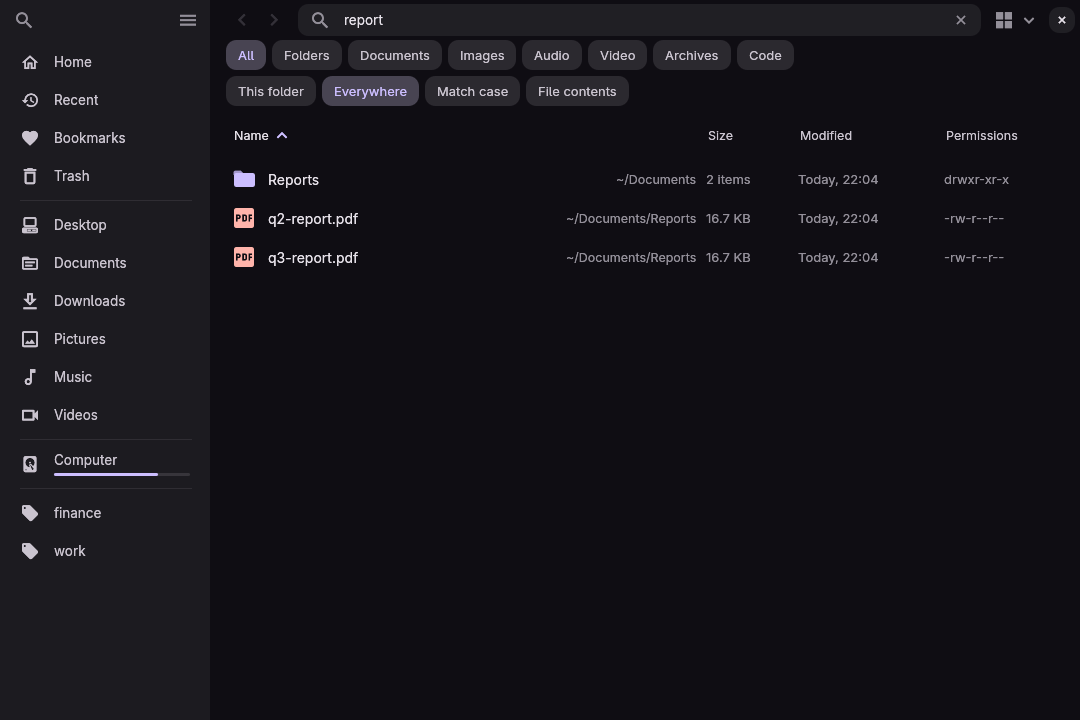
/, Ctrl+F, or the search button at the top of the sidebar turns the path bar into a search field. Results appear while you type. Esc clears the search and returns to the folder.
With Settings → Behavior → Type to filter on, typing in the listing starts a search without pressing / first.
The search text is a name pattern, the same as in Select matching items:
| Text | Finds |
|---|---|
report |
Names that contain "report" |
*.pdf |
Names that end with .pdf
|
IMG_????.jpg |
IMG_ followed by four characters and .jpg
|
*.jpg, *.png |
Names that match either pattern |
Letter case is ignored unless Match case is on.
The chips under the search field set the search:
| Chip | Effect |
|---|---|
| This folder | Searches the folder that was open when the search began, and its subfolders. |
| Everywhere | Searches the home folder and its subfolders. Default. |
| Match case | Letter case must match. |
| File contents | Also finds text files that contain the search text. Files larger than 1 MB and binary files are not read. |
The type chips (All, Folders, Documents, Images, Audio, Video, Archives, Code) limit the results to one kind of file.
Ski remembers the scope and the options for the next search.
- Ski looks first at files used recently, then walks the folders.
- The search goes 8 folder levels deep.
- It stops after 400 results.
- Hidden files and folders are searched only when hidden files are shown (
Ctrl+H).
Results are listed like a folder. Each one shows the folder that holds it. Context menu → Show in folder opens that folder. All file operations work on results.
With the Tags plugin on, tag:work finds the items tagged "work". Clicking a tag in the sidebar runs this search.
In Recent, the type chips and the search narrow the list of recent files.