Repository navigation
Properties and Permissions
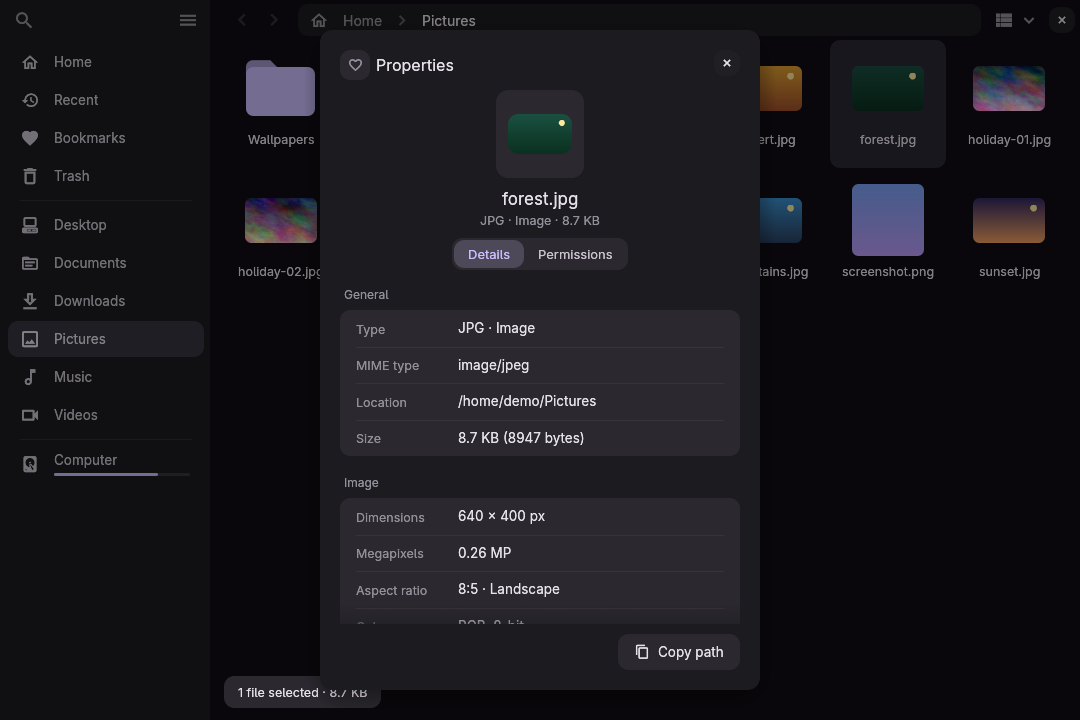
Alt+Enter, or context menu → Properties, opens the Properties dialog of the selected items, or of the open folder when nothing is selected. It has two tabs, Details and Permissions. The heart button in its header adds the item to Bookmarks; Copy path copies its full path.
The header shows the icon or thumbnail, the name, and the type and size.
| Group | Rows | Shown for |
|---|---|---|
| General | Type, MIME type, Location, Size (with the exact number of bytes) | Every item |
| General | Contents: the number of items and their total size | Folders |
| General | Links to | Symbolic links |
| General | Executable | Files with the executable permission |
| Dates | Modified, Created, Accessed, Changed (the last change of metadata) | Every item |
| Image | Dimensions, Megapixels, Aspect ratio with Landscape, Portrait or Square, Color (RGB, RGB + alpha, Grayscale, Grayscale + alpha, with the bit depth), Format | Pictures |
| Text | Lines, Words, Characters, Encoding | Text files |
| Checksums | MD5, SHA-1, SHA-256, SHA-512 | Files, with the Checksums plugin on |
| Ownership | Owner, Group | Every item |
Dates show as relative dates or as YYYY-MM-DD HH:MM, following Settings → Files & View → Relative dates.
With several items selected, Details shows the number of items and their total size. Folder contents are counted while the dialog is open.
The Properties of a drive show its used and free space.
The Permissions tab shows a grid of checkboxes:
| Read | Write | Execute (Open for folders) | |
|---|---|---|---|
| Owner | |||
| Group | |||
| Others |
Under the grid, the permissions appear as an octal number and as a string, for example 644 · -rw-r--r--.
| Control | Effect |
|---|---|
| A checkbox | Sets or clears that permission at once. |
| Allow running as a program | Files only. On, it adds the execute permission for each class that can read the file. Off, it clears execute for all. |
| Apply to enclosed items | Folders only. Gives every item inside the folder, at every depth, the folder's permissions. Files keep their own execute bits; folders get the folder's mode exactly. Symbolic links are skipped. It runs in the operations list. |
Only the owner of an item (or root) can change its permissions. For others the checkboxes are disabled and the note "Only the owner can change these" appears. To change system files, use Administrator Mode.
Every permission change is one step of Undo.