Getting the VPN_83198824
Created by Jimmy Issa on Jan 09, 2023
In order to connect to the server, you will need the UTM VPN. This page will show you how to get and connect to it.
The UofT instructions for getting the VPN are here. Scroll down to the subsection titled 'Accessing University resources off-campus', and you will see two links with instructions for installing and signing into the UTM VPN:

All the instructions for installing and signing into the UTM VPN can be found in these links, starting by installing the UTM VPN, and then signing into it.
For convenience, the instructions are reproduced below all together:
- Go to https://vpn.utm.utoronto.ca/ and log in with your utorid and password
- Click on the appropriate download link depending on if you're using a Windows or a Mac. If you don't know if your Windows is 64 bit or 32 bit, it's almost certainly 64 bit, but if you want to confirm go to Settings > System > About and scroll down to 'System Type', and see what it says.
- Complete the installation.
-
Now a little window or box for
the GlobalProtect VPN should open at the bottom-right of your
screen. If it doesn't, you can locate it by going to the taskbar on
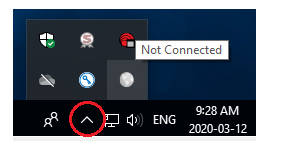
the bottom-right of your screen and clicking on the Up arrow. A box
of several icons will appear, and you want to click on the
GlobalProtect icon. To find which one is the right icon, hover your
cursor over any icon, and the name of that icon will appear. Go
through the icons until you find the one representing the
GlobalProtect VPN. If you correctly downloaded the VPN, it should be
there. Visual representation:
- Once you click on the icon, you will be asked for a portal address. The portal address is vpn.utm.utoronto.ca — copy and paste this in. You will now be asked for utorid and password again, so just type those and enter.
- That should be it. You can now connect directly to the VPN. Whenever you need to reconnect in the future, just click on the same GlobalProtect icon and hit 'Connect'.
 [image2023-1-9_23-23-21.png](attachments/83198824/83198822.png)
(image/png)
[image2023-1-9_23-23-21.png](attachments/83198824/83198822.png)
(image/png)
Document generated by Confluence on May 22, 2024 11:44