Running Jupyter Notebooks on the server_11436072
Created by Robert Ness, last modified by Yetasha Harry-Paul on Dec 01, 2020
If you want to use Jupyter Notebooks to develop R or Python code or in
exploring your data it is best to create and run the notebooks on
HPCNODE1 and tap into that notebook from your local computer. To tap
into notebooks running on HPCNODE1 is a little convoluted, but basically
follows these steps
- Connect to HPCNODE1 and start a jupyter notebook session
- On your local computer tap into the notebook session running on HPCNODE1
- Open a browser window on your computer to use jupyter notebook
You connect to the server as usual using ssh Once connected you can start a jupyter session by adding a couple of extra options
jupyter-notebook --no-browser --notebook-dir="/"
Alternatively to use jupyter lab (which has a better interface)
jupyter lab --no-browser --notebook-dir="/"
The first option --no-browser tells jupyter not to send the output to
the browser on HPCNODE1 - which makes sense, because HPCNODE1 doesn't
have a monitor or keyboard, let alone a browser! The second option
--notebook-dir="/" tells jupyter to have your jupyter dashboard open
in the root of the computer. It allows you to move around the entire
file structure of HPCNODE1 and to create notebooks in your projects or
your home folders.
When you run this command jupyter will start a server and spew a lot of stuff onto the screen. There is one important piece of information you need to record. In the below picture I have circled the port that jupyter is sending all its information to. Normally that information just goes straight to the browser, but in this case we told it not to send its information to the browser, so its got to go somewhere!
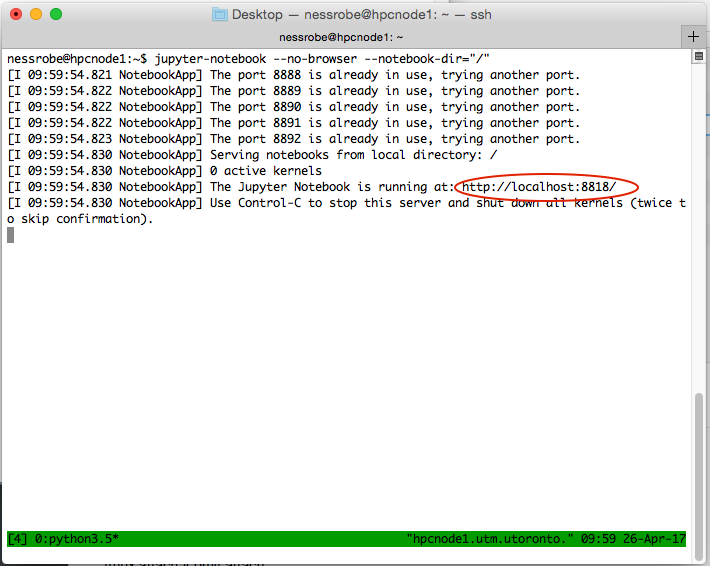
In this example the port is 8818. You will need that for the next step...
TIP if you run your jupyter server in your tmux session then it won't be turned off every time you disconnect from the server. I highly recommend you make a new pane in your tmux session and start a jupyter server and just tap into that same server every time you want to work on a notebook on HPCNODE1
The next step is to attach your computer to the HPCNODE1 and tap into that port (e.g. 8818) where all the information from jupyter is being sent.
To do this open a new terminal on your computer and type the following command:
ssh -N -f -L localhost:8818:localhost:8818 utorid@hpcnode1.utm.utoronto.ca
In this case you would replace 8818 with whatever port number you recorded above. You would also obviously replace your utorid. If sucessful this command will prompt you for your password and that's it. You should leave that terminal window open to keep the connection of your computer to HPCNODE 1 active.
Now you simply open a browser (chrome, safari, etc) and type in the following URL:
http://localhost:8818
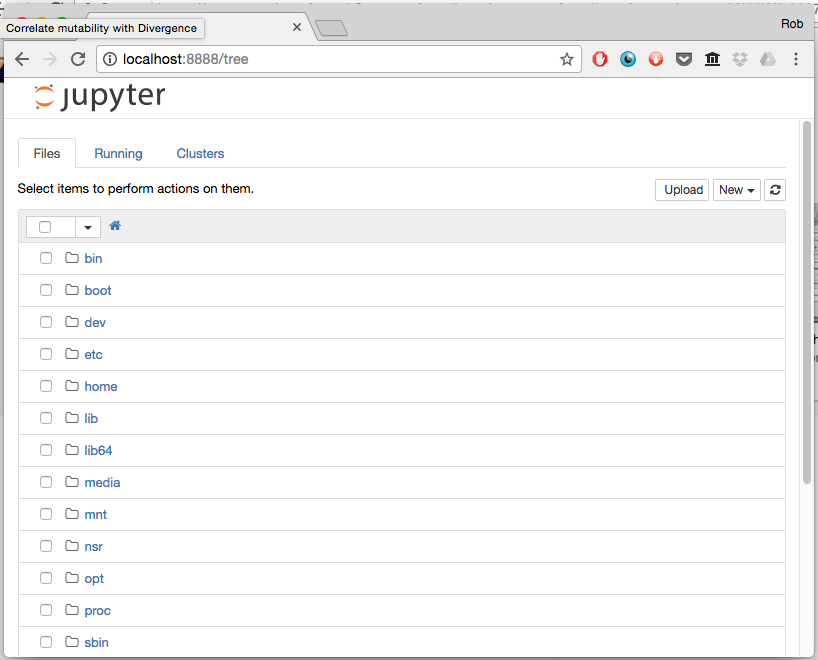
It should open the Jupyter dashboard at the root of HPCNODE1's file structure:
-
If your connection to HPCNODE1 is broken you will lose the connection to jupyter. If you were smart enough to run jupyter in a tmux session you can simply redo step's 2 and 3 and carry on working. If you didn't use tmux you have to do all the steps over again.
-
In step 2 your are connecting to HPCNODE1 from your computer. You don't first ssh into HPCNODE1 and then connect to HPCNODE1 from within itself
Note: if after a long time out you are asked for your jupyter token again, ssh as usual and type:
jupyter notebook list
This will provide you with a list of currently running servers and their tokens:

If you want to run jupyter LAB you can use this command as an alternative
jupyter-lab --no-browser --notebook-dir="/"
If you want to use a specific port you can add --port as an option:
jupyter-lab --no-browser --notebook-dir="/" --port 8890
 finding
your port.png (image/png)
finding
your port.png (image/png)
jupyterdashboard.png (image/png)
Screen
Shot 2020-12-01 at 9.28.08 PM.png
(image/png)
Document generated by Confluence on May 22, 2024 11:44