Repository navigation
Easy Installation EN
Ελληνικά · English
This guide is for people who are not programmers. At the end, Karta runs on a small
machine with a secure connection (HTTPS) on your own name, e.g.
https://karta.yourshop.gr, without touching your router's settings.
Plan on about an hour the first time; the setup assistant (setup.sh) does most of it. If you get stuck, see the FAQ or ask
in Discussions.
If you're more experienced, the short version is Installation.
| What | Cost | |
|---|---|---|
| 1 |
A domain name, e.g. yourshop.gr
|
about €10–20 a year (free ones exist for testing) |
| 2 | A machine that stays on (see below) | €0 (old PC or free cloud server) or ~€60–100 for a Raspberry Pi |
| 3 | A free Cloudflare account | €0 |
| 4 | An Ergani web‑services user (your accountant can create it, or you can in Ergani) | €0 |
Unfortunately not for real use, for two reasons:
- The admin page is protected by Cloudflare Access, which only works on a domain you have on Cloudflare.
- The camera for QR cards and the shop screen's cookie only work over HTTPS, which Cloudflare provides for free on your domain.
The domain is the only certain cost. Everything else can be free. To try Karta before paying, there are free domains too: see step 1.
| Option | Pros | Cons |
|---|---|---|
| A. Raspberry Pi 4 or 5 (2 GB RAM or more), at the shop or at home | Small, silent, ~5 W of power (a few euros a year). Your data stays with you. | Purchase cost. If power or internet fails there, Karta is unavailable. |
| B. An old laptop or small PC | Free if you already have one. A laptop's battery rides through power cuts. | Uses more power; same internet caveat. |
| C. Free cloud server (VPS): Oracle Cloud "Always Free" | Always on, fast internet, €0. | Needs a card for verification. Sign‑up sometimes says "out of capacity". Oracle may reclaim machines that are almost completely idle; keep backups. Not a ready-made service: you create an Ubuntu server yourself and connect over SSH, like any VPS. |
Personal data (GDPR): Karta stores details about your staff. If you choose a cloud, pick a region inside the European Union (e.g. Frankfurt, Amsterdam, Milan).
Where should it live? The shop screen talks to Karta over the shop's internet connection. If the shop's internet goes down, the screen says so and staff punch through the Ergani app instead. That's true wherever Karta runs.
- Create a free account at cloudflare.com.
- Buy a domain:
-
.com/.euetc.: straight from Cloudflare (Domain Registration → Register Domains), at cost price. It's on Cloudflare automatically: go to step 2. -
.gr: from a Greek registrar. Then, in Cloudflare, click Add a domain, choose the Free plan, and Cloudflare gives you two nameservers. On the registrar's site, change the domain's nameservers to those two. The change takes from a few minutes up to 24 hours; Cloudflare emails you when it's ready.
-
If you already have a domain for your website, you can use a subdomain of it, e.g.
karta.yourshop.gr, without affecting the website.
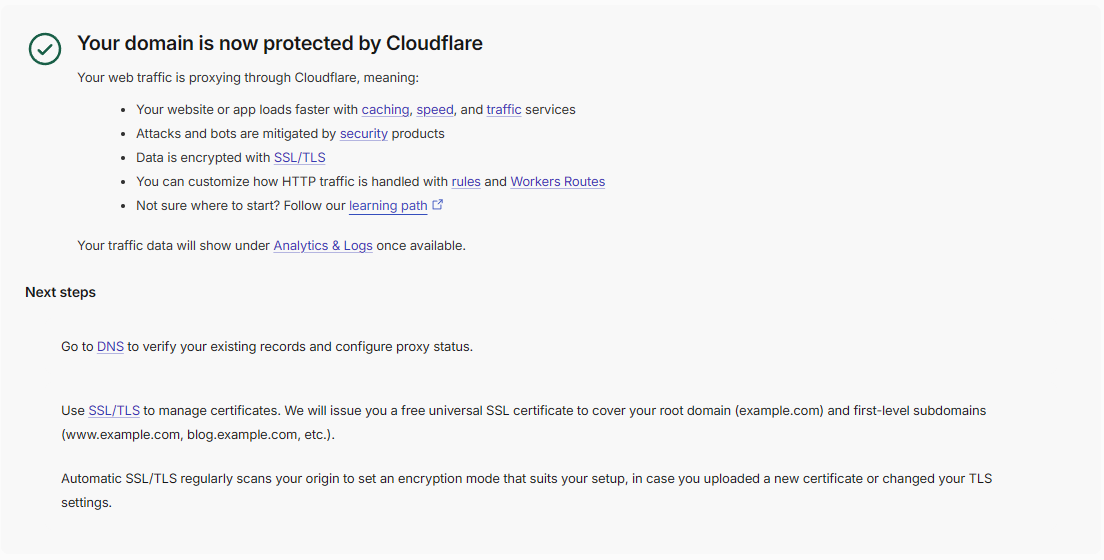
When the domain is ready, its Cloudflare page says "Your domain is now protected by Cloudflare".
To try Karta without buying a domain:
-
DigitalPlat FreeDomain: free names such as
karta-yourshop.dpdns.org, in a few minutes. Pick the.dpdns.orgending (or.xx.kg/.qd.je)..qzz.ioneeds a paid slot, and other endings may be temporarily closed ("This domain is paused register"). Before registering you must open and accept the terms the page lists. - EU.org: free and permanent, but approved by hand, which can take days or weeks.
After registering: in Cloudflare, Add a domain → type the full name (e.g.
karta-yourshop.dpdns.org) → Free plan. Cloudflare gives you two nameservers
(….ns.cloudflare.com): enter them on the domain's page at DigitalPlat
(Nameservers / NS) and wait for the "active" email. In this case Karta's address can
be the domain itself.
For real use in a shop, get a real domain. Free services can change their terms or shut down, and the shop screen stops with them. Switching later is easy: rerun
./setup.shwith the new name.
Choose one of the three options.
- You need: a Raspberry Pi 4 or 5, its power supply, a good‑quality 32 GB microSD card (or, better, a USB SSD), and a network cable (better than Wi‑Fi).
- On a computer, download Raspberry Pi Imager.
- Choose: device → your model; operating system → Raspberry Pi OS Lite (64‑bit); storage → your card.
- In Edit settings, set: a hostname (e.g.
karta), a username and password, and on the Services tab turn on SSH with password login. - Write the card, put it in the Pi, connect the network cable and power. Wait 2 minutes.
- Download Ubuntu Server LTS and write it to a USB stick with balenaEtcher.
- Boot the PC from the USB stick and install (the defaults are fine). Set a username and password, and tick Install OpenSSH server.
- On a laptop: set it not to sleep when the lid is closed. Ask if you need help; it's one setting.
Here you create your own (free) virtual server running Ubuntu. From then on it is just like
the Raspberry Pi: you connect with ssh and follow the same steps. The same goes for any
other VPS (Hetzner, DigitalOcean etc.), just paid.
- Sign up at oracle.com/cloud/free. During sign‑up, choose a Home Region inside the EU (it can't be changed later).
-
Compute → Instances → Create instance:
- Image: Ubuntu (22.04 or newer);
- Shape: Ampere (VM.Standard.A1.Flex), 1 OCPU and 6 GB memory (within the free limits);
- download the SSH key it offers (you need it to connect).
- Click Create. Note the machine's Public IP.
You don't need to open any port in Oracle's firewall: the Cloudflare tunnel connects outwards.
On your computer, open a terminal (Windows: PowerShell; Mac: Terminal) and connect:
ssh USERNAME@karta.local          # Raspberry Pi on the same network
ssh USERNAME@192.168.1.50         # or with the machine's IP address
ssh -i key.key ubuntu@PUBLIC_IP   # Oracle Cloud
Download Karta's setup assistant and run it:
mkdir ~/karta && cd ~/karta
curl -fsSLO https://raw.githubusercontent.com/osergios/karta/main/setup.sh
chmod +x setup.sh
./setup.sh
If Docker isn't installed, the assistant offers to install it (it asks for your password).
It then tells you to log out (exit), log in again and rerun cd ~/karta && ./setup.sh.
The assistant's questions are in Greek, like the app.
With this key, the assistant creates by itself everything Karta needs in Cloudflare: the
tunnel, the https://karta.… address and the admin page protection.
-
Clean up DNS: in Cloudflare, on your domain, open DNS → Records. If there are records (A, AAAA or CNAME) with the name Karta will use (e.g.
karta.yourshop.gr, or the domain itself if Karta will live there) that you didn't create, delete them. The assistant creates the right one. An empty list is fine. -
Turn on Zero Trust once: in Cloudflare click Zero Trust (left menu), choose a team name (e.g.
yourshop) and the Free plan. It may ask for a card, but the Free plan doesn't charge. This is needed to protect the admin page. -
Go to My Profile → API Tokens → Create Token → Custom token → Get started (dash.cloudflare.com/profile/api-tokens).
-
Name:
Karta setup. Under Permissions add these five lines (click + Add more for each new line; each line has three drop‑downs):Account Cloudflare Tunnel Edit Account Access: Apps and Policies Edit Account Access: Organizations, Identity Providers, and Groups Read Zone DNS Edit Zone Zone Read -
Under Zone Resources choose Include → Specific zone → your domain. Leave the rest (Client IP Address Filtering, TTL) as it is.
-
Click Continue to summary → Create Token and copy the key (it's shown once). Keep it in a notepad until step 5, and don't send it to anyone: whoever has it can change your Cloudflare.
The assistant doesn't store the key. When you're done, you can delete it on the same page, or keep it to run the assistant again later.
Don't want a key? Answer «ο» (no) to «Να γίνει αυτόματα;». Follow only Create the Cloudflare Tunnel and Protect the admin page from the manual installation. The assistant then asks for the team domain, the AUD tag and the tunnel token.
The assistant asks only what's needed for Karta to open safely:
-
Address and admins: e.g.
karta.yourshop.gr, and the email addresses allowed into the admin page (any email you read; Cloudflare sends a login code there). - Cloudflare: first, where Karta runs: "1" at the shop or at home (Raspberry Pi, an old PC/laptop, a server on the local network) or "2" on a VPS / cloud server. With "1" the tunnel connects over HTTP/2, which works reliably behind a home or shop router (with QUIC/HTTP/3 many routers make pages slow); with "2" automatically (QUIC/HTTP/3, falling back to HTTP/2). Then paste the key from step 4, and the assistant creates the tunnel, address and protection, showing ✓ for each.
It then writes the settings file (.env), starts Karta, asks whether you want an
automatic backup every night at 23:30 (answer «ν», yes, recommended; .env is copied
with it as karta.env), and offers a backup to a USB stick (the cloud backup is set up in
the admin page; see step 8).
The ΑΦΜ (tax number), Ergani user, phone notifications and mode are set afterwards, on
the admin page (step 7). Karta always
starts in test mode (dry_run): nothing is sent to Ergani until you decide.
You can rerun ./setup.sh whenever you like to change something: the current values are
offered as defaults, and the old file is kept as a copy.
Wait a minute and run:
cd ~/karta && ./setup.sh checkIt checks the settings, Cloudflare, that Karta answers on your address, and that the
admin page is protected. For every problem it tells you what to do. It tests the Ergani
login only if the Ergani user is in .env; otherwise test it with «Δοκιμή σύνδεσης» (test
connection) on the admin page (step 7).
Then open https://karta.yourshop.gr/admin in your browser: Cloudflare asks for your email,
sends you a code, and you see the admin page.
On the admin page's «Σήμερα» tab there's a «Πρώτα βήματα» checklist. Each step has a «Πάμε» button that takes you to the right place, and ticks itself off when it's done:
- Ergani connection: in «Ρυθμίσεις» → «Επιχείρηση και σύνδεση με το ΕΡΓΑΝΗ», enter the ΑΦΜ, the branch number (usually 0) and the Ergani web‑services user (username, password, type). Press «Δοκιμή σύνδεσης» (test connection; read‑only, nothing is submitted) and «Αποθήκευση» (save). The password is stored encrypted.
- Business details (name, colours: ready themes or your own, logo; see Settings)
- Staff from Ergani («Έλεγχος ΕΡΓΑΝΗ»)
- Schedules: Ergani usually gives only how many hours a week each person works, not the hours of each day. Type each day's hours from the schedule your accountant gives you; Karta shows whether the total matches Ergani.
- Local holidays
- Shop screen (registering the laptop or tablet: Shop screen)
- Phone notifications: in «Ρυθμίσεις» → «Ειδοποιήσεις στο κινητό» (ntfy app), with a test-notification button
- Backups off the machine (step 8)
- A trial run with the staff: everyone punches in «Δοκιμαστική» (test) mode (A trial run with the staff)
- Going live on Ergani: «Ρυθμίσεις» → «Επιχείρηση και σύνδεση με το ΕΡΓΑΝΗ» → «Λειτουργία» (Going live)
Punches must be kept for at least 5 years. If you answered «ν» (yes) to the nightly
backup (recommended), the assistant has already set up a backup every night at 23:30
into ~/karta/backups (30 daily, 24 monthly and one for each year, plus a copy of .env
as karta.env). If you answered «ο» (no), run ./setup.sh again.
But if the Raspberry Pi's card or the disk fails, they're lost along with it. So also keep
a backup off the machine, one or both of these:
- Encrypted in the cloud (Google Drive, Dropbox or Backblaze B2): from the admin page, «Ρυθμίσεις» → «Αντίγραφα ασφαλείας» (Settings → Backups). The page shows you the steps, and at the end an encryption password: write it down somewhere safe, outside the shop. Without it the backups can never be opened, and it can't be recovered in any way (see Backups). On a VPS / cloud server (e.g. Oracle Cloud) it's the only way, because there's no USB.
-
To a USB stick on the machine:
cd ~/karta && ./setup.sh usb(once, from the terminal).
The same page shows each night's result, and has the backup download, each year's «Αρχείο χτυπημάτων» (punch archive) in Excel and restore (from a file or from the cloud). All the details: Backups and restore.
When a new version comes out, the admin page says so under «Ρυθμίσεις» → «Έκδοση και ενημέρωση» (version and update), with a «Τι αλλάζει» (what's new) link. Press «Ενημέρωση τώρα» (update now): within two minutes a backup is made, the new version is downloaded and Karta restarts (it's offline for about a minute). The page reloads by itself, and so does the shop screen.
If the new version doesn't start properly within two minutes, Karta goes back to the
previous one by itself, and the page says «απέτυχε — επέστρεψε στην …» (failed, went back
to …). The running version is written in .env (KARTA_VERSION).
The button works through update.sh, which the setup assistant installs on the machine:
Karta itself never gets access to Docker, for security. Without it (or from the terminal):
cd ~/karta && ./setup.sh updateIf you prefer to do everything by hand, these are the steps the assistant performs.
On your computer, open a terminal (Windows: PowerShell; Mac: Terminal) and connect:
ssh USERNAME@karta.local          # Raspberry Pi on the same network
ssh USERNAME@192.168.1.50         # or with the machine's IP address
ssh -i key.key ubuntu@PUBLIC_IP   # Oracle Cloud
Then copy and run these commands one by one:
sudo apt update && sudo apt -y upgrade
curl -fsSL https://get.docker.com | sudo sh
sudo usermod -aG docker $USER
exit
Connect again with ssh (so the last command takes effect) and check:
docker run --rm hello-worldIf you see "Hello from Docker!", all is well.
The tunnel is a secure "line" from your machine to Cloudflare. It makes Karta reachable at
https://karta.yourshop.gr with no open ports on your router.
- In Cloudflare, open Zero Trust (left menu). The first time: choose a team name
(e.g.
yourshop) and the Free plan (up to 50 users). It may ask for a card, but the Free plan doesn't charge. - Go to Networks → Tunnels → Create a tunnel → Cloudflared. Give it a name (e.g.
karta) and click Save. - The next page shows a command with a long token (after
--token). Copy only the token and keep it; you don't need to run the command. - Click Next. Under Public hostname:
- Subdomain:
karta· Domain: your domain; - Service: Type
HTTP, URLkarta:8000.
- Subdomain:
- Click Save tunnel.
Cloudflare renames its menus from time to time. If you can't find something, search for "Tunnels" inside Zero Trust.
- In Zero Trust: Access → Applications → Add an application → Self‑hosted.
- Name:
Karta admin. Under Public hostname / Application domain: subdomainkarta, your domain, and in Path typeadmin. - Add a policy: Action Allow, rule Emails → your email address (and anyone else who should have access).
- Save. The default login method, One‑time PIN (a code sent to your email), is enough.
- Open the application you created and copy its Application Audience (AUD) Tag. You need it in the next step.
On the machine (through ssh):
mkdir ~/karta && cd ~/karta
curl -fsSLO https://raw.githubusercontent.com/osergios/karta/main/docker-compose.yml
curl -fsSL  https://raw.githubusercontent.com/osergios/karta/main/.env.example -o .env
python3 -c "import os,base64;print(base64.urlsafe_b64encode(os.urandom(32)).decode())"
nano .env
The third command prints a random key: copy it for PIN_KEY. In nano, fill in (move with
the arrow keys):
| Line | What to put |
|---|---|
ERGANI_MODE= |
dry_run (always this at first) |
CF_ACCESS_TEAM_DOMAIN= |
yourshop.cloudflareaccess.com (your team name + .cloudflareaccess.com) |
CF_ACCESS_AUD= |
the AUD tag from "Protect the admin page" |
ADMIN_EMAILS= |
your email (the same as in the policy) |
PUBLIC_ORIGIN= |
https://karta.yourshop.gr |
PIN_KEY= |
the key the command printed |
COMPOSE_PROFILES= |
tunnel (starts the tunnel together with Karta) |
TUNNEL_TOKEN= |
the token from "Create the Cloudflare Tunnel" |
TUNNEL_PROTOCOL= |
http2 for a machine at the shop or at home, auto on a VPS |
Save with Ctrl+O, Enter, and exit with Ctrl+X. .env contains passwords: never
send it anywhere.
The ΑΦΜ, the Ergani user and phone notifications are filled in afterwards, on the admin
page («Ρυθμίσεις»). If you prefer, they can also go here (EMPLOYER_AFM, BRANCH_NUMBER,
ERGANI_USERNAME, ERGANI_PASSWORD, NTFY_*); see Configuration.
cd ~/karta
docker compose up -d
docker compose ps
Both lines (karta and cloudflared) should say running or Up. After a minute,
open in your browser:
-
https://karta.yourshop.gr/healthz→ you should see{"ok":true,"mode":"dry_run"}. -
https://karta.yourshop.gr/admin→ Cloudflare asks for your email, sends you a code, and then you see the admin page.
Karta starts by itself whenever the machine boots.
Something wrong? See what it says:
docker compose logs --tail 50 karta
docker compose logs --tail 50 cloudflared
Common mistakes: a wrong or empty value in .env (Karta says which one is missing), a wrong
tunnel token, or a wrong PUBLIC_ORIGIN (it must be exactly the address, with https://
and no / at the end).
Finally, for the «Ενημέρωση τώρα» (update now) button and the nightly backup, download the setup assistant into the same folder and run it:
cd ~/karta
curl -fsSLO https://raw.githubusercontent.com/osergios/karta/main/setup.sh
chmod +x setup.sh
./setup.sh update
./setup.sh update installs update.sh (the «Ενημέρωση τώρα» button) and backup.sh. To
make the backup run by itself every night, run ./setup.sh once: it keeps your .env
values as defaults and asks about the nightly backup.