Repository navigation
Kiosk EN
Ελληνικά · English
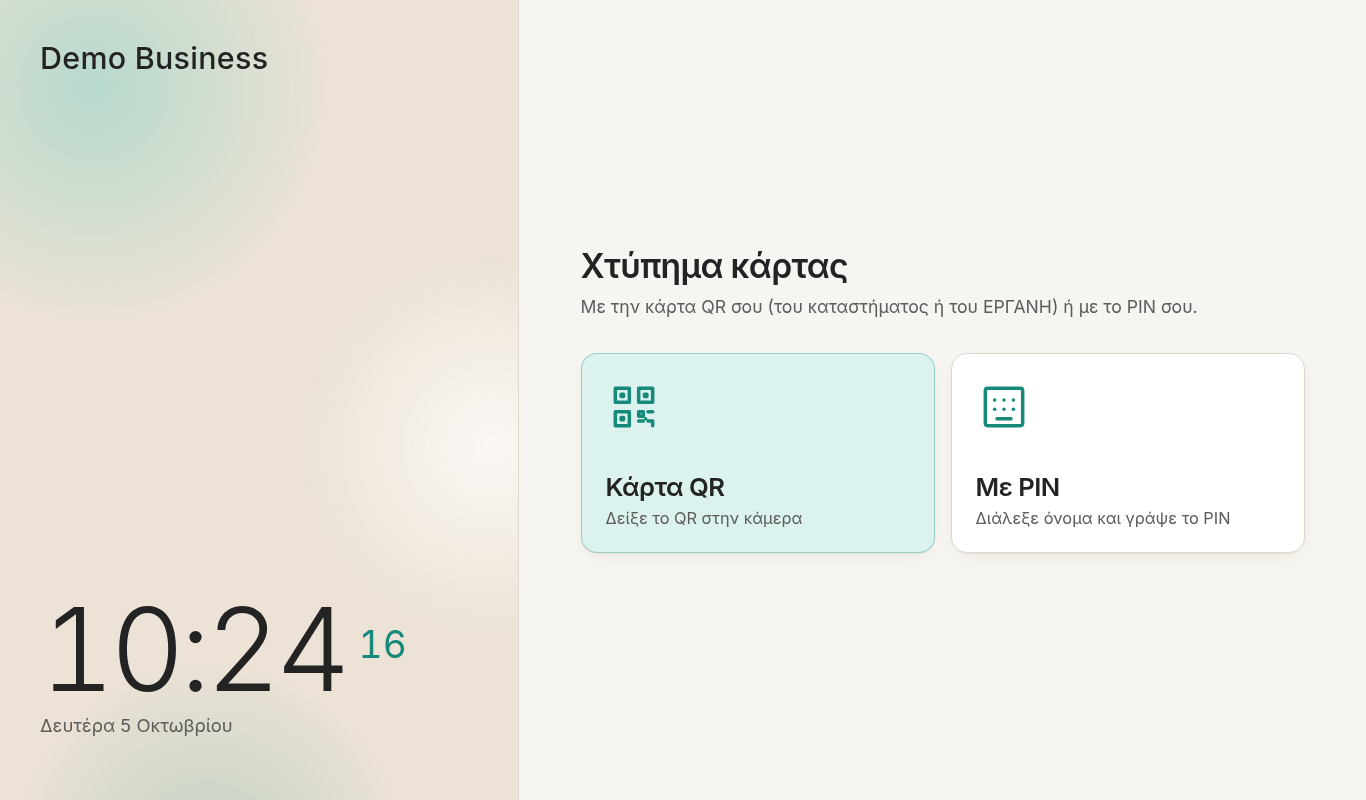
The shop screen is the page at the root of your Karta address (https://karta.yourshop.gr/).
It runs in a browser on a laptop, tablet or touch screen in the shop. Staff use it to
punch in and out.
Only registered devices can record punches, so a stranger who finds the address can't punch for anyone.
- On the admin page: «Ρυθμίσεις» → «Συσκευές» → «Δημιουργία κωδικού εγγραφής». Give
the device a name (e.g. "Ταμείο"). You get an 8‑character code such as
ABCD-EF23, valid for 10 minutes and usable once. - On the shop device, open
https://karta.yourshop.gr/enrolland type the code. - The device now holds a secure cookie that keeps it registered for about 400 days. (400 days is the most browsers allow; re‑register it when it expires.)
From «Συσκευές» you can see each device's last activity, revoke it, or remove it from the list.
Tip: install the page as an app (Chrome/Edge: ⋮ → «Εγκατάσταση εφαρμογής») and put it in Windows startup. It then opens full screen when the laptop boots. If the browser blocks sound after boot, a «Πάτα εδώ για να ενεργοποιηθεί ο ήχος» button appears: tap it once. Allow notifications too («Ενεργοποίηση ειδοποιήσεων»), so reminders also appear as Windows notifications.
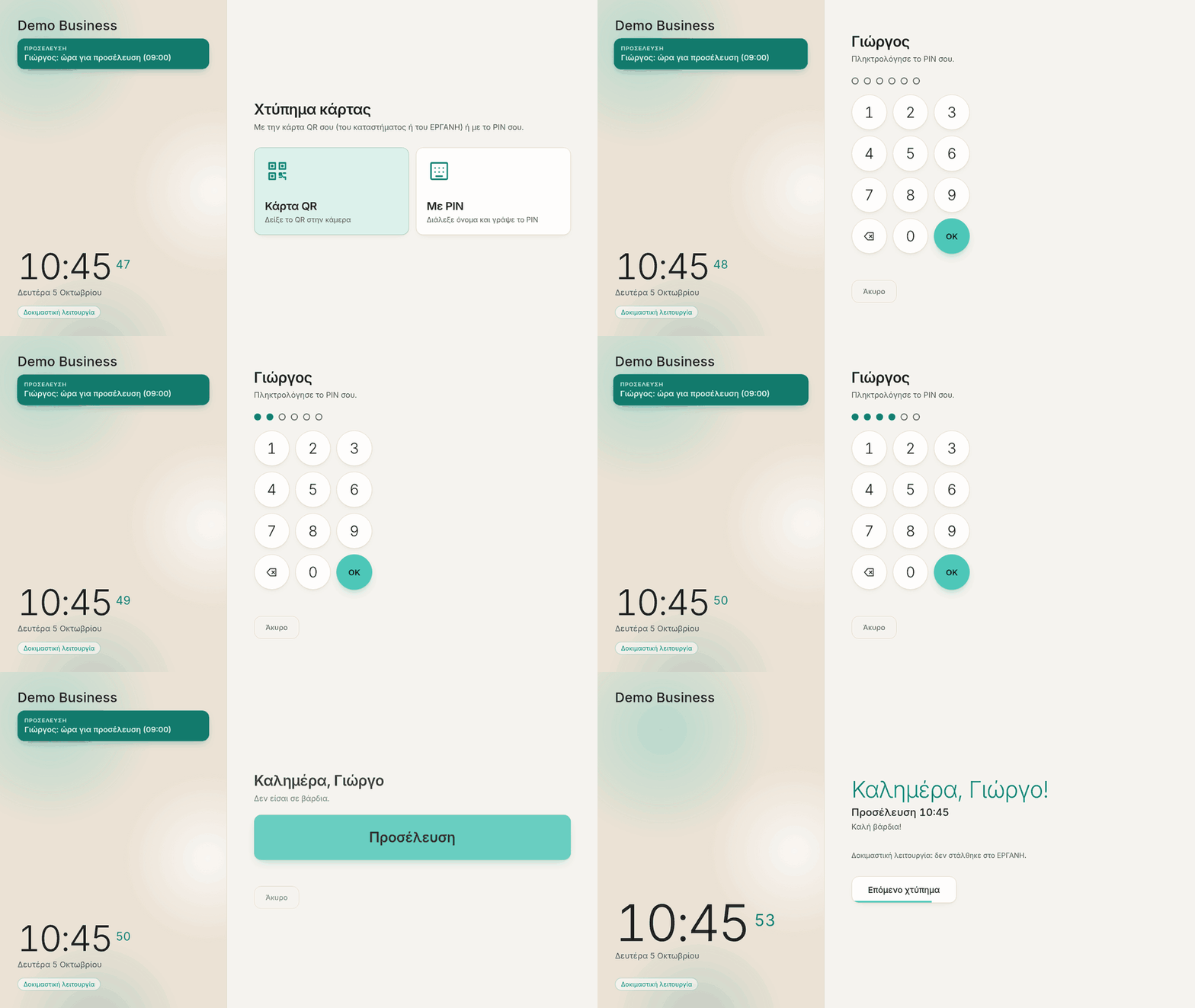
The start screen offers two ways:
- «Κάρτα QR»: the employee shows a QR code to the camera, either the shop's own QR card (see QR cards) or their personal QR from Ergani / myErgani. No PIN needed.
- «Με PIN»: the employee taps their name, then types their 6‑digit PIN.
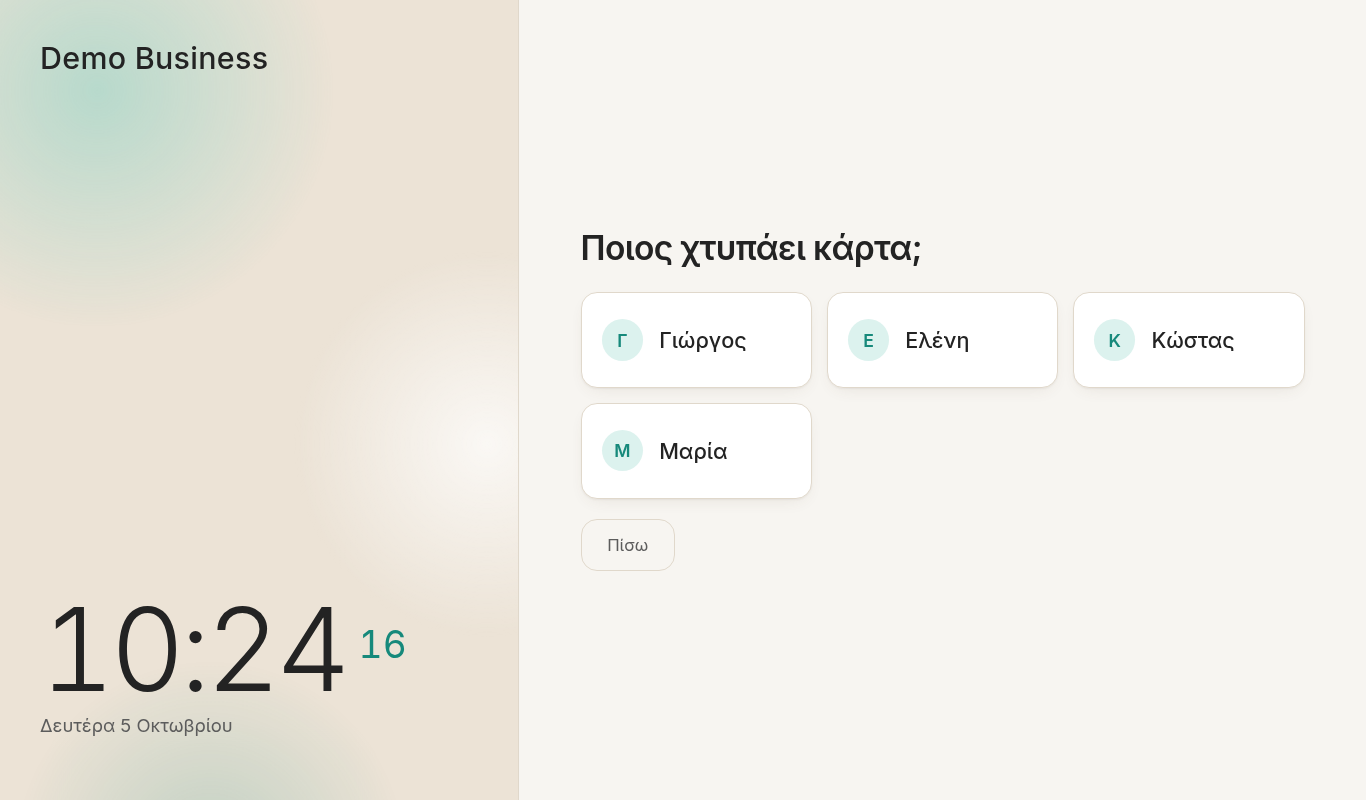
Karta decides by itself whether the punch is an arrival («Προσέλευση») or a departure («Αποχώρηση»), based on whether the person is currently in. After a successful punch, a result screen confirms it. The «Επόμενο χτύπημα» button (or Enter / Esc / space) goes straight back to the start for the next person; otherwise the screen returns there by itself after a few seconds.
The result screen says what happened with Ergani:
| Message | Meaning |
|---|---|
| «Καταχωρήθηκε στο ΕΡΓΑΝΗ. Πρωτόκολλο …» | Sent, with a protocol number. |
| «Καταγράφηκε. Θα σταλεί στο ΕΡΓΑΝΗ μόλις αποκατασταθεί η σύνδεση.» | No connection; Karta sends it by itself as soon as it can. |
| «Καταγράφηκε. Η διαχείριση θα επιβεβαιώσει την αποστολή στο ΕΡΓΑΝΗ.» | Not sure it arrived; you decide in «Κινήσεις» (How punches reach Ergani). |
| «Δοκιμαστική λειτουργία: δεν στάλθηκε στο ΕΡΓΑΝΗ.» | «Δοκιμαστική» (test) mode. |
| «Δοκιμαστικό ΕΡΓΑΝΗ (ΑΚΥΡΟ, χωρίς ισχύ)» | Ergani test environment. |
| only a faint «✓ καταγράφηκε» line | Onboarding period. |
If no departure was punched last time, the screen says so before the punch («Δεν καταγράφηκε αποχώρηση την προηγούμενη φορά. Ενημέρωσε τη διαχείριση.»).
«Δείξε την κάρτα QR» opens the camera for 30 seconds, then goes back to the start. If nothing is read within 9″ it shows a tip («Κράτα το QR ίσια, 15-25 εκ. από την κάμερα. Αν η εικόνα είναι μαύρη, άνοιξε το καπάκι της κάμερας.»: hold it straight, 15–25 cm away; if the picture is black, open the camera cover). A QR that is neither a shop card nor an Ergani QR is ignored with a message. A card that isn't accepted (cancelled, another employer's…) shows «Η κάρτα δεν αναγνωρίστηκε» with «Ξανά» (again), «Με PIN» or «Άκυρο».
If the device has no camera, the start screen goes straight to the names (PIN).
On a laptop or PC: Q, Enter or space opens the QR scan; P or a digit opens the names; Esc goes back. On the PIN screen you can type the digits. A USB QR scanner (one that "types" the code) works on the start screen, for the shop's own QR cards.
The camera also accepts the employee QR that Ergani and myErgani show
(erg|nm:…;ln:…;afm:…;id:…). Karta matches it on ΑΦΜ plus surname, ignoring accents. Set
«Κωδικός εργοδότη στο ΕΡΓΑΝΗ» (employer id) in «Ρυθμίσεις» → «Επιχείρηση και σύνδεση με
το ΕΡΓΑΝΗ» (or ERGANI_EMPLOYER_ID in .env) to refuse QR codes issued by another
employer. Punches
made this way show «QR ΕΡΓΑΝΗ» in the movements list.
Ergani's QR contains no secret, so a photocopy works like the original. The shop's own QR cards don't have that weakness.
| Situation | What the screen does |
|---|---|
| Wrong PIN 5 times | That person is locked out for 5 minutes. |
| Many invalid QR cards in a row | QR is paused for a few minutes («χρησιμοποιήστε PIN»). |
| Two punches by the same person within 60 seconds | The second is ignored (DEBOUNCE_SECONDS). |
| Arrival before the declared start | Refused: «Είναι νωρίς, [name]» and «Το ωράριό σου ξεκινά στις 10:30». You get a phone alert (once a day per person). Ergani allows no early arrival unless you declared it, so if you have, use «Νωρίτερη προσέλευση σήμερα» on the admin page. The allowed margin is «Προσέλευση πριν το ωράριο» in Settings (default 0). |
| Someone tries to punch in when their shift is ending or over | The screen asks first: «Φεύγω, ενημέρωσε τη διαχείριση» (records nothing, you get a phone alert) or «Έρχομαι τώρα (προσέλευση)» (a normal arrival). |
| The device isn't registered (or was revoked) | «Η συσκευή δεν είναι εγγεγραμμένη», with an «Εγγραφή συσκευής» button that opens /enroll. |
| Holiday or shop closure | No QR or PIN. The screen shows a greeting for the day («Καλά Χριστούγεννα!», «Σήμερα είμαστε κλειστά · Ανακαίνιση»…) and when the shop reopens. Someone with declared hours that day still gets the normal screen. |
When «Υπενθυμίσεις στο κατάστημα» is on (default), the side panel shows a coloured card per person, with a doorbell sound and a Windows notification:
- Not punched in from the exact start of their schedule: a reminder every 30 seconds until they punch. With a split shift, each part works separately.
- Before the end: a countdown card «Σε λίγο αποχώρηση — σε 2′ / σε 1′», with a ding‑dong at 2′ and at 1′.
- At the end: «ώρα για αποχώρηση», repeating every 30 seconds until they punch out.
Tapping a reminder card opens that person's PIN pad. Someone on leave, muted for today («Θα αργήσει σήμερα»), or covered by a holiday gets no reminders. See Alerts and reminders for what reaches your phone.
- Shows your business name or logo, colours (ready themes or your own), and a large clock with the date (see «Ρυθμίσεις» → «Στοιχεία επιχείρησης»).
- Festive decorations (on by default; switch them off in «Ωράρια & αργίες» → «Αργίες και κλειστό κατάστημα»). They follow the calendar: Christmas, Easter, 25 March and 28 October flags, Clean Monday kites, and a May Day wreath. The preview buttons there show each one.
- Respects the Windows setting "reduce animations": all motion stops.
- Scales from 1024×600 up to 4K, and fits a phone if needed.
- Under the clock it says «Σήμερα κλειστά · …» on a holiday or closure.
- If it stays open for days, it reloads itself every 6 hours (only while on the start screen), to pick up a new version.
- Works briefly offline: if the internet drops, the page still loads and tells staff to use the Ergani app instead.
After «Ενημέρωση τώρα» (update now) on the admin page, the shop screen reloads by itself
with the new version. Only if you updated on the machine (e.g. ./setup.sh update), use
«Σήμερα» → «Οθόνη καταστήματος και αποστολή» → «Ανανέωση οθόνης». The shop screen
then reloads itself within ~30 seconds (it waits if someone is mid‑punch), and the admin
page shows «✓ η οθόνη ανανεώθηκε».