Setup Wizard
The setup wizard gets a new family from an empty panel to a working chore chart in a few minutes. You add your children with an age or birthday, tick from chores suggested for their age, pick some starter rewards, and it creates the lot in one go, along with a ready-made Family chores dashboard. You can run it again at any time to add more; it never deletes or changes anything you already have.
New in v6.0.0
- First run. It opens by itself the first time you open the TaskMate panel with no children. If you skip it, the Today page offers Start setup and Add a child myself.
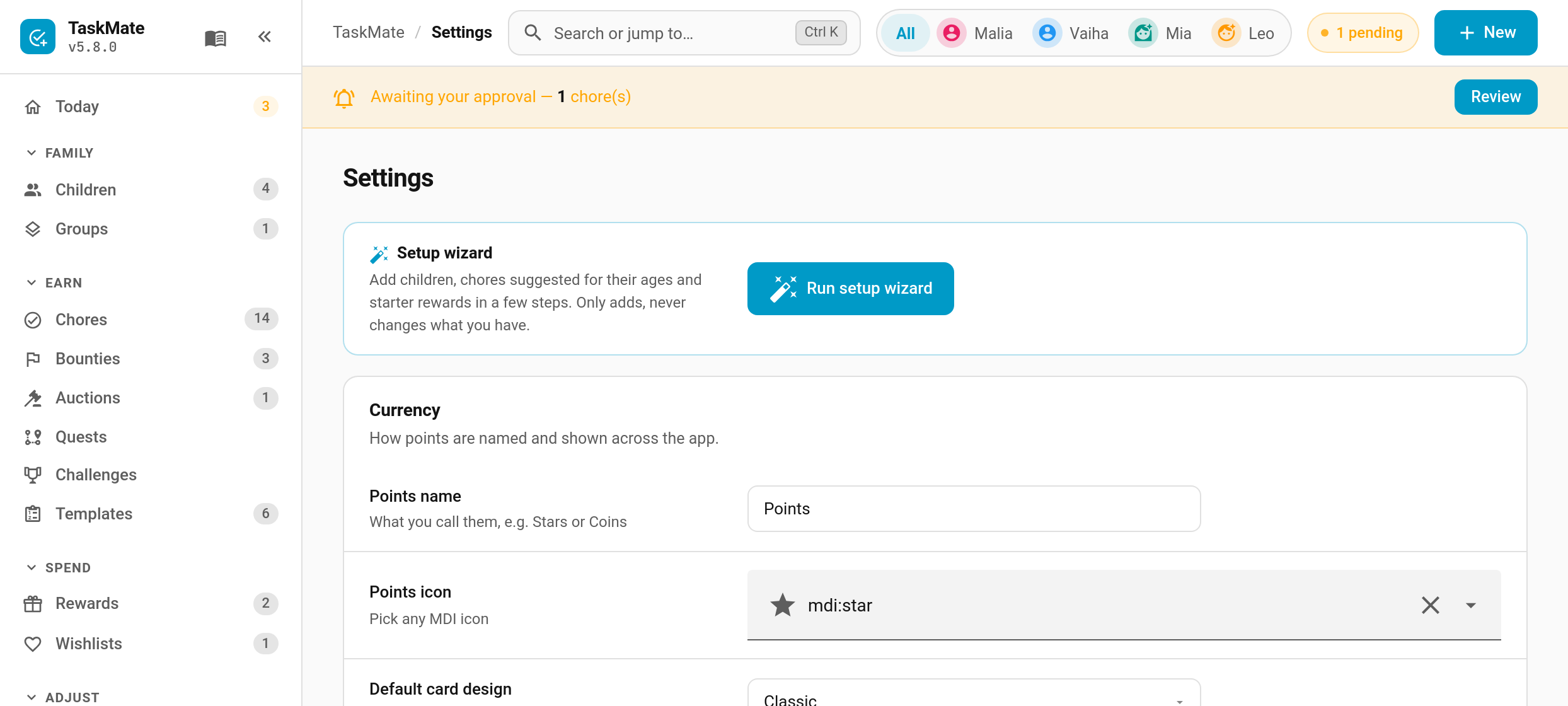
- Settings. Settings → Setup wizard → Run setup wizard, at the top of the page.
- Command search. Press Ctrl K and type "Run setup wizard".
- Integration setup. A link at the end of adding TaskMate in Home Assistant.
If you close it part-way, your draft is kept in the browser and picked up next time.
Choose what your points are called: Points, Stars, Coins, Gems or your own name. It shows on every card and can be changed later in Settings.
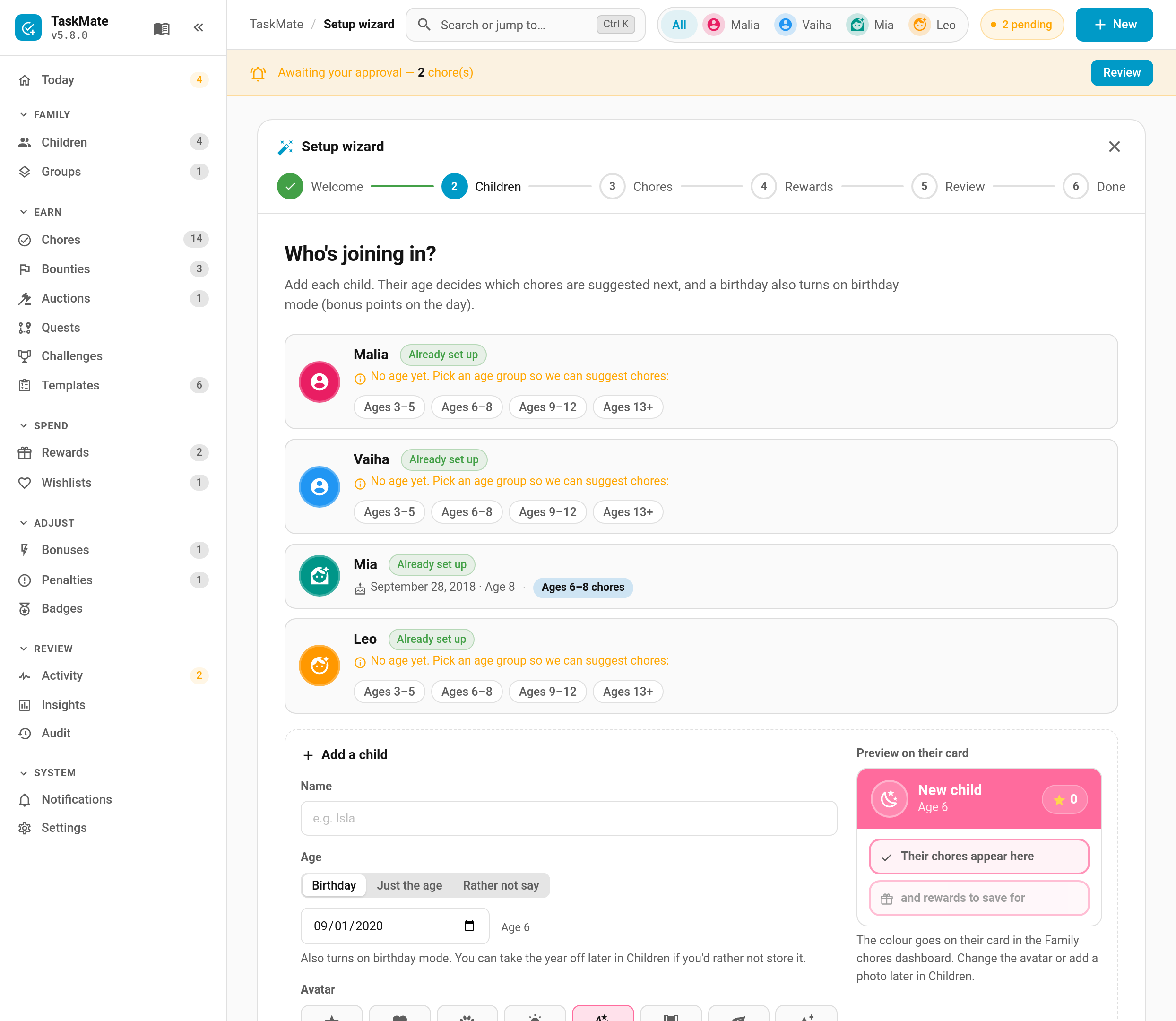
Add each child with a name plus one of:
- a birthday (this also turns on birthday mode for them),
- just the age, or
- rather not say, and pick an age group by hand.
Choose an avatar icon and a colour, and a preview shows their card header. The colour becomes their card's header on the Family chores dashboard.
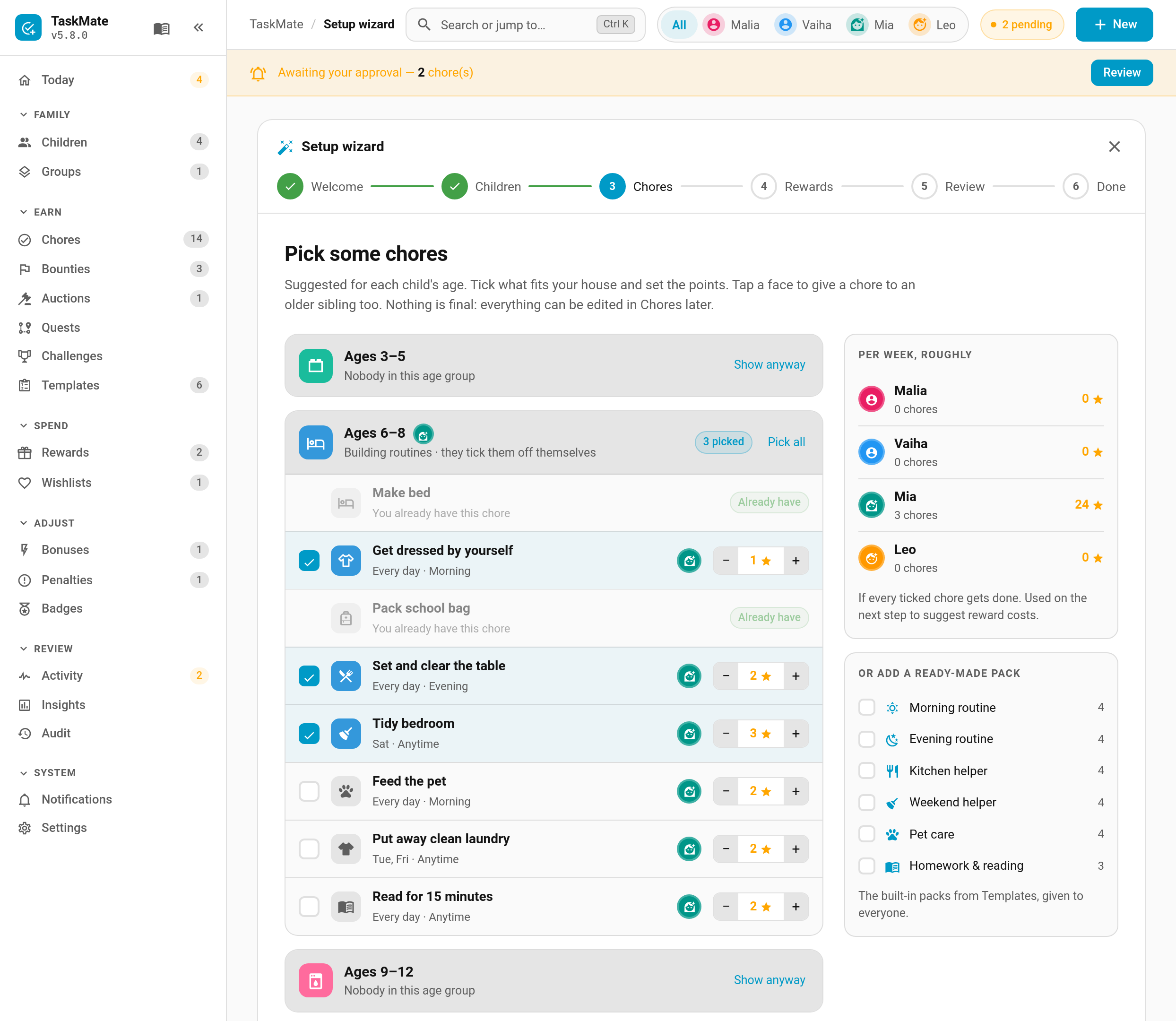
Suggestions are grouped by age: 3–5, 6–8, 9–12 and 13+, 32 in all. Each group that has a child in it opens with its first five chores ticked.
- Change the points for any chore with − and +. A Per week, roughly panel shows what each child would earn.
- Tap a child's face on a chore to give it to an older sibling too. A chore is never given to a child younger than its age group.
- Prefer a themed set? The six built-in template packs (Morning routine, Evening routine, Kitchen helper and so on) are offered alongside.
- A pack chore with the same name as a ticked suggestion, or as a chore you already have, is only added once.
Starter rewards in three tiers: Small treats, Worth saving for and Big goals. Each shows roughly how often it could be earned with the chores you picked. Adjust the costs, or add your own. Costs are fixed.
A summary per child, plus three choices:
| Choice | Default | What it does |
|---|---|---|
| Chores that need a parent's OK | Big jobs (4+) | None, big jobs worth 4 points or more, or all |
| Create a "Family chores" dashboard | on | One child card per child plus a rewards card. Skipped if a dashboard already exists at that address; never overwrites |
| Tell me when something needs approving | on | Switches on the approval notifications if they're off. Never switches anything off |
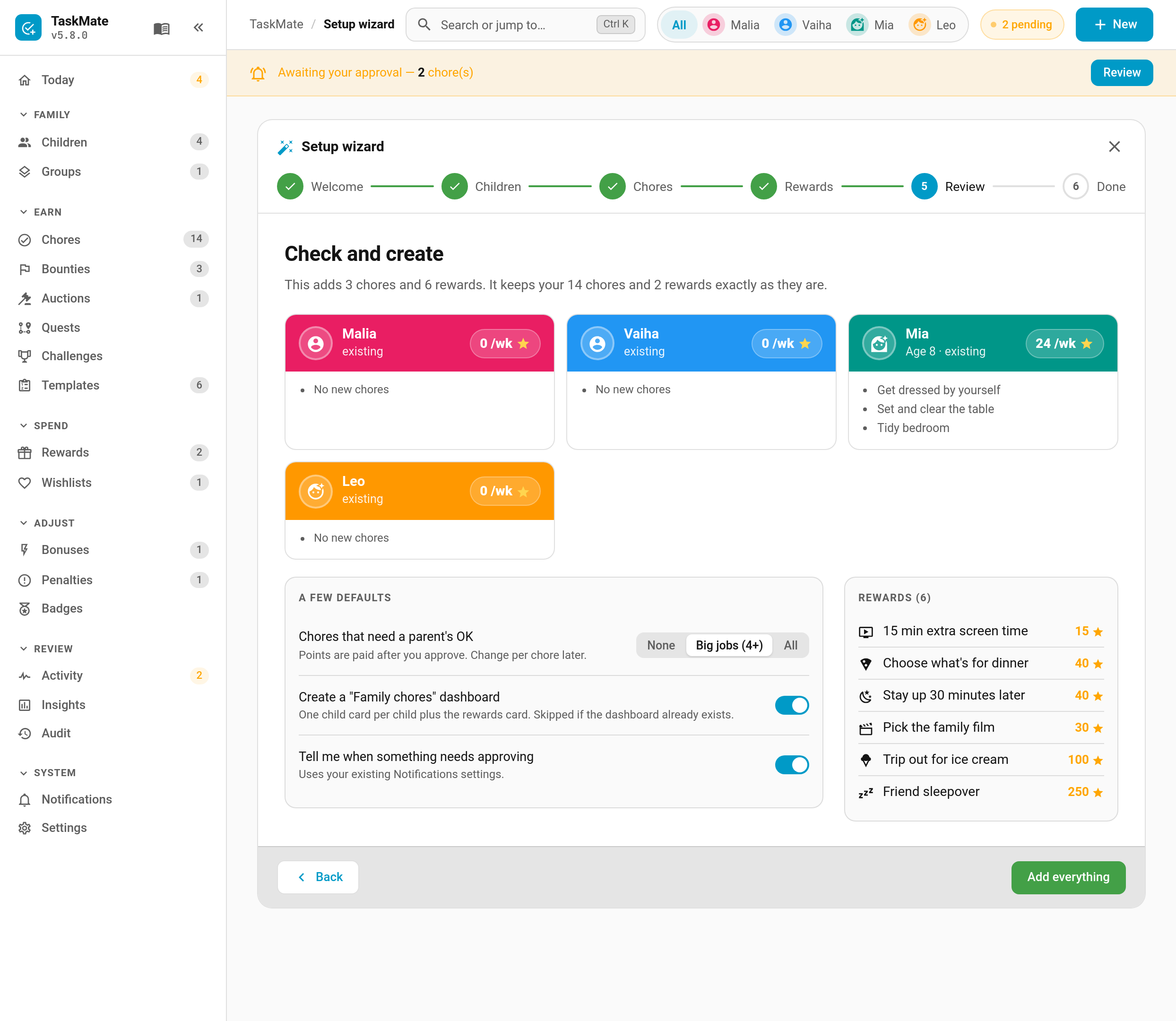
Add everything on the review step creates it all in one go, and the Done step confirms what was added, with a link to the new dashboard. Everything is checked before anything is written, so a mistake leaves nothing half-created.
When you already have children, the wizard asks before opening and works in add-only mode:
- Your existing children show as Already set up. You can only fill in a missing age group for them.
- Chores and rewards with a name you already have show as Already have and are skipped.
- Nothing is renamed, changed or deleted.
When a birthday moves a child into the next age group, the Today page shows a one-time nudge: "Vaiha is 9 now. See new chore ideas for their age?" Either button records the new age group, so it won't come back. Suggestions never move up a group by themselves.
A child's age group can also be set by hand under Children → Edit → Age group. It only decides which chores the wizard suggests; it changes nothing else.
- Getting Started — setting TaskMate up by hand
- Template Packs — the built-in and shareable chore packs
- Children — editing children, birthdays and age groups
- Birthday Mode — what a birthday turns on
- Admin Panel — the Today page and command search