Repository navigation
Control Center
Open the Control Center from the Runtime Menu. .smr opens Settings; .smr editor opens Display. Drag the title bar to move it and use its close button to hide it.
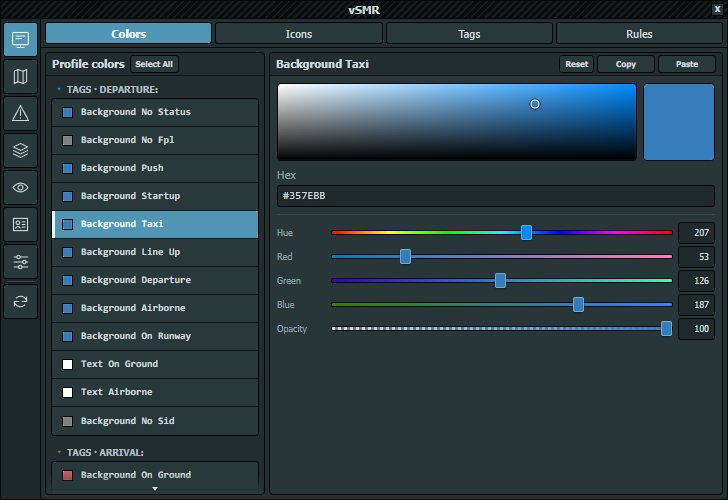
Captured directly in EuroScope on 2026-10-06; the selected profile colors are examples, not defaults.
| Page | Configuration |
|---|---|
| Display | Colors, icons, trails, tags and Rules |
| AVISO | Airport geometry and text styles |
| Alerts | Alert types, timing, visibility and manual runway closure state |
| Groups | AVISO content groups |
| Modes | Requirements, limits and visible target states |
| Profiles | Manage definitions and select this screen's active profile |
| Settings | UI theme, rendering resolution, sources, updates and recovery |
Display has Colors, Icons, Tags and Rules tabs; AVISO has Geometry and Text. Focused tab bars support Left/Right and Home/End. Delayed tooltips explain controls.
Display, Modes and Alerts edit the active profile. A selected row on Profiles is only a management selection; the dot marks the active profile. Use Set active to change what the editors operate on.
Active-profile selection is independent for each radar screen and saved with its ASR. Profile definitions, their display modes and the Profiles source remain shared. Editing a definition can affect another screen using it, but selecting a different profile does not select it in other ASRs.
AVISO Geometry, Text and Groups edit the active airport's validated GeoJSON. Palette choices are separate from the Night/Day interface theme. Settings explains which choices are screen-local and which belong to a profile.
Valid edits are applied and saved through a serialized, debounced save queue. Watch the status message; invalid or conflicting edits must be resolved. A newer edit is queued while an earlier save is in progress.
Revert to saved configuration reloads the last validated files. It is not an undo history and cannot recover edits already overwritten by autosave. Undo/Redo and legacy profile .bak restoration are no longer provided. Settings also offers Bundled defaults; keep separate backups before recovery or source replacement.
Copy/Paste is available for profile colors, tags, Rules and AVISO geometry/text styles. Multi-selection applies where supported by the editor.
Select All is available in the profile-color, tag-definition, AVISO Geometry and AVISO Text lists. It selects the editor's entries; selection alone does not change their values. Ctrl+A provides the same selection while the list is focused. Profiles, modes, rules and the group-management list remain single-selection.
In Groups → Add/remove…, Select All has a different scope: it adds all candidates matching the current tab and search to the group immediately.
Section Reset buttons restore only the indicated settings after confirmation:
| Location | Reset scope |
|---|---|
| Display → Colors | Selected profile colors |
| Display → Icons | Icon style, symbol size, trail enablement and ground/airborne point counts |
| Display → Tags, definition editor | Selected normal/detailed definitions and their inheritance setting |
| Display → Tags, options | Tag font, rounded corners, per-line backgrounds and auto-deconfliction |
| Display → Rules | The active profile's entire color-rule list, not only the selected rule |
| Alerts | Alert options and timings, keeping runway states and visibility |
| AVISO → Geometry / Text | Selected styles; colors in the current palette and shared non-color properties |
Confirmed resets use the normal autosave queue. They are not undo actions. Profile defaults are matched by stable identity, then saved name; an unmatched custom profile uses the bundled Default profile. Selected colors or tag definitions without a matching default are left unchanged.
AVISO resets require bundled defaults for the same airport and matching styles. Custom styles with no bundled counterpart remain unchanged. Geometry coordinates, feature identities, groups and other palettes' colors are preserved. See AVISO reset details.
Use these scoped buttons for a local correction; Settings → Bundled defaults is a separate, broader recovery action. Revert reloads saved data rather than restoring bundled values.
The Runtime Menu selects airport, mode and profile, toggles map groups/insets, manages inset presets and opens the vSID/PDC panels. See Runtime Menu.
Resolution presets change AVISO and aircraft rendering only; the Control Center and menu dimensions stay unchanged.