Repository navigation
Backups and Your Data
Also on the Cuebot Docs site.
Everything Cuebot knows (settings, actions, sign-ins, logs and backups) is in one folder, the data folder:
| Computer | Data folder |
|---|---|
| Windows |
%APPDATA%\Cuebot (type this into the address bar of File Explorer) |
| Linux |
~/.config/Cuebot (Flatpak: ~/.var/app/io.github.cuebot.Cuebot/config/Cuebot) |
| macOS | ~/Library/Application Support/Cuebot |
The program folder holds no settings. That is why you can replace it when you update.
Want a second setup, or Cuebot on a USB stick? Start Cuebot with --data <folder> to use another folder (see
Command-line options). Only one Cuebot can use one data folder at a time.
Sign-ins, API keys and passwords are stored encrypted: scrambled so that only you can unlock them.
- On Windows, your Windows account holds the key.
- On Linux, your desktop's keyring (like GNOME Keyring or KWallet) holds it. Without a keyring, Cuebot uses a file only your user can read.
- On macOS, the key is in a file called
secrets.keyin the data folder that only your user can read. (Cuebot doesn't use the macOS Keychain.)
Sign-ins and keys are never put in backups. If you restore a backup on a new computer, sign in again.
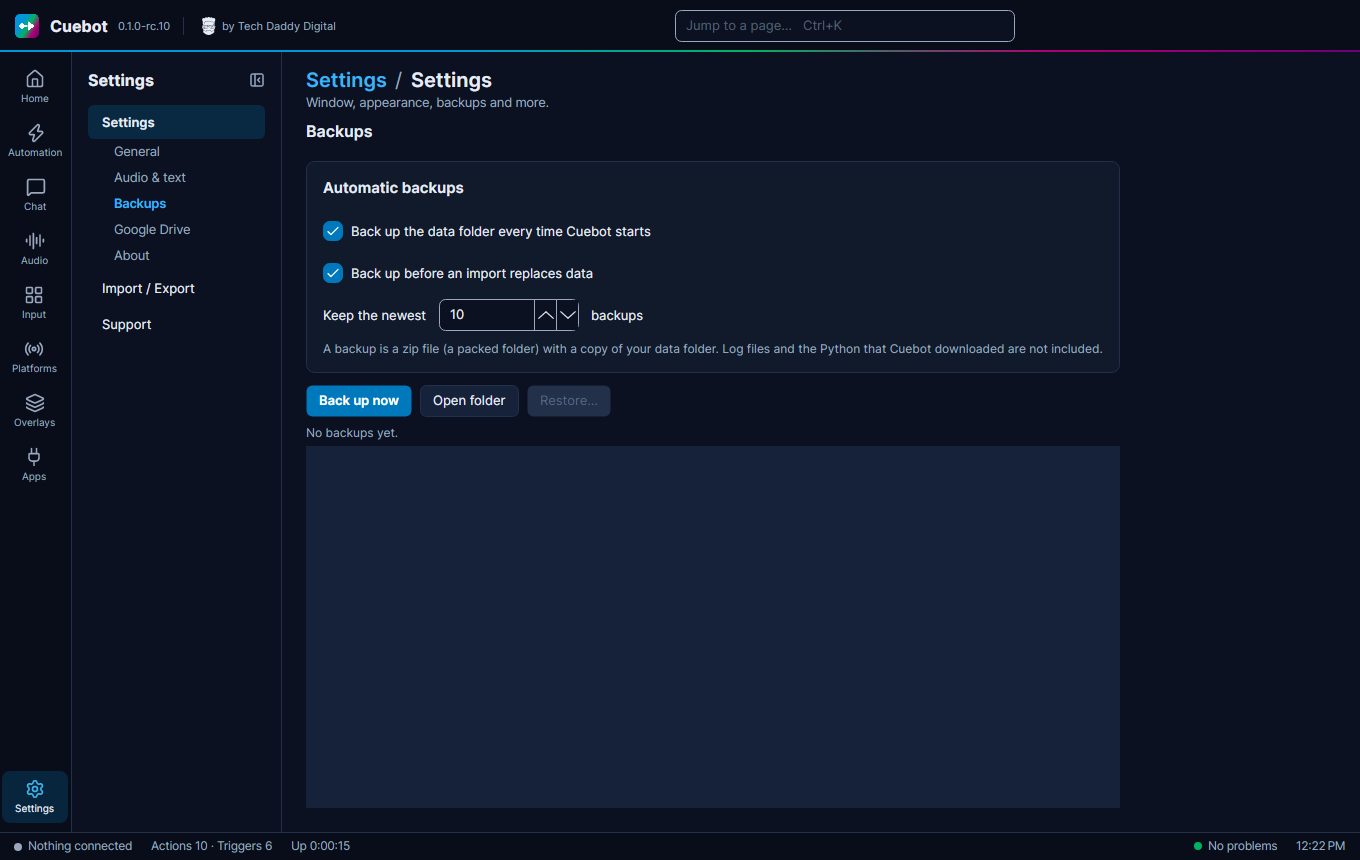
A backup is a zip copy of your data folder. Go to Settings, tab Backups.
- Back up the data folder every time Cuebot starts: ticked, Cuebot makes a backup each time it starts.
- Cuebot keeps the newest 10 backups and deletes older ones. You can change the number.
- Back up now makes one right away. Good before a big change.
-
Open folder shows the backups (they are in
backupsinside the data folder).
- Click Restore... and pick a backup.
- Choose Restore and restart (right away) or On next start.
- Cuebot first makes a safety backup of what you have now, then puts the old backup back in place before it loads anything.
Changed your mind before the restart? Click Cancel restore.
Cuebot can also copy backups to your own Google Drive, so they survive if your computer breaks. Go to Settings, tab Google Drive.
- Click Sign in with Google, pick your account and allow access.
- Tick Upload every new backup to Google Drive. Cuebot puts them in a folder called Cuebot Backups and keeps the newest 10 there.
- Upload now sends one right away. The page lists the backups on your Drive.
- To get one back, click Restore... next to it.
Cuebot can only see the files it made itself. It cannot look at anything else in your Drive. Sign out removes its access; your backups stay on Drive.
Cuebot has no tracking and sends no statistics. It only connects to a service when you set it up, and only sends what that job needs. The privacy policy lists exactly what goes where.