Repository navigation
Reference Sub actions Midi
Also on the Cuebot Docs site.
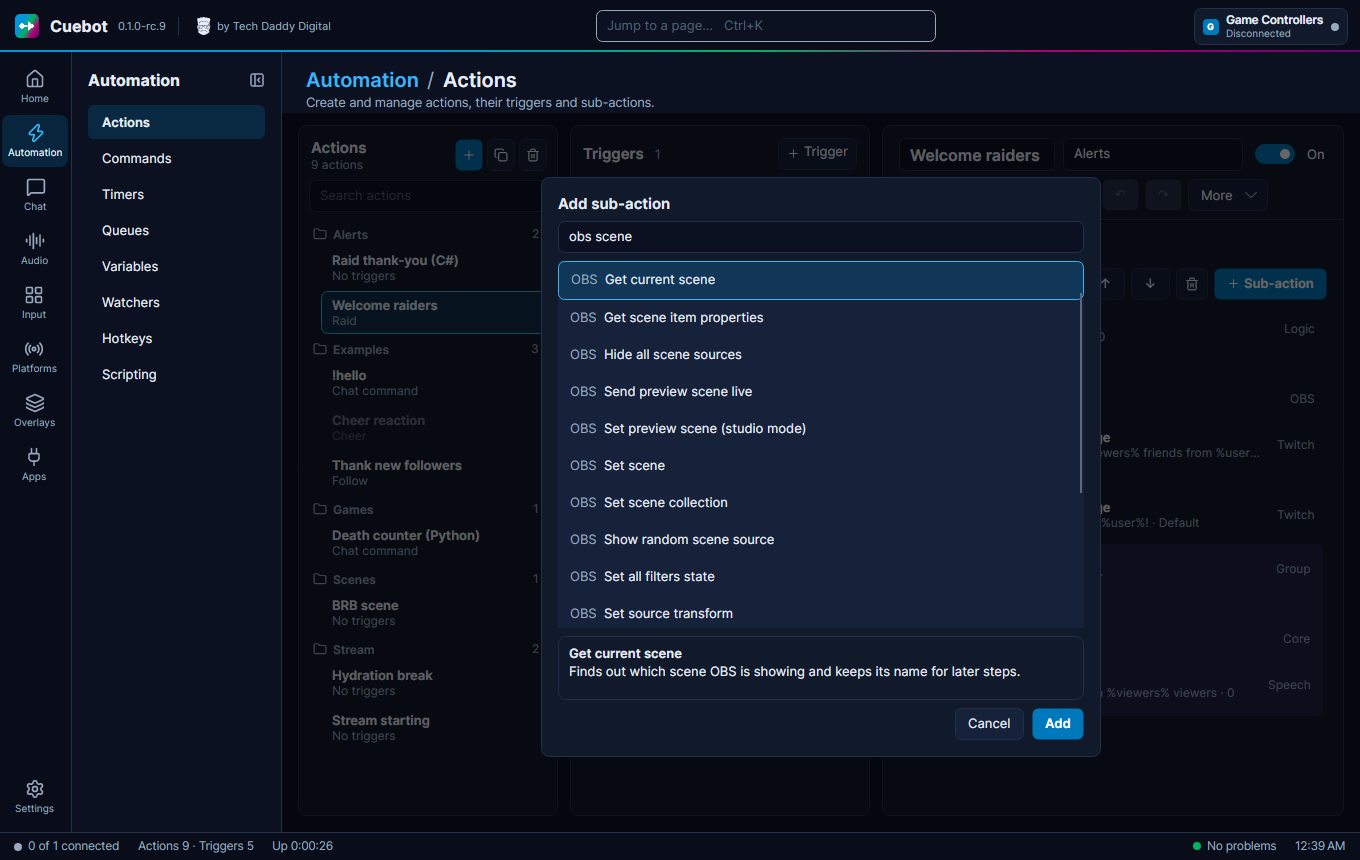
Turns a knob or slider on a MIDI device by sending a control change message, for example to move a volume control.
| Setting | What to put in |
|---|---|
| Name | A label for you, so you can tell this step apart. It is not sent to the device. |
| Device | Which MIDI output device to send to, by its name in the MIDI page. Leave empty to use the first one. A closed device is opened for you. |
| Channel | The MIDI channel, from 1 to 16. Most gear listens on channel 1. Leave empty to send on all 16 channels. Starts as: 1. |
| Controller | Which control to move, from 0 to 127. For example 7 is volume and 10 is left-right pan. Starts as: 0. |
| Value | The new position of that control, from 0 to 127. Starts as: 0. |
Type id: midi.controlChange
Plays a note on a MIDI device, like pressing a key on a keyboard. Can also light up a pad on a controller.
| Setting | What to put in |
|---|---|
| Name | A label for you, so you can tell this step apart. It is not sent to the device. |
| Device | Which MIDI output device to send to, by its name in the MIDI page. Leave empty to use the first one. A closed device is opened for you. |
| Channel | The MIDI channel, from 1 to 16. Most gear listens on channel 1. Leave empty to send on all 16 channels. Starts as: 1. |
| Note | Which note: a number from 0 to 127, or a name like C4 (which is 60). Starts as: 60. |
| Velocity | How hard the key is hit, from 0 to 127. Higher is louder. Starts as: 127. |
| Duration (ms) | How long to hold the note, in milliseconds (1000 is one second). Starts as: 500. |
| Send Note Off | Tick to let go of the note when the time is up. Untick to leave it held. Starts as: true. |
Type id: midi.noteOn
For experts: sends any basic MIDI message you choose. Use it when Note On and Control Change do not fit.
| Setting | What to put in |
|---|---|
| Name | A label for you, so you can tell this step apart. It is not sent to the device. |
| Device | Which MIDI output device to send to, by its name in the MIDI page. Leave empty to use the first one. A closed device is opened for you. |
| Command | The kind of message to send, like NoteOn, ControlChange or PitchWheelChange. Options: NoteOn, NoteOff, ControlChange, PatchChange, ChannelAfterTouch, PitchWheelChange. Starts as: NoteOn. |
| Channel | The MIDI channel, from 1 to 16. Most gear listens on channel 1. Leave empty to send on all 16 channels. Starts as: 1. |
| Data1 | The first number of the message, 0 to 127: the note, control number, program or pressure. For the pitch wheel, you can enter the whole 0 to 16383 value here and leave Data2 empty. Starts as: 0. |
| Data2 | The second number of the message, 0 to 127: the velocity or value. Not used by PatchChange and ChannelAfterTouch. Starts as: 0. |
Type id: midi.genericEvent
For experts: sends a long special message (a SysEx message) to a MIDI device. Some gear uses these for settings that normal messages cannot change.
| Setting | What to put in |
|---|---|
| Name | A label for you, so you can tell this step apart. It is not sent to the device. |
| Device | Which MIDI output device to send to, by its name in the MIDI page. Leave empty to use the first one. A closed device is opened for you. |
| Data | The message bytes as hex numbers separated by spaces, like F0 7E 7F 06 01 F7. The starting F0 and ending F7 are added for you if missing. You can use %variables%. |
Type id: midi.sysexEvent