Repository navigation
Commands
Also on the Cuebot Docs site.
A chat command is a word your viewers type in chat, usually starting with !, like !hello, !discord or
!so bob. Cuebot sees it and runs an action.
A command has two halves:
- The command (on Automation > Commands): which word, who may use it, and how often.
- The action (on Automation > Actions): what happens. It is linked to the command with a Command triggered trigger.
If you have not made one yet, Your first five minutes walks you
through !hello step by step.
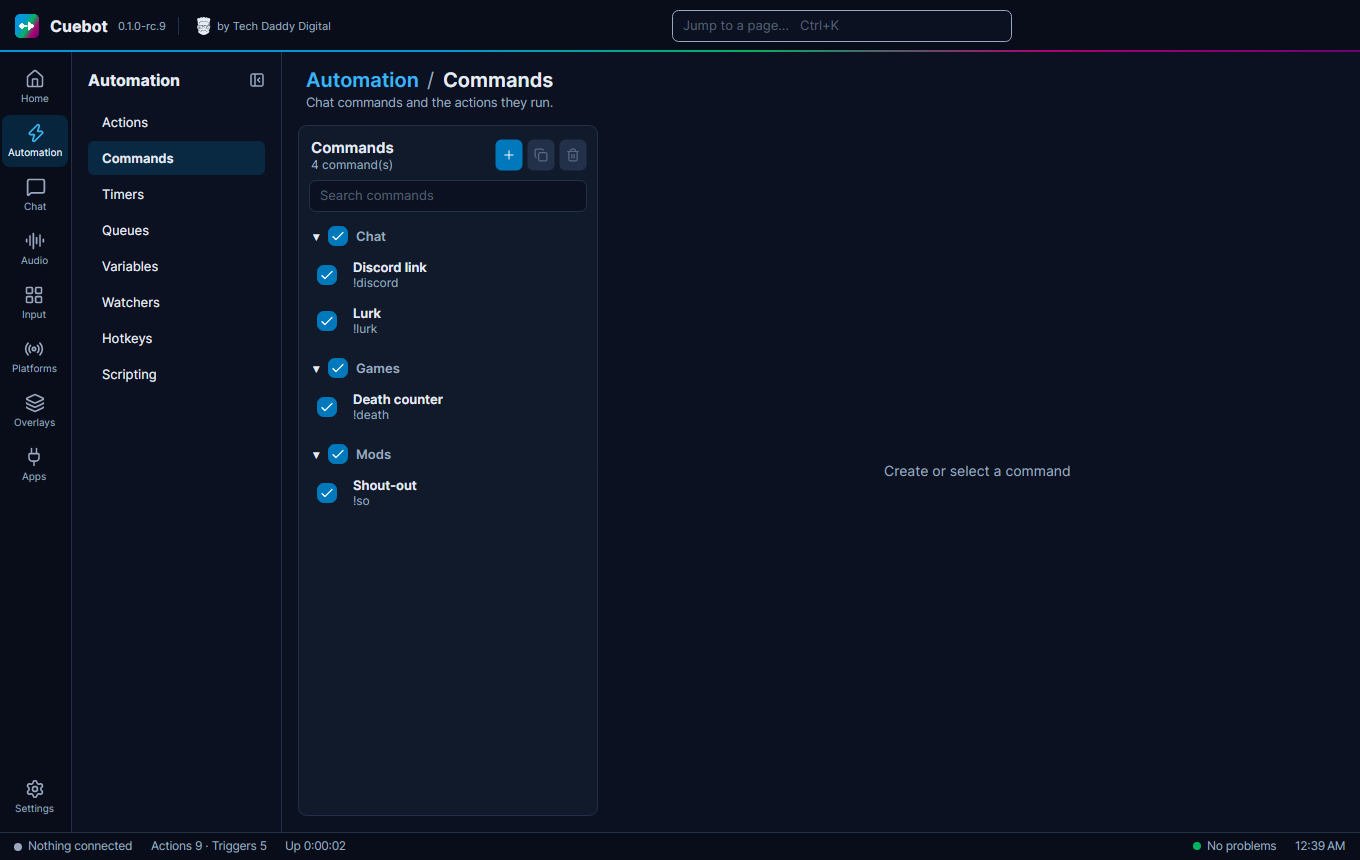
- Go to Automation > Commands and click +.
-
Name: a name just for you, like
discord. Viewers never see it. -
Commands: what viewers type, like
!discord. Put each one on its own line. Extra lines are other names for the same command (aliases), like!dc. They share one cooldown and one counter. - Leave Enabled ticked.
Then link an action:
- Go to Automation > Actions and make (or pick) an action.
- Click + Trigger, choose Commands › Command triggered and click Add.
- In the trigger's Command box, pick your command's name.
An empty Command box means every command: If you leave the trigger's Command box empty, the action runs for all your commands.
Everything typed after the command is handed to your action as variables. For !so bob is awesome:
| Variable | Value |
|---|---|
%input% |
bob is awesome |
%input0% |
bob (the first word) |
%input1% |
is (the second word) |
%inputCount% |
3 (how many words) |
%user% |
the person who typed it |
%command% |
!so |
Example: a shout-out. Command !so, and an action that sends:
Go check out %input0% at https://twitch.tv/%input0% - they are awesome!
More about variables: Variables, the %words%.
-
Mode: Basic for plain words like
!hello(pick this). Regex is a search pattern for advanced users. -
Location: where the command must be in the message.
-
Start: the message begins with it.
!so bobworks. - Exact: the whole message is the command, nothing else.
- Anywhere: the command appears somewhere as its own word.
-
Start: the message begins with it.
-
Case sensitive: ticked means
!Helloand!helloare different. Most people leave it unticked. - Ignore the bot account: your bot's own messages cannot start this command.
- Ignore messages sent from Cuebot: stops a command from starting itself when Cuebot writes it in chat.
-
Sources: limit the command to some chats, one per line, like
TwitchorYouTube. Empty means every chat on every platform.
A cooldown is a wait time, so one viewer cannot spam a command.
- Global: after anyone uses it, nobody can use it again for this many seconds.
- Per user: after Bob uses it, Bob has to wait this many seconds. Others can still use it.
0 means no wait. Want to answer "slow down!" when someone is too quick? Make an action with the Command cooldown
trigger.
- Minimum role: the lowest chat role allowed. Everyone means anyone. Higher roles, like Moderator, also let everyone above them in.
- Allowed users / Allowed groups: people who may use it even if their role is too low.
- Denied users / Denied groups: people who may never use it. A deny always wins.
- You, the broadcaster, can always use every command.
Groups come from Chat > Users & Groups. Example: make a group Regulars, then allow it on your !clip command.
Only some people: To let only the people on your lists use a command, set Minimum role to Broadcaster and add them under Allowed users or Allowed groups.
Cuebot counts how often a command was used, in total (Used … time(s)) and per viewer. Your action gets these as
%counter% and %userCounter%. Example: This is hug number %counter%!
- Reset counter / Reset user counters set them back to 0.
- Keep the counter after a restart keeps the number when Cuebot closes.
- Type into Search commands to find one.
- Give commands a Group name to sort them into folders. The switch on a group turns all its commands on or off.
-
Deletedeletes the selected command,Ctrl + Oturns it on or off.
There is a second way: the Twitch › Chat command trigger. You type the command word right into the trigger, with its own cooldowns and permission, and skip the Commands page. It only works for Twitch chat. The example !hello action in the Examples group uses it.
For most people, the Commands page is the better choice: it works on every platform and keeps all your commands in one list.
Actions can also change commands while you stream, for example to switch a command off during a game. See the Commands group in the sub-action reference: Set command state, Get commands, Reset command counters and more.