Repository navigation
Scripting
Also on the Cuebot Docs site.
Most streamers never need code. The normal sub-actions do almost everything. When they cannot do what you want, a code step lets you write a small program instead.
Cuebot understands two programming languages:
- C# (say "C sharp"). Code written for Streamer.bot works here without changes.
- Python. Cuebot installs Python for you the first time you need it.
More on code: Python in detail explains every Python helper, and Using your own code editor sets up Visual Studio Code, Visual Studio, Rider, PyCharm or any other editor, with suggestions as you type.
Only run code you trust: Code runs with full access to your computer, like any program you start. It can read your files and use the internet. Only paste code from people you trust, and read it first.
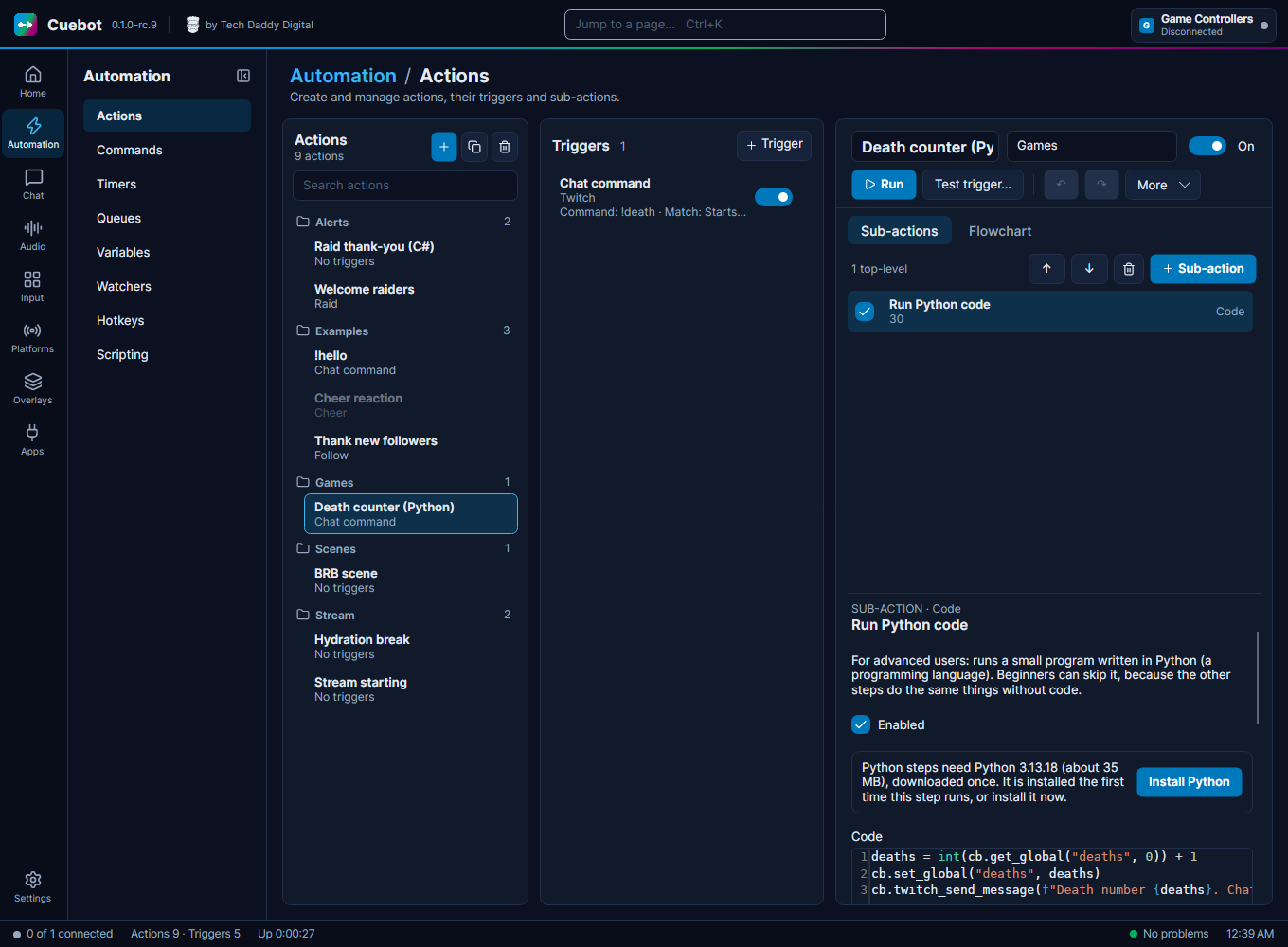
- Open an action (see How actions work).
- On the Sub-actions tab click + Sub-action, type
code, and pick Run C# code or Run Python code. - Type or paste your code into the Code box.
- Click Run to try it now, or Test trigger… to try it with pretend variables like
user=Bob.
Problems show up in the action's history and in the log. For C#, the message names the line and column, like
line 6, column 5.
Every setting of the code steps is explained on the Code sub-actions page.
Paste this into a Run C# code step:
public class CPHInline
{
    public bool Execute()
    {
        CPH.SendMessage("Hello from my code!");
        return true;
    }
}
What each part means:
-
public class CPHInlineis the box that holds your code. Keep this name; Cuebot looks for it. -
public bool Execute()is where Cuebot starts. It runs every time the action runs. -
CPHis your toolbox.CPH.SendMessage(...)sends a chat message. See every tool in C# methods (CPH). -
return true;means "carry on with the next step".return false;stops the action here.
This is the same shape Streamer.bot uses, so you can paste Streamer.bot code as it is.
The trigger gives the action variables, like %user% (who did it). In C# they are in args:
public class CPHInline
{
    public bool Execute()
    {
        // TryGetArg finds a variable and tells you if it was there
        if (CPH.TryGetArg("user", out string user))
        {
            CPH.SendMessage($"Welcome, {user}!");
        }
        return true;
    }
}
To give the next steps a new variable, use CPH.SetArgument("winner", "Bob");. The next steps can then use
%winner%.
A global variable keeps a value between actions, and (when it is "persisted") after Cuebot restarts. Here is a
death counter for a !death command:
public class CPHInline
{
    public bool Execute()
    {
        int deaths = CPH.GetGlobalVar<int>("deaths");
        deaths++;
        CPH.SetGlobalVar("deaths", deaths);
        CPH.SendMessage($"Deaths so far: {deaths}");
        return true;
    }
}
The same deaths value shows as ~deaths~ in any normal step, and on the Variables page.
CPHInline is made once and kept while Cuebot runs. A field (a variable written outside Execute) keeps its value
between runs, until Cuebot closes:
public class CPHInline
{
    private int _runs;

    public void Init()
    {
        // Runs once, before the first Execute
        CPH.LogInfo("My code is ready");
    }

    public bool Execute()
    {
        _runs++;
        CPH.LogInfo($"This code ran {_runs} times since Cuebot started");
        return true;
    }

    public void Dispose()
    {
        // Runs once, when Cuebot closes
    }
}
Init() and Dispose() are optional. Tick Precompile on application start on the step to run Init() when
Cuebot starts instead of before the first run.
You can also skip the CPHInline box and write the steps directly. Then you get:
-
CPH: the same toolbox; -
Args(orargs): the action's variables; -
Cb: Cuebot's own helpers (below); -
CancellationToken: tells long work to stop when the step's time is up.
var user = Args.TryGetValue("user", out var u) ? u?.ToString() : "friend";
await Cb.SendChat($"Hi {user}!");
var scene = await Cb.Obs("GetCurrentProgramScene");
await Cb.Log($"OBS shows {scene.GetProperty("currentProgramSceneName").GetString()}");
Here return false; stops the action too. Leaving out return carries on.
Cb helpers in C# (each one needs await):
| Helper | What it does |
|---|---|
Cb.Call(name, new { ... }) |
Runs any script function by name. Gives back its answer as JSON (JsonElement). |
Cb.Log(message, level) |
Writes a line in Cuebot's log. level is "Info" (the default), "Warning", "Error" or "Debug". |
Cb.GetGlobal(name) |
Reads a global variable as text, or null when it does not exist. |
Cb.SetGlobal(name, value, persisted) |
Saves a global variable. persisted (true at the start) keeps it after a restart. |
Cb.RunAction(name) |
Runs another action, waits for it, and gives back true when it worked. |
Cb.SendChat(message) |
Sends a message in your Twitch chat. |
Cb.Speak(text, alias) |
Says the text with text-to-speech. alias is a voice name; leave it out for your default voice. |
Cb.Obs(requestType, data) |
Sends one obs-websocket request to OBS and gives back OBS's answer. |
Cb.Step(type, new() { ["name"] = "value" }) |
Runs any step, the way the action editor does. See Turn an action into code. |
Cb.Check(left, operator, right) |
Checks something the way the If step does. Gives back true or false. |
Cb.Resolve(text) |
Fills in %variables% and ~globals~ in a text, like a step's settings. |
Cb.Pick(1, 3) |
Picks a position at random by weight (0 = the first). |
Cb.Together(async a => { ...; return true; }, async b => { ...; return true; }) |
Runs lanes at the same time, like Run at the same time. Gives back false when a lane stopped the action. |
Cb.Arg(name), Cb.SetArg(name, value)
|
Reads a variable as text / sets one. Inside a lane, use the lane's own helper (a.Arg(...)). |
- Answers from
Cb.Call(andcb.callin Python) name their fields with a small first letter, likeuserNameandisLive, the same as the REST API. Read one withanswer.GetProperty("userName"). - C# code runs on .NET 10, the same as Cuebot. Old Windows-only parts (Windows Forms,
System.Web) are not there. -
Newtonsoft.Jsonis ready to use: addusing Newtonsoft.Json;at the top. - Need another library? Put the full path of its
.dllfile in the step's References box, one per line. - Timeout (seconds) stops code that runs too long (30 seconds at the start; 0 means no limit).
-
Run C# method runs another method of a C# step that has a Code name.
CPH.ExecuteMethod("MyCode", "SayHi")does the same from code. -
CPH.TwitchOAuthTokenandCPH.TwitchClientIdstop the script: Cuebot never gives your sign-in keys to code. What Cuebot does not support lists every method that is there only so Streamer.bot code still compiles.
Paste this into a Run Python code step:
user = cb.get_arg("user", "friend")
cb.send_chat(f"Hello {user}, this is Python!")
The first time, Cuebot downloads its own Python (version 3.13) and sets it up. That takes a minute; after that it is quick.
-
cbis your toolbox in Python. -
print("text")writes the text in the action's log. Handy for checking what your code does. -
return Falsestops the action. Anything else (or noreturn) carries on. - When a Cuebot function fails, Python raises
CuebotError. You can catch it:
try:
    cb.obs_set_scene(scene_name="Gameplay")
except CuebotError as error:
    print(f"OBS said no: {error}")
cb helpers in Python:
| Helper | What it does |
|---|---|
cb.args |
The action's variables when the code started, as a dictionary. |
cb.get_arg(name, default) |
One variable, or default when it is not there. |
cb.set_arg(name, value) |
Sets a variable. Later steps can use it as %name%. |
cb.get_global(name, default) |
Reads a global variable, or default when it does not exist. |
cb.set_global(name, value, persisted=True) |
Saves a global variable (as text). |
cb.log(message, level="Info") |
Writes a line in Cuebot's log. |
cb.run_action(name) |
Runs another action, waits for it, and gives back True when it worked. |
cb.send_chat(message) |
Sends a message in your Twitch chat. |
cb.speak(text, alias=None) |
Says the text with text-to-speech. |
cb.obs(request_type, data=None) |
Sends one obs-websocket request to OBS and gives back OBS's answer. |
cb.call(name, **values) |
Runs any script function by name, like cb.call("speech.speak", text="Hi"). |
cb.<area>_<function>(...) |
Every script function as its own method, like cb.speech_speak(text="Hi") or cb.vtubestudio_move_model(position_x=0.5). |
Every Cuebot function has its own cb method in Python, named in Python style: vtubestudio.moveModel becomes cb.vtubestudio_move_model, and its value positionX becomes position_x. Each function's page shows its Python name and values. help(cb.speech_speak) prints what a method does, and cuebot.pyi gives a code editor such as VS Code completion for all of them.
# Walk the VTube Studio model across the screen with a little bounce
import math, time

for step in range(61):
    x = -1.2 + 2.4 * step / 60
    bounce = abs(math.sin(step / 60 * math.pi * 12)) * 0.05
    cb.vtubestudio_move_model(time=0, position_x=x, position_y=-0.5 + bounce)
    time.sleep(0.1)
A death counter in Python:
deaths = int(cb.get_global("deaths", 0)) + 1
cb.set_global("deaths", deaths)
cb.send_chat(f"Deaths so far: {deaths}")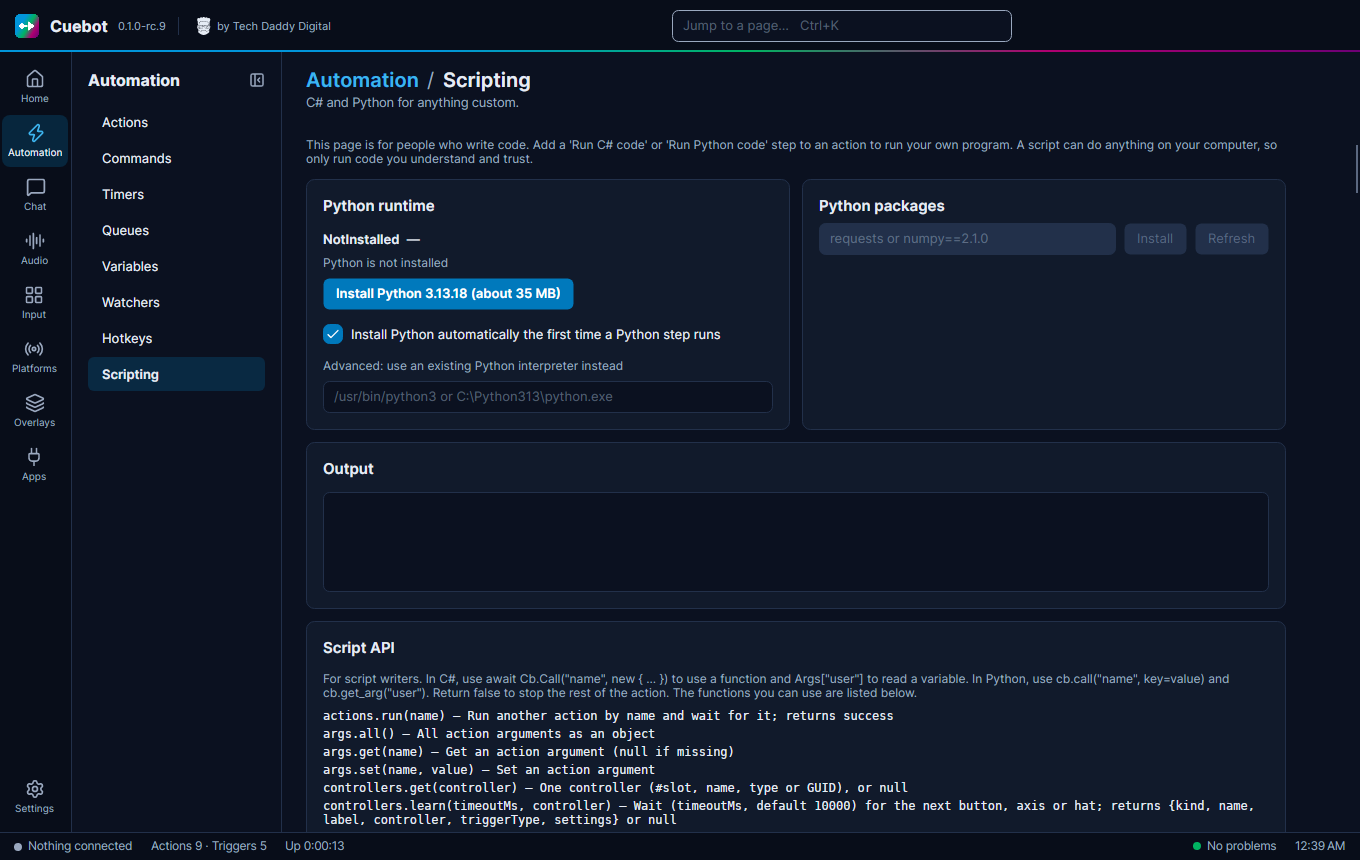
Automation > Scripting sets Python up:
- Install Python automatically the first time a Python step runs: leave it ticked.
- Advanced: use an existing Python interpreter instead: type where your own Python is, if you want to use it.
-
Python packages: type a package name, like
requests, and click Install. Thenimport requestsworks in your code. Remove takes it away again. - Script API lists every script function, the same list as the script functions pages.
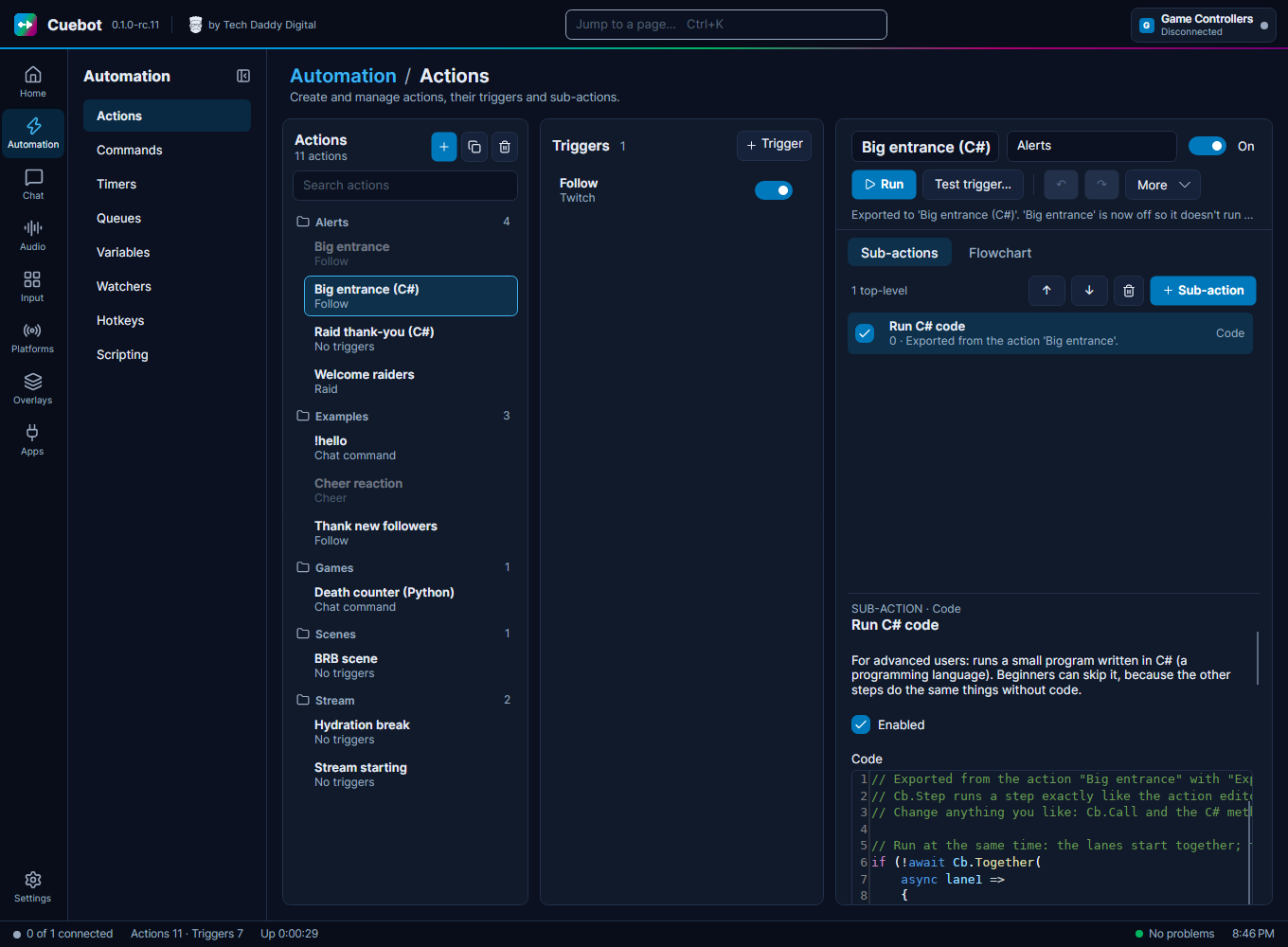
Built an action with steps, and now you want to do more with it than the steps allow? You don't have to start over. Cuebot can write the code for you.
- Right-click the action in the list, or open More in the action editor.
- Pick Export to code, then C# or Python.
- Cuebot makes a copy called, for example, "Big entrance (C#)". It has the same triggers, queue and options, but only one step: a code step with the whole action written as code.
- The original is switched off, so a follow doesn't run both. It stays in the list as a backup. Switch it back on (and the copy off) to go back.
Think of it like a recipe card. The steps were the recipe written as pictures. The export writes the same recipe out in words, so you can add your own notes and changes.
What the code looks like. The flow of the action becomes real code you can change. Every other step becomes one line that runs that step exactly like before:
| In the editor | In the code |
|---|---|
| A normal step |
cb.run_step("obs.setScene", ) in Python, await Cb.Step("obs.setScene", new() { ... }) in C#. Its settings stay as they were, %variables% included, and Cuebot fills them in the same way. |
| If |
if cb.check("%bits%", "greater than", "499"): in Python, if (await Cb.Check(...)) in C#. Same comparisons as the If step. |
| Switch | An if / elif (or else if) for each case, and else for Default. |
| While, Loop break, Loop continue | A loop with break and continue. %loopIteration% still counts the rounds. |
| Stop action |
return False (Python) or return false; (C#). |
| Group | Its steps, with a comment where the group starts and ends. A random group becomes cb.pick(...). |
| Run at the same time | In C#: Cb.Together(...) with one piece of code per lane. In Python: see below. |
| A step that is switched off | Left out, with a comment where it was. |
Once it is code, change whatever you like. You can replace a run_step line with a named method
(cb.twitch_send_message(...)), add your own checks, maths, lists, or anything else Python or C# can do.
Good to know:
- The code step has no time limit (its Timeout is 0), because waits that were steps now happen inside the code. Set one if you like.
-
Python does one thing at a time. In Python, a Run at the same time step (and the action option
Concurrent sub-actions) stays as steps that Cuebot runs together for you, with
cb.run_steps([...]). The lanes still run at the same time; you just edit them as data instead of code. C# writes real lanes. - Notes at the top. When something could not become code, or works a little differently now, the export writes a note at the top of the code (and says how many there are). For example: another action uses Set sub-action state on a step of this action. The copy has no separate steps, so that does nothing any more.
- It is one-way. The code can't be turned back into steps. That's why the original stays as a backup.
- History shows the code as one step, instead of every step.
- Faster? A little, sometimes. Most of the time an action waits for OBS, Twitch or a Delay, and the code waits just as long. Code is faster when you do lots of work in between, like a big loop or working with text. The big win is that you can change anything.
| You write | Use | Where the list is |
|---|---|---|
C# with CPHInline (Streamer.bot style) |
CPH.Something(...) |
C# methods (CPH) |
| Short C# |
CPH.Something(...), or await Cb.Call("name", new { ... })
|
C# methods and script functions |
| Python |
cb.something(...), or cb.call("name", ...)
|
Script functions |
Script functions are the same for both languages, and cover every part of Cuebot: OBS, chat, points, Stream Deck, VTube Studio, and more. Each one shows a C# and a Python example.
Code steps run inside Cuebot. To control Cuebot from another program (a website, a script on another computer, your own app), see Controlling Cuebot from other programs.