Repository navigation
Installation
Also on the Cuebot Docs site.
Cuebot is one download. You do not need to install anything else first.
Go to the releases page and open the newest release. While Cuebot is in testing, releases are marked Pre-release. Under Assets, pick the file for your computer:
| Your computer | File to download |
|---|---|
| Windows 10 or 11 | Cuebot-win-x64.zip |
| Linux (most people) | Cuebot-x86_64.AppImage |
| Linux, with Flatpak | Cuebot-x86_64.flatpak |
| Linux, ARM computer or if you prefer a plain folder |
Cuebot-<version>-linux-arm64.tar.gz or ...-linux-x64.tar.gz
|
| Mac with Apple silicon (M1 or newer) | Cuebot-macos-arm64.dmg |
| Mac with an Intel chip | Cuebot-macos-x64.dmg |
| Android phone or tablet (Android 10 or newer): the phone app | Cuebot-Companion-<version>.apk |
| Elgato Stream Deck app (Windows or Mac): the Cuebot plugin | io.github.cuebot.streamdeck.streamDeckPlugin |
Experimental: Cuebot for Mac is new. See What's experimental.
- Download
Cuebot-win-x64.zip. - Right-click the zip and choose Extract All. Put it in a folder you will keep, like
Documents\Cuebot. Do not start Cuebot from inside the zip. - Open the folder and double-click
Cuebot.exe.
"Windows protected your PC": Windows may show this blue box the first few times, because Cuebot is new and Windows does not know it yet. Click More info, then Run anyway.
You need macOS 15 (Sequoia) or newer. Not sure which chip your Mac has? Open the Apple menu and click About This Mac: "Apple M..." means Apple silicon, "Intel" means Intel.
- Download the
.dmgfor your Mac and open it. - Drag Cuebot onto the Applications folder next to it.
- Open Applications and double-click Cuebot.
"Cuebot cannot be opened" or "Apple could not verify Cuebot": macOS asks before the first start, because this Cuebot is not yet signed by Apple. Click Done (or OK), open System Settings > Privacy & Security, scroll down and click Open Anyway next to Cuebot. You only do this once. (On older Macs, right-click Cuebot and choose Open instead; macOS 15 no longer offers that shortcut.)
When you turn on Voice Control, macOS asks whether Cuebot may use the microphone. Click Allow.
After updating on a Mac: This Cuebot is not signed by Apple yet, so macOS sees each update as a new app. If hotkeys or key presses stop working after an update while System Settings > Privacy & Security still shows Cuebot turned on, select Cuebot in Input Monitoring and Accessibility, remove it with −, and add it again with +.
Notifications on a Mac: Cuebot's system notifications on a Mac come from Script Editor (a helper that is part of macOS). If none show up, open System Settings > Notifications > Script Editor and allow them, or set Cuebot to use its own in-app notifications instead.
-
Download
Cuebot-x86_64.AppImage. -
Make it runnable. In most file managers: right-click it, open Properties and tick the box that allows running it as a program (the wording depends on your desktop). Or type this in a terminal:
chmod +x Cuebot-x86_64.AppImage
./Cuebot-x86_64.AppImage
-
If you want Cuebot in your app menu, use a tool such as Gear Lever or AppImageLauncher.
Download Cuebot-x86_64.flatpak and open it with your software centre, or type
flatpak install --user Cuebot-x86_64.flatpak in a terminal.
tar -xzf Cuebot-<version>-linux-x64.tar.gz
./Cuebot-<version>-linux-x64/lib/CuebotThe AUR packages cuebot and cuebot-bin come with the first full (non-test) release.
Linux has a few extras, like sound players and the Stream Deck. See the Linux page.
- Close Cuebot.
- Download the new version.
- Unzip it over the old folder, or into a new folder. On a Mac, drag the new Cuebot into Applications and choose Replace.
Your actions and settings are not in the program folder, so nothing is lost. They live in your data folder.
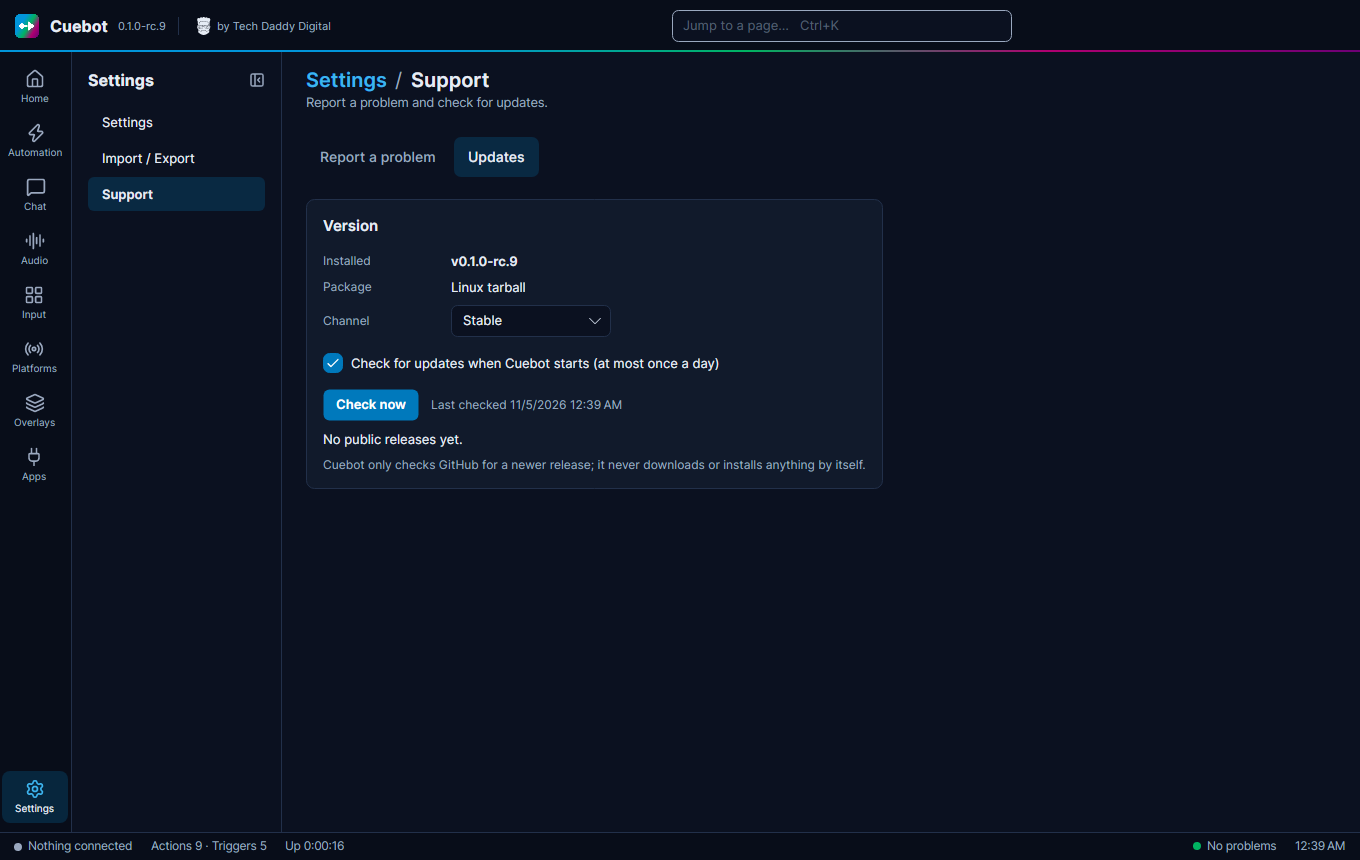
In the left rail click Settings, then the Support page, then the Updates tab. Tick "Check for updates when Cuebot starts (at most once a day)". Set Channel to Prerelease to also hear about test versions. While Cuebot is in testing, every release is a test version, so pick Prerelease for now.
Next: your first five minutes.