Repository navigation
Getting Started
Also on the Cuebot Docs site.
By the end of this page, Cuebot will be signed in to Twitch, connected to OBS, and answering !hello in your chat.
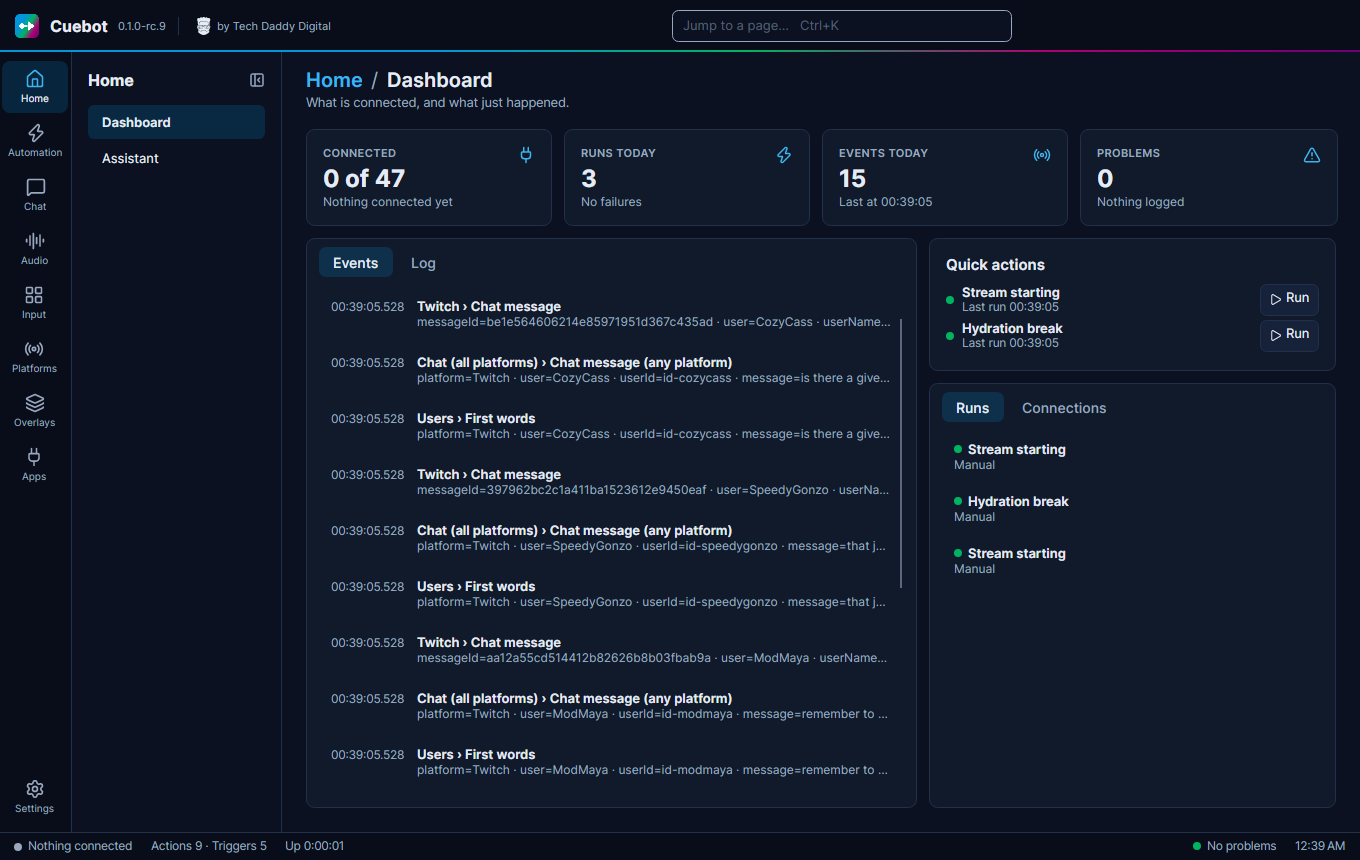
On the far left is the left rail: a column of icons with short names. Home, Automation, Chat, Audio, Input, Platforms, Overlays, Apps and, at the bottom, Settings. Click one, and its pages are listed next to it.
How to read the paths on this site: When a page says Automation > Actions, it means: click Automation in the left rail, then Actions in the list next to it.
Two handy things:
- Press
Ctrl + K(or click "Jump to a page…" at the top) and type a page name, like "timers", to jump there. - The top bar shows a small chip for each thing that is connected, like Twitch or OBS.
Cuebot saves your changes by itself, a moment after you make them. Ctrl + S saves everything right away.
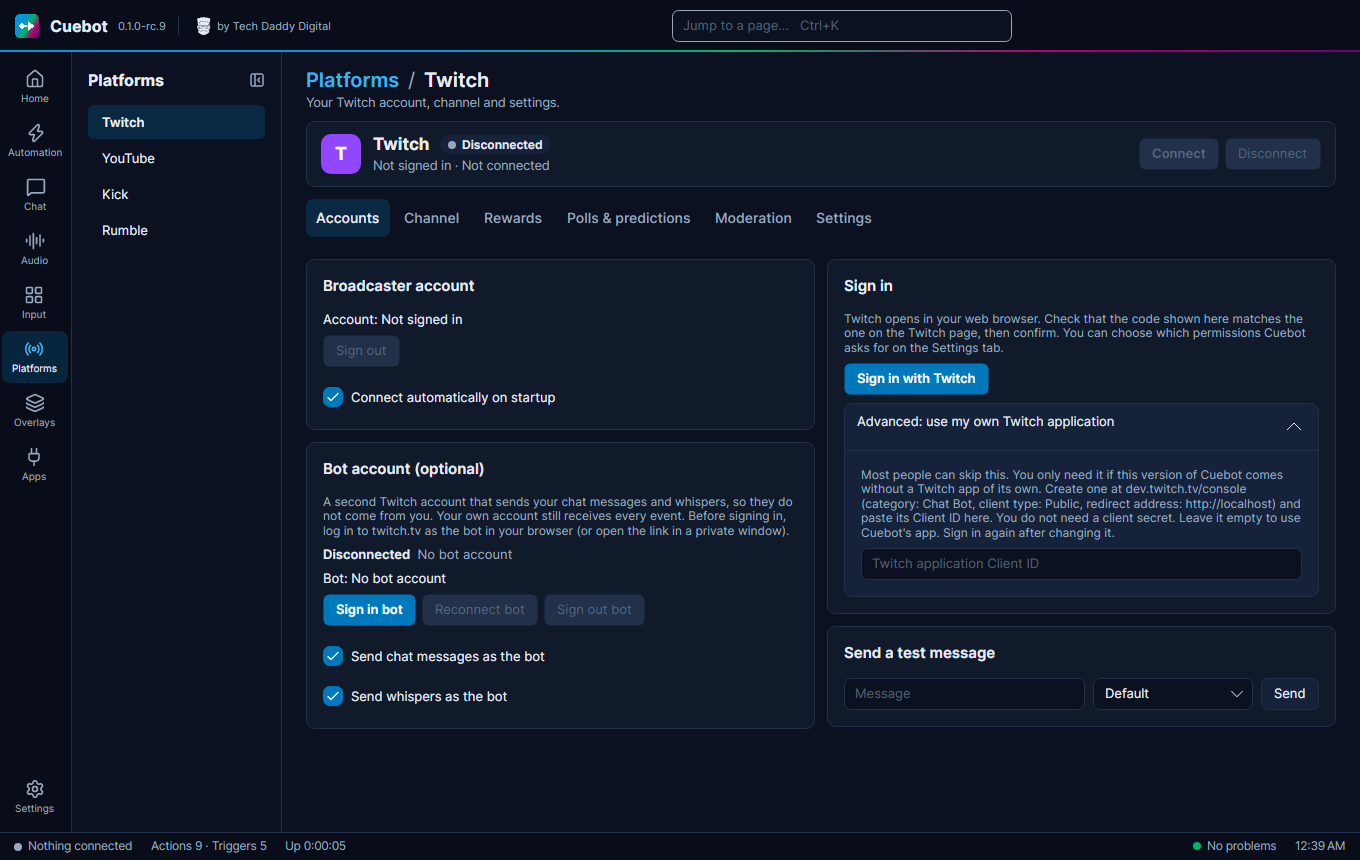
- Go to Platforms > Twitch and open the Accounts tab.
- Under Broadcaster account click Sign in with Twitch.
- Your browser opens Twitch, and Cuebot shows a short code. Check that you are logged in to Twitch as your streaming account, then confirm the code on Twitch.
- Back in Cuebot, the page now shows your account. Cuebot connects by itself.
- Tick Connect automatically on startup, so you never have to do this again.
On YouTube, Kick or Rumble instead? See Connecting your platforms. The rest of this page works the same on every platform.
First, in OBS:
- Open Tools > WebSocket Server Settings.
- Tick Enable WebSocket server.
- Click Show Connect Info. Keep this window open: you need the port and the password.
Then, in Cuebot:
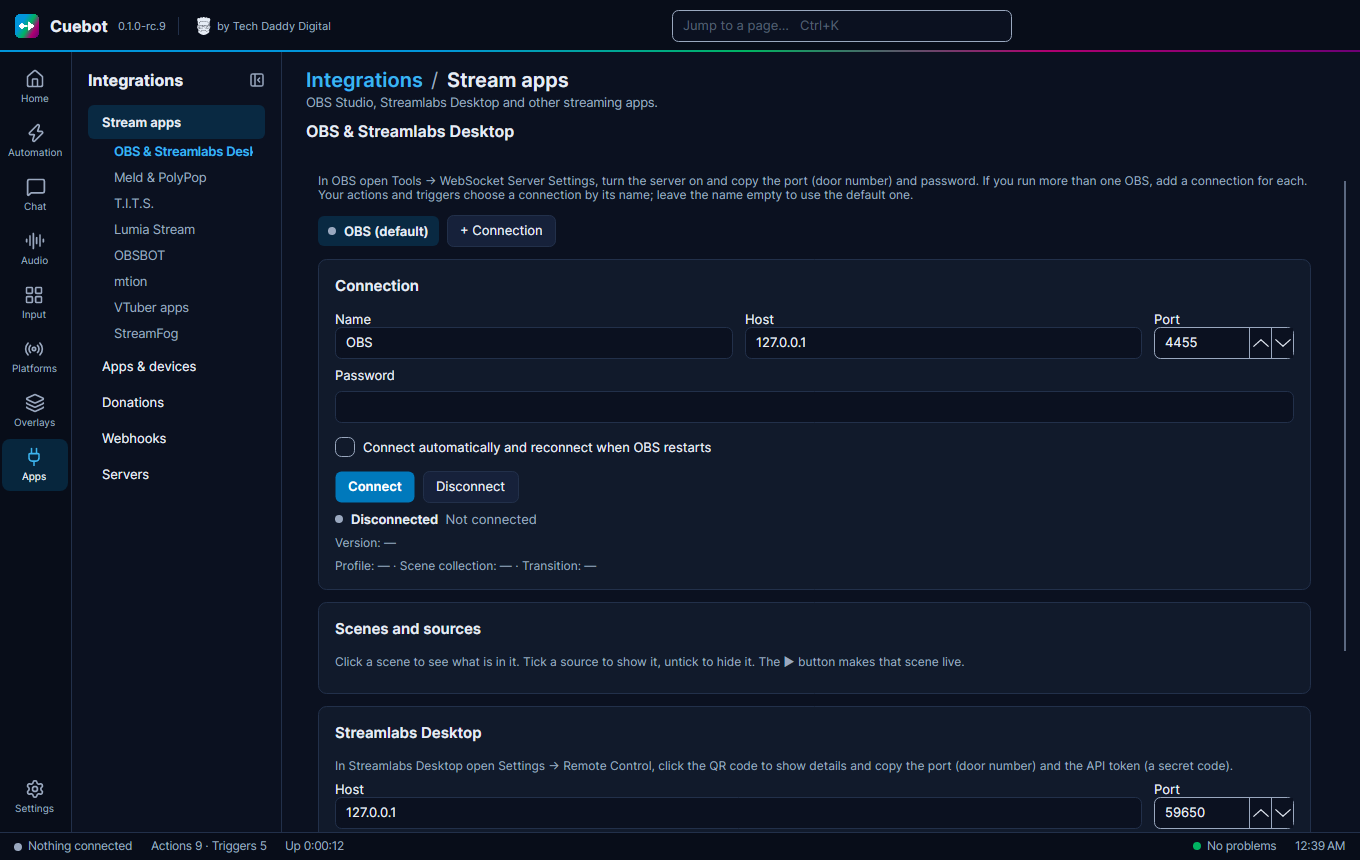
- Go to Apps > Stream apps and open OBS & Streamlabs Desktop.
- Under OBS Studio, check the connection. Host
127.0.0.1and Port4455are right when OBS runs on the same computer. Copy the Password from OBS into the Password box. - Click Connect. The scenes from OBS show up under Scenes and sources.
- Tick Connect automatically and reconnect when OBS restarts.
You will make three small things:
- a command: the word viewers type,
!hello; - an action: what Cuebot does, here "write a message in chat";
- a trigger: the link that says "when the command is used, run the action".
Cuebot already has an example
!hello: The first time it starts, Cuebot makes a few example actions in a group called Examples, and one of them answers!helloon Twitch. Turn it off first, or your chat gets two answers: go to Automation > Actions, click the !hello action in the Examples group and click Off.
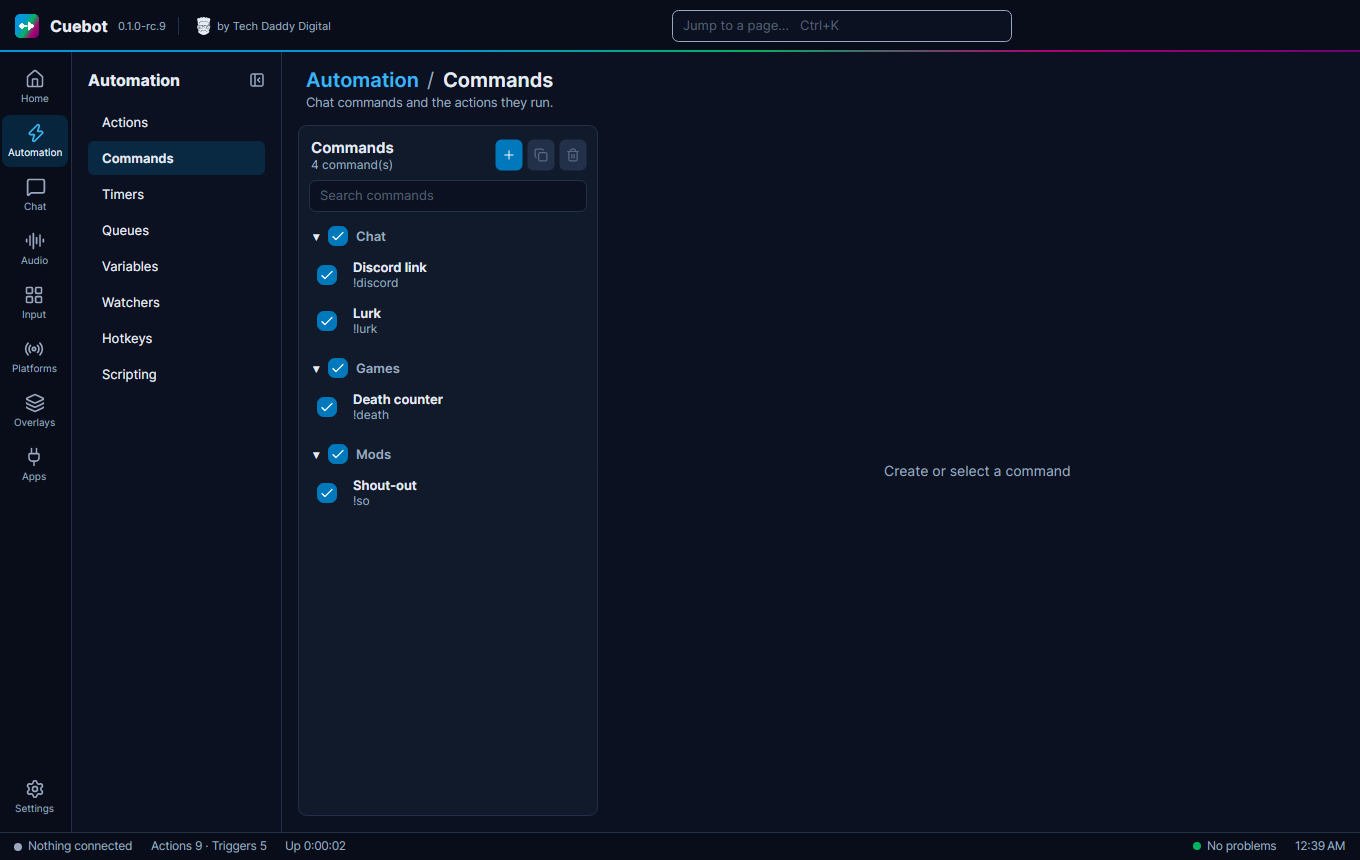
- Go to Automation > Commands.
- Click the + button (its tip says "Creates a new chat command, like !hello.").
- In Name, type
hello. This name is just for you. - In the big box under Commands, replace
!newcommandwith!hello. - Make sure Enabled is ticked.
- Go to Automation > Actions.
- Click the + button at the top of the list (its tip says "New action"). A new action called "New action" appears.
- Click its name at the top and type a better one, like
Say hello.
- Find the Triggers list. On a wide window it is a column on the right. On a smaller window it is a Triggers tab next to Sub-actions.
- Click + Trigger.
- In the search box type
command triggered. Pick Commands › Command triggered and click Add. - The trigger's settings appear under the list. In Command, pick
hello.
Do not leave Command empty: An empty Command box means "run for every command". That is handy later, but not now.
-
Open the Sub-actions tab and click + Sub-action.
-
Type
send chat message. Pick Chat (all platforms) › Send chat message (any platform) and click Add. -
In Message, type:
Hello %user%, welcome in!%user%is a variable: Cuebot swaps it for the name of the person who typed the command. -
Tick Reply on the platform the trigger came from, so a Twitch viewer gets the answer on Twitch.
-
In your chat: type
!hello. Cuebot answers "Hello YourName, welcome in!". -
Without chat: click Test trigger… (or press
F5). The Arguments box already saysuser=TestUser. Change it touser=Bobif you like, and click Run test. Cuebot runs the action as if Bob had typed the command.
A test is real: Run and Run test really do what the action says. Here, that means a real message in your chat.
Check these, in order:
- Is the platform connected? Look for its chip in the top bar.
- Is the command ticked Enabled on the Commands page?
- Is the action On, and is the trigger's switch on?
- Does the trigger's Command say
hello? - Open Chat > History. Every run is listed there. If your action is missing, the trigger did not fire. If it is there, click it to see what happened.
- Open Home > Dashboard and the Log tab. Warnings show up there, like a missing Twitch permission.
- How actions work: add more steps, like switching a scene or playing a sound.
-
Chat commands: cooldowns, who may use a command, and
!so bob-style commands. - Overlays and alerts: show alerts on your stream.
- Music and now playing: show your song on stream, and take song requests.
- VTuber apps, Stream Deck and Discord bot: connect the rest of your setup.
- Every page in Cuebot: a map of every page, with a link to its guide.
- Stuck? The setup assistant can do the clicking for you.
Some parts are experimental: A few features have not been tried with the real app or service yet. They have a yellow Experimental box in these guides. See What's experimental.