Repository navigation
Text to Speech
Also on the Cuebot Docs site.
Text-to-speech (TTS) means the computer reads text out loud. Cuebot can read chat, thank people for follows, and say anything your actions tell it to. It is built in: you do not need Speaker.bot or any other app.
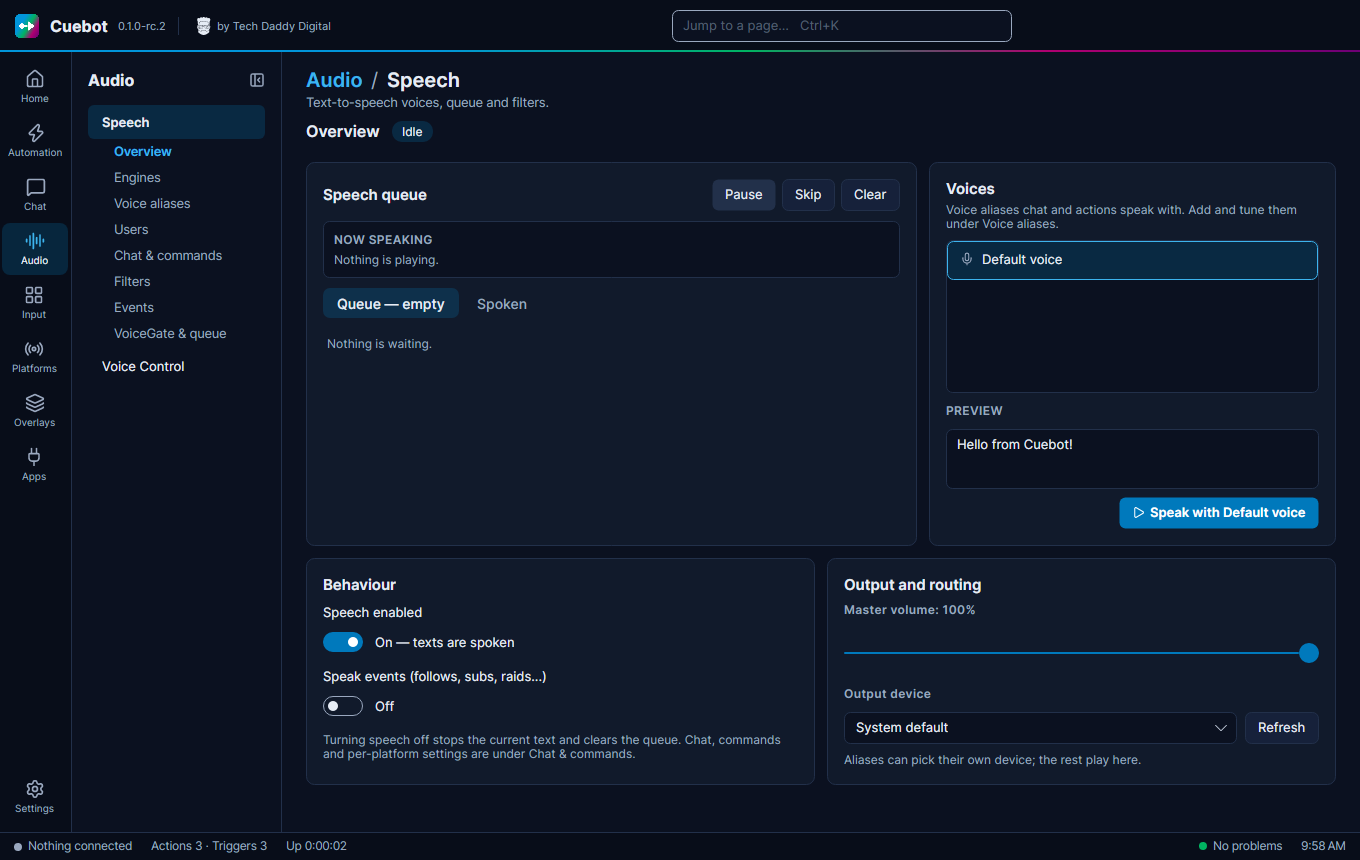
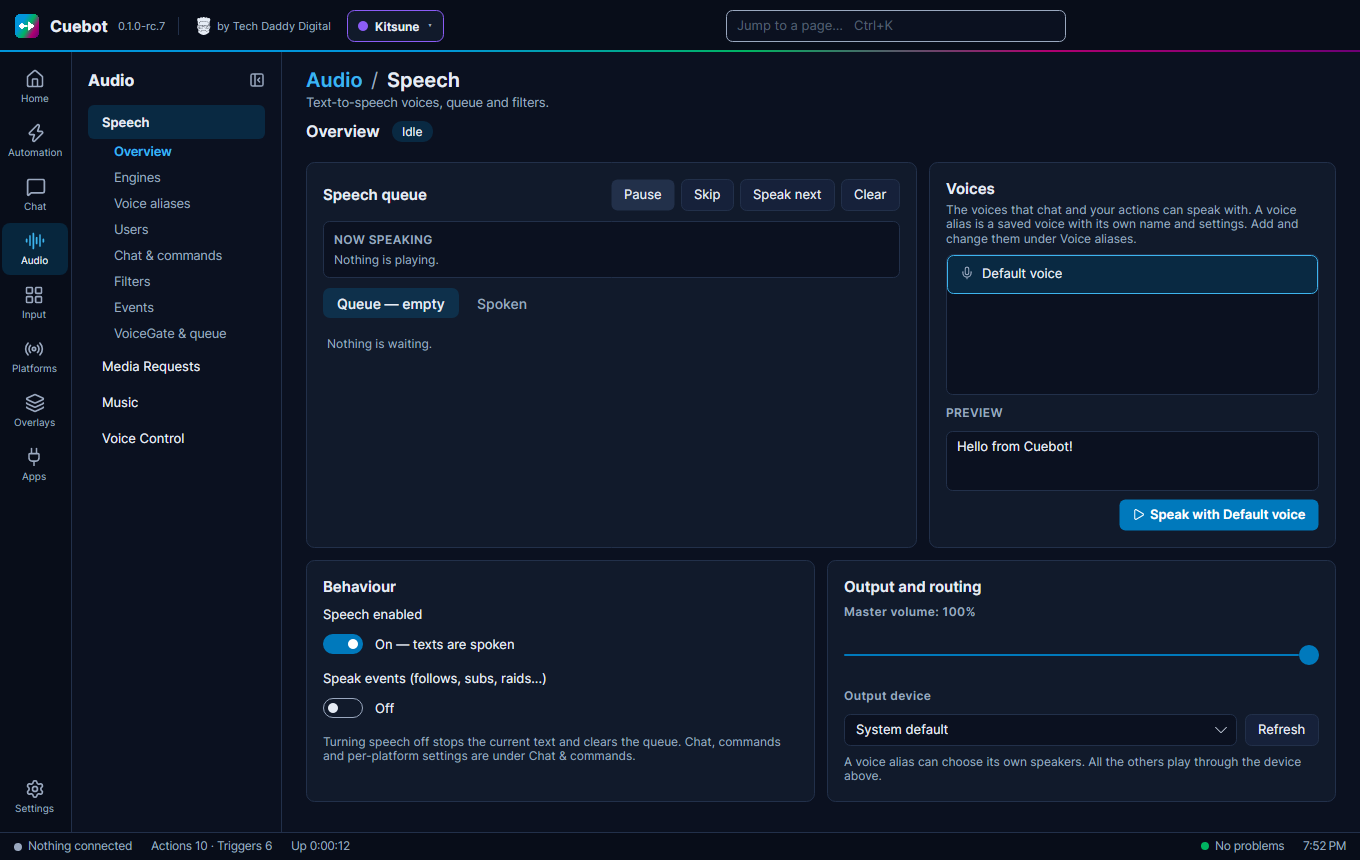
Everything is on Audio > Speech. It has these tabs: Overview, Engines, Voice aliases, Users, Chat & commands, Filters, Events and VoiceGate & queue.
An engine is the thing that makes the voice. Open the Engines tab.
| Engine | Where it runs | What you need |
|---|---|---|
| Windows voices | Windows | Nothing. These are the voices already in Windows. |
| eSpeak NG | Windows and Linux | Free, works without internet. On Linux, install espeak-ng (the Flatpak has it). |
| Piper | Windows and Linux (not on a Mac yet) | Free, works without internet, and sounds much more natural than eSpeak. Cuebot downloads it for you: see Piper below. |
| OpenAI, ElevenLabs, Microsoft Azure, Google Cloud, Amazon Polly, IBM Watson | The internet | Your own account and key with that company |
| Acapela Cloud, CereProc (CereVoice Cloud), TTS Monster, UberDuck | The internet | Your own account and key |
Internet ("cloud") engines often sound nicer, but the company may charge you for each letter spoken. Cuebot only sends them the text to say. Your keys are hidden on screen and never written to the log.
Click Test next to an engine to hear it.
Experimental: Of the internet engines, only OpenAI has been tried with a real account so far. ElevenLabs, Microsoft Azure, Google Cloud, Amazon Polly, IBM Watson, Acapela Cloud, CereProc, TTS Monster and UberDuck are built and tested with pretend services, but not yet with the real ones. Piper, eSpeak NG and OpenAI were tried for real. See What's experimental.
Piper is a free voice engine that runs on your own computer. It needs no account, costs nothing, and keeps working without internet. Cuebot downloads it for you:
- On the Engines tab, find the Piper (free, offline) card and press Get Piper. It downloads about 25 MB, once.
- Press Show voices. Type your language in the small box (for example
EnglishorSpanish) to make the list shorter. - Pick a voice and press Download. Medium voices sound good and are quick; high ones sound a little better but are bigger. Most voices are 20 to 120 MB.
- Press Test on the Piper card. Your voice is now in every voice picker, so you can use it in a voice alias.
Download as many voices as you like. To remove one, press Delete next to it under Your Piper voices. Some
voices, like en_GB-vctk-medium, contain many speakers; each one shows up as its own voice.
Where Piper and its voices come from: Piper comes from the Piper project on GitHub, and the voices from Piper's voice collection. Cuebot checks every file after downloading it and throws away anything that doesn't match. Each voice has its own licence, listed in the voice collection; most allow streaming.
Piper's speed slider works, but its pitch slider does nothing.
OpenAI's voices are natural and you can tell them how to talk, like "cheerful and a bit fast" or "whisper like a secret". It costs a little money: reading a normal chat message out loud costs a fraction of a cent.
- Go to platform.openai.com, sign in, open API keys and make a new key. You need to add a little credit (billing) to your OpenAI account first.
- In Cuebot, on the OpenAI card, paste the key into API key.
- Optional: type how the voices should sound into How the voices should sound. In a voice alias, pick a Speaking style (Cheerful, Calm, Excited, Spooky, Like a pirate and more) to change it for just that alias.
- Press Test to see the 13 voices (Alloy, Coral, Marin and more).
Model: leave it on gpt-4o-mini-tts. The older tts-1 models ignore the "how it should sound" text.
A voice alias is a nickname for a voice and its settings, like "Narrator" or "Robot". Your actions use the alias, not the voice itself. Later you can change the voice behind "Narrator", and every action that uses it changes too.
- Open Voice aliases and click + Alias.
- Give it a Name, like
Narrator. - Under Voices, click + Voice and pick a voice. (Add more than one and Cuebot picks between them by Weight.)
- Choose an Output device (speaker) if you do not want your normal one.
- Click Test voice.
Set Default alias at the top. It is used whenever an action does not name an alias.
Add the Speak sub-action to any action:
- Voice alias: which alias to use. Empty means the default.
-
Text: what to say, like
%user% just followed! Welcome! - Wait until spoken: tick it if the next step should wait until the voice is done.
The Thank new followers example action already uses Speak.
Open Chat & commands.
Read chat aloud: switch it On, then choose:
- Who is read aloud: everyone, or only some roles, like subscribers.
- Message template: how a message is read, for example with the name first.
- Speak nicknames instead of names: handy for names like "xX_Gamer_1987_Xx".
- Random voice per user: each viewer gets their own voice.
The !tts command: switch it On and viewers can type !tts hello there to have it read. The Command word
is !tts, and you can change it. Set a Viewer cooldown (seconds) and which aliases viewers may pick.
The Moderation part can stop a message when a moderator deletes it, or stop a viewer's messages when they are timed out or banned.
Users tab: give one viewer their own voice or nickname, or mark them Ignored (never read).
Open Events. Choose which follows, subs, gifts, raids, cheers and redemptions are spoken, and the text for each.
In the text, %name% is the viewer, %gift% the number of gifted subs, %title% the reward and %input% what the
viewer typed.
Filters clean up what viewers write before it is spoken: swap or skip bad words, links and emotes, and limit very long messages and "loooooool". You can make different filter profiles and pick one for reading chat, one for reading events, and one for a single Speak step.
Texts are spoken one after another, like a line at a shop. The Overview tab shows what is speaking now, what is waiting and what was spoken, with Pause, Skip, Clear and Speak next.
VoiceGate (on VoiceGate & queue) waits while you are talking into your microphone, so the computer voice does not talk over you. Pick your Microphone in a profile. The same tab sets how long the waiting line may get.
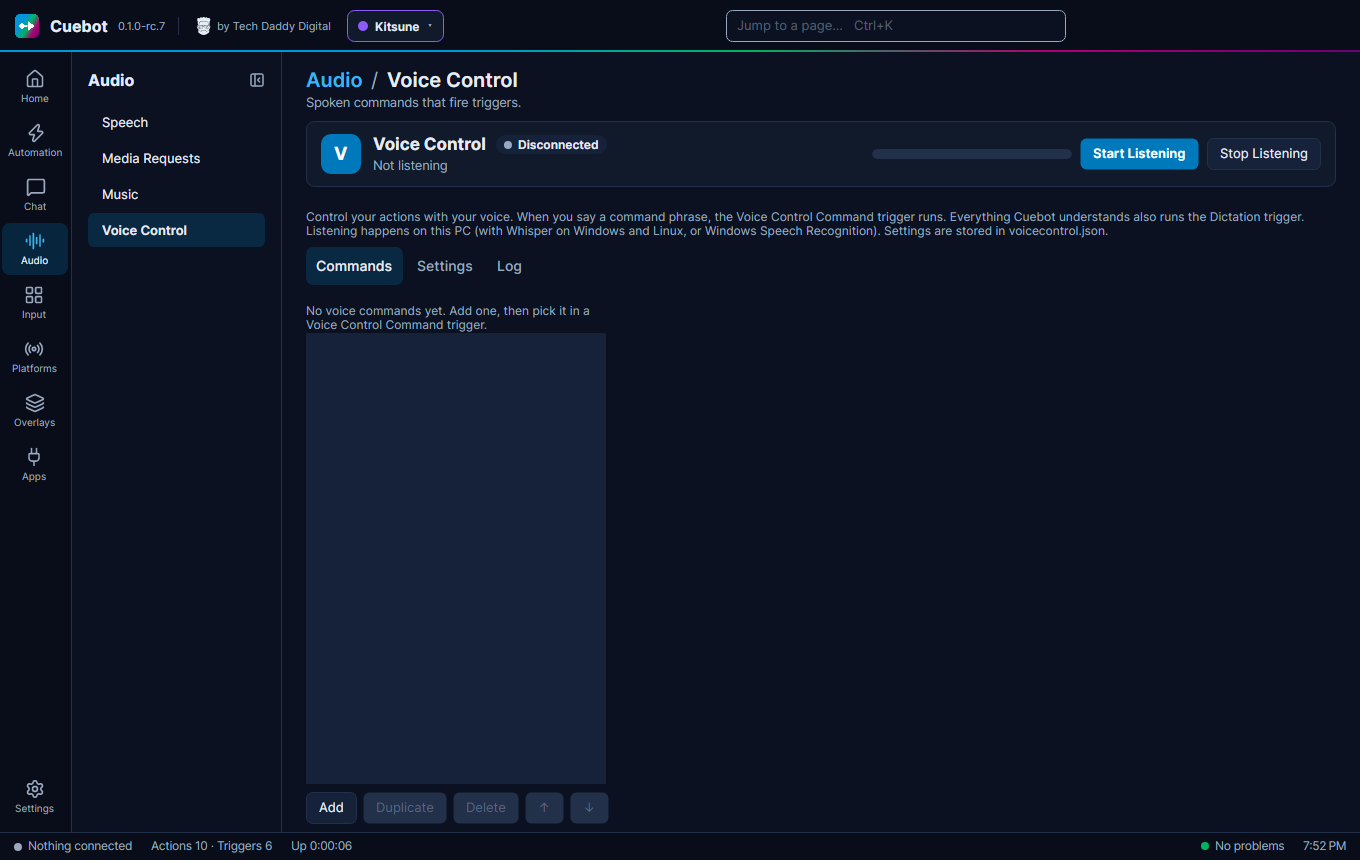
Audio > Voice Control goes the other way: you say a phrase, and Cuebot runs an action. For example, say "start the countdown" to start a countdown.
- Under Settings, pick your Audio Input Device (microphone) and a Recognition engine: Whisper (Windows and Linux) or Windows Speech Recognition.
- Using Whisper? Pick a Whisper model and click Download once. Bigger models understand better but are slower.
- Under Commands, click Add and type what to say in Command.
- Click Start Listening.
- In an action, add the Voice Control › Command trigger and pick your voice command.
Listening happens on your own computer. Nothing you say is sent to the internet.
Each command has a few more settings:
-
Location: Exact means the phrase on its own, with a pause before and after. Start means what you say
begins with it, and the rest becomes
%spokenTextInput%(say "shout out Pixel Panda" and the action gets "Pixel Panda"). Anywhere means the phrase can be anywhere in a sentence. - Stop After runs the command the moment the phrase is heard, even while you are still talking.
- Override Global confidence gives this command its own Confidence Threshold: how sure Cuebot must be that it heard right.
The Settings tab has more for fine-tuning:
- Auto Start Listen (when Cuebot starts): no need to click Start Listening every time.
- Confidence Threshold and Match tolerance: raise the first if Cuebot hears commands you didn't say; raise the second if it misses ones you did (it lets a few letters be different).
- Locale: the language you speak.
- Use a GPU runtime makes Whisper faster on a graphics card. Interim results lets Stop After commands react sooner, using more processor. Hint the command phrases to Whisper helps it spell your phrases the way you wrote them. Delete model frees the disk space again.
- Log Speech to Text Dictation writes everything it understood into the log file. The Log tab shows it live. Everything it understands also runs the Dictation trigger, for actions that listen to all you say.
Install espeak-ng for the free voice. If there is still no sound, see Linux.