Repository navigation
Reference Sub actions Obs
Also on the Cuebot Docs site.
Checks whether the stream, recording, replay buffer or virtual camera is running and keeps the details for later steps.
| Setting | What to put in |
|---|---|
| Connection | Which OBS to use, if you connected more than one. Type its name from your OBS settings in Cuebot. Leave empty to use your main OBS. |
| Output | Which one to check. Pick Other for an output you name yourself. Options: Stream, Record, ReplayBuffer, VirtualCam, Other. Starts as: Stream. |
| Output name | Only used when Output is Other: the exact name of the output. |
Variables it adds
| Variable | What it holds |
|---|---|
%obsOutputActive% |
True if it is running |
%obsOutputTimecode% |
How long it has been running, like 00:12:34 |
%obsOutputBytes% |
How much data it has sent or saved |
%obsOutputPaused% |
True if paused (recording only) |
%obsOutputState% |
All the details as JSON text |
Type id: obs.getOutputState
Adds a chapter marker to the recording you are making now. Needs OBS 30.2 or newer and the Hybrid MP4 recording format.
| Setting | What to put in |
|---|---|
| Connection | Which OBS to use, if you connected more than one. Type its name from your OBS settings in Cuebot. Leave empty to use your main OBS. |
| Chapter name | The name of the chapter, like "Boss fight". Leave empty to let OBS name it. |
Variables it adds
| Variable | What it holds |
|---|---|
%success% |
True if OBS added the chapter, false if it refused (for example when you are not recording) |
Type id: obs.createRecordChapter
Mirrors a source sideways or upside down.
| Setting | What to put in |
|---|---|
| Connection | Which OBS to use, if you connected more than one. Type its name from your OBS settings in Cuebot. Leave empty to use your main OBS. |
| Scene | The scene the source is in. |
| Source | The source name exactly as OBS shows it. |
| Axis | Horizontal mirrors left and right, Vertical turns it upside down. Options: Horizontal, Vertical. Starts as: Horizontal. |
Type id: obs.flipSource
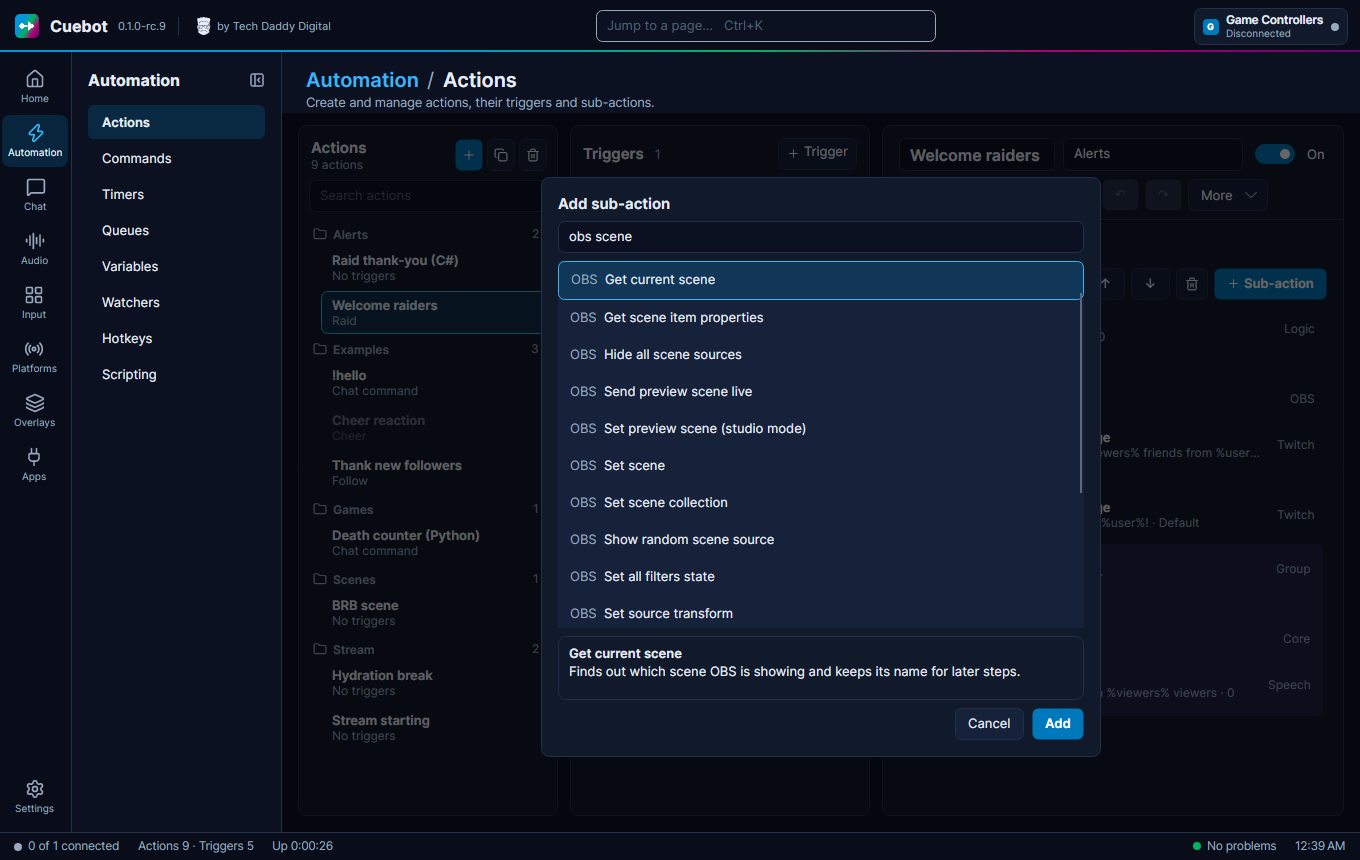
Finds out which scene OBS is showing and keeps its name for later steps.
| Setting | What to put in |
|---|---|
| Connection | Which OBS to use, if you connected more than one. Type its name from your OBS settings in Cuebot. Leave empty to use your main OBS. |
| Save the answer in variable | The name of the variable that will hold the answer, so later steps can use it as %name%. Leave empty to not keep it. The default is obsScene. Starts as: obsScene. |
Variables it adds
| Variable | What it holds |
|---|---|
%obsScene% |
The scene OBS is showing now (or the name you chose above) |
%currentScene% |
The same scene name |
%obsPreviewScene% |
The preview scene in studio mode (empty if none) |
Type id: obs.getCurrentScene
Reads all the settings of a source and keeps them for later steps. For advanced users.
| Setting | What to put in |
|---|---|
| Connection | Which OBS to use, if you connected more than one. Type its name from your OBS settings in Cuebot. Leave empty to use your main OBS. |
| Input | The source name exactly as OBS shows it. |
| Save the answer in variable | The name of the variable that will hold the answer, so later steps can use it as %name%. Leave empty to not keep it. It will hold the settings as text. The default is obsInputSettings. Starts as: obsInputSettings. |
Variables it adds
| Variable | What it holds |
|---|---|
%obsInputSettings% |
All settings of the source, as JSON text (or the name you chose above) |
Type id: obs.getInputSettings
Reads how hard OBS is working (CPU, memory, frame rate, dropped frames) and keeps it for later steps.
| Setting | What to put in |
|---|---|
| Connection | Which OBS to use, if you connected more than one. Type its name from your OBS settings in Cuebot. Leave empty to use your main OBS. |
Variables it adds
| Variable | What it holds |
|---|---|
%obsCpuUsage% |
How much computer power OBS uses, in percent |
%obsMemoryUsage% |
How much memory OBS uses, in megabytes |
%obsActiveFps% |
Frames per second OBS is making |
%obsRenderSkippedFrames% |
Frames OBS skipped while drawing |
%obsOutputSkippedFrames% |
Frames OBS skipped while sending |
%obsStreamOutputCongestion% |
How crowded the stream connection is (0 to 1) |
Type id: obs.getStats
Reads where a source sits in a scene (position, size, rotation, crop and more) for later steps.
| Setting | What to put in |
|---|---|
| Connection | Which OBS to use, if you connected more than one. Type its name from your OBS settings in Cuebot. Leave empty to use your main OBS. |
| Scene | The scene the source is in. |
| Source | The source name exactly as OBS shows it. |
Variables it adds
| Variable | What it holds |
|---|---|
%props.visible% |
True if the source is shown |
%props.locked% |
True if the source is locked |
%props.position.x% |
How far from the left |
%props.position.y% |
How far from the top |
%props.scale.x% |
Horizontal size multiplier |
%props.scale.y% |
Vertical size multiplier |
%props.rotation% |
Rotation in degrees |
%props.width% |
Width on screen |
%props.height% |
Height on screen |
%obsItemId% |
OBS's number for this source in the scene |
Type id: obs.getSceneItemProperties
Checks what OBS is doing right now (streaming, recording and so on) and keeps it for later steps.
| Setting | What to put in |
|---|---|
| Connection | Which OBS to use, if you connected more than one. Type its name from your OBS settings in Cuebot. Leave empty to use your main OBS. |
Variables it adds
| Variable | What it holds |
|---|---|
%obsConnected% |
True if Cuebot is connected to OBS |
%obsStreaming% |
True if streaming |
%obsRecording% |
True if recording |
%obsRecordingPaused% |
True if the recording is paused |
%obsReplayBuffer% |
True if the replay buffer is on |
%obsVirtualCam% |
True if the virtual camera is on |
%obsStudioMode% |
True if studio mode is on |
%obsScene% |
The scene that is live |
%obsVersion% |
The OBS version |
Type id: obs.getStatus
Hides every source inside a group at once.
| Setting | What to put in |
|---|---|
| Connection | Which OBS to use, if you connected more than one. Type its name from your OBS settings in Cuebot. Leave empty to use your main OBS. |
| Group | The name of the group, exactly as OBS shows it. |
Type id: obs.hideGroupSources
Hides every source in a scene at once.
| Setting | What to put in |
|---|---|
| Connection | Which OBS to use, if you connected more than one. Type its name from your OBS settings in Cuebot. Leave empty to use your main OBS. |
| Scene | The scene whose sources you want to hide. |
Type id: obs.hideSceneSources
Plays, pauses, stops or skips a media source.
| Setting | What to put in |
|---|---|
| Connection | Which OBS to use, if you connected more than one. Type its name from your OBS settings in Cuebot. Leave empty to use your main OBS. |
| Media source | The media source name exactly as OBS shows it. |
| Action | What to do. TogglePlayPause pauses it if it is playing and plays it if not. Restart starts from the beginning; Next and Previous skip in a playlist. Options: Play, Pause, Stop, Restart, Next, Previous, TogglePlayPause. Starts as: Play. |
Type id: obs.mediaControl
Starts, stops or pauses your recording in OBS.
| Setting | What to put in |
|---|---|
| Connection | Which OBS to use, if you connected more than one. Type its name from your OBS settings in Cuebot. Leave empty to use your main OBS. |
| Mode | Start, Stop or Toggle controls recording. Pause, Resume and TogglePause control a recording that is already running. Options: Start, Stop, Toggle, Pause, Resume, TogglePause. Starts as: Start. |
Type id: obs.recording
Reloads a browser source in OBS, like pressing refresh. Helps when an overlay got stuck.
| Setting | What to put in |
|---|---|
| Connection | Which OBS to use, if you connected more than one. Type its name from your OBS settings in Cuebot. Leave empty to use your main OBS. |
| Browser source | The browser source name exactly as OBS shows it. |
Type id: obs.refreshBrowser
Turns a source by some degrees. Fun for spinning an image.
| Setting | What to put in |
|---|---|
| Connection | Which OBS to use, if you connected more than one. Type its name from your OBS settings in Cuebot. Leave empty to use your main OBS. |
| Scene | The scene the source is in. |
| Source | The source name exactly as OBS shows it. |
| Degrees | How many degrees to turn, like 90 (a quarter turn) or 180 (half turn). Starts as: 90. |
| Add to the current rotation | Tick to turn from where it is now. Untick to set the exact angle instead. Starts as: true. |
Type id: obs.rotateSource
Jumps to a spot in a video or sound in a media source.
| Setting | What to put in |
|---|---|
| Connection | Which OBS to use, if you connected more than one. Type its name from your OBS settings in Cuebot. Leave empty to use your main OBS. |
| Media source | The media source name exactly as OBS shows it. |
| Mode | Absolute jumps to an exact time from the start. Offset moves forward or back from where it is now. Options: Absolute, Offset. Starts as: Absolute. |
| Milliseconds | How many milliseconds (1000 = one second). For Offset, use a minus number to go back, like -5000. Starts as: 0. |
Type id: obs.mediaSeek
Sends OBS one command of your own and keeps the answer. For advanced users who know the OBS WebSocket command list.
| Setting | What to put in |
|---|---|
| Connection | Which OBS to use, if you connected more than one. Type its name from your OBS settings in Cuebot. Leave empty to use your main OBS. |
| Request type | The OBS command name, like "GetStats". |
| Request data (JSON) | Extra details for the command, written as a JSON object. Leave empty if it needs none. |
| Save the reply in variable | The name of the variable that will hold the answer, so later steps can use it as %name%. Leave empty to not keep it. It will hold OBS's answer as text. The default is obsResult. Starts as: obsResult. |
Variables it adds
| Variable | What it holds |
|---|---|
%obsResult% |
OBS's answer as JSON text (or the name you chose above) |
Type id: obs.rawRequest
In studio mode, sends the preview scene live using the current transition. Does nothing useful if studio mode is off.
| Setting | What to put in |
|---|---|
| Connection | Which OBS to use, if you connected more than one. Type its name from your OBS settings in Cuebot. Leave empty to use your main OBS. |
Type id: obs.studioTransition
Sends OBS several commands of your own in one go and keeps the answers. For advanced users.
| Setting | What to put in |
|---|---|
| Connection | Which OBS to use, if you connected more than one. Type its name from your OBS settings in Cuebot. Leave empty to use your main OBS. |
| Requests (JSON array) | A list of commands written as JSON, like [{"requestType":"GetVersion"}]. |
| Stop at the first failure | Tick to stop at the first command that fails. Untick to keep going. Starts as: false. |
| Save the results in variable | The name of the variable that will hold the answer, so later steps can use it as %name%. Leave empty to not keep it. It will hold all the answers as text. The default is obsResult. Starts as: obsResult. |
Variables it adds
| Variable | What it holds |
|---|---|
%obsResult% |
All of OBS's answers as JSON text (or the name you chose above) |
Type id: obs.rawBatch
Turns every filter on a source or scene on, or all off at once.
| Setting | What to put in |
|---|---|
| Connection | Which OBS to use, if you connected more than one. Type its name from your OBS settings in Cuebot. Leave empty to use your main OBS. |
| Source or scene | The source or scene whose filters to change, exactly as OBS shows it. |
| State | Enable turns all filters on, Disable turns them all off. Options: Enable, Disable. Starts as: Disable. |
Type id: obs.setAllFiltersState
Makes a browser source in OBS open a different web page.
| Setting | What to put in |
|---|---|
| Connection | Which OBS to use, if you connected more than one. Type its name from your OBS settings in Cuebot. Leave empty to use your main OBS. |
| Browser source | The browser source name exactly as OBS shows it. |
| URL | The web address to open, like "https://example.com/alert". |
Type id: obs.setBrowserUrl
Changes the color of a color source in OBS.
| Setting | What to put in |
|---|---|
| Connection | Which OBS to use, if you connected more than one. Type its name from your OBS settings in Cuebot. Leave empty to use your main OBS. |
| Color source | The color source name exactly as OBS shows it. |
| Color | The color as a hex code like #FF0000 (red). Add two more digits at the front for see-through, like #80FF0000. Starts as: #FFFFFF. |
Type id: obs.setColor
Changes the settings of one filter by sending OBS the settings as text. For advanced users who know the setting names.
| Setting | What to put in |
|---|---|
| Connection | Which OBS to use, if you connected more than one. Type its name from your OBS settings in Cuebot. Leave empty to use your main OBS. |
| Source or scene | The source or scene the filter is on. |
| Filter | The filter name exactly as OBS shows it. |
| Settings (JSON object) | The settings to change, written as a JSON object, like {"brightness":0.2}. |
| Merge with existing settings | Tick to only change the settings you list and keep the rest. Untick to replace all settings with only these. Starts as: true. |
Type id: obs.setFilterSettings
Turns a filter (an effect on a source) on or off.
| Setting | What to put in |
|---|---|
| Connection | Which OBS to use, if you connected more than one. Type its name from your OBS settings in Cuebot. Leave empty to use your main OBS. |
| Source or scene | The source or scene the filter is on, exactly as OBS shows it. |
| Filter | The filter name exactly as OBS shows it, like "Color Correction". |
| State | Enable turns it on, Disable turns it off, Toggle flips it. Options: Enable, Disable, Toggle. Starts as: Toggle. |
Type id: obs.setFilterState
Swaps the picture shown by an image source.
| Setting | What to put in |
|---|---|
| Connection | Which OBS to use, if you connected more than one. Type its name from your OBS settings in Cuebot. Leave empty to use your main OBS. |
| Image source | The image source name exactly as OBS shows it. |
| File | The full path of the picture on the computer where OBS runs, like "C:\Pictures\happy.png". |
Type id: obs.setImageFile
Mutes or unmutes an audio source, like your microphone.
| Setting | What to put in |
|---|---|
| Connection | Which OBS to use, if you connected more than one. Type its name from your OBS settings in Cuebot. Leave empty to use your main OBS. |
| Input | The audio source name exactly as OBS shows it, like "Mic/Aux". |
| State | Mute silences it, Unmute turns the sound back on, Toggle flips it. Options: Mute, Unmute, Toggle. Starts as: Toggle. |
Type id: obs.setInputMute
Changes any setting of a source by sending OBS the settings as text. For advanced users who know the setting names.
| Setting | What to put in |
|---|---|
| Connection | Which OBS to use, if you connected more than one. Type its name from your OBS settings in Cuebot. Leave empty to use your main OBS. |
| Input | The source name exactly as OBS shows it. |
| Settings (JSON object) | The settings to change, written as a JSON object, like {"text":"Hello"}. |
| Merge with existing settings | Tick to only change the settings you list and keep the rest. Untick to replace all settings with only these. Starts as: true. |
Type id: obs.setInputSettings
Changes the volume of an audio source.
| Setting | What to put in |
|---|---|
| Connection | Which OBS to use, if you connected more than one. Type its name from your OBS settings in Cuebot. Leave empty to use your main OBS. |
| Input | The audio source name exactly as OBS shows it, like "Mic/Aux". |
| Mode | SetDb sets the volume in decibels, SetMultiplier sets it as a multiplier, AdjustDb makes it louder or quieter than now. Options: SetDb, SetMultiplier, AdjustDb. Starts as: SetDb. |
| Value | The number to use. In decibels, 0 is full volume and -100 is silent (up to 26). As a multiplier, 1 is full volume and 0 is silent (up to 20). Starts as: 0. |
Type id: obs.setInputVolume
Swaps the video or sound file played by a media source.
| Setting | What to put in |
|---|---|
| Connection | Which OBS to use, if you connected more than one. Type its name from your OBS settings in Cuebot. Leave empty to use your main OBS. |
| Media source | The media source name exactly as OBS shows it. |
| File | The full path of the file on the computer where OBS runs, like "C:\Videos\intro.mp4". |
Type id: obs.setMediaFile
Picks the scene shown on the preview side of OBS studio mode.
| Setting | What to put in |
|---|---|
| Connection | Which OBS to use, if you connected more than one. Type its name from your OBS settings in Cuebot. Leave empty to use your main OBS. |
| Scene | The scene name exactly as OBS shows it. |
Type id: obs.setPreviewScene
Switches OBS to another profile (a saved set of settings).
| Setting | What to put in |
|---|---|
| Connection | Which OBS to use, if you connected more than one. Type its name from your OBS settings in Cuebot. Leave empty to use your main OBS. |
| Profile | The profile name exactly as OBS shows it. |
Type id: obs.setProfile
Starts or stops the OBS replay buffer, or saves the last moments as a clip.
| Setting | What to put in |
|---|---|
| Connection | Which OBS to use, if you connected more than one. Type its name from your OBS settings in Cuebot. Leave empty to use your main OBS. |
| Mode | Start and Stop turn the buffer on or off, Toggle flips it, Save keeps the last few moments as a file. Options: Start, Stop, Toggle, Save. Starts as: Save. |
| Save the answer in variable | The name of the variable that will hold the answer, so later steps can use it as %name%. Leave empty to not keep it. When saving, it will hold the clip's file path. The default is obsReplayPath. Starts as: obsReplayPath. |
Variables it adds
| Variable | What it holds |
|---|---|
%obsReplayPath% |
The file path of the saved clip (or the name you chose above) |
Type id: obs.replayBuffer
Switches OBS to another scene.
| Setting | What to put in |
|---|---|
| Connection | Which OBS to use, if you connected more than one. Type its name from your OBS settings in Cuebot. Leave empty to use your main OBS. |
| Scene | The scene name exactly as OBS shows it, like "Just Chatting". |
Type id: obs.setScene
Switches OBS to another scene collection (a saved set of scenes).
| Setting | What to put in |
|---|---|
| Connection | Which OBS to use, if you connected more than one. Type its name from your OBS settings in Cuebot. Leave empty to use your main OBS. |
| Scene collection | The scene collection name exactly as OBS shows it. |
Type id: obs.setSceneCollection
Turns one of the six OBS audio tracks on or off for a source. Useful to keep sounds out of your recording or stream.
| Setting | What to put in |
|---|---|
| Connection | Which OBS to use, if you connected more than one. Type its name from your OBS settings in Cuebot. Leave empty to use your main OBS. |
| Input | The audio source name exactly as OBS shows it. |
| Track (1-6) | The track number, 1 to 6. Starts as: 1. |
| State | Enable puts the source on that track, Disable takes it off, Toggle flips it. Options: Enable, Disable, Toggle. Starts as: Toggle. |
Type id: obs.setAudioTrack
Moves, resizes, turns or crops a source in a scene. Only the boxes you fill in are changed.
| Setting | What to put in |
|---|---|
| Connection | Which OBS to use, if you connected more than one. Type its name from your OBS settings in Cuebot. Leave empty to use your main OBS. |
| Scene | The scene the source is in. |
| Source | The source name exactly as OBS shows it. |
| Position x | Distance from the left edge of the screen, in pixels. Leave empty to keep it as it is. |
| Position y | Distance from the top edge of the screen, in pixels. Leave empty to keep it as it is. |
| Scale x | Horizontal size. 1 is normal, 2 is twice as wide, 0.5 is half. Leave empty to keep it as it is. |
| Scale y | Vertical size. 1 is normal, 2 is twice as tall, 0.5 is half. Leave empty to keep it as it is. |
| Rotation | How far to turn it, in degrees (0 to 360). Leave empty to keep it as it is. |
| Crop left | How many pixels to cut off the left side. Leave empty to keep it as it is. |
| Crop top | How many pixels to cut off the top. Leave empty to keep it as it is. |
| Crop right | How many pixels to cut off the right side. Leave empty to keep it as it is. |
| Crop bottom | How many pixels to cut off the bottom. Leave empty to keep it as it is. |
| Bounds width | Width of the box the source is fitted into, in pixels (only if the source uses a bounding box). Leave empty to keep it as it is. |
| Bounds height | Height of the box the source is fitted into, in pixels (only if the source uses a bounding box). Leave empty to keep it as it is. |
Type id: obs.setSourceTransform
Shows or hides one source (like a camera or image) inside a scene.
| Setting | What to put in |
|---|---|
| Connection | Which OBS to use, if you connected more than one. Type its name from your OBS settings in Cuebot. Leave empty to use your main OBS. |
| Scene | The scene the source is in, exactly as OBS shows it. |
| Source | The source name exactly as OBS shows it, like "Webcam". |
| State | Visible shows it, Hidden hides it, Toggle flips it to the opposite of what it is now. Options: Visible, Hidden, Toggle. Starts as: Toggle. |
Type id: obs.setSourceVisibility
Picks one random filter on a source or scene and turns it on, off or flips it. Fun for random effects.
| Setting | What to put in |
|---|---|
| Connection | Which OBS to use, if you connected more than one. Type its name from your OBS settings in Cuebot. Leave empty to use your main OBS. |
| Source or scene | The source or scene whose filters to pick from. |
| State | What to do with the picked filter: Enable, Disable or Toggle. Options: Enable, Disable, Toggle. Starts as: Enable. |
| Save the answer in variable | The name of the variable that will hold the answer, so later steps can use it as %name%. Leave empty to not keep it. It will hold the name of the filter. The default is obsFilterName. Starts as: obsFilterName. |
Variables it adds
| Variable | What it holds |
|---|---|
%obsFilterName% |
The name of the filter that was picked (or the name you chose above) |
Type id: obs.setRandomFilterState
Turns OBS studio mode (a preview screen before going live) on or off.
| Setting | What to put in |
|---|---|
| Connection | Which OBS to use, if you connected more than one. Type its name from your OBS settings in Cuebot. Leave empty to use your main OBS. |
| State | Enable turns it on, Disable turns it off, Toggle flips it. Options: Enable, Disable, Toggle. Starts as: Toggle. |
Type id: obs.studioMode
Changes the words shown by a text source in OBS. Handy for "latest follower" or a chat message on screen.
| Setting | What to put in |
|---|---|
| Connection | Which OBS to use, if you connected more than one. Type its name from your OBS settings in Cuebot. Leave empty to use your main OBS. |
| Text source | The text source name exactly as OBS shows it. |
| Text | The words to show. You can use %variables% here. |
Type id: obs.setText
Picks which transition (fade, stinger and so on) OBS uses when switching scenes.
| Setting | What to put in |
|---|---|
| Connection | Which OBS to use, if you connected more than one. Type its name from your OBS settings in Cuebot. Leave empty to use your main OBS. |
| Transition | The transition name exactly as OBS shows it, like "Fade". |
Type id: obs.setTransition
Sets how long OBS scene transitions take.
| Setting | What to put in |
|---|---|
| Connection | Which OBS to use, if you connected more than one. Type its name from your OBS settings in Cuebot. Leave empty to use your main OBS. |
| Duration (ms) | The length in milliseconds (1000 = one second). OBS keeps it between 50 and 20000. Starts as: 300. |
Type id: obs.setTransitionDuration
Shows one randomly picked source in a group and hides the others.
| Setting | What to put in |
|---|---|
| Connection | Which OBS to use, if you connected more than one. Type its name from your OBS settings in Cuebot. Leave empty to use your main OBS. |
| Group | The name of the group to pick from. |
| Save the answer in variable | The name of the variable that will hold the answer, so later steps can use it as %name%. Leave empty to not keep it. It will hold the name of the picked source. The default is obsSourceName. Starts as: obsSourceName. |
Variables it adds
| Variable | What it holds |
|---|---|
%obsSourceName% |
The name of the source that was picked (or the name you chose above) |
Type id: obs.randomGroupSource
Shows one randomly picked source in a scene and hides the others. Fun for random reactions or images.
| Setting | What to put in |
|---|---|
| Connection | Which OBS to use, if you connected more than one. Type its name from your OBS settings in Cuebot. Leave empty to use your main OBS. |
| Scene | The scene to pick from. |
| Save the answer in variable | The name of the variable that will hold the answer, so later steps can use it as %name%. Leave empty to not keep it. It will hold the name of the picked source. The default is obsSourceName. Starts as: obsSourceName. |
Variables it adds
| Variable | What it holds |
|---|---|
%obsSourceName% |
The name of the source that was picked (or the name you chose above) |
Type id: obs.randomSceneSource
Starts or stops your stream in OBS.
| Setting | What to put in |
|---|---|
| Connection | Which OBS to use, if you connected more than one. Type its name from your OBS settings in Cuebot. Leave empty to use your main OBS. |
| Mode | Start begins streaming, Stop ends it, Toggle does the opposite of what it is doing now. Options: Start, Stop, Toggle. Starts as: Start. |
Type id: obs.streaming
Saves a picture of a source or scene to a file on the OBS computer.
| Setting | What to put in |
|---|---|
| Connection | Which OBS to use, if you connected more than one. Type its name from your OBS settings in Cuebot. Leave empty to use your main OBS. |
| Source or scene | The source or scene to photograph, exactly as OBS shows it. Leave empty for the scene that is live now. |
| File | Where to save it, like "C:\Pictures\shot.png". The ending (png, jpg, bmp or webp) picks the picture type. |
| Width | Picture width in pixels, 8 to 4096. Leave empty to keep the normal size. |
| Height | Picture height in pixels, 8 to 4096. Leave empty to keep the normal size. |
| Quality | Picture quality from 0 to 100. Use -1 to let OBS decide. Starts as: -1. |
| Save the answer in variable | The name of the variable that will hold the answer, so later steps can use it as %name%. Leave empty to not keep it. It will hold the file path. The default is obsScreenshotPath. Starts as: obsScreenshotPath. |
Variables it adds
| Variable | What it holds |
|---|---|
%obsScreenshotPath% |
The file path of the saved picture (or the name you chose above) |
Type id: obs.screenshot
Presses an OBS hotkey for you, by its internal name.
| Setting | What to put in |
|---|---|
| Connection | Which OBS to use, if you connected more than one. Type its name from your OBS settings in Cuebot. Leave empty to use your main OBS. |
| Hotkey name | The hotkey's internal OBS name, like "OBSBasic.StartStreaming". Advanced: look it up with the Send OBS command (advanced) step using GetHotkeyList. |
Type id: obs.triggerHotkey
Turns the OBS virtual camera on or off, so other apps can use your OBS picture as a webcam.
| Setting | What to put in |
|---|---|
| Connection | Which OBS to use, if you connected more than one. Type its name from your OBS settings in Cuebot. Leave empty to use your main OBS. |
| Mode | Start turns it on, Stop turns it off, Toggle flips it. Options: Start, Stop, Toggle. Starts as: Start. |
Type id: obs.virtualCam