Repository navigation
Python
Also on the Cuebot Docs site.
This page is for when you want to write Python code inside your actions. If you have never written code, start with Writing code (C# and Python). It shows where the code goes and what a first script looks like.
You don't need code for most things! Every sub-action in the action editor works without it. Code is for the few jobs that need a bit of maths, a loop or a decision that the normal steps can't make.
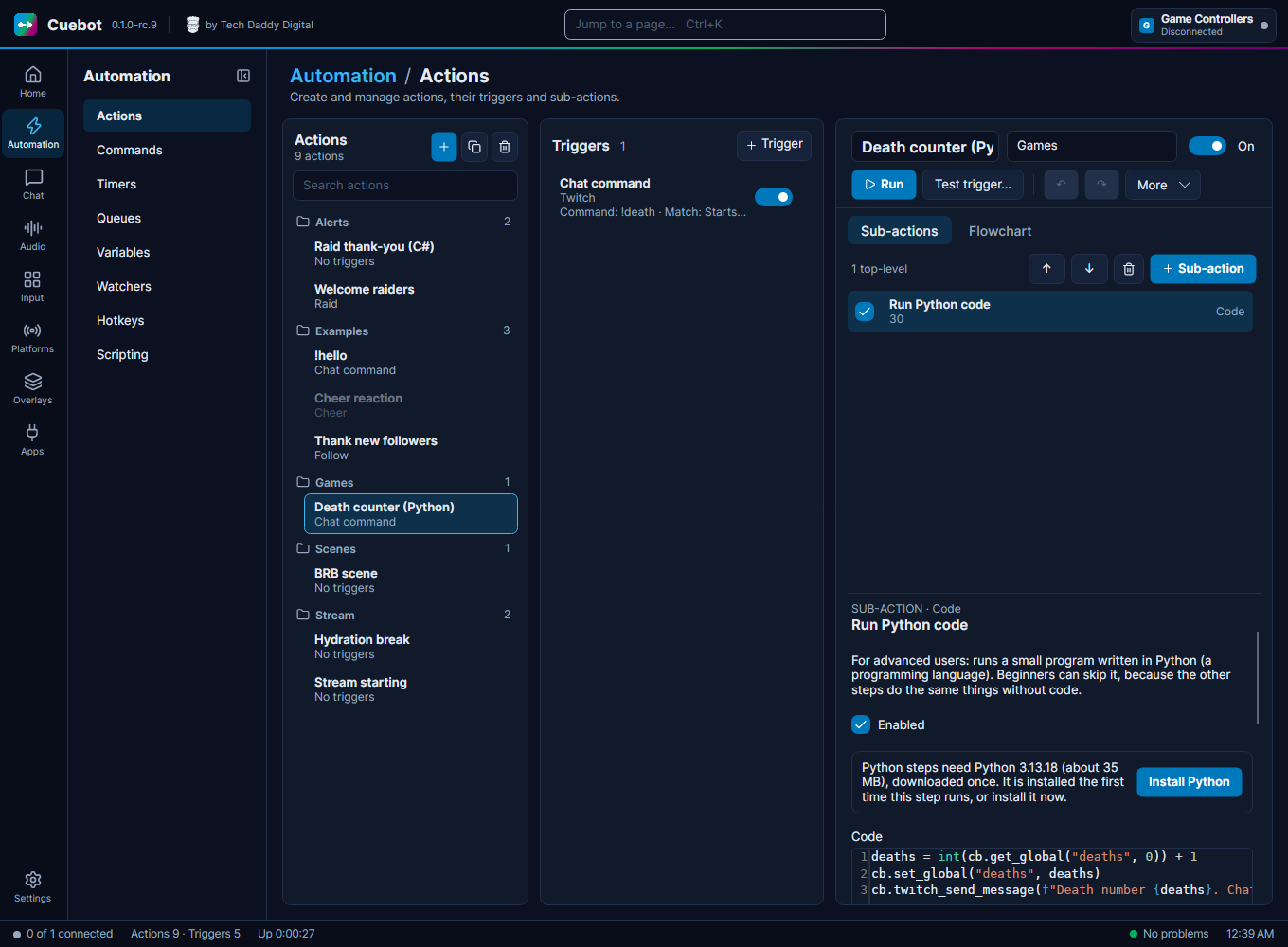
- Add a Run Python code step to an action and type your code into the Code box.
- Your code gets a helper called
cb. Everything Cuebot can do is a method oncb. - Every Cuebot function has its own method:
cb.twitch_send_message("Hi!"),cb.obs_set_scene("Gameplay"),cb.vtubestudio_move_model(position_x=0.5). There are almost 500 of them. -
print("text")writes into the action's log.return Falsestops the action.
cb is like a remote control for Cuebot. You don't have to set it up: it is already there when your code starts.
It has two kinds of buttons:
-
A few everyday helpers, for the things almost every script needs:
Helper What it does cb.argsAll the action's variables when the code started, as a dictionary, like {"user": "PixelPanda", "message": "hi"}.cb.get_arg("user", "friend")One variable. The second value is used when the variable isn't there. cb.set_arg("score", 10)Sets a variable. Later steps can use it as %score%.cb.get_global("deaths", 0)Reads a saved value (a global variable). cb.set_global("deaths", 7)Saves a value. It is still there after Cuebot restarts. cb.log("text")Writes a line in Cuebot's log. cb.run_action("BRB scene")Runs another action and waits for it. Gives back Truewhen it worked.cb.send_chat("Hi!")Says something in your Twitch chat. cb.speak("Hello")Says it out loud with text-to-speech. cb.obs("GetVersion")Sends one raw request to OBS. cb.run_step("core.log", {"message": "Hi %user%"})Runs any step, exactly like the action editor does. Gives back the way it picked (like "True"), orNone.cb.check("%bits%", "greater than", "499")Checks something the way the If step does. Gives back TrueorFalse.cb.resolve("Hi %user%")Fills in %variables%and~globals~in a text, like a step's settings.cb.pick(1, 3)Picks a position at random by weight (0 = the first, here 1 in 4). cb.run_steps([...])Runs a list of steps (with the steps inside them), the way they are saved. Gives back "completed"or"stop". -
One method for every Cuebot function: chat, OBS, points, quotes, the subathon timer, VTube Studio, Stream Deck, music, and everything else. That's the next section.
Cuebot has a big list of script functions. Each one has a name with a dot,
like obs.setScene. In Python, each one is also a method of cb, with the dot turned into _ and the capital
letters turned into _ plus a small letter:
| Function | Python method |
|---|---|
twitch.sendMessage |
cb.twitch_send_message(...) |
obs.setScene |
cb.obs_set_scene(...) |
vtubestudio.moveModel |
cb.vtubestudio_move_model(...) |
points.add |
cb.points_add(...) |
The values change the same way: sceneName becomes scene_name, positionX becomes position_x. Each function's
page in the reference shows both names, in the Value and In Python columns.
Some values are needed and some can be left out. The reference marks the ones you can leave out with Optional.
-
Needed values can be typed in order, without their names:
cb.twitch_send_message("Thanks for the raid!")
cb.obs_set_scene("Gameplay")
-
Optional values always need their name:
cb.obs_set_scene("Gameplay", connection="Second PC")
cb.speech_speak("Hello chat", alias="Robot")
-
Leaving an optional value out, or giving
None, means "use the normal one". So these two do the same thing:cb.speech_speak("Hello") cb.speech_speak("Hello", alias=None)
If you forget a needed value, or misspell a name, Python tells you straight away with a TypeError that names
the problem. That's on purpose: it is much easier to fix than a step that quietly does the wrong thing.
Many methods give you something back:
scene = cb.obs_get_current_scene()      # text, like "Gameplay"
balance = cb.points_get()               # a number: the points of the viewer who triggered the action
quote = cb.quotes_random()              # a dictionary, like {"id": 3, "text": "...", "user": "...", ...}
timer = cb.subathon_get()               # a dictionary with "remainingSeconds", "state" and more
The Gives back line on each function's page says what comes back. Lists come back as Python lists, objects as
dictionaries, and "nothing" as None.
Every method knows its own help. help(cb.points_add) prints it into the log, with every value explained.
For help while you type, with the names popping up as you write, use a code editor. See Using your own code editor.
cb.call("obs.setScene", sceneName="Gameplay") does the same as cb.obs_set_scene("Gameplay"). Older scripts keep
working. New scripts are easier to read with the named methods.
A !death command adds one and tells chat:
deaths = int(cb.get_global("deaths", 0)) + 1
cb.set_global("deaths", deaths)
cb.twitch_send_message(f"Death number {deaths}. Chat, it was lag.")The raid trigger gives you %viewers%. A raid of 10 or more gets the party scene:
viewers = int(cb.get_arg("viewers", 0))
if viewers >= 10:
    cb.obs_set_scene("Raid Party")
    cb.twitch_send_message(f"RAID! Welcome {viewers} friends!")
else:
    cb.twitch_send_message("Thanks for the raid!")
You can build the same thing without code, with an If step. See The flowchart editor.
Leaving the user out means "the viewer who started this action":
cb.points_add(50)
balance = cb.points_get()
cb.twitch_send_message(f"{cb.get_arg('user')} now has {balance} points!")cb.subathon_add_time(300) # five more minutes on the first timer
left = cb.subathon_get()["remainingSeconds"]
cb.twitch_send_message(f"{int(left // 60)} minutes left on the clock!")vtubestudio_move_model moves the model. Many small moves in a row look like walking:
import math, time

for step in range(61):
    x = -1.2 + 2.4 * step / 60                          # from the left edge to the right edge
    bounce = abs(math.sin(step / 60 * math.pi * 12)) * 0.05
    cb.vtubestudio_move_model(time=0, position_x=x, position_y=-0.5 + bounce)
time.sleep(0.1)-
A Cuebot function failed (OBS is not connected, the viewer doesn't exist…): Python raises
CuebotError. The step fails and the log says why. To carry on anyway, catch it:try: cb.obs_set_scene("Gameplay") except CuebotError as error: print(f"OBS said no: {error}")
-
Your code has a mistake: the log shows the error and the line number, like
NameError at line 3: name 'dethz' is not defined. -
The code runs too long: every Python step has a Timeout (seconds) setting, 30 seconds unless you change it. After that Cuebot stops the code. Set it to 0 for no limit, for a script that really needs it.
-
Stop the action on purpose:
return Falsestops the action there, so the next steps don't run. Anything else, or noreturnat all, carries on.
Python can do more with packages: small add-ons other people wrote, like requests for websites.
Automation > Scripting installs them for you:
- Type the package name, like
requests, into Python packages. - Click Install.
- Use it in your code:
import requests.
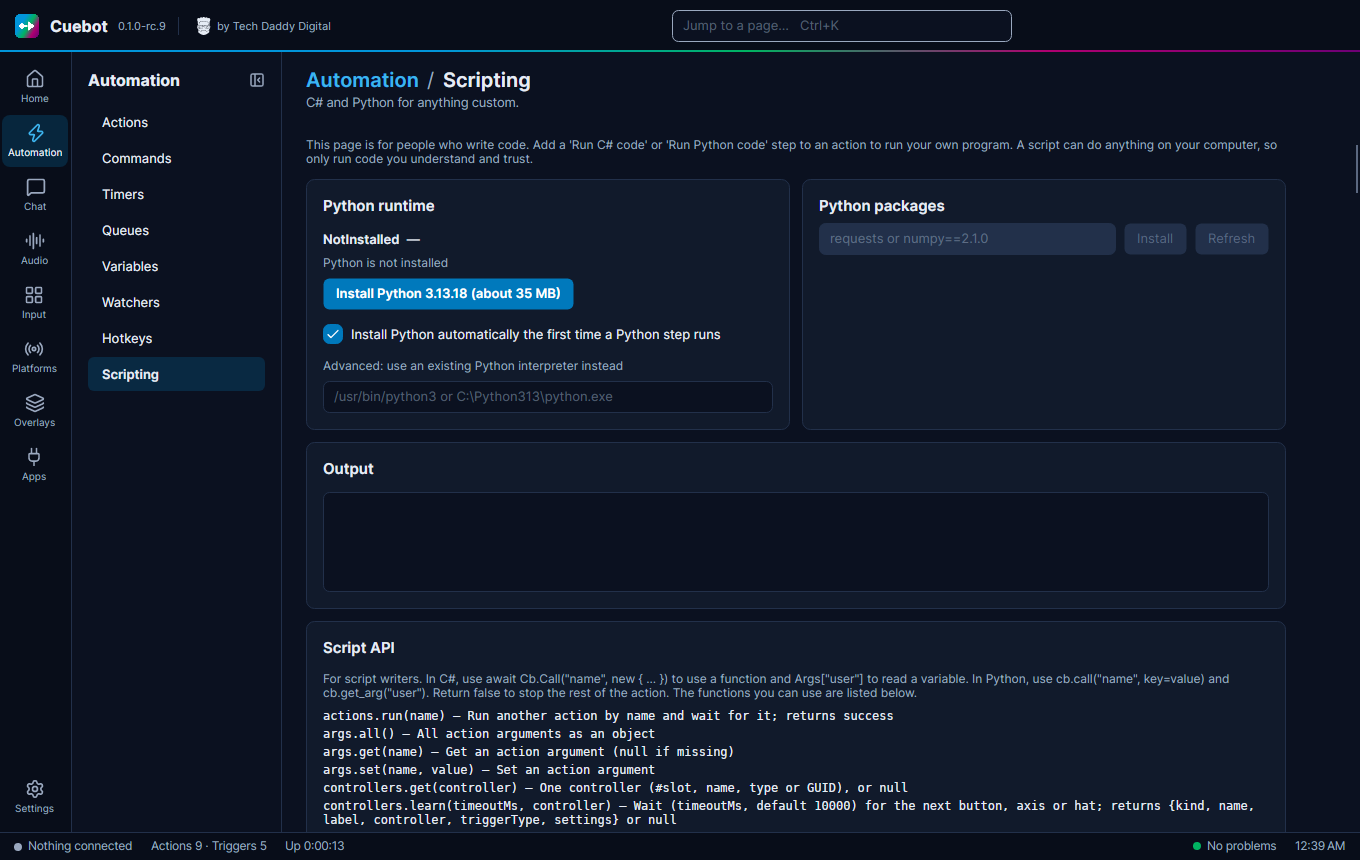
Cuebot uses its own Python (3.13). It downloads it the first time a Python step runs, or when you click Install Python. If you already have a Python you like, Advanced: use an existing Python interpreter instead uses that one.
Any step you can pick in the action editor also works from Python, with cb.run_step. Give it the step's id and its
settings. The sub-actions reference shows every step's id and settings.
# Show the confetti source, wait 4 seconds, hide it again
cb.run_step("obs.setSourceVisibility", {"scene": "Live", "source": "Confetti", "state": "Visible"})
cb.run_step("core.delay", {"milliseconds": "4000"})
cb.run_step("obs.setSourceVisibility", {"scene": "Live", "source": "Confetti", "state": "Hidden"})

if cb.check("%user%", "equals", "PixelPanda"):
cb.send_chat(cb.resolve("Welcome back, %user%!"))- Settings are written as text, the same as in the editor, and
%variables%in them are filled in for you. - When a step stops the action (like a Stop action step), the code stops there too, as if it said
return False. - This is what Export to code writes for you.
-
Variables are text or numbers.
cb.get_arg("viewers")might be the text"42". Useint(...)orfloat(...)before doing maths. -
Each run starts fresh. A normal Python variable is gone after the step finishes. Use
cb.set_globalto keep a value until next time. -
One script at a time. Python steps take turns. A step that runs another action with a Python step inside it
(
cb.run_action(...)) still works. -
The full list of methods is in Script functions. C# can use them
too, with
Cb.Call.