Repository navigation
Every Page
Also on the Cuebot Docs site.
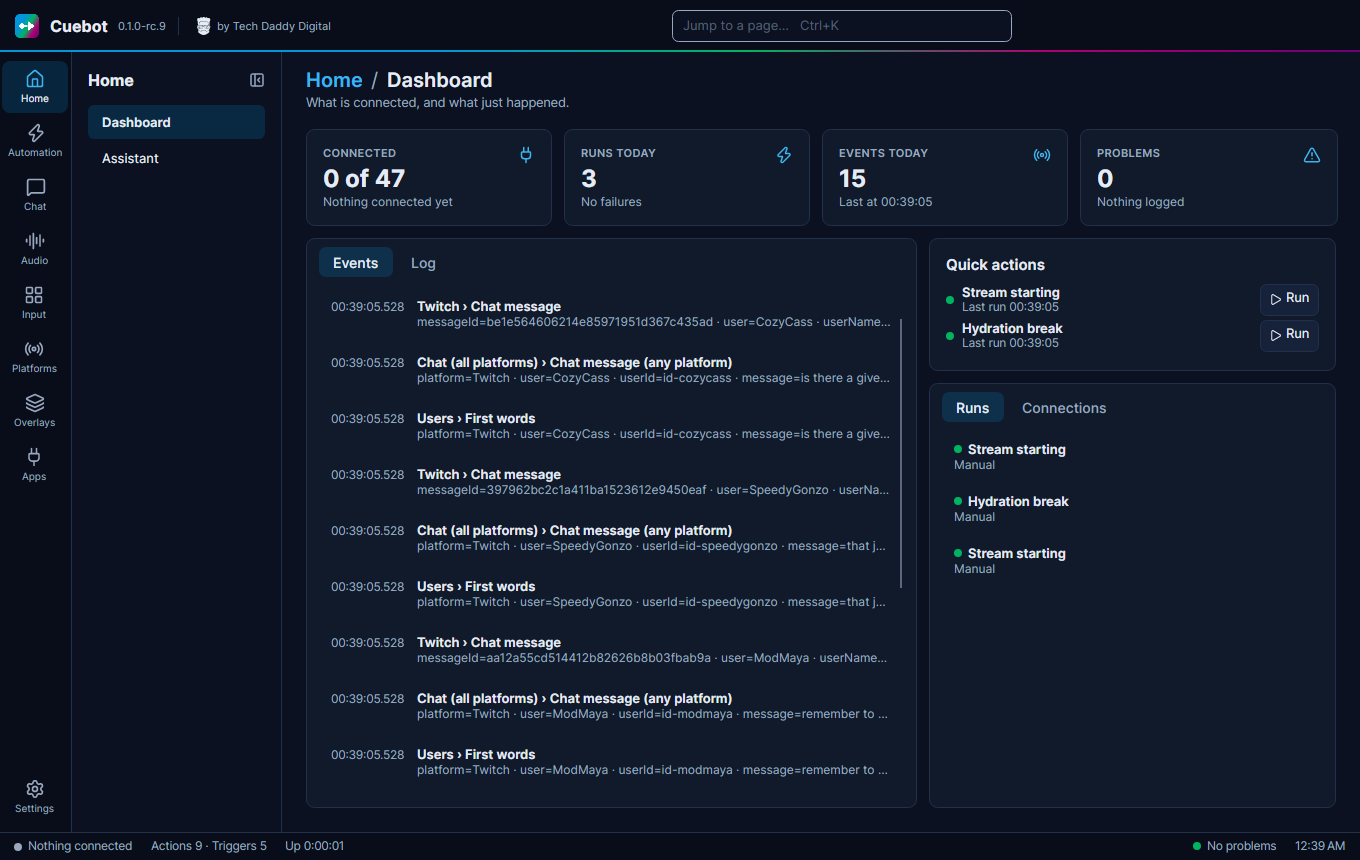
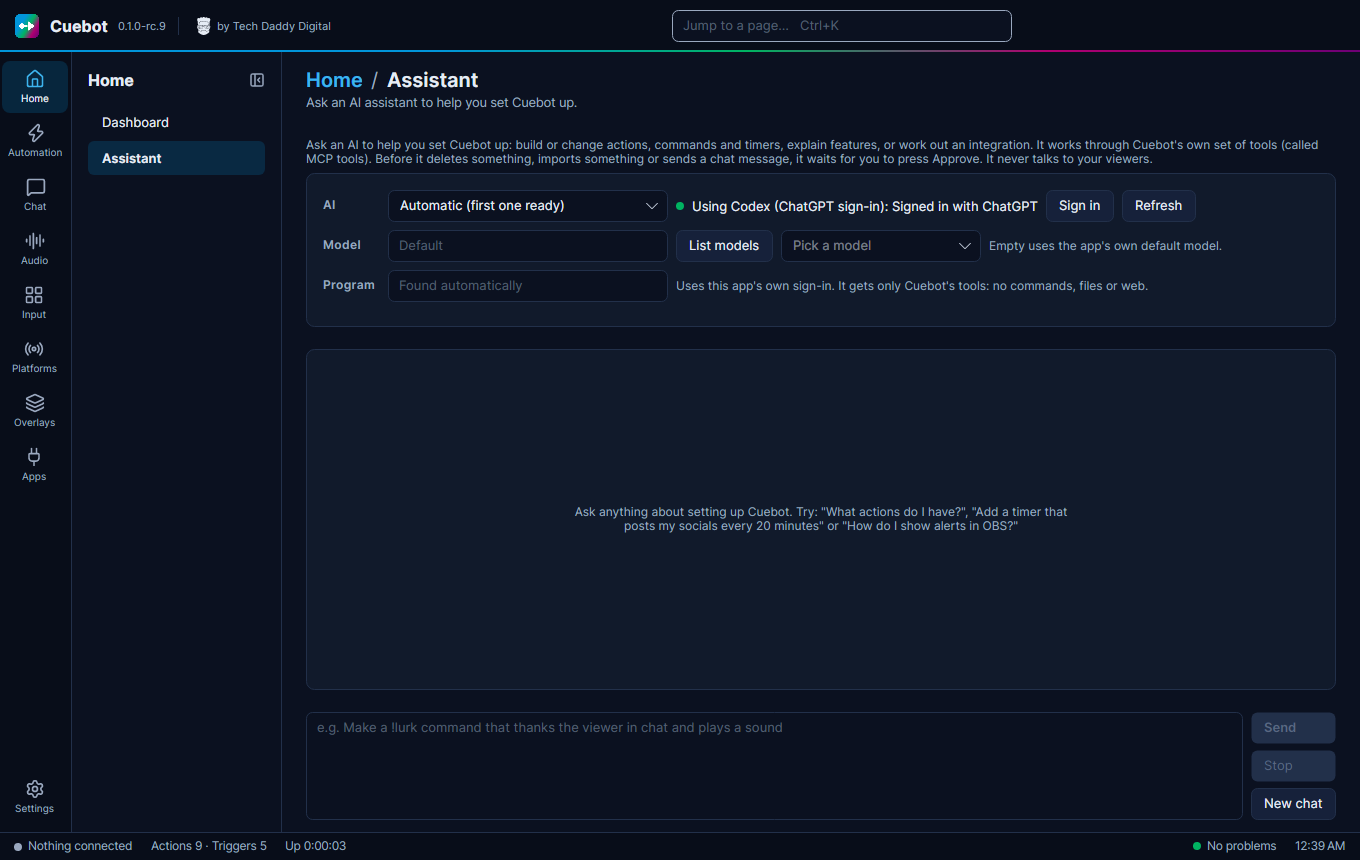
This page is a map. It lists every page in Cuebot, in the order of the left rail, with one line about each and a link to the guide that explains it.
Finding a page fast: Press
Ctrl + Kand type part of a page name, likemusic, then pressEnter.
| Page | What it is for | Guide |
|---|---|---|
| Dashboard | What is connected, and what just happened. Tabs: Connections, Events, Runs and Log. The Log tab shows warnings, like a missing Twitch permission. | Troubleshooting |
| Assistant | Ask an AI to set Cuebot up for you. | The setup assistant |
| Page | What it is for | Guide |
|---|---|---|
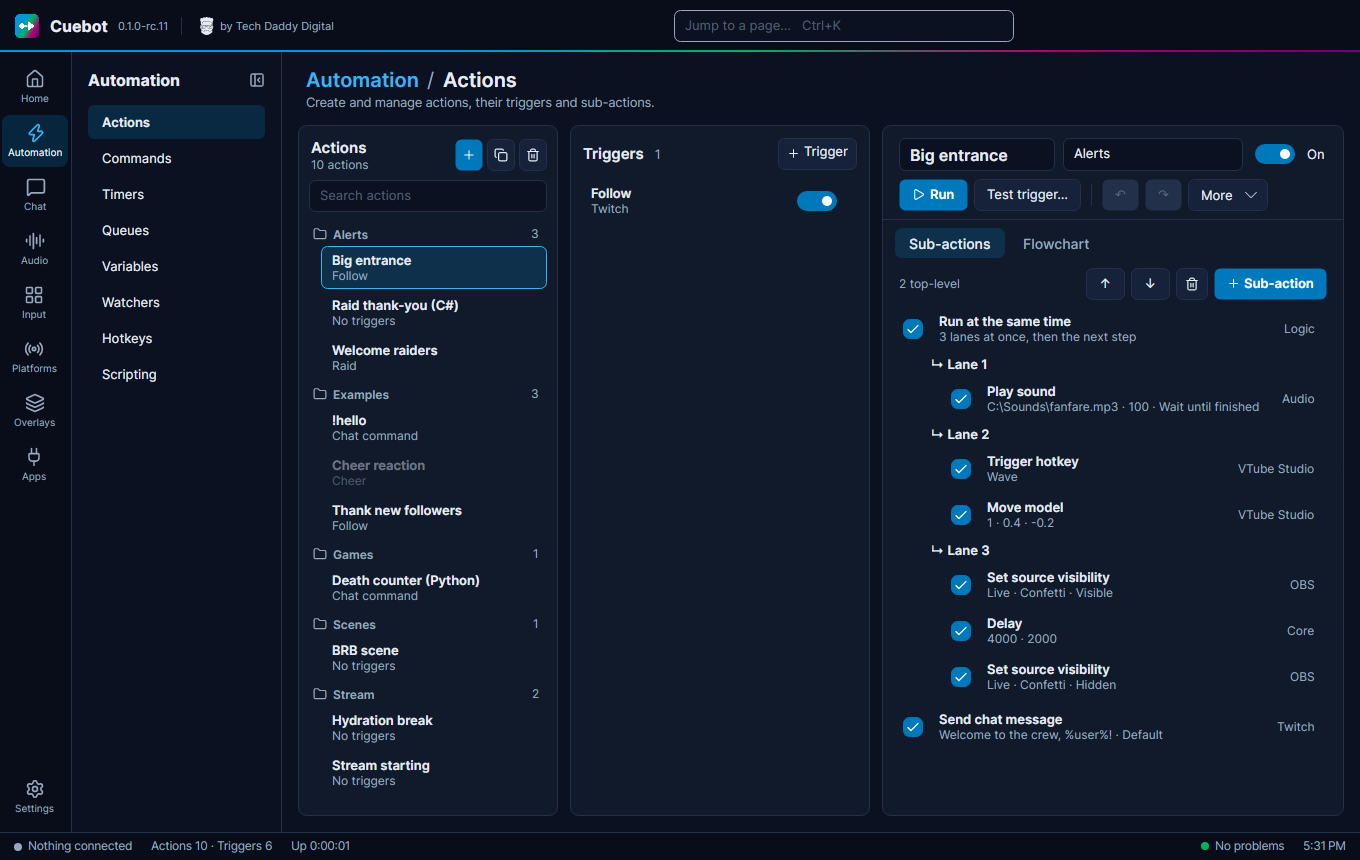
| Actions | Make actions: the triggers that start them and the steps they do. Tabs Sub-actions and Flowchart; on a narrow window the triggers get a Triggers tab too. | How actions work, The flowchart editor |
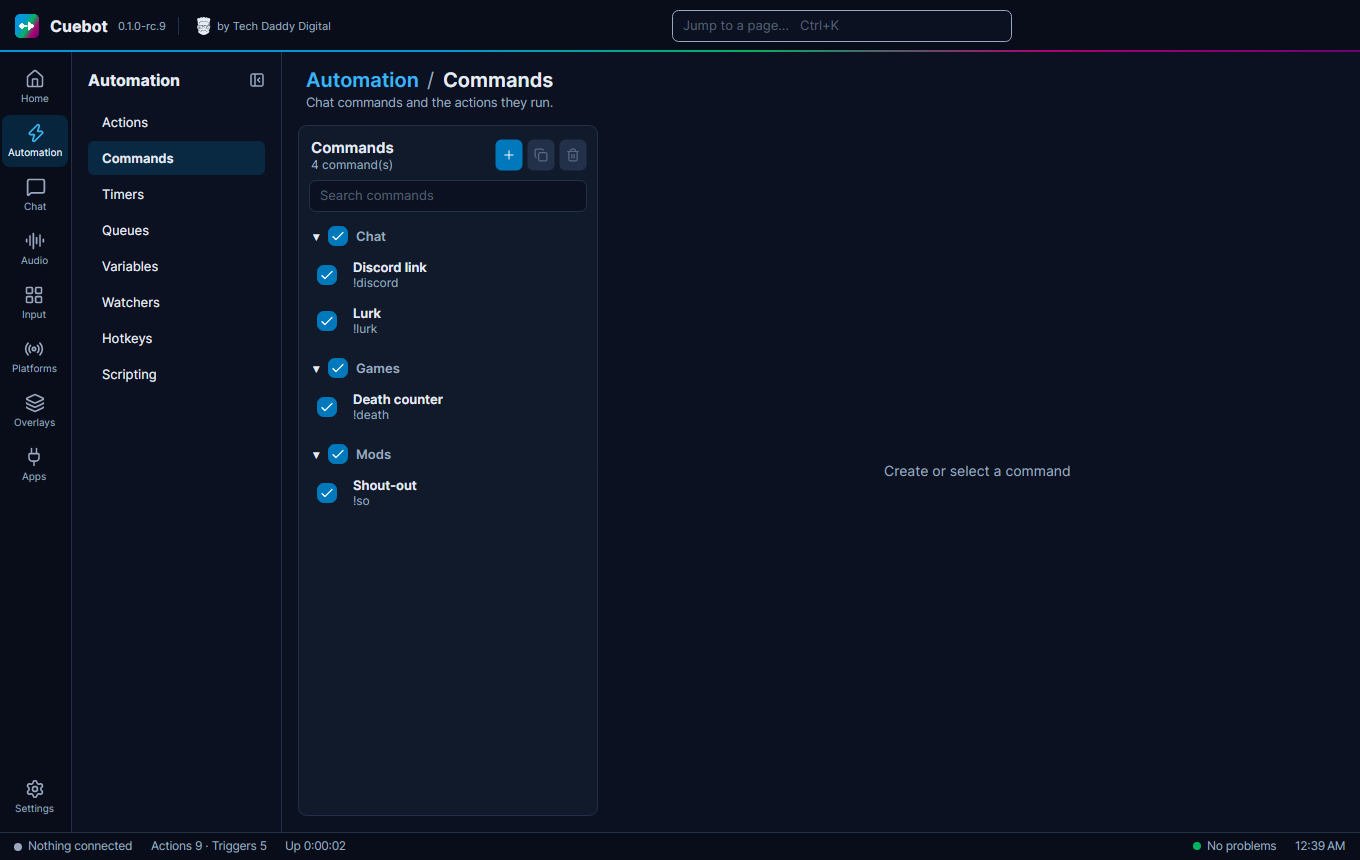
| Commands | Chat commands like !hello. |
Chat commands |
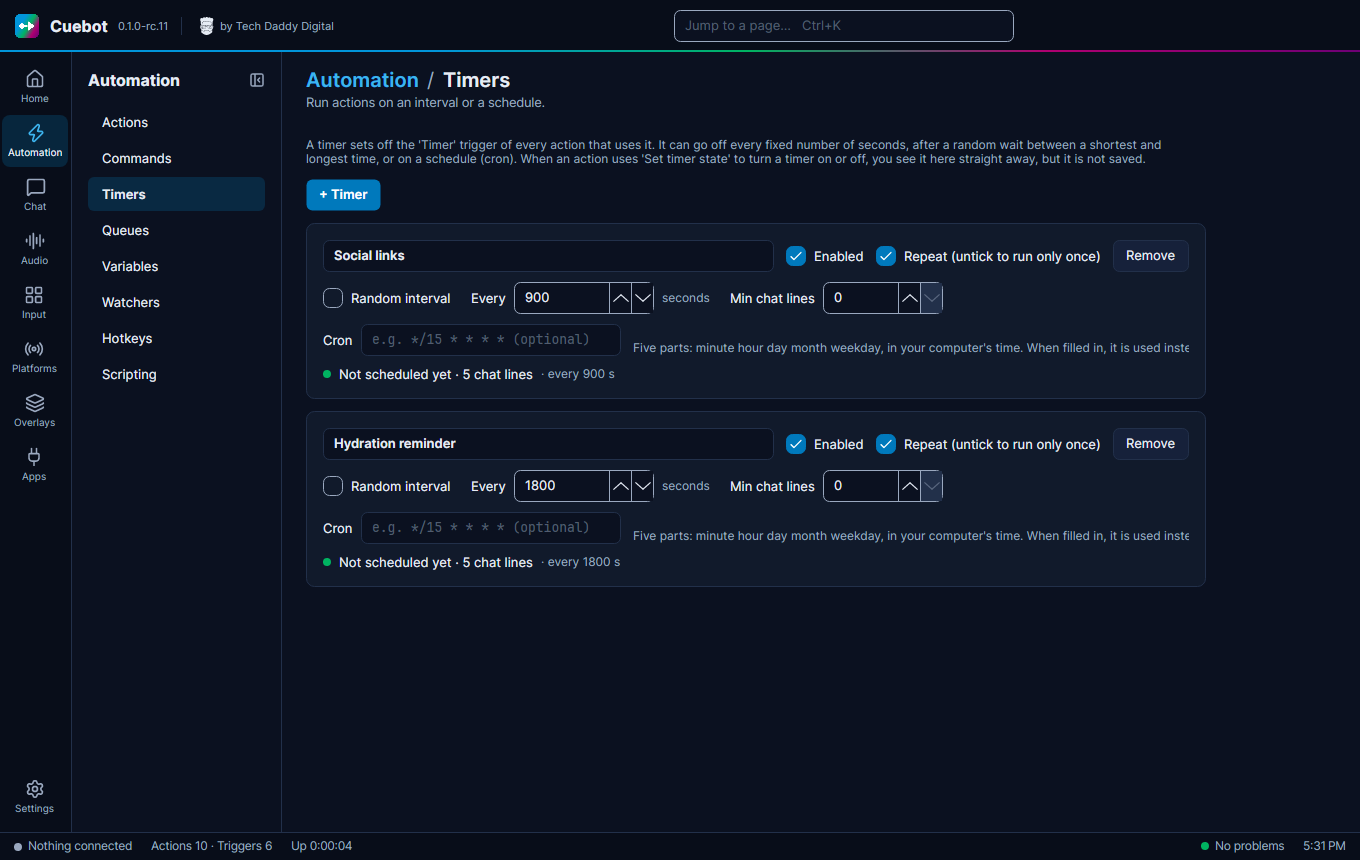
| Timers | Run actions every few minutes, or on a schedule. | Timers |
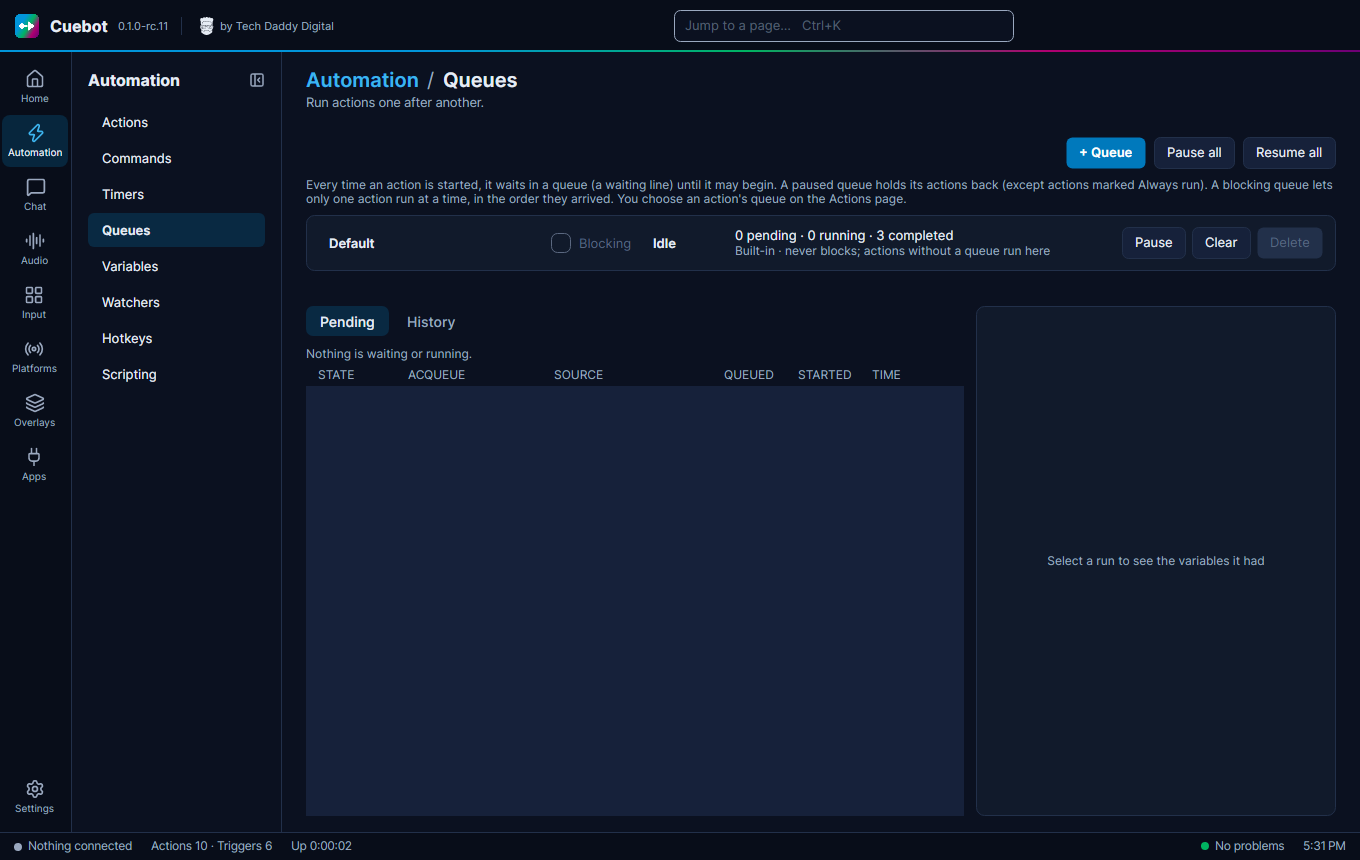
| Queues | Waiting lines, so alerts play one at a time. Tabs Pending and History. | Queues |
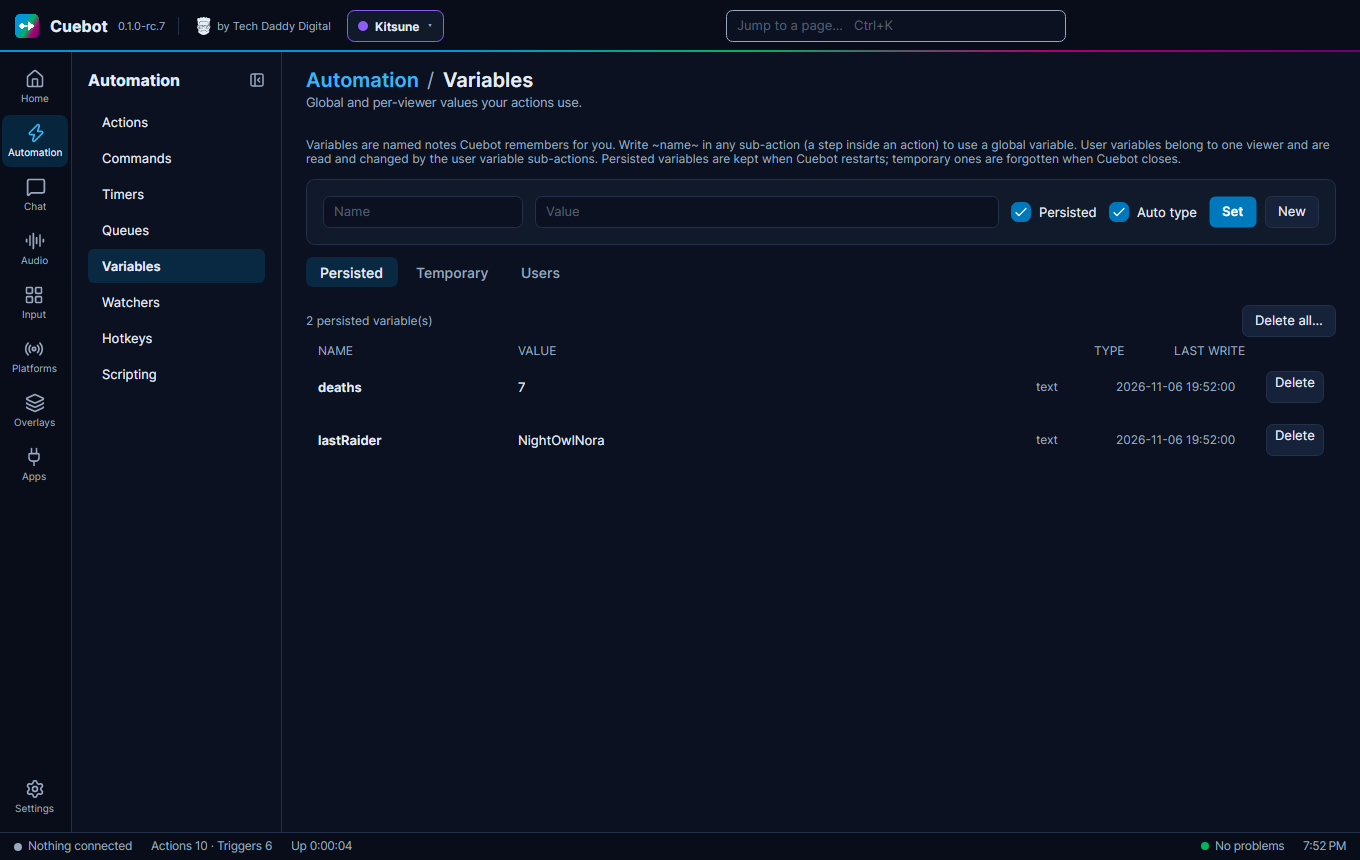
| Variables | See and change remembered values. Tabs Persisted, Temporary and Users. | Variables |
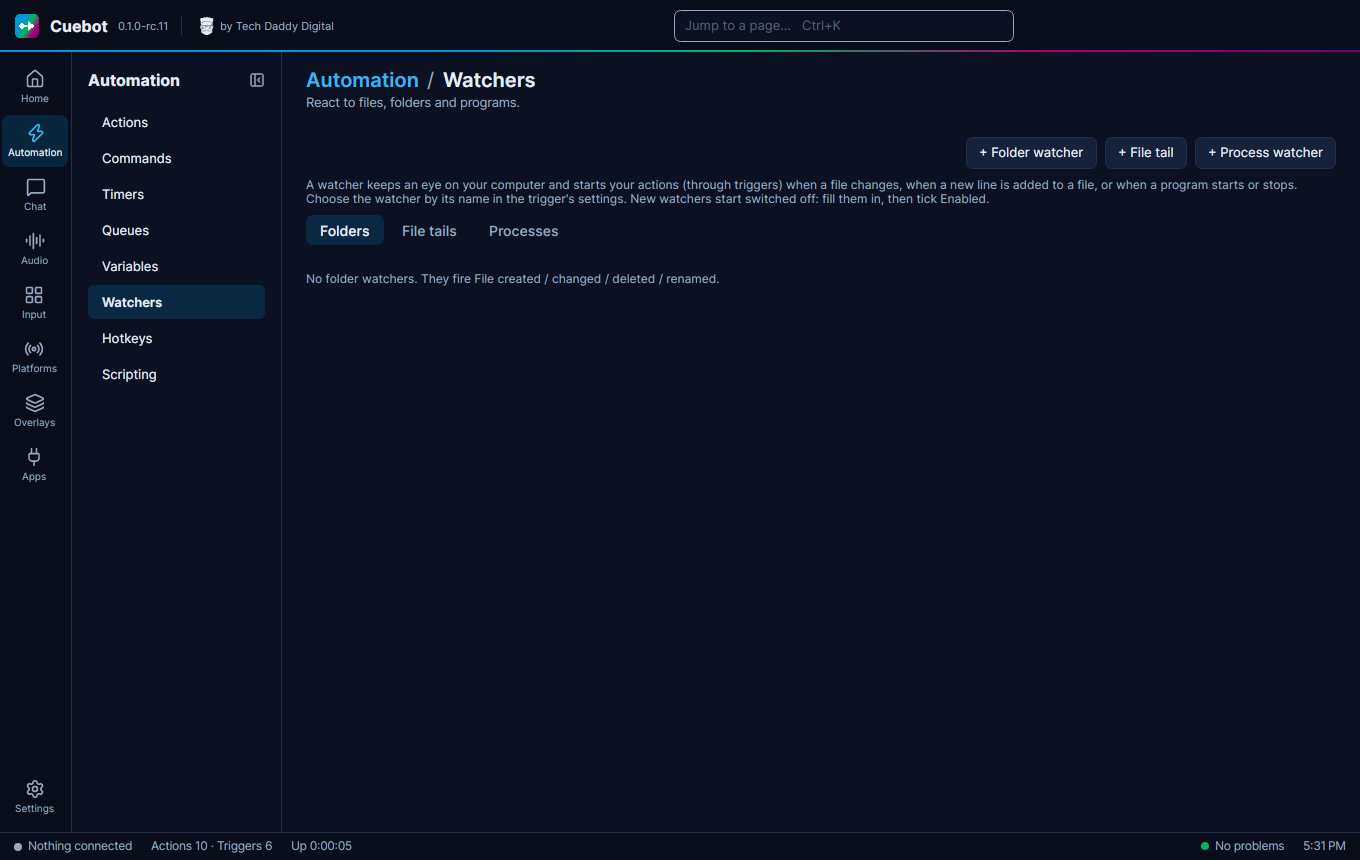
| Watchers | React to folders, files and programs. Tabs Folders, File tails and Processes. | Watchers |
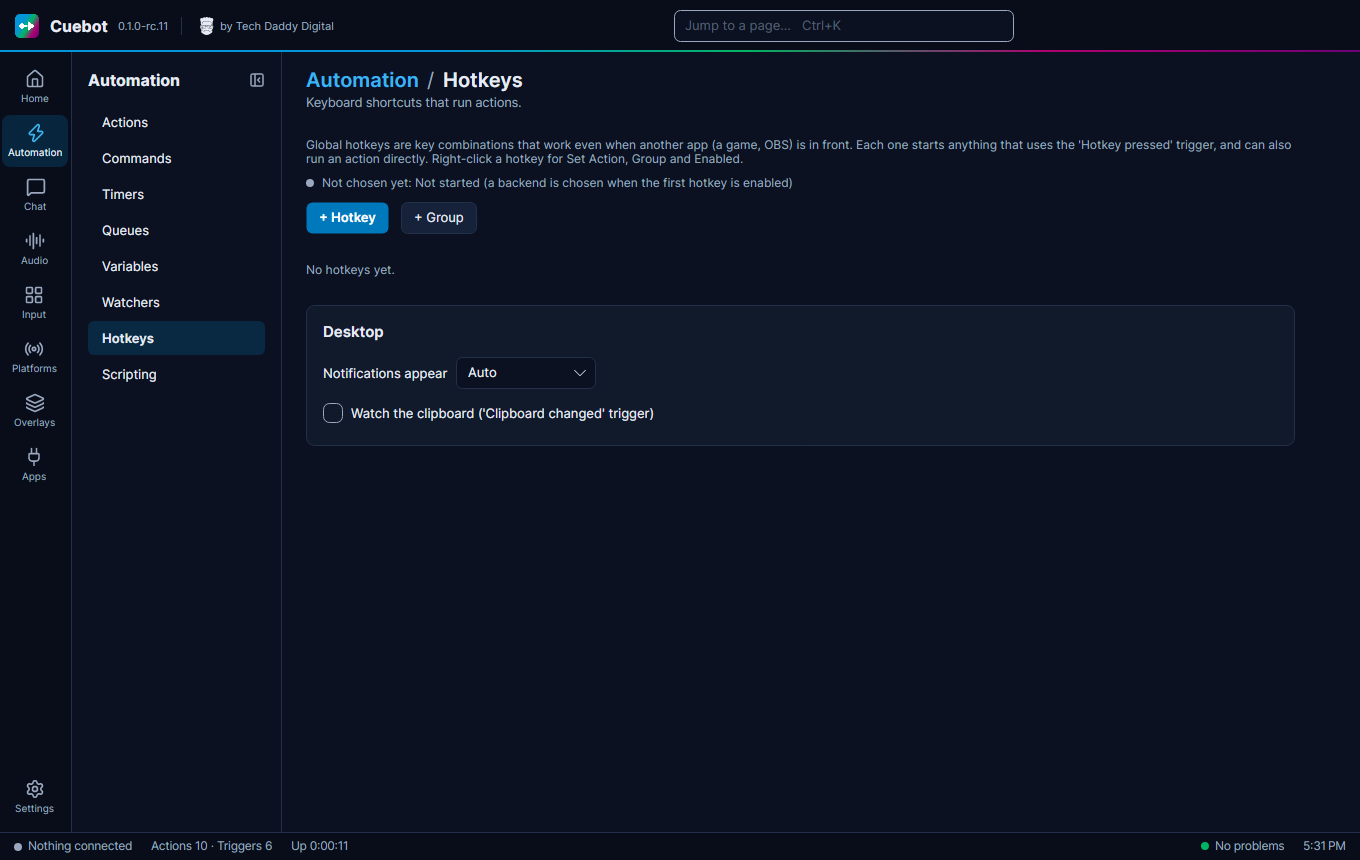
| Hotkeys | Keyboard shortcuts that run actions, and Desktop: where notifications appear, and watching the clipboard for the Clipboard changed trigger. | Hotkeys |
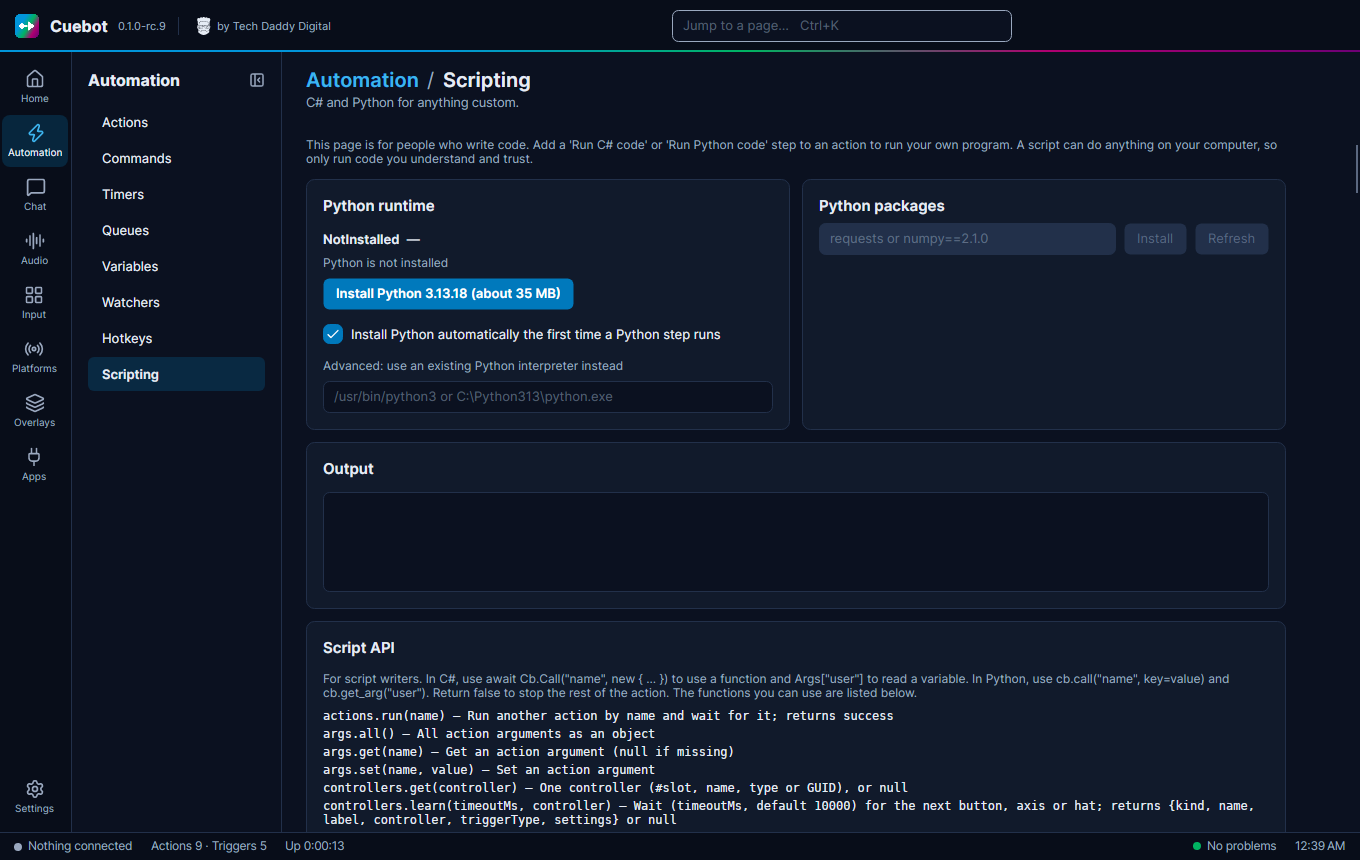
| Scripting | Set up Python for code steps, and see the script functions. | Writing code |
| Page | What it is for | Guide |
|---|---|---|
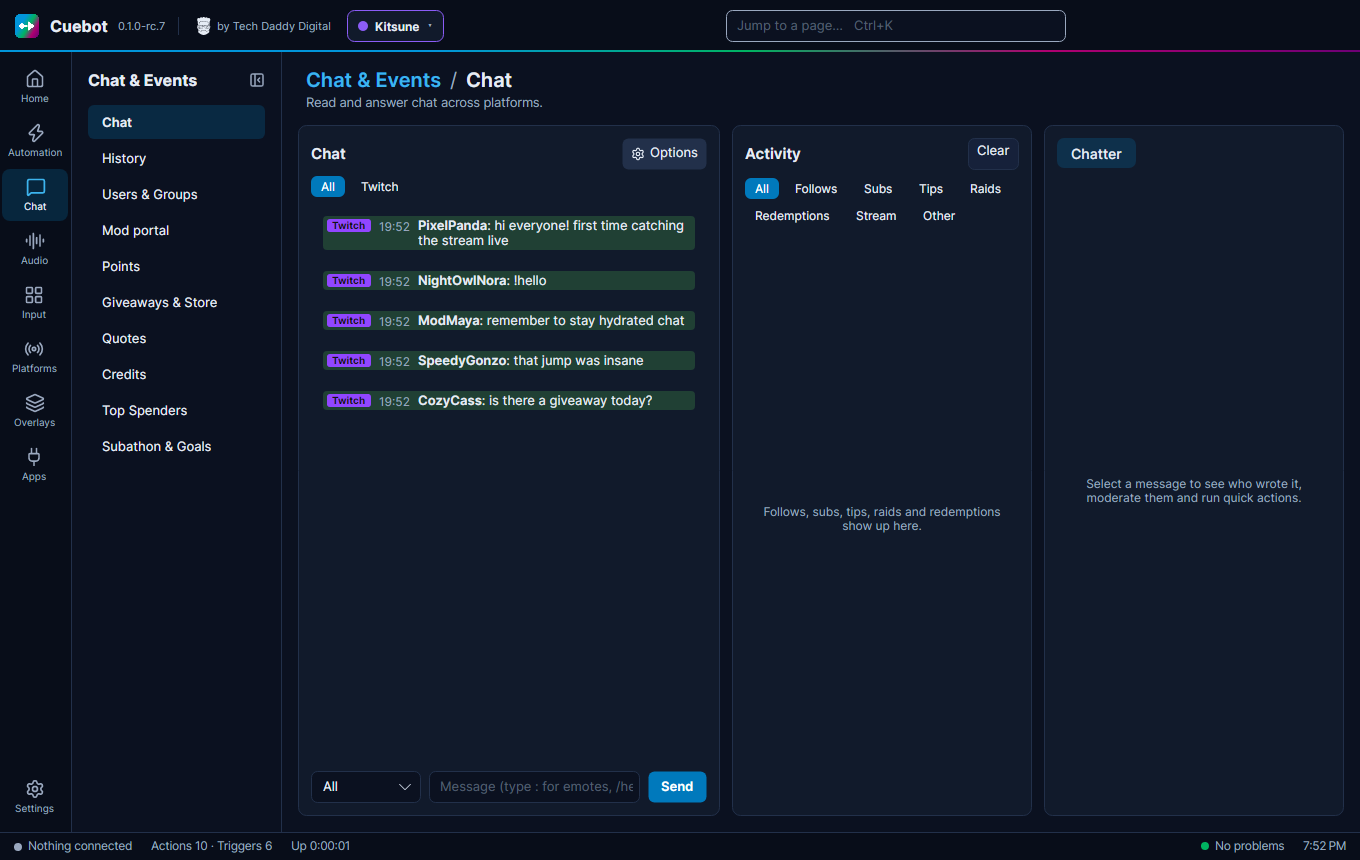
| Chat | Read and answer every platform's chat in one place, and moderate. Tabs Chatter and Activity. | Chat in one place |
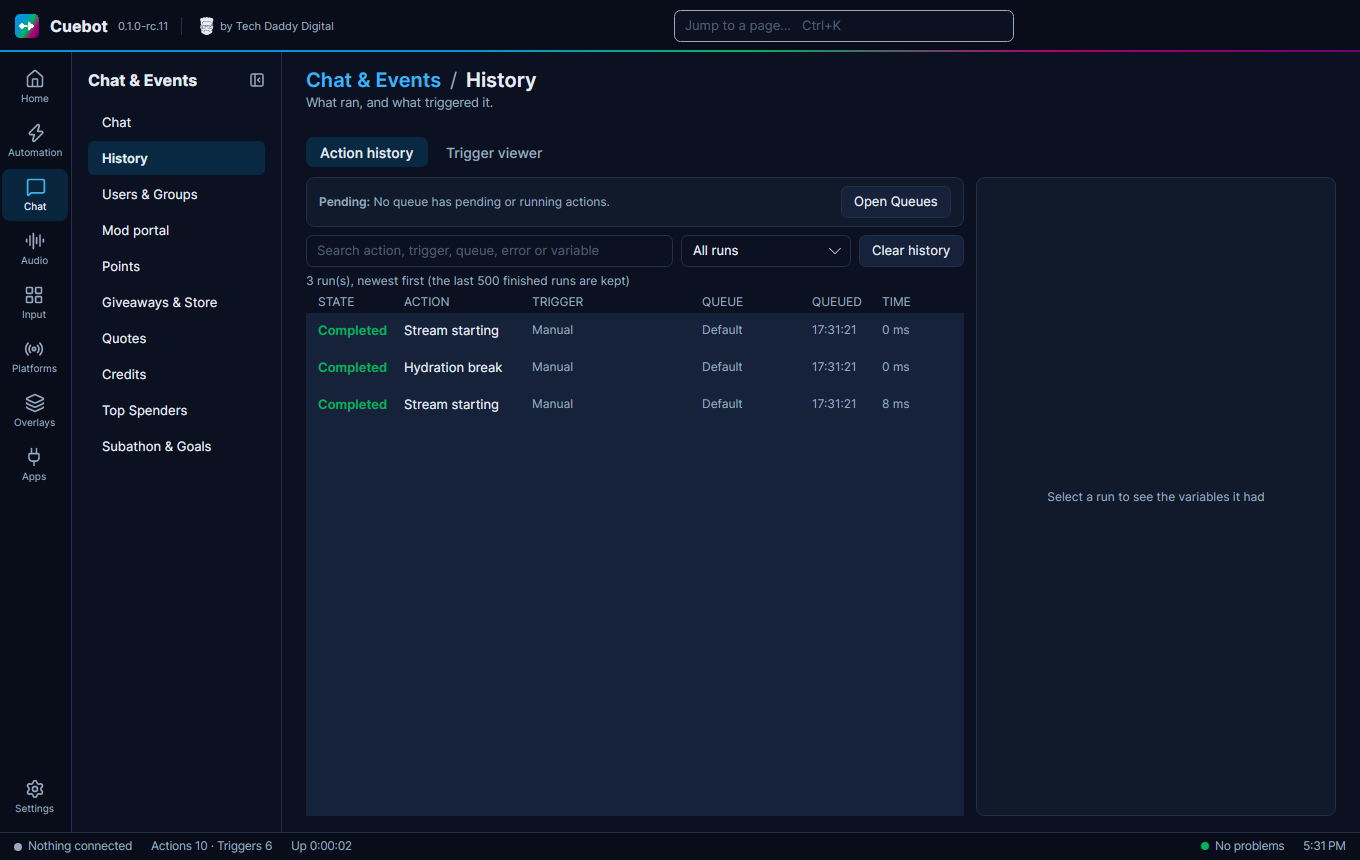
| History | Every run, and every event that came in. Tabs Action history and Trigger viewer. | History |
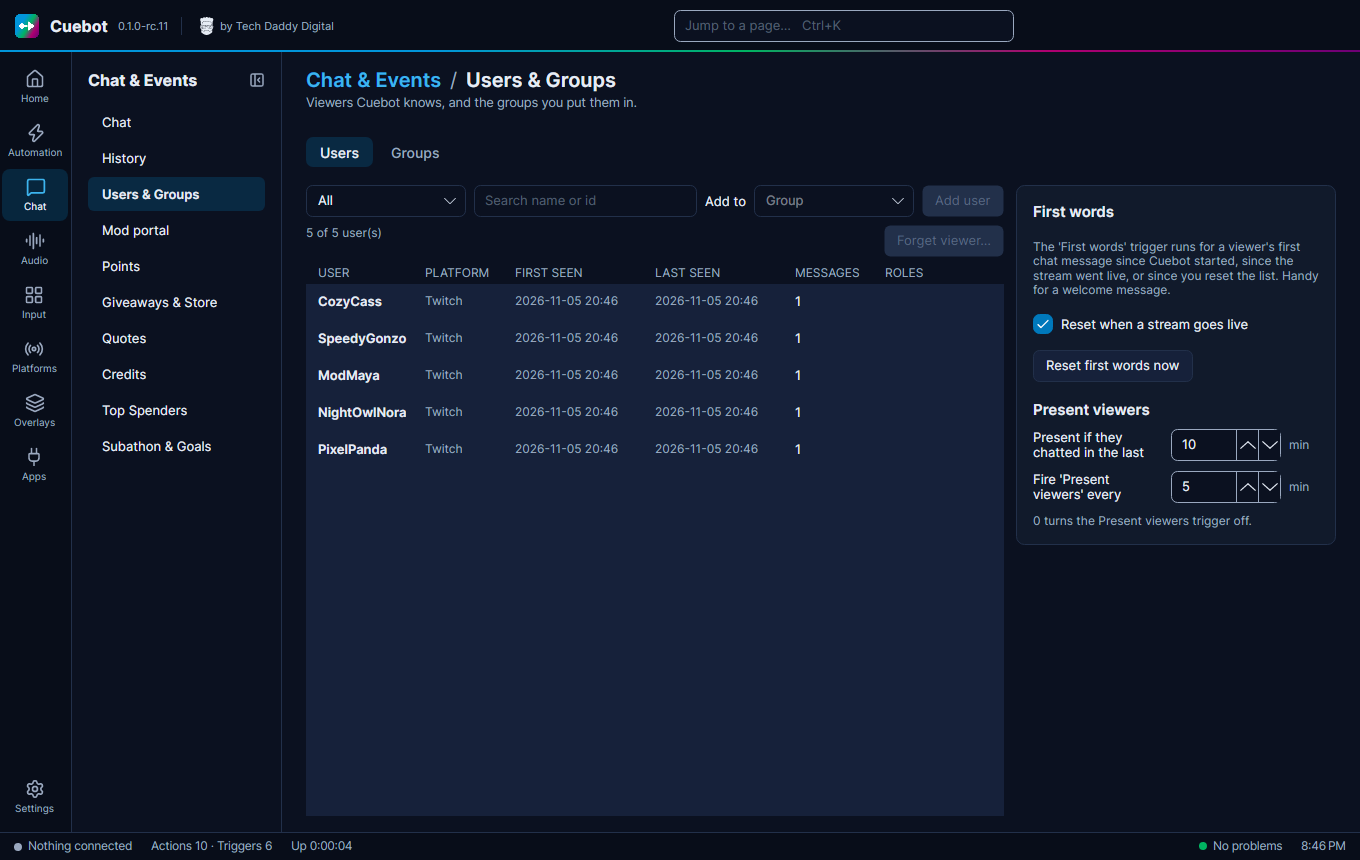
| Users & Groups | Viewers Cuebot has seen, and groups of them. | Users & Groups |
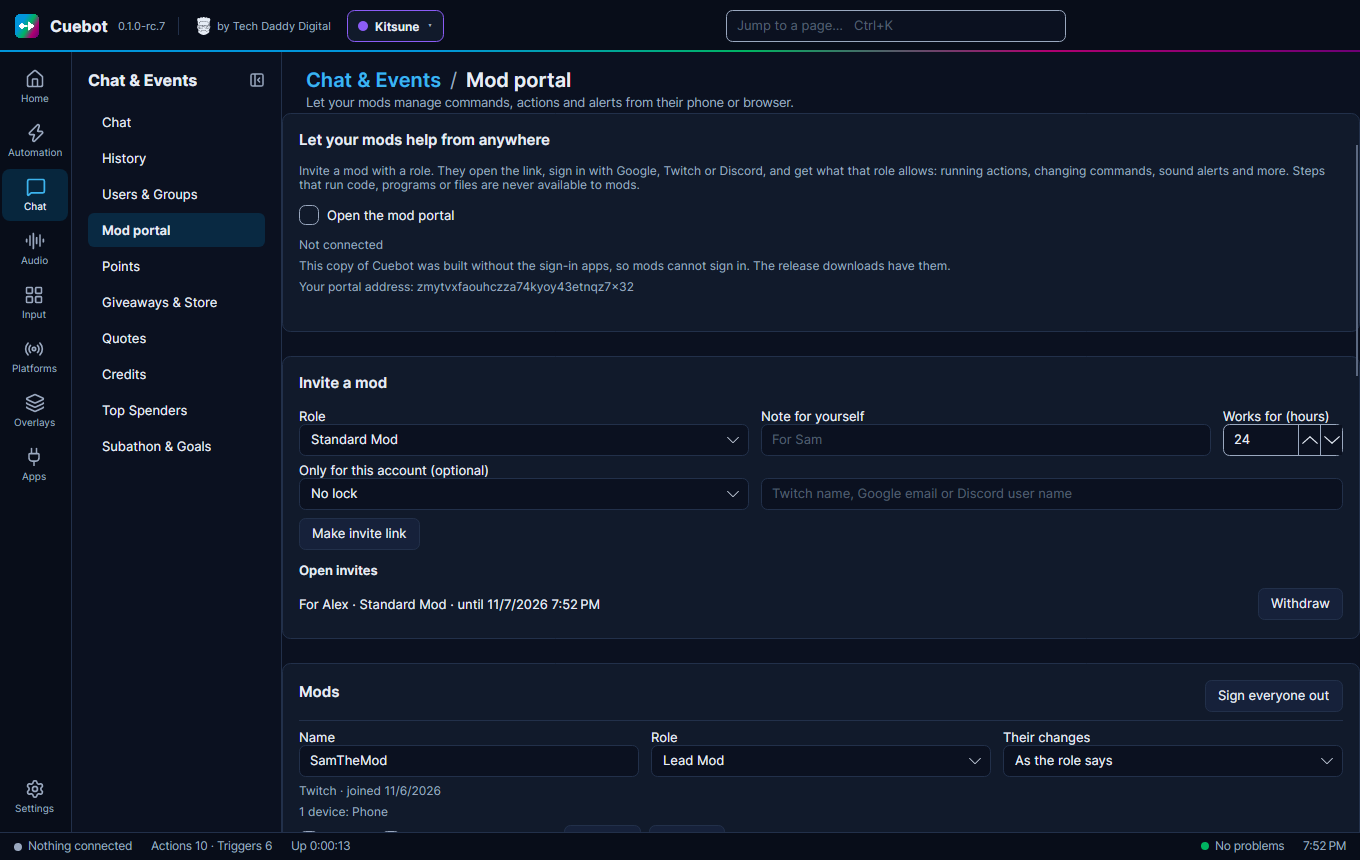
| Mod portal | Invite mods and choose what they may do from their phone or browser. | The mod portal |
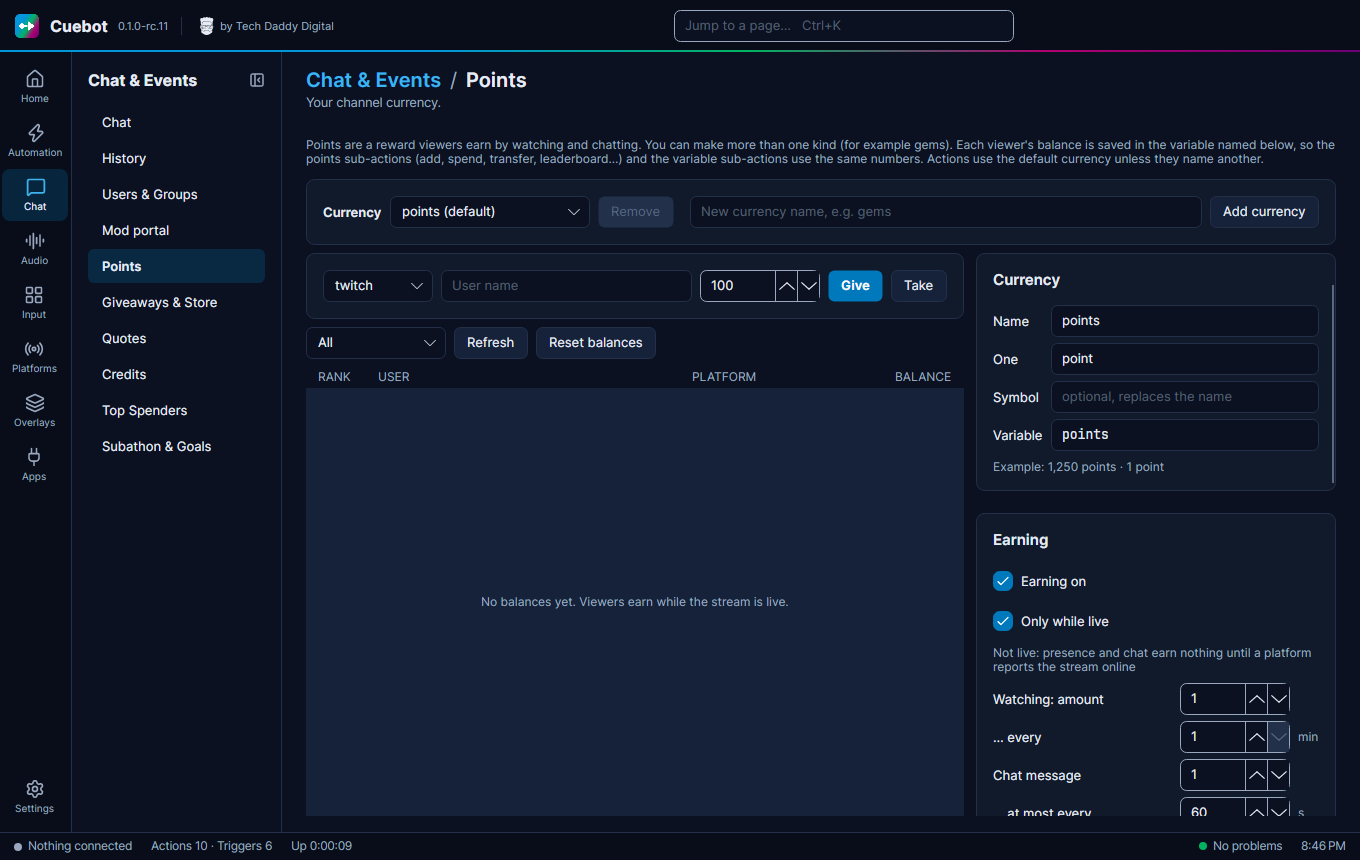
| Points | Your channel money. | Points |
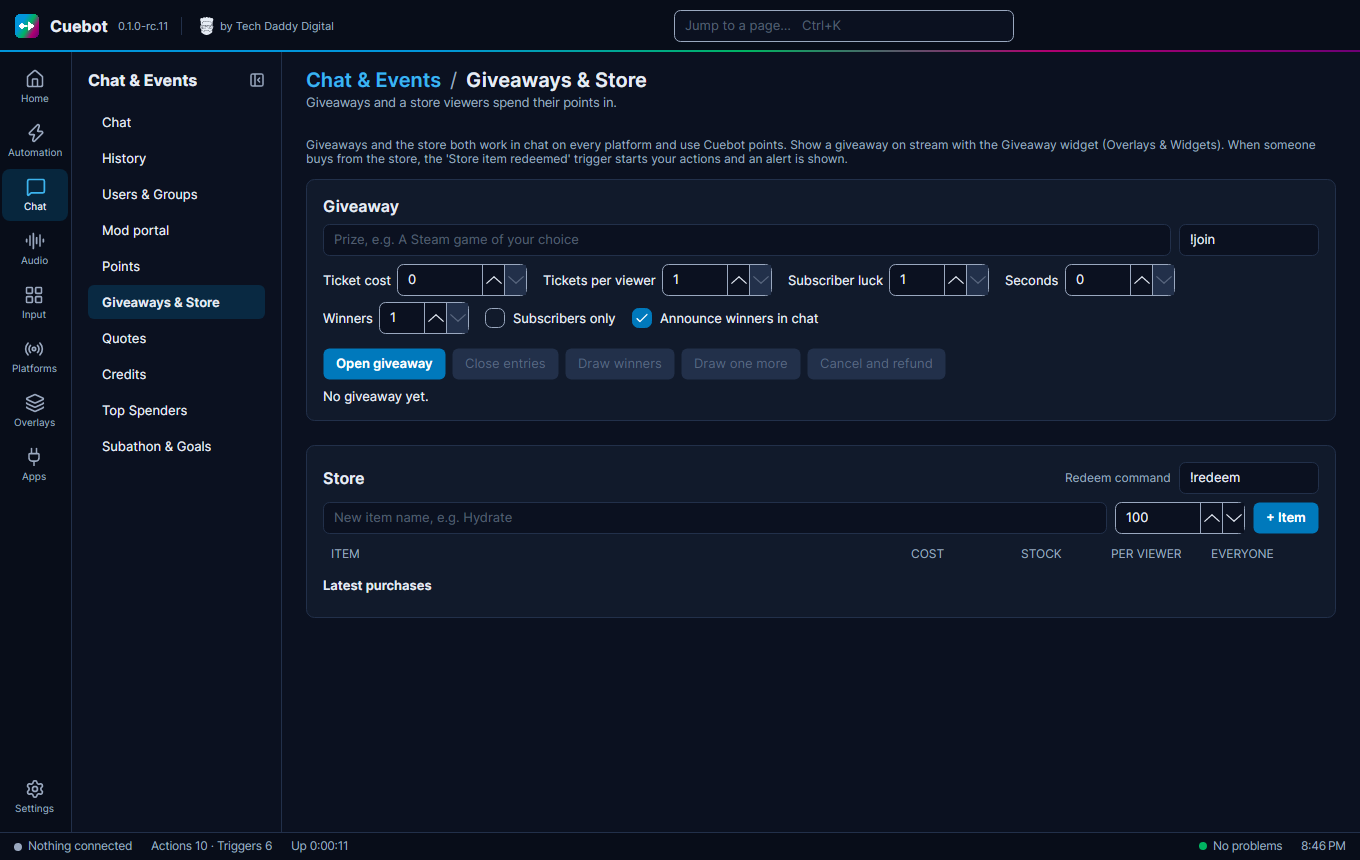
| Giveaways & Store | Giveaways, and a store where viewers spend points. | Giveaways & Store |
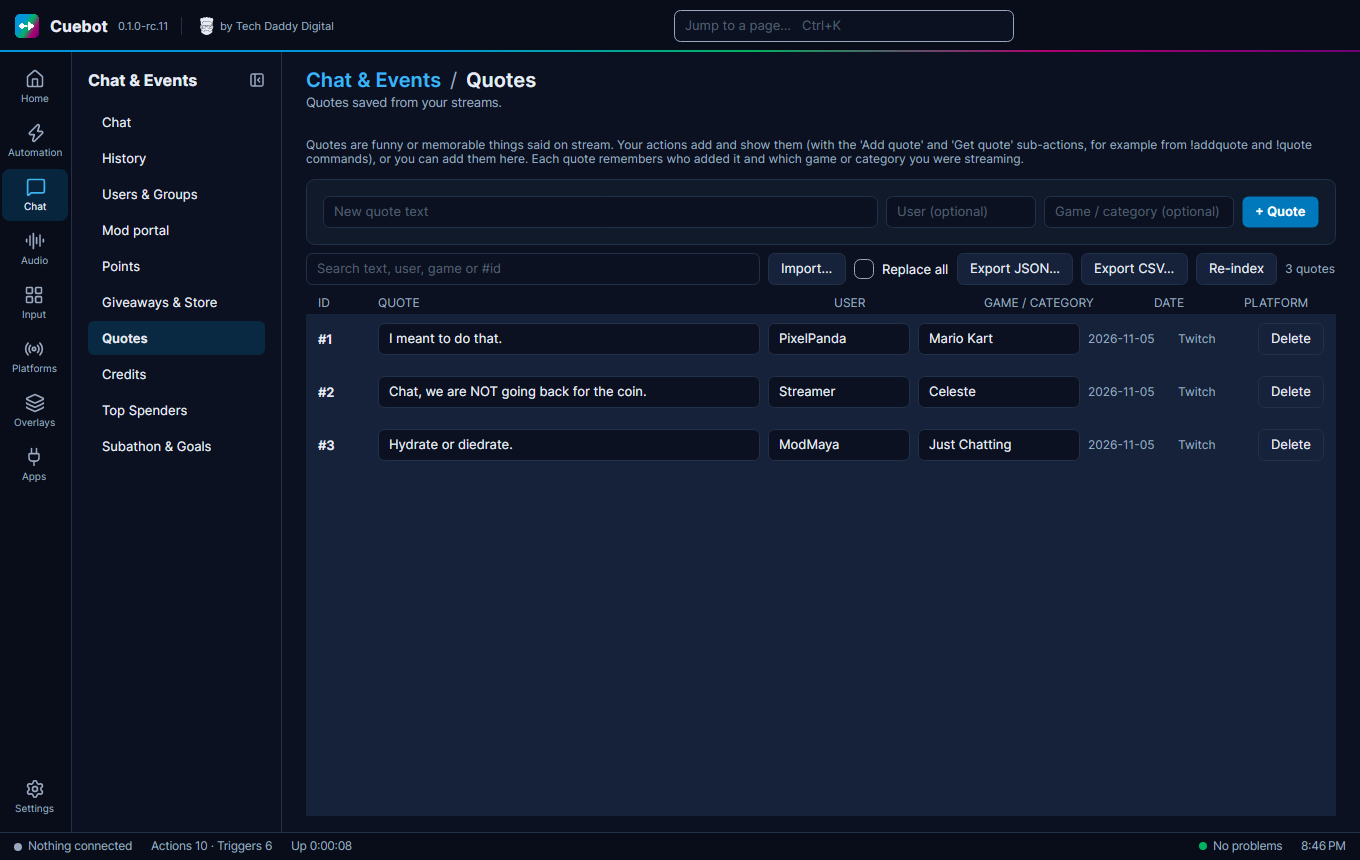
| Quotes | Quotes saved from your streams. | Quotes |
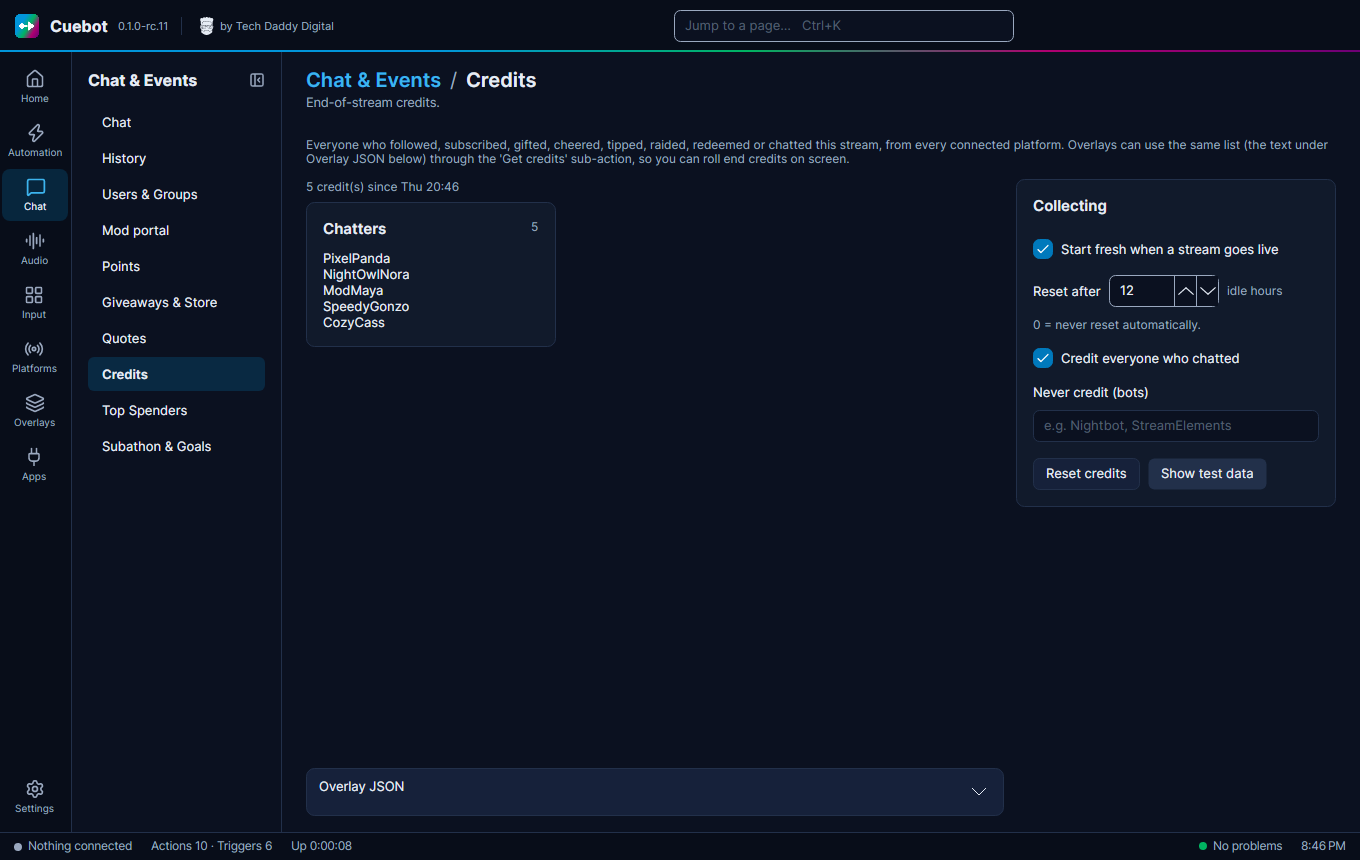
| Credits | End-of-stream credits. | Credits |
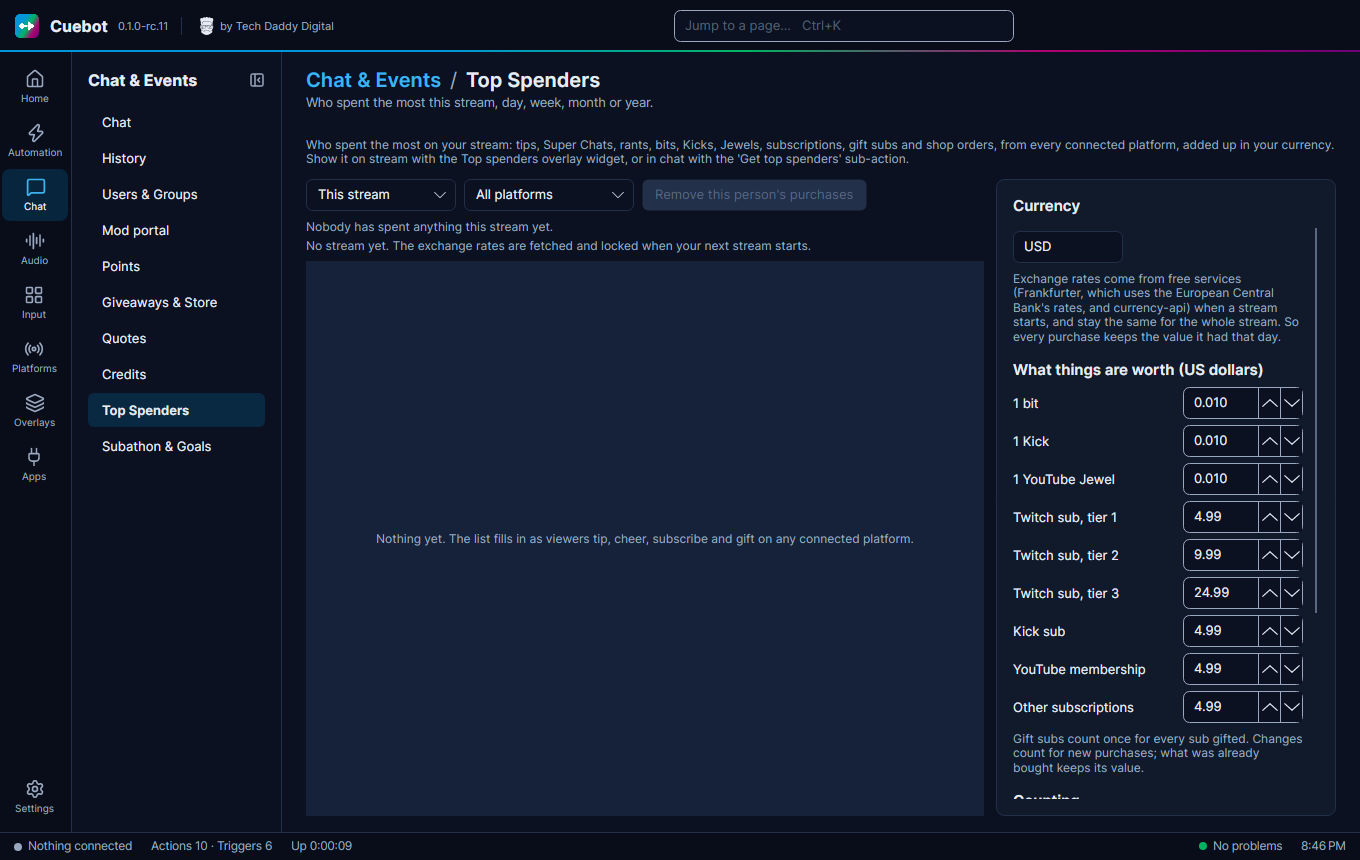
| Top Spenders | Who spent the most money this stream, today, this week, month, year or all time. | Top spenders |
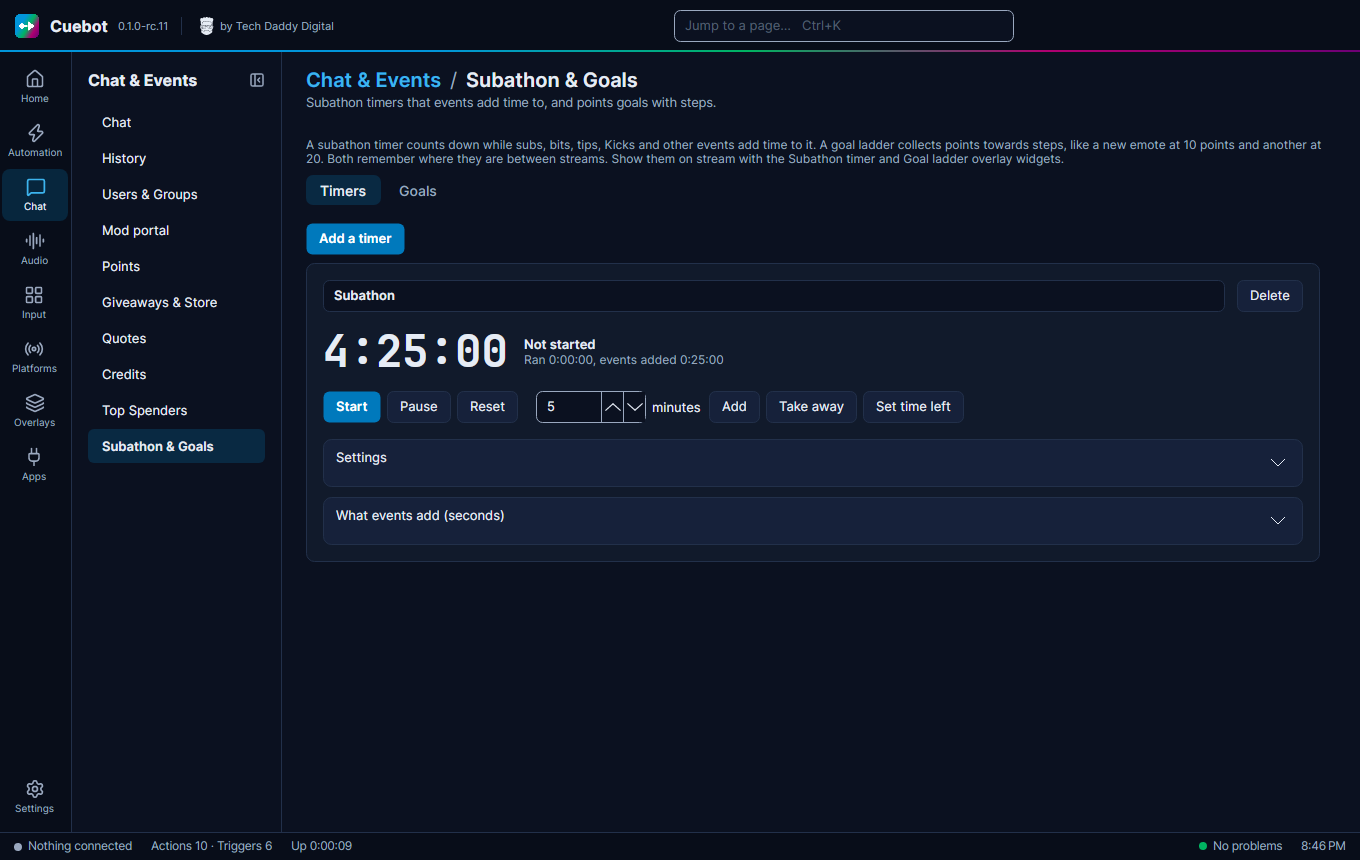
| Subathon & Goals | Subathon timers that events add time to, and points goals with steps. | Subathons and goals |
| Page | What it is for | Guide |
|---|---|---|
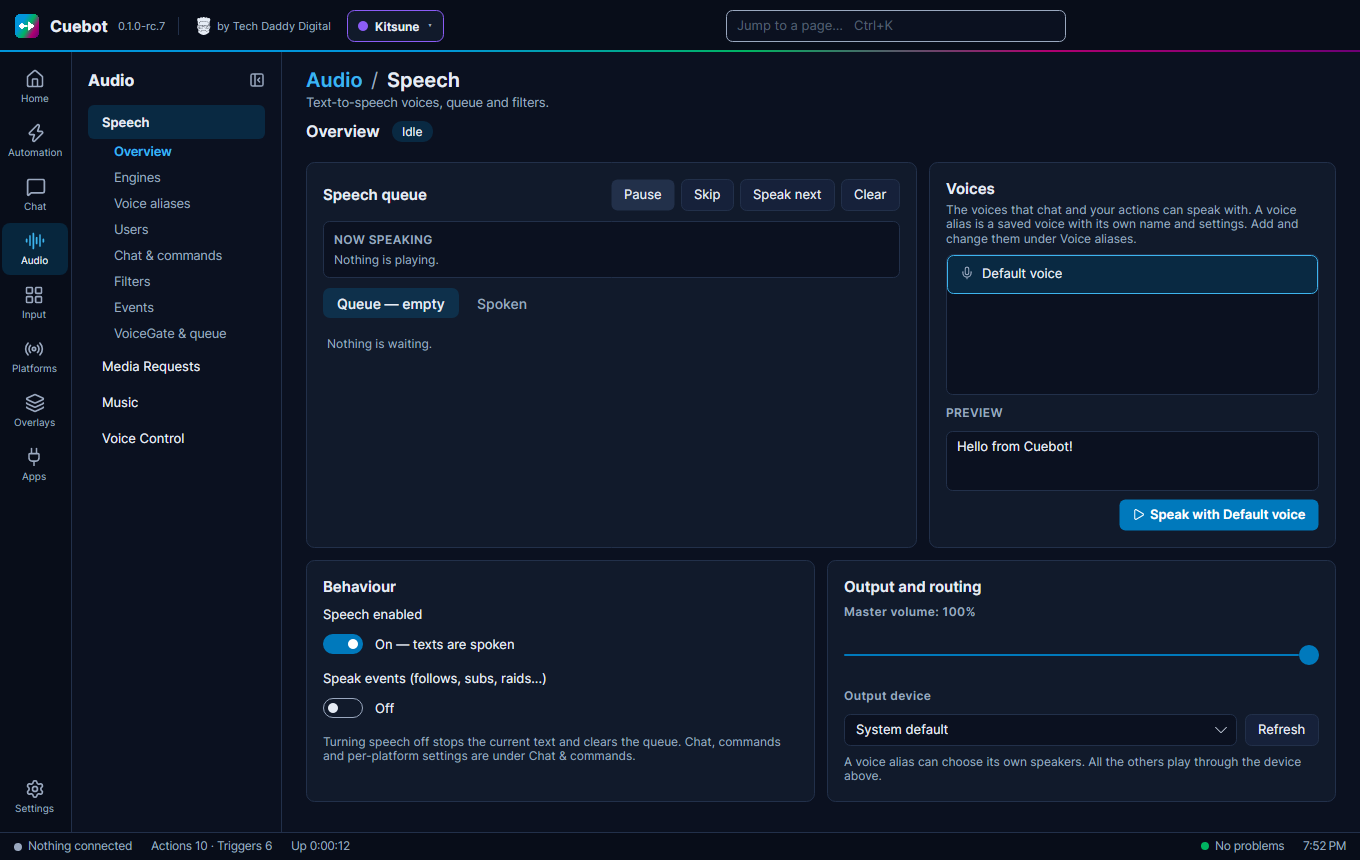
| Speech | Text-to-speech: voices, the queue and filters. | Text-to-speech |
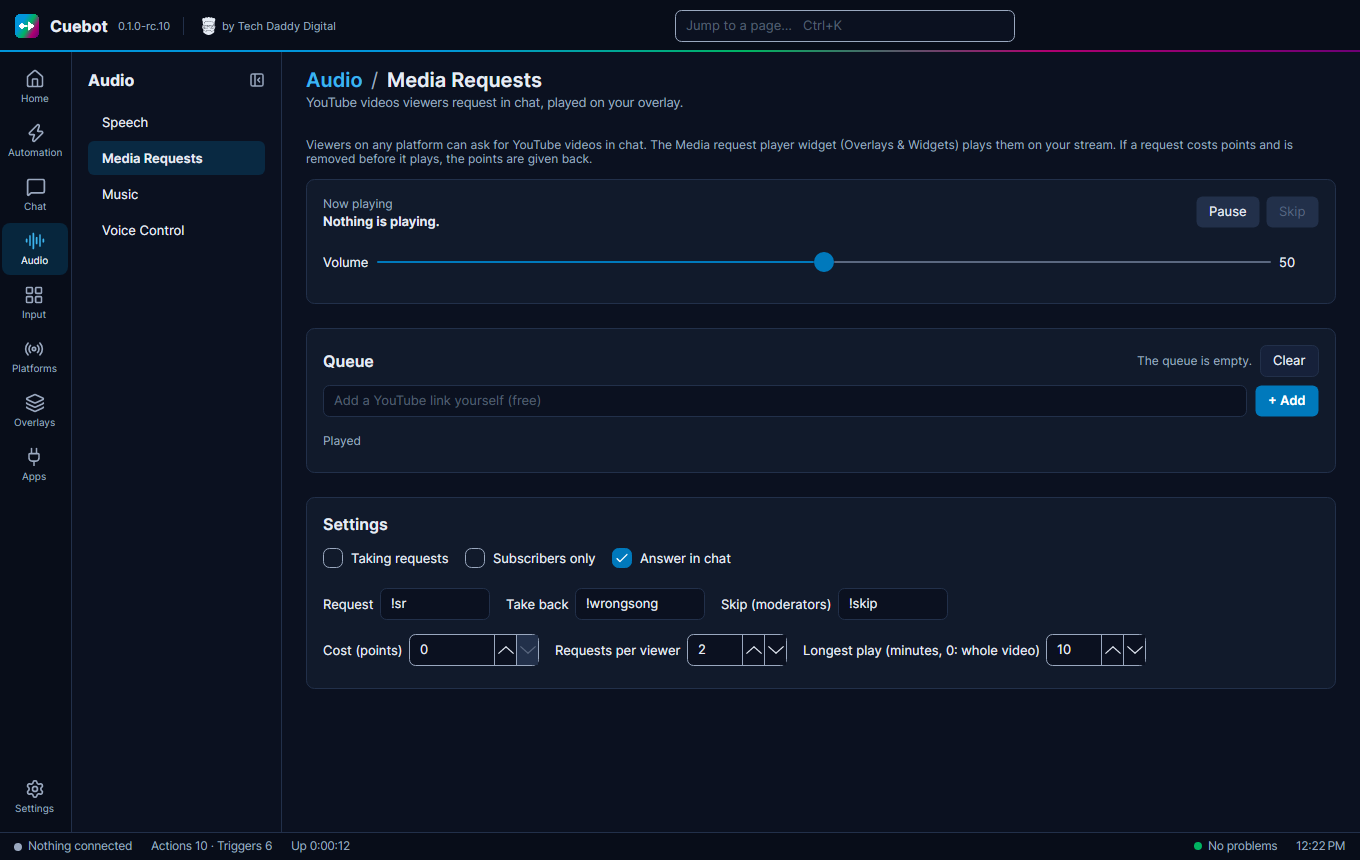
| Media Requests | YouTube videos viewers ask for in chat, played on your overlay. | Video requests |
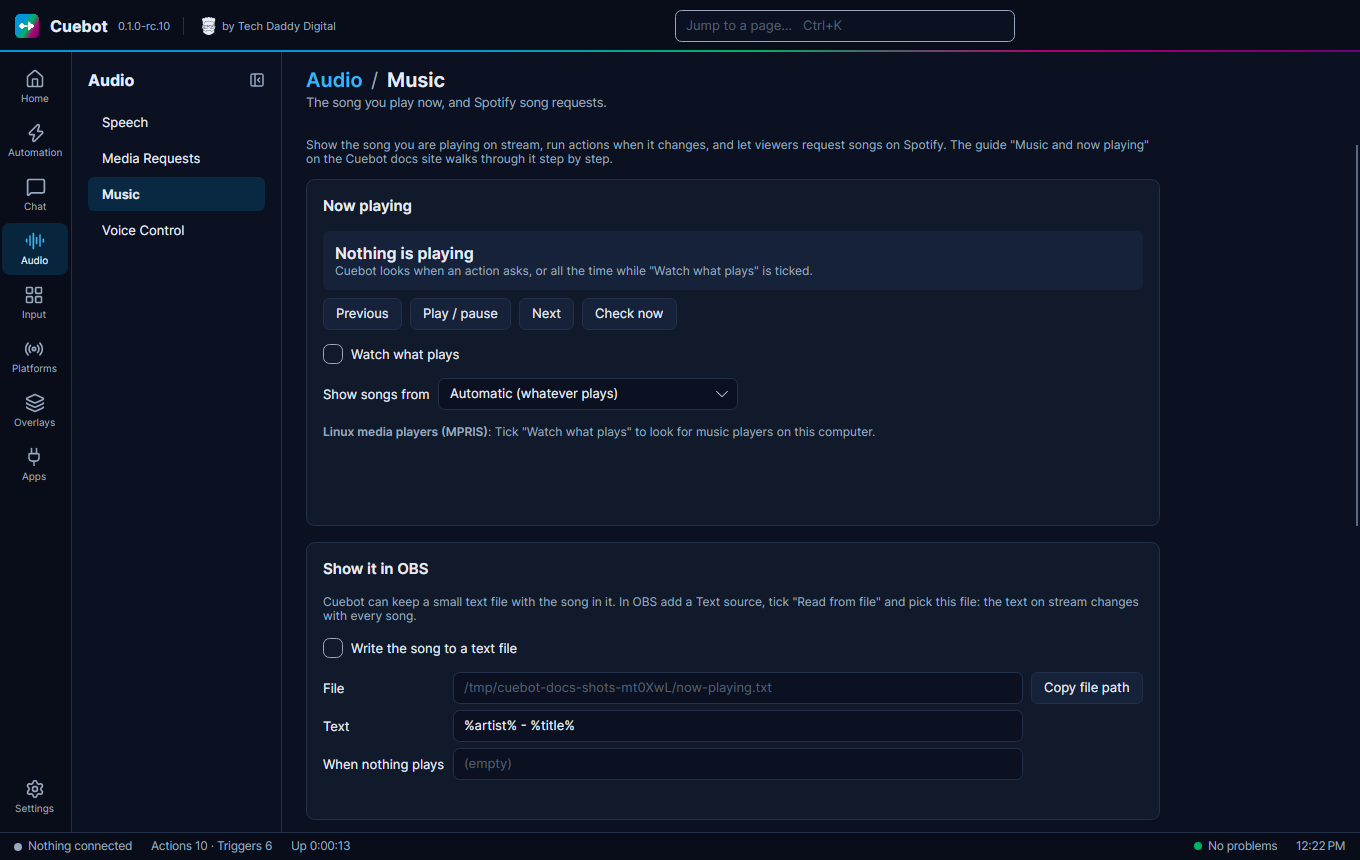
| Music | The song you are playing, and Spotify song requests. | Music and now playing |
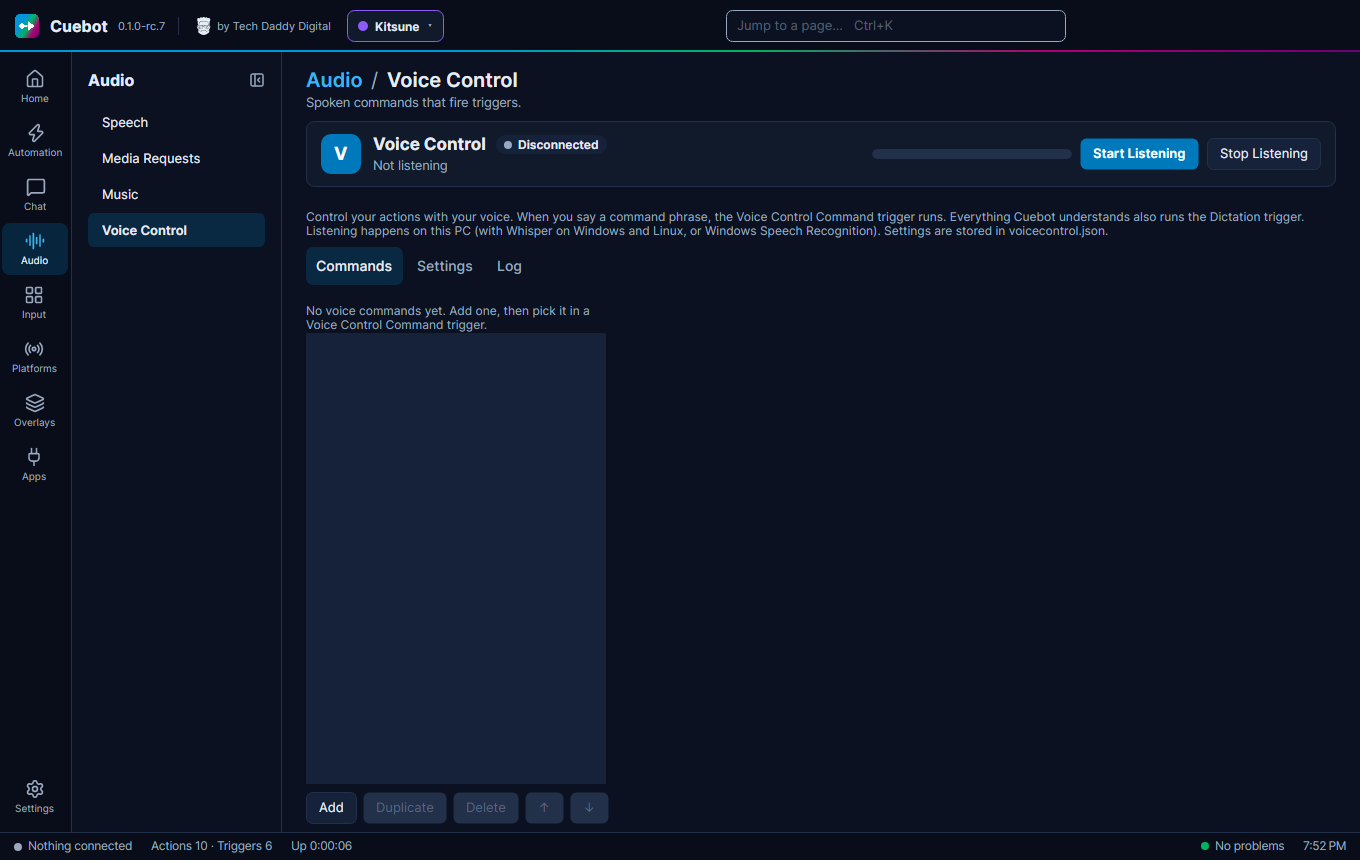
| Voice Control | Say a phrase, and Cuebot runs an action. | Voice control |
| Page | What it is for | Guide |
|---|---|---|
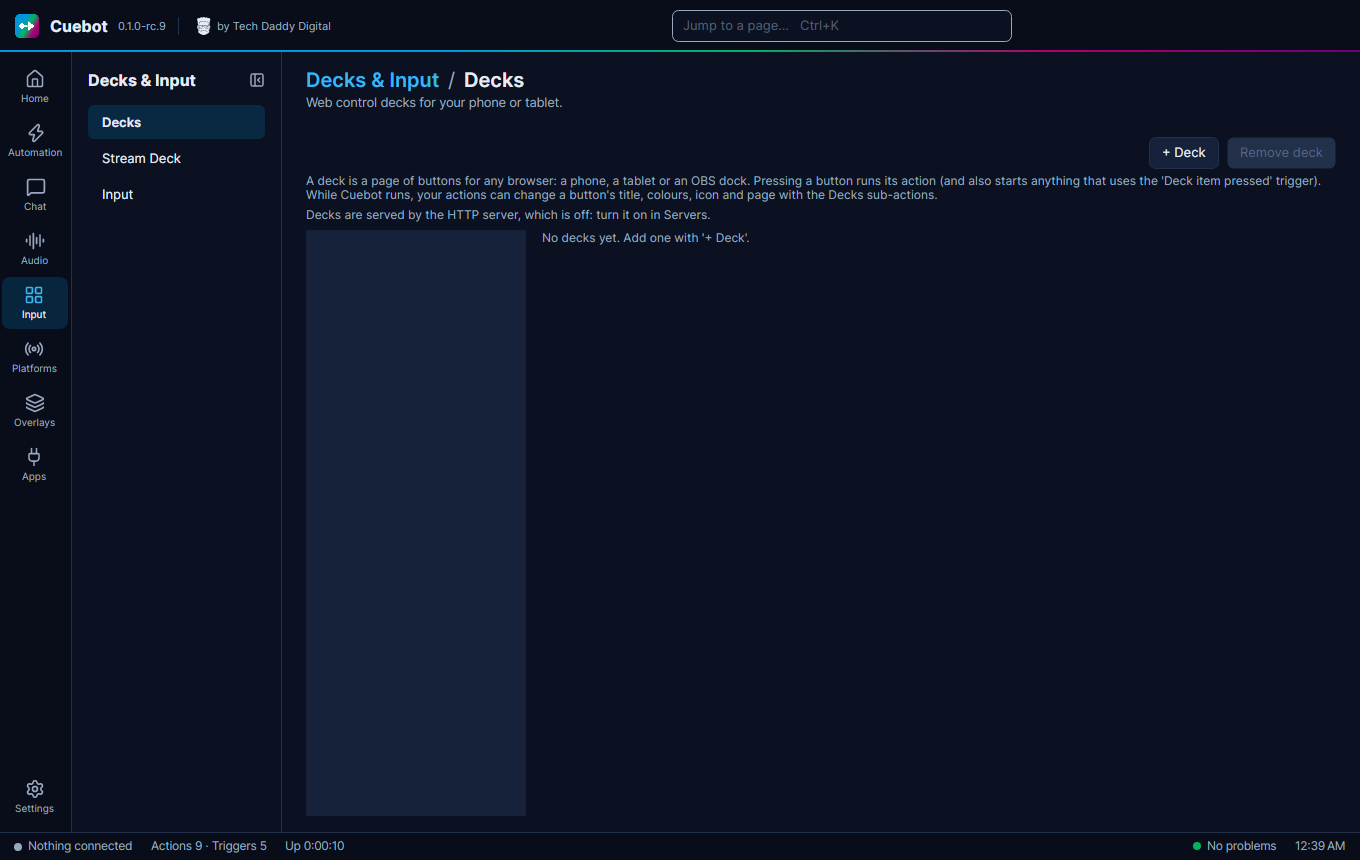
| Decks | Pages of buttons for your phone, tablet or an OBS dock. | Decks |
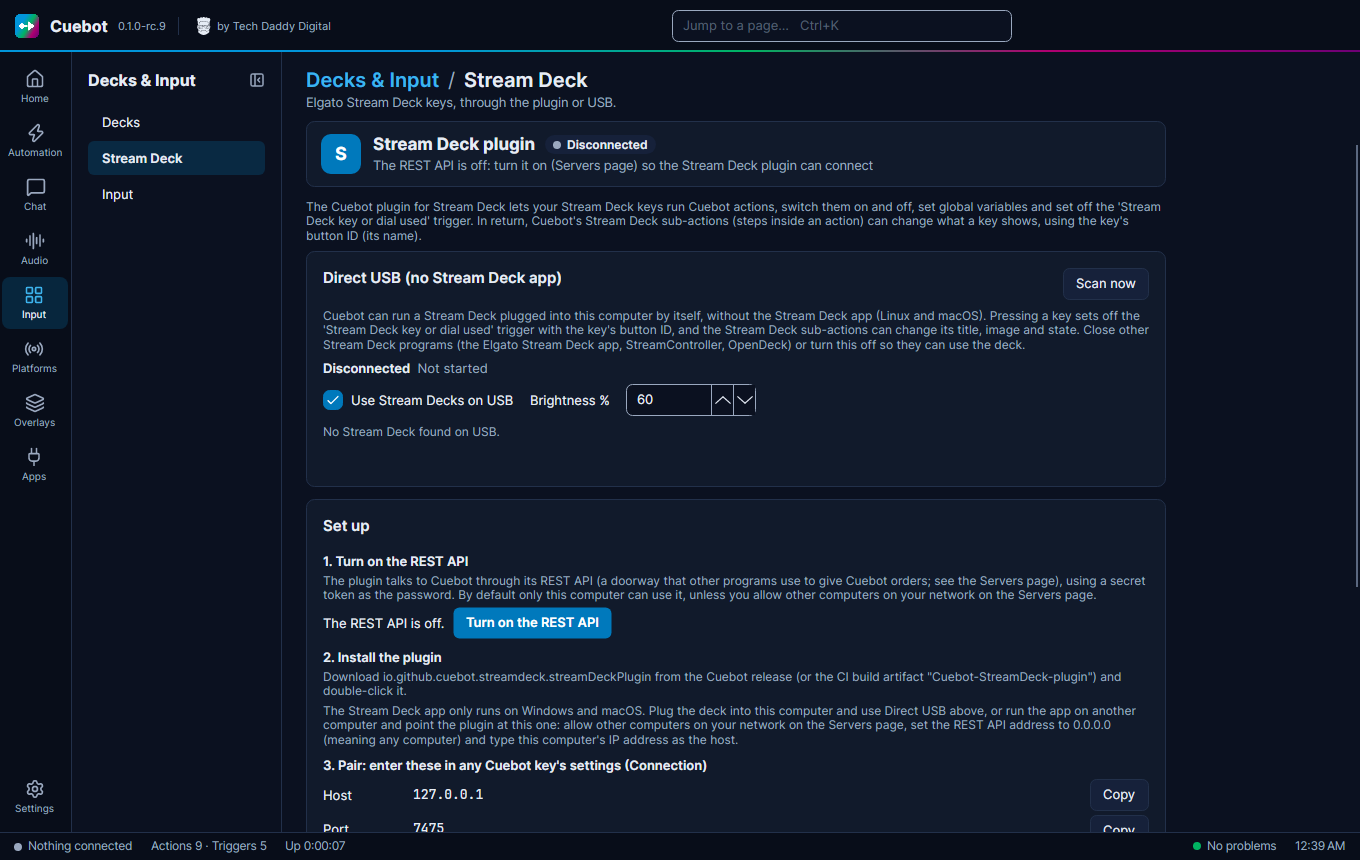
| Stream Deck | Elgato Stream Deck, with the Stream Deck app or straight over USB. | Stream Deck |
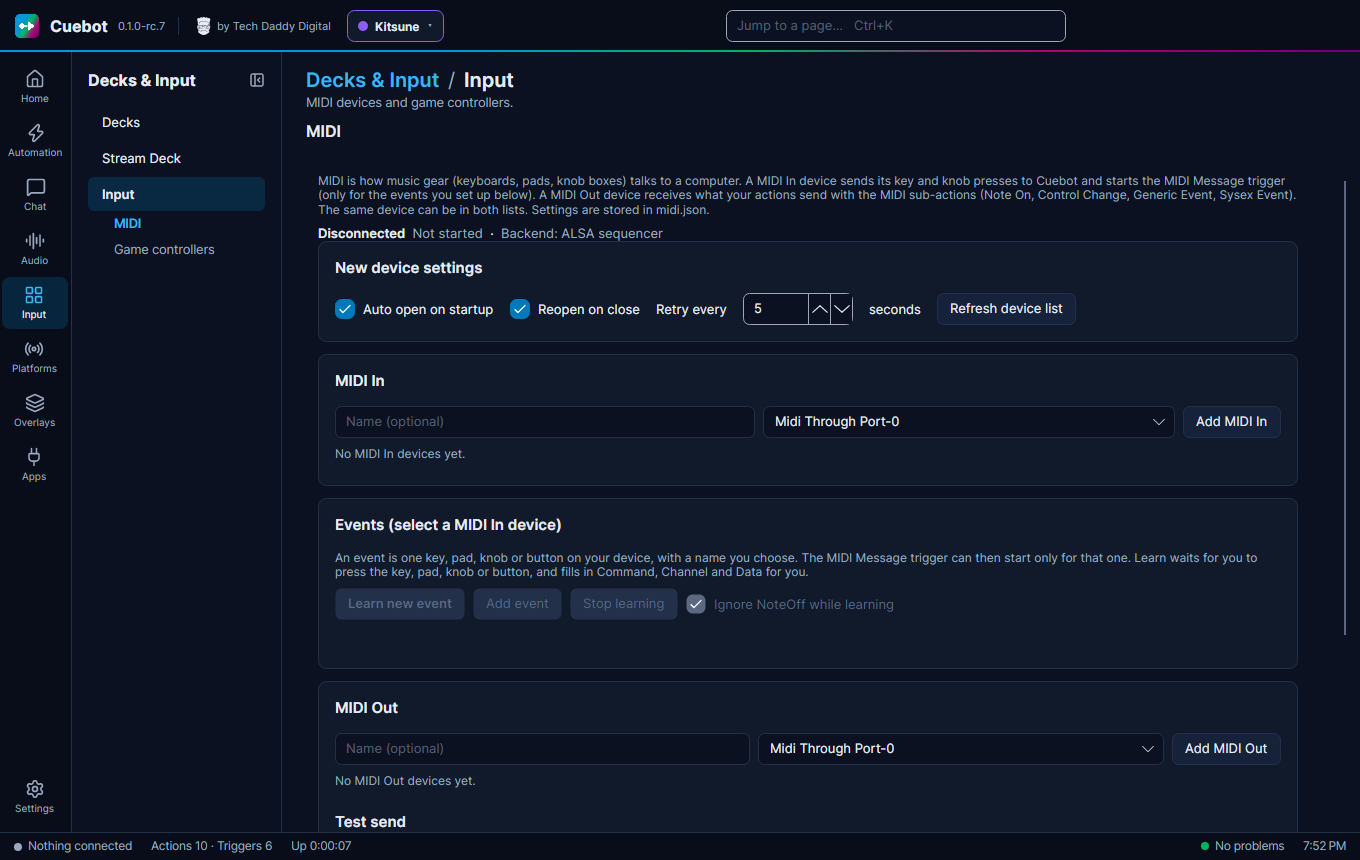
| Input | MIDI controllers and game controllers. Tabs MIDI and Game controllers. | Your buttons and controllers |
| Page | What it is for | Guide |
|---|---|---|
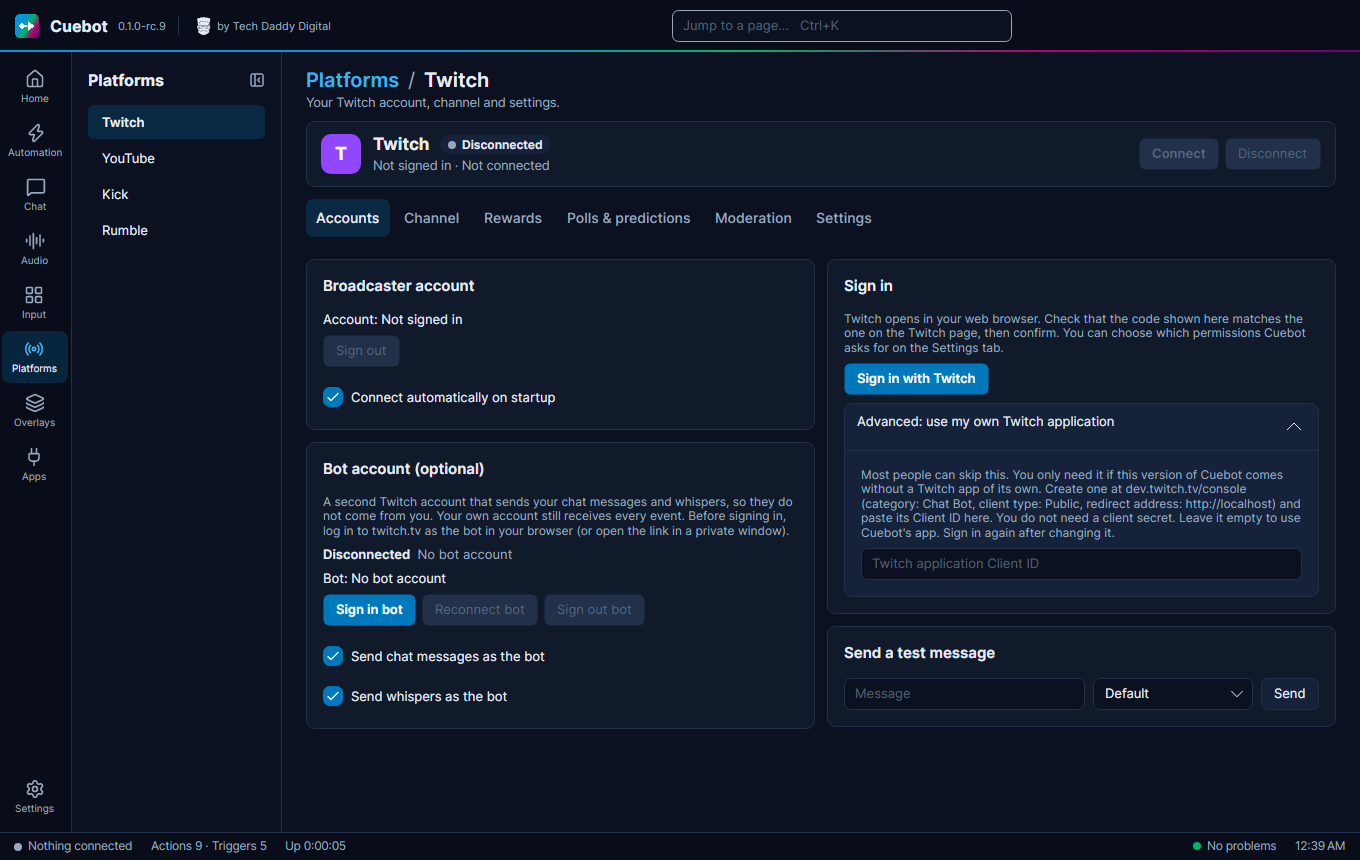
| Twitch | Sign in, your channel, rewards, polls and moderation. Tabs Accounts, Channel, Rewards, Polls & predictions, Moderation and Settings. | Twitch |
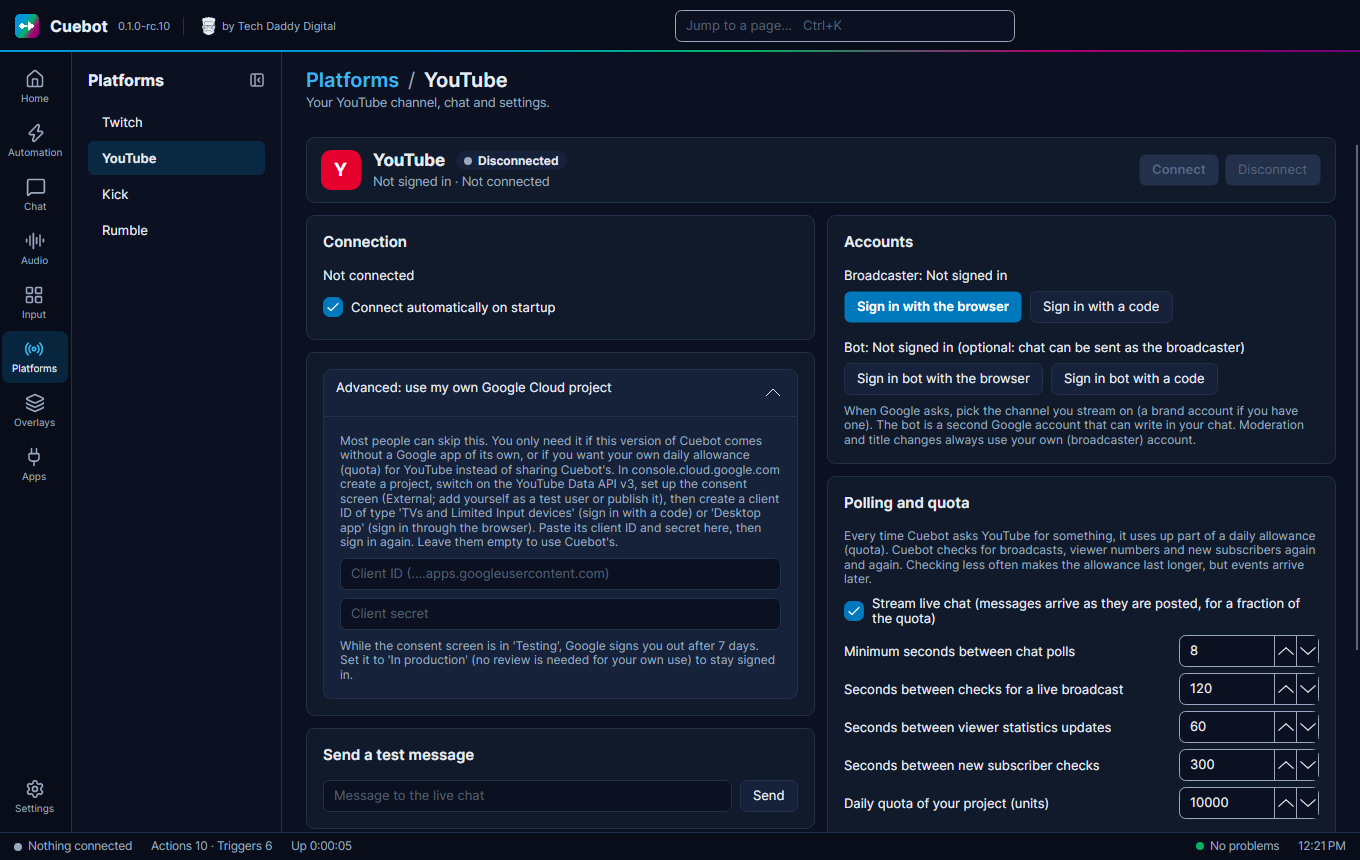
| YouTube | Sign in, your current broadcast and chat. | YouTube |
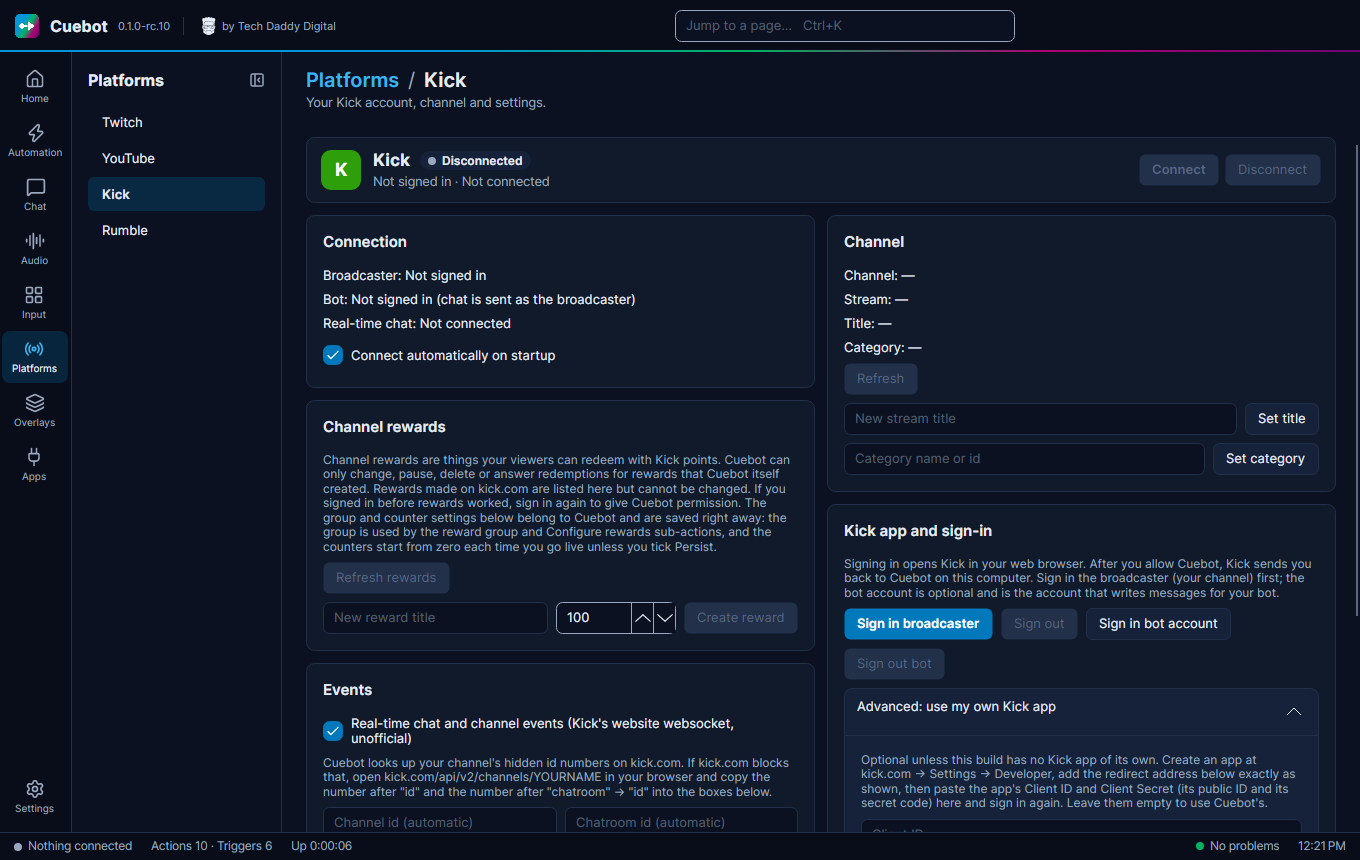
| Kick | Sign in, your channel and rewards. | Kick |
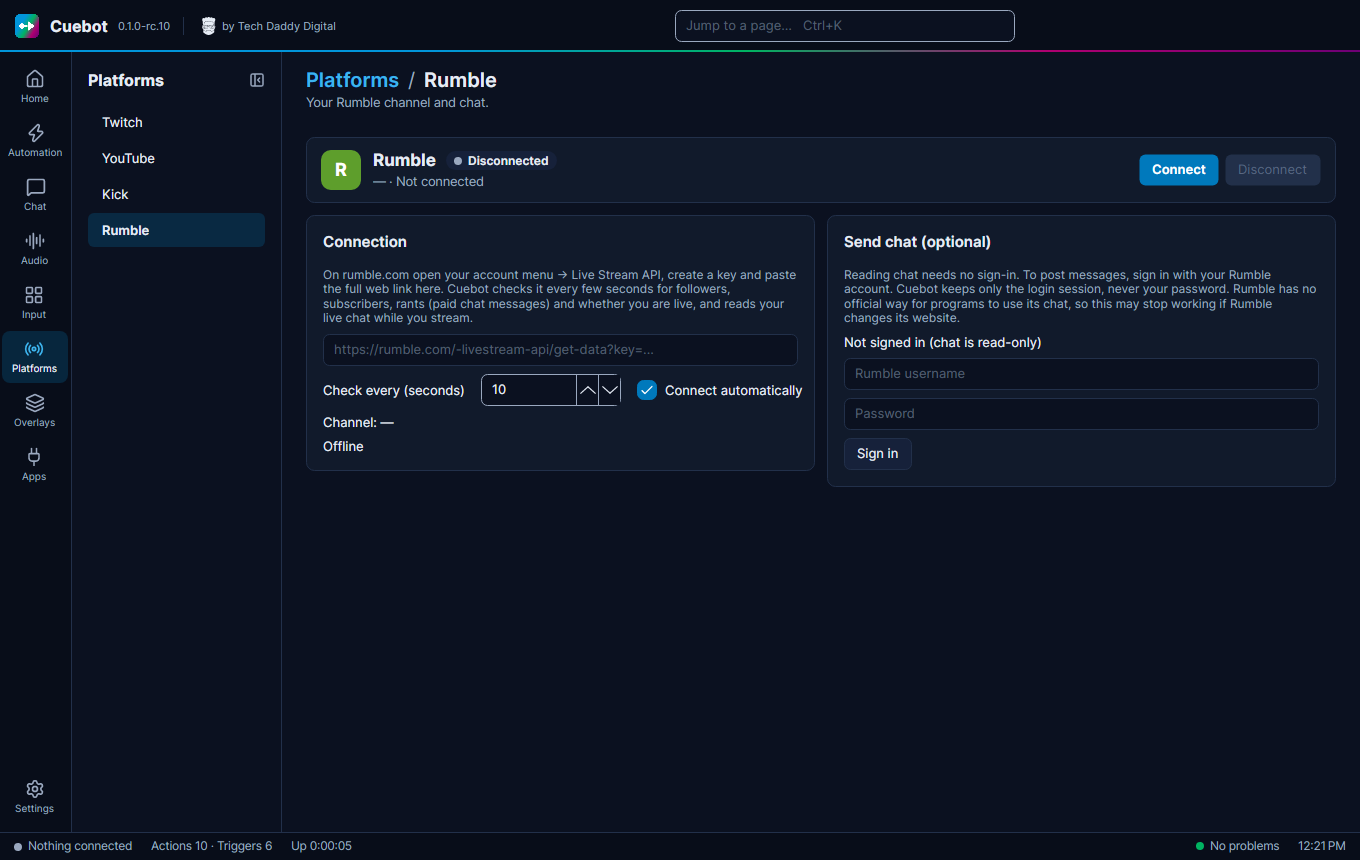
| Rumble | Your Rumble channel and chat. | Rumble |
| Page | What it is for | Guide |
|---|---|---|
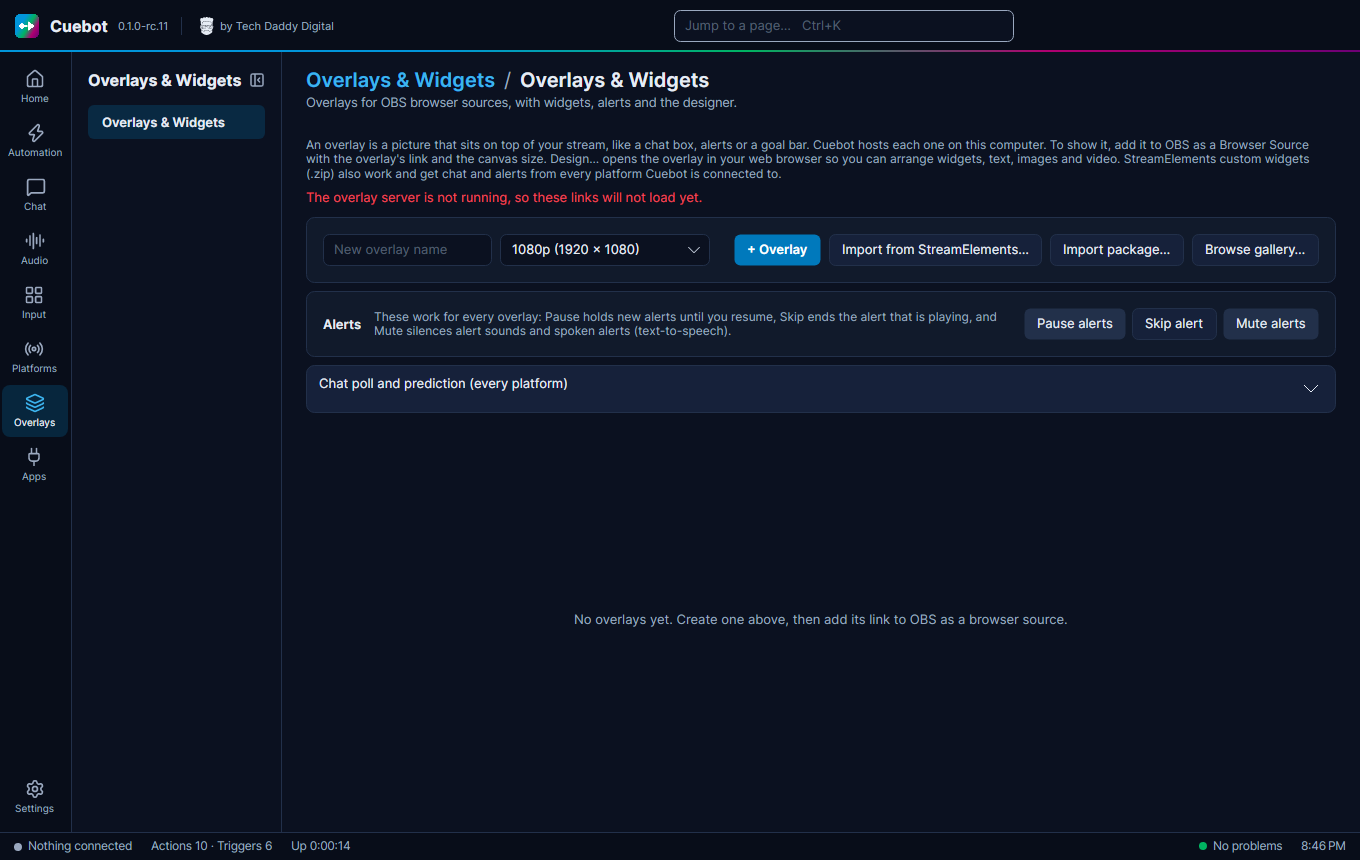
| Overlays & Widgets | Overlays for OBS, with widgets, alerts, the designer and the community gallery. | Overlays and alerts |
| Page | What it is for | Guide |
|---|---|---|
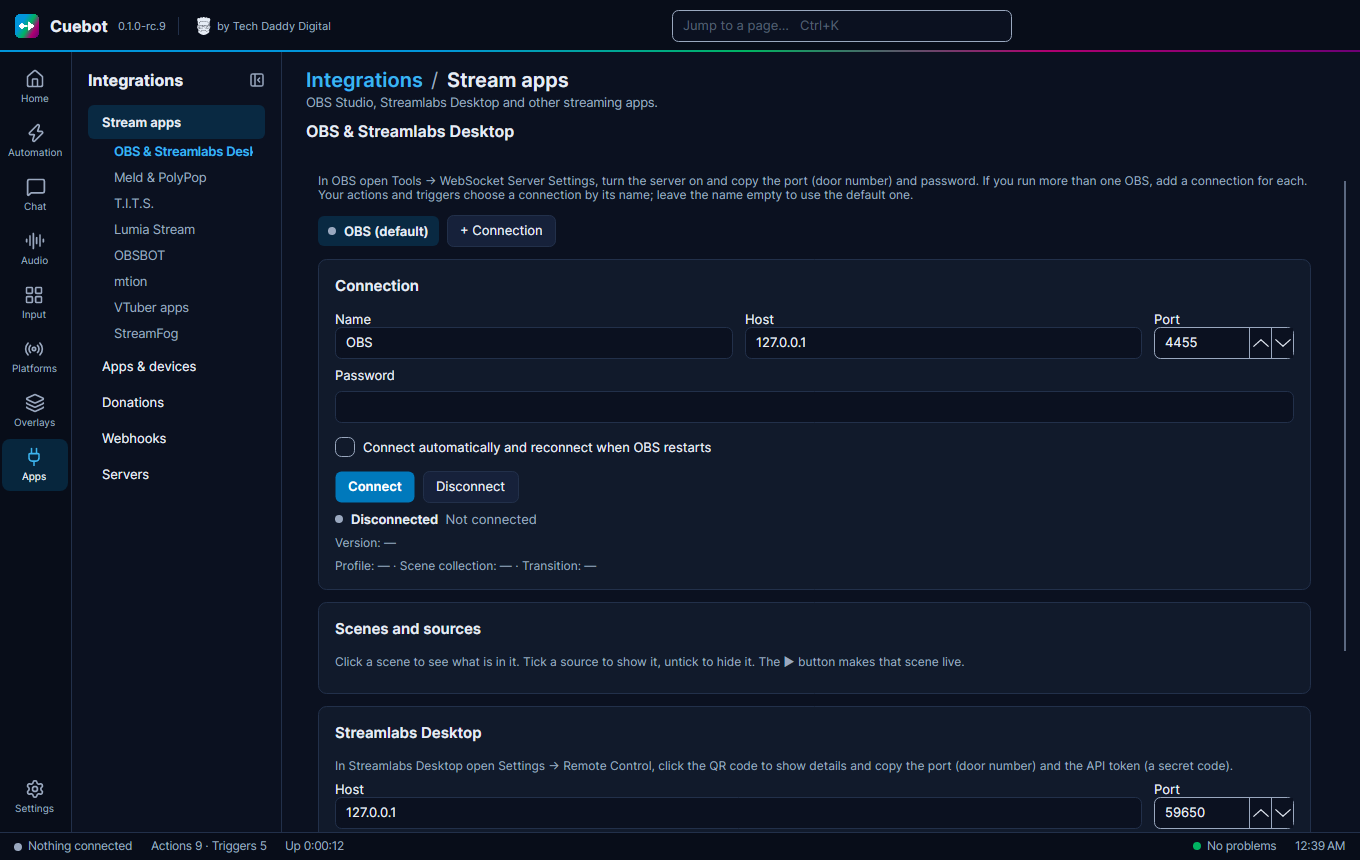
| Stream apps | OBS, Streamlabs Desktop and other stream apps. Tabs OBS & Streamlabs Desktop, Meld & PolyPop, T.I.T.S., Lumia Stream, OBSBOT, mtion, VTuber apps and StreamFog. | Stream apps, VTuber apps |
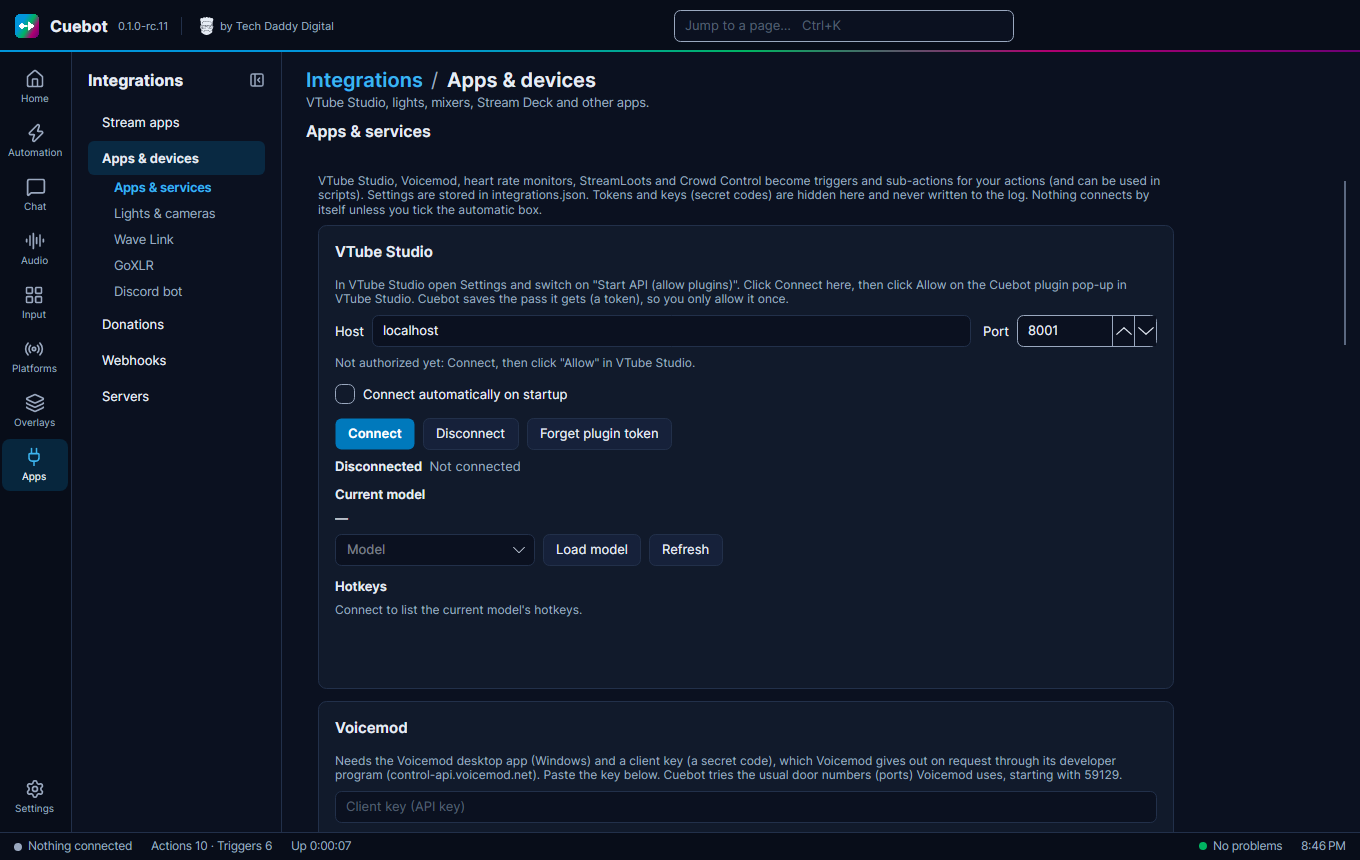
| Apps & devices | Lights, mixers, apps and your Discord bot. Tabs Apps & services, Elgato lights & webcams, Wave Link, GoXLR and Discord bot. | Lights, mixers and other apps, Discord bot |
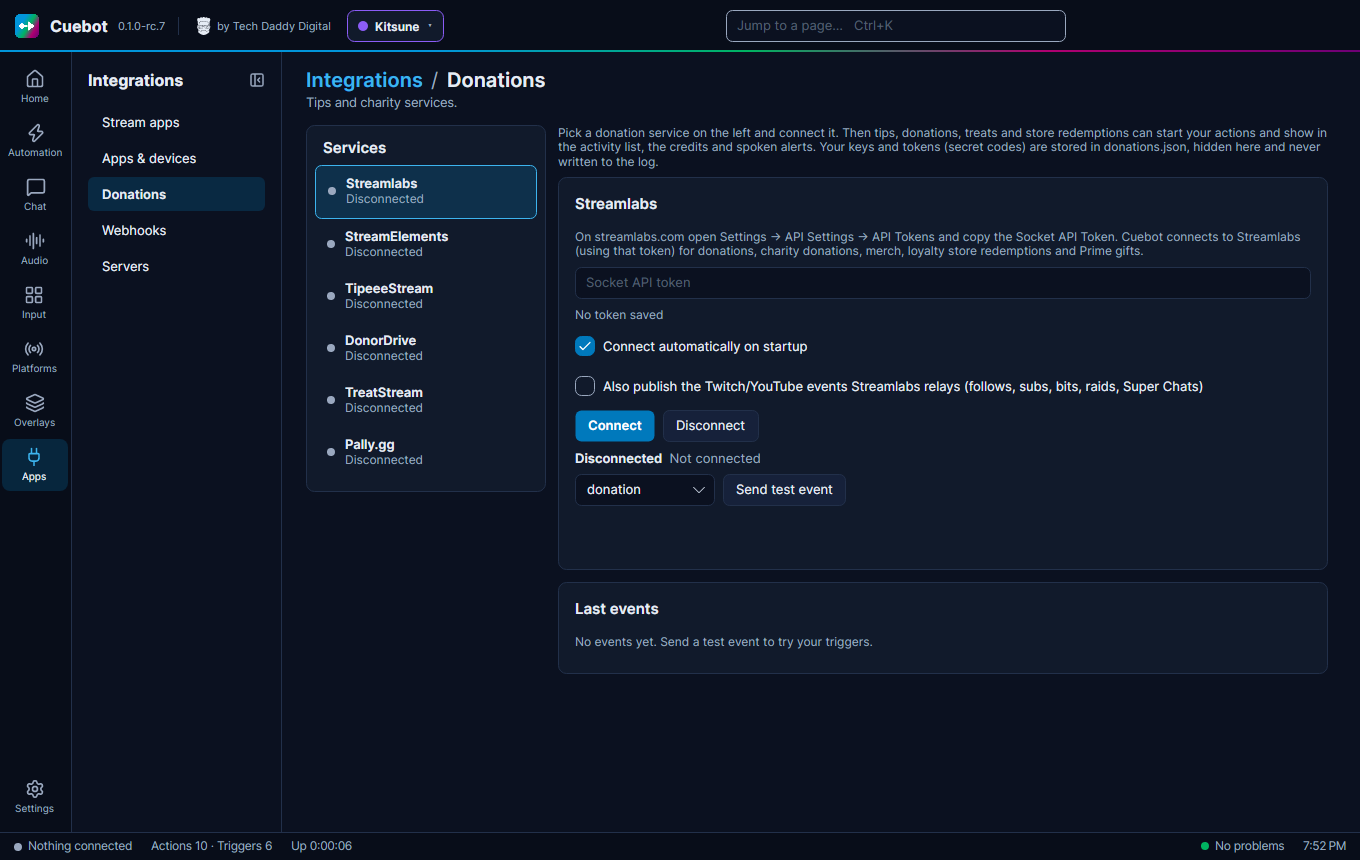
| Donations | Tips and charity services. | Donations |
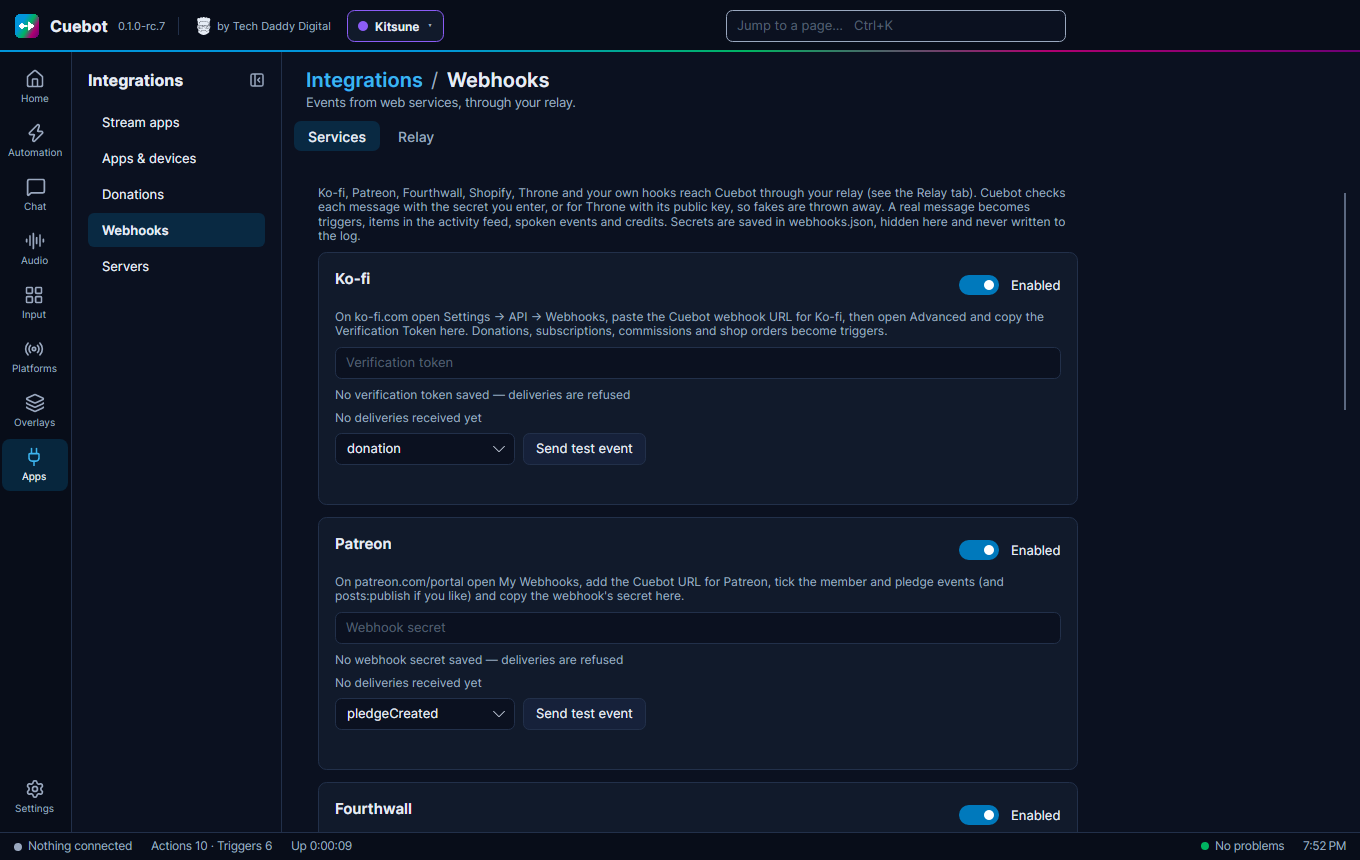
| Webhooks | Events from web services, through your relay. Tabs Services and Relay. | Webhooks |
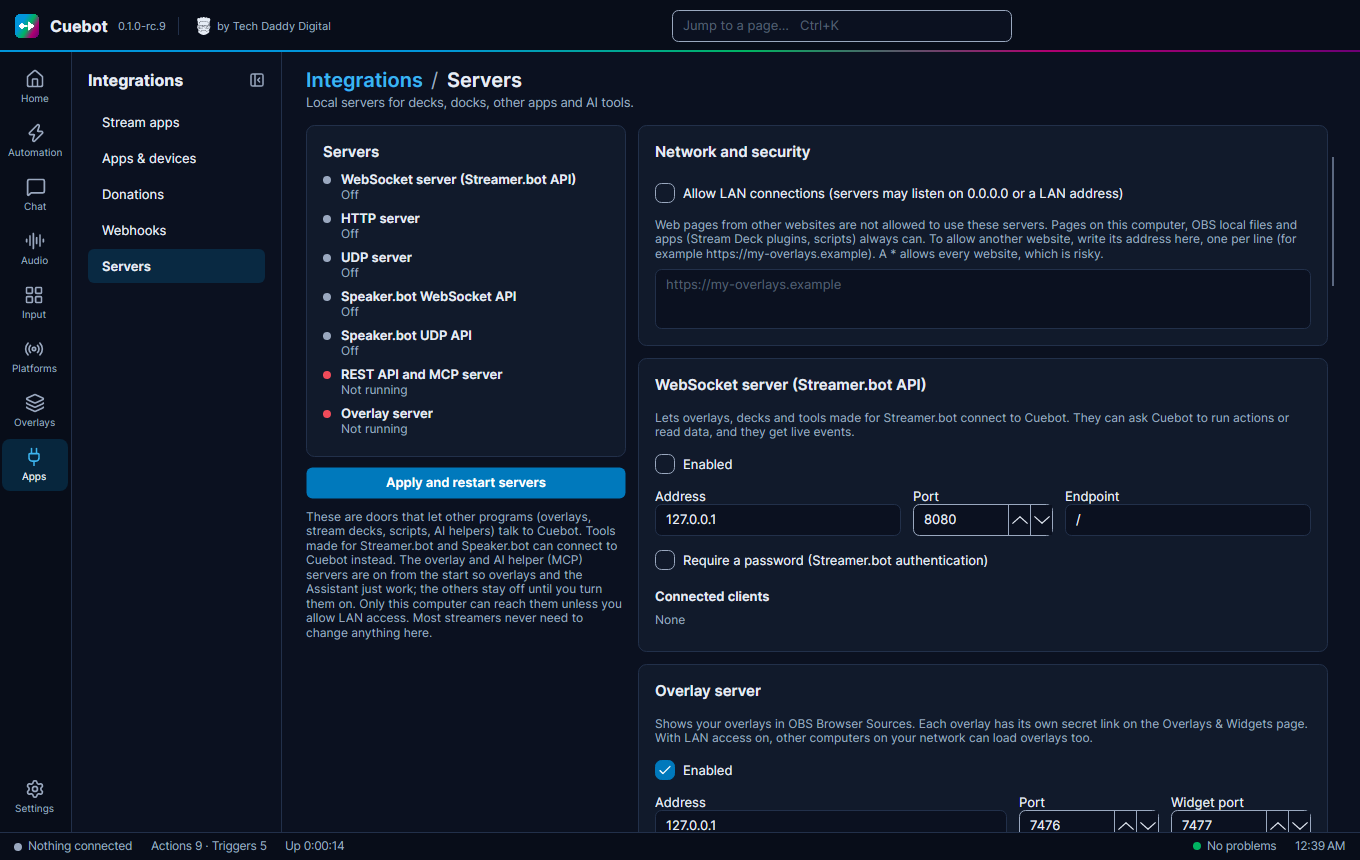
| Servers | Doors that let other programs talk to Cuebot. | Cuebot's servers |
| Page | What it is for | Guide |
|---|---|---|
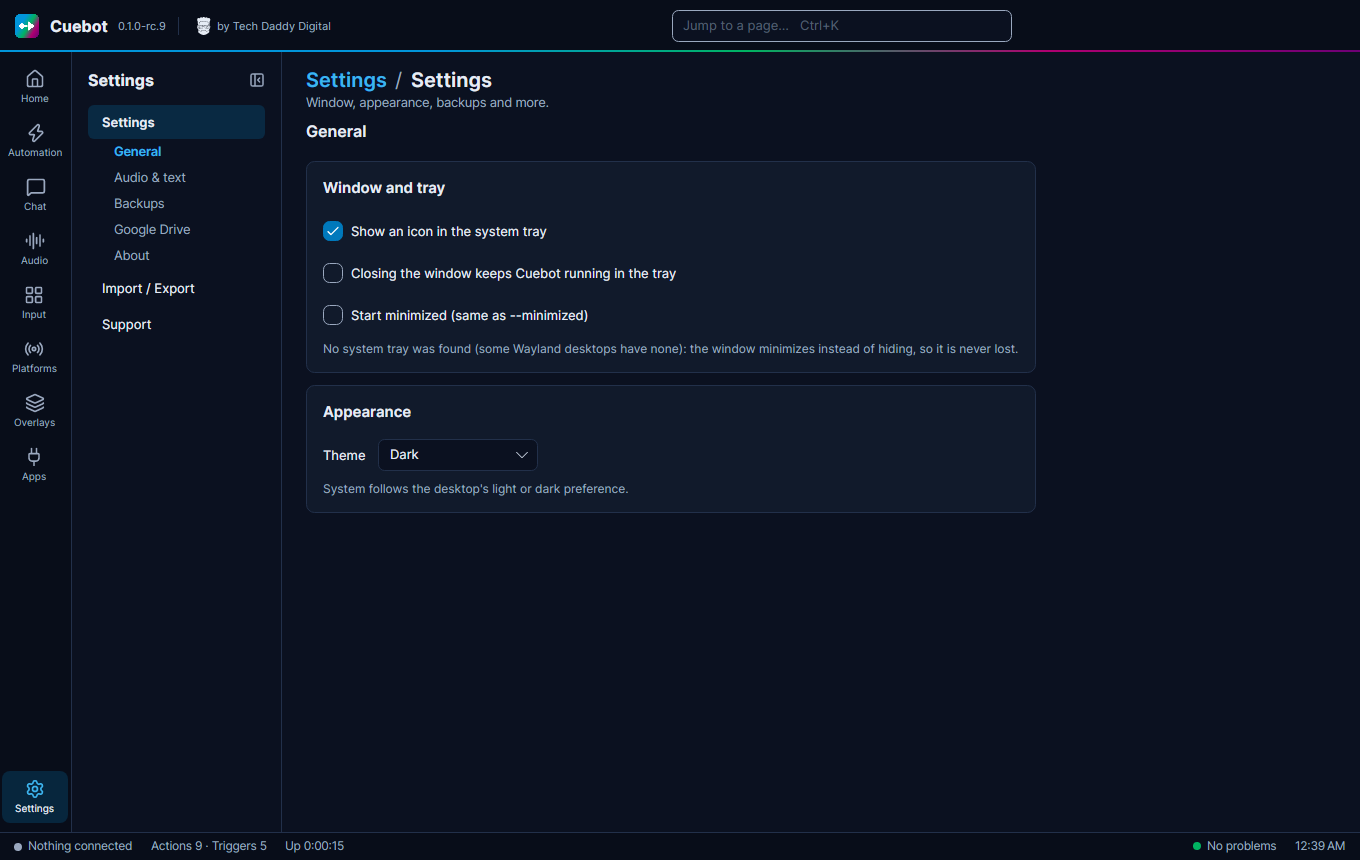
| Settings | Tabs General (tray, theme), Audio & text (sound devices, number and date format), Backups, Google Drive and About (version, data folder). | Backups and your data, Settings |
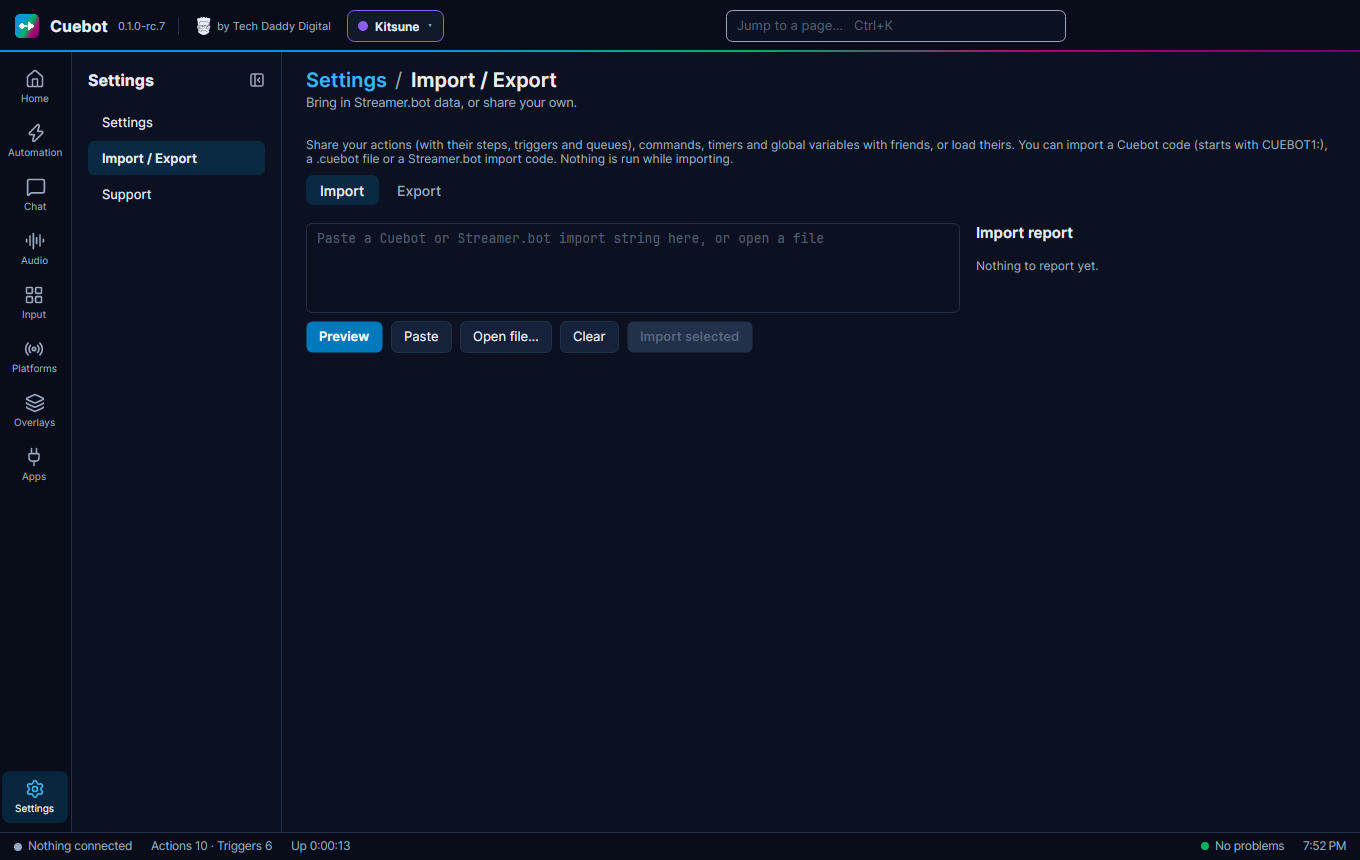
| Import / Export | Bring in Streamer.bot actions, or share your own. Tabs Import and Export. | Moving from Streamer.bot |
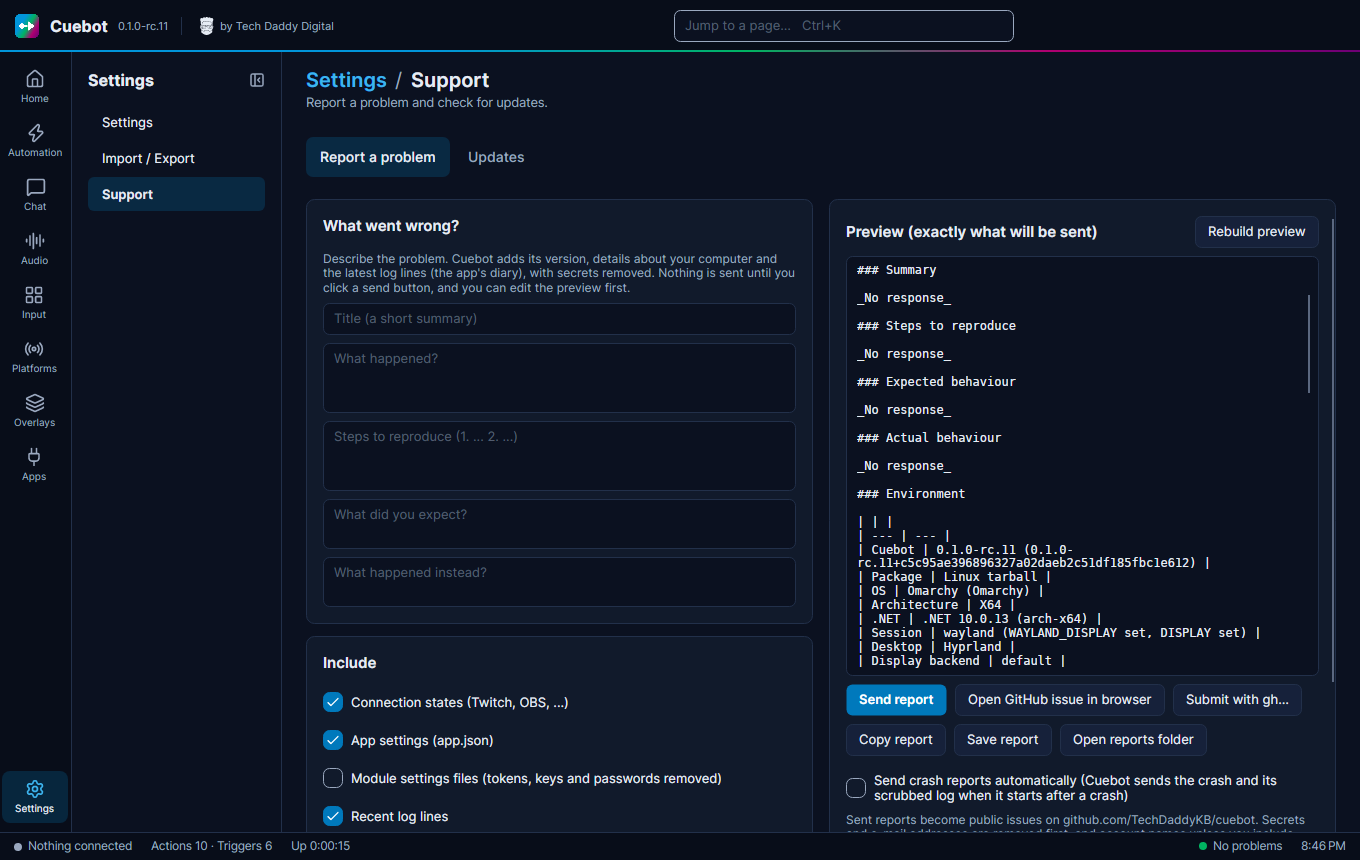
| Support | Report a problem, and check for updates. Tabs Report a problem and Updates. | Asking for help, Updates |
Chat & Events > Chat shows the chat of every platform you are signed in to, in one list.
- Type in the box at the bottom and press
Enter(or click Send) to write in chat. The list next to it picks where it goes: one platform, or all connected ones. - Click a message to see what you can do with it: Reply, Delete message, Timeout 1 min, Timeout 10 min, or ban the person (click once, then again to confirm).
- In the send box, type
:for emotes, or/helpfor the slash commands. - The chat options let you show emotes as pictures (also from 7TV, BTTV and FFZ), show pronouns, colour messages that mention your name or come from first-time chatters, and add quick action buttons that run an action.
- The Activity tab lists follows, subs, raids, tips and other events.
Want the chat inside OBS? The HTTP server gives you a chat dock and an event dock.
- General: tick Show an icon in the system tray to keep Cuebot next to the clock. Closing the window keeps Cuebot running in the tray hides it instead of closing it. Start minimized starts it hidden. Theme picks light, dark, or System (the same as your computer).
-
Audio & text: pick the Output devices (speakers) and Input devices (microphones) Cuebot may use. Culture
sets how numbers and dates look, like
1,000.5or1.000,5. - Backups and Google Drive: see Backups and your data.
- About: your Cuebot version and where your data folder is. Open opens the data folder.