Repository navigation
Mod Portal
Also on the Cuebot Docs site.
The mod portal lets your moderators help with your stream from anywhere: from their phone or their browser, without being at your computer. You decide what each mod may do. They might run actions, change chat commands, set up sound alerts, or more.
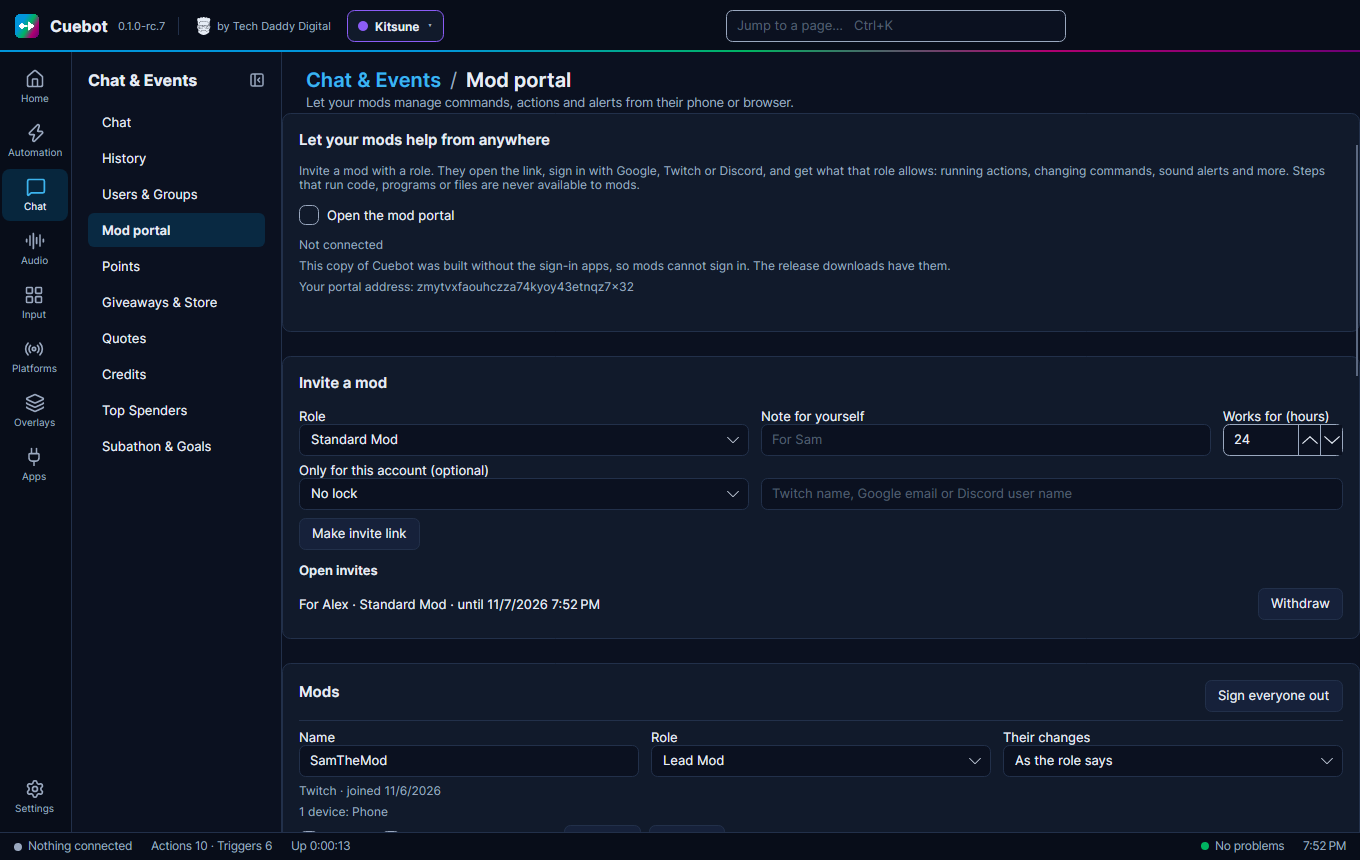
- You tick Open the mod portal. Cuebot stays connected to the portal relay while it runs.
- You make an invite on Chat & Events > Mod portal and choose a role for it.
- You send the link to your mod privately.
- The mod opens it and signs in with Google, Twitch or Discord. They get the role you chose.
- The link is used up. Their browser remembers them, so next time they just open
portal.techdaddydigital.com. Every 30 days, or on a new device, they sign in again with the same account.
You can change a mod's role, pause them or remove them at any time. A change applies at once.
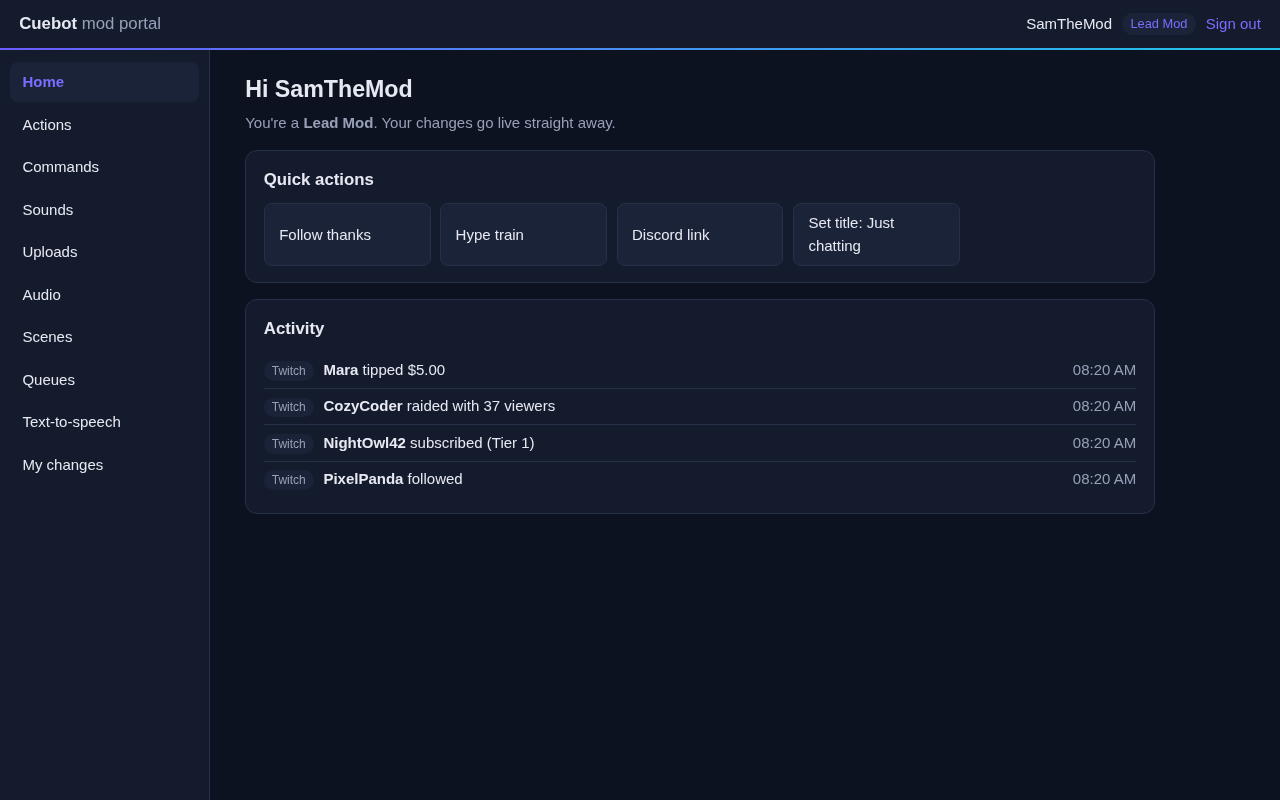
Mods open portal.techdaddydigital.com on their phone or computer. They only see the pages their role allows:
| Page | What it does | Who (default roles) |
|---|---|---|
| Home | Quick buttons for the actions they may run, and live activity (follows, subs, raids, tips) | Everyone |
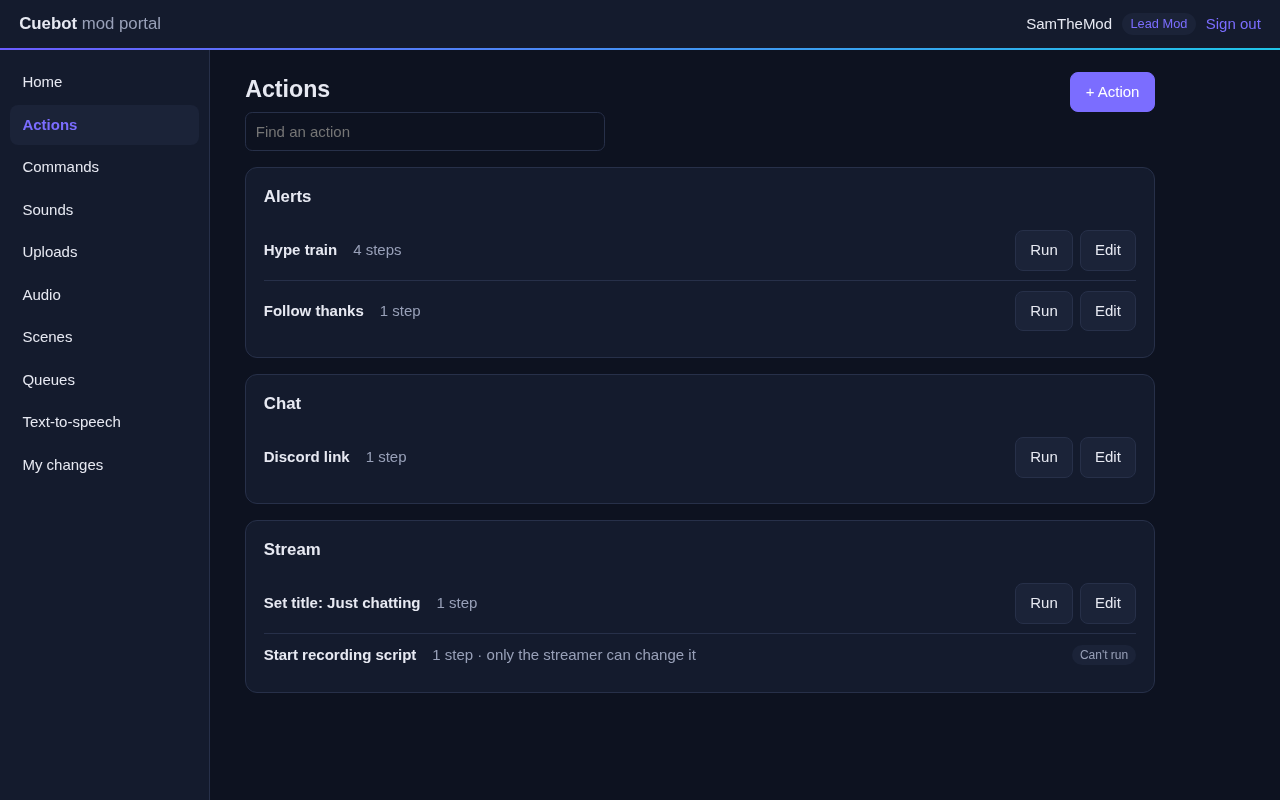
| Actions | Run actions, and change or add them, with the steps their level allows | Everyone runs; Lead Mod and Tech Lead change |
| Commands | Add and change chat commands | Everyone |
| Sounds | Play the sounds your actions use, on stream | Everyone |
| Audio | Volume and mute for your OBS audio sources | Everyone |
| Scenes | Switch your OBS scene | Lead Mod, Tech Lead |
| Queues | Pause, resume or clear action queues | Lead Mod, Tech Lead |
| Text-to-speech | Say something with your default voice and word filters; pause, skip or turn it off | Everyone says; Lead Mod and Tech Lead control |
| My changes | Their own changes, with Undo | Everyone |
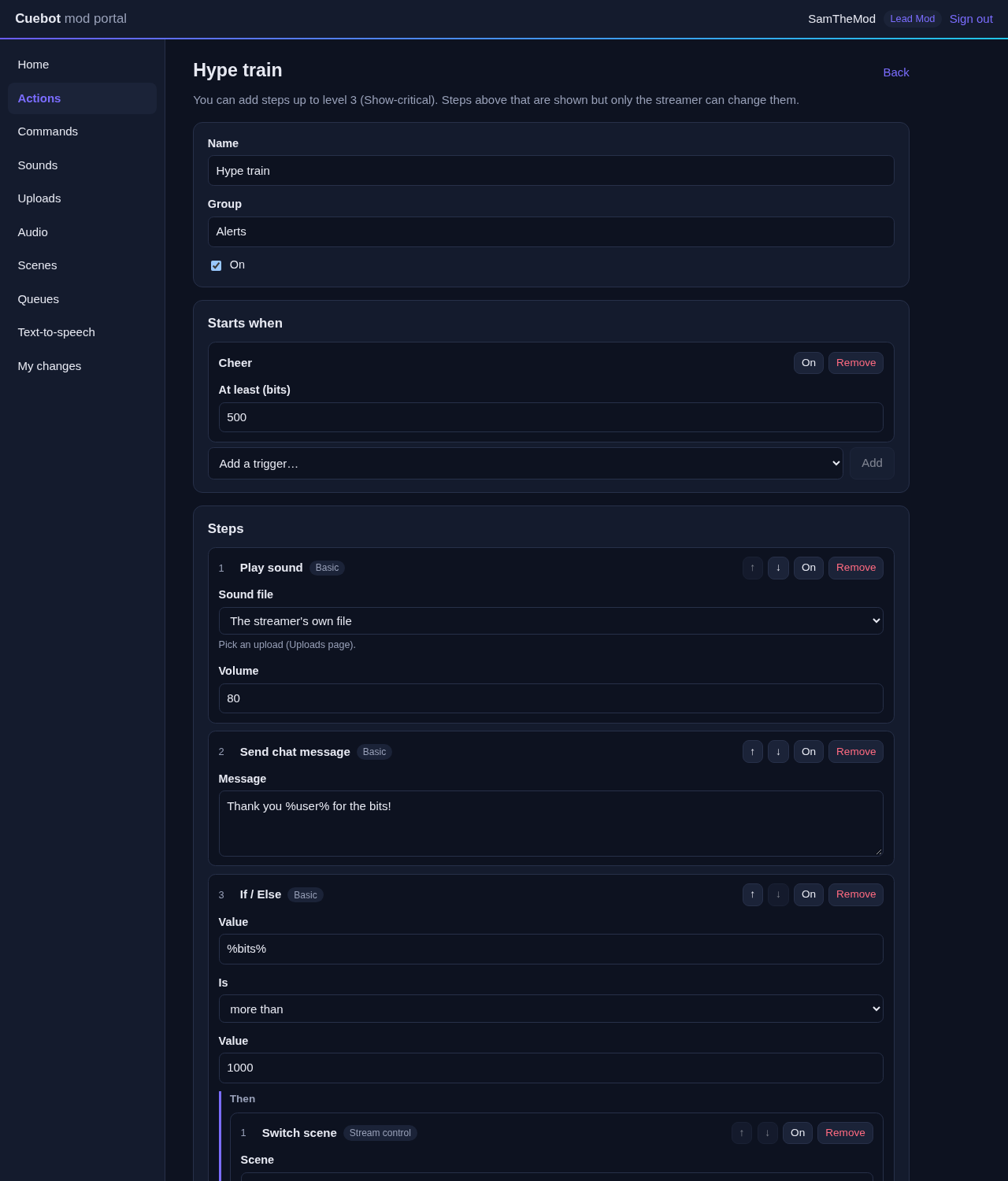
In the action editor, steps above the mod's level are shown but locked, and the step list only offers the steps they may add. Before running an action that can change the stream itself (end it, ban someone, change the title), the portal asks the mod to confirm.
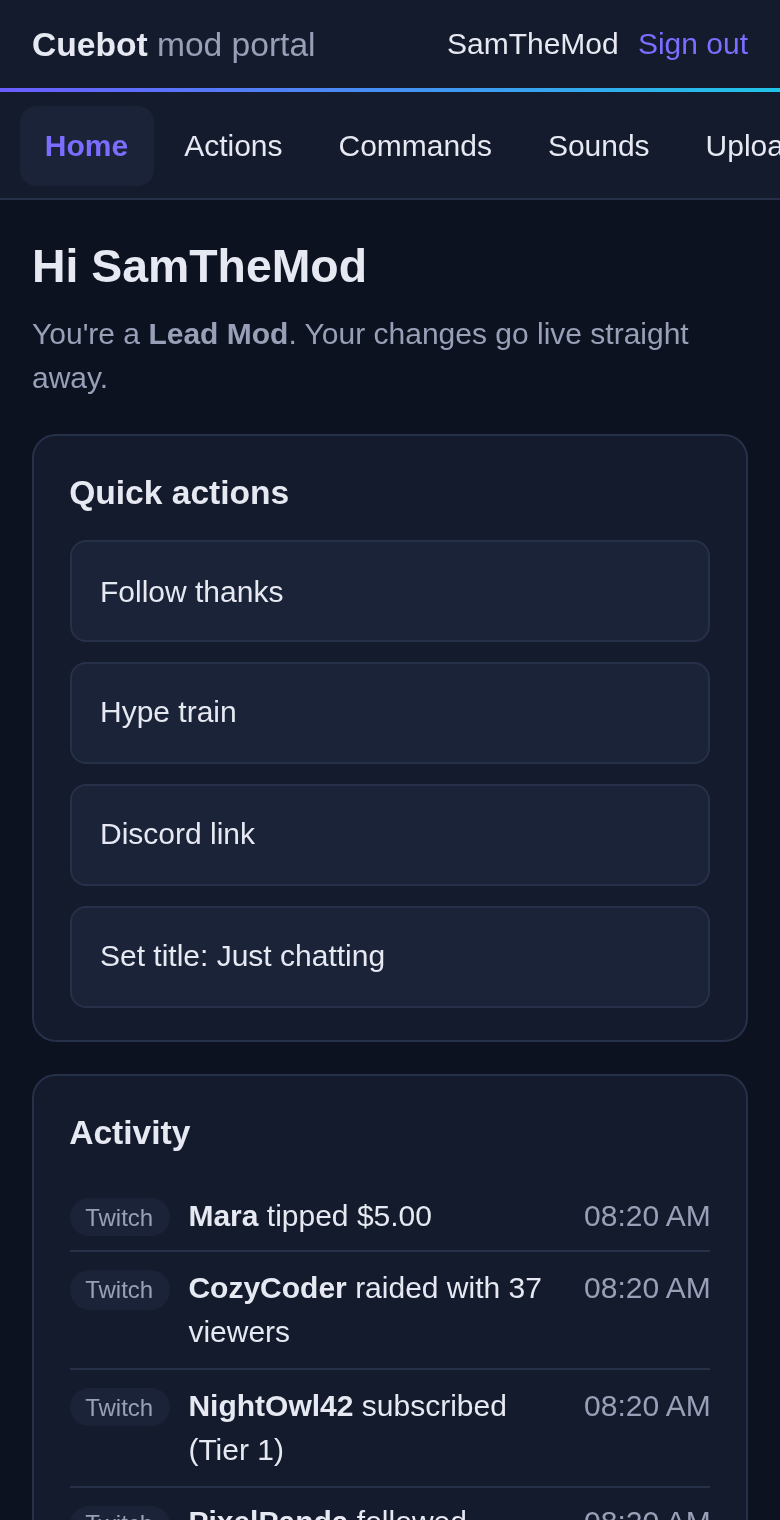
Everything a mod does is written to Cuebot's log with their name: scene switches, volume changes, sounds played, text-to-speech. Each mod can press at most 30 such controls a minute.
Good to know: - Scenes and audio work with OBS (not yet with Streamlabs Desktop or Meld Studio).
- Sounds lists the sound files your Play sound steps use. Mods cannot play any other file.
- Uploading sounds and images, and editing overlays, come in later updates.
- To run an action, a mod needs the level of its riskiest step, the same as for changing it. A Standard Mod can run an action that only sends chat messages, but not one that changes the title. Actions with code, program or file steps never run from the portal. The portal marks the actions a mod can't run. To keep an action away from a role altogether, put it in a group the role cannot use (Groups on the role).
Cuebot starts with three roles. You can rename them, change them, or add your own with + Role.
| Standard Mod | Lead Mod | Tech Lead | |
|---|---|---|---|
| Highest level | 1 | 3 | 4 |
| Commands | Create, change | Create, change, delete | Create, change, delete |
| Actions | Run | Create, change, delete | Create, change, delete |
| Their changes | Need your approval | Live, and you get a notice | Live |
The level decides which steps a mod may add or change:
| Level | Steps |
|---|---|
| 1 Basic | Chat messages, sounds, alerts, text-to-speech, delays, If and other logic |
| 2 Stream control | Scenes and sources, audio levels, raids, ads, polls, timeouts |
| 3 Show-critical | Going live or ending the stream, bans, title and category |
| 4 Trusted tech | Variables, web requests, decks, MIDI, devices and other apps |
Never, for anyone: steps that run code (C# or Python), run programs, or read and write files. Mods cannot add them, or run an action that has one. They also cannot change such an action, or a command that starts one. And whatever a mod changes can never reach those steps, not even through a variable: such a step refuses to run with what a mod set.
A role can also be limited to some groups of actions and commands, like "Mod tools".
- Live: the change applies at once.
- Live and tell me: it applies at once, and you get a notice.
- Needs approval: it waits under Waiting for your approval until you approve or reject it. A change nobody answers expires after 7 days.
Every role has one of these. You can set a different one for a single mod under Their changes.
Under Recent changes by mods, Undo puts back what was there before. If it changed again since, Cuebot asks you to press Undo once more to be sure.
- An invite works once, for the hours you choose (24 by default, at most 30 days).
- Only for this account locks it to one Twitch name, Google email or Discord user name, so a leaked link is useless to anyone else.
- Withdraw stops an open invite at once.
- A mod who lost their account: remove them and send a new invite.
- Your Cuebot has to be running with Open the mod portal ticked when the mod opens the link. Otherwise they see "The streamer's Cuebot is not online right now".
The connection between your mods and your Cuebot is encrypted end to end. The portal service in between only
passes it along and stores nothing about you or your mods. Your mods' details stay on your computer, in
portal.json.
Signing in only tells your Cuebot who the mod is: the account's permanent ID and name (and, for Google, the email address, used only for Only for this account). Cuebot cancels its access to the mod's account right after reading that. It never posts, reads messages or keeps a login for their account.