Repository navigation
Tutorial 02 Making a character PC Wizard and Hyperdrive import
For players and the GM. The content from chapter 1 has to be set up first.
There are two ways to make a character:
- the PC Wizard, which builds the character step by step inside Foundry;
- the Hyperdrive importer, which brings in a character built on Hyperdrive Generator.
Both buttons are at the top of the Actors sidebar.
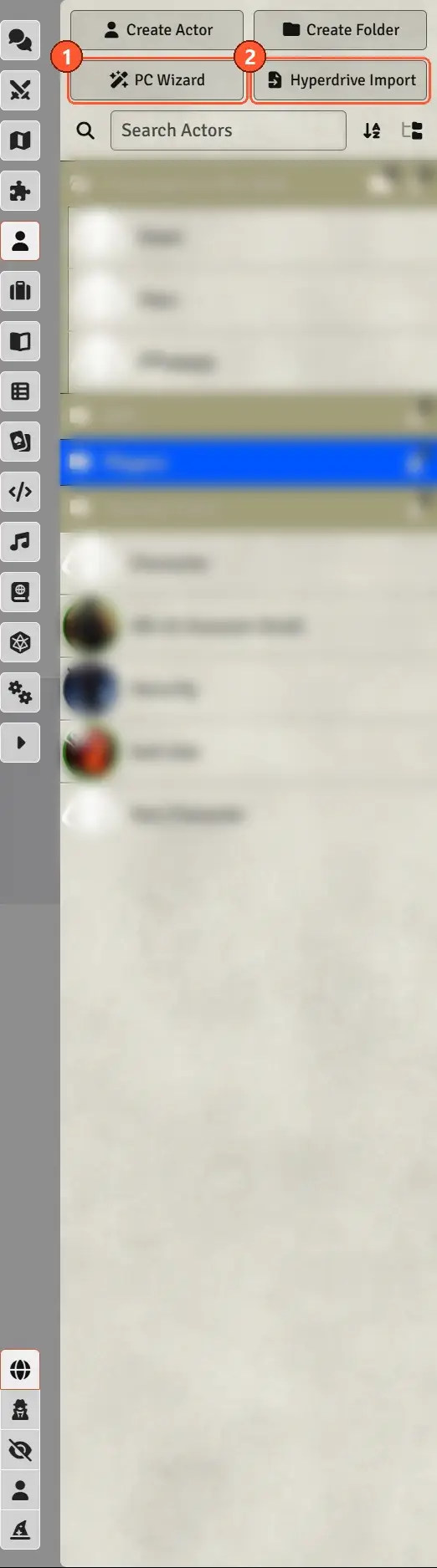
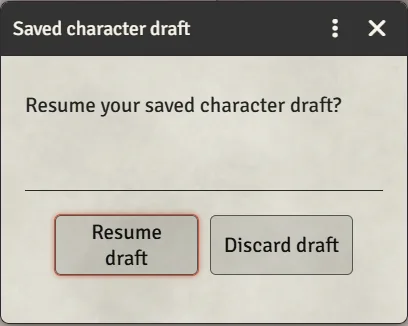
- Click PC Wizard. If you have a draft saved from last time, choose Resume draft or Discard draft.
- Work through the tabs from left to right. The header keeps a running total of your XP, credits
and obligation.
- General: name, portrait and token image. The GM may tell you to enter Extra XP or Extra credits here. (When a player creates the character, the token image is not carried over; set it on the finished actor's prototype token.)
- Background, then Starting Bonus, where you pick the Ruleset (Edge of the Empire, Age of Rebellion or Force and Destiny) and your starting bonus.
- Obligation, Species, Career, Specialization.
- XP Spend, which has four views: Characteristics, Bonus skills, Buy skills and Talents. Take your free career and specialization skill ranks under Bonus skills first; they're not on the Career tab. Then spend XP. Force Power appears only for Force-sensitive characters.
- Inventory: spend your credits. Use the filters to narrow the list.
- Motivation.
- On Review, check for warnings, then click Create character. Warnings never stop you; they ask you to confirm.
The new sheet opens. When a player creates the character, the GM and the player also get a link to it whispered in chat; when the GM creates one, there's no chat message.
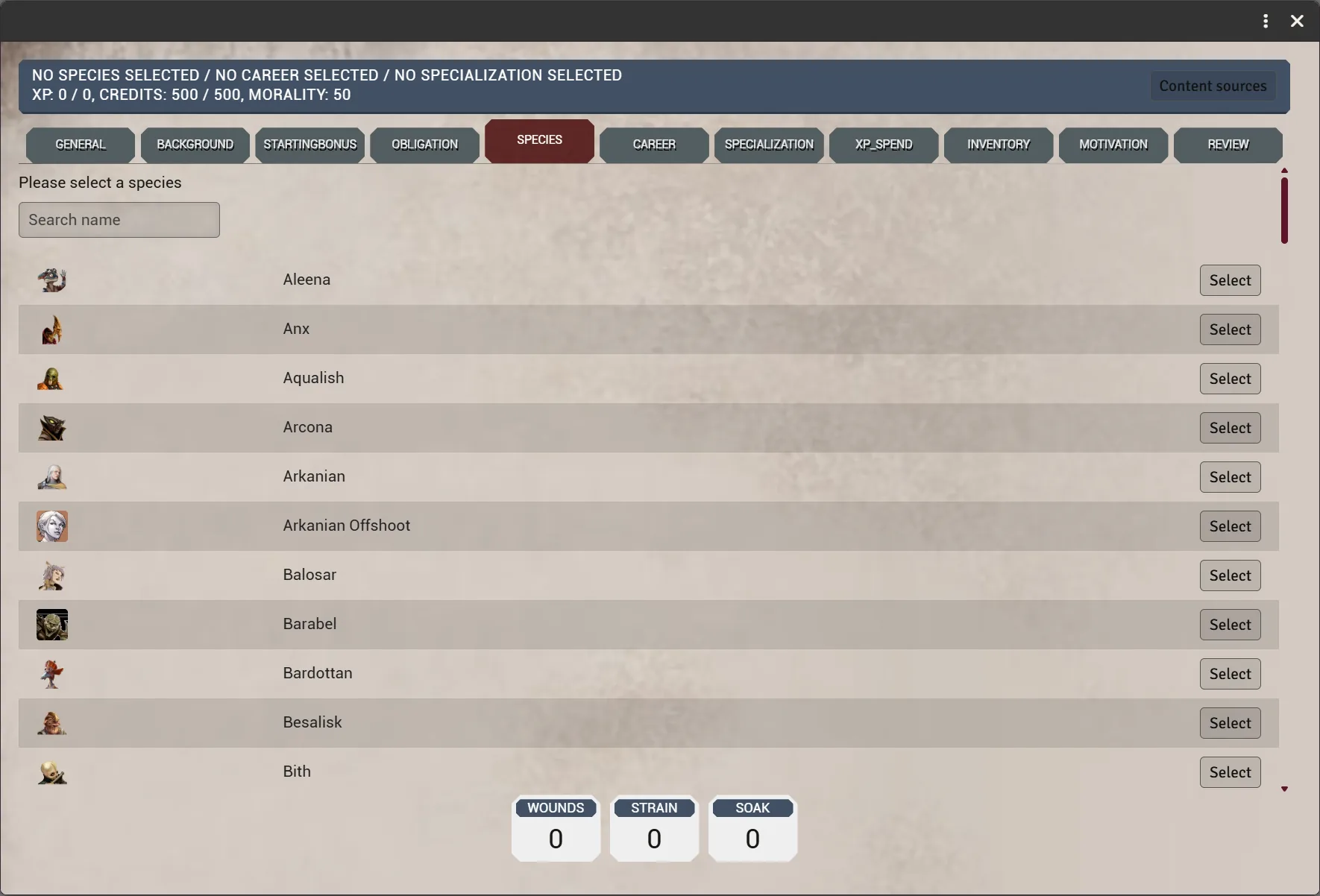
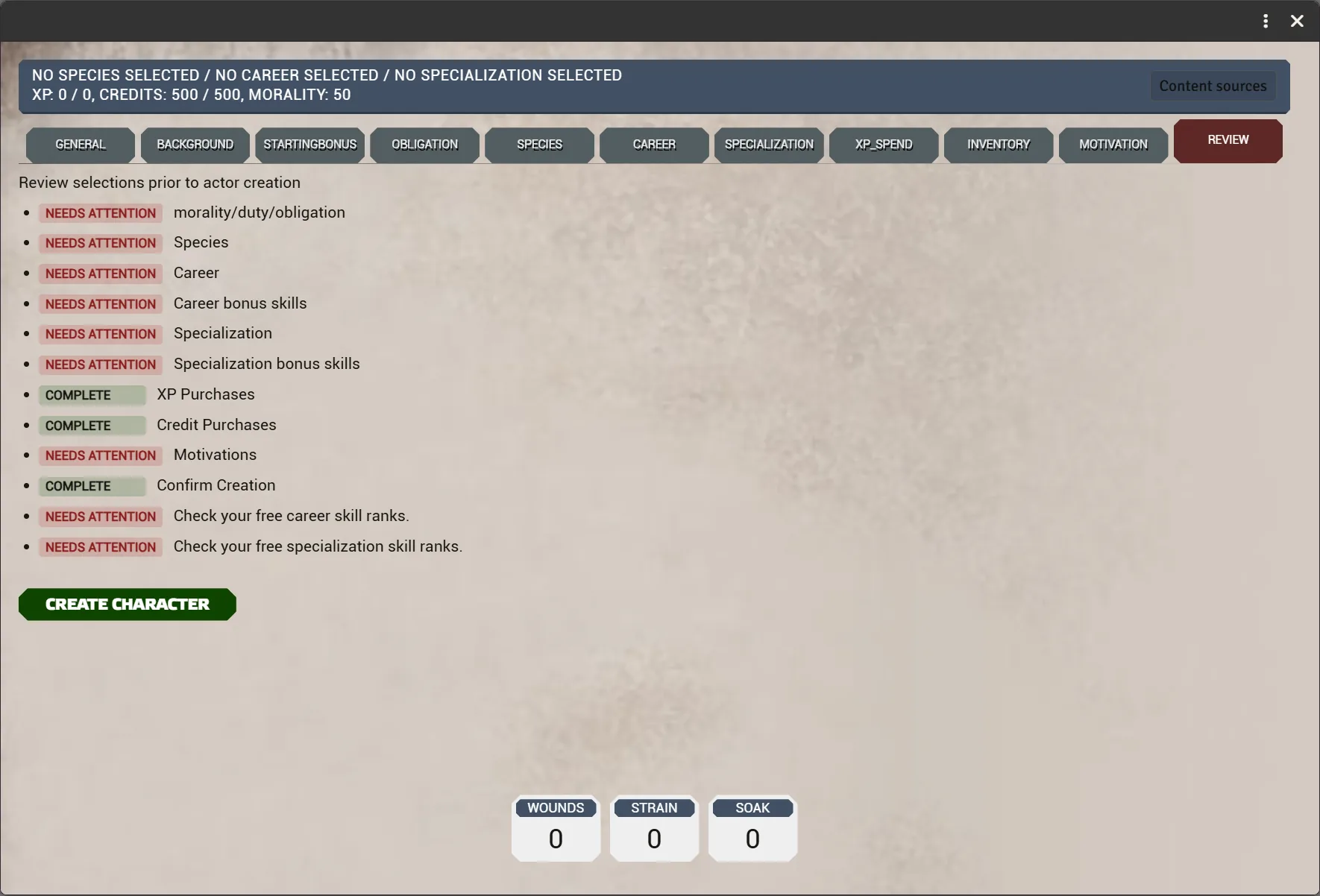
- Your progress saves itself. Close the wizard and come back later; it offers to resume.
- A GM has to be online when you click Create character. The GM's Foundry creates the actor for you. Without one, the button shows "Submitting… — not confirmed" after about 15 seconds. Nothing is lost: click it again once a GM has joined.
- Can't find something? Open Content sources in the header. Items the GM has put in the Items sidebar only appear once you switch on World items for that list.
- GM: "I got the link but the player can't see the character." It exists. Ask the player to refresh. Don't make it again, or you'll have two.
The PC Wizard guide covers every tab and the GM troubleshooting in detail.
Needs the Create New Actors permission, so it's usually done by the GM.
- On Hyperdrive Generator, open the character's Character Sheet tab and click Save. That
downloads a
.jsonfile. (Don't use "Export Local Data"; that is a different file.) - In Foundry, click Hyperdrive Import in the Actors sidebar and pick the
.json. - Click Review & Import.
- If everything matched, the character is imported straight away.
- If something didn't, a Resolve findings list appears with suggestions. Accept them, or drag the right item from a compendium onto the slot. You can also leave them; resolving is optional.
- If you had findings, click Import Character to finish. A report lists anything unmatched, differences in wounds, strain or soak, and other warnings.
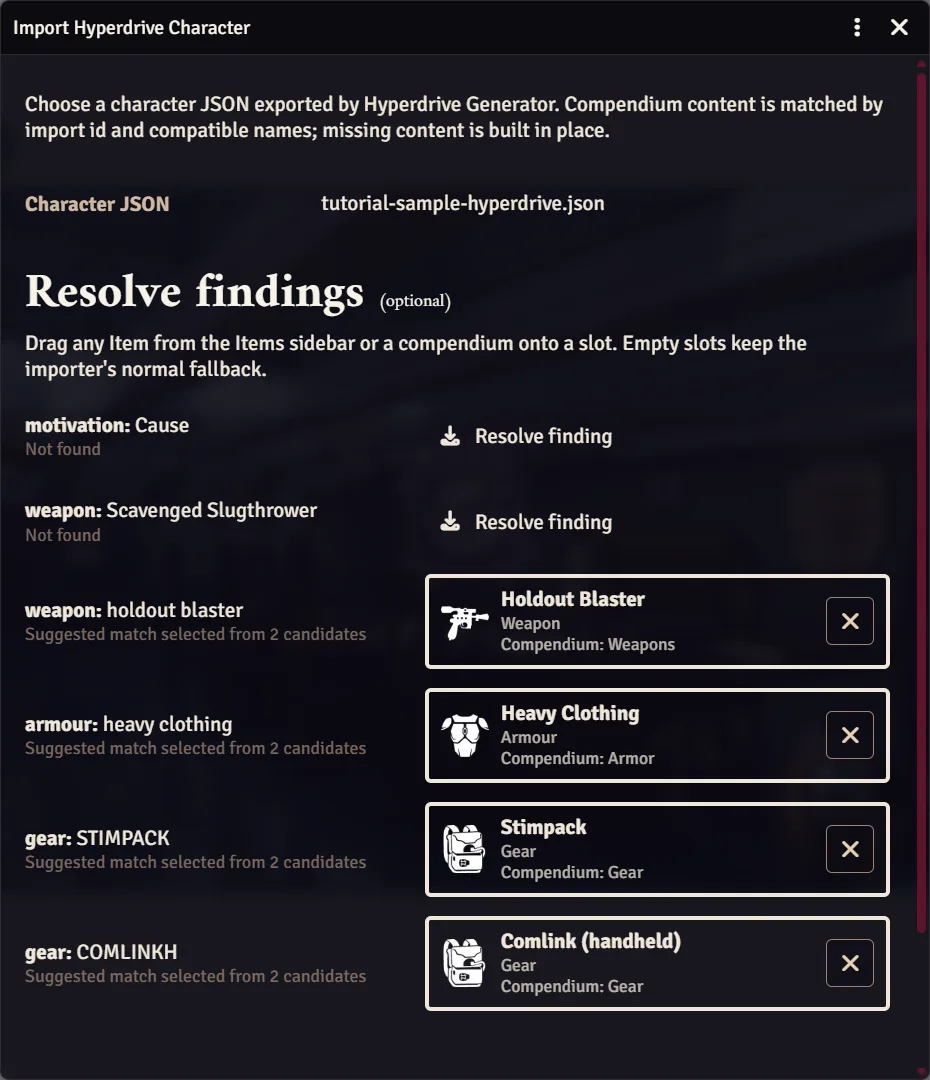
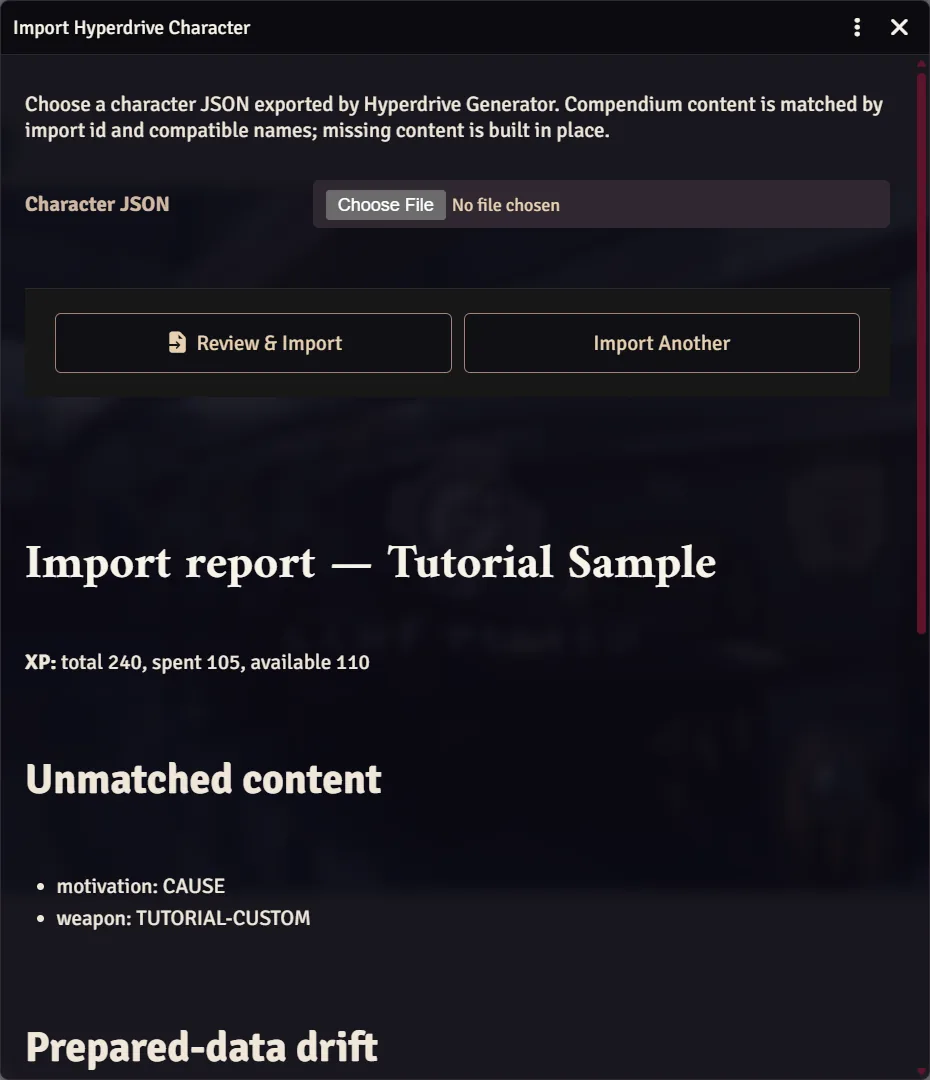
- Matching needs the OggDude compendia. Items are matched against the same packs the wizard uses, plus Talent Compendiums and Signature Ability Compendiums (see chapter 1).
- Your own wizard filters apply here too. The importer skips packs you switched off in the PC Wizard's Content sources panel, even when the GM's settings list them. If matching misses things you know are there, check that panel.
- Unmatched content is still imported, built from the file's own data. Gear, weapons and armour come through fine, and an unmatched species or career is rebuilt with its characteristic, threshold and skill effects. An unmatched specialization or force power comes in without its talent tree, so those are the ones worth resolving.
- Vehicles aren't imported.
- Importing a character that already exists asks Override, Create Copy or Cancel. Override replaces the character with the imported build. It keeps the same owners, folder and tokens, but anything added in Foundry since (notes, XP log, extra items) is replaced. If in doubt, choose Create Copy.