Repository navigation
Tutorial 04 Group Manager Destiny and granting XP
For the GM.
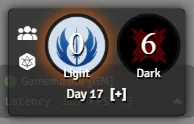
The Destiny Tracker is the panel with the light-side and dark-side points that is always on screen. Anyone can drag it somewhere else.
- Click a point to flip it.
- Shift+click adds a point, Ctrl+click removes one (GM only).
- Day N [+] under the points is the campaign day. Click [+] to move to the next day, or right-click the day and choose Edit to set it. It controls how often a critical injury can be treated, so move it on as time passes in the story.
Hover over the tracker and a small menu appears (GM only):
- Group Manager (people icon) opens the Group Manager.
- Request Destiny Roll posts a button in chat. Each player clicks it once to roll their Force die for the session's Destiny pool. It doesn't clear the pool first: the results are added to whatever is still there. For a fresh pool, use Empty the Destiny Pool in the Group Manager before you ask for the rolls.
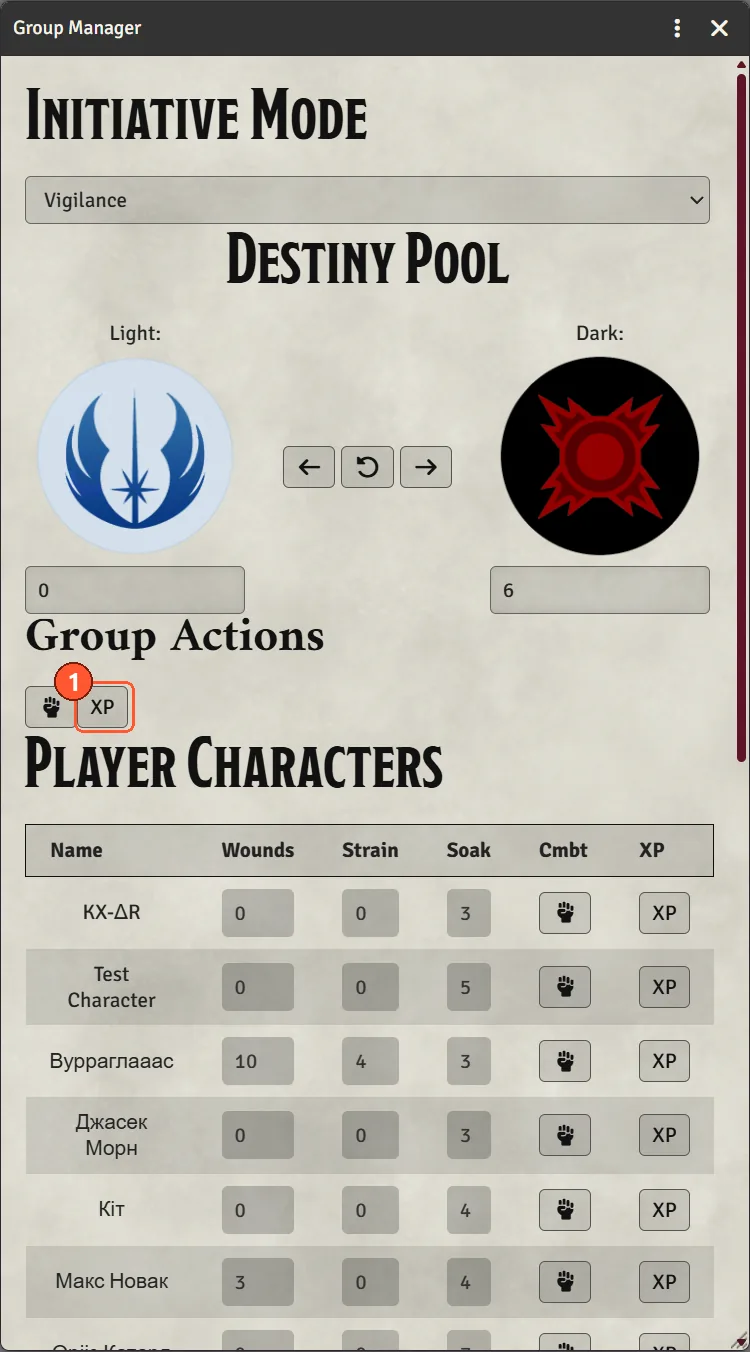
The Group Manager is the party at a glance:
- Initiative mode: whether the party rolls initiative with Vigilance or Cool.
- Destiny pool: edit the points directly or flip them, and Empty the Destiny Pool.
- Group Actions: the fist button puts the whole party into the combat tracker; XP grants XP (below).
- Player Characters: wounds, strain and soak for everyone, with buttons to add one character to combat or grant XP to just them. Click a row to open that character's sheet.
- Group Rolls: Obligation, Duty and Morality (see chapter 5).
By default the list shows the character assigned to each logged-in player, which is the character chosen in Foundry's User Management (or by right-clicking a player's name). A player who owns a character but has none assigned doesn't appear, and neither do their Obligation and Duty entries in chapter 5. Assign everyone's character once, or switch Group Manager - Player Character List Mode to list all owned characters, under Configure Settings → Star Wars FFG → Group Manager Settings → Configure Group Manager.
- In the Group Manager, under Group Actions, click XP.
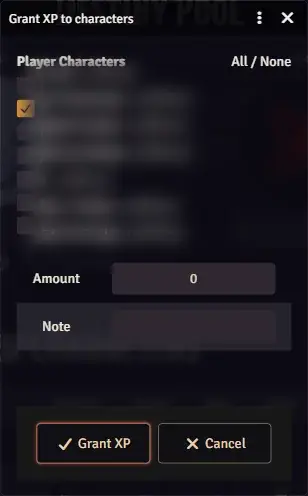
- Grant XP to characters opens with every player character ticked, except any you unticked the last time. Characters whose player is offline are marked (offline) and are still included. Check the list, and use All / None to fix it quickly.
- Enter the Amount and, optionally, a Note such as the session name.
- Click Grant XP.
To grant to one character, use the XP button on their row instead.
Tip: if you select some player tokens on the map first, only their characters start ticked.
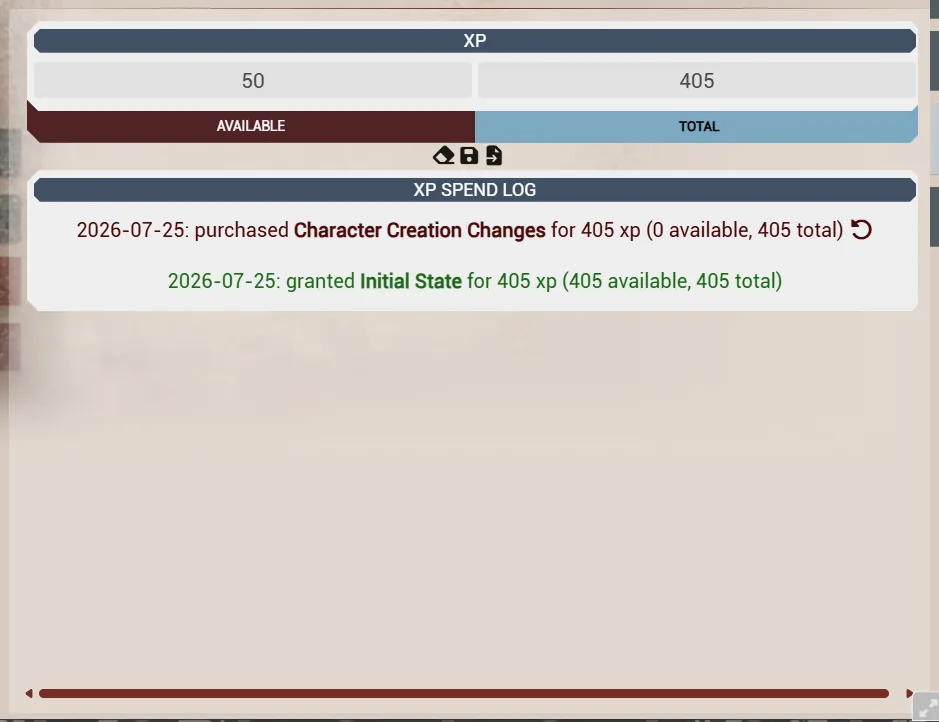
- Players aren't told in chat. You see a "Granted N XP" notice; players see the new XP on their sheet. The grant, with your note, is listed in the XP log on the character's XP tab.
- A grant can't be refunded from the XP log the way a purchase can. To take XP back, adjust it on the sheet.