Repository navigation
Tutorial 09 Changing a roll before and after
For players and the GM.
A check rarely comes out of the sheet exactly right: a talent adds a boost, the GM raises the difficulty, someone remembers a Destiny point after the dice have landed. You can edit the pool before you roll, and the roll itself afterwards.
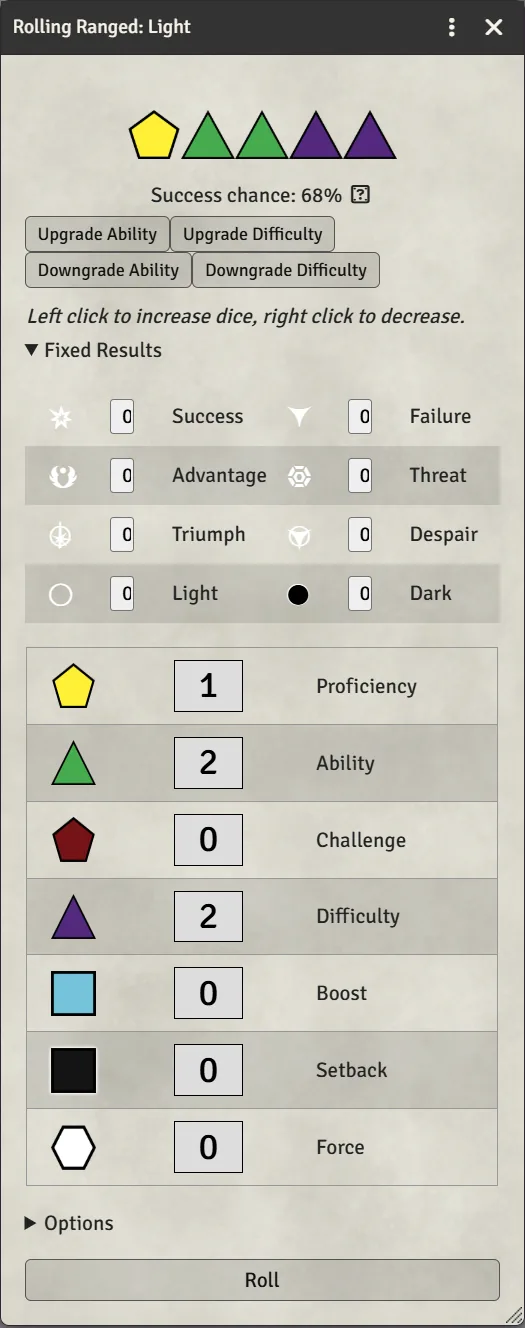
The dialog that opens from a skill or weapon shows the pool the system built, a preview of the dice and a Success chance estimate that updates as you change things.
- Add a die: left-click its row in the dice table. Right-click removes one. The hint in the dialog says the same: "Left click to increase dice, right click to decrease."
- Upgrade Ability turns a green ability die into a yellow proficiency die; Upgrade Difficulty turns a purple difficulty die into a red challenge die. Downgrade Ability and Downgrade Difficulty do the reverse.
- Fixed Results (the collapsed section) adds guaranteed symbols to the result: click Success, Advantage, Triumph and so on to add one each, without rolling for them. Useful for a talent that simply grants a symbol.
- The roll options card hangs off the dialog's right edge when the roll has something to offer: Two weapons, talent and quality options, and optional buffs. See the roll options card below.
- Options holds flavour text, a sound, and — for the GM — a share button that sends this pool to one player or to everyone. They each get a chat card with "Click here to roll the dice pool." Everyone rolls the same pool the GM built; it is not rebuilt from their own skills. Whatever the GM ticked on the roll options card arrives ticked, and the player can untick it; any strain an option costs is charged when the player rolls.
- If the target has the Adversary talent, the pool switch sits at the top; see chapter 8.
Changes you make by hand stay yours: they survive switching between the base and adversary pools, and ticking or unticking anything on the roll options card.
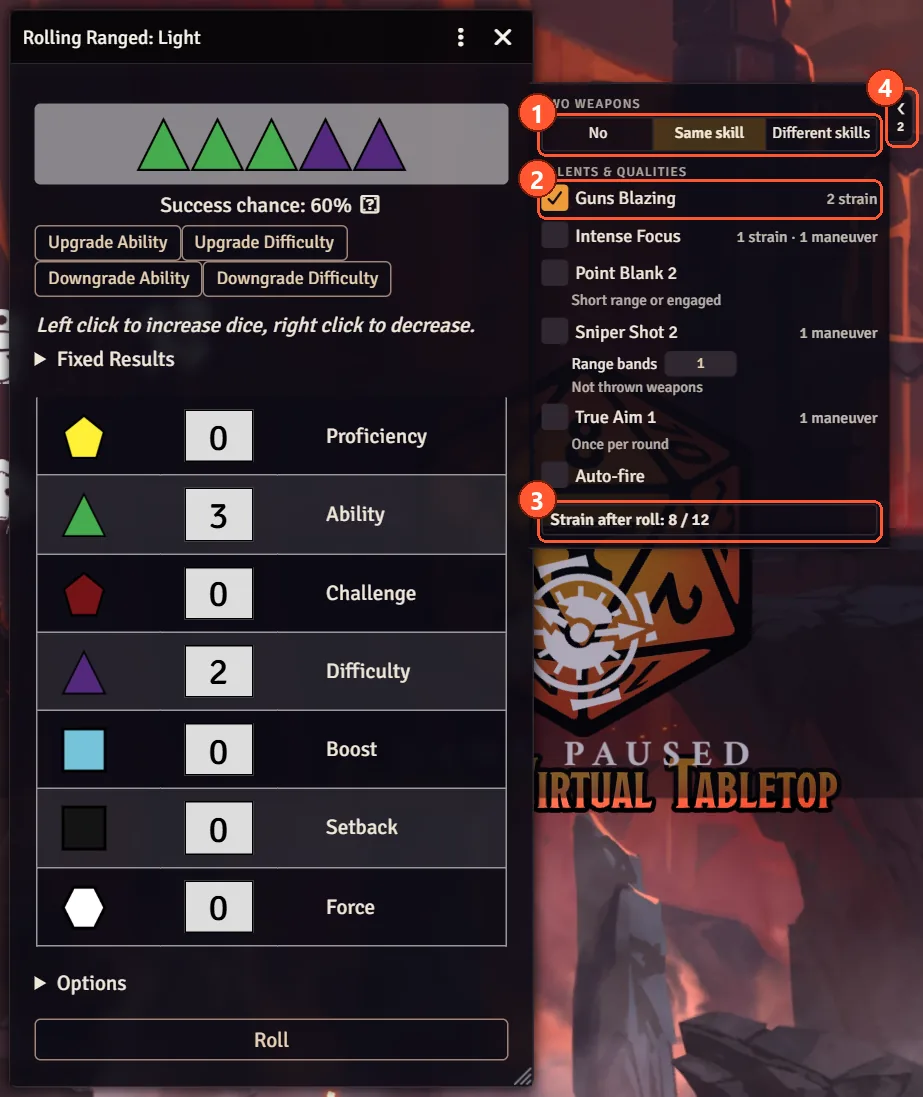
The card starts folded on every roll: click its tab (4) beside the dialog to open it, and again to fold it away; the tab shows how many rows are ticked. Initiative rolls carry it too (chapter 10). Hover a talent or quality row to read its description. Everything on the card starts unticked. Ticking a row updates the preview and the success chance at once, and unticking puts the pool back as it was.
- Two weapons (1), on attacks with a personal weapon: Same skill adds one difficulty die, Different skills two. Roll with one of the weapons; the second hit is the table's to resolve.
- Talents & qualities (2) lists what the roller's talents, the weapon's qualities and their other gear offer for this roll, from the macros the GM linked to them (see chapter 16). Each row shows its cost in strain (wounds, for a rival) and maneuvers, and some ask for an amount, such as Frenzied Attack's strain or Sniper Shot's range bands. A greyed row says why: Guns Blazing waiting for Two weapons, a cost that would take the character past their threshold, a minion that cannot suffer strain, or no GM connected to take the charge.
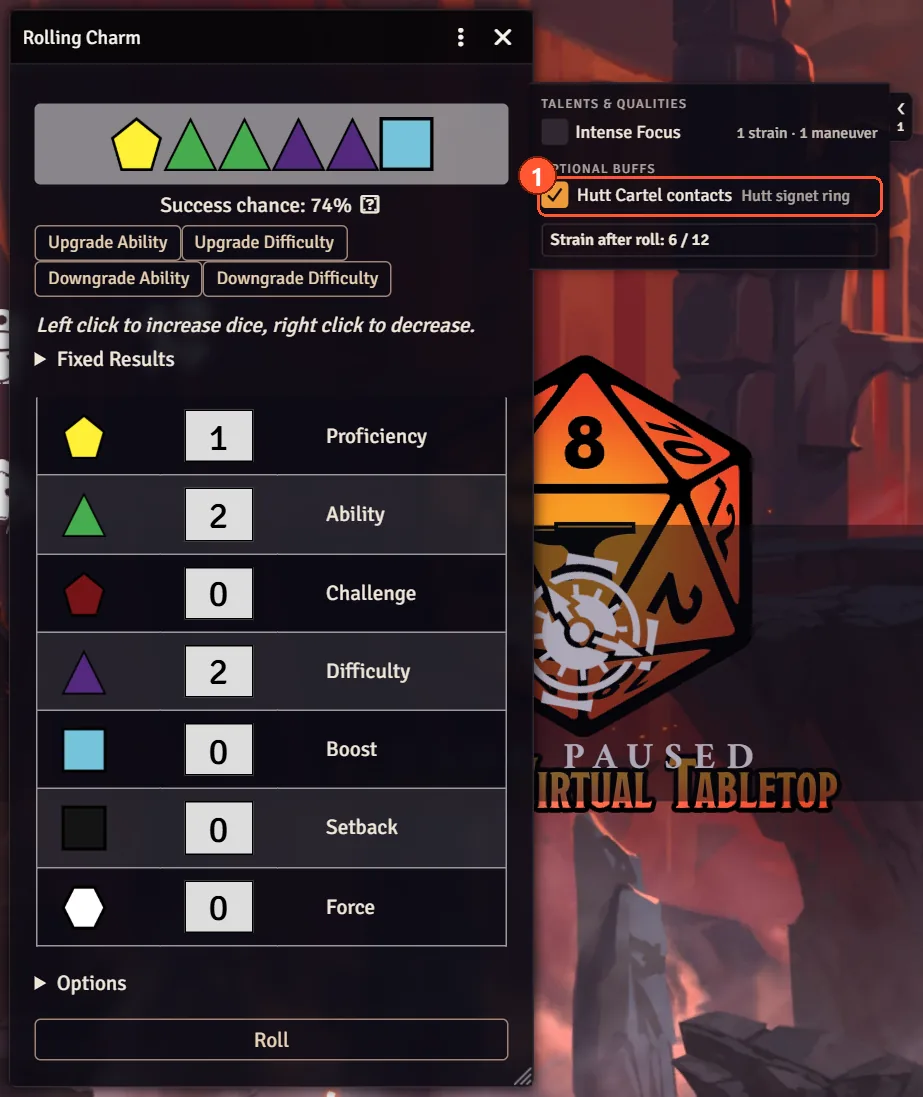
- Optional buffs list the situational bonuses on the character's weapons, armour, gear, talents and attachments that fit this roll (they are set up on the item; see chapter 16). Tick one when it applies, say a "Hutt Cartel contacts" buff on a Charm check.
- The footer (3) shows the character's strain after the roll.
The strain is charged only once the roll has reached chat, through the GM's client, so two quick rolls never overwrite each other. If it cannot be charged, say another hit took the character to their threshold in the meantime, a warning says so and why. If the GM's client dropped out before confirming, the warning says the charge may or may not have gone through: check the character before charging it by hand. Maneuvers are only shown, so count them yourself, and nothing tracks "once per round".
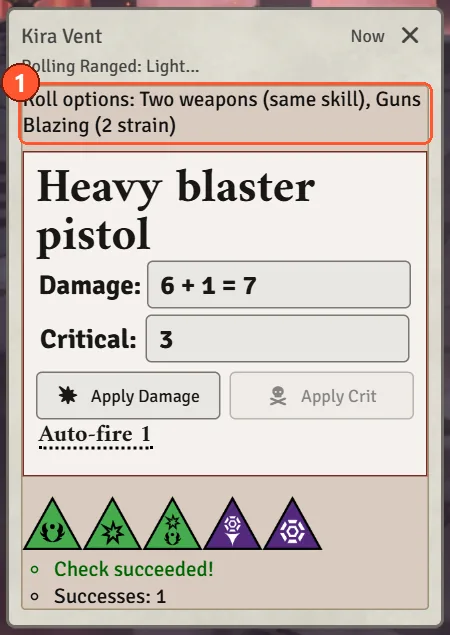
The chat card names each option used (1), with its rank or the amount chosen and what it cost, and a second line names the optional buffs. Options never change the weapon: Saber Swarm's Linked, Point Blank's extra damage and Sniper Shot's longer range are for the table to apply. A Force power roll offers no options or buffs.
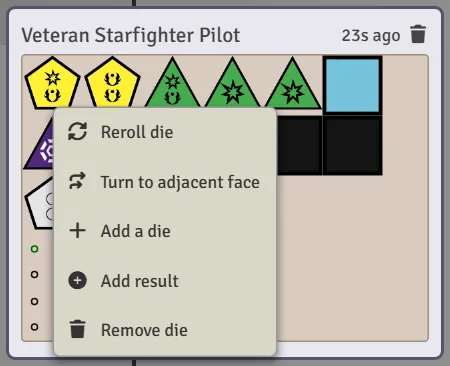
Once the card is in chat, the dice on it can still be changed. Right-click a die on the card to get its menu:
- Reroll die — pick a die type and roll it again in place.
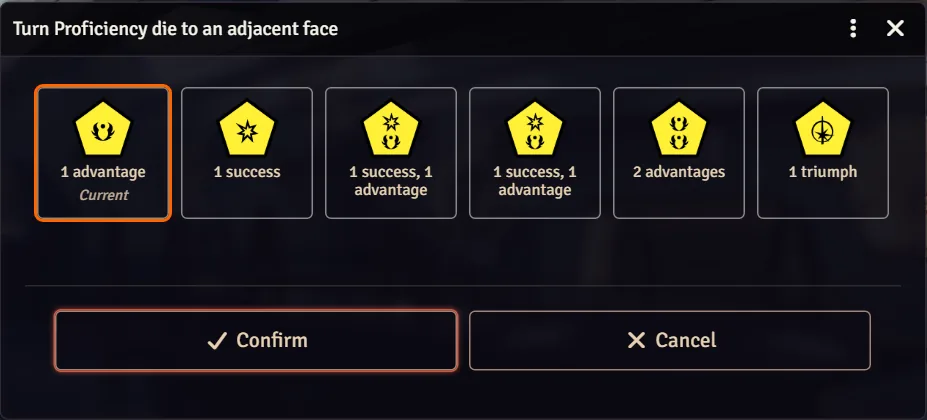
- Turn to adjacent face — for the Unmatched Fortune signature ability. The window shows the face the die rolled, already selected and marked Current, then every face that shares an edge with it on the real die. Click one and Confirm to turn the die to it. Not offered on Force dice, which the ability can't turn.
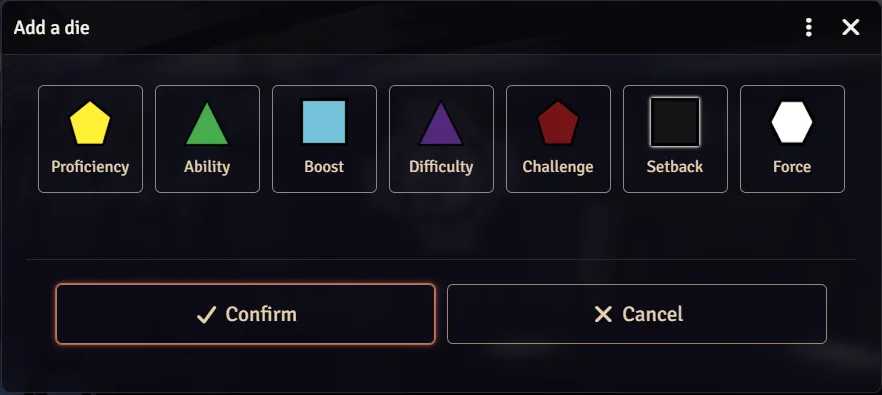
- Add a die — roll extra dice into the result. Pick the type and how many.
- Add result — add symbols directly (a success, an advantage, a Triumph) without rolling anything. Click a symbol to add one, right-click it to subtract one. The symbols go on the roll, not on the die you clicked.
- Remove die — takes that die and its symbols out, after a confirmation.
Right-click the card itself (not a die) and Foundry's own message menu offers Add result and Add a die as well.
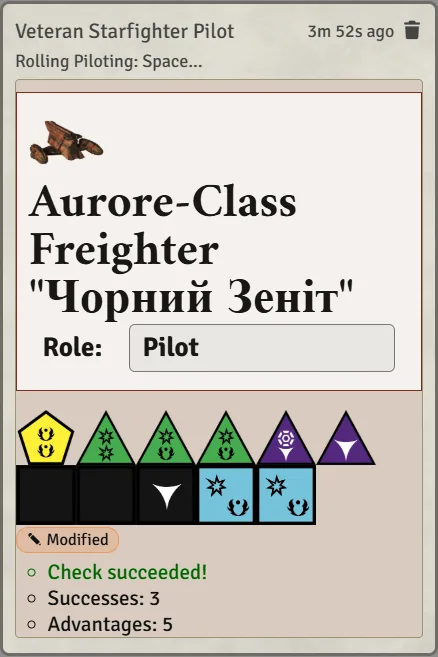
Every edit recalculates the whole roll: successes, advantages, the net result, and whether the check passed. The card then carries a ✎ Modified badge so nobody mistakes an edited roll for a fresh one.
- Who can edit: the person who made the roll, and the GM. Nobody else gets the menus.
- A GM has to be connected when a player's edit needs writing to someone else's message; otherwise it says "No active GM is connected to apply this change."
- Rerolled and added dice are really rolled, so Dice So Nice animates them like any other roll.
- Turning a die rolls nothing and spends nothing. Flip the Destiny Points the ability costs on the Destiny Tracker as usual. Its neighbours follow the real FFG dice, so they can differ from the faces you see around it on the 3D die.
- "This roll changed; please try again" means someone else edited the same card first. Reopen the menu and redo your change.
- Editing doesn't rewind Apply Damage. If you already applied damage or a crit from a card and then edit the roll, fix the target's wounds by hand.