Repository navigation
Tutorial 11 Vehicles crew and rolling
For players and the GM.
A vehicle doesn't have skills of its own. Every check uses the crew member's characteristics and skills, and the vehicle adds its handling. So before anyone can roll from a vehicle, it needs a crew.
- Open the vehicle's sheet.
- Drag a character from the Actors sidebar onto it.
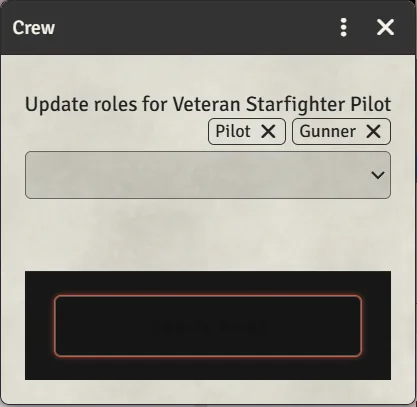
- In the Crew window, choose their role or roles: Pilot, Gunner, or any role the GM has added. Click Update Roles.
The character now appears in the vehicle's Crew list with their role. Use the edit and delete buttons on their row to change roles or take them off the crew.
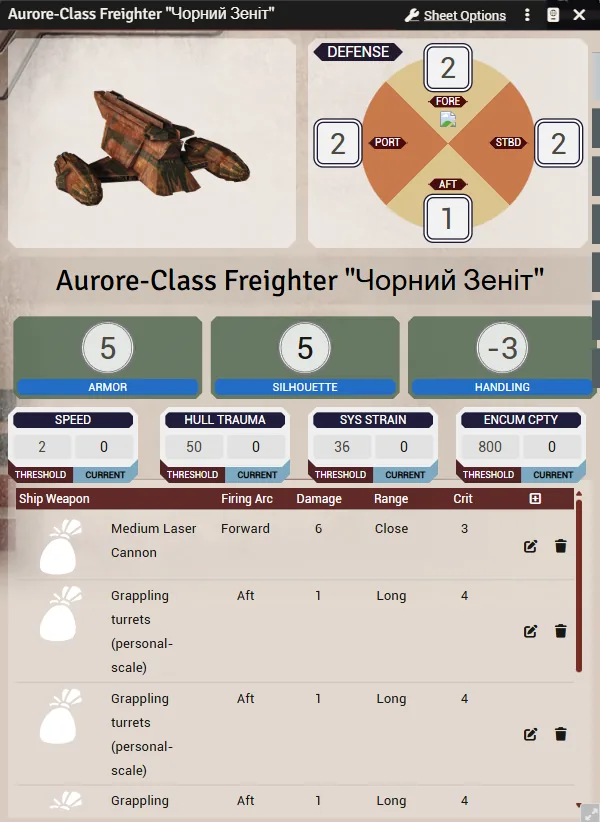
From the crew list. Click the roll icon on a crew member's row.
- Pilot rolls Piloting (Space or Planetary, depending on the vehicle). A positive handling adds boost dice and a negative one adds setback dice.
- Gunner, or any role that uses weapons, first asks which weapon (Select Weapon), then rolls that weapon's skill with its qualities.
- Any other role rolls the skill set for that role.
From the weapon list. Click the roll icon on a weapon. The system looks for crew whose role uses that weapon's skill. If there's more than one, it asks who fires (Select Crew Member). If there's exactly one, it just rolls.
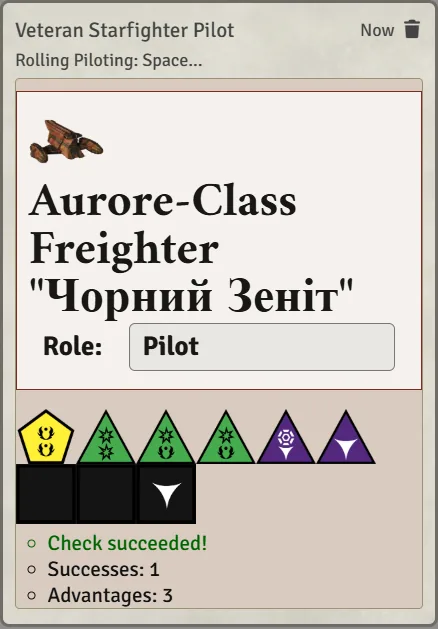
The chat card shows the vehicle and the crew member's role.
- No matching crew, no skill. If nobody aboard has a role for that weapon's skill, clicking the weapon opens a blank dice roller. Give someone the Gunner role first.
- Initiative uses the pilot. A vehicle with no Pilot can't roll initiative.
- Targeting another vehicle. When you target a vehicle, a card beside the roll dialog lets you pick which of its defence zones the shot hits.
Add roles such as Engineer or Co-pilot under Configure Settings → Star Wars FFG → Crew Roles → Configure Crew Roles. Each role has a Role Name, the Role Skill it rolls, and whether it Use Handling and Use Weapons are ticked.
A named ship can be harder to hit, the way an NPC with the Adversary talent is: each rank upgrades the difficulty of attacks against it. Adversary is the only talent a vehicle accepts.
- Turn Edit Mode off on the vehicle, then drag the Adversary talent onto its sheet, from your Talents compendium or the Items sidebar.
- Open the Biography tab (Bio on Codex II). The talent is listed there with its rank.
- Click the edit button on its row, make sure Ranked? is ticked, and set Rank.
The ship's token then shows the rank as a badge (with Show Adversary Count on), and anyone who targets it gets the Adversary Pool switch in their roll dialog. Setting up Adversary rank on a vehicle has the whole walk-through, including a missing talent and the settings.
A squadron of identical ships can be one actor, like a minion group. In the vehicle's Sheet Options, tick Minion Vehicle. Then set Vehicles in Group on the sheet, and the Hull Trauma Threshold of a single ship.
- The ships share one hull pool. Each time damage passes another ship's worth of threshold, one ship is destroyed. A critical hit destroys one ship.
- Group skills roll at the number of ships left minus one, up to 5, like minions. This only applies to skills marked as group skills, which is a tick on a minion sheet, so crew a squadron with minion actors and tick the skills they fly and shoot with. A normal character aboard rolls their own ranks as usual.
- Each token you place is its own squadron.