Repository navigation
Backup
All your data is in one file: stock.db. Where it is depends on which edition you use:
| Edition | Where stock.db is |
|---|---|
| Installed with the installer | Windows: %APPDATA%\STOCKings (type %APPDATA% in the File Explorer address bar; earlier versions used Stock Lab); macOS: ~/Library/Application Support/STOCKings; Linux: ~/.local/share/STOCKings
|
| Portable edition | The data folder inside the unzipped folder |
| Launcher edition (source) | The project folder |
The database is encrypted: copying it back on the same computer opens it; on a new computer unlock it with the recovery key (see "Database encryption and the recovery key"). Before every upgrade the program also leaves a copy in the backups folder in the same place (the latest 5).
A backup is just copying this file somewhere else (a USB drive or a cloud drive both work).
Suggestions:
- After recording for a while, copy one and add the date to the name, for example
stock-2026-08-31.db - To restore, copy the file back to its original place and rename it
stock.db(close the program first)
Another kind of backup is "Manage → Import / Export" with everything ticked and the format set to CSV, which downloads a zip. The difference between them:
Copying stock.db
|
Exporting CSV | |
|---|---|---|
| Contents | Exactly the same, including sign-in passwords | Your trade records, without passwords |
| Can it be opened? | Only with this program | Excel and any spreadsheet |
| Restoring | Just copy it back | Import in order, with fees recalculated |
To have it exactly as it was, copy the file; to have something you can read and edit, export CSV.
To move computers, take
stock.dbacross: with the desktop edition, after installing on the new computer use "Bring over older data" and pick the folder it is in; with the launcher edition copy the whole project folder across. The first time you open it, unlock with the recovery key. However, if the sign-in secret (.run/secret.key) does not come along, you have to sign in once again, though the password is the same as before.
"Cloud backup" at the bottom of "Manage → Import / Export" backs up your own data to your own Google Drive, for restoring when you change computers, the computer breaks or you have messed things up. Each account sets it up separately: it connects its own Google, uses its own backup password and backs up only its own data, which other accounts on the same computer cannot see or use.
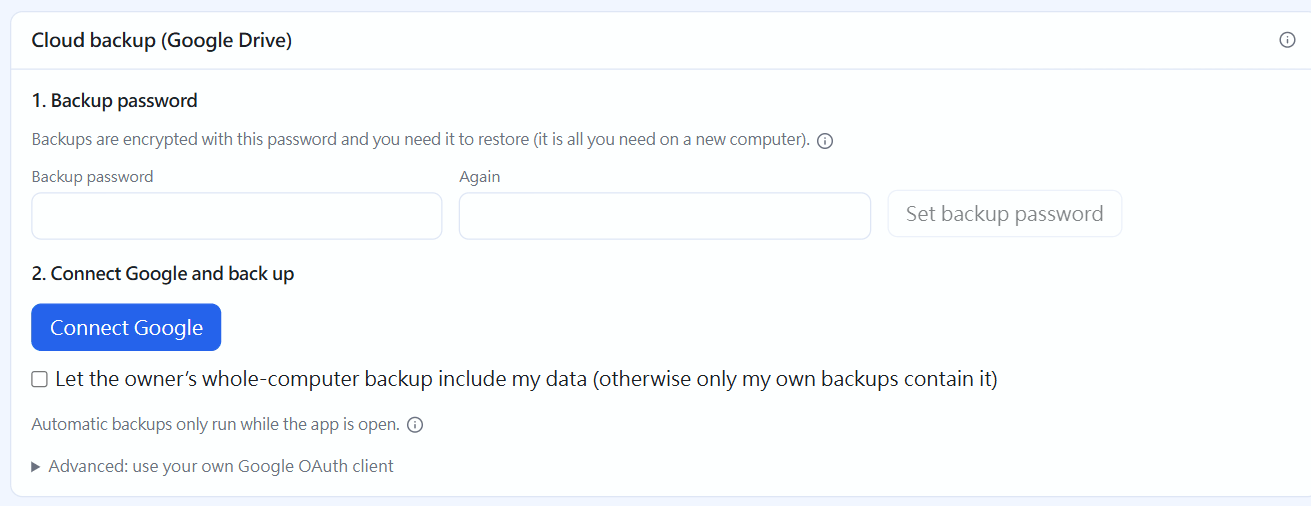
Cloud backup: before it is set up(click the image to enlarge)
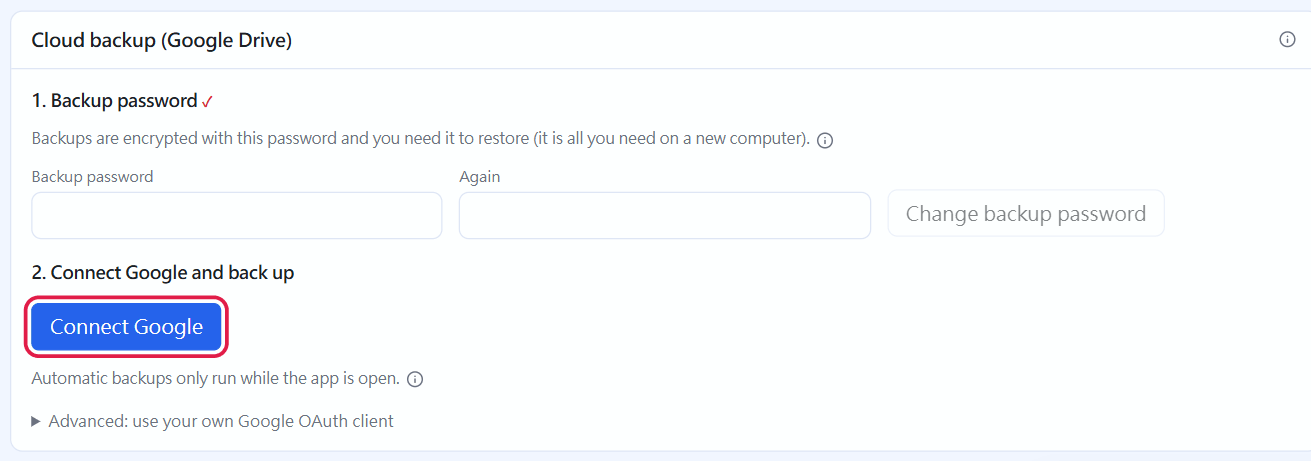
After the backup password is set, click "Connect Google" (Google's consent screen is in the browser and not shown here)(click the image to enlarge)
-
Whole-computer backup (owner only): backs up the owner's own data plus the accounts that ticked consent to the owner's cloud drive together; when you change computers it can rebuild those accounts (with their sign-in passwords) in one go. Other accounts must tick "Allow the owner's whole-computer backup to include my data" in their own cloud backup to be included, off by default
-
Encrypted on this computer with the "backup password" before uploading: neither Google nor we can see the contents; if a Google account is stolen, all the other party gets is an encrypted file
-
The program can see only files it created itself (in the "STOCKings Backups" folder of the cloud drive, whose name is fixed in English and does not follow the interface language; the earlier "STOCKings 備份" is renamed automatically), and cannot see anything else in your drive
-
"Cloud backup" has a link that opens that folder directly in Google Drive; the file names listed in "Backups in the cloud" can also be clicked to open
-
It does not pass through our servers: the program talks to Google directly
First-time setup:
- Set the backup password (at least 8 characters) — needed when restoring, and if you forget it the backup cannot be recovered
- Click "Connect Google", and the default browser opens Google's page directly (if you do not see it, click "Didn't see it? Open again" beside it); sign in and consent (before Google's review is passed a notice says "This app isn't verified", and you choose "Continue"); the STOCKings window comes back to the front by itself and shows connected. STOCKings already has a built-in Google client, so you do not need to create one in the Google Cloud Console
Advanced: using your own Google client (when a downloaded program has no built-in client, the screen asks for one directly and the steps are as here; when there is a built-in one this part is collapsed under "Advanced"):
- Go to the Google Cloud Console, sign in with your Google account and create a project (any name, for example STOCKings)
- Under "APIs & Services → Library" search for Google Drive API and click "Enable"
- Under "APIs & Services → OAuth consent screen": choose "External" as the user type, fill in the app name and your email; add your own Google account under "Test users" (you can also click "Publish app" later, otherwise the authorization must be reconnected every 7 days)
- Under "APIs & Services → Credentials → Create credentials → OAuth client ID", choose the application type "Desktop app", and after creating it copy the Client ID and Client secret
- Back in STOCKings' "Cloud backup" paste the Client ID and secret and click "Save changes", then set the backup password and connect Google as above. Once you enter your own client it is used instead; click "Clear" to return to the built-in one (after changing the client you must reconnect)
Afterwards: click "Back up now" (the button spins while backing up, and it takes tens of seconds when there is a lot of data), or set "Automatic backup" to daily or weekly (it backs up only while the program is open; the default number kept is 10). Older backups beyond that number are moved to the Google Drive trash, not deleted permanently at once: within 30 days you can rescue them from the trash, after which Google clears them. When you lower the number kept you are asked to enter your sign-in password again (raising it needs none). The time of the last backup and the reason for any failure are shown in the same place; opening this page also checks how many are in the drive now. If you delete the backups (or the whole folder) in Google Drive, this page warns "No backups found in the cloud drive"; click "Back up now" to save another (a missing folder is rebuilt automatically).
Restoring: click "Backups in the cloud" to list them (the "Kind" column says whether it is "My data" or "Whole computer") → choose one and click "Restore" → enter that backup's password.
- What is backed up is all of your account's data: trades, dividends, accounts, settings, and also the investment journal with its pictures
- Two accounts on the same computer connecting to the same Google account is fine: each account has its own folder (you will see two folders of the same name in the drive), "Backups in the cloud" lists only your own, and cannot restore anyone else's
- If STOCKings' access is removed in your Google account (or it has not been used for too long and the authorization expired): the next backup says "Authorization has expired", the screen switches back to the "Connect Google" button, and one click to reconnect is all it takes; earlier backups are still there
- No network: backing up and listing backups say "Cannot reach Google. Check that this computer is connected to the internet"; just click again once you are connected
- Deleting the database and starting over, or changing computers: create an account with the same email, set the backup password and connect the same Google account, and "Backups in the cloud" lists the earlier backups (those in folders made by older versions are listed too); choose one and restore
- My data: your account's current data is replaced by what is in the backup, taking effect at once (the screen reloads), and other accounts are unaffected. Your sign-in password and two-step verification do not change
- Whole computer (only the owner can restore): accounts this computer does not have are rebuilt from the backup (with sign-in passwords); the owner's own data is replaced by the backup's; accounts of other people this computer already has are not overwritten
-
Old whole database (backups made before 2026-10-12, only the owner can restore): it is swapped in entirely when you close and reopen the program; before the swap the current database is moved to the
backups/folder and kept, and before reopening you can click "Cancel restore"
Restoring on a new computer: first install the program, create an account, connect the same Google account (if you use your own client fill in the same one first), then restore "My data"; to move every account of the whole computer at once, the owner restores the "Whole computer" backup.
← Bring over older data | Contents | Uninstall →