Repository navigation
Import and export
On this page
- Broker file import
- TDCC passbook (PDF)
- Yuanta CMA statement (PDF)
- Dividend reconciliation (Ministry of Finance income data)
- Export
- Import
- Three things to watch
- Forgot what a field needs?
If you do not want to type each trade, drop the trade statement exported from your broker's app or website into "Broker file import" at the top of "Manage → Import / Export":
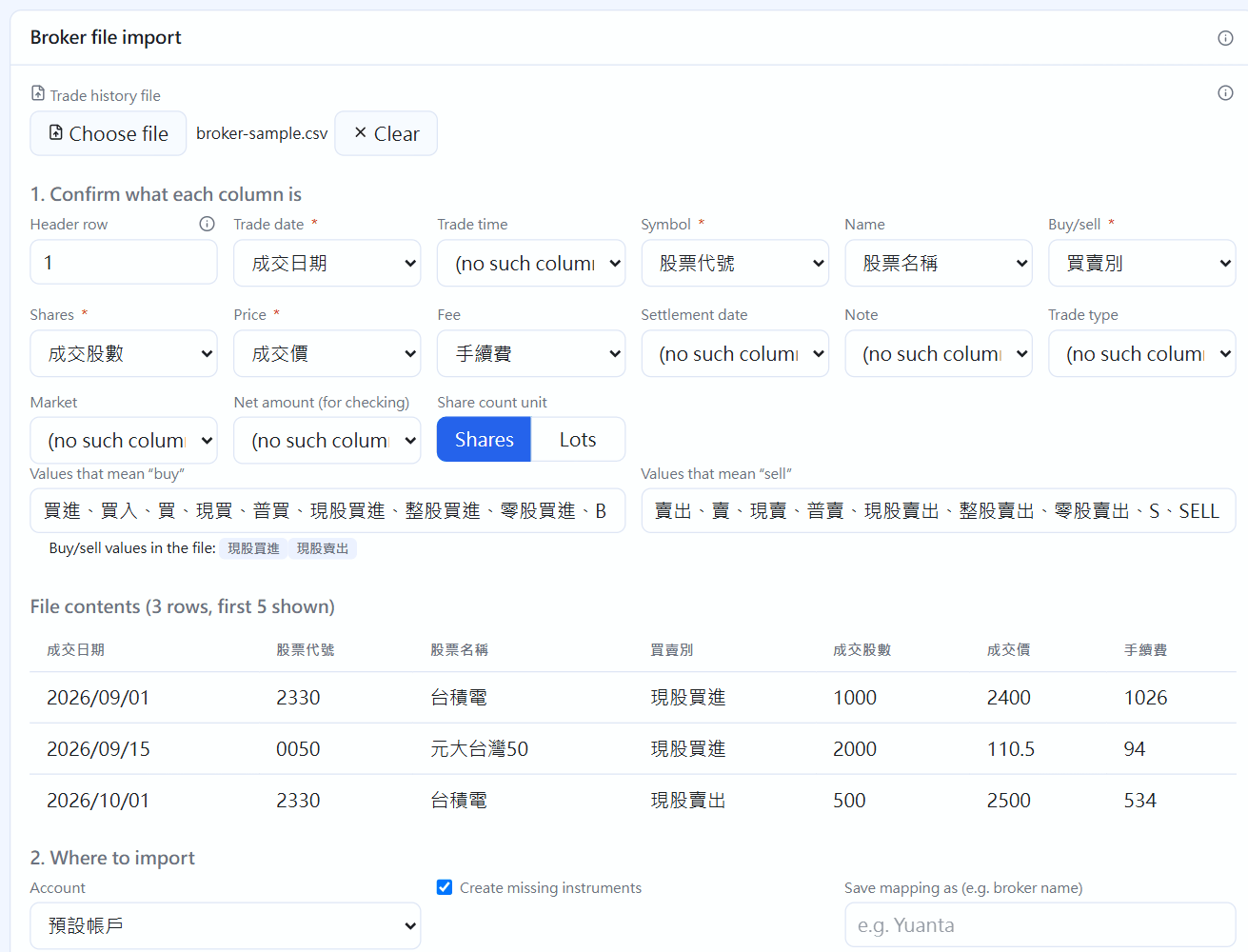
1. Confirm what each column is; the file's contents are previewed below(click the image to enlarge)
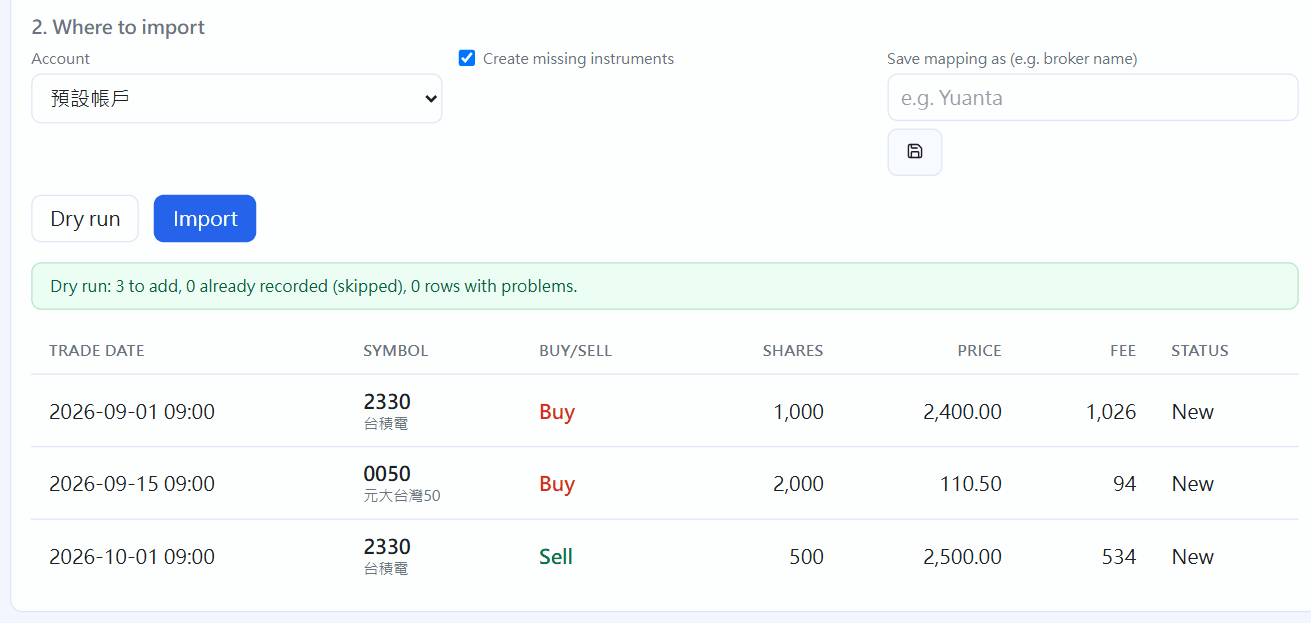
2. Where it goes; click "Dry run" to see the result(click the image to enlarge)
- Choose the file (CSV or Excel .xlsx; save an old .xls as .xlsx first)
- The program finds the header row and guesses what each column is. Check it: trade date, symbol, side, shares and price are required, and if there is a fee column choose it too (so the statement's amounts are used). If the shares are in lots, switch to lots
- If the file's side column has red entries (for example the broker uses wording other than "cash buy"), add it to the "Buy" or "Sell" box
- Choose which securities account (and cash account) to import to and click "Dry run" to see how many will be added, which were already recorded and which rows have problems, and when it is fine click "Import"
Save this mapping (for example name it "Yuanta") and next time pick it for the same broker's file to apply it straight away. The formats of Yuanta, Cathay, SinoPac, Fubon, KGI, Capital, Taishin, Uni-President, Hua Nan Yongchang, Mega, and the Mitake system (most small and medium brokers) are built in: when recognised it shows "Recognised as X's format", the columns are matched automatically, and you only need to check and run the dry run.
If you chose wrongly: before clicking "Import" click "Clear" beside the file to start again, and nothing is written to the books. For one already imported, there is "Undo this import" beside the result; later you can also expand "Import history" below and undo any batch (all the trades added by that import are deleted; if a sale you recorded by hand afterwards used those buys, it is blocked).
The ex-rights and dividends for the imported period are not in the trade statement: go to the corporate-action reminders at the top of "Records → Dividend records" and bring them in all at once from your holdings.
If the file has a net amount (receivable / payable) column, the program uses it to reconcile: when the amount worked out from price, shares, fee and transaction tax differs from the broker's by more than 1, the dry run lists it to remind you to check the statement (it does not block the import).
Importing the same file again does not record twice: trades already recorded (same account, instrument, side, shares, price and day) are skipped automatically, so each month you can export the most recent period and drop the whole file in without choosing which are new.
Besides cash buys and sells, rows whose side is margin buy, margin sell, short sell or short cover are imported as margin / short sales; dividends and lending are still recorded the original way.
The TDCC e-passbook app can export a "securities passbook" PDF (one per broker). Under "TDCC passbook import" in "Import / Export" choose the file, enter the password (your national ID number, in capital letters), choose which securities account to record to, and click "Read":

TDCC passbook import(click the image to enlarge)
- Passbook entries (movements): TDCC has only shares, no trade price or fee. Buys, sells and stock dividends become "Cost to fill in", shown on this page and at the top of "Trades". The trade date has been worked back from the settlement date and the reference price pre-filled with that day's close; change it to the actual trade price from the statement (leave the fee empty to calculate it from the rate), click ✓ to confirm or "Confirm all", and only then do they become real trades. Click ⏭ to skip ones you do not want to record
- Ones already in the books (for example imported earlier from a broker file) are skipped automatically, so the two kinds of file can be used together: the broker file has actual prices, and TDCC fills in what the broker file lacks
- Lending transfers (lending out, returning shares) and splits are listed but not handled automatically; record them on the Lending page and in Instruments
- Inventory data: used to reconcile with the holdings in the books, listing how far each instrument is off
Whether to remember the password: by default it is not remembered and you enter it each time. Ticking "Remember password" stores it in this computer's credential manager (Windows Credential Manager, the macOS keychain), so next time you can leave it empty; "Forget password" beside it deletes it at any time. "Remove everything" when uninstalling deletes it too. The password is never stored in STOCKings' database or any file.
The Yuanta app or website issues a "transaction history" PDF for the CMA (the broker only gives PDFs). At the bottom of "Records → Cash ledger", under "Import a Yuanta CMA statement", choose the cash account to reconcile (the CMA by default) and the file; enter the password if it has one (it only opens the file and is not kept), then press "Read and reconcile":
- Each line is marked: Recorded (the ledger has the same kind with a close date and the same amount), Can import, Not recorded or Skipped
- Deposits, withdrawals and half-yearly interest are plain cash: unrecorded ones can be ticked and imported with "Import ticked". Reading the file again shows them as "Recorded", so nothing is entered twice
- Dividends, compensation (lent-share dividends), lending income, share purchases, regular plans and sub-brokerage debits are only checked: the CMA has just the net amount, without per-share amounts, ex-dates or trade details, so a correct record cannot be built. Unrecorded ones say which page to add them on (Dividends, Lending, Trades, Regular investing). A regular plan is checked as that day's "debit − refund"
- At the top, the closing balance in the PDF is compared with the app's cash account balance on the same day; it also warns if the totals read do not match the PDF's totals line
When filing taxes you can download your own income data from the comprehensive income tax system. Under "Dividend reconciliation" in "Import / Export" choose that file (Excel or CSV) and click "Check", and it lists, company by company, the amount in the income data, the amount in the books and the difference. It only reconciles and adds or changes no records.

Dividend reconciliation(click the image to enlarge)
- The dividends in the income data (54C) are cash dividends plus stock dividends at face value (10 per share), before NHI premium and fees, and the books are added up on the same basis; where a dividend has its composition filled in, the books count only the dividend-income part
- The year follows the pay date (the ex-date where no pay date is filled). For example one that went ex in last December and was paid in January counts in this year
- Compensation is other income and is not counted here
- The paying company is matched to an instrument automatically by its tax ID or full name. For ETFs the withholding party is the fund itself (for example "… securities investment trust fund"); the first time you choose which one on that row, and it is remembered afterwards; things that are not stocks, such as savings interest, can be marked "Not a stock"
- Instruments "Recorded but not in the income records" are also listed: the usual causes are a pay date recorded in the wrong year, or compensation not ticked
The "Manage → Import / Export" page. You can use one CSV file per kind of data, or a whole Excel workbook (one sheet per kind) exported and imported in one go, and both open directly in Excel or a spreadsheet.
Three choices, then click "Export" once:

Export(click the image to enlarge)
- Records to export: opens a tick list, all by default (accounts, instruments, subscriptions, employee grants, employee grant events, deferral ends, holding transfers, trades, margin repayments, dividends, splits, lending, pledge loans, pledge events, futures trades, cash, regular plans, backtest scenarios, journal), and you can select all, clear all or tick just a few
- Format: an Excel workbook is one xlsx with a sheet per kind and is the most convenient to open in Excel; for CSV, ticking one kind downloads that one file, and two or more are packed into a zip with an explanation inside
- Headers: see below
The trades file has extra margin and short-sale columns (credit, margin loan, short-sale margin…), and old files without these columns import fine too.
The investment journal exports text only (date, title, body, linked instrument and trade, tags, confidence), and pictures are not put in CSV or Excel (pictures would make the file too large to import back); pictures travel only with cloud backup. Importing the same file again adds no duplicate entries; files from before the journal existed still import.
The "Headers" menu above decides which language the column names use: English gives English column names (traded_at),
Traditional Chinese gives Chinese (成交時間), and Japanese, French, German, Spanish, Portuguese, Russian and Korean give that language (約定日時, Ausführungszeit, 체결 시간…);
at first it follows the interface language. The workbook's sheet names and the CSV file names change with it. A file in any language can be imported back.
What it is for: backup, tidying details at tax time and moving data to a new computer.
- Choose the import method: "Whole Excel workbook" imports every sheet of one xlsx at once; "Single CSV" needs you to also choose the kind of data, one kind at a time
- Pick the file
- First click "Dry run" — it only checks the format and writes nothing
- When it is fine click "Import"
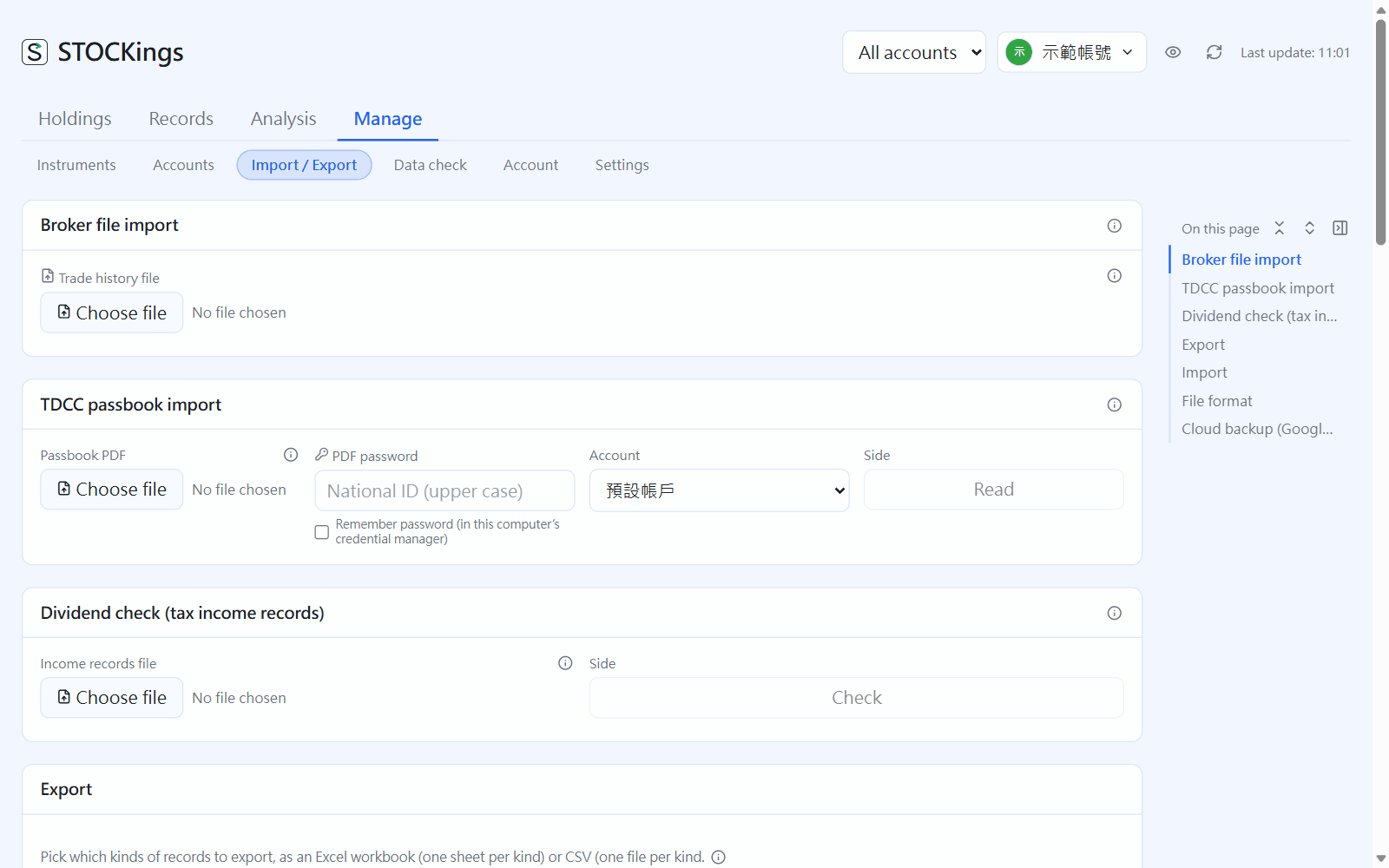
Import / Export(click the image to enlarge)
A wrecked ledger is hard to come back from, and one extra button click is far cheaper.
A format error (a wrong date, a symbol that does not exist) blocks the whole file, telling you at once which row and what is wrong, and never imports halfway.
Export one first as a template. The exported file is the format template: edit it and import it back, with no guessing of column names.
Order matters. When importing everything back, follow this order:
Accounts → Instruments → Subscriptions → Employee grants → Employee grant events → Deferral ends → Holding transfers → Trades → Margin repayments → Dividends → Splits → Lending → Pledge loans → Pledge events → Futures trades → Cash → Regular plans → Backtest scenarios → Journal
Trades need the symbol to find the instrument, and dividends use the shares held on the ex-date, so reversing the order fails. With an Excel workbook you need not order them; the program processes each sheet in this order.
Headers in any language work. Column names in English (side), Chinese (買賣) or another interface language (売買, Richtung) are all recognised,
and so are values: for side enter BUY or "買進", for the cash type enter DEPOSIT or "存入".
The cash file has only the deposits and withdrawals you recorded yourself. Cash flows produced by trades, dividends and lending are not in it — they are rebuilt automatically when those records are imported. If you add them yourself, the same money would be recorded twice.
Columns such as fee, transaction tax, net amount and realized profit are present on export and ignored on import and recalculated. This is deliberate: otherwise changing one price would give you a record that does not agree with itself.
Under "File format" at the bottom of the screen, every kind of data has a table you can expand:
| Column | Required | Description | Example |
|---|---|---|---|
is_short |
Optional | Enter 1 for a borrowed-share position. Sell = borrowed-share short sale (open short), buy = cover | 0 |
fee |
Calculated | The fee. Ignored on import, recalculated from the trade terms | — |
For columns whose meaning is not obvious at a glance, such as is_day_trade, is_short and fx_rate,
there is a one-line explanation with an example value. They are collapsed normally; click to open when you need to look something up.
The full list is also in the import / export formats.