Repository navigation
Settings
The "Settings" tab adjusts the items below. Settings are kept in this browser, one set per account: switching accounts switches to that account's settings; the first time an account signs in on this computer it starts from the defaults (keeping only the language), and users who existed before the upgrade keep their original settings. The sign-in screen after signing out keeps the latest appearance and language.
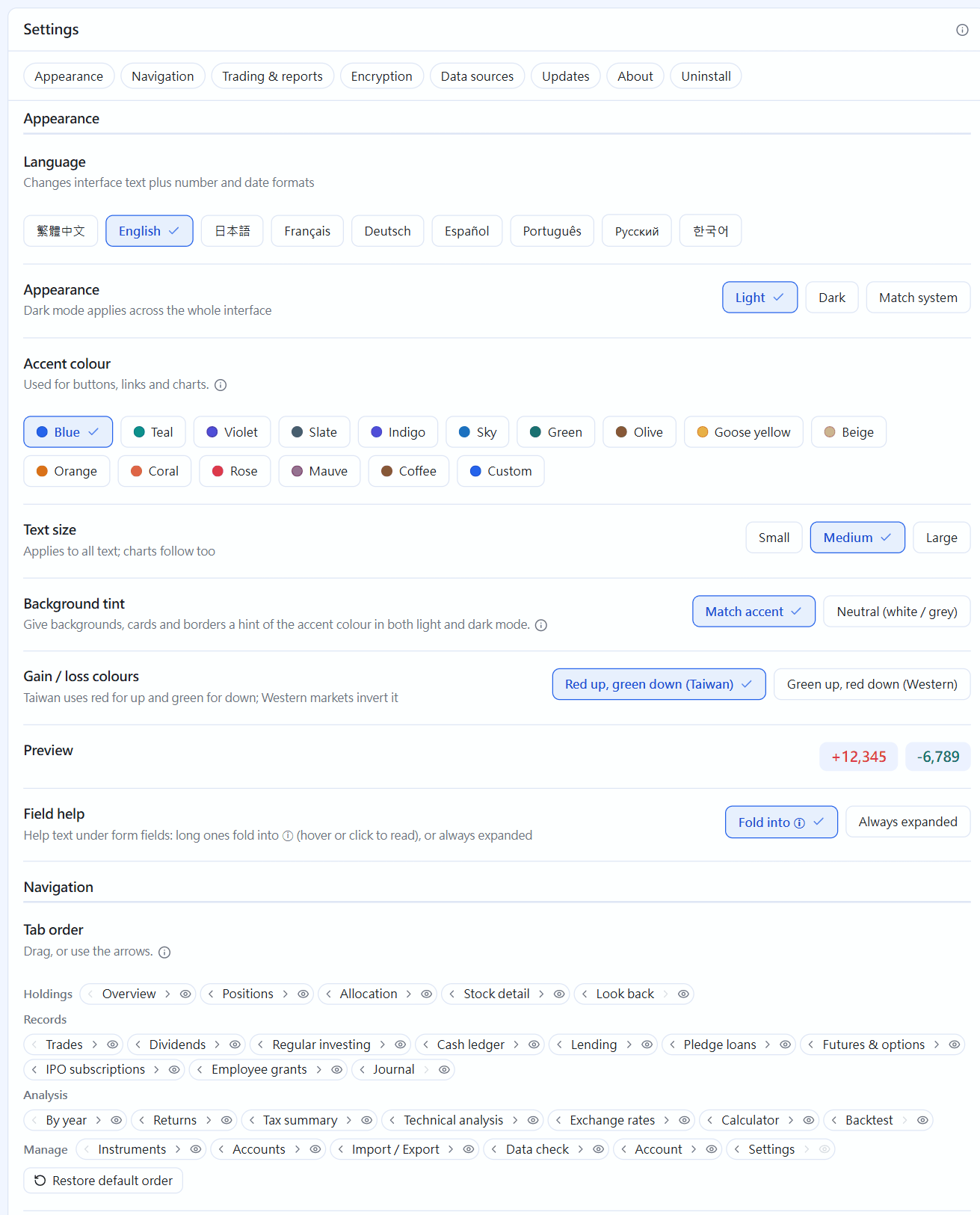
Settings: language, appearance, accent colour, font size, up/down colours, field help, tab order(click the image to enlarge)
| Item | Options |
|---|---|
| Language | Traditional Chinese, English, Japanese, French, German, Spanish, Portuguese, Russian, Korean (number and date formats change together). Languages other than Chinese are translated, and a few strings not yet translated show in English; error messages, the AI summary (the points and the paragraph the AI writes) and the headers of exported files follow the interface language |
| Appearance | Light / dark / follow the system |
| Accent colour | 15 preset colours (blue, teal, purple, graphite, indigo, sky, green, olive, yellow, beige, orange, coral, rose, mauve, coffee), or click "Custom" to pick any colour. A custom colour can be kept with "Save this colour" (up to 8, per account), and one click switches back; saved colours can be named with the pencil icon (for example "My gold") and fine-tuned with the colour picker |
| Font size | Small / medium / large, scaling all text together, chart text included |
| Font | Default (system) / Sans-serif / Rounded / Serif. Only fonts already installed on this computer are used, nothing is downloaded; Rounded needs a rounded font on the system (macOS has Yuanti TC; Windows usually does not and shows Microsoft JhengHei UI instead), and Serif on Windows is PMingLiU |
| Corporate actions | Cash dividends, stock dividends, splits, capital reductions and dividends owed on short each choose No reminder / Ask me to confirm / Enter automatically (capital reductions and dividends owed on short offer only No reminder and Ask me to confirm), see "Filling in automatically" |
| Background tint | Follow the accent colour (default; background and cards carry a little of the accent colour) / neutral (white, grey) |
| Up/down colours | Red up, green down (the Taiwan convention) / green up, red down (the Western convention) |
| Field help | The longer explanations under form fields are collapsed into an ⓘ at the right of the field title, shown on hover or click (click again or click elsewhere to close); you can also choose "Always expanded" to show them all. Things you must see while filling in, such as shares held, calculated shares and the live exchange rate, still show. Hints under panels, chart notes and the explanations of settings work the same way: long ones show only the first sentence and the rest is in ⓘ; long explanations at the right of a panel title are collapsed into ⓘ. "Always expanded" shows everything as before |
| Tab order | One row per group; drag the tabs or click the ← → on either side to arrange; you can also drag sub-tabs directly in the navigation bar (or hold Alt and press ← →). The first tab shown is the default screen after signing in. The eye at the right of each tab hides tabs you do not use ("Settings" cannot be hidden), and the button below restores them all at once |
| Instrument menu | Whether the instrument dropdown of "Stock detail" shows the share count |
| Default fee discount | The default when adding a trade |
| Report currency | The summary cards and asset trend are viewed in TWD or USD; the bookkeeping itself is always TWD (see below) |
Why is bookkeeping always TWD and not changeable?
It is not a preference but a premise of this program: the fee rates, the transaction tax and the 10 face value of stock dividends are all Taiwan stock rules. A menu that looks switchable but would make every calculation wrong when changed is worse than none.
These settings are kept in this computer's browser, so changing computers or clearing browsing data returns them to the defaults. Your trade data is unaffected.
"Data sources" on the Settings page holds your own data, kept in this computer's encrypted database:
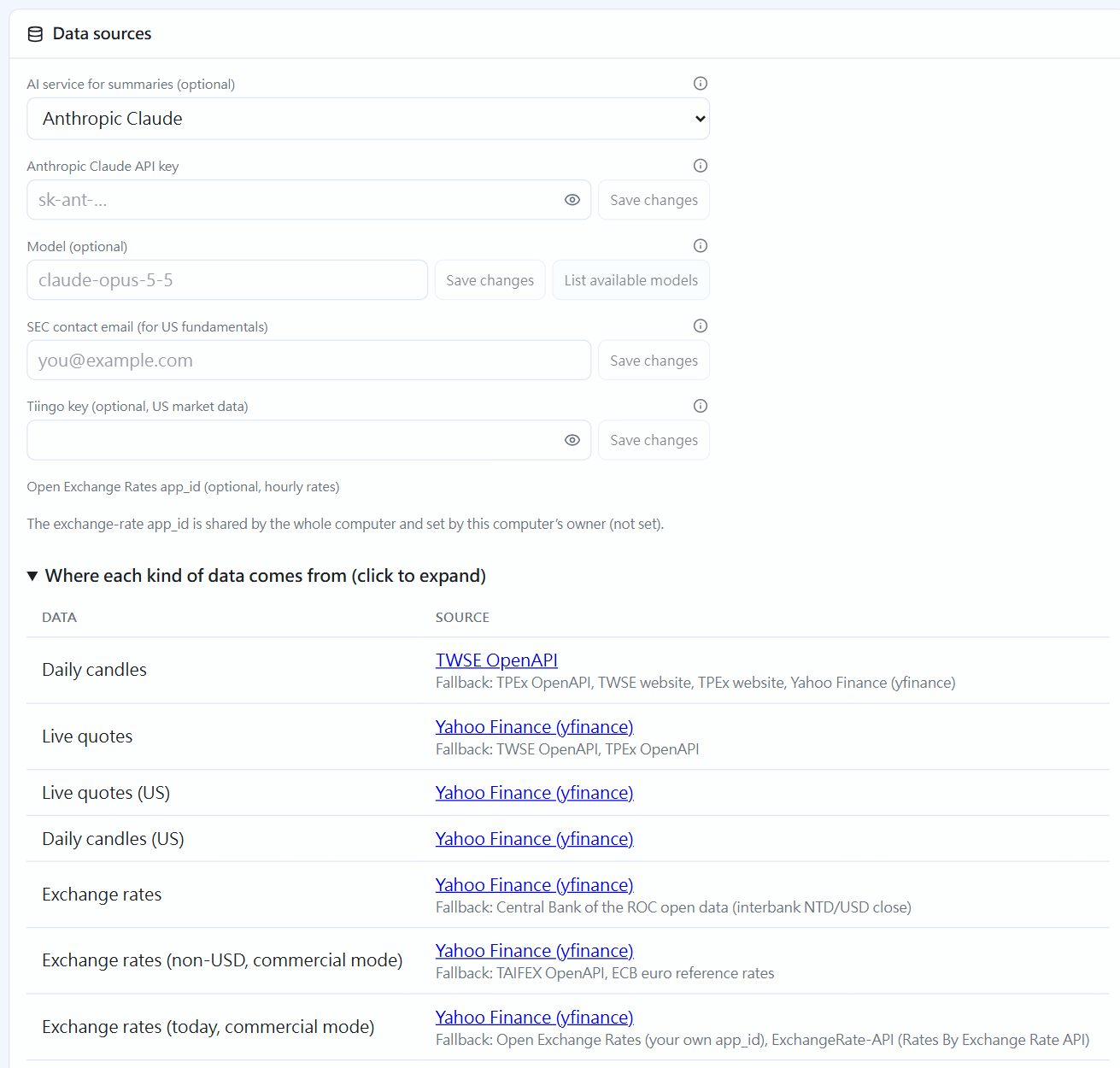
Data sources(click the image to enlarge)
| Field | What it is for | What happens if empty |
|---|---|---|
| Which AI for summaries, its API key and model | Used for the "AI summary"; you can choose Anthropic Claude (platform.claude.com), OpenAI (platform.openai.com) or Google Gemini (Google AI Studio); it is spent from your own quota. ChatGPT, Codex and Claude subscription plans do not include API quota; you must open an API key separately at the sites above. Each service's key is stored separately, so switching does not delete another's; after saving only the last four characters are shown. Leaving the model empty uses the default, and "List available models" lets you pick from a list. You can also choose "Local model / OpenAI-compatible" to use a model on your own computer (Ollama, LM Studio), entering the address with no key needed | The AI summary becomes bullet points; all other features are unaffected |
| SEC contact email | US P/E, dividend yield and price-to-book need financial filings from the US SEC, and the SEC requires requests to carry the requester's email. It is placed only in the request sent to the SEC | The fundamentals sub-chart for US stocks is not shown, with a notice that you must fill it in first |
| Tiingo key (per account) | US quotes, daily candles, dividends and splits switch to Tiingo: an official data interface, more stable than Yahoo, and usable in commercial mode. Register free at tiingo.com, copy the token from the API page after signing in and paste it; after saving only the last four characters are shown. The free plan is for personal use only with 50 requests an hour, so quotes are fetched all at once and daily candles are topped up once a day (after the US close); when rate-limited the saved data is used first, and normal mode falls back to Yahoo. The free plan allows only you to see it, so the key and the data fetched are used only by this account and other accounts on the same computer cannot see them; they are deleted with the account | Normal mode still uses Yahoo; commercial mode has no US quotes or daily candles |
| Open Exchange Rates app_id (only the owner can enter it; one per computer) | Makes "today's rate" update hourly in commercial mode | Uses the officially sourced rates, updated daily |
Seeing the keys you saved: once saved, a key shows only its last four characters; while typing, hold the eye at the right of the field to see what you typed. If you forgot which one you saved or want to copy it elsewhere, click "View" beside the field and enter your sign-in password again, and the whole key is shown and hides itself after 30 seconds (you can click "Copy"). You can see only your own account's keys; the Open Exchange Rates app_id is visible only to the owner; wrong passwords count like sign-in attempts, and five wrong in a row lock you out for a while; a key supplied through an environment variable is not shown (whoever set it knows it).
The "Where each kind of data comes from" section, collapsed by default, expands into a table listing, for each kind of data (daily candles, quotes, exchange rates, market holidays, fundamentals, chip data, monthly revenue, large holders, AI summary…), where it currently comes from (sources must be credited, so this table is not removed). The developer copy run from the git project folder has one more column, "Licence" (commercial use OK / written consent needed / licence unclear / commercial use prohibited), which is written for developers and is not shown to ordinary users.
For how to apply for these keys, with the screens for every step, see the next chapter Keys you apply for yourself.
← Account and cash | Contents | Keys you apply for yourself →