Repository navigation
Step 1 Create an instrument
You cannot skip this step. An instrument has to exist before it can be chosen when you add a trade.
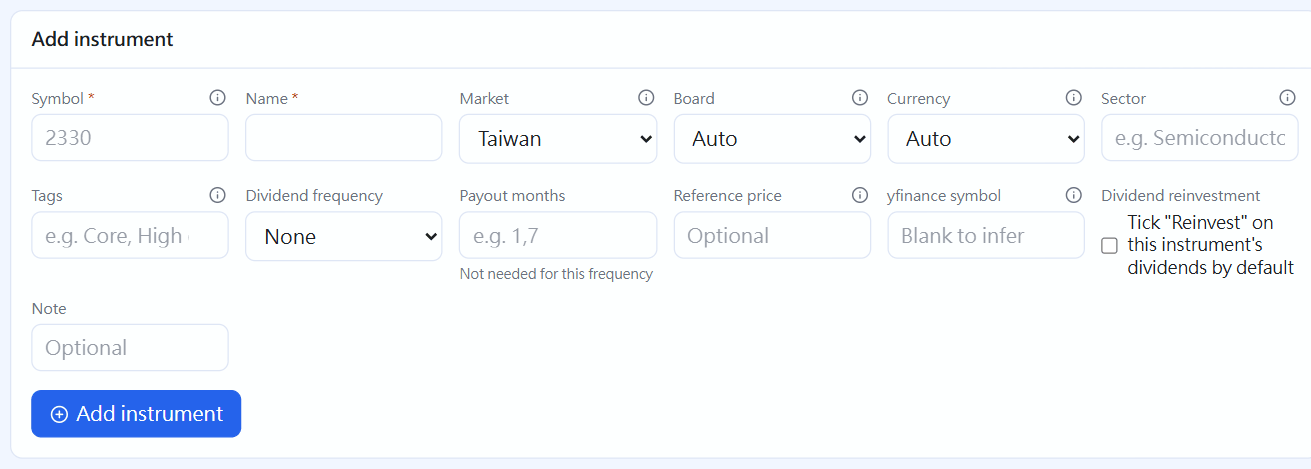
New instrument(click the image to enlarge)
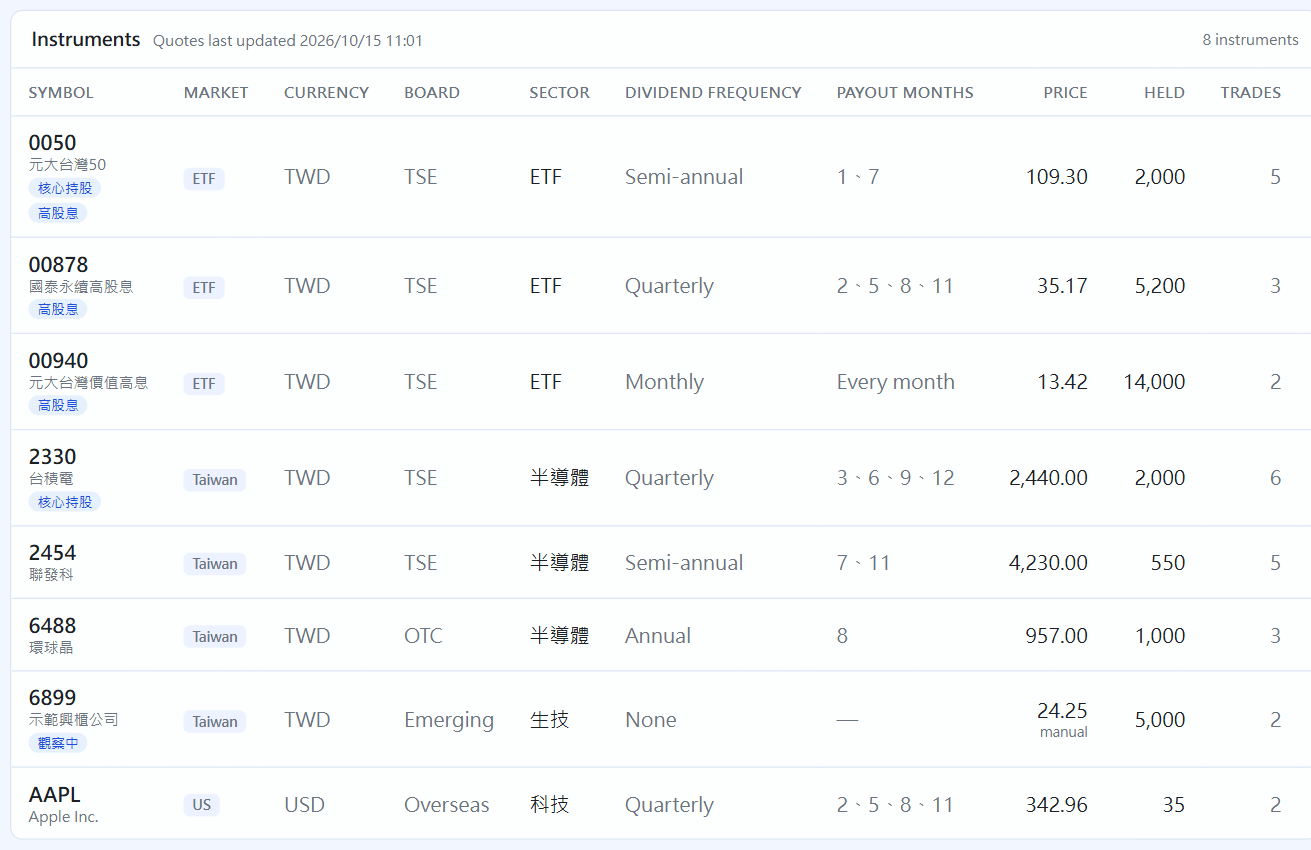
Instrument list(click the image to enlarge)
Go to the "Instruments" tab and fill in the form at the top:
| Field | Description | Required |
|---|---|---|
| Symbol | For Taiwan stocks enter the number, for example 2330
|
✅ |
| Name | For example TSMC
|
✅ |
| Market | Taiwan stock / ETF / US stock. This decides how fees and transaction tax are calculated | ✅ |
| Type | Taiwan stocks only: stock or warrant (see Warrants). The form suggests it when the code looks like a warrant | |
| Board | Choose "TSE" for listed, "OTC" for over-the-counter. If unsure leave "Auto" | |
| Currency | Leave "Auto" (US stocks become USD automatically) | |
| Sector | Used to filter and total on the Positions and Allocation pages, for example "Semiconductors" | |
| Tags | Your own grouping; one instrument can have several, for example "Core" or "High yield"; press Enter after typing, the dropdown suggests existing tags and new ones are created automatically. You can filter by tag above the Positions list; at the bottom of the Instruments page you can rename or delete them, and a tag no instrument uses disappears by itself | |
| Dividend frequency / months | Used only in the dividend calendar and affects no calculation. If the months vary each year, leave them empty: the calendar uses the months actually paid in the last two years (marked "est"); a monthly payer left empty means every month | |
| Reference price | Only needed when no market price can be found (emerging or unlisted stocks). Ticking "Use this price first" overrides the automatic quote (when the quote is inaccurate for thinly traded, suspended or delisting stocks); also fill "From which date", and the asset trend uses this price from that date on | |
| yfinance symbol | Left empty it is inferred automatically; you usually do not need to fill it |
Why the board matters: the price-lookup symbol for OTC stocks ends in
.TWOinstead of.TW, so choosing the wrong one finds no price.
Once created, that row shows the current price, your share count and the number of trades. Click the pencil icon to edit, the eye icon to hide and the trash icon to delete.
An instrument that already has trade, dividend or lending records cannot be deleted; it is blocked, because deleting it would make those records no longer add up. If it is sold out and you do not want to see it any more, use hide: it disappears from the instrument list and the New trade dropdown, while past records, profit and reports stay as they were. An instrument you still hold cannot be hidden (otherwise you could not sell it). To bring it back, click "Show hidden" at the top right of the instrument list, then click the eye icon again to unhide.