Repository navigation
Getting started
On this page
- Downloading and installing
- Signing in
- Closing
- Two-step verification
- Passkey (sign in without a password)
- Sign in with Google
- Database encryption and the recovery key
- Opening it again later
Pick one edition. Where your data lives matters: backups and moving to a new computer both need it (the database is the file stock.db). Once installed, "Manage → Settings → Data location" shows the path, and "Open folder" opens it.
Moving to another folder (installed version, the computer's owner): in the same place click "Move to another folder…", choose a destination (a STOCKings folder is created inside it) and click "Move on next start". The database is in use while the app runs, so the move happens when you close STOCKings and open it again: the data is copied, checked byte for byte, and only then used from the new place; the old data goes into a "搬移前的資料-date" (before the move) folder as a backup you can delete once everything works. You can "Cancel move" before that. Synced cloud folders (OneDrive, Dropbox, iCloud and so on), the program folder and folders inside the current one are refused, and so is a destination without enough space. If the move fails the original location stays in use and the reason is shown here; if the data is on an external drive that is not connected, the default folder (with only the backup from before the move) is used and flagged until you connect it and reopen the app. Uninstalling with "delete the data too" deletes the moved data as well. The portable version and folders set with STOCKINGS_DATA_DIR cannot be moved here; move the folder yourself.
Data and program are kept apart: if you keep the data when uninstalling and install again later, it carries on with the same data (the earlier accounts and the owner are still there; the installer warns when it finds old data). To start over, choose to delete the data too when uninstalling. Don’t move the data into a synced folder such as OneDrive (the database can get corrupted, and your ledger would be uploaded to the cloud).
| System | Edition | How to start | Where your data lives |
|---|---|---|---|
| Windows 10 / 11 | Installer | Run STOCKings-Setup-version.exe and follow the screens (no administrator rights needed), then open it from the Start menu or the desktop shortcut |
%APPDATA%\STOCKings (type %APPDATA% in the File Explorer address bar) |
| Windows 10 / 11 | Portable | Unzip, then double-click STOCKings.exe in the folder; you can carry it on a USB drive |
the data folder next to it |
| macOS | App | Open the .dmg, drag STOCKings.app onto the Applications folder next to it, then open it. Apple Silicon (M1 and later) uses macos-arm64, Intel uses macos-x86_64 (Apple menu → "About This Mac", look at "Chip") |
~/Library/Application Support/STOCKings |
| Linux (Ubuntu 24.04, Debian 13 or newer) | Installer (.deb) |
sudo apt install ./stockings_version_amd64.deb (it installs the packages it needs), then open it from the applications menu; remove it with sudo apt remove stockings
|
~/.local/share/STOCKings |
| Linux | Portable | Unzip and run STOCKings in the folder; the system needs WebKitGTK and a CJK font first (Ubuntu: sudo apt install gir1.2-webkit2-4.1 libgirepository-2.0-0 fonts-noto-cjk) |
the data folder next to it |
The desktop editions open a window, and closing the window ends the program. To see two screens at once, open the program again or click "New window" in the account menu at the top right.
macOS says it cannot open the app (no Apple signature)?
Click "Done", go to System Settings → Privacy & Security, scroll down and click "Open Anyway", then enter your password. This is the system's default protection for programs without a paid signature, and you do it once per version (it asks again after you update). Since macOS 15 Sequoia, right-click → "Open" no longer skips this step.
After an update, macOS asks whether "STOCKings wants to use confidential information stored in your keychain"?
Enter your login password and click "Always Allow". The database key is kept in the keychain, and the new version has a different signature, so the system checks again. If you clicked "Deny" by mistake, STOCKings shows the unlock screen: paste your recovery key to open it, and no data is lost.
You can also run it straight from the .dmg, but to remove it with "Uninstall" under "Manage → Settings", first drag STOCKings to Applications and open it from there (the copy inside the .dmg cannot be deleted).
Windows shows a blue "Windows protected your PC"?
Click "More info" → "Run anyway". Again you only do this once.
After you sign in, if the Terms of Service or Privacy Policy has been updated, a window first asks you to read and tick agreement (only the documents that changed); creating your first account works the same way. Choosing "Decline" only signs you out and your data is not deleted. Each document has its own version, which is not the app version.
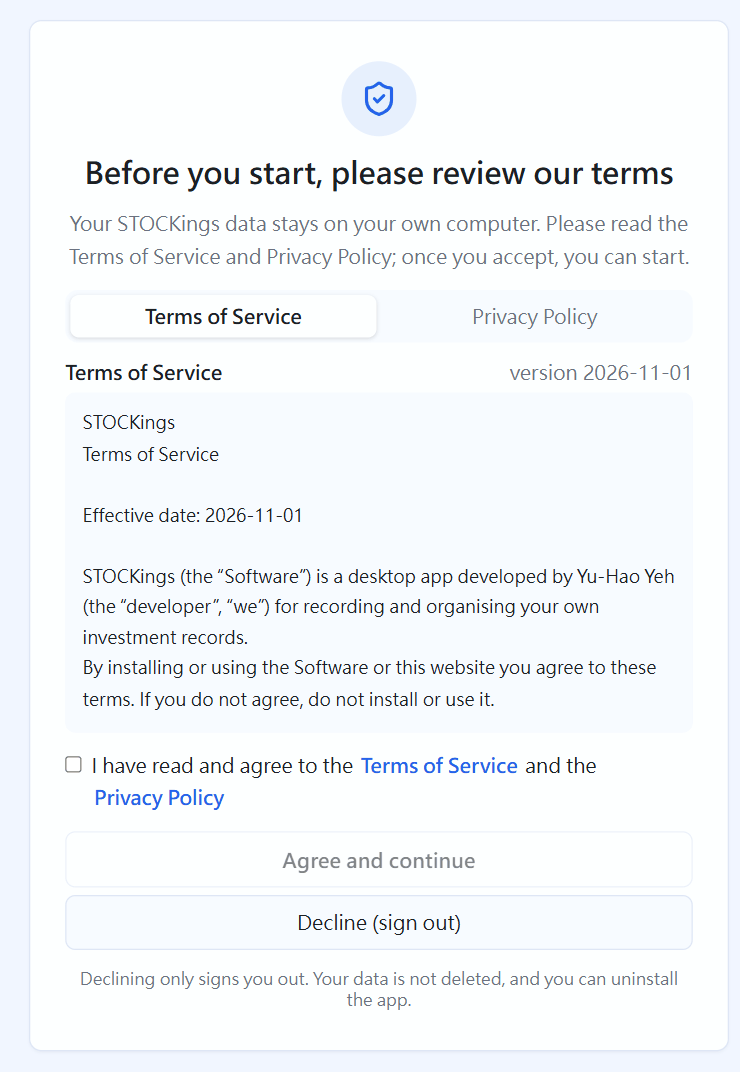
Accepting the Terms of Service and Privacy Policy(click the image to enlarge)
Registration: after accepting, this computer's owner registers once with an email address: enter the address, click "Send code", and type in the 6-digit code from the email (valid for 10 minutes). Only the email address, the app version and the versions of the terms you accepted are sent — your trades and holdings are never uploaded. Other accounts do not need to register. If the registration service can't be reached, click "Register later" and finish under Manage → Settings → Registration. After registering, the app extends the licence automatically about every 7 days; if you have been offline for a long time (over 30 days) the main screen reminds you to verify your email again, and everything keeps working. Manage → Settings → Registration shows the email address and how long the licence is valid, and lets you verify again or change the address, or click "Delete registration data" to remove it from the registration service (you will be asked to register again at the next sign-in; if the licence has expired, verify again first, or email stocking.public@gmail.com from the address you registered with).
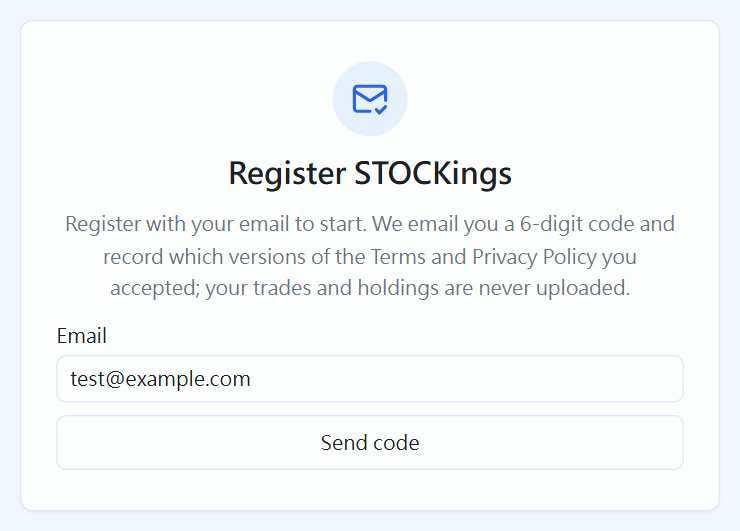
The registration screen(click the image to enlarge)
The first start asks you to create the first account; that account is the owner of this computer (see "Account and cash → Switching accounts"). If it opens on the sign-in page instead of creating an account, this computer already has data (for example, you kept the data when uninstalling): sign in with an earlier account, or use "No account yet? Create one" to add another (a new account is not the owner).
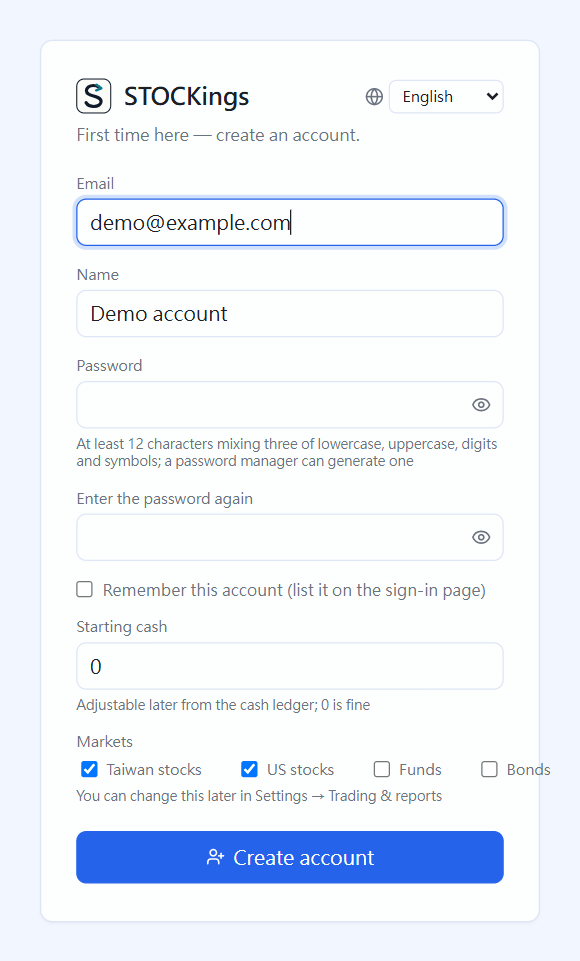
First launch: create an account. The account exists only on this computer
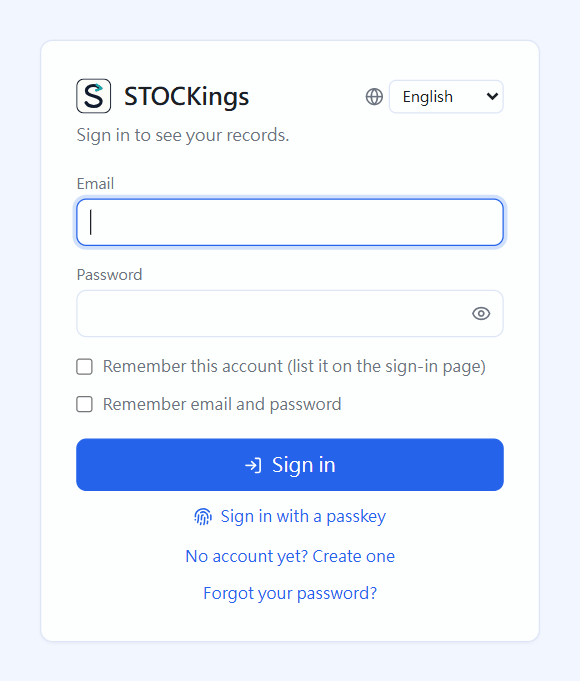
The sign-in screen
The top right of the sign-in screen lets you change the interface language (Traditional Chinese, English, Japanese, French, German, Spanish, Portuguese, Russian, Korean); after you sign in or create an account, that account uses the same language (you can change it later in Settings).
Want to see what the reports look like first? After signing in, go to "Manage → Account" and click "Create demo account". It adds demo@example.com (password demo1234)
with a full set of made-up data (day trades, splits, lending, short sales, US stocks). Switch to it from the account menu at the top right; when you are done, click "Delete this account" inside it and it is gone,
and your own data is untouched.
Recommended: to really use the program, create a new account of your own ("No account yet? Create one" on the sign-in page, or "Add account" in the account menu at the top right) and keep the demo account just for reference. For safety, once an account exists the sign-in screen can no longer create new accounts directly.
The desktop editions (installer, portable, macOS app) end when you close the window. For the launcher edition run "Stop STOCKings" in the same folder (.bat on Windows, .command on macOS, .sh on Linux); it is fine not to, because it uses very little and does not start by itself after a reboot.
After you close it and open it again, you sign in again. This is deliberate: closing the program is the same as signing out,
so the next person to open the browser does not see your ledger straight away. Tick "Remember this account on this computer" when you sign in (or create an account) and the sign-in page lists it; one click fills in the email and you only retype the password. If you do not tick it, neither the sign-in page nor the account menu shows it, so other people on the same computer cannot see who has signed in, and the sign-in page does not fill in the email. To cancel it later (or add it afterwards), use the "Remember this account on this computer" switch under "Manage → Account → Profile"; the × next to other accounts in the top-right account menu removes one too, after asking you to confirm. Once an account is no longer remembered, or is deleted, the sign-in page stops filling in its email. Every password field has an eye on its right: hold it to see what you typed, let go to hide it again. Sign-in is at /login and account creation at /register, and you can switch between them with the back button.
If typing the password every time is a nuisance, tick "Remember email and password" when you sign in: afterwards, on this computer's sign-in page, click the account and press "Sign in". The password itself is not stored; what is stored is a sign-in credential you can cancel at any time:
- On the sign-in page, with that account selected, click "Stop remembering password";
- or go to "Manage → Account → Computers that remember your password" and cancel them one by one or all at once;
- Changing your password cancels them all automatically, and they expire by themselves after 90 days without use.
Only tick it on your own computer, never on a shared one.
After five wrong passwords in a row that account must wait five minutes before trying again (the screen tells you how long is left; other accounts can still sign in). This stops programs from guessing passwords endlessly. If no account on this computer uses the email you typed, the page says so directly, with a "Create account" button next to it, and it does not count as a wrong attempt; so "Wrong password" means the email is right and the password is not. After too many unknown emails and new accounts in total (20), the page asks you to try again in 5 minutes; signing in with the right password still works meanwhile. Switching between signing in and creating an account clears the email and password (the "Create account" button next to "no account" keeps the email you typed); creating an account asks for the password twice, and nothing is created if the two differ.
Password rules (when creating an account, changing or resetting a password): at least 12 characters, mixing at least three of lowercase, uppercase, digits and symbols; it cannot be a common password, one repeated character or a run of characters (aaaa, 1234), and cannot contain the part of your email before the @ or your display name. While you type, the list underneath ticks off as you comply, and a strength bar (weak, fair, strong, very strong) shows an estimated brute-force time (assuming an attacker who has the database and guesses one by one with 12 RTX 5090 cards; dictionary words or passwords used elsewhere fall much faster, hover over that line for the explanation). Use a password manager (the one built into your browser, 1Password, Bitwarden) to generate it, and do not reuse it on other sites. Passwords set earlier still work; if one does not meet the new rules you are told once after signing in, and we suggest changing it under "Manage → Account". After you change your password, "Password changed" appears: every device is signed out, and after you click "OK, sign in again" you sign in with the new password. Under "Manage → Account → Password" you can see how many days this password has been in use. Whether to change passwords regularly: no reminder by default — the current advice (US NIST SP 800-63B) is that you need not change them periodically; a long, varied password that has not leaked cannot be guessed, and forced regular changes tend to make passwords simpler; change it only if you suspect a leak or share it with another site. If you do want a fixed reminder you can choose every 6 or 12 months, and when it is due a reminder appears at the top of the page, where you can click "Remind me in a month" (it reminds only on this computer).
Go to "Manage → Account → Two-step verification" and click "Turn on two-step verification":
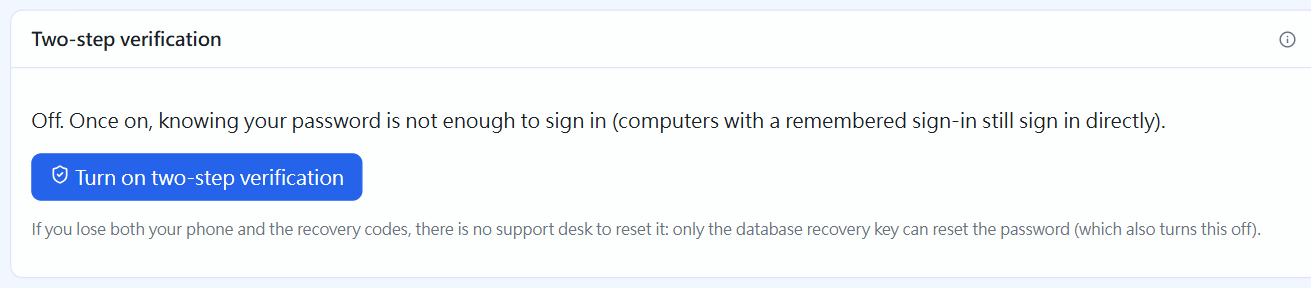
Two-step verification(click the image to enlarge)
- Install an authenticator app on your phone (Google Authenticator, Microsoft Authenticator, 1Password and Bitwarden all work)
- Scan the QR code on the screen with the app (if you cannot scan it, type the key below it by hand). If you scan with the iPhone camera it is added to the built-in Passwords app: pick an entry to save it into (or create one, for example STOCKings), and it then shows a 6-digit code; it does not jump back by itself, so return to STOCKings for the next step
- Enter the 6-digit code from the app and click "Confirm and turn on"
- The screen gives you 10 recovery codes, shown only this once: download or copy them and keep them somewhere safe
From then on, when the password is right at sign-in, the sign-in page also asks for the "Verification code" (the same when you switch accounts from the top-right account menu). When your phone is not with you, you can enter one recovery code instead, and each code works only once; when few are left, use "Generate new recovery codes" in the same place (all the old ones stop working). Entering a used recovery code again says "This recovery code has already been used"; after signing in with a recovery code, the top of the screen reminds you how many are left, and if the authenticator app is gone or you changed phones, go to "Manage → Account → Two-step verification", turn it off and turn it on again. A wrong verification code also counts toward "five wrong, locked for five minutes": wrong codes entered when signing in, changing the password through the email reset link, turning off two-step verification or generating new recovery codes are all counted together.
- On a computer where you ticked "Remember email and password", "Sign in" afterwards does not ask for the code again (it remembers this computer); cancelling it under "Computers that remember your password" means verifying again
- Changing the password through the email reset link also needs the code
- When both your phone and your recovery codes are gone there is no support team to help: the only way is to reset the password with the database's recovery key (see "Forgot password" below), which also turns off two-step verification so you can turn it on again after signing in
- If you delete the code from your phone (or changed phones without moving it): STOCKings cannot know, so the next sign-in still asks for the code and you can only sign in with a recovery code; after signing in, first "Turn off two-step verification", then turn it on again and scan it with the new phone
- Two-step verification protects "signing in to the program"; the data file itself is protected separately by database encryption (next section), and the two are independent
A passkey signs you in with Windows Hello (face, fingerprint, PIN), your phone or a password manager, with no email and password to type and no two-step verification code (a passkey is itself two checks: "your device + the fingerprint or PIN that unlocks it").
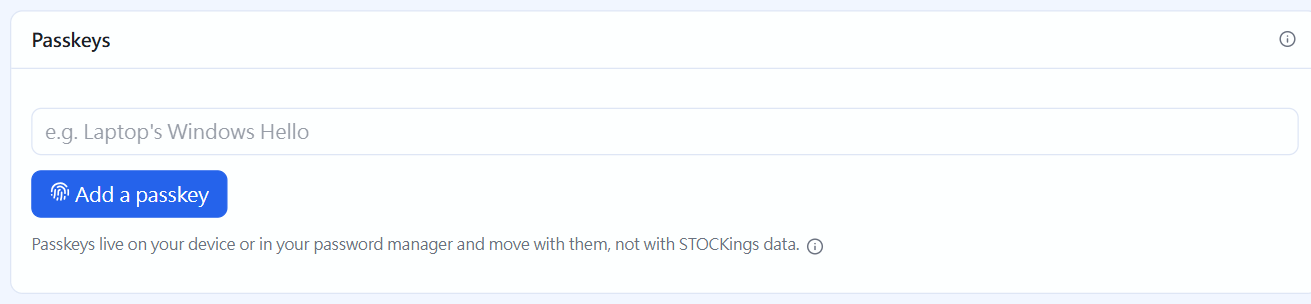
Passkey(click the image to enlarge)
- Sign in with your password first, go to "Manage → Account → Passkey", give it a name (for example "Laptop Windows Hello") and click "Add a passkey"
- Confirm in the window the system opens (Windows Hello, phone scan or password manager)
- From then on, click "Sign in with a passkey" on the sign-in page
- The address must be http://localhost:… (passkeys do not accept IP addresses such as 127.0.0.1). The program now always opens with localhost; if you arrive from an old 127.0.0.1 address you are redirected automatically and your remembered-account list, preferences and theme come along, but for safety you must sign in again (remembered passwords must be ticked again too)
- A passkey lives in the device or password manager, so when you change computers or reinstall it goes with them, not with STOCKings' data; keep your password as a backup
- If you delete the passkey from your device: that one stops working and you just sign in with the password (the password always works); STOCKings' list still shows it, so delete it under "Passkey"
- Delete passkeys you no longer use in the same place; the one on the device must be deleted separately in the operating system or the password manager
On the sign-in page, click "Sign in with Google". If you use STOCKings in a browser, the same tab goes to Google and, after you sign in and consent, comes straight back to STOCKings and carries on — no extra tab. In the desktop app, Google's security rules don't allow signing in inside the app window, so Google opens in your browser; after you sign in and consent, the STOCKings window comes back to the front and carries on by itself (you can close that browser tab). Google always asks you to pick the account first (no need to consent again if you did before), so you confirm it is the account you mean to sign in with. Your account and data still live only on this computer; Google only confirms that you own that Google account.
- First time (no account for that Google account on this computer yet): the account is created and signed in right away, with Google's name and email and a starting cash of 0 (deposit later in the cash ledger). It has no local password yet; a notice at the top keeps reminding you until you go to "Manage → Account → Password" and click "Set password" (no current password needed). After that you can also sign in with your email and this password; without internet Google sign-in doesn't work, so you need it then, and wherever STOCKings asks you to confirm it's you (such as deleting the account)
- You already have an account: sign in with your password, go to "Manage → Account → Google sign-in" and click "Link Google account". A matching email is never linked automatically (so nobody else can use a Google account with the same email to get into yours)
- Accounts with two-step verification still enter the code after signing in with Google
- Actions that ask you to confirm it's you — deleting the account, clearing your data, uninstalling, transferring ownership — always need the local password; your Google password can't be used instead (STOCKings never receives it or asks for it; you only type it on Google's own page). An account created with Google that has no local password yet must set one under "Manage → Account → Password" first
- Google's consent screen asks for only two things: name and profile picture, and email address; cloud backup is still connected separately in Manage > Settings
- One Google account can be linked to only one account on this computer; to stop, click "Unlink" in the same place (password, passkeys and cloud backup are not affected)
- During testing only Google accounts the developer added to the "test users" list can sign in
Your database is encrypted: even if someone gets the file stock.db, it cannot be opened without the key.
The key is kept in this computer's system credential manager, so opening the program normally needs nothing extra.
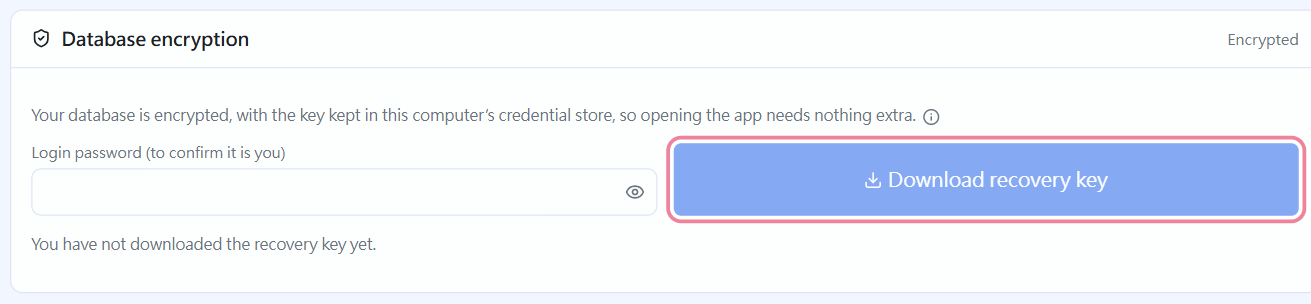
Manage → Settings → Database encryption: only the owner sees the download button(click the image to enlarge)

Until the owner downloads the recovery key, this reminder appears at the top of every page, a single line by default(click the image to enlarge)
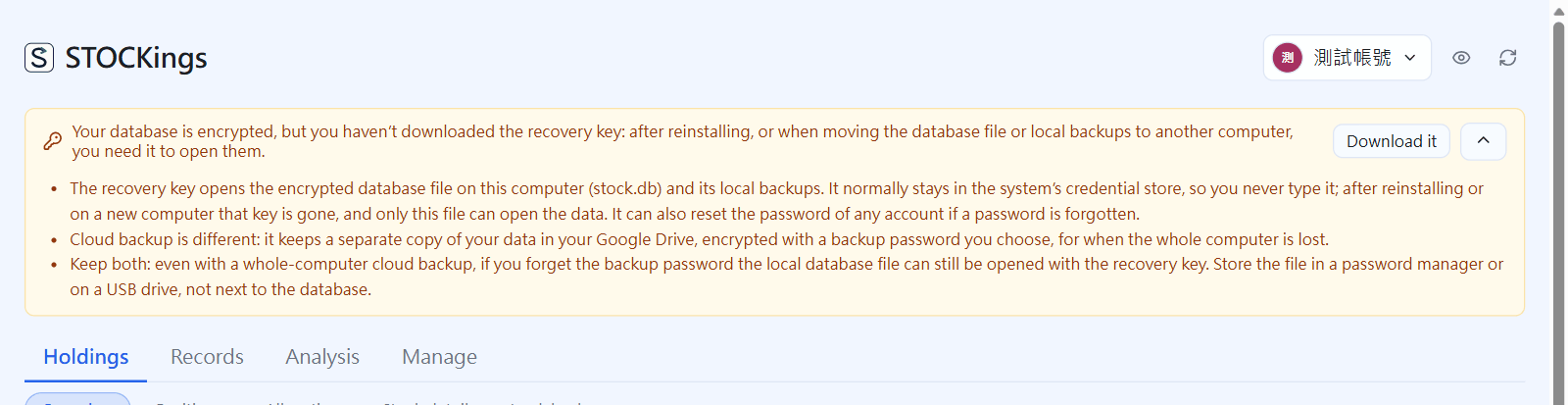
The arrow at the far right expands why it is needed and how it differs from cloud backup; click again to collapse(click the image to enlarge)
But when you change computers or reinstall the system you need the "recovery key" to open your data:
- Go to Manage → Settings → Database encryption, enter your sign-in password and click "Download recovery key".
- Keep the downloaded "STOCKings recovery key.txt" somewhere safe (a password manager, a USB drive), not next to the database file, and do not pass it to anyone.
- When the program one day shows "Database locked", select this file (or paste the line inside it) to unlock.
Until you download it, a reminder stays at the top of the main screen; it is a single line normally, and the arrow at its far right expands the full explanation (the points below); click again to collapse.
The recovery key and cloud backup are not the same; keeping both is recommended:
| Recovery key | Cloud backup | |
|---|---|---|
| What it is | The key that opens the encrypted database file (stock.db) and local backups on this computer |
A separate copy of your data kept in your Google Drive |
| What protects it | It is itself the key (normally kept in the system credential manager) | The backup password you choose |
| When you use it | The database file is still there but the key in the system is gone: after reinstalling, or when moving the database file or local backups to a new computer | The whole computer is broken or the disk is gone and nothing is left locally |
| What else it does | When you forget your sign-in password, it resets any account's password | — |
Even with a whole-computer cloud backup, downloading the recovery key is still recommended: if you forget the backup password, the local database file can still be opened with it.
What encryption protects
- Encryption guards against "
stock.dbbeing copied away": backing it up to the cloud, sending the computer for repair, losing a laptop. Programs run while you are signed in to your Windows / macOS account can read the key, so look after the computer's own sign-in password too and do not run programs of unknown origin.- Exported CSV and zip files are not encrypted; they are the complete ledger. Keep them somewhere safe and delete them when you no longer need them.
- Copies of
stock.dbmade before encryption are still plain text: backups you copied by hand earlier, and the version history of OneDrive / Google Drive. Delete them if you do not need them (for cloud drives, remember to clear the version history or the recycle bin).
For the desktop editions, open it again from the Start menu, the applications menu or a shortcut. Launcher edition: if the program is still running, just open the browser and go to http://localhost:8000; if you are unsure, double-click the launcher and it works out whether it is already running.