Repository navigation
Keys you apply for yourself
On this page
- Tiingo (US market data, free)
- AI summary (pick one of three, pay as you go)
- SEC contact email
- Open Exchange Rates (commercial mode, owner only)
These keys are all entered under "Settings → Data sources" (see Data sources). You can keep a complete ledger without any key. Every step has a screenshot (the same set as chapter 25 of the "STOCKings Illustrated Tutorial", with keys and accounts covered); other sites' screens may change, so go by the button names you see on the site. A key is like a password: do not paste it elsewhere; if it leaks, delete it on the original site, create a new one and paste the new one here.
- Go to https://www.tiingo.com and click "Sign Up" at the top right; enter an email, a username and a password to finish registering (the free plan needs no credit card).
- After signing in go to https://www.tiingo.com/account/api/token (API → Token in the left menu) and click the copy button to the right of the token to copy 40 letters and digits. If it leaks, click "Rotate API Token" on the same page for a new one.
- Back in STOCKings, paste it into "Tiingo key" under "Settings → Data sources" and click "Save changes". The field shows "Set (…last four)", and after you expand "Where each kind of data comes from", the source of "Live quotes (US)" and "Daily candles (US)" becomes Tiingo.
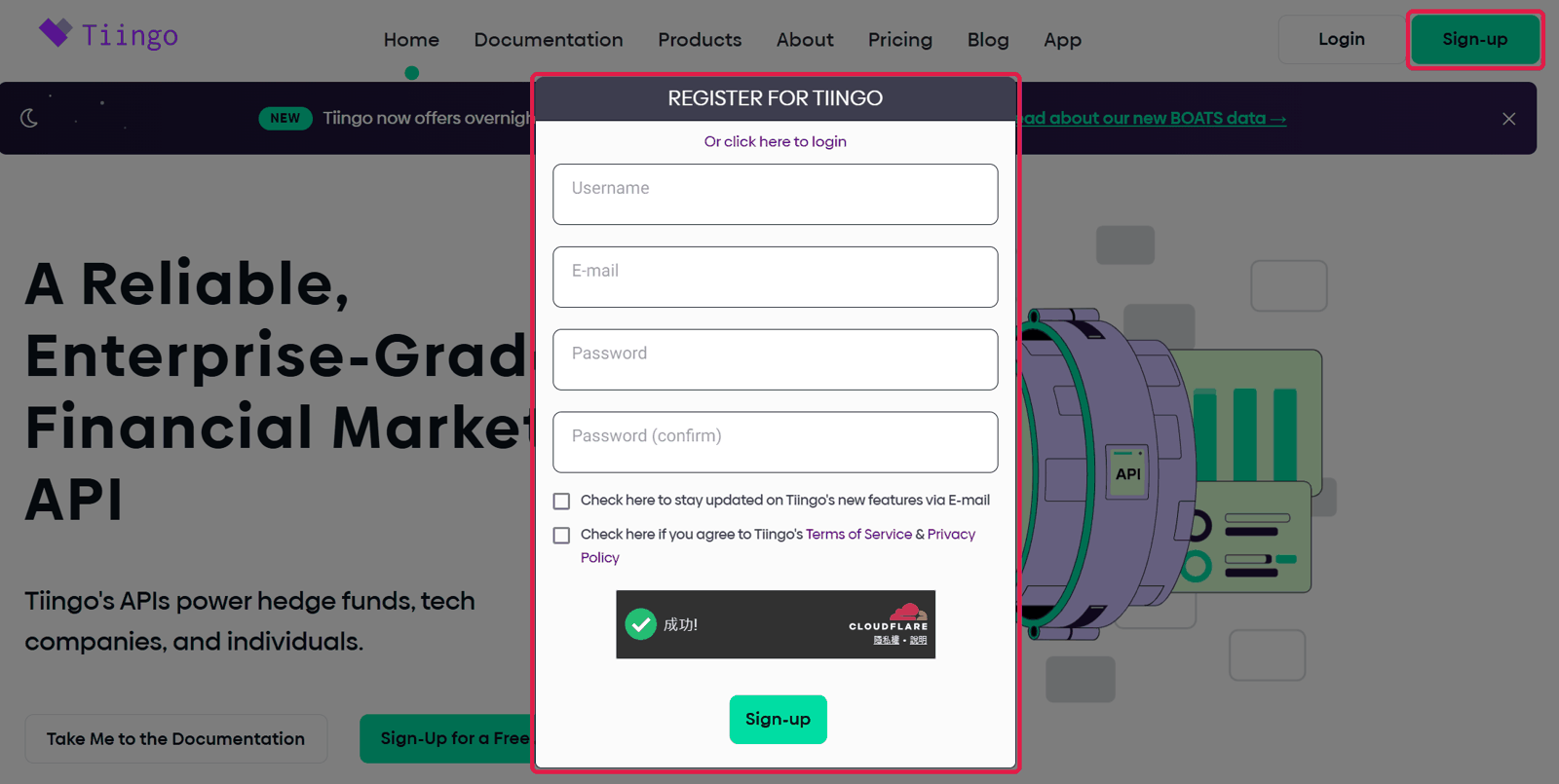
Tiingo's sign-up page(click the image to enlarge)
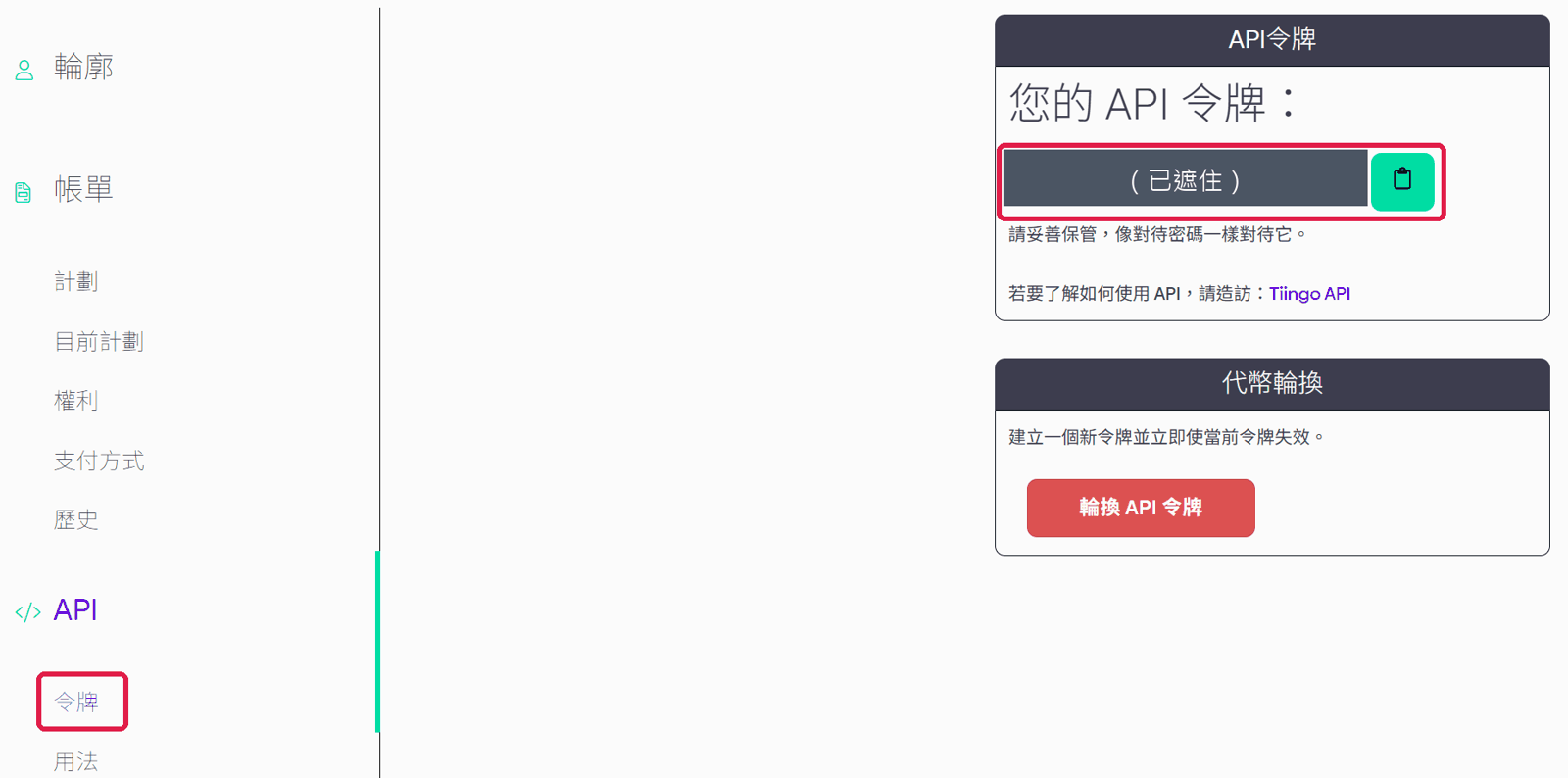
Tiingo's API Token page(click the image to enlarge)

Pasted into "Tiingo key"(click the image to enlarge)

Saved; only the last four characters are shown(click the image to enlarge)
The free plan allows 50 requests an hour, 1,000 a day and 500 symbols a month, for your own use only; each account on the same computer must apply for its own.
ChatGPT, Claude and Gemini subscription plans do not include API quota.
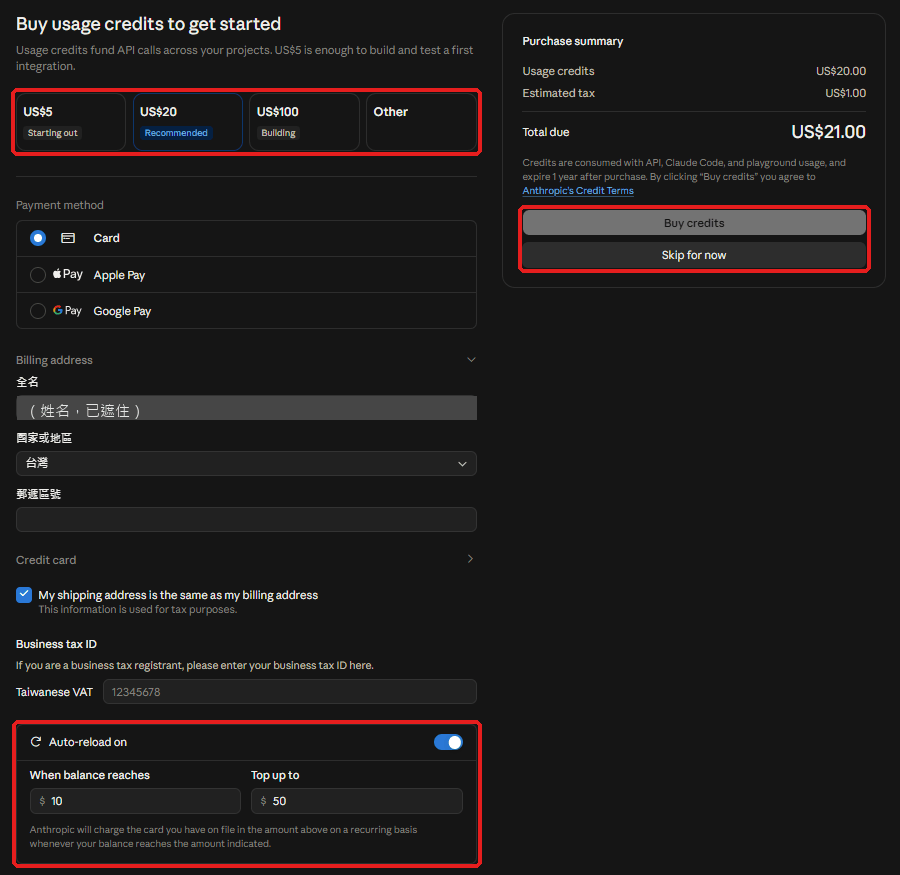
Claude Console's top-up screen (name covered)(click the image to enlarge)
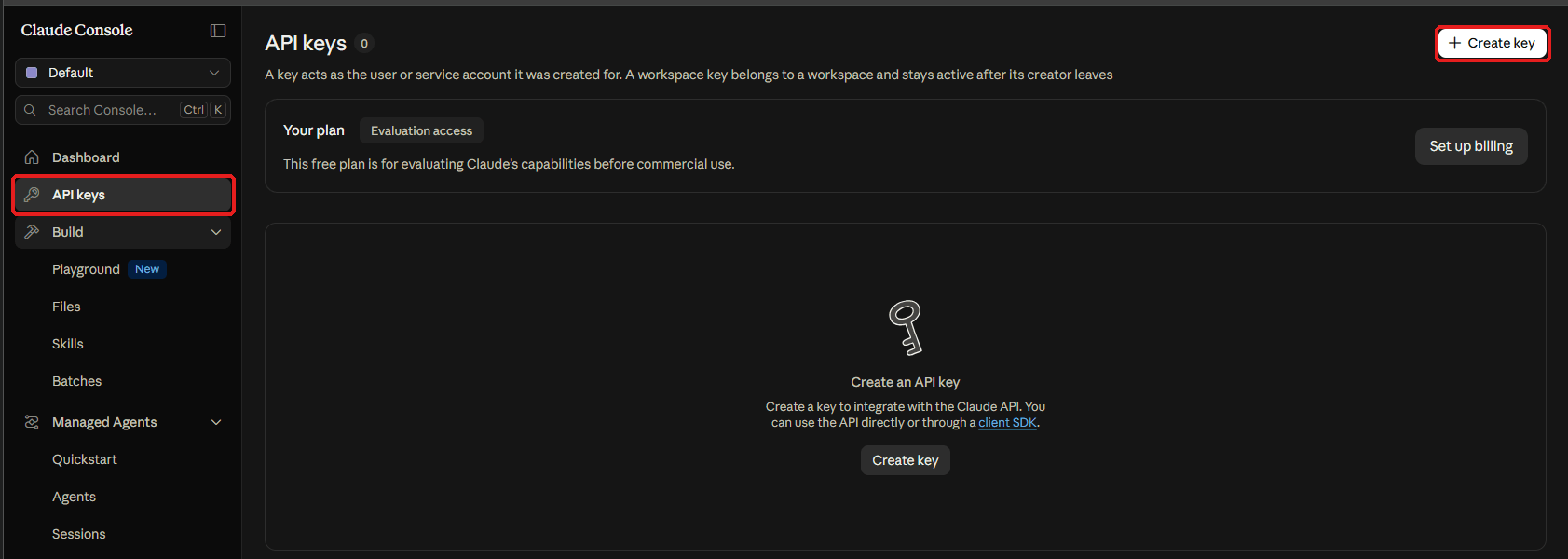
Claude Console's API keys page(click the image to enlarge)
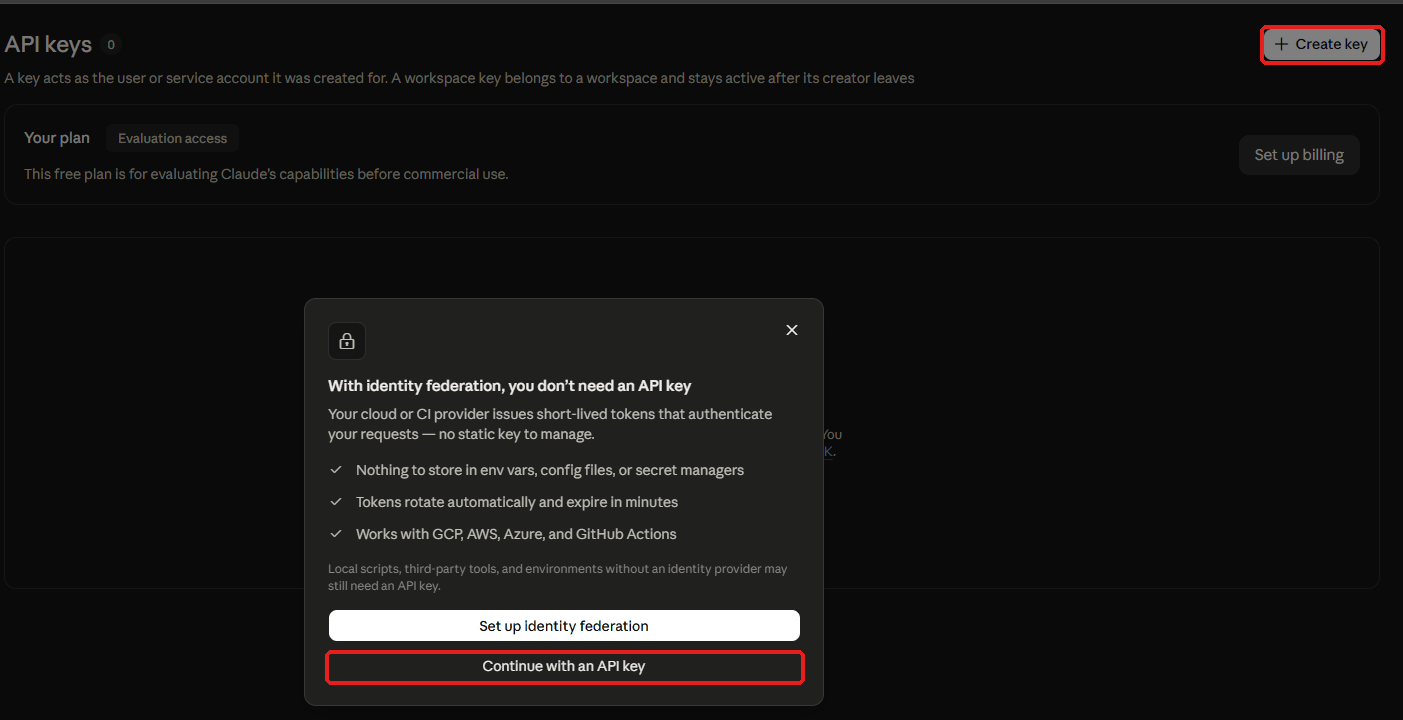
Choose Continue with an API key(click the image to enlarge)
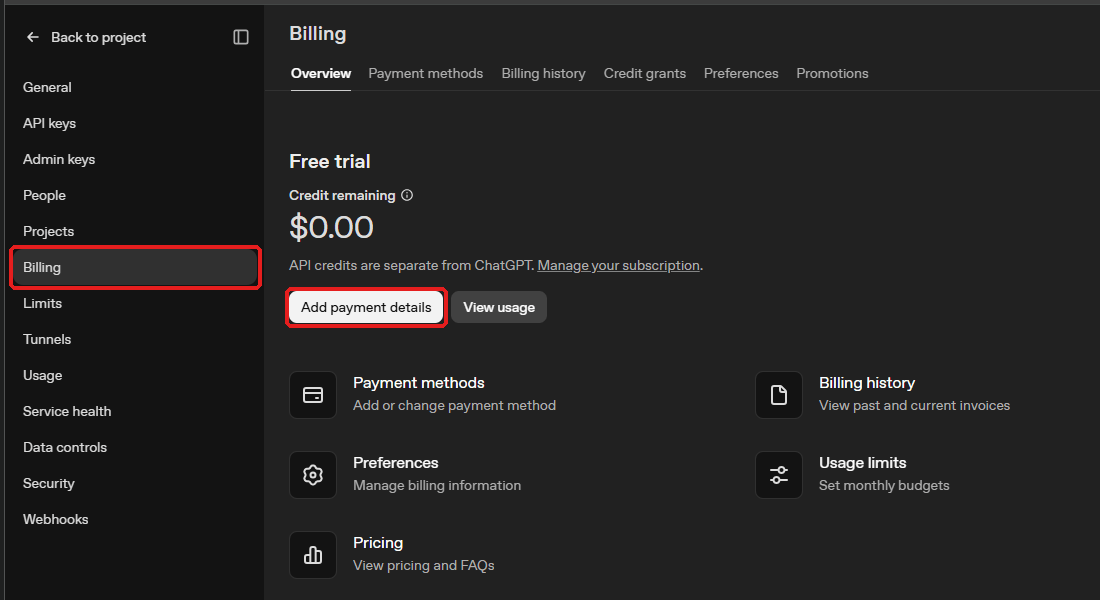
OpenAI Platform's Billing(click the image to enlarge)
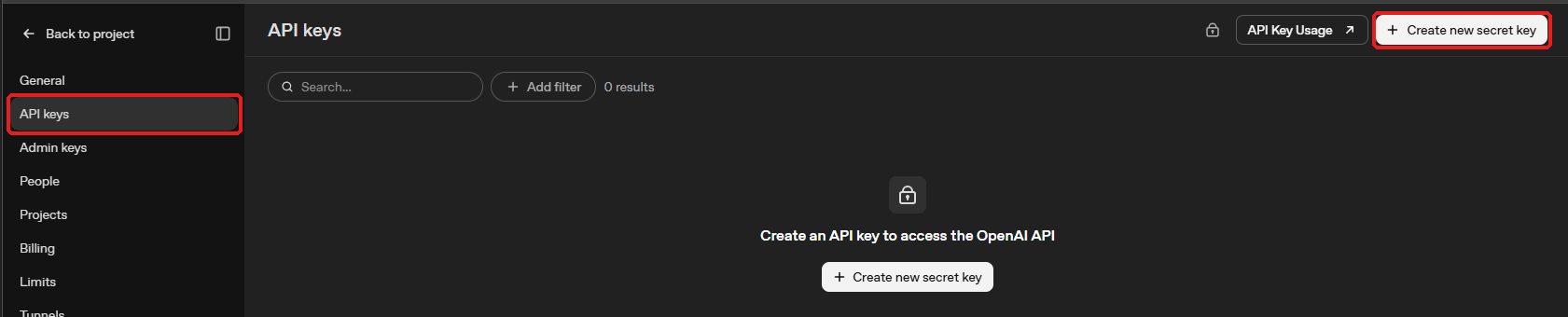
OpenAI Platform's API keys page(click the image to enlarge)
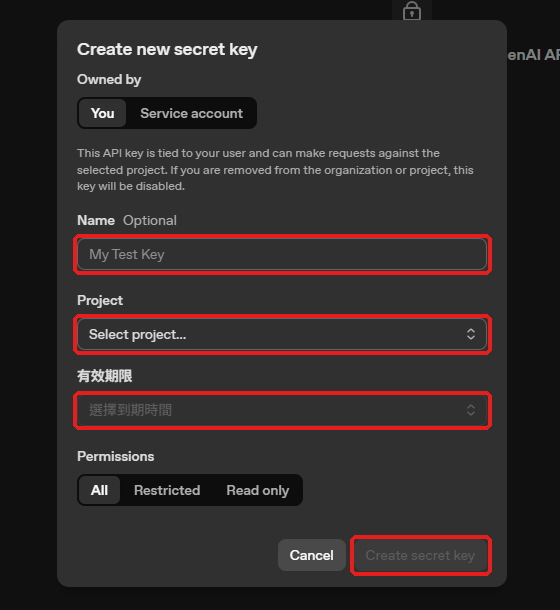
Creating a key: name, project, expiration
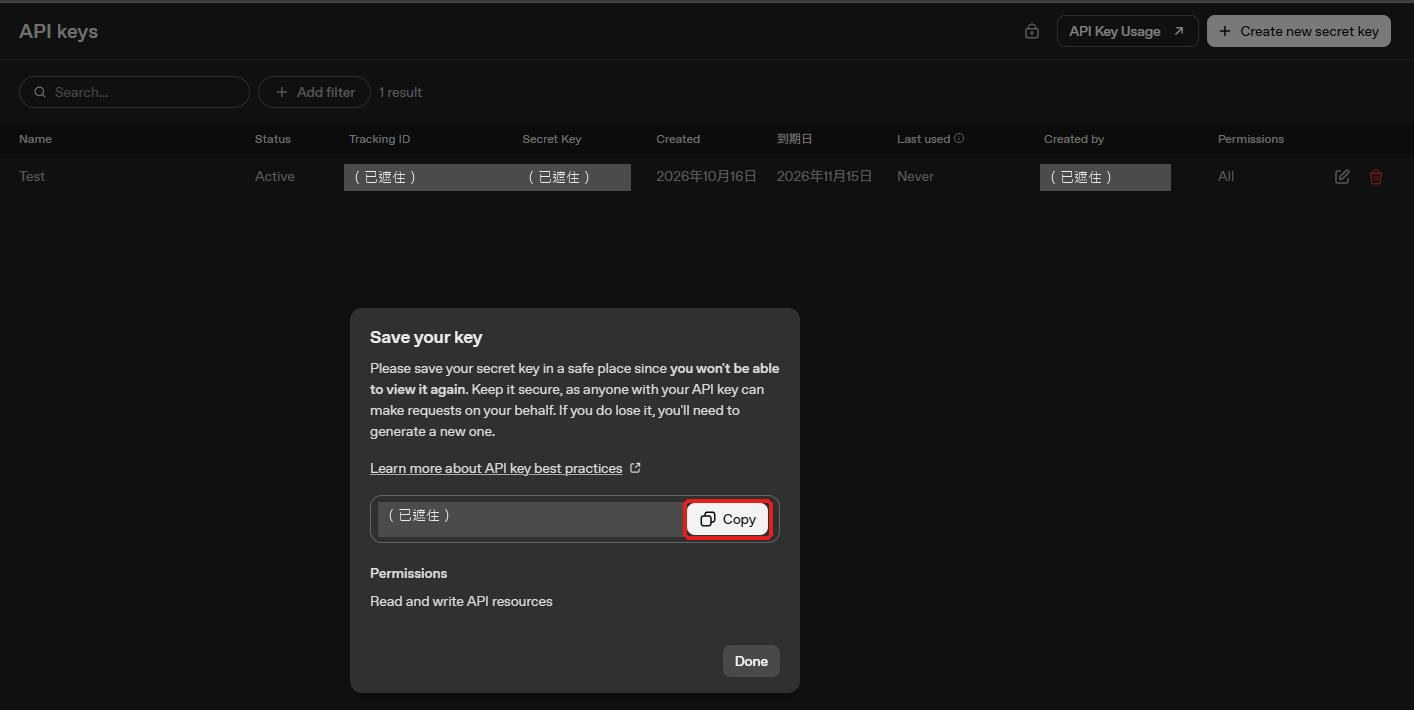
Copying the key (key and account covered)(click the image to enlarge)
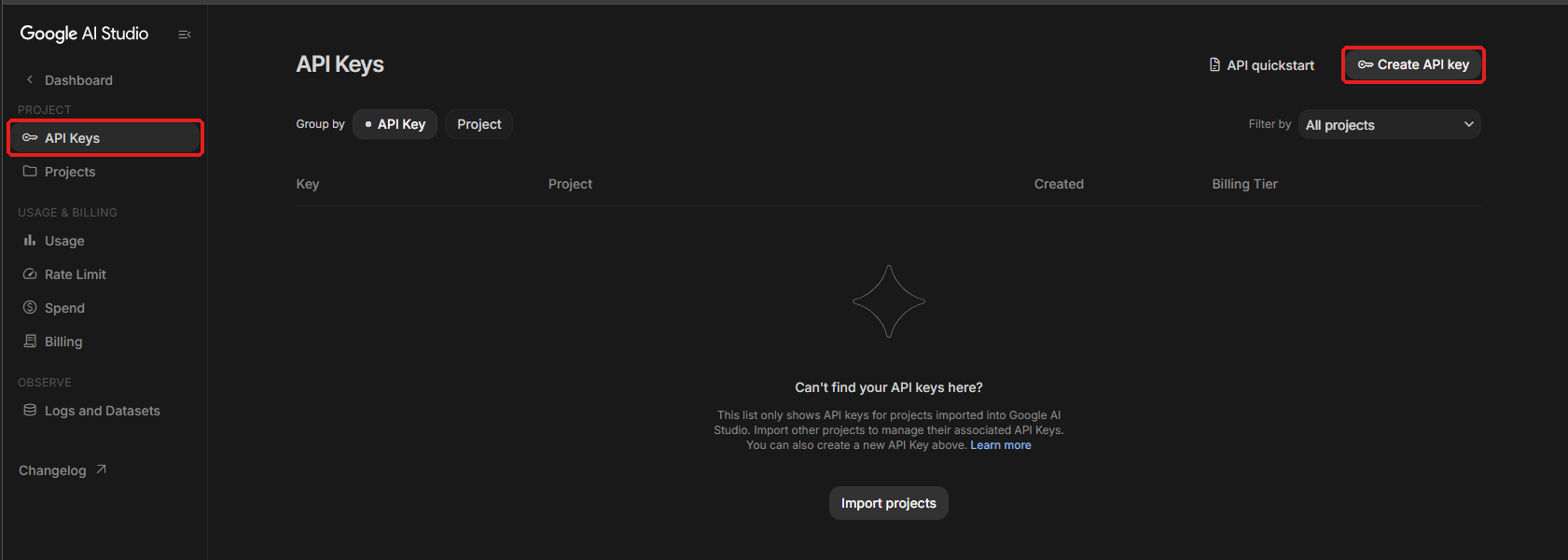
Google AI Studio's API Keys page(click the image to enlarge)
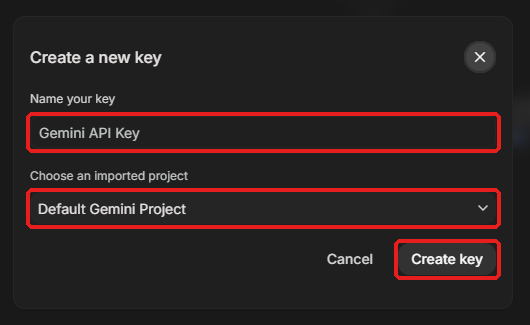
Creating a key: name and project
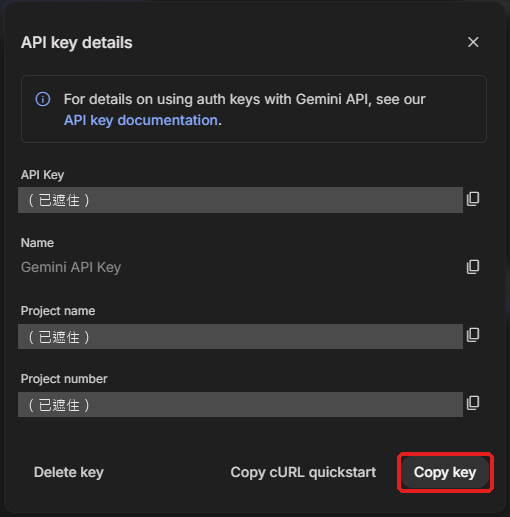
Copying the key (key and project number covered)
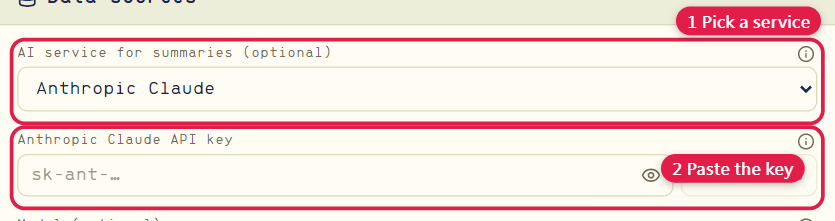
Choose the service and paste the API key(click the image to enlarge)
-
Anthropic Claude: go to https://platform.claude.com and register (the Claude Console, separate from claude.ai in accounts and payment). The first time "Buy usage credits" appears: choose an amount and click "Buy credits", or click "Skip for now" and top up later under "Billing"; "Auto-reload" below is on by default, so turn it off if you do not want automatic card charges. Then in the left menu "API keys" → "Create key" at the top right; when the identity federation notice appears click "Continue with an API key", give it a name, and copy the key that begins with
sk-ant-(shown only once). -
OpenAI: go to https://platform.openai.com and sign in (API quota is separate from a ChatGPT subscription); left menu "Billing" → "Add payment details" to add a card and top up. Then left menu "API keys" → "Create new secret key" at the top right: give it a name, choose your Project, choose an expiration (after it expires the AI summary goes back to bullet points, and you create a new key and paste it back), click "Create secret key", then click "Copy" to copy the key beginning with
sk-(usuallysk-proj-) (shown only once). -
Google Gemini: go to https://aistudio.google.com/apikey and sign in with a Google account, accept the terms, click "Create API key" at the top right, keep the default "Default Gemini Project" and click "Create key", then click "Copy key" (it may begin with
AQ.orAIza; you can still see it on the API Keys page later, and if it leaks click "Delete key" and create another). There is a free plan, but what you send may be used by Google to improve its products (only public market data is sent here). - Enter it in STOCKings: choose that service under "Which AI for summaries", paste the key into "API key" below it and click "Save changes"; leave the model empty or click "List available models" to pick one.
-
Local models (Ollama, LM Studio) need no key: choose "Local model / OpenAI-compatible", enter
http://localhost:11434/v1(Ollama) orhttp://localhost:1234/v1(LM Studio) as the address and click "List available models" to pick one.
Nothing to apply for: enter your own email in "SEC contact email" and click "Save changes".

Enter your own email(click the image to enlarge)
Not needed for normal use. Go to https://openexchangerates.org/signup/free and register "The Forever Free Plan" (no credit card, 1,000 requests a month), click the link in the confirmation email, then in the left menu "App IDs" (https://openexchangerates.org/account/app-ids) click the copy icon to the right of the App ID (if it leaks, click "Generate New App ID" for a new one and deactivate the old one), and the owner pastes it into "Open Exchange Rates app_id".
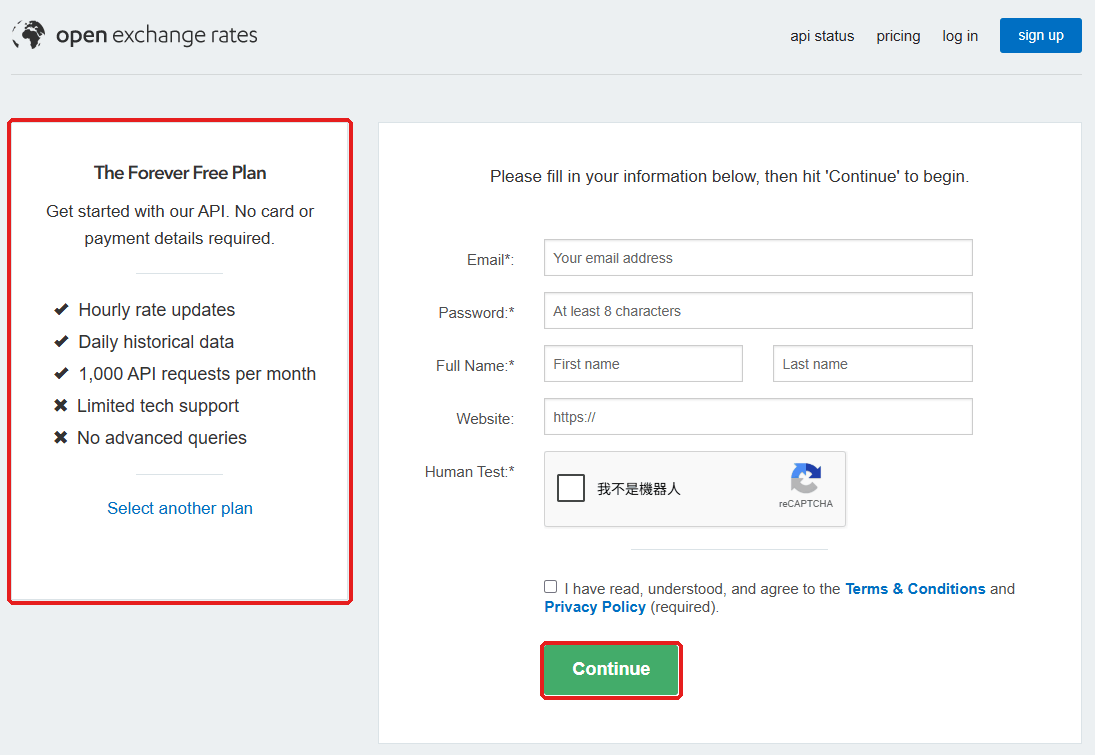
Open Exchange Rates free plan sign-up(click the image to enlarge)
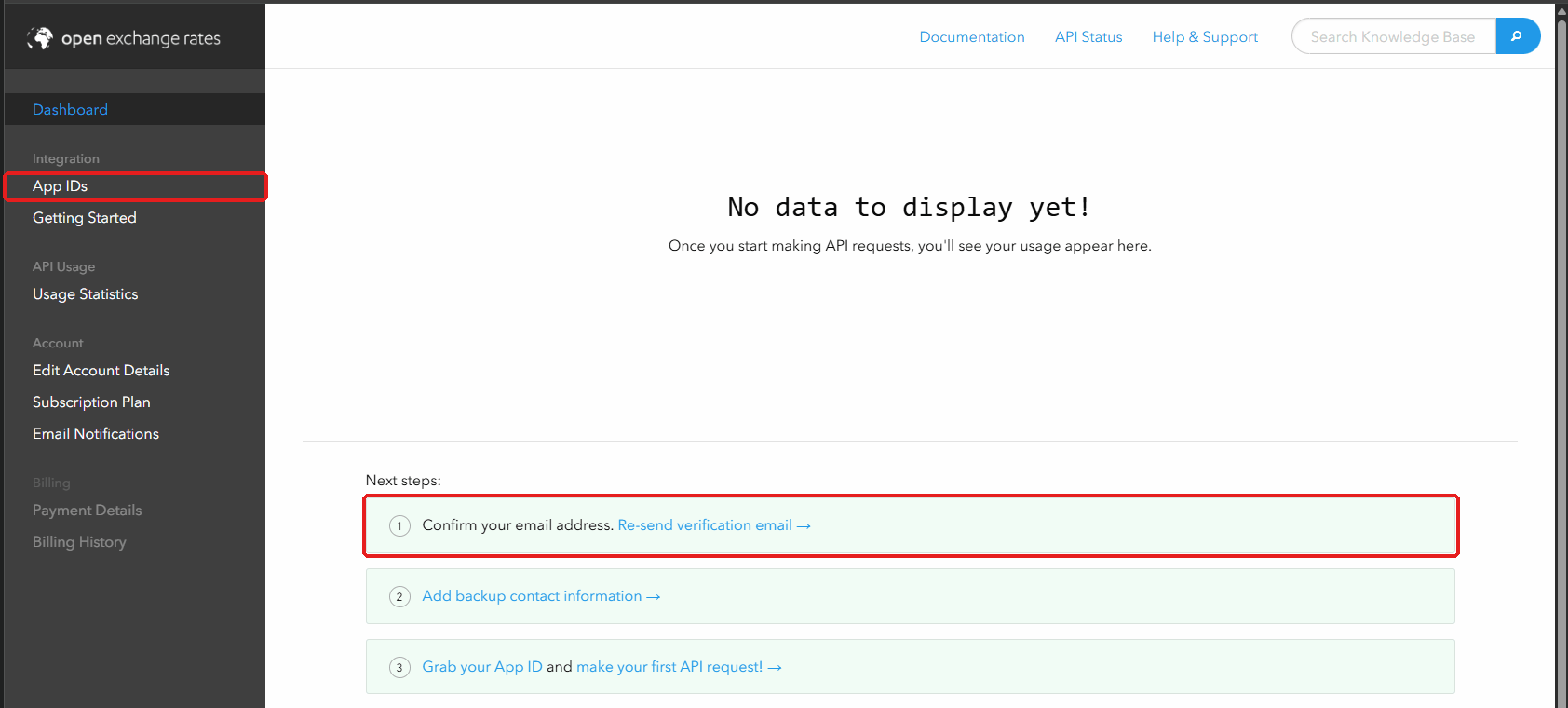
The Dashboard after registering(click the image to enlarge)
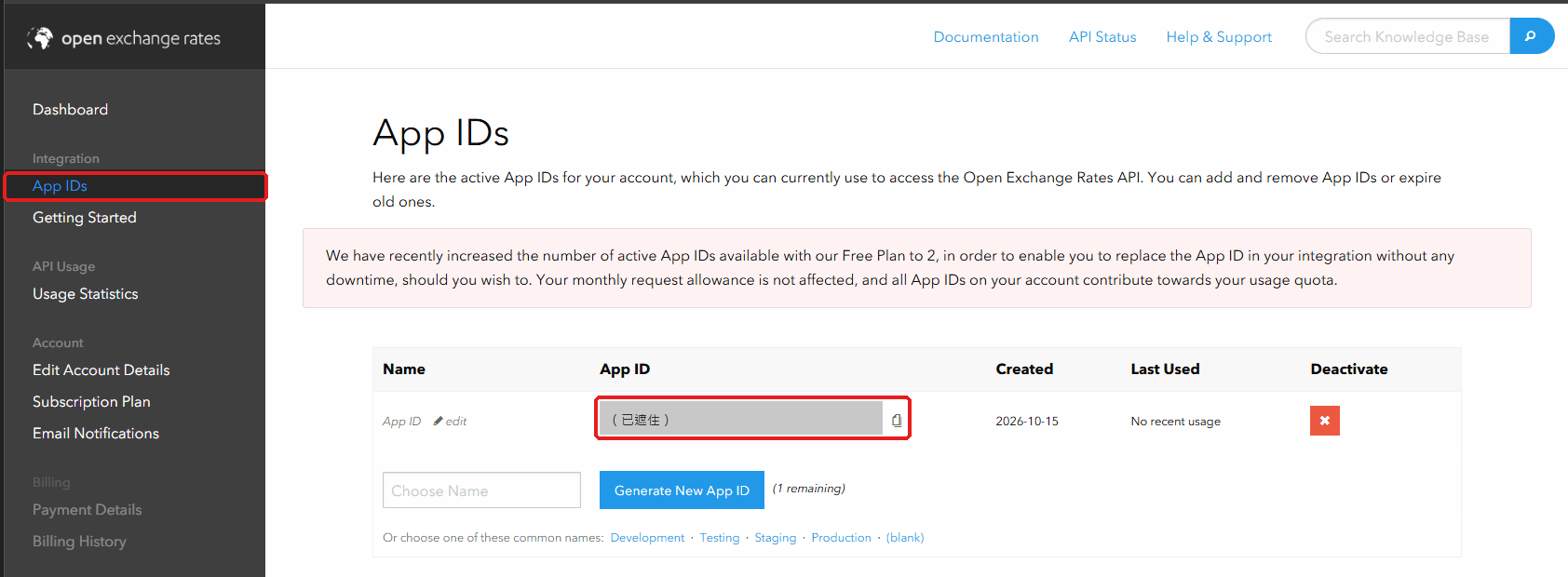
Open Exchange Rates' App IDs page (App ID covered)(click the image to enlarge)

The input field only the owner sees(click the image to enlarge)
The Google connection for cloud backup does not need to be applied for; it is built into the program.
← Settings | Contents | Data check →