Repository navigation
Account and cash
On this page
The "Manage → Account" tab holds your profile, password and the computers that remember your password; cash deposits, withdrawals and the ledger are under "Records → Cash ledger".
On the left you see the name, sign-in email, creation time, how many holdings you have now, the latest trade and how much data you have recorded. Click the pencil beside the name to change it. The email cannot be changed — it is your sign-in and where the password reset mail goes.
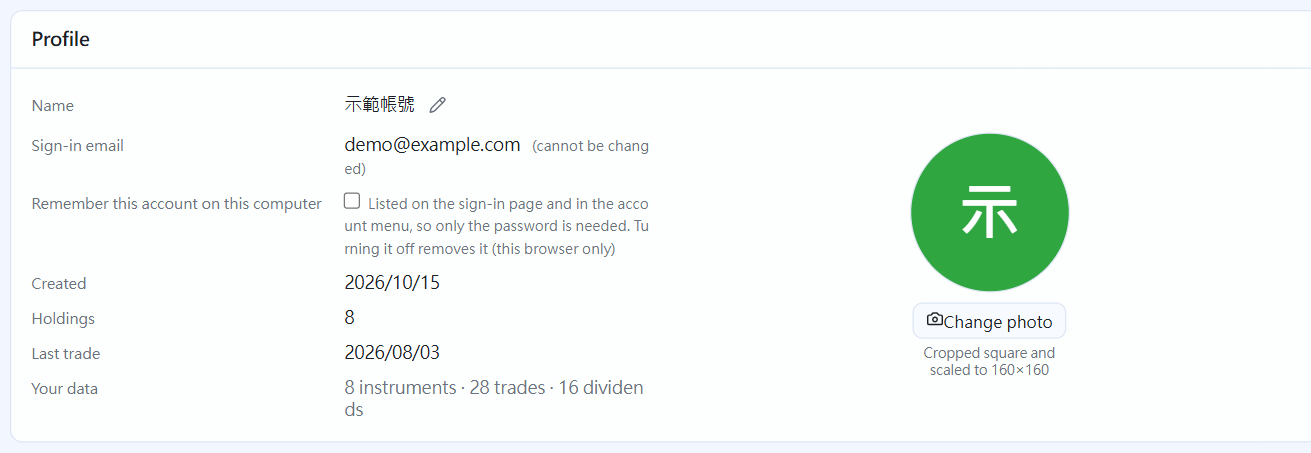
Profile(click the image to enlarge)
On the right you can put a profile picture. Click "Change photo" and pick an image, and it is cropped to a square and shrunk automatically; without one, the first letter of your name is shown. The picture is kept in your own database and is never uploaded anywhere.
Enter the current password and the new one twice to change it. After the change, other devices that are signed in are signed out.
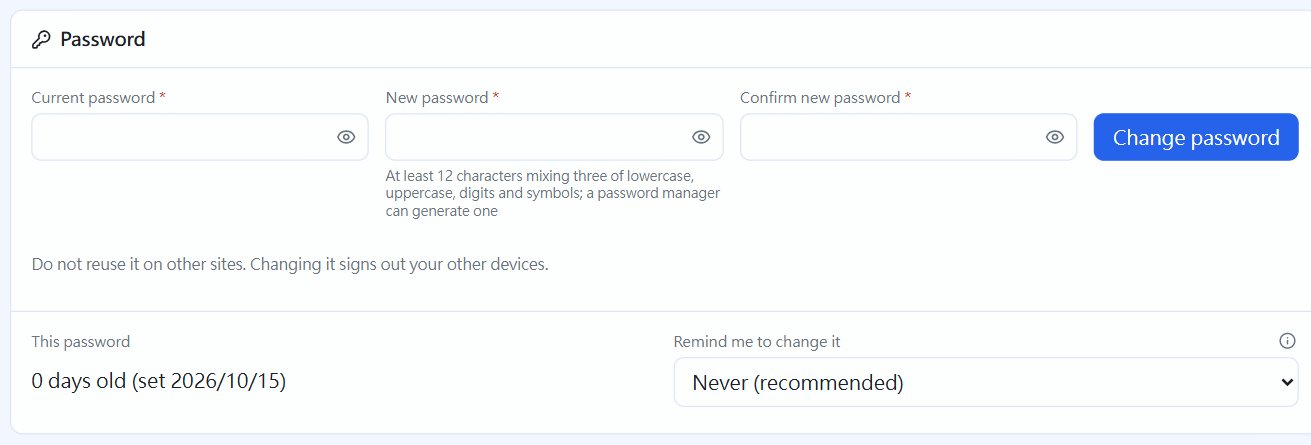
Password(click the image to enlarge)
If you forgot your current password, sign out and use "Forget password" on the sign-in page.
"Records → Cash ledger", kept with Trades and Dividend records. With two or more cash accounts, each account's balance is listed at the top (click one to see only that account), and "Transfer" moves money between accounts, and transfer records can be edited. The table's "Balance" is the balance of the cash account that entry is in after it was recorded, in the account's own currency (a USD account is in dollars).
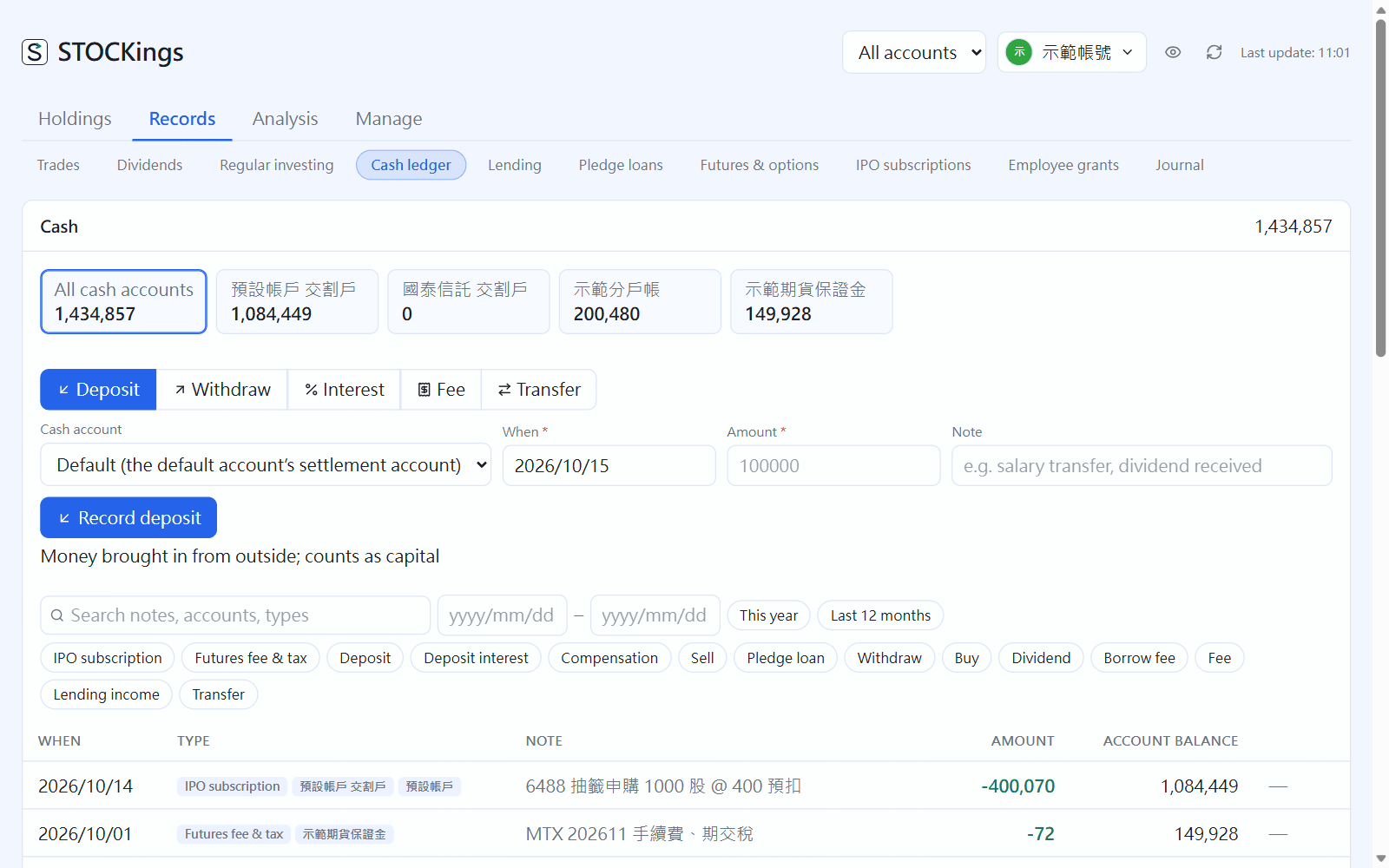
Cash ledger(click the image to enlarge)
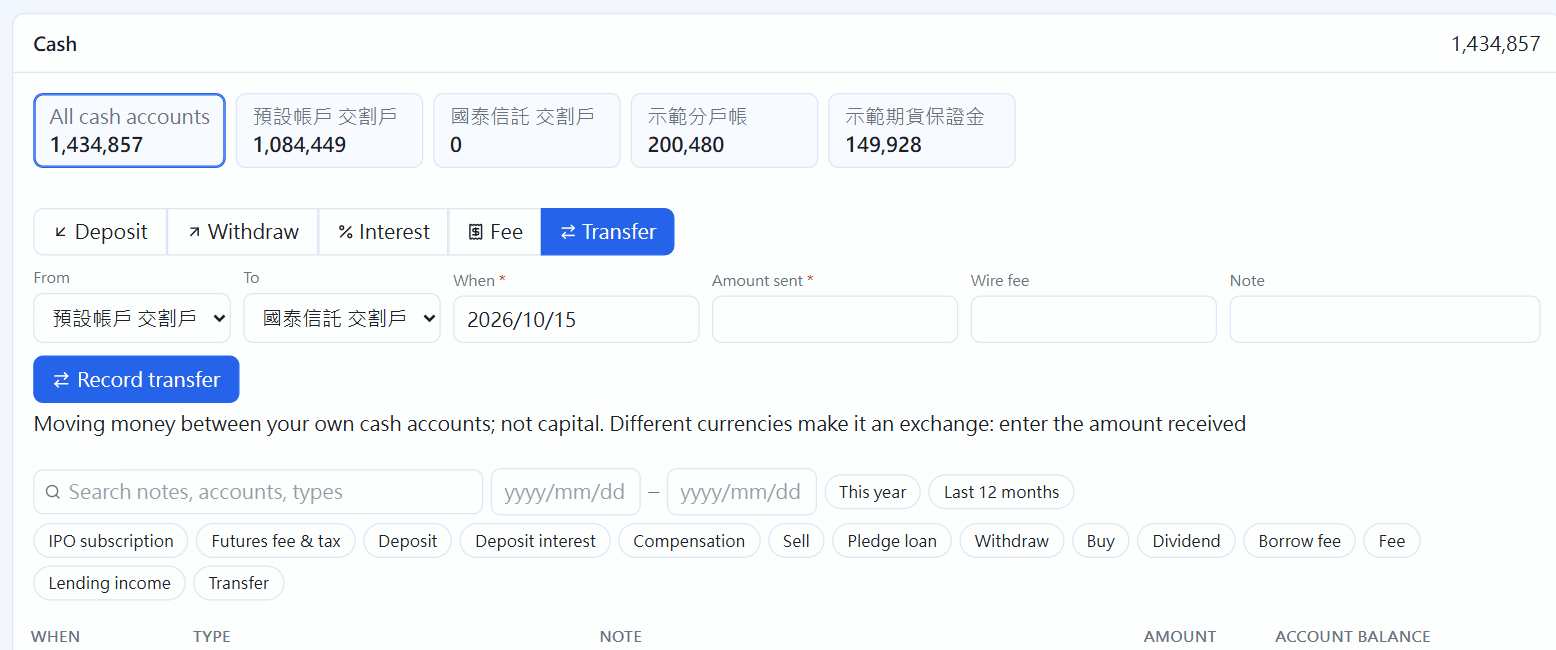
Transfer: both the out and in sides are recorded together(click the image to enlarge)
The balance here is not a number you type; it is calculated — it equals the sum of the ledger below:
Buy         → debit (fees included)
Sell        → credit (less fees and transaction tax)
Dividend    → credit (less NHI premium)
Deposit / Withdraw → what you record yourself
Interest    → what you record yourself (savings interest, credited)
Fee         → what you record yourself (management fees, charges, debited)
So there is no field to "set the balance directly to X". Where every dollar came from is on the ledger, which is how the books reconcile.
What if the balance is negative?
It means the buys you recorded exceed the deposits you recorded. This is usually not a calculation error but a deposit not yet recorded — if you only back-filled past trades, the program does not know how much principal you put in at the start.
Use "Deposit" to record the principal you really put in and it reconciles. The amount need not be exact to the dollar; this number affects only the "Cash" item and does not touch your profit and returns.
The ledger is ordered by when things actually happened, not when you recorded them — a dividend from last year that you back-fill goes back into last year, and the balance accumulates in that order.
A CMA (cash management account) is a virtual fund account a broker gives you: you can transfer money in from any bank, with no need to tie to one designated bank, and you can open it online, using it for settling cash trades, margin and short sales, regular investing and lending. In STOCKings it is simply a cash account, with nothing separate to learn.
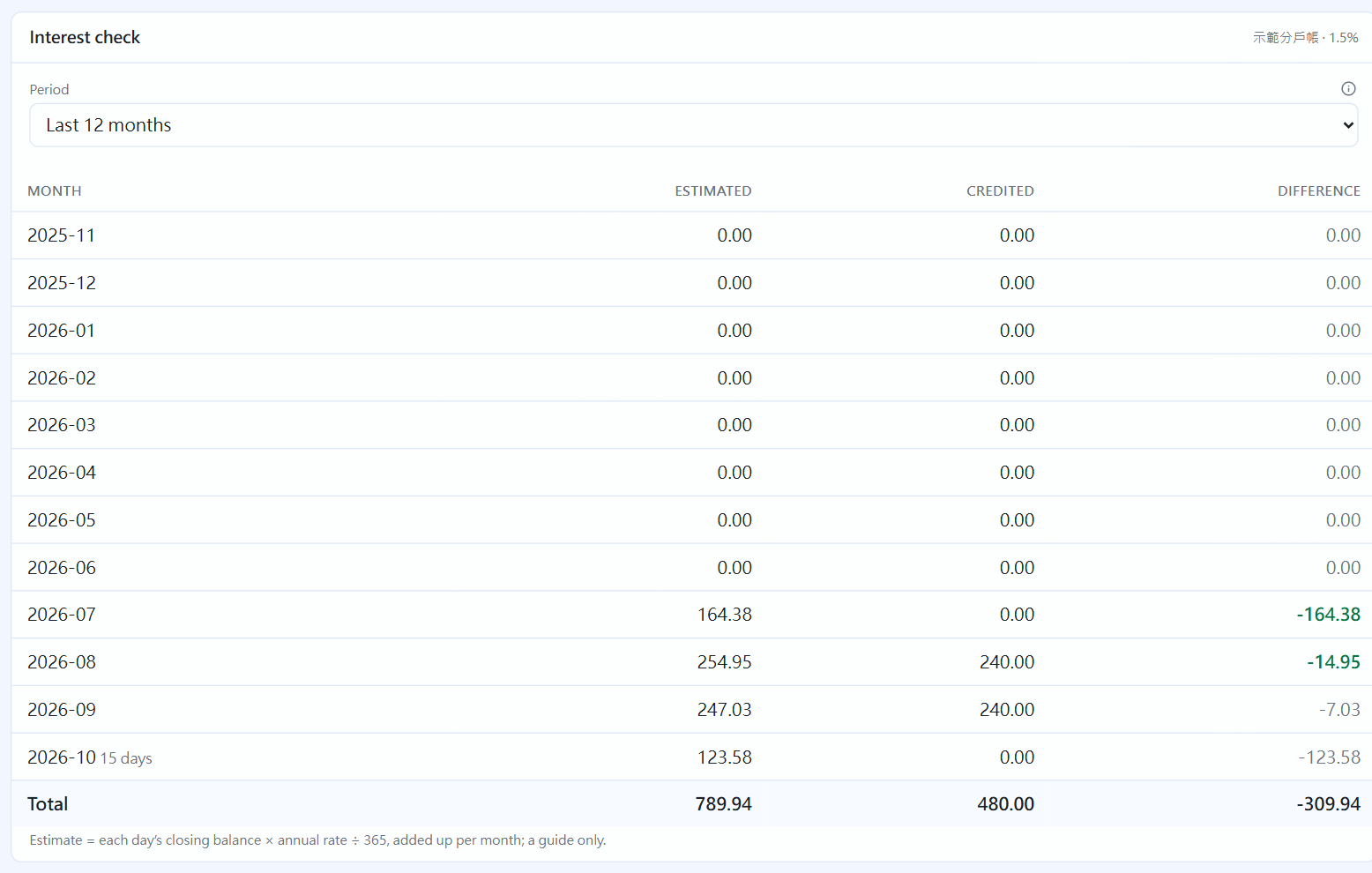
After clicking "Demo CMA": the interest check(click the image to enlarge)
Creating one: "Add a cash account" under "Manage → Accounts". Choose Kind "CMA", or pick a broker directly from "Broker CMA plan" (Yuanta, Fubon, Capital, CTBC, KGI, Uni-President, Masterlink, Grand Cathay, Concord, SinoPac, Pocket), and it fills in the name and broker. The kind (settlement, CMA, bank savings, trust account, other) is only a label; changing it changes no numbers. The only exception is Futures margin: only it can record futures trades, and the account overview lists it under "Futures" (see "Futures and options").
How money moves in and out: transfer from bank savings into the CMA ("Transfer" in the ledger, which needs two or more cash accounts), then link it to a securities account for settlement. Enter the wire fee yourself: whether a broker charges for transfers in and out across banks, and how much, differs and also changes, and STOCKings assumes nothing for any broker. If a transfer out is free enter 0.
Recording interest: in "Records → Cash ledger" choose "Interest" and enter the amount actually credited (with any withheld tax already deducted) and the date. For a foreign-currency account enter the original currency and that day's rate. The interest goes into that account and into returns, not into principal, as income like a dividend; it can be edited or deleted like a deposit.
Recording fees: management fees and cross-bank charges are recorded as "Fee", which deducts from the account and counts toward returns but is not a withdrawal.
This year's total: the cash accounts table under "Accounts" has an "Interest / fees this year" column, with green interest above and red fees below (in the account's own currency).
Interest check: to compare the rates of CMAs or see whether interest was short-paid, first enter the annual rate on the cash account ("Annual deposit rate (%)" when adding, or click the pencil in the cash accounts table to change the "Rate" column; 1.5 means 1.5%, and clearing it means no estimate). Then in the "Cash ledger" click that account's balance at the top (no need if there is only one cash account), and a block "Interest check" appears below, listing month by month the estimate, the amount actually credited and the difference:
- Estimate = each day's end-of-day balance × annual rate ÷ 365, summed within the month (rounded to the cent). A year is always 365 days, days with a negative balance do not count, and interest credited counts in later balances
- Actually credited = the "Interest" recorded in that month, assigned to months by credit date
- A difference over 1 (0.01 for foreign currency) and over 5% of the estimate is marked red; months not yet over (marked "N days") are not marked
- The period can be the last 6, 12, 24 or 36 months, with a total at the bottom
It is only an estimate: banks often settle around the 20th and credit the next month or each quarter or half-year, and tiered rates and caps differ, so a single month not matching is normal; the total is more reliable. For a tiered rate enter the tier that applies to most of the balance. The annual rate is used only for estimating and never records interest for you. The block appears only for CMAs, bank savings, or accounts with an annual rate entered.
Deposits and withdrawals can have a specified date, not necessarily today. If you forgot to record a transfer a few days ago, add it with the correct date and it goes back to that day, with every later balance recalculated.
Deposits, withdrawals, interest and fees you recorded yourself can be edited and deleted; the row has a pencil and a trash can at the right. Ledger entries that come from trades, dividends and lending cannot be changed from here — they are part of those records, and changing them here would no longer match the source and would be overwritten again the next time inventory is rebuilt. To change them, change the source.
The account menu at the top right switches between remembered accounts without signing out first (accounts for which "Remember this account" was not ticked at sign-in are not listed here). Clicking "Add account" goes to the sign-in screen first: if the account already exists, just sign in, otherwise click "No account yet? Create one"; if you decide not to add one, click "Back to the previous account".
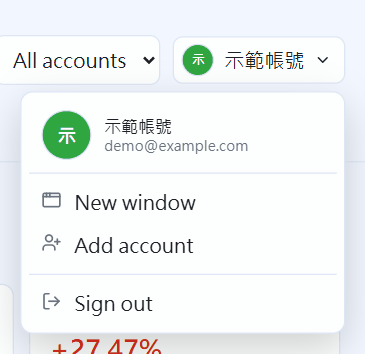
The account menu at the top right
Switching always requires the password. The program remembers only the email, name and picture, and does not keep other accounts' sign-in state — that would mean anyone who could open this browser could get in. Remembering only saves you retyping the email. To remove one from the list, click the ✕ at the right of that row.
Exception: if that account ticked "Remember email and password" when signing in, switching to it in this browser needs no password. Do not tick it when several people share the same computer and the same browser.
Owner. The owner is the earliest-created account, and can hand it to another account under "Manage → Account → Owner" (after a handover the exchange-rate app_id the previous owner set is cleared for the new owner to set; each person's own data, keys and cloud backups are unaffected); when the owner deletes their account the earliest-created account takes over. The next time the new owner signs in, a notice at the top says who handed over ownership (or that the previous owner deleted their account) and which settings that exist once per computer you now manage, and clicking "Open settings" or "Got it" makes it disappear. A demo account can never be the owner (its password is public). The AI service and key, the SEC contact email and the Tiingo key belong to each account (using its own quota, and not visible or usable to other accounts); only the Open Exchange Rates app_id is shared by the whole computer and set by the owner. Accounts that are not the owner can see who the owner is (name and email) under "Manage → Account" and in the update-check note, so they know whom to ask to change a computer-wide setting or hand over ownership. "Remove everything" when uninstalling deletes every account's data and only the owner can do it. The database's recovery key can likewise be downloaded only by the owner and only reminds the owner (it opens the whole database and can reset any account's password). When the owner deletes their own account, the earliest-created account takes over (to give it to a specific person, hand it over first); the previous owner's cloud backup connection and backup password, and the Open Exchange Rates app_id are cleared together (their AI key and SEC email are deleted with the account anyway), and the new owner must set them again (so everyone's data does not keep being backed up to the previous person's cloud drive, nor use their paid quota). Each account keeps its own appearance settings (theme, accent colour, language and so on); when upgrading from an earlier version that had no per-account settings, the first account to sign in keeps the settings then on screen, and after changing them in that account they are independent.