Repository navigation
Step 2 Record a trade
On this page
- Settlement date
- Editing a trade
- Stock splits
- Mergers, spin-offs and tender offers
- Day trades
- Margin loans (margin buy, margin sell, cash repay)
- Short sales (short sell, short cover)
- Maintenance ratio and forced-cover reminders
- About deleting
Go to "Records → Trades" and use the "New trade" form at the top:
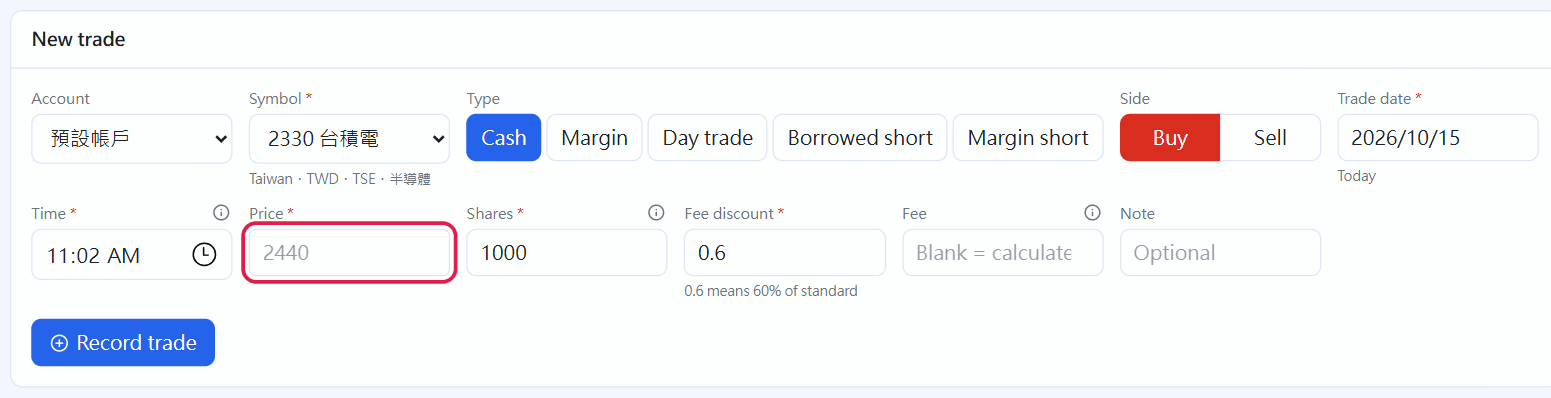
After choosing the instrument, the grey number in the price field is the current price (red box)(click the image to enlarge)
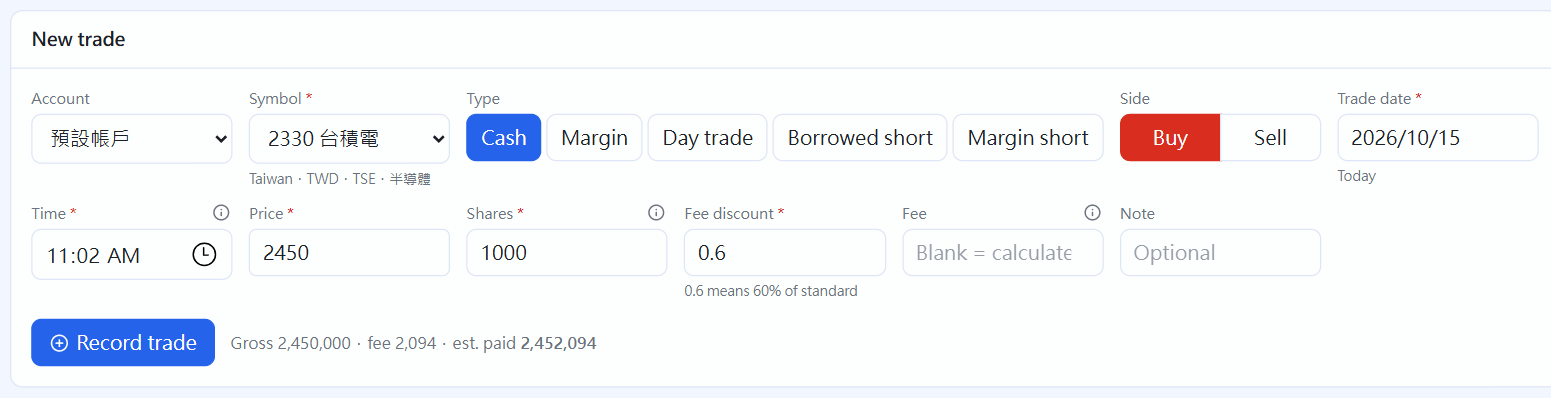
Estimated amount before you submit(click the image to enlarge)
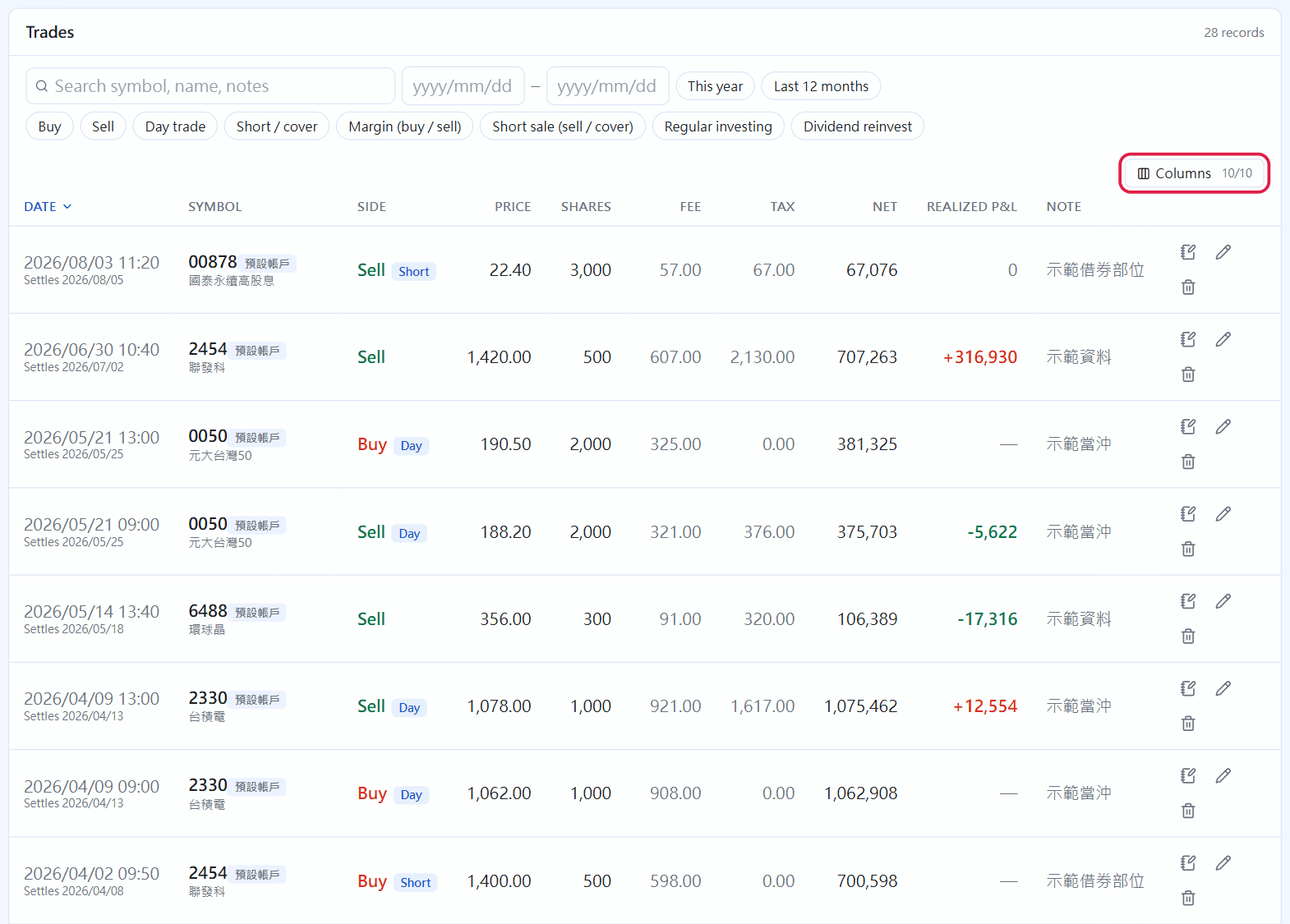
Trades(click the image to enlarge)
- Instrument — pick from the dropdown. Afterwards the market, currency and board filled in automatically are shown below
- Side — buy or sell
-
Trade date / time — defaults to today and now. You can back-date, which is handy when you forgot to record something.
When you change it to a past date, the time automatically becomes the 09:00 market open.
Type the date directly:
2026/1/5,2026-01-05and20260105are all understood, and it is submitted only once complete; a wrong one gets a red frame - Price — the price per share. After choosing the instrument, the grey number in the field is this instrument's current price (the latest quote fetched, the fund NAV or the reference price you entered); it is only a hint, you fill in the real one
- Number of shares — one lot of Taiwan stock is 1,000 shares; fewer than 1,000 are odd lots, with a different fee calculation. US stocks accept decimals (fractional shares, for example the 0.5312 shares bought by a regular plan at a broker, up to 6 decimal places); Taiwan stocks are always whole shares
-
Fee discount —
0.6means 60% of the standard fee (a 40% discount). You can change the default in "Settings"- Fee (optional) — when the fee on your statement does not match the calculated one (for example regular plans and trust accounts often charge a fixed 1), enter the statement amount directly. Left empty it follows the discount. An amount you entered stays even if you later change the price, and the Trades list marks it with a "*" beside the number
- Note — optional
A label with a red asterisk at its top right is required. If you submit without filling it, the screen lists which fields are missing and frames them in red.
Before you submit, the estimated amount is shown beside the button:
Trade amount 600,000 · Fee 513 · Estimated payment 600,513
After you submit, the system works out the fee and transaction tax, and for a sale also the realized profit.
When there are several trades on the same day, adjust the times. The system uses the time to decide the first-in-first-out order; with identical times it can only match by entry order, and the cost may be wrong.
Money does not move on the trade day but on the settlement date: the 2nd business day after the trade for Taiwan stocks, the 1st for US stocks (weekends and exchange holidays are skipped). Account cash is debited or credited on the settlement date, so it is normal that the cash you see on the trade day has not changed yet.
Under the date in the Trades list there is a small line "Settlement 2026/10/07". When the settlement date on your statement is different (for example a typhoon holiday delays it), click the pencil in the Trades list and change the settlement date to the one on the statement; leaving it empty recalculates from the trade date.
When the holidays of Taiwan cannot be fetched, only weekends are skipped for now; Typhoon closures are never in the exchange's holiday list, so the program reads the exchange's news announcements ("closed for one day on …") every day and also keeps a list of past typhoon closures; once the holidays are fetched (or a new ad-hoc closure is announced) the settlement dates of those trades and the cash ledger times are corrected automatically, except those you changed according to a statement.
The pencil at the right of each row in the Trades list edits in place: trade date (a text field, typed as above), time, settlement date, price, shares, fee discount, fee and note. Click ✓ to save, and fee, tax and realized profit are recalculated. While the date is incomplete or wrong the save button is grey.
If a stock you hold splits (for example 0050 split 1 into 4 in 2025), go to the "Stock splits" area at the bottom of the "Instruments" page and add one: choose the instrument, enter the effective date and the ratio (for a 1-into-4 split enter 1 and 4).
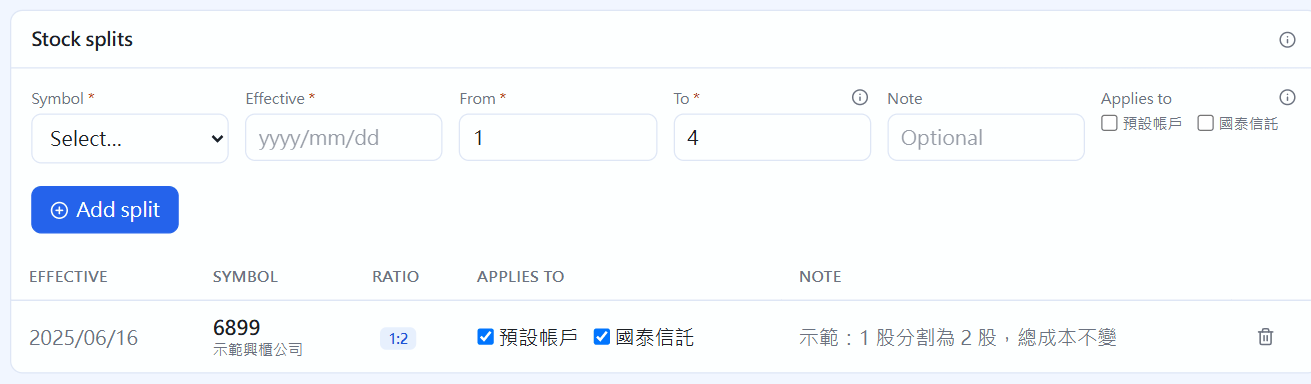
Stock splits(click the image to enlarge)
The system automatically:
- Converts holdings bought before the effective date into the new share count; the cost per share shrinks accordingly and the total cost does not change
- Taiwan stocks: what is left under 1 share is counted on the account total, and the part the company pays out in cash is recorded automatically as a "split fraction cash-out" sale (NT$10 par value per share; if the company announces another amount, such as a designated buyer's price, enter it in "Cash per fractional share", which you can also change later in the split list). That sale cannot be edited by hand; it is recalculated when you change the split
- Overseas markets such as US stocks: leave "Cash per fractional share" blank to keep the fractional shares (most brokers support them); if your broker paid them out in cash, enter the cash per share
- If a short sale or borrowed-share short is still open at the split (Taiwan usually requires covering before a split), the part under 1 share is recorded as an automatic cover bought back in cash, and Data health reminds you that a cover may be missing
- Does not convert again what you bought after the split
- Uses the converted share count for later dividends
- Converts the reference price you entered as well
You do not need to edit your historical trade records — they keep the shares and prices you actually traded. If you entered it wrongly, delete it and everything is restored.
The "Mergers, spin-offs, tender offers" area of the Instruments page records these three corporate actions (Taiwan stocks and ETFs). The new company's stock must be added in Instruments first. The system uses the holdings and cost before the market opens on the effective date, so recording past ones is correct too; each securities account that holds it gets one entry.
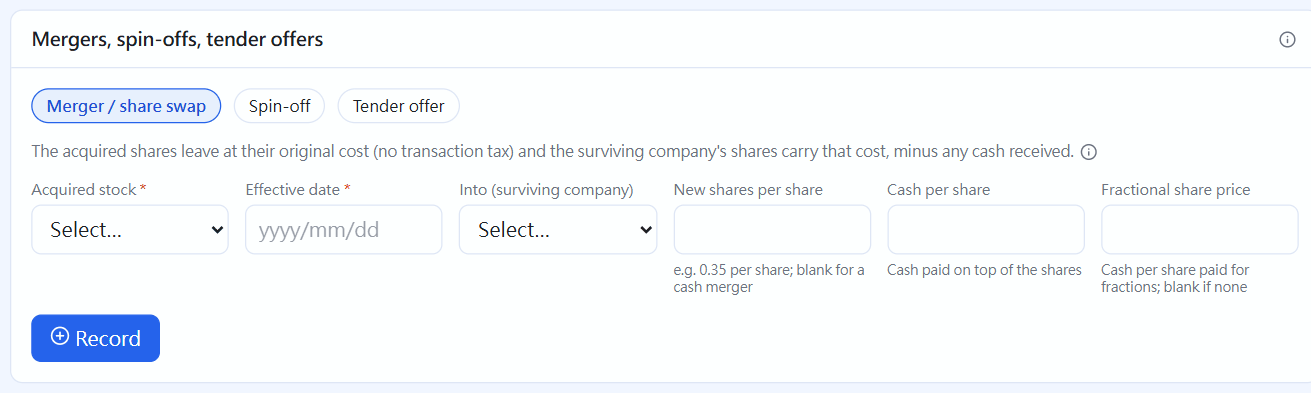
Mergers, spin-offs, tender offers(click the image to enlarge)
- Merger / share swap: choose the stock being merged, which stock it becomes, and how many new shares per 1 old share; also fill any cash per share and the price used for fractional shares. The old shares all move out at their original cost (no securities transaction tax), the new shares carry on that cost (less any cash received), and no profit arises. Leaving the swap ratio empty means a cash merger: sold at the cash per share, with profit calculated as it really is
- Spin-off: choose the parent, the new company, how many shares per 1 share, and the share of cost that moves to the new company from the company's announcement. Each lot of the parent keeps the rest of the cost and the first-in-first-out order is unchanged; if the parent also reduced capital, record that separately under corporate-action reminders
- Tender offer: enter the shares actually accepted and the offer price; it is recorded as one sale, with transaction tax as usual (for a pro-rata offer enter only the shares taken)
The same area also has Warrant expiry; see Warrants.
What is recorded is several trades on the same day (the note says "Merger:" or "Spin-off:"); they appear in the Trades list, and if you record one wrongly delete it and it is undone. Changing the note or date later on the trade that was exempt from transaction tax does not charge the tax back. Only cash-account shares are handled: margin purchases must first be repaid in cash or sold; for foreign currency record it yourself with sell and buy.
Switch the trade type to "Day trade" and the form becomes a two-leg entry: buy price, sell price and shares.
- Choose "Buy then sell" or "Sell then buy" — short-side day trades are recorded too
- The securities transaction tax on the sale is automatically halved (Taiwan 0.3% → 0.15%), and the estimate before you submit tells you how much it saves
- It does not affect your existing holdings — a day trade stands alone, nets out to zero shares, and cash keeps only the profit
If you mark a day trade but record only the buy and not the sale, that entry falls back to an ordinary buy (in practice it has to be settled too).
For Taiwan day trades tick "Offset": a margin buy and a short sale netted on the same day, which like a cash day trade settles only the difference with the transaction tax halved, and the sale also pays a short-sale fee (at the account's rate). No money or shares are really borrowed, so no margin loan or collateral appears; the Trades list marks it "Offset".
For Taiwan stocks you can switch the trade type to "Margin loans":
- Margin buy: after you enter price and shares, Margin loan is pre-filled with "trade amount × the securities account's margin ratio" rounded to thousands (default 60%), and Rate with the account's margin rate; both can be changed to match the statement. The estimate before you submit shows your own funds. The cash ledger records the whole purchase as outflow and a "Margin loan" as inflow, which cancel to the own funds you really paid; the borrowed money is a liability and is counted in the "Liabilities" of the summary cards and the "Margin loans" row of the account overview (principal plus interest accrued to today)
- Margin sell: can only sell stock bought on margin (a cash sale cannot sell those shares). It repays the principal of those margin loans first-bought-first-repaid and in proportion to shares, and interest is estimated from the days between "the buy's settlement date and the margin sell's settlement date"; the actual interest on the statement can go in "Actual margin interest", which can also be edited when editing the trade. The cash ledger separately records "Margin repayment" and "Margin interest"
- Cash repay: "Repay margin and short sales" at the bottom of the Trades list (it appears only when you have margin or short positions) — repay the margin loan with cash, and the shares become cash-account shares with cost and buy date unchanged and no profit arising. Afterwards you can sell them as cash shares or move them to another account
- Under the share count in Positions a mark "Margin 1,000" appears; hover to see how much is still owed; the Trades list can be filtered to "Margin loans" only
- Cost and profit are counted on the whole cost (the borrowed part is cost too), the principal used for returns counts only the money you deposited yourself, and interest is an expense
- The margin ratio, rate, short-sale margin ratio and short-sale fee rate are set with ✎ under "Accounts"
Switch the trade type to "Short sale" (Taiwan stocks):
- Short sell: sell borrowed shares, no holding needed. Short-sale fee is pre-filled with "trade amount × the account's short-sale fee rate" (default 0.08%, deducted from the sale proceeds), and margin with "trade amount × margin ratio" rounded to hundreds (default 90%, paid from cash). The sale proceeds and the margin are both held by the broker as collateral — not in the cash account and not usable, but still your money: the account overview lists it under "Short collateral" and counts it in total assets; the shares you owe are listed as a liability just like a borrowed-share short sale
- Short cover (buy back): can only cover short-sale positions (borrowed-share positions need the borrowed-share cover). You pay the cover price, and the collateral for those shares (proceeds + margin, in proportion to shares) returns to the cash account; realized profit = net proceeds of the sale − cost of the buy-back
- Deliver shares: choose "Deliver shares" in "Repay margin and short sales" at the bottom of the Trades list — repay the short sale with shares you hold, the short sale is closed and the collateral for those shares returns to cash, and your holding drops by the shares handed over; realized profit = net proceeds of the short sale − cost of the cash shares handed over (first bought, first handed over). The Trades list gets two automatic rows (shares handed over, and the cover; equal amounts, no cash moves) and the profit sits on the cover so reports count it; they cannot be edited by hand and follow the repayment when you change it
- "Short collateral" in the cash ledger records money moving between the cash account and the collateral
When you have margin or short positions, "Margin & short sales" appears on the "Dashboard":
- Each securities account's whole-account maintenance ratio = (value of margin stocks + short collateral) ÷ (margin loans + value of shorted stocks). Below the reminder line (default 130%, change it with ✎ under "Accounts") it turns red with a warning: the broker may send a margin call
- Forced-cover reminders: lists shorted stocks that go ex-dividend in the next 30 days — a short sale must be covered before the ex-date, and the last cover day differs between brokers, so follow the broker's announcement. There is no data source for forced covers before shareholder meetings, so watch for those yourself
- All of it is for reference only; follow the broker's notices
When a short sale or borrowed-share short sale goes ex-dividend and you owe the lender a compensation dividend, tick "Dividend owed on short" when recording the dividend; see when a short position goes ex-dividend.
Click the trash can in the "Trades" tab to delete. After deleting, the inventory of that whole stock is recalculated, so the one you delete need not be the last.
Only one case is blocked: when deleting would leave some sale with "no shares to sell". For example if you bought once and sold it all, that buy cannot be deleted on its own.
← Step 1: Create an instrument | Contents | Step 3: Record dividends and stock dividends →