Repository navigation
Quick Start
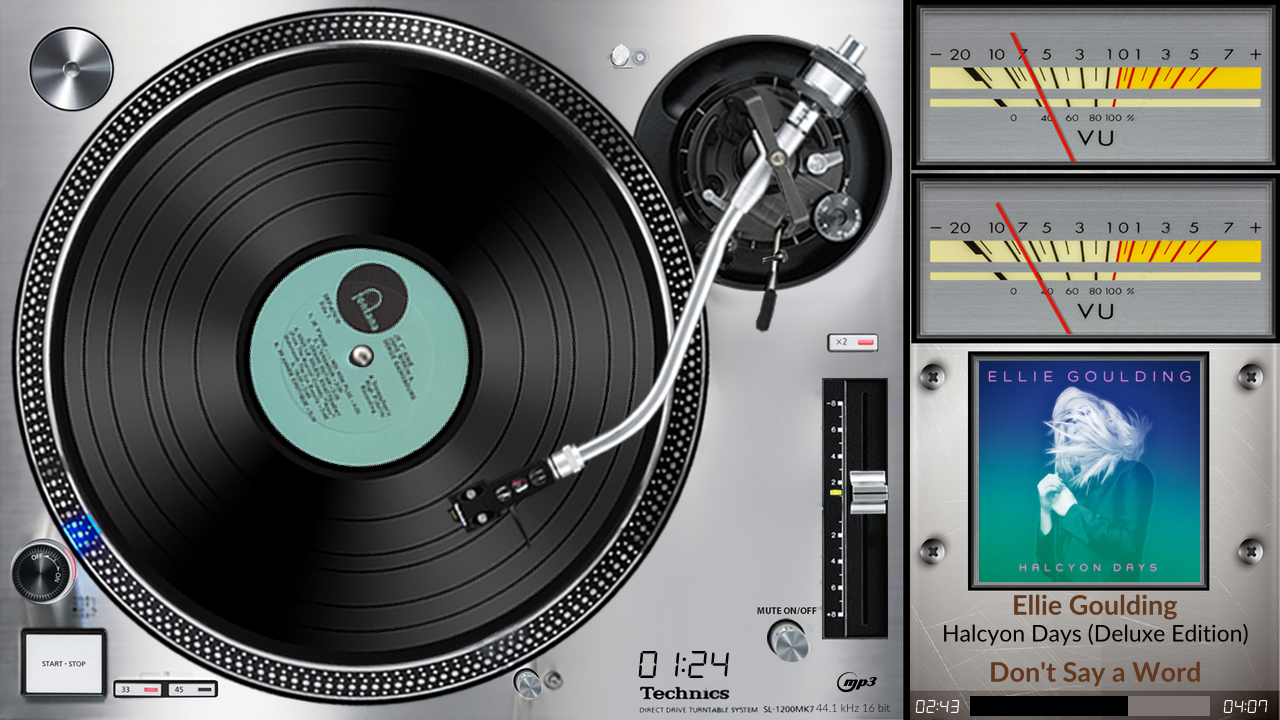
Glass shows VU meters, spectrum analysers, turntables and cassette decks on a Volumio player's screen, moving with the music. It is a Volumio plugin with a native display: the same themes PeppyMeter Screensaver showed, painted by a program that needs about half the processor time and a tenth of the memory, and fed by an audio tap that measures every source, local files, streams, AirPlay and Spotify alike, without touching the sound.
| Player | Volumio 4 (Bookworm) on a Raspberry Pi 3, 4, 5 or Zero 2 W, or on a PC. |
| Screen | Any screen the Touch Display plugin drives: DSI, HDMI, or a USB display. On a player with a screen and no kiosk at all Glass draws on the screen itself; the Screen page has it. A player without a screen can still serve remote displays. |
| Network | The player on the internet for the install: the release comes from GitHub, and the installer brings the libraries the display needs (SDL2, EGL, OpenGL) where the player lacks them. |
| Themes | Bundled with the plugin, and hundreds more in the Catalog. |
| Device | How it runs |
|---|---|
| Raspberry Pi 5 | Every theme at 30 frames a second, spectrum included; the analyser at 60. |
| Raspberry Pi 4 | Every theme at 30 frames a second; a large spectrum at 20; the analyser at 30. |
| Raspberry Pi 3 | 800x480 themes at 20 to 30 frames a second. The analyser is not recommended. |
| Raspberry Pi Zero 2 W | Light themes at 15 to 20 frames a second. The analyser is not recommended. |
| PC (x64) | Everything, with processor time to spare. |
One line on the player, as the volumio user:
ssh volumio@volumio.local
curl -fsSL https://raw.githubusercontent.com/foonerd/glass/main/get-glass.sh | sh
It downloads the latest release (a version after sh -s -- picks another), hands it to the player's own plugin manager, enables Glass and restarts the player's backend so the audio tap joins the sound path. It stops with a word if Glass is installed already (upgrade from the manager's System tab instead) or if PeppyMeter Screensaver is still enabled (disable it first; Glass takes its themes and settings over). Then go to "First look" below.
- Download the plugin zip,
glass-<version>.zip, from the releases page, and copy it to the player's home directory, withscpor a USB stick. - Install it from the command line, as the
volumiouser. The zip stays outside the folder it is unpacked into:
ssh volumio@volumio.local
mkdir glass && cd glass
miniunzip ../glass-<version>.zip
volumio plugin install
Answer yes to Volumio's warning about plugins installed by hand. volumio plugin install compresses the folder it is run in and moves the result to its staging place; a second zip inside the folder makes that move fail with mv: target '/tmp/plugins/glass.zip': No such file or directory, which is why the zip is unpacked from the parent directory.
- In Volumio, open Settings, Plugins, Installed Plugins, and turn Glass on. If the player asks to restart, restart it: the audio tap joins the sound path at start.
If PeppyMeter Screensaver was installed, Glass takes its themes and settings over, the themes copied into Glass's own folder under Internal Storage with that plugin's folder left as it was, and offers to turn it off. Uninstall it once Glass runs.
Play something. After the screensaver timeout (sixty seconds by default) the meters appear; a touch or a click on the screen brings Volumio's interface back, and the meters return after the timeout, unless the tap lands on one of the theme's controls while they are on (Interactive controls on the settings page), when it acts on the player instead. Pausing or stopping turns the meters off after the persist time (thirty seconds by default); playing brings them back. On a player with no kiosk, or with glass-evo on the screen, the display stays on the screen and a touch outside a control does nothing: the Screen page has it.
Open the plugin's settings and press "Open the manager here". The Manager is Glass's own page, served by the player on port 5582 and reachable from any browser on the network at http://volumio.local:5582/.
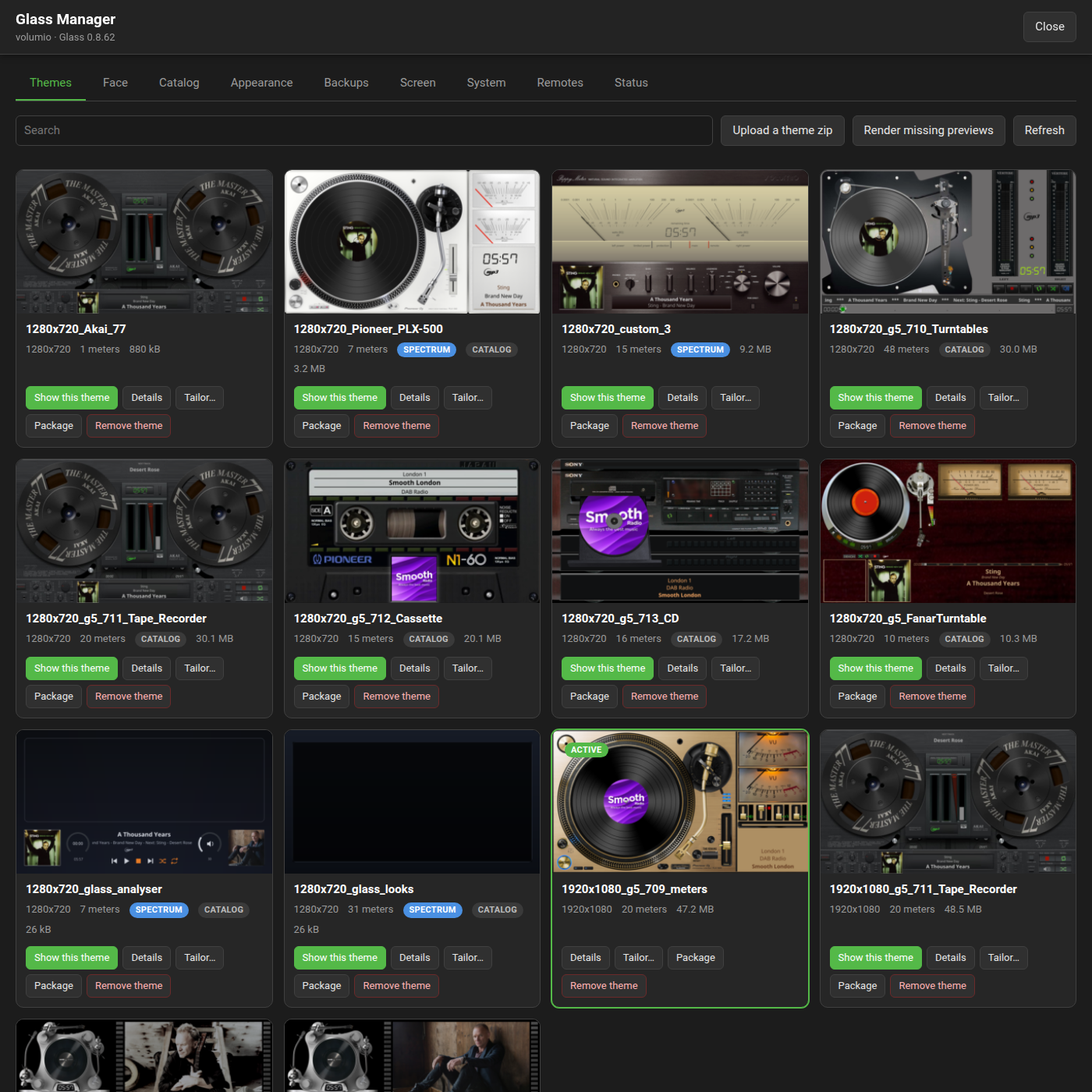
- Themes lists what is installed, with a preview of every meter, drawn by the display itself. Put a theme on show, choose which of its meters show and how they rotate, or remove it. Car Dash on the same tab switches between a day theme and a night theme, by the clock or by the sun.
-
Face shows the player's meters live in the browser, following the theme and the meter the player shows; a button puts them full screen, and a tap on the theme's controls acts on the player. With glass-evo installed it can carry glass-evo's clock and controls over the theme; the Screen tab says when. "Open Anymote" is Anymote, any remote, a remote from anywhere: the same face on a page of its own,
http://<player>.local:5582/anymote, for any browser: a phone or a tablet keeps it on its home screen as a full-screen app. - Catalog installs themes from the community collection with one press, filtered by your screen's size.
- Appearance turns the artist fanart slideshow on for themes that have a place for it, and sets the fonts the text is drawn in, fonts of your own uploaded there among them.
- Backups keeps named snapshots of your settings, and moves them between players.
- Screen says what the display draws on and whose the screen is, sets rotation, pointer and touch on a screen Glass draws on itself, and, where glass-evo is installed, hands the screen to the Glass interface and back, sets how it looks, and says what the Face tab and Anymote show. The Screen page has it.
- System upgrades Glass to the latest release with one press and offers test releases when asked, gets, updates and removes glass-evo, the Glass interface, sets a performance profile for the player, whether a theme's controls act when tapped, whether computers on the network may edit the themes, and what Glass writes to the journal.
- Remotes serves the meters to other screens on the network.
- Status shows what plays, what is measured, the display's state, and the rest of the player at a glance: theme folders, fonts, the network share, Car Dash, the controls, the performance profile.
The settings page holds what operates the display: the screensaver timeout, the window's position, which display to use, the meter selection and its rotation, the meter's response, the frame rate, rotation of records and reels, scrolling, transitions, and what happens on pause. The Settings page goes through each.
Glass runs as a remote display on any Linux or Windows machine with a screen, a Raspberry Pi on the wall, a laptop, a PC, and on an Android phone or tablet. It shows the player's meters with the player's theme, or with a theme of its own, fed over the network. A remote comes in two flavours: the standalone from Glass's releases, described here, and the bundle from glass-evo's releases, the same display with the Glass interface in it, a clock, a date and a bar of controls; it is installed the same way, and the Remotes page has both.
Nothing to install on a phone, a tablet or a laptop at hand: Anymote, any remote, a remote from anywhere, is the same face in the browser, http://<player>.local:5582/anymote, with the controls.
Open the Manager's Remotes tab and turn "Serve remote displays" on. The three ports are pre-filled and can be changed there.
- Download the release archive for its processor from the releases page:
glass-<version>-x64.tar.gzfor a PC,armv8for a 64 bit Raspberry Pi OS,armv7for a 32 bit one. - Unpack it and run the installer as the user who will run the display:
tar xzf glass-<version>-x64.tar.gz
glass-<version>-x64/remote/linux/install.sh
It puts glass in ~/.local/bin and two entries in the applications menu: "Glass Remote", the display, and "Glass Remote Settings", its settings page. SDL2 is the one library it needs (sudo apt install libsdl2-2.0-0). install.sh --service also installs a user service that starts the display with the session and keeps it running, for a screen on the wall.
- Start "Glass Remote", or from a terminal:
glass --remoteOn Windows, download glass-<version>-windows-x64.zip instead, unpack it, and run the installer in a PowerShell window:
powershell -ExecutionPolicy Bypass -File glass-<version>-windows-x64\remote\windows\install.ps1It puts the display under the user's programs folder and the same two entries in the Start menu, with -Startup for a display that starts with the session; nothing else needs installing.
On Android, download glass-<version>-android.apk on the device, open it and allow the install; then open Glass Remote and reach its settings page in the phone's browser at http://127.0.0.1:5583/.
The first start shows the address of the remote's settings page on the screen, http://<the machine>:5583/.
Open that page in any browser on the network, or start "Glass Remote Settings".
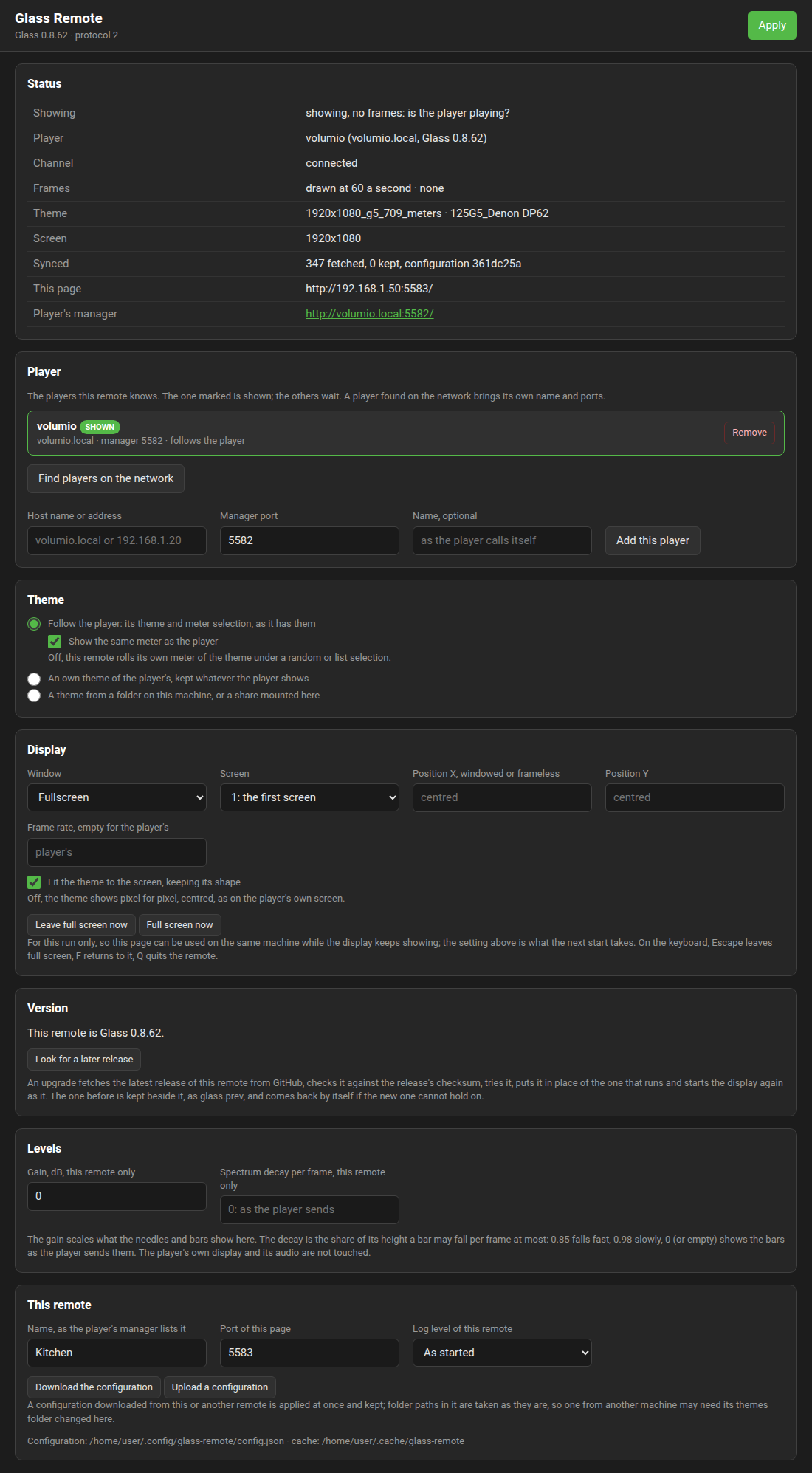
- Player. Press "Find players on the network" and choose the player, or type its name or address and press "Add this player". The remote shows it at once.
- Theme. Follow the player, its theme and meter selection as the player has them, changing when the player's change, and by default the very meter the player shows at each moment; or an own theme from the player's installed themes, with the remote's own choice of meters and rotation; or a theme from a folder on the remote's own machine, or a share mounted there.
- Display. Full screen with the theme fitted to the screen, a window, or a frameless window at a fixed place; the screen to open on, on a machine with several; a frame rate of the remote's own if wanted. On the keyboard, Escape leaves full screen so this page can be used on the same machine, F takes the screen back, Q quits.
- Levels. A gain for this remote's needles and bars, when the theme reads quiet or loud on the second screen, and a spectrum decay of the remote's own when the bars should fall more slowly.
- The Glass interface, on a bundle only: whether this remote shows glass-evo's clock and controls where the player's screen shows them, always, or never.
- This remote. Its name, the page's port, its log level, and the configuration as a file to download, or to upload from another remote.
- Press Apply. Every change applies while the display runs.
The Status panel at the top of the page says what the remote is doing: the player, the channel, the frames it receives, the theme and the meter on show.
The player's Remotes tab lists the remote with a link back to its settings page. The Remotes page has the details, the wire and the API.
| Page | What it covers |
|---|---|
| Settings | Every setting on the plugin's page. |
| Manager | The manager's tabs and its API. |
| Screen | The player's screen, and glass-evo, the Glass interface in the kiosk's place. |
| Themes | What a theme is made of, and how to make one. |
| Meters-Reference | Every key of meters.txt. |
| Spectrum | Placing a spectrum, the analyser's looks and palettes, the stereo bank behind them. |
| Catalog | Installing and contributing themes. |
| Backups | Keeping and moving settings. |
| Remotes | Remote displays: running one, the settings page, the wire. |
| Troubleshooting | When something does not look right. |