Repository navigation
Skin Creation Guide
This guide takes a theme from an empty folder to a finished skin on the screen: what files you need, how they are named, how positions and angles are read, in which order things are drawn, and a walk through a meter skin, a turntable skin and a cassette skin. The Meters-Reference has every key; the Themes page has where themes live and how they are shared.
| A picture editor | Anything that writes PNG with transparency: GIMP, Affinity, Photoshop, Krita. |
| The screen size | The player's screen in pixels, 1280x720 or 800x480 or 1920x1080; the theme is drawn at that size. |
| A player with Glass | To see the skin move. The Manager's Themes tab takes the folder as a zip, draws previews of every meter, and puts it on show. |
| A text editor | For meters.txt. |
1280x720_MyDeck/
  meters.txt            required: the meters, one [section] each
  background.png        the meter's face
  foreground.png        optional: glass, bezels, frames, drawn last
  needle.png            the needle picture
  vinyl.png             a record, for a turntable skin
  tonearm.png           the arm, for a turntable skin
  reel_left.png         the reels, for a cassette skin
  reel_right.png
  preview.png           optional: the thumbnail the catalog shows
  fonts/                optional: fonts the skin brings for its time fields
  format-icons/         optional: the skin's own format icons
  face.txt              optional: a look for glass-evo's face while this skin is on show
The folder's name is the screen size, an underscore, and a name: 1280x720_MyDeck, 800x480_SimpleMeter, 1920x1080_CassetteDeck. The Manager lists skins by that size and the Catalog filters on it. Keep to letters, digits, spaces, dots, underscores, brackets, plus and hyphens.
| Picture | Key | What Glass expects |
|---|---|---|
| Background | bgr.filename |
The meter's face. Its size is the meter's size. Opaque where the meters are; put see-through parts in the foreground instead. |
| Foreground | fgr.filename |
Drawn last, above everything. Transparent where the meters and art show through. Good for glass reflections, bezels, a frame. |
| Needle | indicator.filename |
Transparent around the needle. Draw it upright, pointing up its own axis; Glass turns it to start.angle at silence and on to stop.angle at full scale. The point it turns about lies distance pixels below the picture's centre. |
| Bar |
indicator.filename on a linear meter |
The picture of the full bar; Glass shows as much of it as the level says, in direction. |
| Screen | screen.bgr |
A full screen picture behind a meter smaller than the screen. |
| Record | vinyl.filename |
Transparent around the disc, the disc in the middle of the picture: the picture's centre is put on vinyl.center. |
| Tonearm | tonearm.filename |
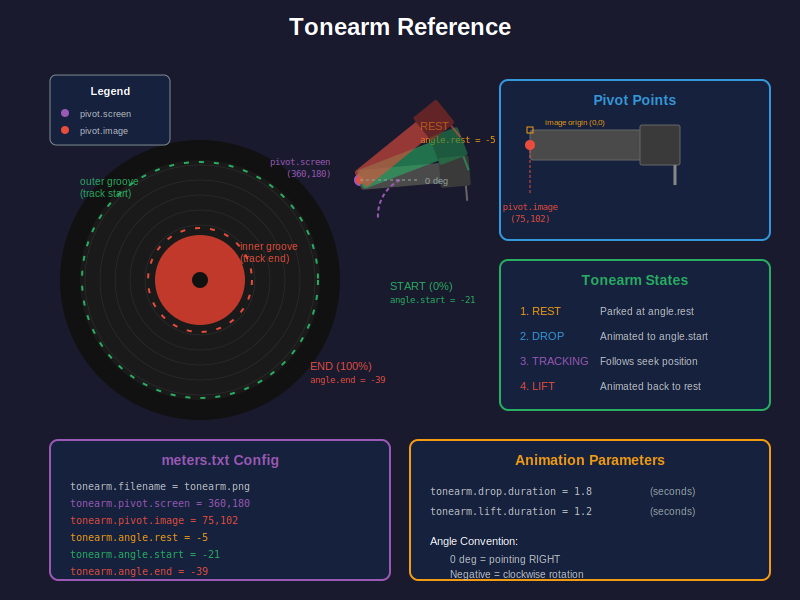
Transparent around the arm, the headshell included, drawn as it lies at 0 degrees. Note the pivot's place in the picture. |
| Reels |
reel.left.filename, reel.right.filename
|
Transparent around the reel, the hub in the middle of the picture: the picture's centre is put on reel.<side>.center. Spokes make the turning visible. |
| Mask | albumart.mask |
Cuts the album art's shape, a round label, a cassette window: black keeps the art, white cuts it away, greys in between. The mask's transparency is not read. |
| Preview | preview.png |
Any size; the catalog's thumbnail. Glass draws its own previews for the Manager. |
PNG with alpha for anything transparent; JPEG does for an opaque background. Draw at the screen's size: a picture larger than its box is scaled at load and costs memory for nothing.
The origin is the top left corner; x grows to the right, y downwards. Positions are x,y, sizes are width,height, in pixels.
Angles are in degrees. For needles, 0 is the needle's own upright axis; start.angle = 45 and stop.angle = -45 sweep from the left to the right. For the tonearm, the knob and the arc, 0 points right, positive turns counter clockwise, negative clockwise, so -90 points down.
From the back to the front:
- The screen picture and the meter background.
- Reels, then the record, then album art.
- Artwork with
zorder = background: folder layers, then fanart. - The needles or bars, then the spectrum.
- Texts and times.
- The tonearm.
- Indicators and buttons, then the format's type area.
- Artwork with
zorder = overlay: folder layers, then fanart. - The foreground picture.
Design the pictures with this in mind: a needle passes under the foreground, album art sits on the record, the arm sits on the art, background artwork lies over the record and the art, and texts lie under the arm.
A skin is the parts its section gives keys to, and each part stands on its own keys:
| Kind | What makes it | What moves |
|---|---|---|
| Meter | Needles or bars and the rest, nothing below | Needles or bars, scrolling text. |
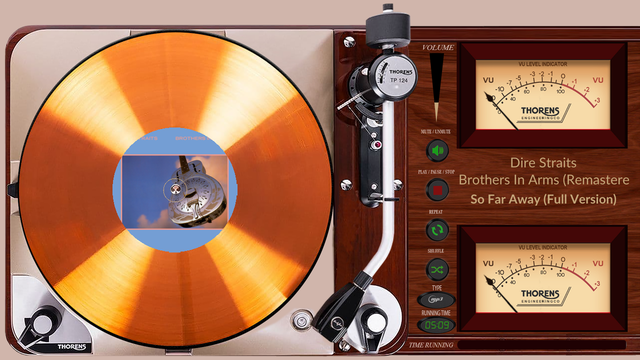
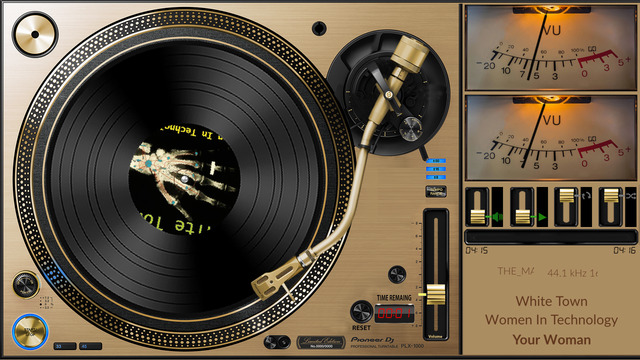
| Turntable | A record: vinyl.filename and vinyl.center. A tonearm: tonearm.filename, tonearm.pivot.screen and tonearm.pivot.image, all three. Turning art: albumart.rotation = True with albumart.rotation.speed above 0. |
The record and its label, the arm as the track plays. |
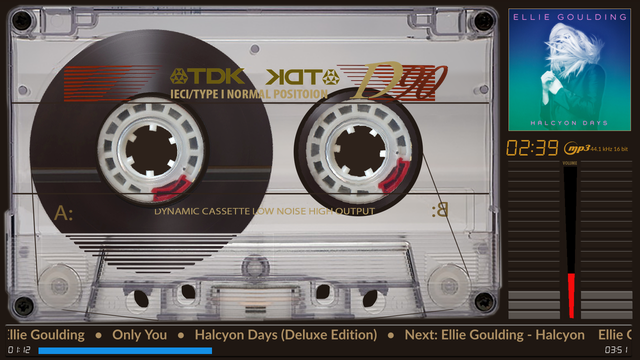
| Cassette |
reel.<side>.filename with reel.<side>.center, in a section without a vinyl.center or a tonearm |
The two reels. |
A skin that only means to show still album art leaves albumart.rotation out: with True the art is cut round where no mask shapes it, and it turns when albumart.rotation.speed is above 0.
- Draw
background.pngat the screen's size with the two meter faces, andneedle.pngupright. - Find the two needles' origins (the point each turns about, measured inside the background picture) and the distance from the origin to the centre of the needle picture.
- Write
meters.txt:
[My VU Meter]
meter.type = circular
channels = 2
bgr.filename = background.png
fgr.filename =
indicator.filename = needle.png
start.angle = 45
stop.angle = -45
distance = 100
left.origin.x = 200
left.origin.y = 300
right.origin.x = 600
right.origin.y = 300
meter.x = 0
meter.y = 0- Add what the skin shows around the meters.
config.extend = Trueis needed for the spectrum, the playback indicators and the buttons; set it in every section, as PeppyMeter Screensaver themes do:
config.extend = True

albumart.pos = 50,50
albumart.dimension = 200,200

playinfo.title.pos = 300,50,bold
playinfo.artist.pos = 300,80,regular
playinfo.album.pos = 300,110,light
playinfo.title.maxwidth = 400
playinfo.artist.maxwidth = 400
playinfo.album.maxwidth = 400
time.remaining.pos = 300,150
font.color = 255,255,255
font.size.bold = 26
font.size.regular = 20
font.size.light = 18
font.size.digi = 30- Zip the folder and upload it on the Manager's Themes tab, or copy it to
/data/INTERNAL/glass/templates/. The Manager draws a preview of the meter; put it on show and play something.
A linear meter uses meter.type = linear with the bar's start, its steps and its direction; the reference has the keys. A mono meter uses channels = 1 and mono.origin.x and mono.origin.y.
- Draw the deck's background with the platter,
vinyl.pngas a transparent disc,tonearm.pnglying at 0 degrees, and a foreground with the dust cover's reflections if you like. - Find the record's centre on the screen, the arm's pivot on the screen and in its picture, and the three angles: parked, on the first groove, on the last.
- Write the section:
[My Turntable]
meter.type = circular
config.extend = True
bgr.filename = turntable_bgr.png
fgr.filename = turntable_fgr.png
indicator.filename = needle.png
start.angle = 45
stop.angle = -45
distance = 100
left.origin.x = 900
left.origin.y = 300
right.origin.x = 1100
right.origin.y = 300

vinyl.filename = vinyl.png
vinyl.center = 300,250
vinyl.direction = cw

albumart.pos = 200,150
albumart.dimension = 200,200
albumart.rotation = True
albumart.rotation.speed = 1.5
albumart.mask = label_mask.png

tonearm.filename = tonearm.png
tonearm.pivot.screen = 550,100
tonearm.pivot.image = 40,30
tonearm.angle.rest = -70
tonearm.angle.start = -45
tonearm.angle.end = -15
tonearm.drop.duration = 1.8
tonearm.lift.duration = 1.2
The record turns at albumart.rotation.speed turns a minute with the album art as its label, cut round by the mask; the arm drops when playback starts, follows the track from the outer groove to the inner one, and lifts at its end. vinyl.filename = disc.png,vinyl.png shows a disc.png from the track's folder when there is one, the skin's disc otherwise. A record picture that is not drawn at its size on the screen takes vinyl.dimension = width,height and is scaled to it.
- Draw the cassette's body as the background with the window over the reels, and one or two reel pictures with visible spokes.
- Find each reel's hub on the screen.
- Write the section:
[My Cassette]
meter.type = linear
config.extend = True
bgr.filename = cassette_bgr.png
fgr.filename = cassette_fgr.png
indicator.filename = bar.png
left.x = 40
left.y = 600
right.x = 40
right.y = 640
position.regular = 24
step.width.regular = 16
direction = left-right

reel.left.filename = reel.png
reel.left.center = 150,200
reel.right.filename = reel.png
reel.right.center = 350,200
reel.rotation.speed = 2.0
reel.direction = ccw
spool.adaptive = true
With adaptive spools the full reel turns slowly and the empty one fast, and they trade places as the track plays. reel.left.filename = cdart.png,reel.png puts a picture from the track's folder on the reel.
Give the section a box and a spectrum name, and add a spectrum theme of the same folder name under templates_spectrum/, whose section places the box on screen with spectrum.x and spectrum.y:
config.extend = True
spectrum.visible = True
spectrum.name = black-white
spectrum.size = 400,200
The Spectrum page has the spectrum theme's own file: the bars of the previous engine's kind, with their colours, gradients and reflection, and the analyser (style = bars), with its layouts, palettes, peaks and LEDs. The catalog's 1280x720_glass_analyser shows seven analyser meters over a strip of controls, a starting point for a skin of that kind.
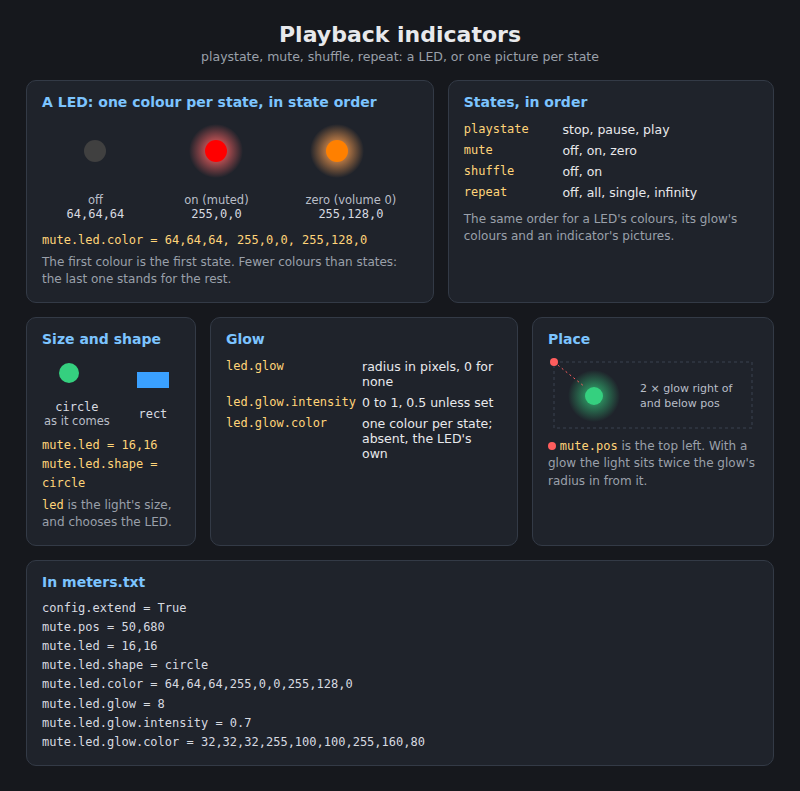
Volume, mute, shuffle, repeat, play state and progress, in a section with config.extend = True. Each is a LED, a coloured shape with a glow, or a set of pictures, one per state:
config.extend = True

mute.pos = 50,680
mute.led = 16,16
mute.led.shape = circle
mute.led.color = 64,64,64,255,0,0,255,128,0
mute.led.glow = 6

playstate.pos = 50,640
playstate.icon = stop.png,pause.png,play.png
playstate.icon.glow = 4

repeat.pos = 344,223
repeat.icon = repeat_off.png,repeat_all.png,repeat_single.png,repeat_infinity.png

volume.pos = 580,150
volume.dim = 42,256
volume.style = slider
volume.slider.tip = fader_tip.png
volume.slider.orientation = vertical
volume.slider.travel = 5,211

progress.pos = 50,700
progress.dim = 400,4
progress.color = 0,200,255
progress.bg.color = 40,40,40
Infinity belongs on repeat as its fourth file; shuffle keeps two. Volume and progress each come as a number, a drawn or picture slider, a knob or an arc; the reference has every style with its drawings.
Volumio shares its Internal Storage folder on the network, and the theme folders live in it: \\<player>\Internal Storage\glass\templates, with templates_spectrum beside it. Turn on "Let computers on the network edit the themes" on the Manager's System tab, and every theme folder is writable from any computer on the share, so a skin can be edited where it runs; put the theme on show, change meters.txt or a picture, and choose the meter again on the Themes tab to see the change. Off, the folders can be read over the share but not changed. A finished theme travels as a zip, which the Manager installs from a browser on any machine.
A skin can be a dashboard. With config.extend = True and interactive = True in a meter's section, its playback indicators act when tapped, and button.<name>.pos, image or size, and action add buttons of the skin's own: play or pause, next and previous track, next and previous meter, mute, random, repeat. Two pictures in image, rest.png, active.png, give a button an active look: the second shows while the button is active, play while playing, mute while muted, and the momentary ones while a finger is on them; three or more, repeat_off.png, repeat_all.png, repeat_single.png, are one per state of the action. A control's touch region is at least 48 pixels each way, centred on it (touch.margin, 24 unless set, is half of that), so keep controls apart. The Meters-Reference has the keys and the actions. Whether the controls act at all is the listener's setting, "Interactive controls", which takes the skin's word by default; the same skin acts the same on the player's screen, on remote displays and in the browser (Anymote).
A text position's third value is its style, light, regular, bold or italic, and the style sets the font and the size (font.size.<style>). maxwidth gives a field its box; longer text scrolls inside it. playinfo.align sets left, center or right when the text fits. The ticker is one endless line with artist, title and album (playinfo.ticker = True and playinfo.ticker.pos). The volume can stand on a skin as a number, with words of your own around it: volume.value.pos = x,y,bold, volume.value.format = VOL {} %, volume.value.mute = MUTE (the Meters-Reference has every key). Times are time.remaining.pos, time.elapsed.pos and time.total.pos, each with its own colour; in the digital style (no style word) each may name its own font file and size, a file in the skin's folder or under the player's font.path, and in a text style it takes that style's font. Which font each style is set in comes from the player, not the skin, chosen per style on the Manager's Appearance tab: by default the built-in multi-script set, PeppyFont, which covers Latin, Cyrillic, Greek, Arabic, Hebrew, Thai, the Indic scripts and Chinese, Japanese and Korean; or a font the listener uploaded there; or one of the fonts under the meter configuration's font.path. A font a skin names for a field is used as named. In every case a character the face lacks is taken from the built-in regular face, glyph by glyph, so a skin's font need not cover every script a library holds.
A skin can show pictures from the playing track's folder in up to five boxes, folderlayer.1.pos and folderlayer.1.dimension with the file names to try, behind the meters or above them; and offer a fanart box, fanart.pos and fanart.dimension, that the listener fills from the Appearance tab. The Artwork page has where the pictures come from.
Put flac.png, wav.png, tidal.svg and so on under format-icons/ in the skin's folder to draw your own; a PNG is drawn as authored, an SVG is tinted with playinfo.type.color. playinfo.type.mode shows an icon, a text label, or both. A track of a cue sheet, for which the player names no type, takes cue.png (from 0.8.56). A radio's icon can follow its signal and whether it comes in mono or stereo: fm_3.png for FM at 3 of 5, fm_mono.png for a mono station, fm_stereo_4.png, dab_5.png, and so on (from 0.8.66, stereo from 0.8.69; the Themes page has the names tried and their order).
On a player whose screen glass-evo holds, a bar of controls, a clock and a date are drawn over the skin. A face.txt in the skin's folder sets how they look while the skin is on show: their colours, how solid their backgrounds are, the clock's face, the sizes. Write only what the skin needs, such as a tint and an ink that suit its background; everything else stays as the user has it, and what the user adjusted in the Manager stands over the skin's word. The keys are on the glass-evo wiki's Face themes page. From glass-evo 0.1.26.
- Upload the zip on the Themes tab, or copy the folder to the player. The Manager's previews show every meter at once; a picture missing shows as a gap.
- Put the skin on show and play a track with album art, then a stream, then pause: needles, art, texts, times, the arm and the reels through their states.
- For a closer look, the display renders the skin from the command line without touching the player's configuration:
glass --headless --snapshot out --theme 1280x720_MyDeck --settle 2
glass --dev --theme 1280x720_MyDeck --meter "My Turntable"
--dev opens a movable window at the theme's exact size with the theme and meter in its title bar, on the player's desktop or on any machine with the theme in a Glass home; without it the display takes the whole screen.
- A picture the display cannot read is left out, and the journal does not name it: look for the gap in the Manager's previews. A cut of the skin (Tailor) names every picture
meters.txtasks for and the folder does not hold.
| What you see | Look at |
|---|---|
| A picture missing | The file name's case, and that the file sits in the skin's folder. |
| The needle pointing the wrong way |
start.angle and stop.angle, and how the needle is drawn in its picture. |
| A record or reel turning about the wrong point |
vinyl.center and reel.<side>.center are screen coordinates, not points inside the picture; the picture's own centre is put there. |
| The arm off the record |
tonearm.pivot.image against the picture, then the three angles. 0 points right, negative turns clockwise. |
| Album art turning or cut round when it should not |
albumart.rotation = True cuts the art round where no mask shapes it, and turns it with a speed above 0. |
| Text cut and not scrolling | The sample rate line is clipped at its maxwidth and does not scroll; every other field scrolls inside its box. |
| The sample rate will not sit under the format icon | Give the line a box, playinfo.samplerate.maxwidth, as wide as the icon's and the same x, and centre it: a meter with playinfo.center = True centres it by itself, and playinfo.samplerate.align = center does it for the line alone (from 0.8.33). playinfo.type.align is the icon's own and does not move the line. |
| Something drawn over or under the wrong thing | The drawing order above; the foreground is the top. |
| The skin heavy on a small player | A large spectrum, an analyser with rounded or outlined bars or a see-through box, pictures larger than their boxes. |
Press Package on the skin's card on the Manager's Themes tab: the zip downloads in the collection's layout, the skin with its spectrum twin and a preview of its meters. Open a pull request on glass_templates with it; the Tailor page has the rest. The catalog's index is generated from the repository, and every Glass player sees the skin on its Catalog tab.