Repository navigation
Catalog and Custom Items
The Catalog tab lists every item you can add: the core equipment from the System Reference Document 5.1 (weapons, armor, ammunition, adventuring gear, containers, equipment packs, tools and more), plus your own custom items.
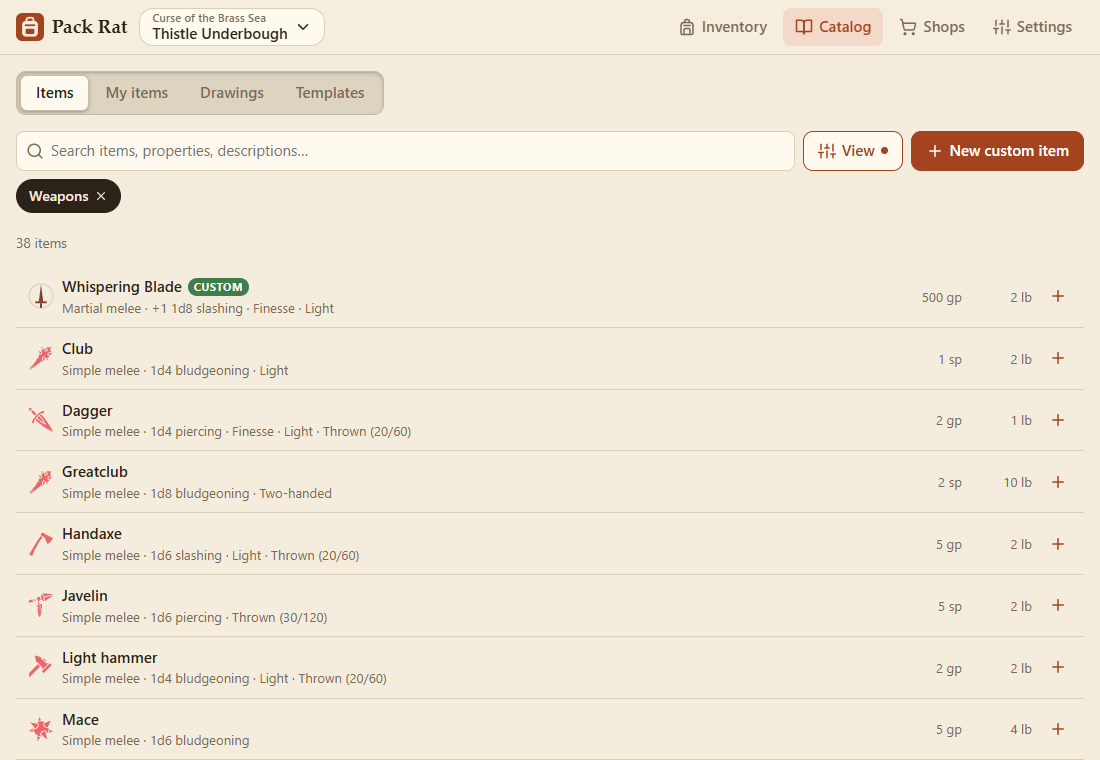
It has the inventory's tools (see Your Inventory):
- Search by name, property or description.
- Sort by catalog order, name, type, heaviest or most valuable.
- View (beside the search) has the filter chips: a top template (Weapons, Gear & Tools…), then rows to narrow it: the templates under it and its categories (Gear & Tools ▸ Tools ▸ Artisan's Tools; Light or Heavy armor). The chip under the search says what's chosen. Custom shows only your items. The search keys and suggestions work here too (see Your Inventory).
- Switch between a list and tiles.
- + adds an item to your inventory straight away (on tiles: press and hold it and choose Add to inventory); tap an item for its details, then Add or Buy. Long lists show 150 at a time, with Show more.
On a wide screen, the top templates (Weapons, Armor, Gear & Tools…) and the other tabs (My items, Drawings, Templates) run down the side, with the chosen one's kinds under it (Tools, then Artisan's Tools…), and an item's details open on the right.

Make a homebrew weapon, a family heirloom, or a +1 version of something from the catalog:
- New custom item (Catalog → Items) or New item (Catalog → My items), then pick a template.
- Customize on any catalog item makes an editable copy of it.
- Save as custom in an inventory item's details makes it reusable.
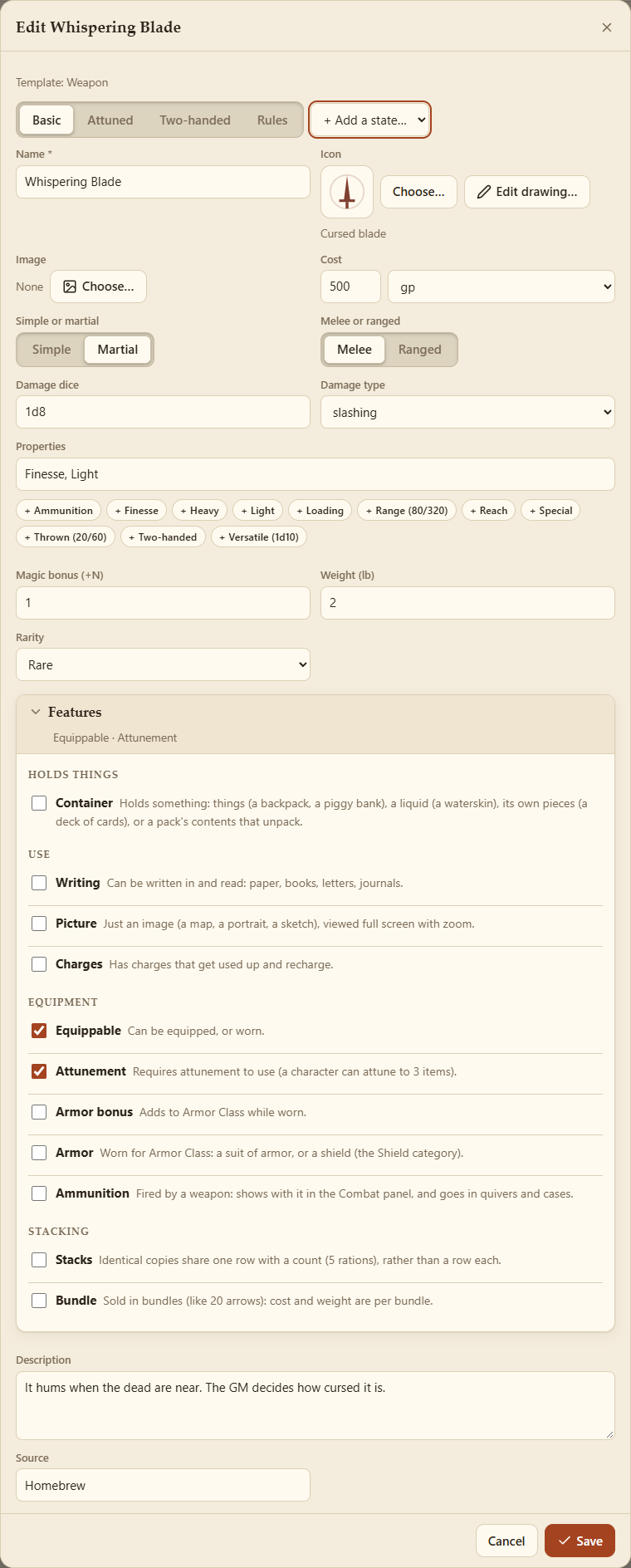
The form shows the fields for the item's type (damage for weapons, AC for armor…), plus its icon, an optional image, cost, weight, rarity and description. What the item can do (hold things, have charges, need attunement…) is in the Features panel: see Item Features.
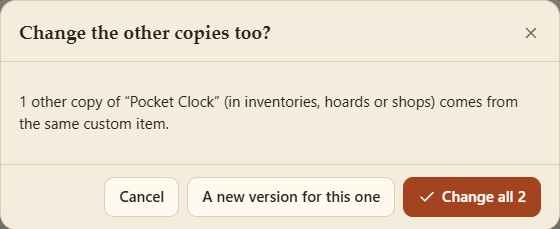
Every item in an inventory (or a hoard, or a shop) is a copy of its catalog item, and follows it: change a custom item and every copy changes.
- Edit on an inventory item saves the change in the catalog. A copy of a built-in item gets a custom item of its own (the built-in one stays as it is). A copy of one of your custom items changes it, but if other copies have it too, Save asks: Change all, or A new version for this one. A new icon from an item's details works the same way.
- A copy's own things stay its own: its display name, notes, count, charges, states and liquid, and what's written or drawn on it (a letter, a map).
- Deleting a custom item that copies still have takes it off the catalog; the copies keep it until they're gone.
- Items from elsewhere (another player's custom items, treasure) become custom items of yours, so they follow the catalog too.
The Catalog tab has four sub-tabs: Items (the catalog), My items, Drawings (icons you've drawn: see Drawn Icons) and Templates.

Custom items come in rule packages, shared between campaigns: My items lists the packages this campaign uses, each with its items. New items go into the package marked new items go here (or use a package's own New). Make, rename and export packages in Files.
A template decides an item's fields and what its items can do. The built-in templates come with the campaign's game system (see Files); your own belong to rule packages. The only difference is that you can edit and delete your own.
Templates nest: one under another is a kind of it. The top ones are the filters and colours (D&D 5e: Weapon, Armor, Gear & Tools, Consumables, Container, Magic Item, Treasure & Trinkets, Document); Gear & Tools has Adventuring Gear, Tool and Equipment Pack under it, Consumables has Potion or Supply, Ammunition and Poison. A template's categories are the next level down (Tool: Artisan's Tools, Gaming Set…).
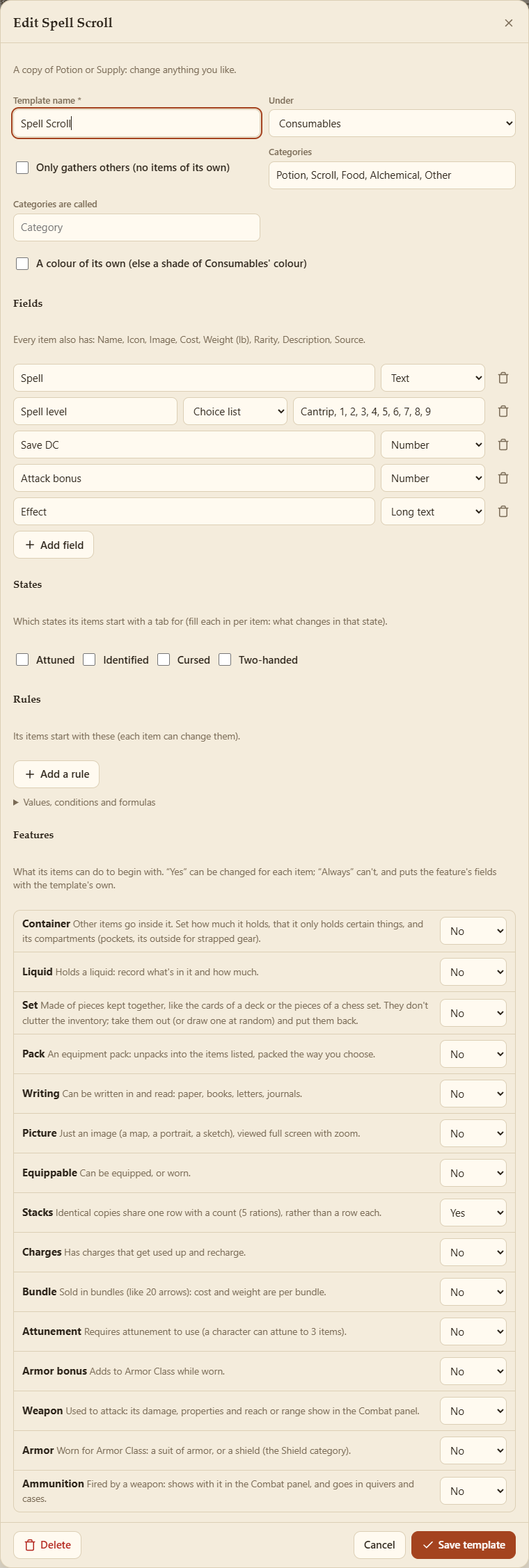
Make one by copying any template, built-in or yours (a Firearm copied from Weapon is still a weapon in the Combat panel), or start from a blank one. In the editor:
- Name, Under (a top template, a filter of its own, or under any other), Only gathers others (a template with no items of its own, like Gear & Tools), Categories (and what they're called).
- Colour: a top template has its own; under another, a shade of that one's unless you give it A colour of its own.
- Fields: text, long text, number, yes/no, a choice list, tags or dice. A copy starts with the fields of the template it came from; change or remove any of them. Every item also has a name, icon, picture, cost, weight, description and so on.
- Features: what its items start able to do (see Item Features).
- States and Rules: which states its items start with a tab for (identified, attuned, cursed…), and the rules they start with (see Item States and Rules). Yes means items start with it and each can be changed; Always means every item has it, with its fields among the template's own (as a weapon's damage is). Spiked armor can be Armor, always, and a Weapon too.
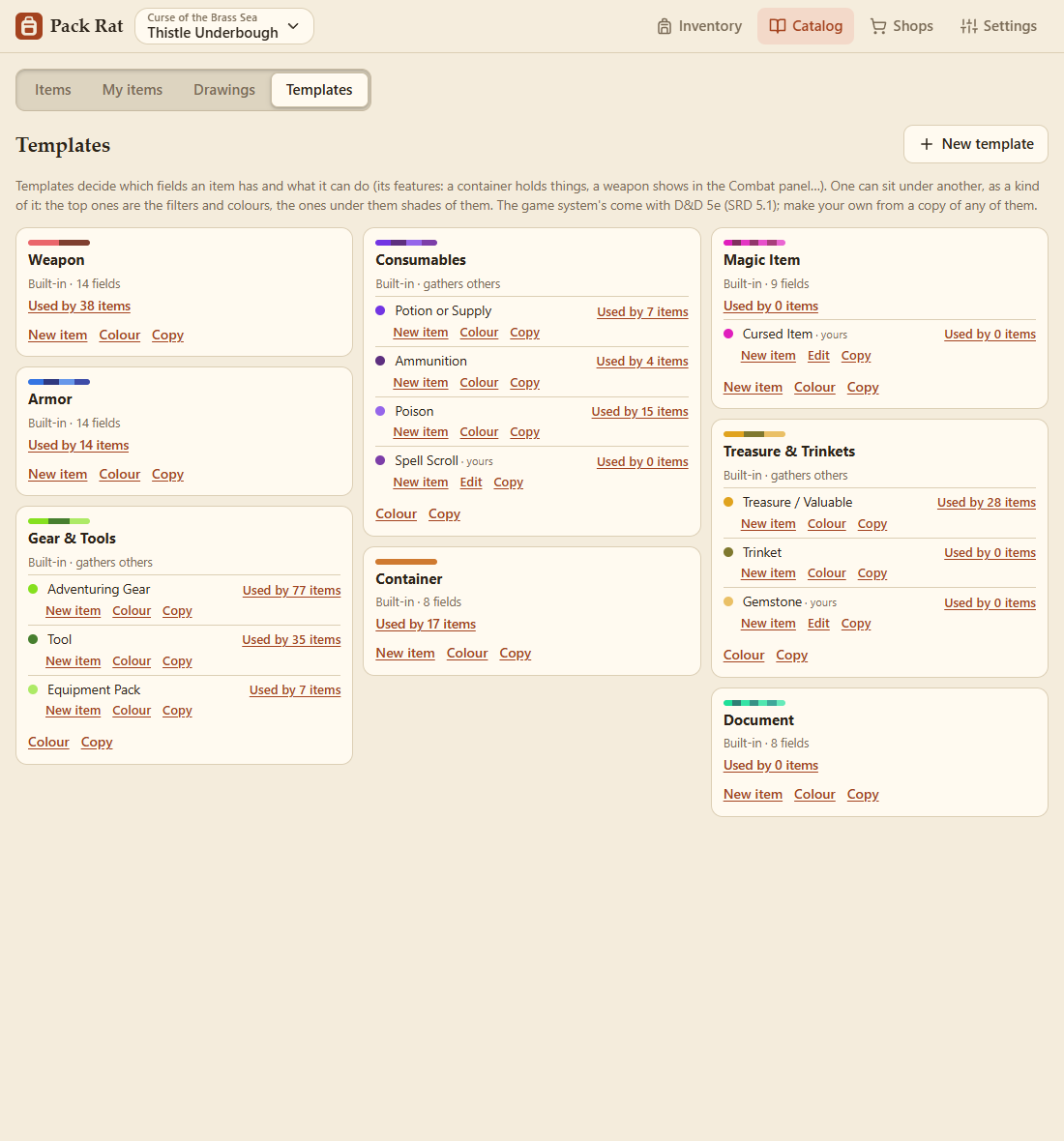
- The Templates tab has a tile for each top template, with the ones under it (yours marked) listed in it, each with its own New item, Colour (built-in) or Edit (yours), and Copy.
- Copy on any template starts a new one from it, under the same template (New template asks which to copy, or offers a blank one).
- Deleting a template items still use leaves it, faded, as Deleted · still used by N items (with Restore), until no item uses it; the templates under it move up a level.
- Example templates from the game system you haven't got show with dashed edges: Add to my templates adds one. D&D 5e's are Spell Scroll, Gemstone and Cursed Item.
- With no game system there's one plain template, Item, to make others from.
- New item on a template makes an item with it.
- Used by N items shows them in the catalog (a search for the template).
Each top template (Weapons, Armor, Gear & Tools…) has a colour, used for its items' icons and tile edges. The templates under it, and its categories, get different shades of it, arranged so neighbours contrast; a template's categories are a little lighter or darker within its shade. Colour on a built-in template's tile picks the hue (saved on your device); your own templates' colours are in their editor.
Every item gets a fitting icon automatically (a longsword gets a sword, a lute a lute). Choose… next to the icon picks any of over 200 icons, or one of your drawings.
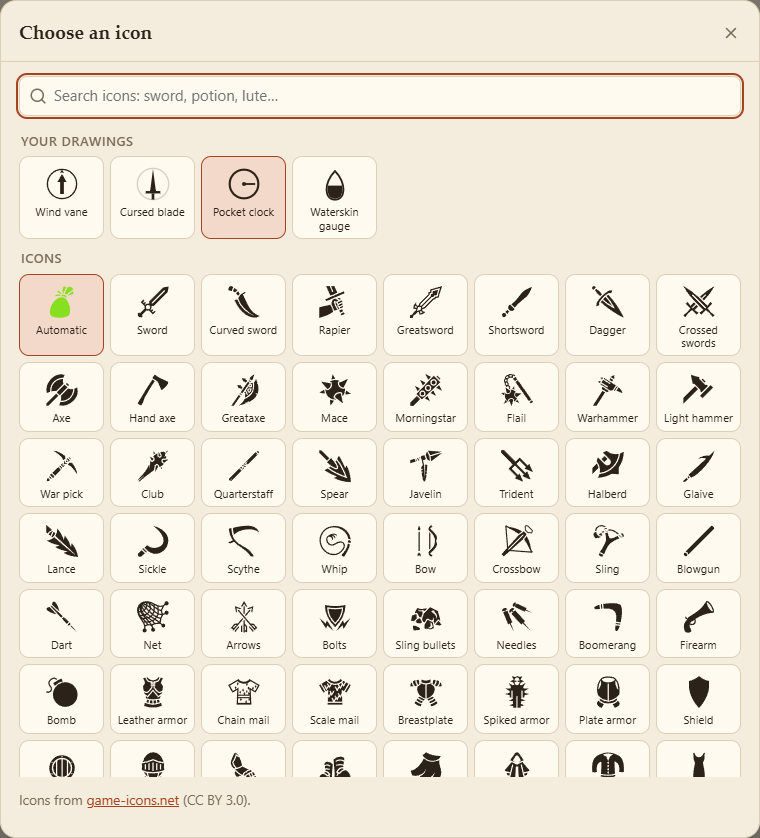
To draw your own, see Drawn Icons.